


- Name WhatsApp
- Category Social
- Available on PC
- OS Windows 10 version 19041.0 or higher
- Keyboard Not specified
- Mouse Not specified
- languages Afrikaans, Albanian, Arabic, Azerbaijani, Bangla, Bulgarian, Catalan, Chinese (Simplified), Chinese (Traditional), Chinese (Traditional, Hong Kong SAR), Croatian, Czech, Danish, Dutch, English, Estonian, Filipino, Finnish, French, German, Greek, Gujarati, Hebrew, Hindi, Hungarian, Indonesian, Italian, Japanese, Kannada, Kazakh, Kiswahili, Korean, Latvian, Lithuanian, Macedonian, Malay, Malayalam, Marathi, Norwegian (Bokmål), Persian/Farsi, Polish, Portuguese (Brazil), Portuguese (Portugal), Punjabi, Romanian, Russian, Serbian (Latin) (Serbia and Montenegro (Former)), Slovak, Slovenian, Spanish, Swedish, Tamil, Telugu, Thai, Turkish, Ukrainian, Urdu, Uzbek, Vietnamese
WhatsApp for Windows: Seamlessly Staying Connected on Your Desktop
WhatsApp for Windows offers a streamlined way to access your favorite messaging platform directly from your desktop, bridging the gap between mobile convenience and desktop productivity.
Basic Information: A Rock-Solid Messaging Companion
Developed by WhatsApp Inc., this app aims to bring the core functionalities of WhatsApp messaging to Windows users, ensuring they stay connected without constantly toggling between devices.
- Main Highlights: Real-time message synchronization, integrated media sharing, notification support, and efficient connection management.
- Target Audience: Busy professionals, students, and anyone who prefers typing on a full keyboard while remaining synced with their mobile chats.
An Elegant Bridge Between Mobile and Desktop
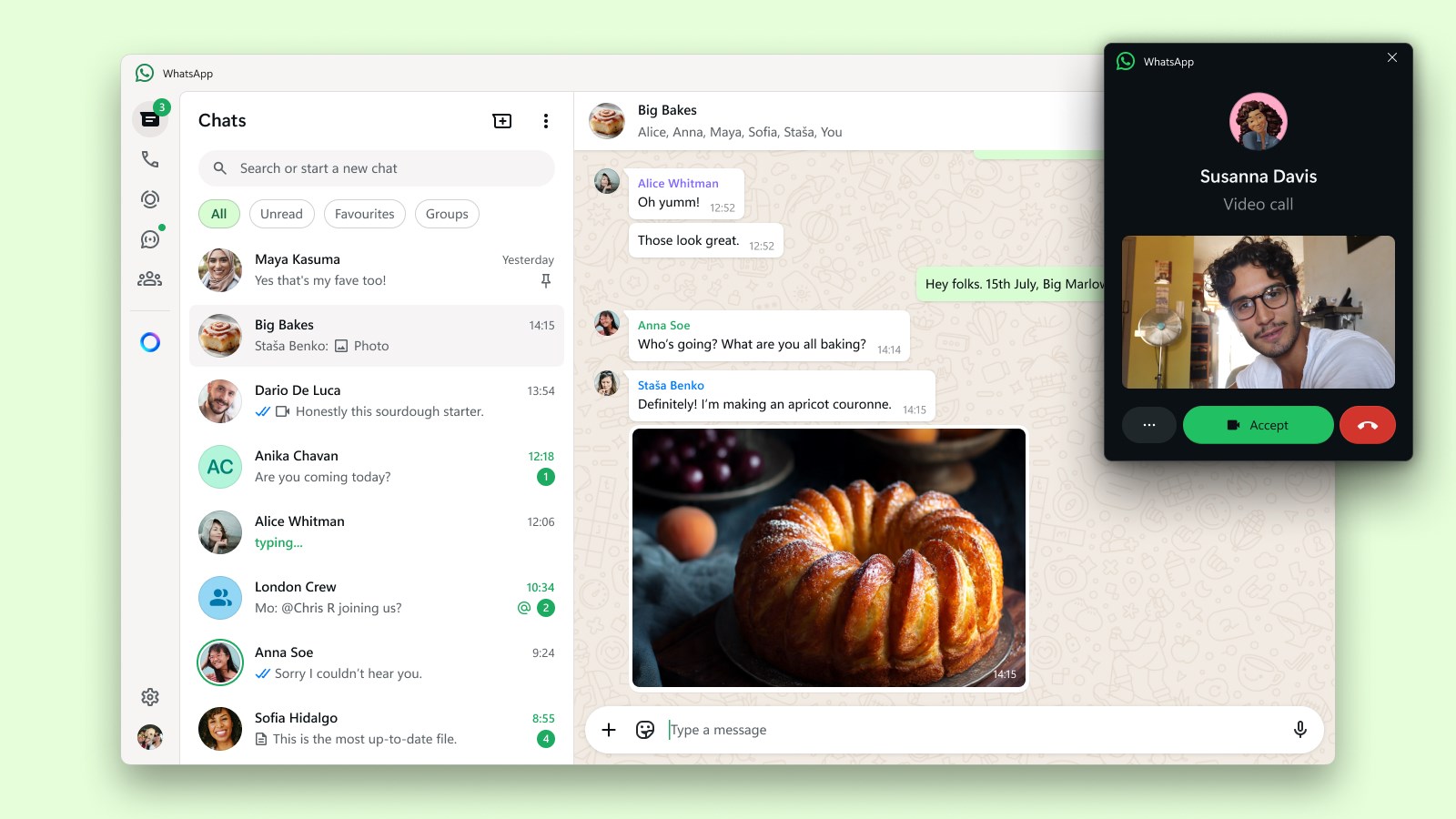
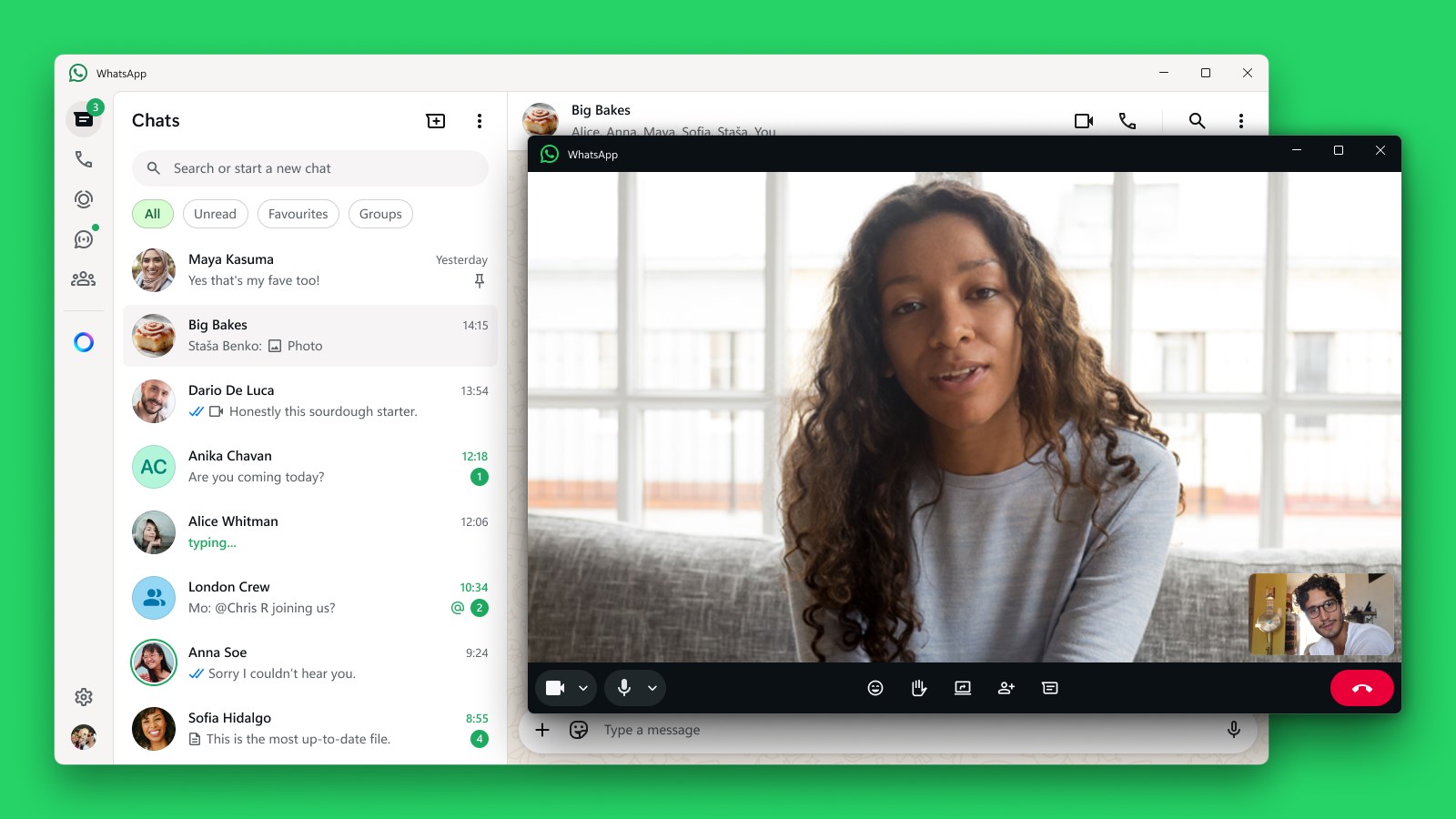
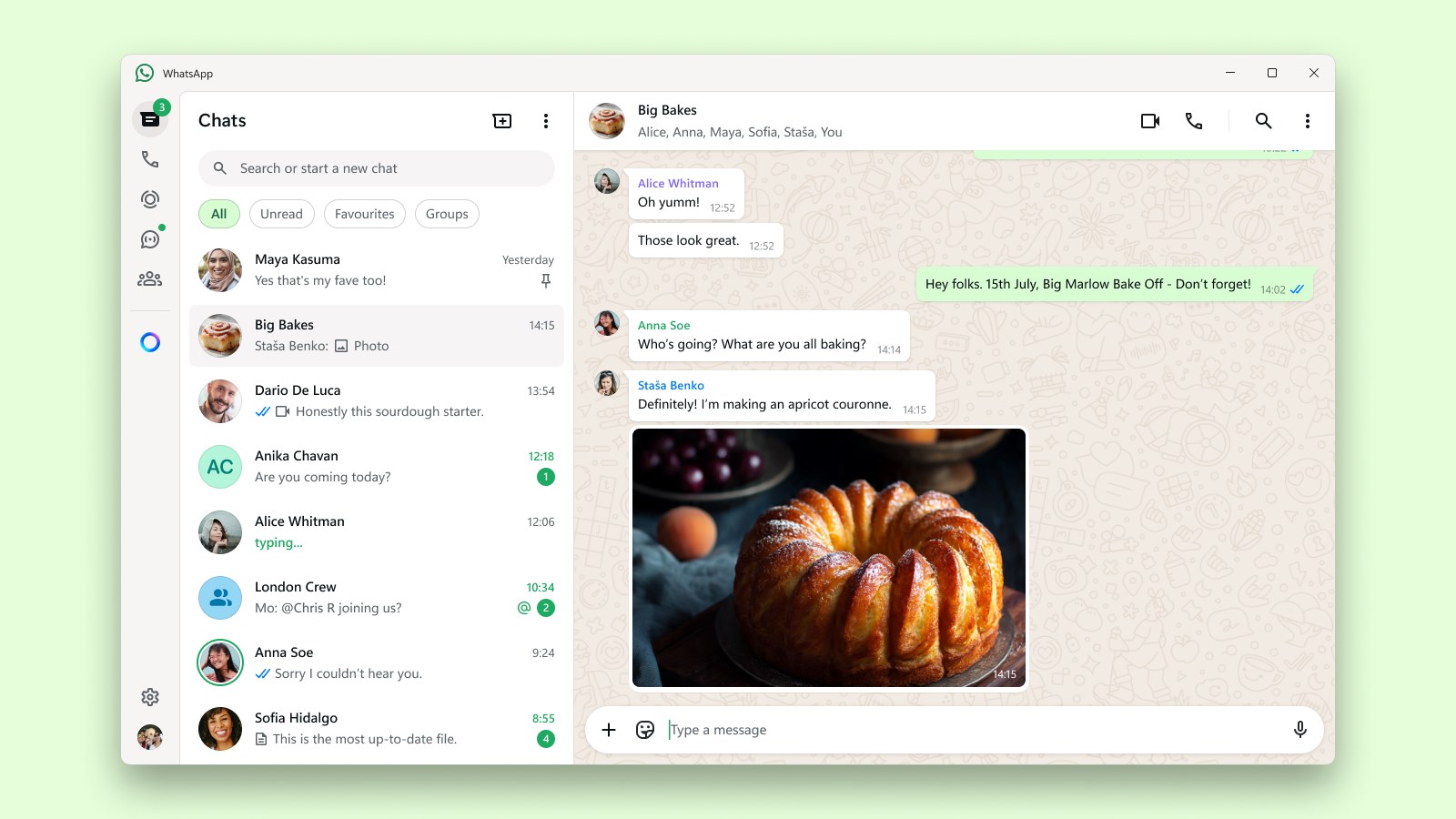
Imagine sitting at your desk, coffee in hand, with your conversations unfolding seamlessly on your screen—WhatsApp for Windows makes this a reality. Its interface is intuitive, inviting users to start chatting instantly. The app's design echoes a familiar WhatsApp aesthetic, yet it's adapted perfectly for desktop ergonomics, providing an experience that's both familiar and optimized for mouse and keyboard input.
Switching between chats feels smooth, almost like flipping pages in a well-worn book, thanks to its responsive UI and fluid performance. No lag, no clunky transitions—the app feels reliable and ready to keep up with your busy communication rhythm.
Core Features in Depth
Instant Messaging and Media Sharing
The heart of WhatsApp for Windows is its real-time messaging capability. Once synced with your mobile device through a QR code, your desktop essentially becomes an extension of your phone. Sending and receiving text, images, videos, and documents is as quick and natural as typing on your keyboard. Sharing media is straightforward, with clear icons and drag-and-drop support, making it feel as effortless as passing notes in class—only now, it's digital and secure.
Connection and Syncing: Your Conversations Always Up-to-Date
This app harnesses the power of continuous synchronization, meaning your messages appear instantly whether you're on your phone or desktop. The connection stability is impressive; even with fluctuating internet, it maintains a steady link, ensuring you won't miss out. This smart syncing reduces the friction of switching devices, giving you a unified chatting experience that's almost magical—no more waiting to catch up on missed messages.
Enhanced User Experience and Unique Differentiators
The interface design is clean and clutter-free, embodying minimalism that emphasizes usability. The app initiates with straightforward setup—scanning a QR code with your mobile device, as simple as waving a magic wand. The learning curve is gentle, perfect for users familiar with WhatsApp on their phones.
Beyond basic messaging, this version introduces some distinctive features that set it apart from other social apps:
- User Profile Customization & Authenticity Verification: Users can set profile pictures and status messages directly from the desktop, maintaining a consistent digital persona. Verification badges and security measures help confirm the authenticity of contacts, reducing the risk of impersonation in a landscape rife with scams.
- Connection Discovery: Unlike many chat apps, WhatsApp for Windows actively helps discover and connect with nearby contacts or those in your existing network, making new connections more organic and less intrusive.
Final Verdict: Practical, Reliable, and Slightly Cozy
I'd recommend WhatsApp for Windows to anyone who seeks a familiar, dependable messaging experience on their desktop. It's not overly flashy, but it excels in delivering core functionalities with precision and subtlety. Whether you're a professional needing quick responses or a casual user catching up on conversations, this app feels like a trustworthy digital companion.
For those who prioritize smooth synchronization, media sharing ease, and the reassurance of verified contacts, this client will serve you well. Though it doesn't reinvent the wheel, it refines the existing WhatsApp experience, making your digital communications more integrated and effortless. Give it a try—you might find it becomes your go-to desktop messaging tool, bridging the gap between your phone and your workstation effortlessly.
Pros
- User-Friendly Interface
- End-to-End Encryption
- Multi-Platform Compatibility
- Rich Media Support
- Group Chat Features
Cons
- Limited Customization Options
- Dependence on Phone Number Verification
- Occasional Sync Delays
- Limited File Size for Media Sharing
- No Built-in Message Scheduling