

- Name Quick Optimizer
- Category Productivity
- Developer Pkzoid (Akash Siddique)
- Available on PC
- OS Windows 10 version 0.0 or higher
- languages English, English (United States)
Quick Optimizer for Windows: A Fresh Take on System Maintenance
Quick Optimizer for Windows stands out as a user-friendly tool designed to streamline your PC's performance effortlessly. With a simple yet effective approach, this application aims to optimize your system without the hassle often associated with more complex utilities.
Meet the Developers and Core Highlights
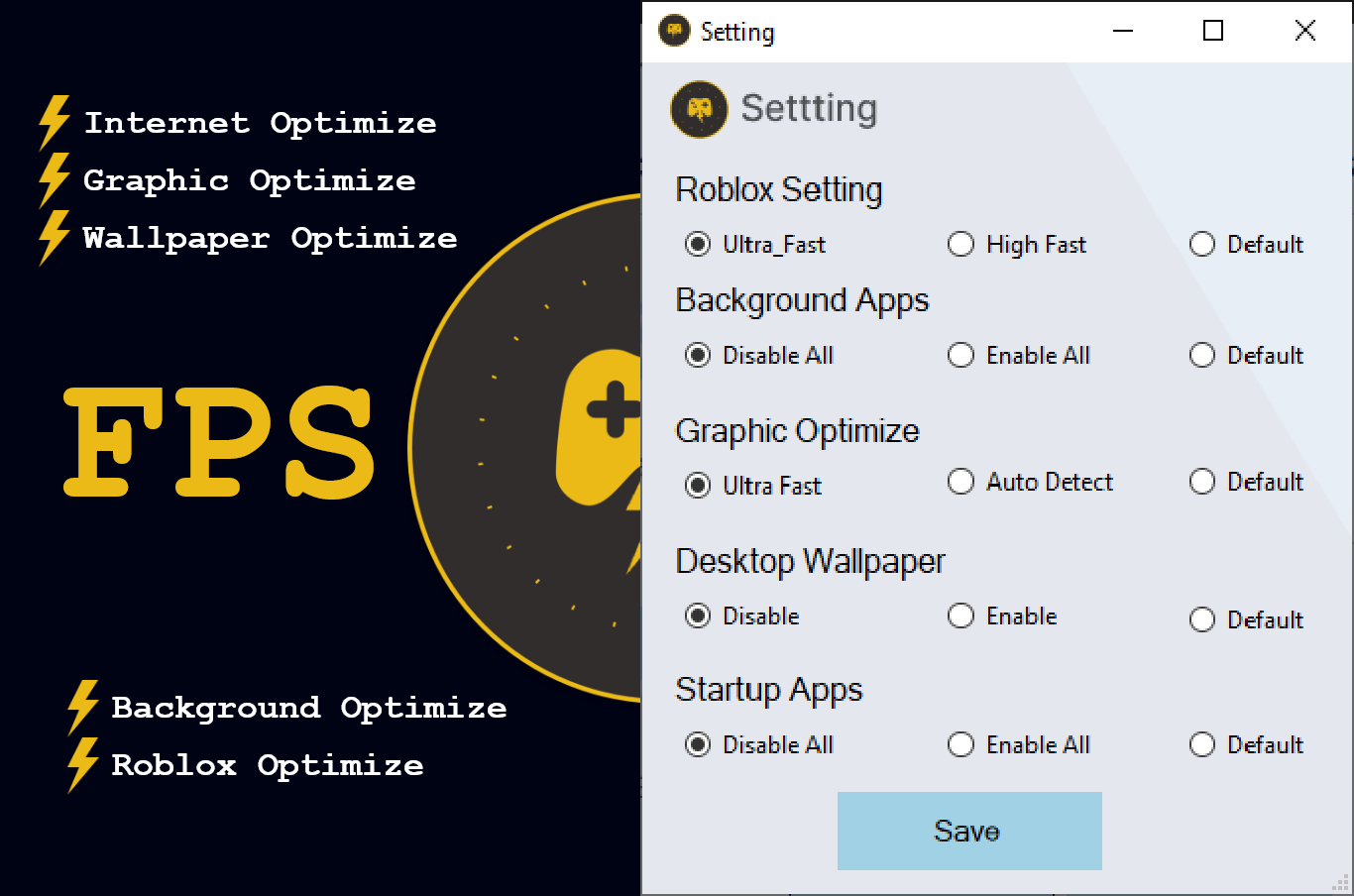
Developed and published by Pkzoid (Akash Siddique), Quick Optimizer targets Windows users seeking an accessible yet potent system management solution. Its main features encompass quick system scans for junk files, intelligent startup management, and one-click optimization routines. These functions collectively aim to improve system speed and stability with minimal user intervention.
The Experience: Navigating the Quick Optimizer Ecosystem
An inviting interface that simplifies the complex
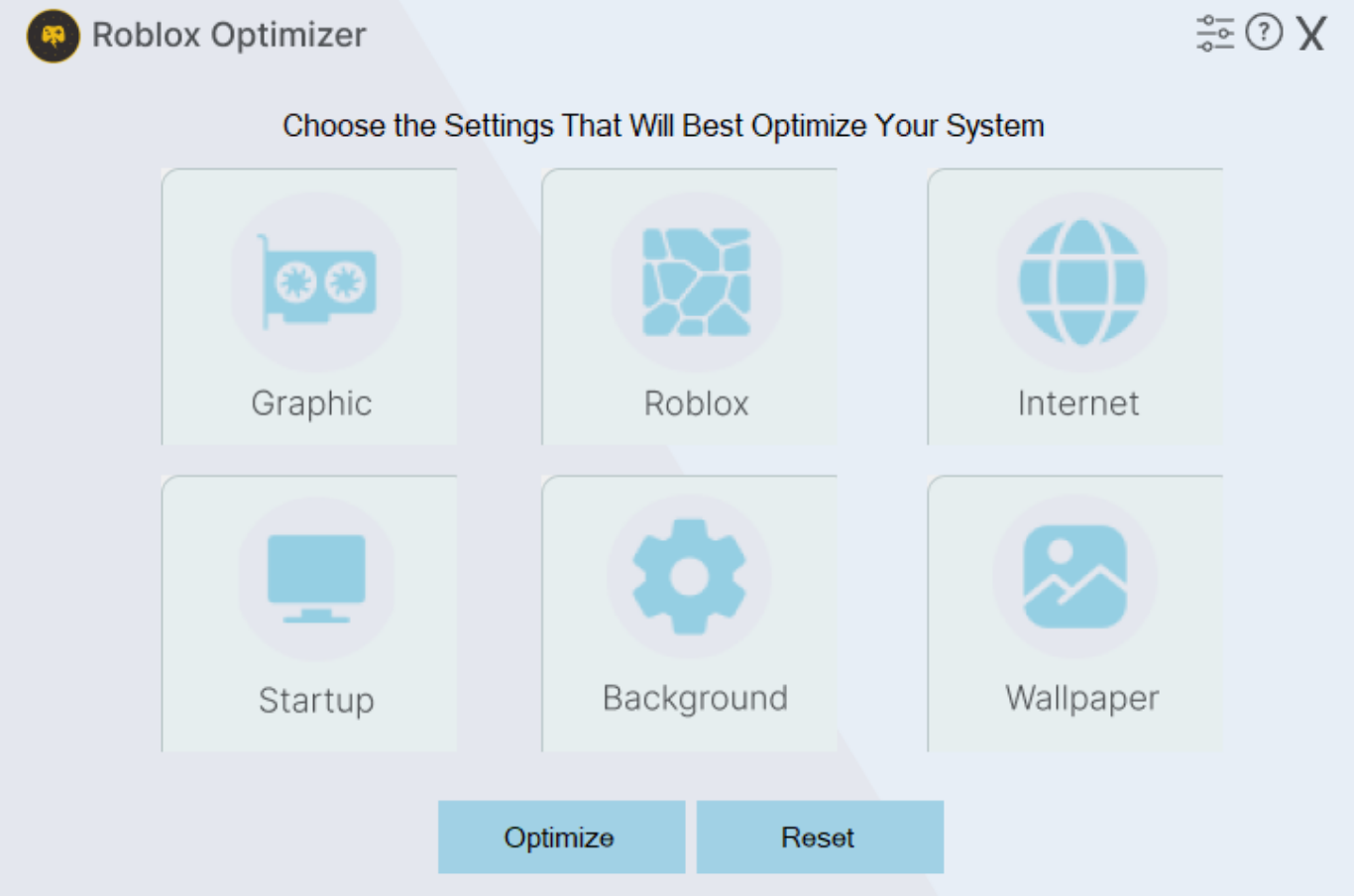
The application's layout resembles a friendly dashboard, with large buttons and clear labels that make navigation a breeze—much like having a helpful assistant guiding your weekly maintenance chores. The design is sleek yet straightforward, allowing even novices to feel confident while exploring its capabilities. Responsiveness is tight; menus load swiftly, and operations execute smoothly, creating an overall seamless user experience.
Efficient Workflow Integration: Cutting Through the Clutter
One of the standout features is how Quick Optimizer effectively reduces cognitive load. Unlike many feature-heavy tools that overwhelm users with options, this app distills its functionalities into one-click solutions, aligning well with users' natural workflow. For example, its automatic disk cleanup and startup management work in the background, allowing users to focus on what matters—completing tasks without unnecessary interruptions or the need to decipher complex settings. This approach reflects an intelligent effort to streamline system maintenance, making it an ally rather than an obstacle.
Key Features in-depth: Perform, Optimize, Repeat
- Smart Junk File Removal: The app scans and safely deletes unnecessary files cluttering the system—akin to tidying up a cluttered closet—without risking important data. Its intelligent algorithms prioritize safe cleaning, minimizing the risk of accidental deletion.
- Startup Optimization: Managing startup programs can feel like trying to organize a chaotic garage. Quick Optimizer simplifies this task by highlighting and disabling unnecessary programs with a single click, ensuring your system boots faster and runs leaner.
- One-Tap Optimization: The core highlight is the 'Optimize Now' button, which consolidates multiple optimization routines—think of it as a quick health check-up scanner. With one press, you get a holistic boost in performance, making it perfect for users who prefer simplicity over fiddling with detailed settings.
Comparative Edge: Why It's Different from Others
Unlike broader system utilities that pack countless features but often result in a steep learning curve and increased cognitive load, Quick Optimizer emphasizes workflow efficiency. Its most distinctive advantage lies in its ability to provide targeted, effective optimizations with minimal user input. For instance, its automatic detection of redundant startup items and safe junk file cleanup reduces user effort while maintaining system health. This focus on reducing feature complexity ensures users are less overwhelmed, and their cognitive resources are preserved for more important tasks—making it a practical choice for everyday users who prioritize usability over feature bloat.
Final Recommendations: Is It Worth a Try?
If your goal is a straightforward, efficient tool that quietly keeps your Windows system in check without the fuss, Quick Optimizer merits a spot in your toolkit. It's especially suitable for users who prefer a 'set-and-forget' approach, with its intelligent defaults and one-click operations. While it might not replace advanced troubleshooting tools, its simplicity and targeted functionalities make it a reliable, friendly companion for regular maintenance. I recommend giving this app a shot if you value clarity, speed, and minimalism in your system utilities.
Pros
- User-friendly interface
- Effective system cleaning
- One-click optimization
- Real-time monitoring
- Additional tools included
Cons
- Limited customization options
- Occasional false positives
- Minimal support for other languages
- No deep system diagnostics
- Lacks a detailed log of optimization history










