
- Name Snapchat
- Category Social
- Available on PC, HoloLens
- OS Windows 10 version 19041.0 or higher
- Keyboard Integrated Keyboard
- Mouse Integrated Mouse
- languages Arabic, Chinese (Simplified), Chinese (Traditional Chinese), Danish, English (United Kingdom), English (United States), Finnish, French, German, Hindi, Italian, Japanese, Norwegian (Bokmål), Polish , Portuguese (Brazil), Spanish (Mexico), Spanish (Spain), Swedish, Turkish
Snapchat for Windows: Your Favorite Social Platform Goes Desktop
If you've ever found yourself wishing Snapchat's spontaneity and fun could be enjoyed comfortably from your PC, this official Windows app might just be your new best friend. Bringing the familiar Snapchat experience to the desktop environment, it offers a seamless way to stay connected and expressive without switching devices.
A Quick Look at the App's Foundations
Developed by Snap Inc., the creators of the wildly popular Snapchat app, this Windows version aims to deliver the core social and multimedia features users love, now optimized for a larger screen and keyboard control. Its main highlights include instant access to Snap stories, chat functionalities with multimedia support, and some thoughtful improvements tailored for desktop use. The app primarily targets Snapchat enthusiasts who prefer a bigger interface or wish to integrate their social interactions more smoothly into their work or leisure routines.
Snapchat on the Big Screen: Making Social Collide with Comfort
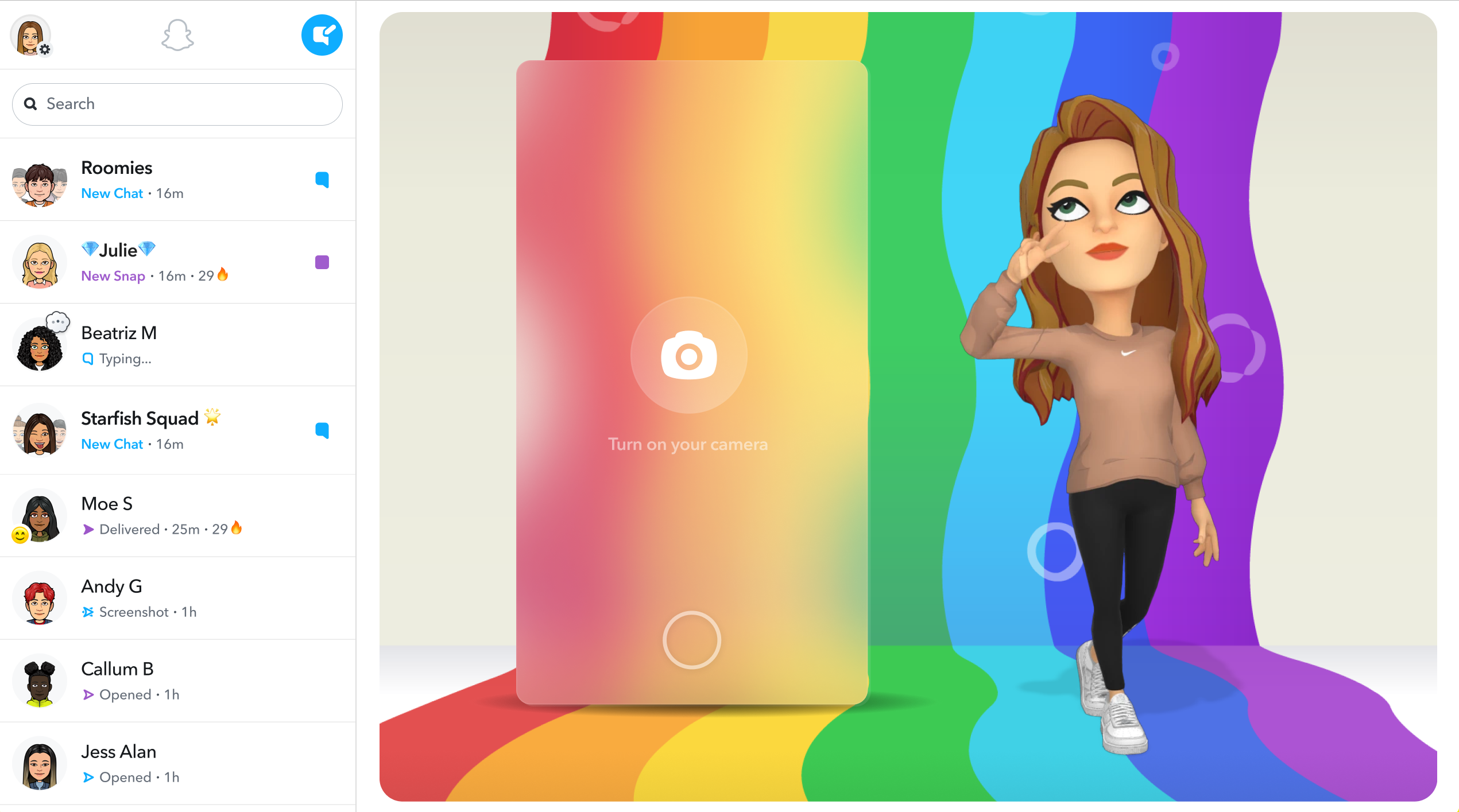
Launching Snapchat for Windows is like opening a window to your social world right on your desktop — it's simple, inviting, and surprisingly snappy. The interface mirrors the mobile app's clean aesthetic but adapts neatly for a mouse and keyboard, making browsing and messaging more effortless than ever. The app runs smoothly without major lag, although its performance may slightly vary depending on your PC specs, as most social media applications do. Overall, the learning curve is gentle; users familiar with Snapchat on mobile will find themselves navigating the Windows version almost instinctively, like slipping into an old, comfy sweater.
Core Features: Live the Moments on Your Desktop
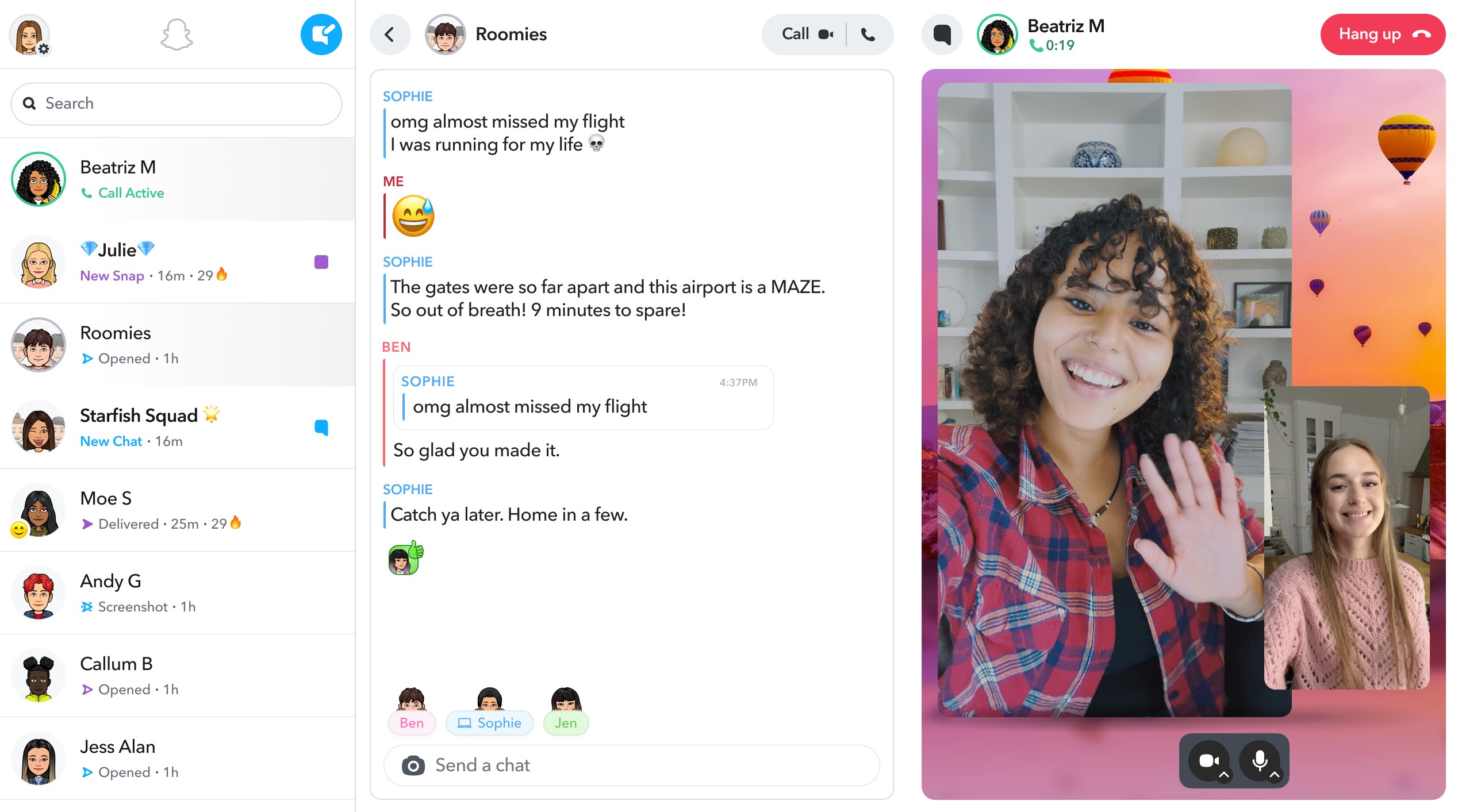
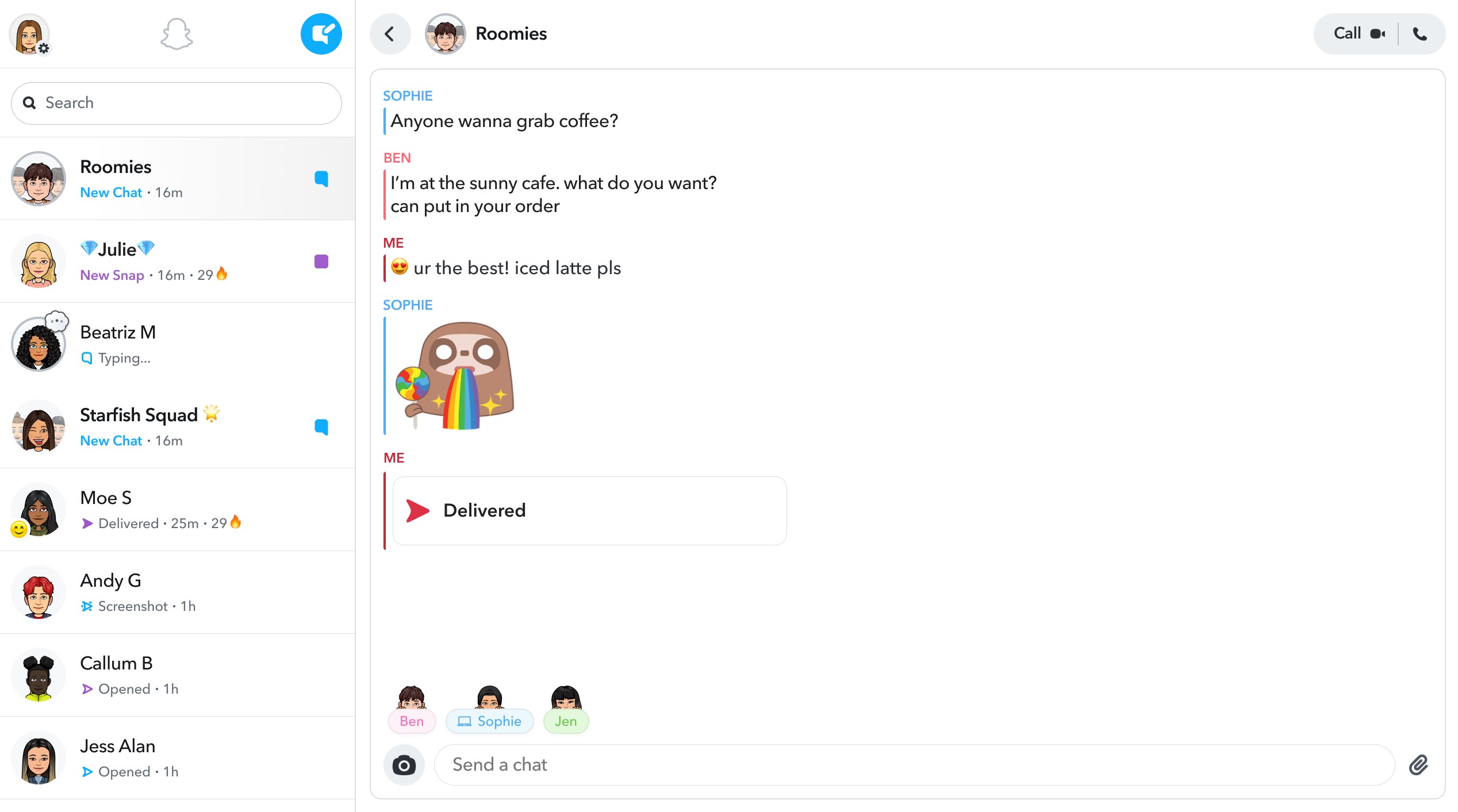
The centerpiece of Snapchat for Windows is undoubtedly its multimedia storytelling capability. Users can view friends' stories, catch up on the latest Snaps, and reply with their own images or videos. The app's media viewer is crisp and responsive, keeping the immersive feel of the mobile experience intact. Additionally, chat remains a vital part of the platform—text messages, voice notes, and multimedia sharing are all supported, making it a versatile communication hub. The chat interface is thoughtfully designed — it's straightforward, with quick access buttons for emoji, stickers, and photo sharing, making conversations lively and engaging. The app also maintains Snapchat's signature feature of ephemeral messages, adding an element of spontaneity and realness to interactions.
Enhanced User Experience and Unique Selling Points
Design-wise, Snapchat for Windows deploys a minimalistic layout that feels modern and inviting. The interface trades mobile's touch-centric gestures for familiar cursor controls, yet remains intuitive. The application's responsiveness is impressive, delivering smooth scrolling and quick media loading, which enhances the overall user experience. For users who may worry about a steep learning curve, the app's layout and functionality are largely intuitive, akin to a friendly dashboard rather than a complex software suite.
What sets Snapchat for Windows apart from other social apps is its focus on authenticity and user connection personalization. The app features advanced connection discovery options — it suggests friends or contacts based on your existing social circles, fostering more meaningful reconnections. Its verification system helps authenticate contacts, reducing the spam or fake profiles, thereby promoting genuine interactions. These features emphasize not just social connectivity but trustworthiness and personalized experience — key factors in today's digital social arena.
Final Thoughts: Is It Worth a Try?
Overall, Snapchat for Windows offers a compelling extension of the mobile experience, thoughtfully adapted for desktop use. It's particularly advantageous for users who want to keep up with their social circles during work hours without constantly switching devices — think of it as having Snapchat at your fingertips, whether you're on the move or desk-bound. We'd recommend it to avid Snapchat users seeking a more comfortable and efficient way to stay connected. For casual users, it presents a convenient alternative but might lack some advanced mobile-specific features. Nonetheless, with its focus on authentic connections and user-friendly design, Snapchat for Windows earns a solid recommendation for those looking to enhance their social media toolkit without sacrificing usability.
Pros
- User-Friendly Interface
- Effective Privacy Features
- Creative Filters and Lenses
- Strong Community Engagement
- Regular Updates with New Features
Cons
- Battery Consumption
- Limited Customization for Notifications
- Occasional Lag or Crashes
- Difficulty Managing Saved Snaps
- Limited Compatibility with Older Devices