- Name Printer Driver Install Manager
- Category Social
- Available on PC, Mobile, Surface Hub, HoloLens
- OS Windows 10 version 17763.0 or higher
- languages English (United States)
A Practical Solution for Printer Management on Windows
Printer Driver Install Manager for Windows, developed by Abigail, aims to streamline the often tedious process of installing and managing printer drivers on Windows systems. Designed for both casual users and IT professionals, this app promises simplicity, efficiency, and enhanced control over printer setups—making it a noteworthy tool in the realm of printer management applications.
Key Features That Stand Out
At first glance, Printer Driver Install Manager offers several compelling functionalities:
- Streamlined Driver Installation: Automates the process of installing and updating printer drivers, reducing setup time and minimizing errors.
- Driver Backup and Restore: Allows users to back up existing drivers and restore them when needed, safeguarding against driver corruption or incompatibility.
- Device Recognition and Compatibility Checks: Detects connected printers and checks driver compatibility, ensuring smooth operation across various devices.
- Batch Management Capabilities: Enables handling multiple printer drivers simultaneously, ideal for managing fleets of printers in office environments.
The app is designed with a clear focus on usability, making it accessible for users with varying levels of technical expertise while providing the depth of control that IT administrators require.
Engaging Evaluation: A User-Friendly Companion for Printer Setup
Imagine the frustration of fumbling through driver disks, battling compatibility issues, or sitting through long installation processes—Printer Driver Install Manager for Windows is like that dependable friend who comes prepared to lend a hand and save the day. Its intuitive interface and thoughtfully organized features transform what used to be a chore into a straightforward task that can be completed in just a few clicks.
Intuitive Design and Seamless Operations
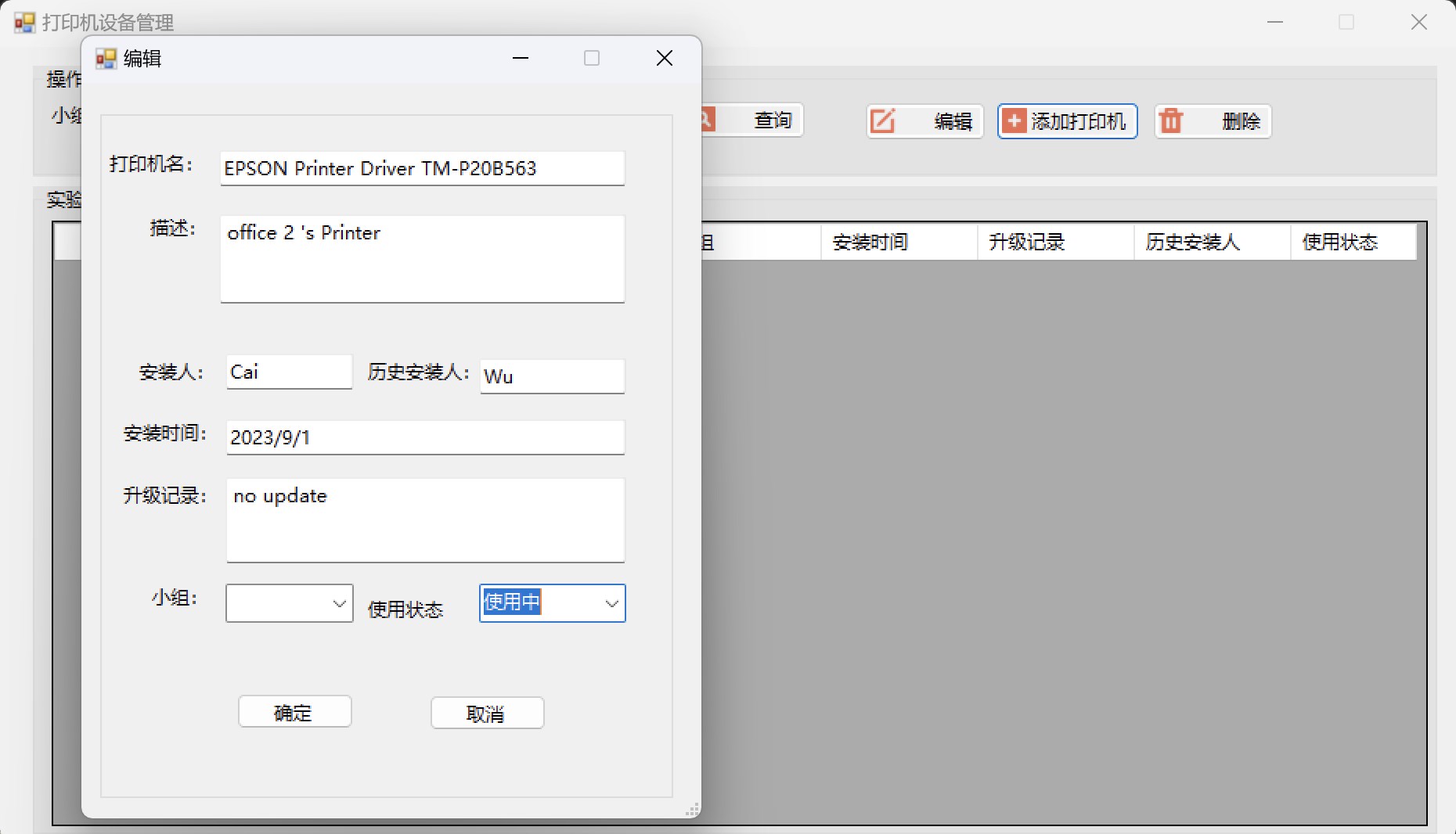
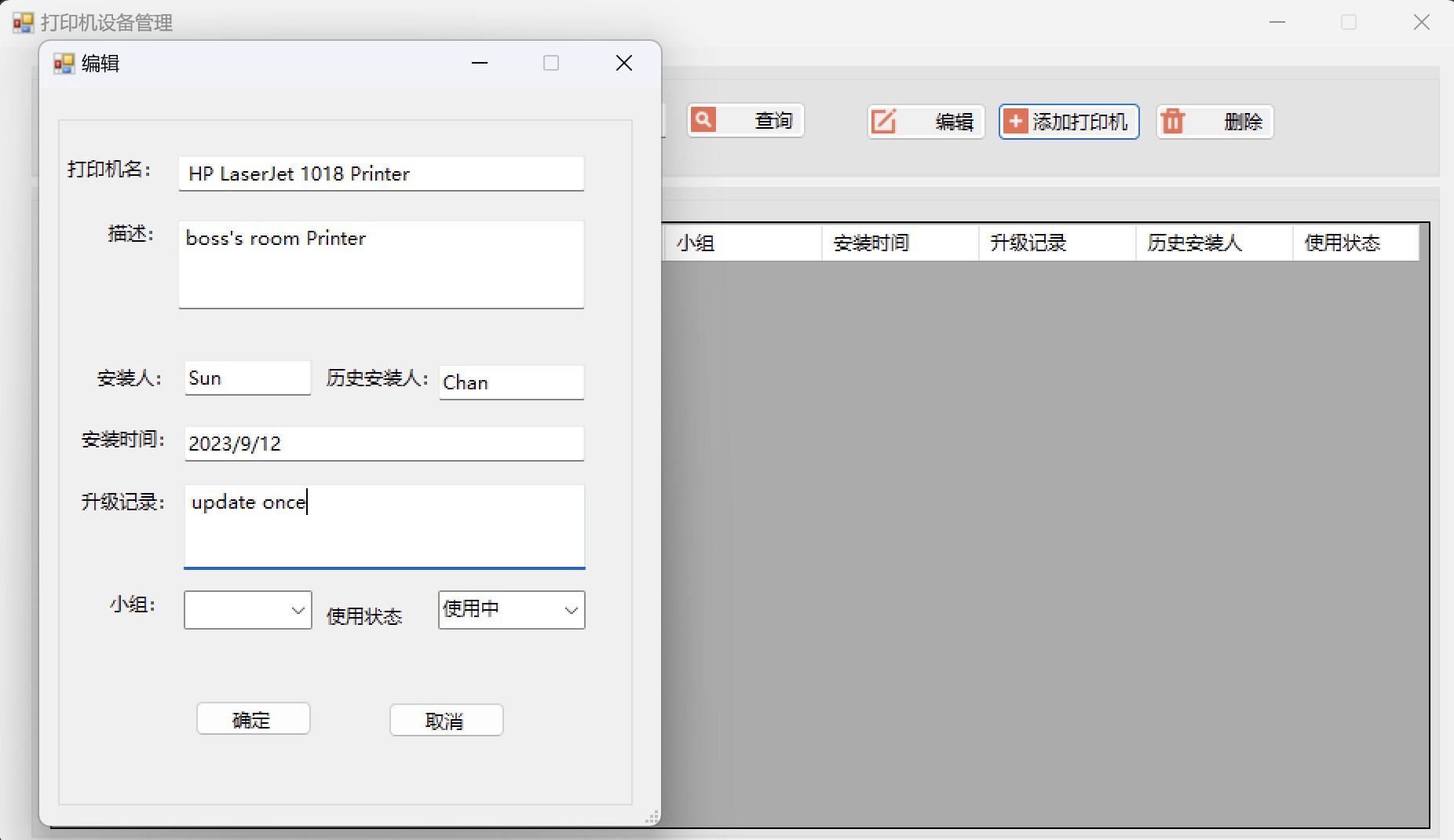
The app's user interface strikes a commendable balance between simplicity and functionality. With a clean layout and clear icons, even first-time users can navigate without a steep learning curve. The core functions—such as installing, updating, or backing up drivers—are accessible from the main dashboard, allowing quick access and minimal confusion. During testing, operations felt fluid; driver scans and installations completed swiftly, with progress bars keeping users informed, reducing uncertainty and impatience.
Furthermore, the app's learning curve is gentle; the minimalistic design and guided prompts help users familiarize themselves with advanced features without feeling overwhelmed. This makes it suitable not only for tech enthusiasts but also for everyday users seeking reliable printer management tools.
Unique Strengths in User Profile Customization & Device Compatibility
What sets Printer Driver Install Manager apart from other printer management apps is its emphasis on device recognition and driver compatibility verification. Unlike typical utility apps that merely facilitate driver installations, this application proactively detects connected printers and suggests optimal driver versions. It also verifies whether drivers are suitable for the specific device model and Windows version, minimizing post-installation issues.
This proactive approach echoes the concept of "connection discovery," similar to social apps that identify and connect with like-minded users or devices. By ensuring that each printer is paired with the most appropriate driver, the app reduces troubleshooting time and gender-criteria conflicts, leading to a more reliable printer experience.
Recommendation and Final Thoughts
Overall, Printer Driver Install Manager for Windows is a well-crafted tool that holds significant value for a broad audience—from casual users setting up a home printer to IT professionals managing large printer fleets. Its standout features lie in its efficient driver management and proactive compatibility checks, which truly ease the headache-inducing process of printer setup.
I would recommend this app to anyone frustrated with driver issues or looking for a reliable utility to streamline printer management. Its straightforward design, combined with intelligent features, makes it a practical addition to your system toolkit. For users seeking a robust, no-nonsense solution that minimizes setup hassles, this app is worth trying out.
Pros
- Streamlined printer driver installation
- User-friendly interface
- Reduces driver conflicts
- Supports a wide range of printers
- Automatic updates
Cons
- Initial setup can be complex
- Limited troubleshooting guidance
- Performance may vary with large driver files
- Requires internet connection for updates
- Occasional compatibility issues with older printers