
- Name XLSX
- Category Productivity
- Developer XLSX
- Available on PC
- OS Windows 10 version 14393.0 or higher
- languages English (United States)
An Efficient Companion for Managing XLSX Files on Windows
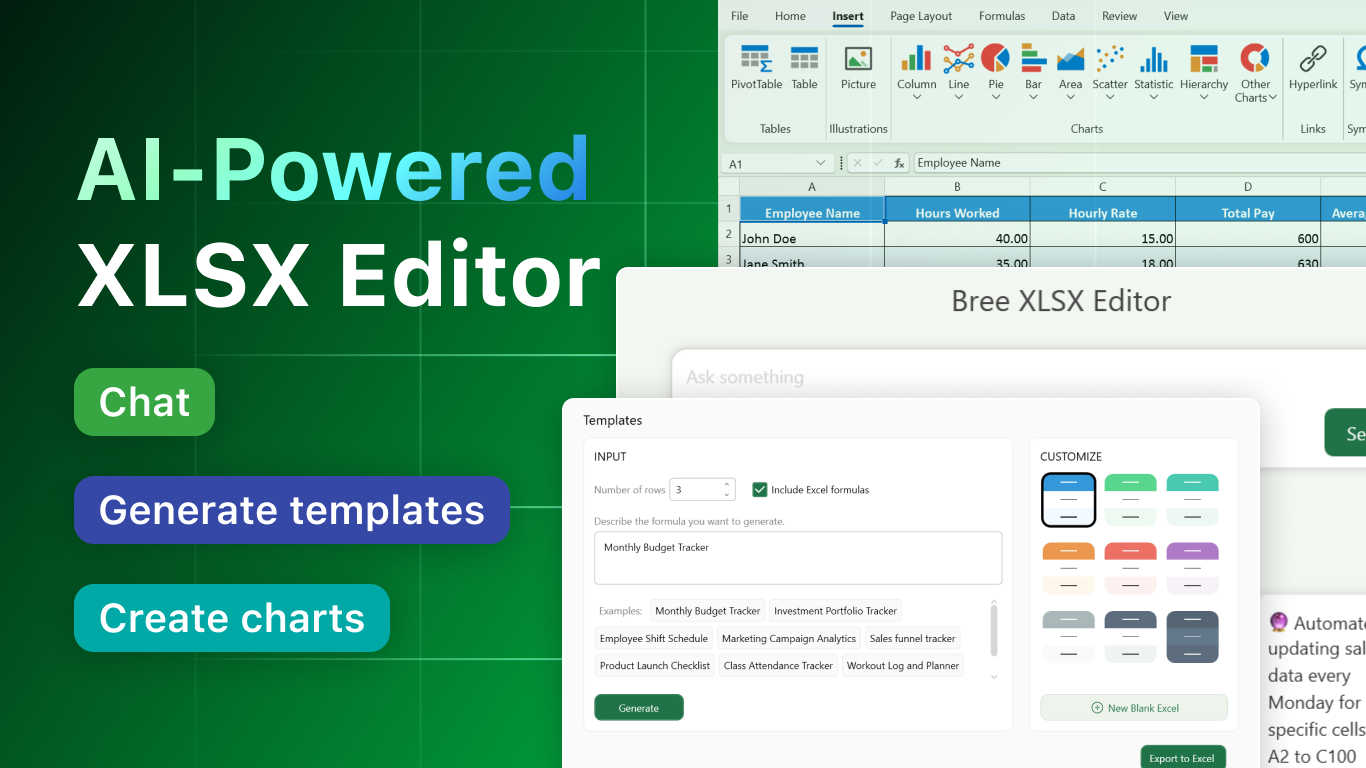
The XLSX for Windows app by BREE AI TECH PTE. LTD. serves as a streamlined, user-friendly tool tailored to facilitate the handling and editing of Excel files directly within the Microsoft Store ecosystem. Perfectly suited for both casual users and professionals, this application aims to simplify spreadsheet management without the clutter of unnecessary features.
Streamlined Design & Intuitive Interface
From the moment you launch XLSX for Windows, it feels like greeting an old friend—familiar, straightforward, and inviting. Its clean user interface resembles a simplified Excel environment, but with a focus on quick access and minimal distractions. The menu layout is logical, grouping essential functions logically, which means even newcomers can find their way around without a steep learning curve. Navigation is smooth, with instant responsiveness that mimics the feel of working directly within a native application. This fluidity significantly reduces cognitive load, allowing you to focus on your data instead of wrestling with cumbersome menus or confusing workflows.
Core Functionalities: Power in Simplicity
Sophisticated Viewing and Editing Capabilities
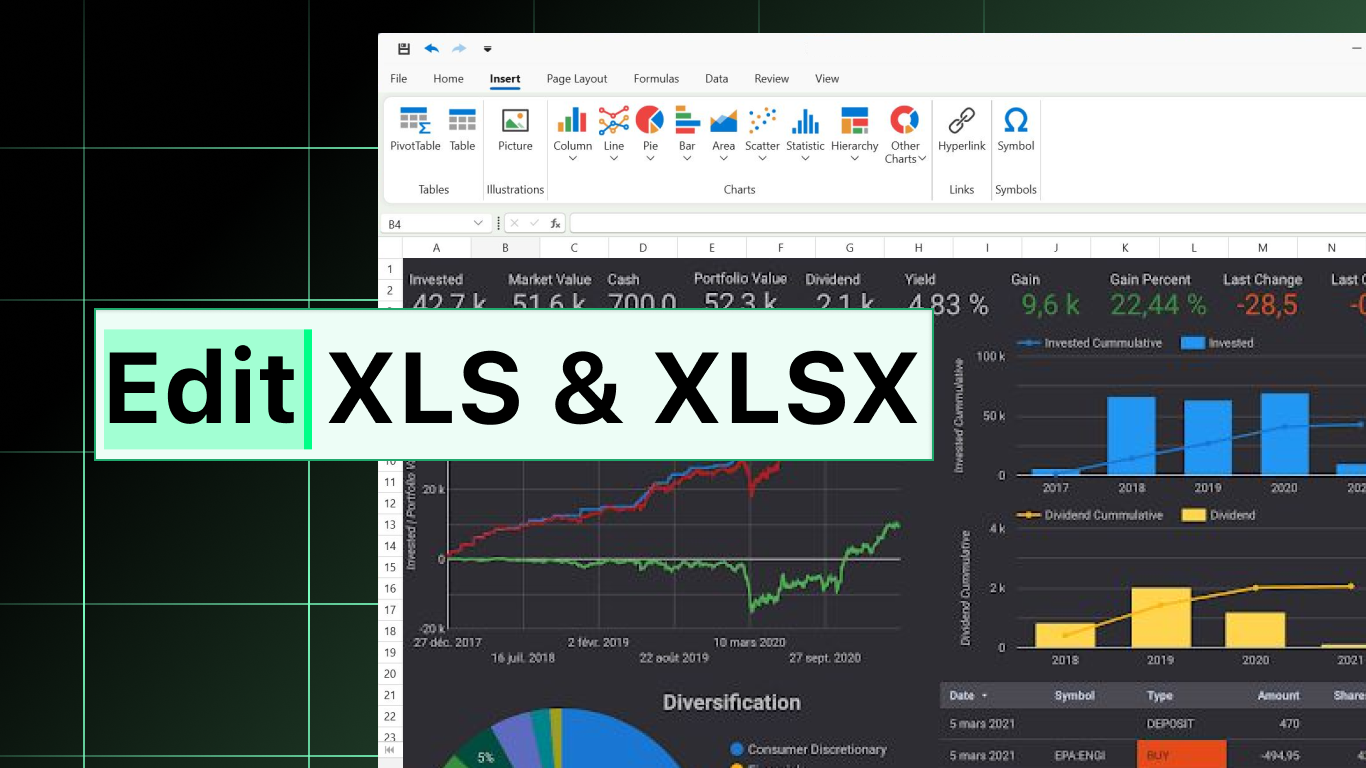
The app provides a comprehensive set of tools for viewing and modifying spreadsheet data. It supports common features such as cell editing, formula input, and cell formatting, delivered through a clean, minimalistic toolbar. The editing experience is remarkably fluid, with real-time updates and minimal lag, which is essential when working with large datasets. It also handles complex formulas gracefully, allowing users to perform calculations without switching to a more feature-heavy program.
File Management & Compatibility
Importing and exporting XLSX files is effortless, with smooth integration into Windows' native file explorer. The app's compatibility with Office formats ensures that files created or edited on other platforms retain fidelity, minimizing formatting issues. Moreover, document management features support version control and quick sharing options, making collaboration less of a headache—an aspect often overlooked in similar lightweight apps.
User Experience & Unique Selling Points
The standout feature of XLSX for Windows lies in its incredible efficiency focus. Unlike overly complex spreadsheet apps that bombard users with features, this app hones in on essential functionalities, reducing the cognitive load. Its workflow-centric design allows users to rapidly open, edit, and save files—saving time and mental effort. Additionally, it excels at minimizing feature-related confusion; the interface is designed to streamline tasks without overwhelming the user, fostering a more productive and less stressful experience.
This app distinguishes itself from similar productivity tools by emphasizing smooth workflow integration. It feels less like a separate program and more like an extension of your desktop, seamlessly syncing your actions with Windows' native environment. This tight integration means less toggling between apps and more focus on your actual work—be it data analysis, report generation, or quick edits.
Recommendation & Usage Suggestions
All considered, XLSX for Windows is a solid choice for users who seek a lightweight, reliable, and efficient way to manage Excel files without the bloat of overly complex features. I would recommend it for professionals looking for quick editing capabilities during their workflow, students managing simple datasets, or anyone who values speed and simplicity. Its strengths lie in reducing cognitive load and enhancing workflow efficiency, making it an excellent companion for everyday spreadsheet tasks.
For users needing deep analytics or advanced Excel features, this app might serve better as a supplementary tool rather than a replacement for full-fledged Office applications. Still, for swift edits and straightforward data management, its minimalist approach proves both effective and enjoyable to use.
Pros
- User-Friendly Interface
- Supports Large Excel Files
- Data Visualization Features
- Frequent Updates
- Compatibility with Cloud Services
Cons
- Limited Advanced Data Analysis Tools
- Occasional Syncing Delays
- Limited Customization Options
- Offline Mode Restrictions
- Basic Error Handling











