

- Name TouchDraw 2
- Category Productivity
- Developer Elevenworks LLC
- Available on PC, Surface Hub, HoloLens
- OS Windows 10 version 17134.0 or higher
- languages English (United States)
TouchDraw 2 for Windows: A Digital Sketchbook with Precision and Simplicity
TouchDraw 2 for Windows, developed by Elevenworks LLC, positions itself as a user-friendly yet powerful vector drawing tool tailored for creators seeking both simplicity and professional-grade features. Whether you're an illustrator, designer, or technical drafter, this app aims to streamline your workflow with its intuitive interface and versatile functionalities.
What Makes TouchDraw 2 Stand Out?
This application shines through its focus on seamless workflow integration and reducing cognitive load—making drawing feel natural and efficient. Unlike overly complex graphic software, TouchDraw 2 emphasizes core tools that keep users focused on creation rather than wrestling with menus, ensuring the artistic process remains smooth and enjoyable.
Core Features That Fuel Creativity
Precision Vector Drawing at Your Fingertips
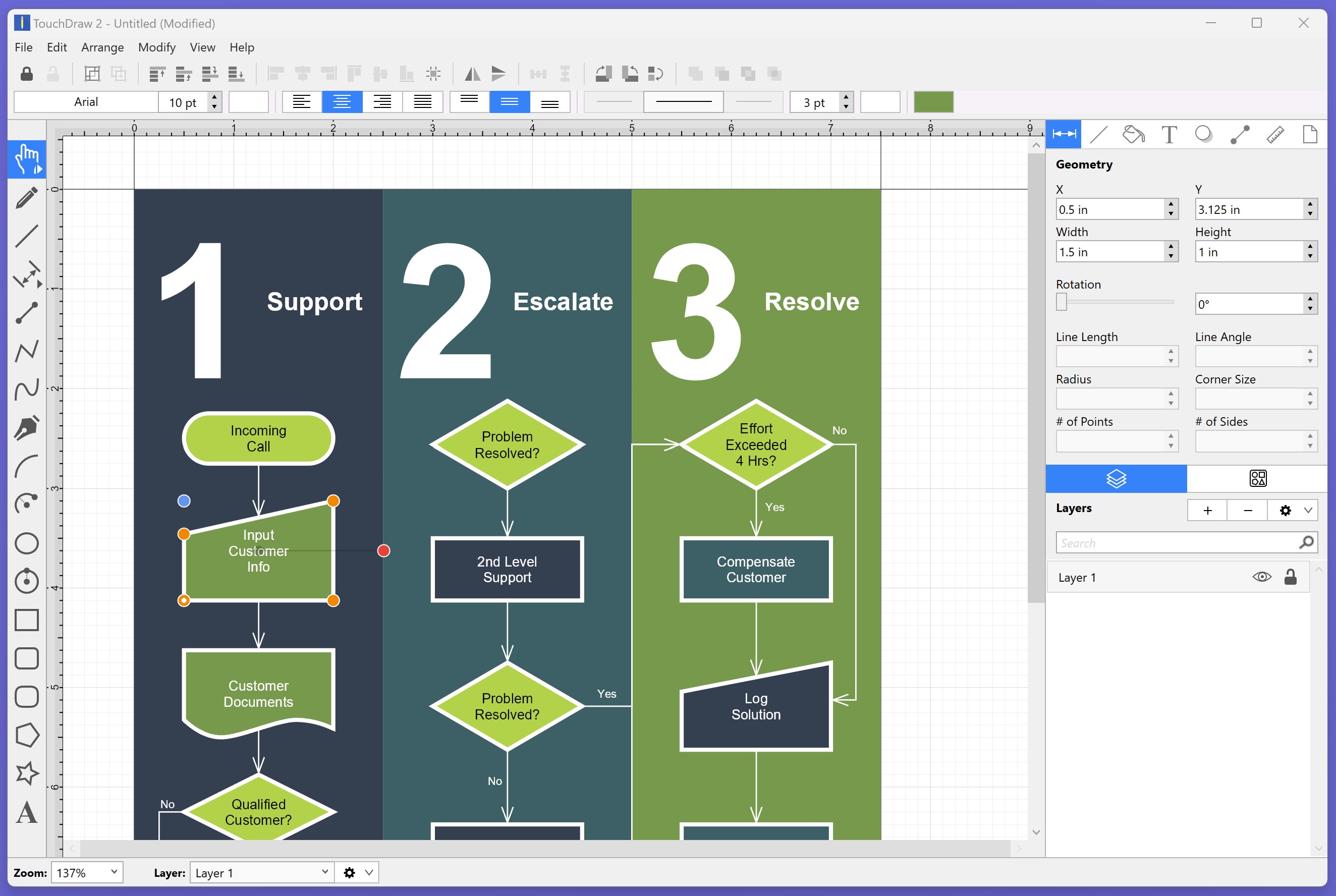
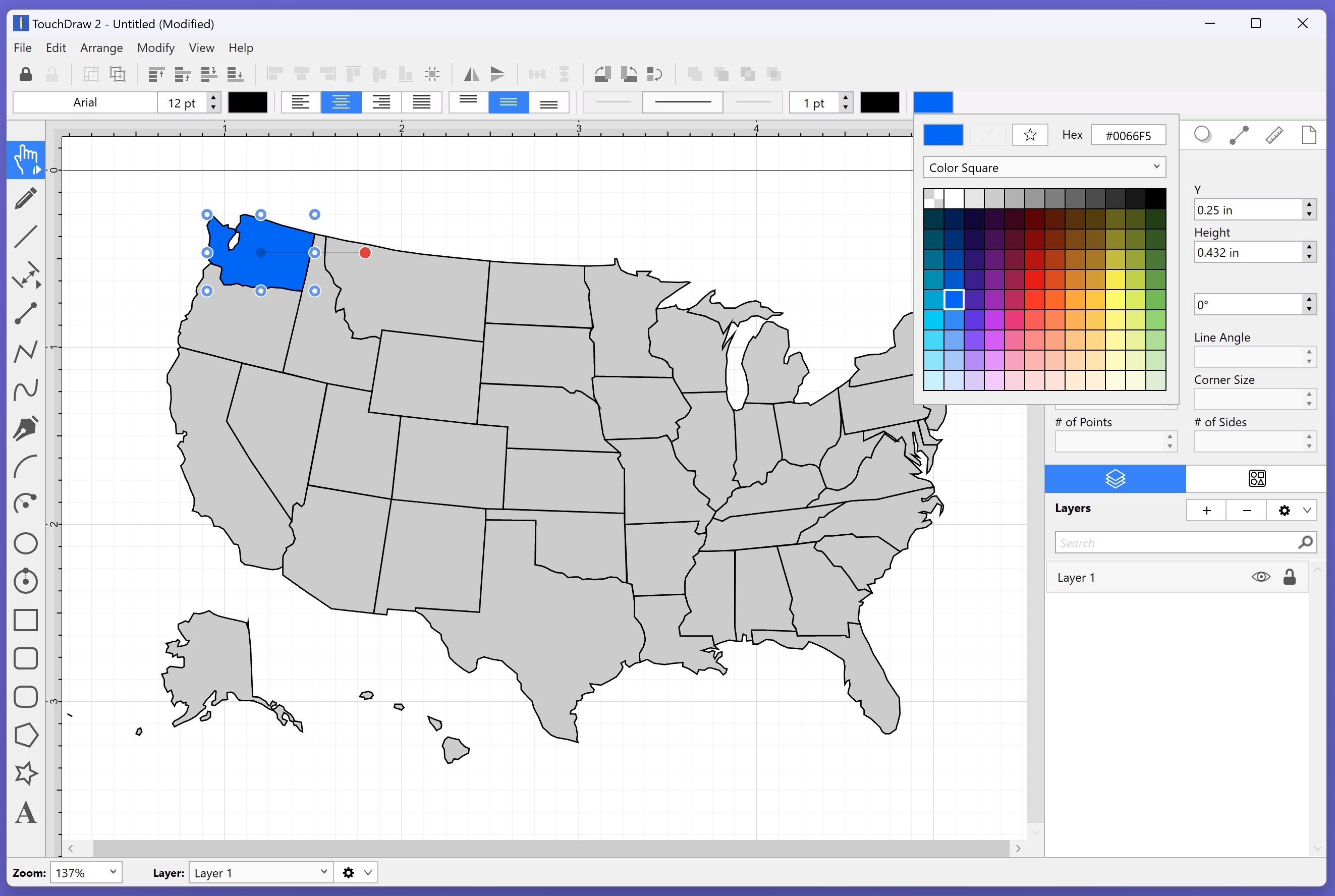
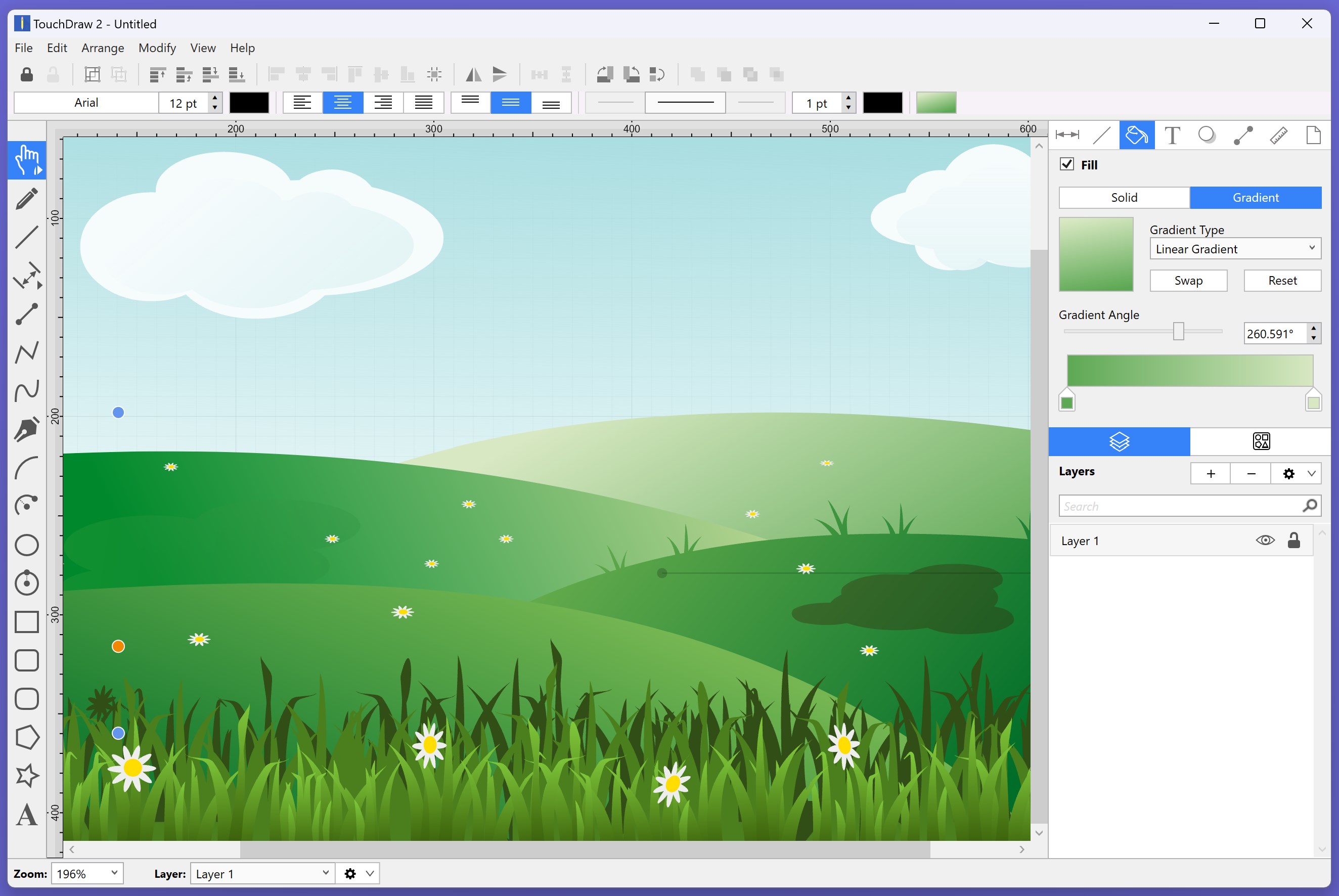
TouchDraw 2 offers an impressive suite of vector drawing tools that respond directly to your input. The app's core strength lies in its ability to produce clean, scalable graphics with minimal fuss. The Smart Pen and Shape tools allow for quick geometry generation, making technical illustrations or detailed sketches effortless. The precision grid and snapping features give your drawings that professional edge, whether you're working on detailed schematics or whimsical doodles.
Intuitive User Interface Designed for Ease
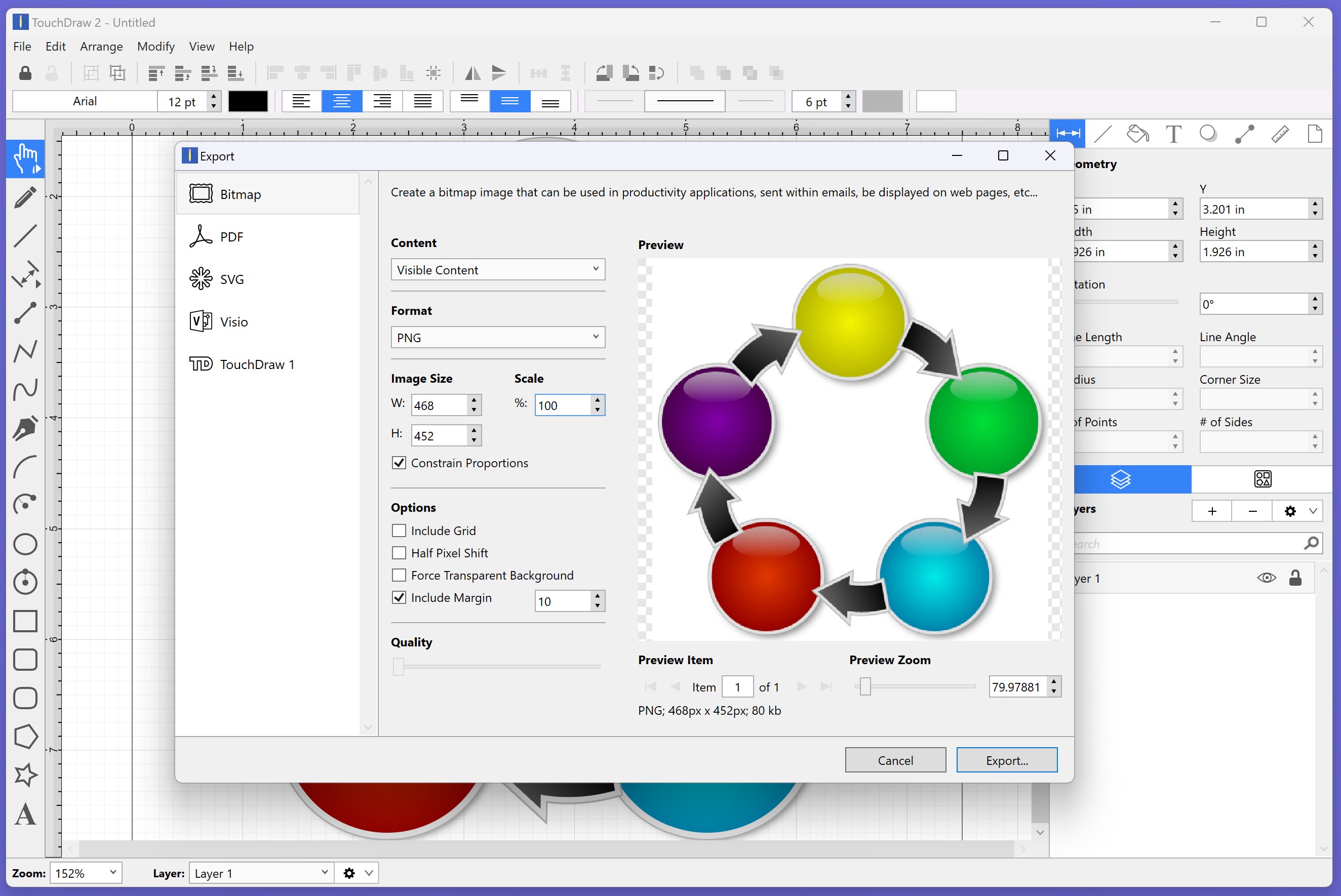
The design philosophy behind TouchDraw 2 revolves around minimalism without sacrificing functionality. The interface resembles a sleek sketchbook—simple menus, clear icons, and customizable toolbars that adapt seamlessly to your workflow. Navigating between brushes, layers, and effects feels like flipping through a well-organized notebook. For new users, the learning curve is gentle, with in-app hints guiding you through advanced features, while seasoned artists appreciate how quickly they can access and modify complex objects.
Robust Performance and Seamless Workflow Integration
Powered by efficient rendering engines, TouchDraw 2 handles complex drawings smoothly without lag—akin to sketching on paper that glides effortlessly under your pen. It supports common file formats and integrates easily with Windows workflows, allowing you to import images, export vectors, and share your work directly through cloud services. This connectivity reduces the need for cumbersome file conversions and keeps your creative process fluid—from initial sketches to final presentations.
Experience and Differentiation from Competitors
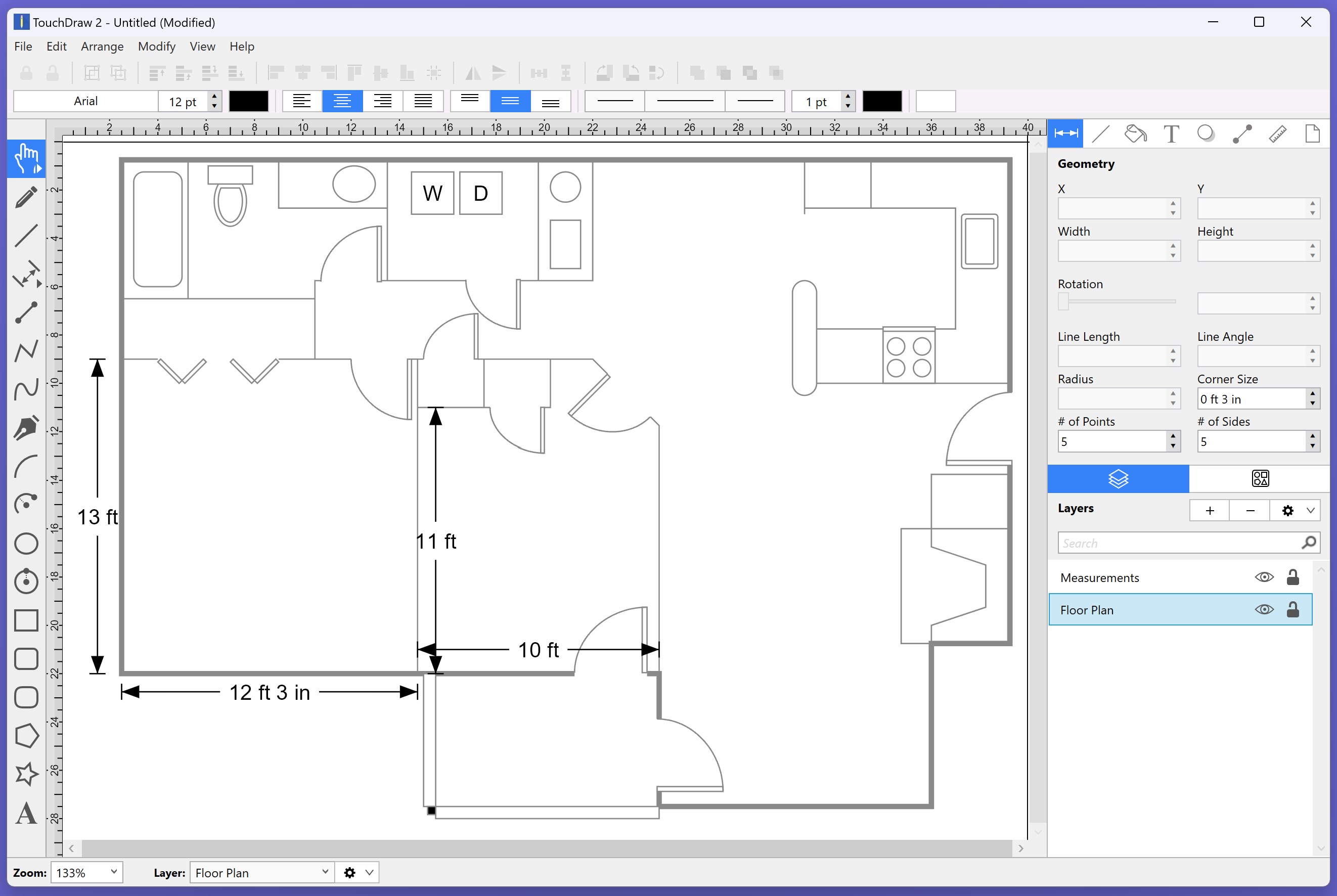
Compared to other productivity and drawing apps, TouchDraw 2's key advantage lies in its balance between feature set and usability. While many vector tools bombard users with layers of complex options, this app streamlines choices to enable focused creation. Its emphasis on reducing cognitive load means users spend more time drawing and less time managing tools—a significant benefit when working on detailed projects or tight deadlines. Additionally, the app's workflow integration is optimized for desktop environments, providing quick shortcuts and compatibility that many mobile-centric drawing apps lack. The ‘measure and align' features, coupled with real-time scaling, make it especially suitable for precise technical diagrams where accuracy isn't compromised by interface complexity.
Should You Give It a Try?
All indicators suggest that TouchDraw 2 is a solid choice for users who value an intuitive, reliable drawing app that emphasizes core vector tools without drowning them in complexity. For professionals needing quick, precise sketches or hobbyists looking for a friendly digital sketchpad, this application offers a balanced blend of features and usability. I recommend it particularly if your workflow involves frequent editing and detailed technical work that benefits from seamless integration and straightforward tools. While it might not replace heavy-duty graphic design software, it's an excellent supplement for straightforward, efficient drawing pursuits.
Pros
- Intuitive Touch Interface
- Precise Drawing Tools
- Multiple Layer Support
- Comprehensive Shape Library
- Export Options in Various Formats
Cons
- Limited Advanced Features
- Occasional Lag During Heavy Usage
- Basic Text Editing Capabilities
- No Cloud Sync Functionality
- User Interface Could Be More Customizable










