

- Name Easy Office Suite
- Category Productivity
- Developer WunderApps GmbH
- Available on PC
- OS Windows 10 version 17763.0 or higher
- Memory 1 GB
- Keyboard Not specified
- Mouse Not specified
- languages Arabic, Chinese (Simplified), Chinese (Traditional), Czech, Dutch, English, English (South Africa), English (United Kingdom), English (United States), French, German, Hebrew, Hindi, Italian, Japanese, Korean, Polish, Portuguese, Russian, Spanish, Turkish
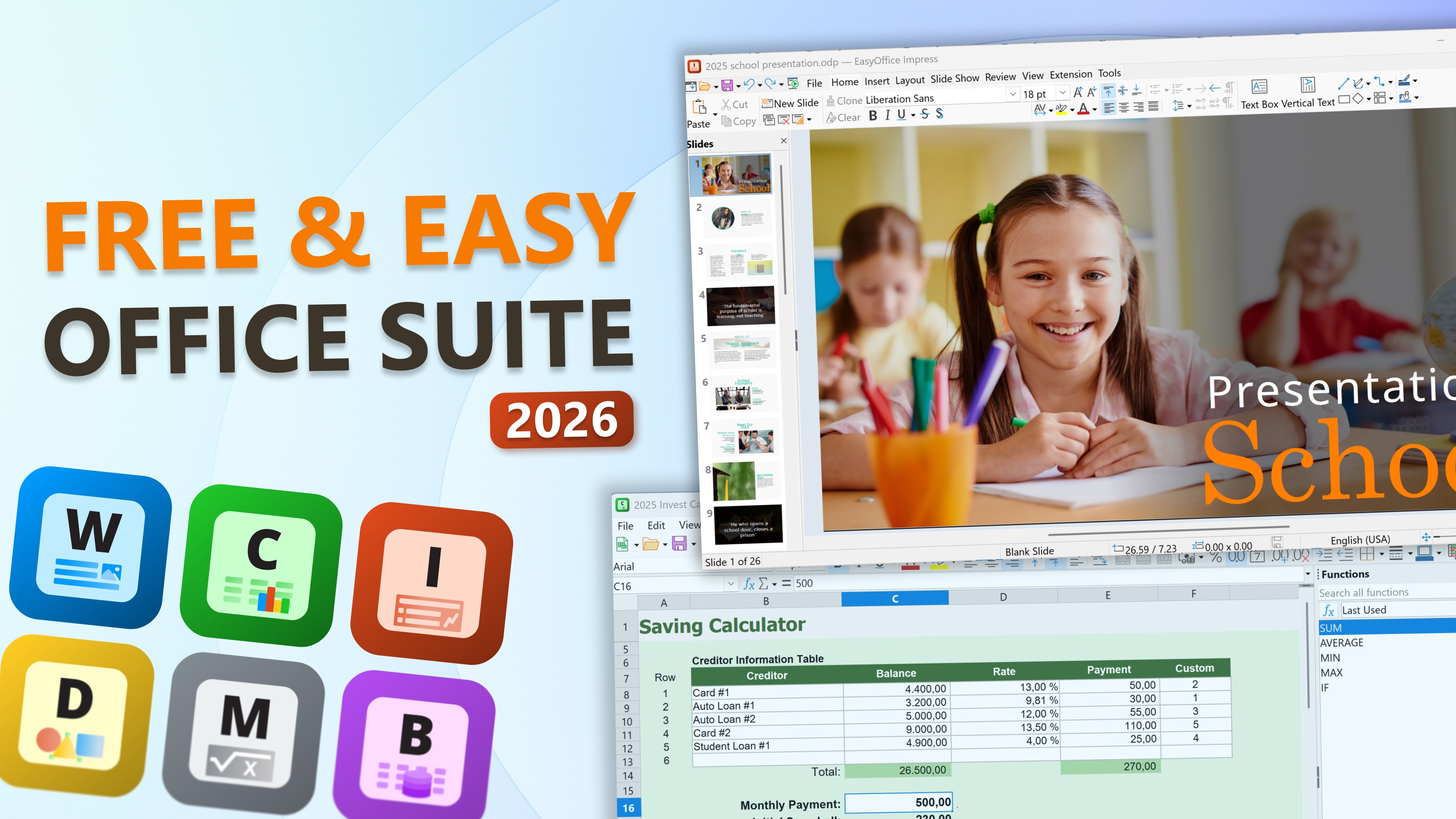
Introducing Easy Office Suite for Windows: Your All-in-One Productivity Companion
Imagine a single application that simplifies your daily document handling, collaboration, and organization—easy to navigate yet robust enough to meet professional standards. That's exactly what Easy Office Suite offers. Developed by WunderApps GmbH and published by Tim Grabinat, this Windows app aims to streamline your workflow by integrating essential office tools into one seamless experience. Whether you're a student, small business owner, or busy professional, this suite promises to elevate your efficiency with minimal fuss.
Core Features That Stand Out
Unified Document Management and Editing Tools
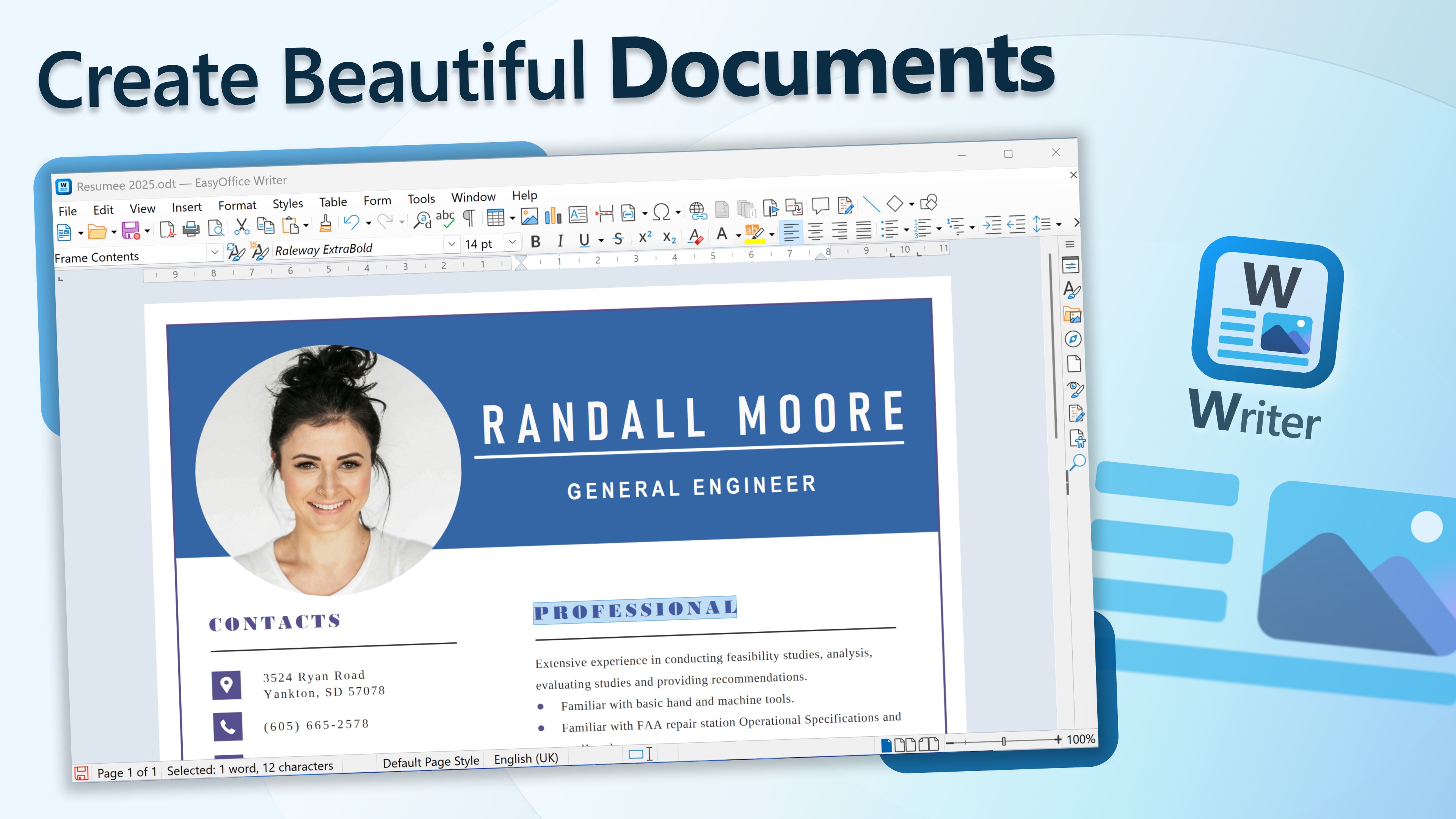
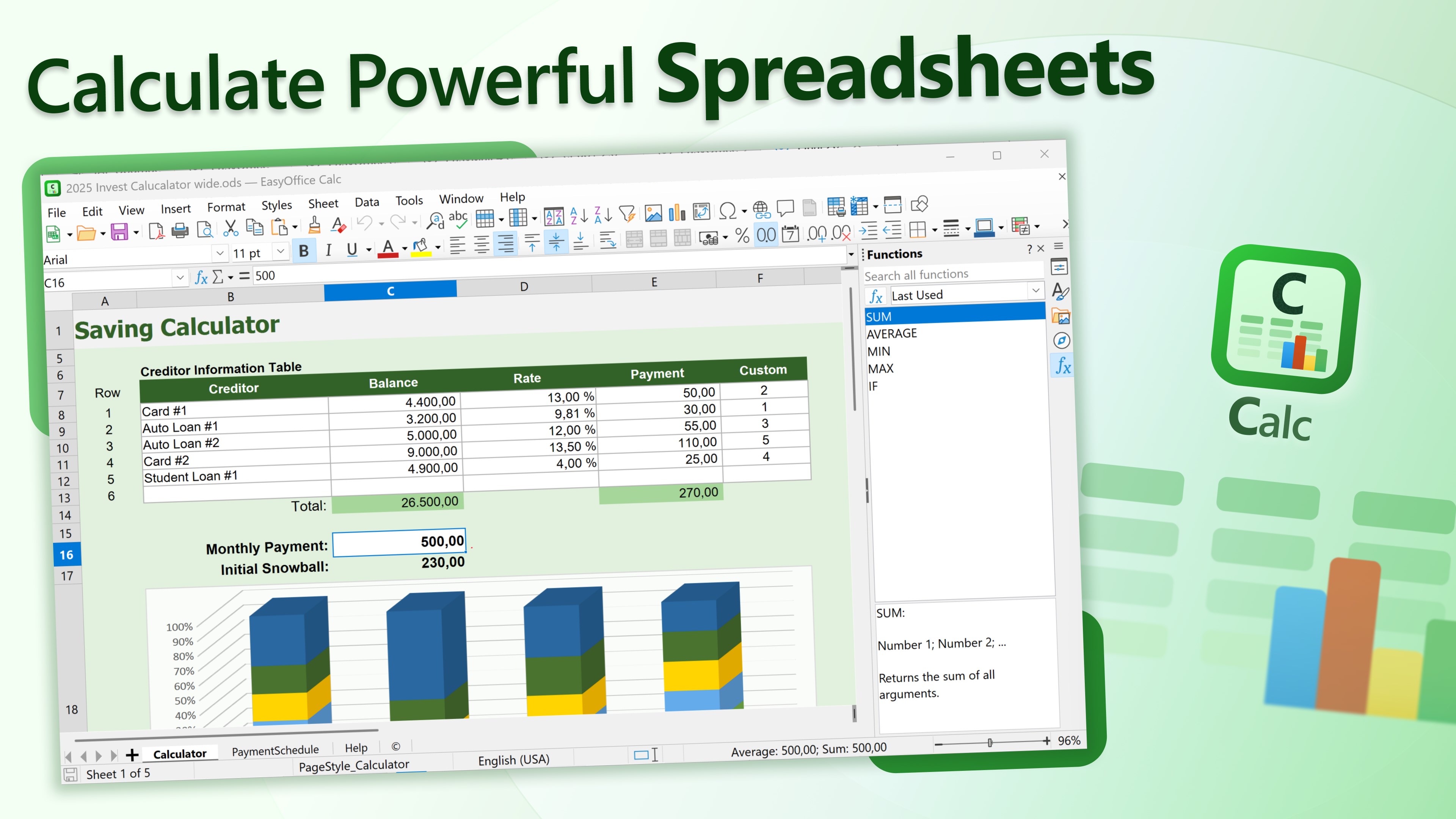
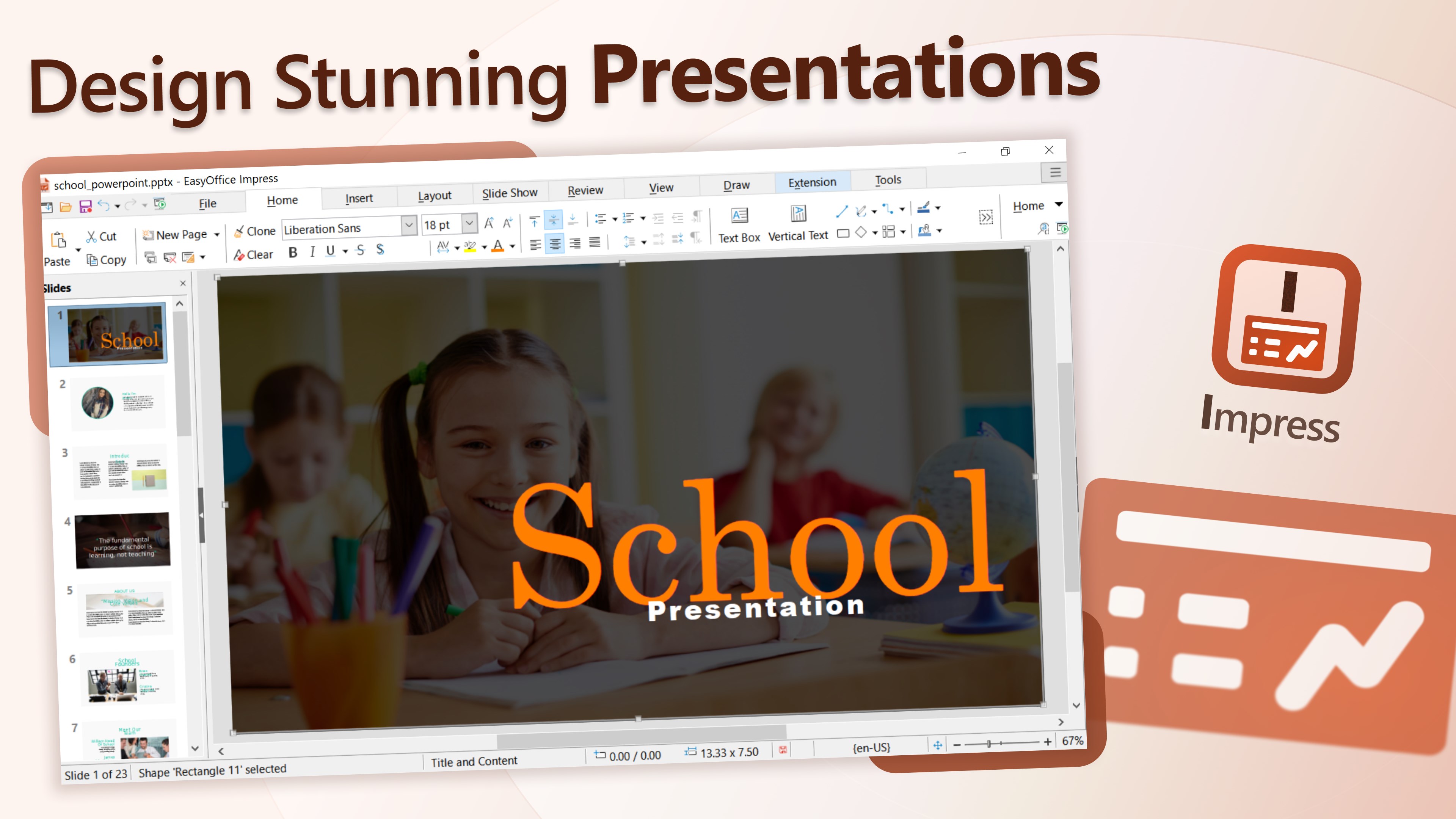
At its heart, Easy Office Suite combines the familiar functionalities of word processing, spreadsheets, and presentations into a consolidated environment. It's like having a portable office in your desktop, eliminating the need to juggle multiple apps. The interface supports smooth editing and real-time updates, ensuring your workflows remain uninterrupted. The integration minimizes context switching, helping you stay focused on your tasks rather than chasing files between different programs.
Smart Collaboration and Sharing
One of the suite's highlights is its collaboration feature set. Users can easily share documents or spreadsheets via cloud integration, receive real-time feedback, and even work simultaneously on the same file. Designed with teamwork in mind, it simplifies the process of co-authoring—no more emailing back and forth or losing track of version control. Whether collaborating with colleagues or classmates, this feature keeps everyone on the same page with minimal friction.
Intuitive Interface with Focus on Efficiency
The application boasts a clean, modern UI that reduces cognitive overload—think of it as a neatly organized desk, free of clutter, where everything you need is instantly accessible. Navigation is logical, with toolbars and menus that adapt contextually, making the learning curve gentle even for newcomers. The responsive design ensures operations feel fluid, whether you're formatting a document or generating a complex chart, akin to a well-oiled machine running smoothly without hiccups.
User Experience: Seamless, Simple, and Efficient
From a user perspective, Easy Office Suite's design philosophy emphasizes clarity and ease of use. Its interface adopts a minimalistic approach, avoiding unnecessary complexity and allowing users to focus on content creation rather than figuring out how to work the app. The app's responsiveness is commendable—actions like opening multiple files, editing, or switching between documents happen swiftly, enhancing overall efficiency.
For those familiar with Office-like environments, the learning curve is shallow; existing knowledge quickly translates into productive use. Newcomers will appreciate the guided tutorials and straightforward layout that reduce the intimidation often associated with full-fledged office suites. It's like having a helpful guide sitting beside you, ensuring you get the hang of things effortlessly.
Distinctive Advantages Over Similar Productivity Tools
Unlike more bulky office suites, Easy Office Suite strikes a remarkable balance between feature richness and simplicity. Its standout feature is the tight integration of editing and collaboration functions optimized for workflow efficiency, significantly cutting down task-switching and cognitive load. While many applications boast a plethora of options, this suite's design reduces unnecessary complexity, letting users focus on content rather than menus. This feature prioritization makes it particularly appealing for users seeking lightweight, effective tools that are easy to master.
Furthermore, its focus on seamless cloud integration and real-time teamwork sets it apart from standalone editors by fostering an environment where collaboration feels as natural as talking face-to-face. In essence, it reduces the mental overhead associated with managing multiple apps and versions, streamlining your entire content creation process.
Recommendation and Usage Tips
I'd recommend Easy Office Suite for anyone who needs a versatile, user-friendly office solution without the bloat. Particularly suited for small teams or individuals who value ease of use and quick setup, it's an excellent choice to enhance everyday productivity. If you frequently work on documents remotely or in collaborative settings, the app's sharing and syncing features can be game changers.
For best results, spend some time exploring its collaboration options and customization settings—these small investments pay off by unlocking the suite's full potential. Although it may not replace high-end enterprise solutions for complex workflows, it's a solid, reliable companion for routine office tasks, providing efficiency without overwhelming complexity.
In summary, Easy Office Suite for Windows impresses with its thoughtful design and core focus on workflow efficiency. It's like a well-organized toolbox—everything you need, easily accessible, helping you work smarter, not harder.
Pros
- User-friendly interface
- All-in-one office tools
- Cloud integration support
- Free basic features
- Regular updates for stability
Cons
- Limited advanced editing features
- Requires consistent internet connection
- Monthly subscription model
- Occasional UI lag on lower-end devices
- Limited file format support outside Microsoft ecosystem










