

- Name Keeper® Password Manager
- Category Productivity
- Available on PC
- OS Windows 10 version 15063.0 or higher
- Keyboard Integrated Keyboard
- Mouse Integrated Mouse
- languages Arabic, Chinese (Simplified), Chinese (Traditional), Chinese (Traditional, Hong Kong SAR), Dutch, English (United Kingdom), English (United States), French, German, Greek, Italian, Japanese, Korean, Polish, Portuguese (Brazil), Portuguese (Portugal), Romanian, Russian, Slovak, Spanish
A Seamless Shield for Your Digital Life
Keeper® Password Manager for Windows positions itself as a robust fortress guarding your digital credentials with ease and elegance, transforming the often-tedious task of password management into a worry-free experience. Developed by Keeper Security Inc., this app promises not just security, but a streamlined workflow that suits busy professionals and everyday users alike.
Core Features That Stand Out
Advanced Password Security and Vault Management
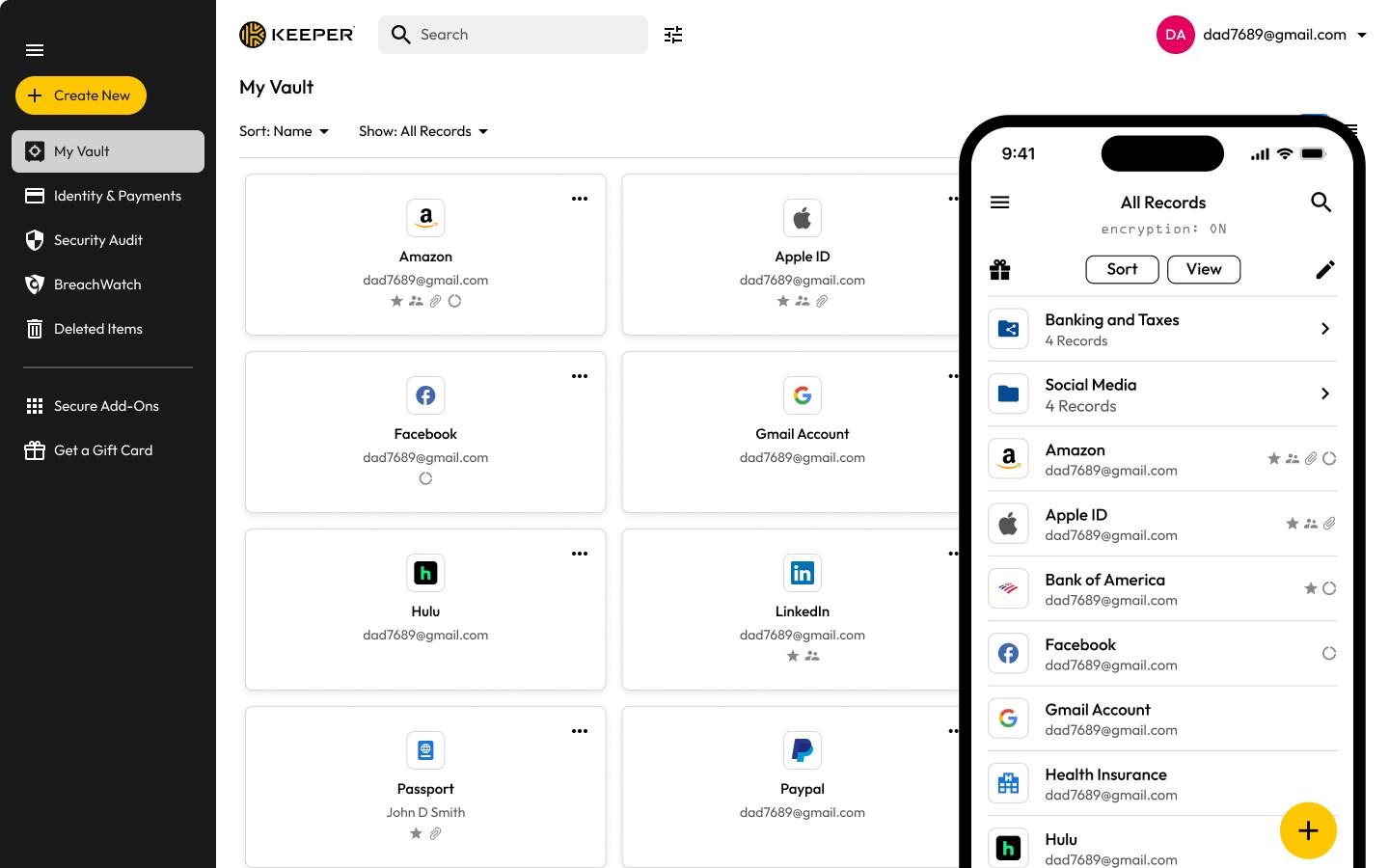
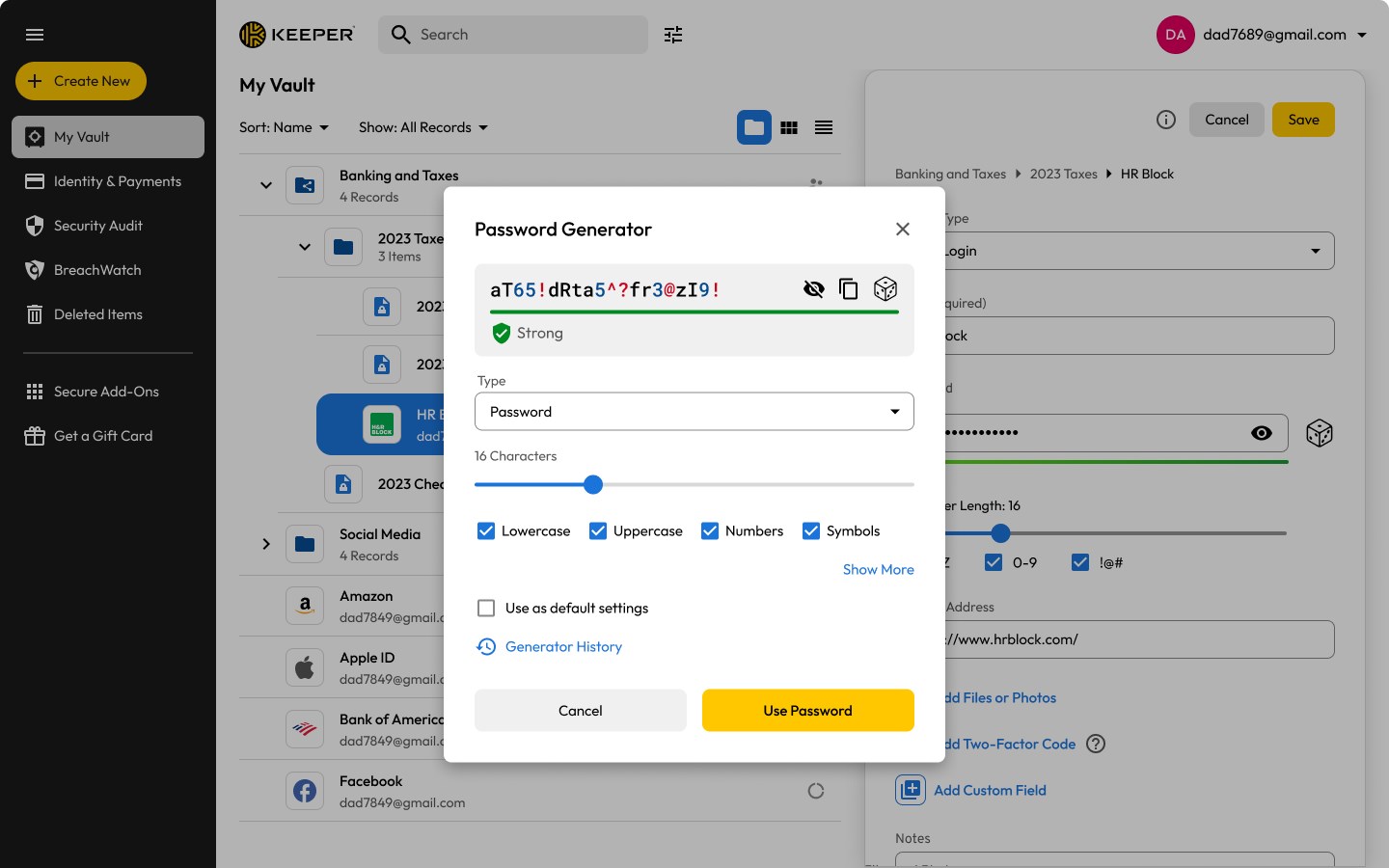
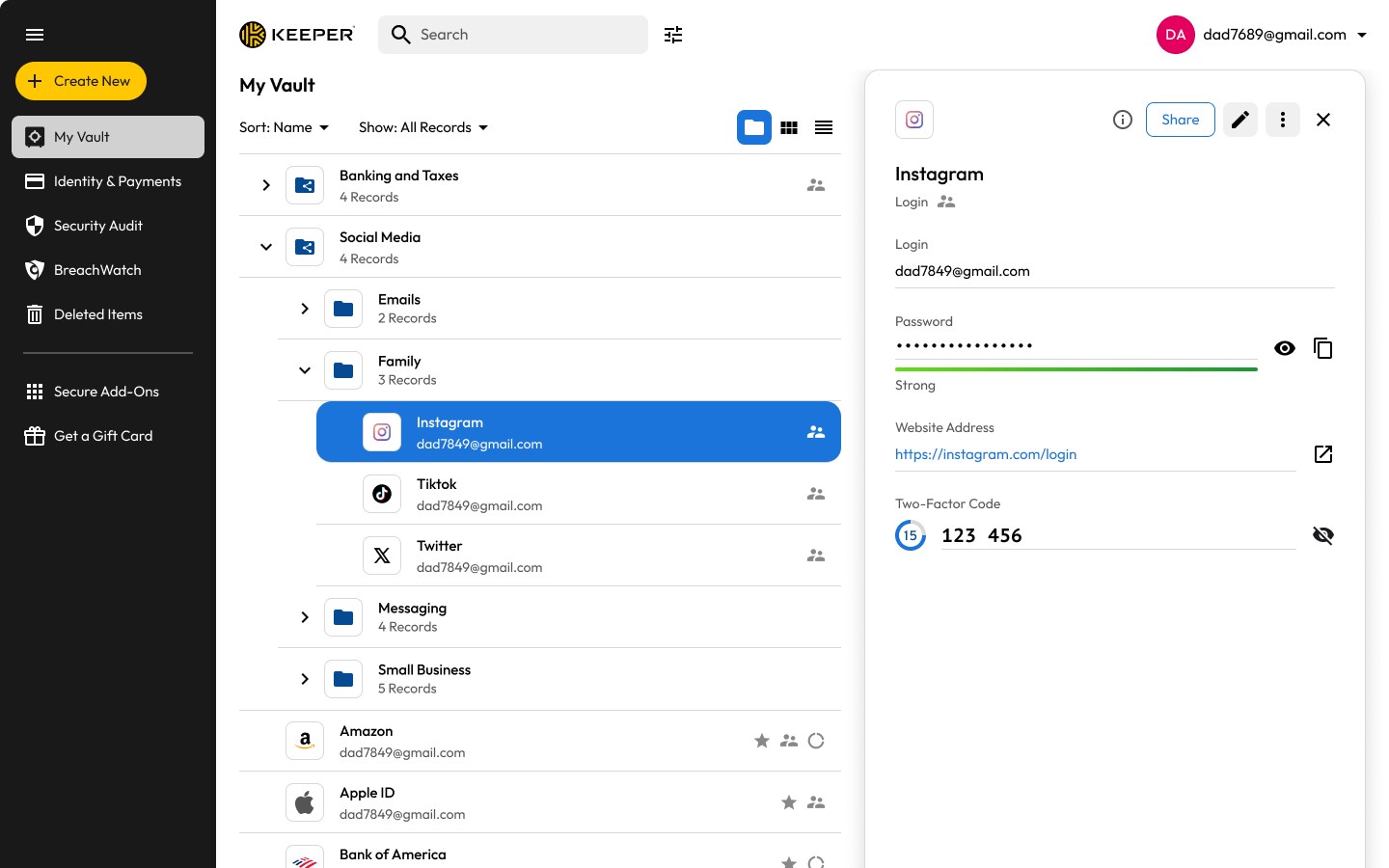
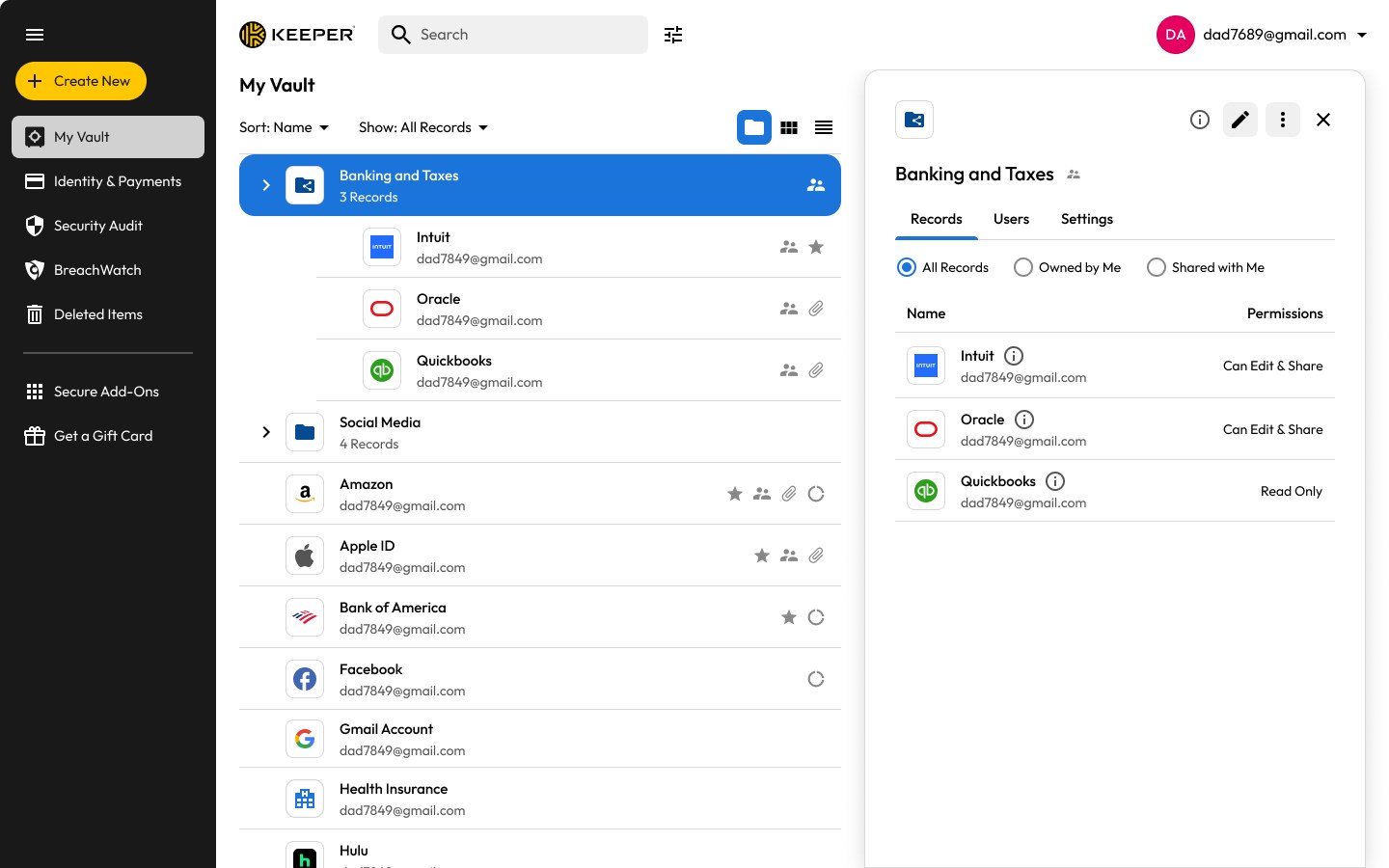
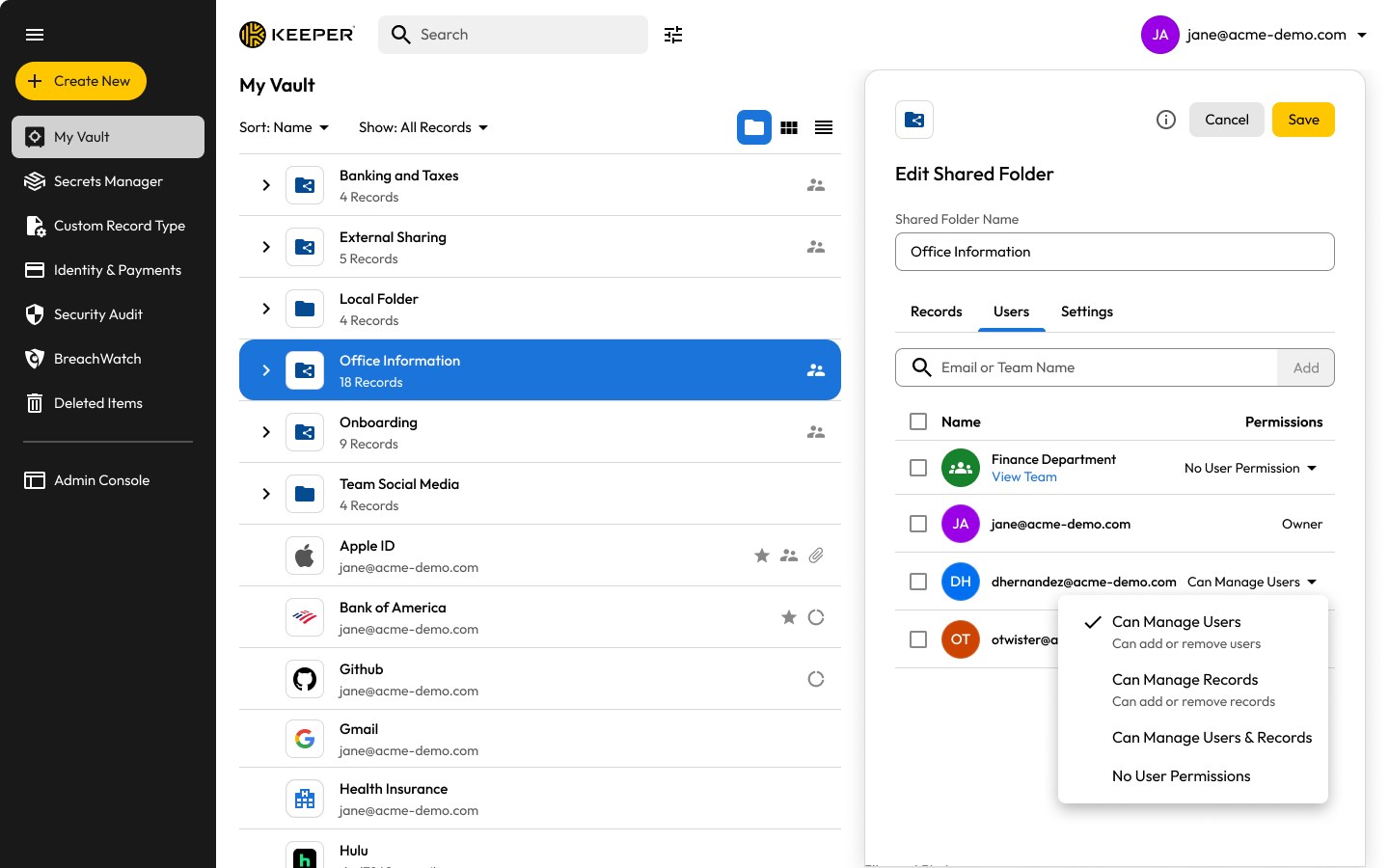
At its heart, Keeper offers a secure vault where all your passwords, secure notes, and other sensitive data are stored encrypted. Utilizing military-grade encryption standards, it ensures that only you hold the keys to your digital assets. Its password generator isn't just a randomizer; it crafts complex, unique passwords with customizable parameters, reducing your reliance on weak, reused credentials.
Autofill and Seamless Integration
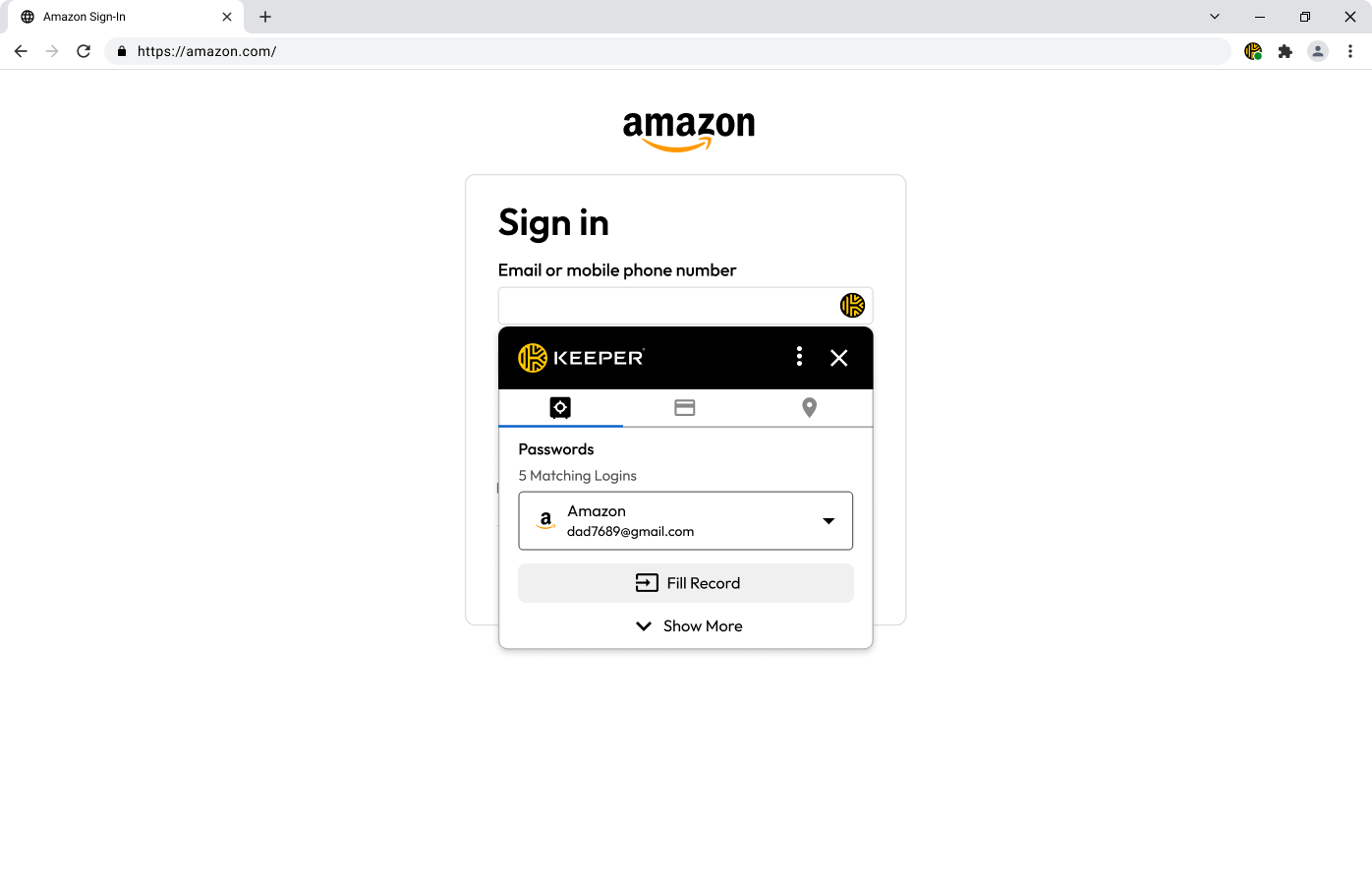
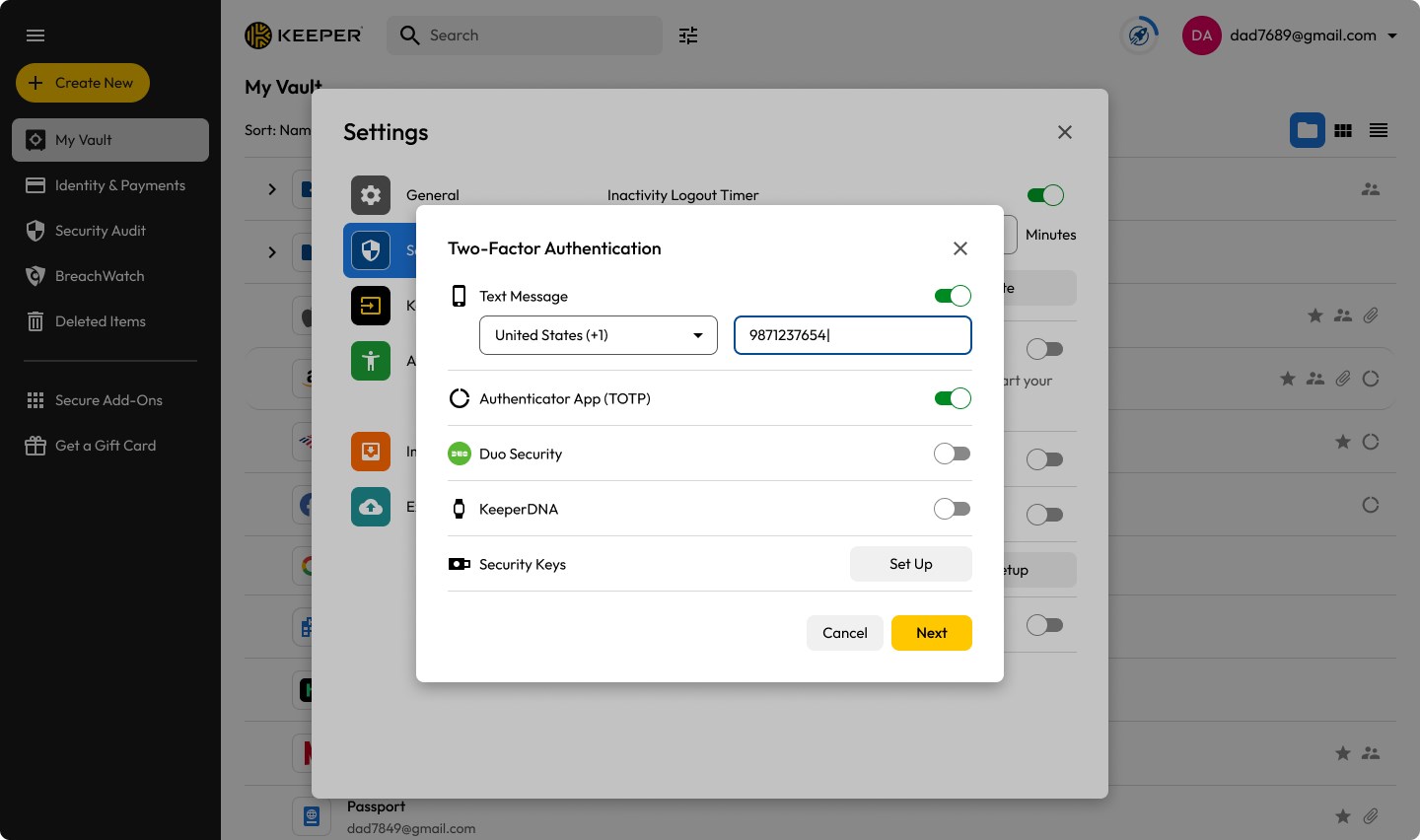
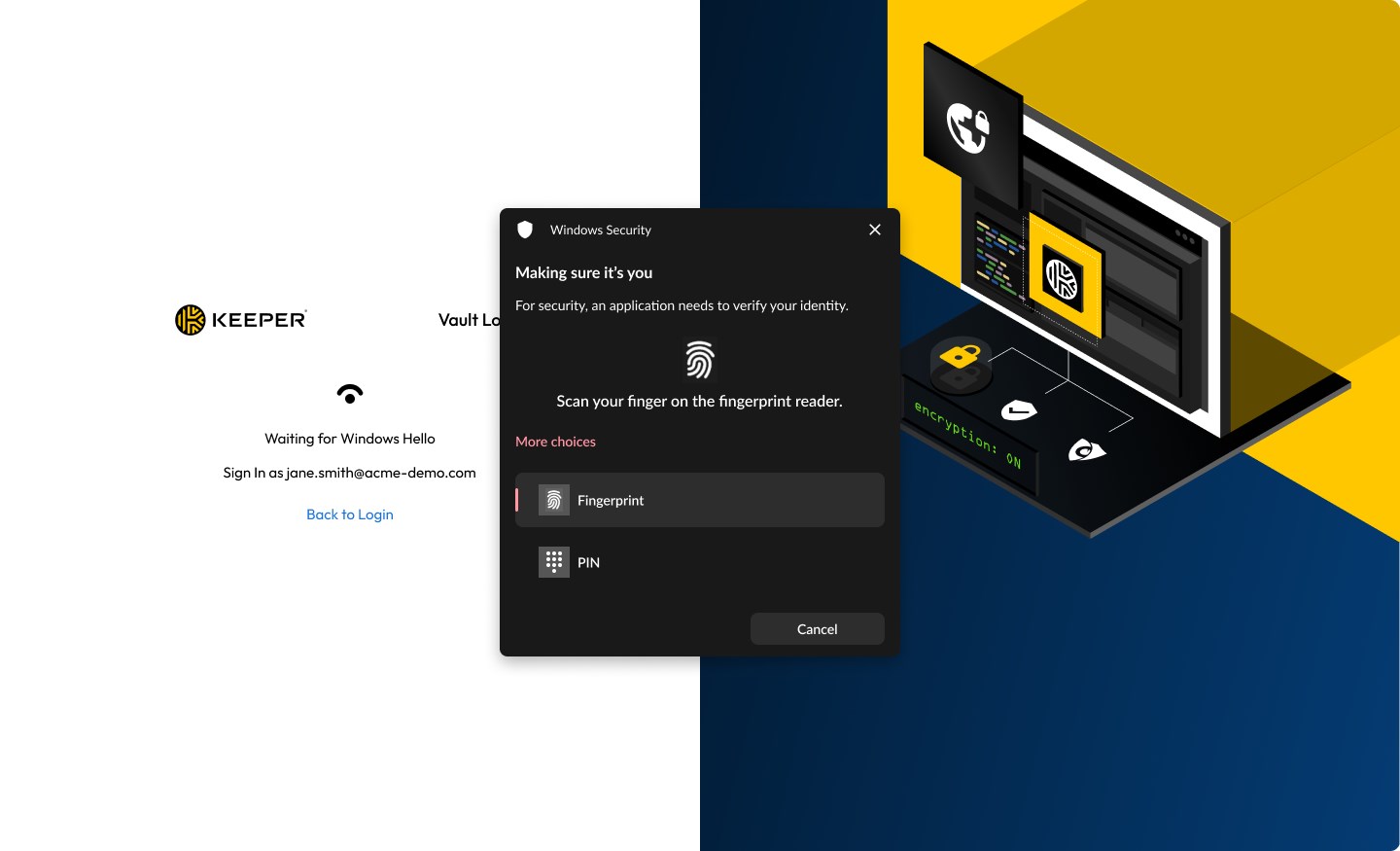
One of Keeper's most user-friendly features is its autofill capability, which integrates deeply with Windows and browsers to populate login fields instantaneously. This not only saves time but minimizes the cognitive load associated with remembering multiple passwords. Its compatibility with Windows Hello and fingerprint authentication further simplifies secure access, turning login into a swift, single-touch process.
Emergency Access and Audit Tools
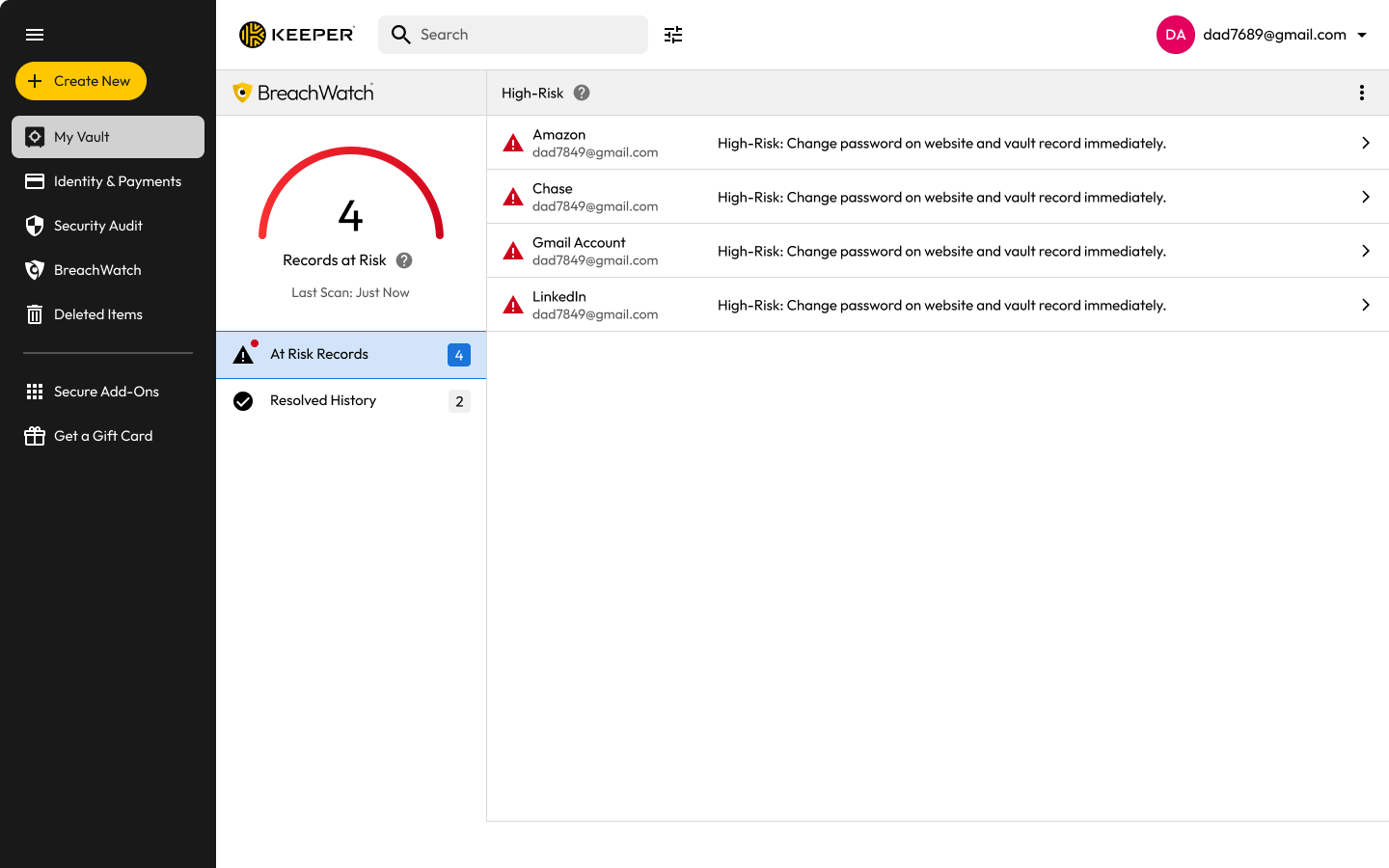
The app caters to trust and control, allowing designated contacts to access your vault in emergencies. Additionally, Keeper provides security audit tools that highlight weak or reused passwords, empowering users to improve their overall digital hygiene effortlessly. These features exemplify how Keeper balances convenience with accountability.
User Experience: Smooth Sailing or Rocky Road?
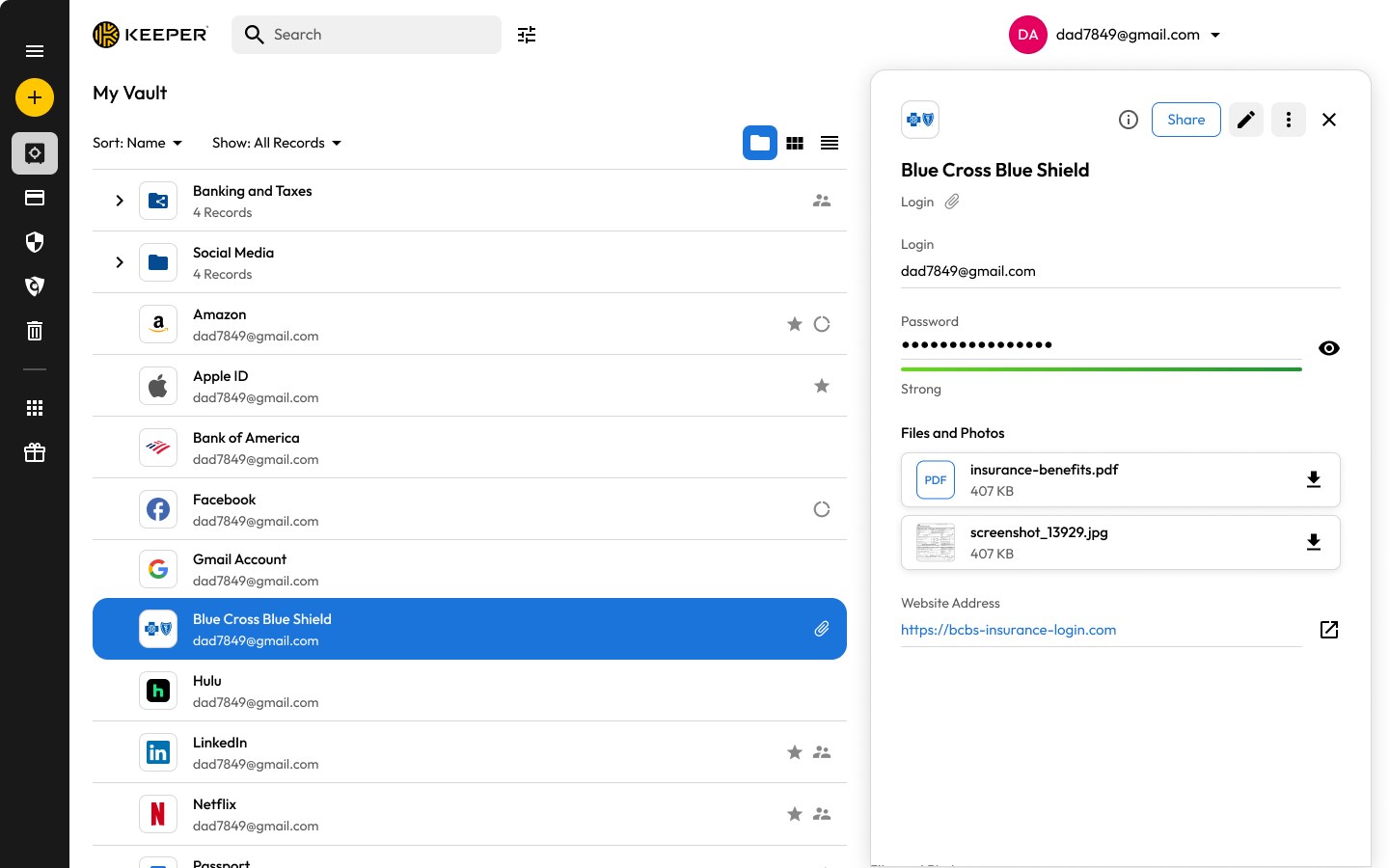
Keeper's interface is a breath of fresh air—clean, intuitive, and thoughtfully designed, akin to a well-organized desk that invites you to find what you need instantly. The layout emphasizes clarity, with prominent icons and straightforward navigation, making even first-time users feel at home within minutes. The application operates with a fluidity that suggests a well-optimized background process, with minimal lag or stutter, ensuring that your workflow remains uninterrupted.
Learning curves are gentle—most features are self-explanatory, and onboarding can be completed swiftly thanks to contextual prompts. The app's design intelligently reduces cognitive load: instead of juggling multiple passwords and complex security steps, Keeper automates and simplifies, turning a potential headache into a seamless extension of your daily routine.
Unique Selling Points: What Sets Keeper Apart?
In the sea of password managers, Keeper distinguishes itself by emphasizing workflow integration efficiency. Its autofill and biometric login features are tightly woven into Windows, making password entry as effortless as a gust of wind through an open window. Unlike some competitors burdened with bloated features, Keeper focuses on reducing cognitive load—so instead of drowning in options, you benefit from an elegantly streamlined experience that feels natural.
Additionally, its emergency access and comprehensive security audits serve as trust anchors, providing peace of mind without adding complexity. This combination of strong security, user-centric design, and efficient workflow integration makes Keeper® Password Manager for Windows a standout choice for those who value simplicity without sacrificing safety.
Final Verdict and Recommendations
I would recommend Keeper® Password Manager for Windows to anyone seeking a reliable, easy-to-use password solution that integrates smoothly into daily workflows. Its focus on reducing cognitive strain while maintaining high security standards makes it suitable for both tech-savvy users and those less familiar with digital security practices.
If you prioritize effortless access, robust security features, and minimal learning curve—especially within a Windows ecosystem—this app is worth trying. It perhaps isn't overloaded with unnecessary bells and whistles, but instead offers a refined, purpose-driven experience that feels just right for protecting your digital life without becoming another complicated chore.
Pros
- Strong Security Features
- Open Source Transparency
- Offline Accessibility
- Customizable Organization
- Free with Cross-Platform Support
Cons
- Steep Learning Curve
- Limited Cloud Sync
- User Interface Can Be Cluttered
- Mobile App Features are Basic
- No Automatic Data Backup










