

- Name GT Auto Clicker: Free Auto Click
- Category Productivity
- Available on PC, Mobile, Surface Hub, HoloLens
- OS Windows 10 version 14393.0 or higher
- languages Chinese (Simplified), Dutch, English (United States), French, German, Italian, Japanese, Korean, Portuguese, Russian, Spanish
A Handy Tool for Streamlining Repetitive Tasks on Windows
GT Auto Clicker by GTSW Tools presents itself as a straightforward yet effective solution for users seeking to automate mouse clicking tasks on Windows, making routine actions effortless and efficient.
Basic Information and Target Audience
This lightweight application is designed explicitly for individuals needing quick and customizable auto-clicking capabilities, whether for gaming, testing, or productivity boosting.
- Positioning: A free, easy-to-use auto clicker to automate repetitive mouse clicks on Windows.
- Developer: GTSW Tools, a developer known for creating utility applications that enhance workflow efficiency.
- Main Features:
- Simple click automation with customizable hotkeys.
- Support for different clicking modes (e.g., single, double, or continuous clicks).
- Flexible configuration options for click intervals and points.
- Lightweight and resource-friendly operation.
- Target Users: Gamers, software testers, data entry professionals, or anyone looking to reduce manual clicking efforts on Windows.
Engaging Your Workflow with Seamless Automation
If you've ever spent hours rapidly clicking in a game or testing a software feature, you'll appreciate how GT Auto Clicker transforms those tedious moments into a breeze. It's like having a reliable assistant tirelessly executing clicks while you focus on the bigger picture—whether that's strategizing your next move or analyzing data.
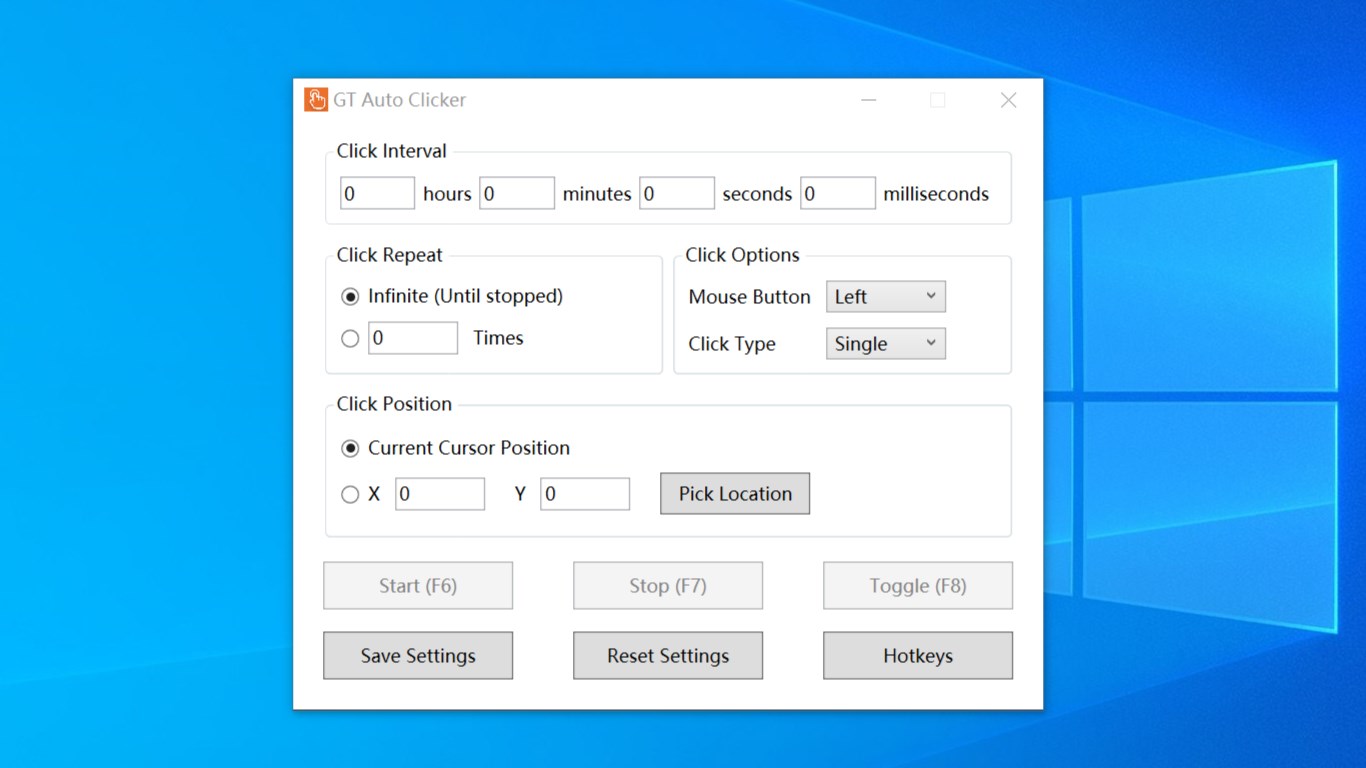
Initially, the interface might appear minimalistic—a simple window with just enough options to get you started, which is a delight for users wary of overly complicated tools. The learning curve is gentle; most users can grasp configuration in minutes, setting up hotkeys and click intervals without breaking a sweat.
Core Functionality Breakdown
1. Customizable Click Modes: GT Auto Clicker allows users to choose between different types of clicking modes, such as one-time, repeated, or conditional loops. This means whether you need quick single clicks or sustained clicking, the app adapts seamlessly to your needs, making it ideal for diverse scenarios from casual gaming to rigorous testing.
2. Precise Configuration for Smooth Operation: With adjustable intervals between clicks and the ability to set specific focus points on your screen, this tool offers fine-grained control. Such precision ensures that clicks happen exactly where needed, eliminating the frustration of mis-timed actions.
3. Hotkey Activation & Ease of Use: The app emphasizes user convenience by supporting hotkeys for activating or pausing automation. This feature is like flipping a switch—enabling you to toggle automation swiftly without disrupting your workflow or gameplay.
Design, Performance, and User Experience
The interface's clean design resembles a minimalist dashboard—functional rather than flashy. Navigating through settings is intuitive, which minimizes the cognitive load often associated with complex productivity tools. During use, the application exhibits smooth performance; clicking tasks are executed instantly with no noticeable lag or glitches, even during extended operation. This stability is especially beneficial for prolonged sessions, common in gaming or large-scale testing.
While some might expect a steep learning curve given its utility nature, GT Auto Clicker stands out by balancing enough customization with simplicity—making it accessible to novices while satisfying seasoned users needing tailored automation.
Unique Advantages & Differentiation
Compared to similar auto clickers, GT Auto Clicker shines through its focus on workflow integration and cognitive simplicity. Its straightforward interface and hotkey support mean less time configuring and more time automating. This reduces cognitive load by avoiding feature bloat—users get only what they need without navigating through complicated menus or settings.
Its capacity to precisely control click points and intervals allows for smoother automation flows compared to more basic tools. Imagine it as a well-orchestrated dance partner that executes perfectly timed moves—adding rhythm to what might otherwise be a chaotic task.
Final Verdict & Practical Recommendations
Overall, GT Auto Clicker is a reliable, user-friendly auto-clicking utility that excels in its simplicity and efficiency. For users who require quick setup, customizable hotkeys, and precise control without overwhelming features, this app is highly recommended.
It's best suited for individual users in gaming, testing, or repetitive data entry tasks. If you prefer a straightforward tool that integrates seamlessly into your workflow, GT Auto Clicker won't disappoint. However, those seeking more extensive automation features might find it somewhat limited—but for its core purpose, it's an excellent choice worth trying out.
Pros
- User-friendly interface
- Free to use
- Highly customizable
- Lightweight performance
- Supports multiple click modes
Cons
- Limited advanced features
- Potential false positives
- No built-in pause/resume with hotkeys
- Windows compatibility issues
- Limited support and documentation










