

- Name eWallet for Windows
- Category Productivity
- Developer ILIUM SOFTWARE, INC.
- Available on PC
- OS Windows 10 version 0.0 or higher
- Keyboard Integrated Keyboard
- Mouse Integrated Mouse
- languages English
Introducing eWallet for Windows: A Modern Approach to Digital Wallet Management
eWallet for Windows by ILIUM SOFTWARE, INC. is a thoughtfully designed digital wallet application aiming to streamline your secure storage and management of sensitive information. Tailored for users seeking an intuitive, yet powerful tool to handle passwords, credit cards, and private notes, this app integrates multiple features into a cohesive user experience.
Who's Behind the Curtain?
Developed and published by ILIUM SOFTWARE, INC., a company with a solid track record in creating productive and user-centric software, eWallet leverages their expertise to deliver a dependable digital wallet solution on the Windows platform. Their focus seems to be on creating secure, easy-to-use applications that enhance personal productivity and data security.
Key Features That Make eWallet Stand Out
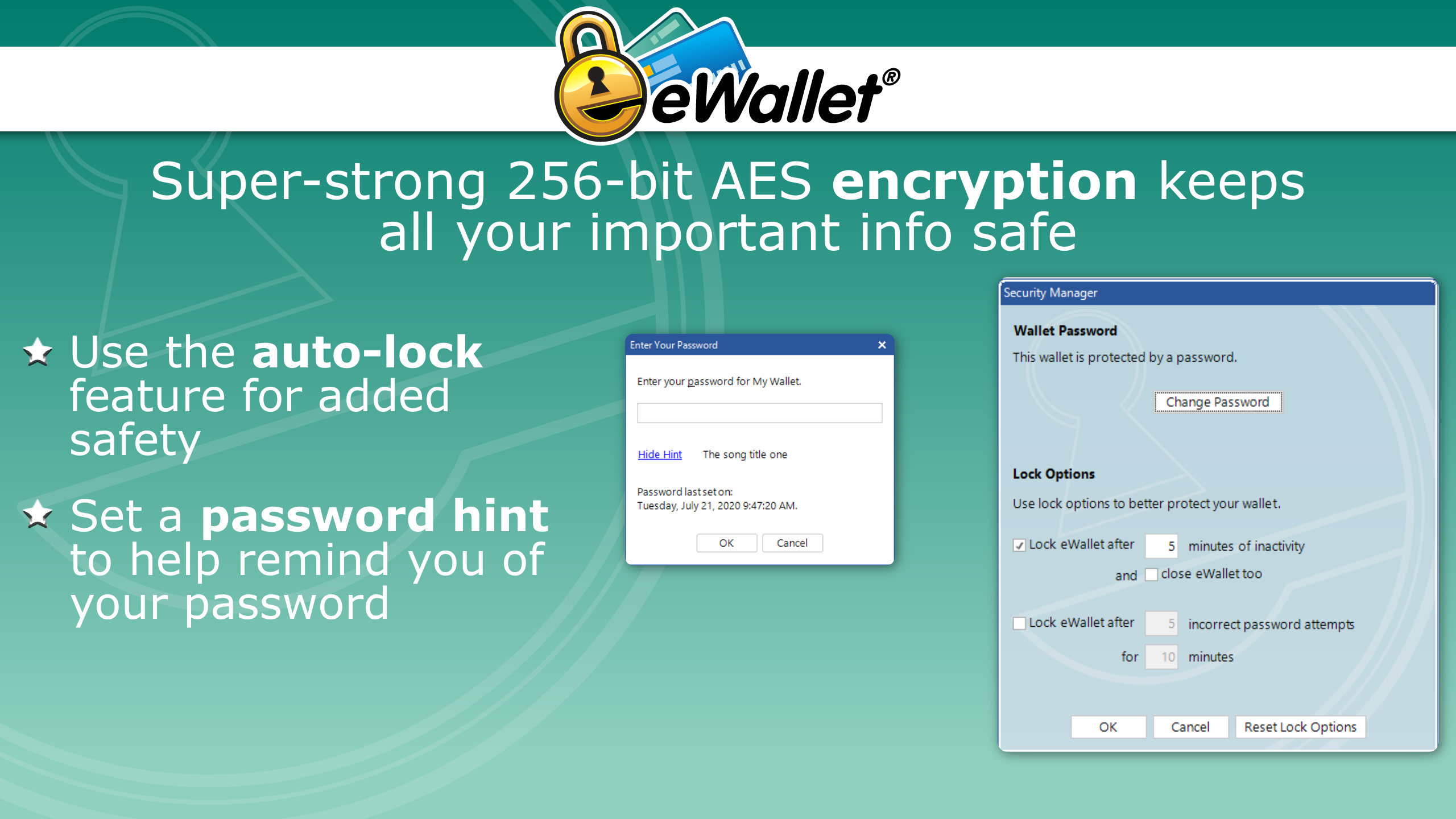
- Secure Data Encryption: eWallet employs robust encryption standards to keep your sensitive data safe from unauthorized access, ensuring peace of mind whether you're storing passwords, credit cards, or confidential notes.
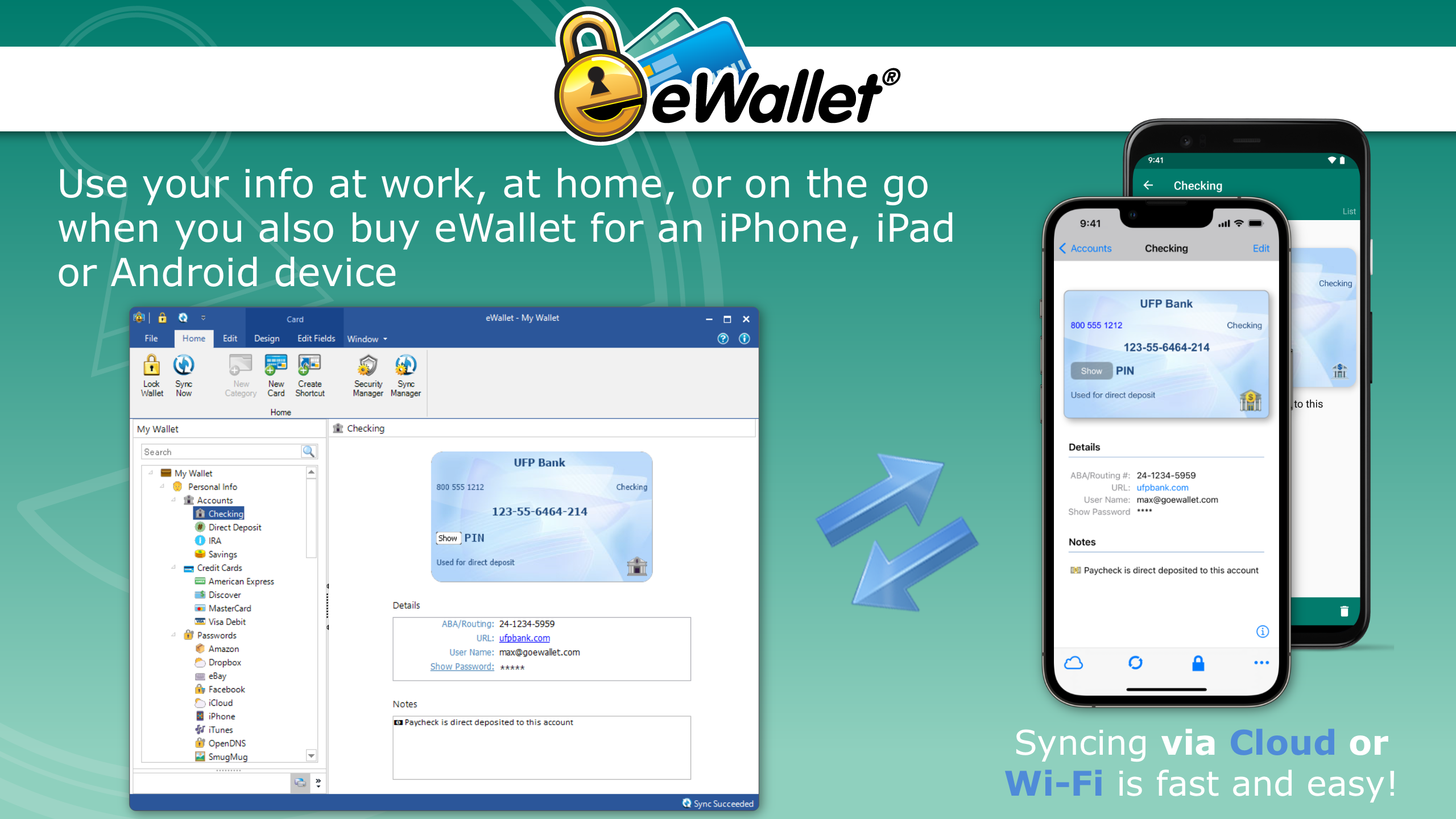
- Cross-Platform Syncing: Seamlessly synchronize your data across multiple devices, allowing you to access your wallet from anywhere, whether on Windows or other compatible platforms.
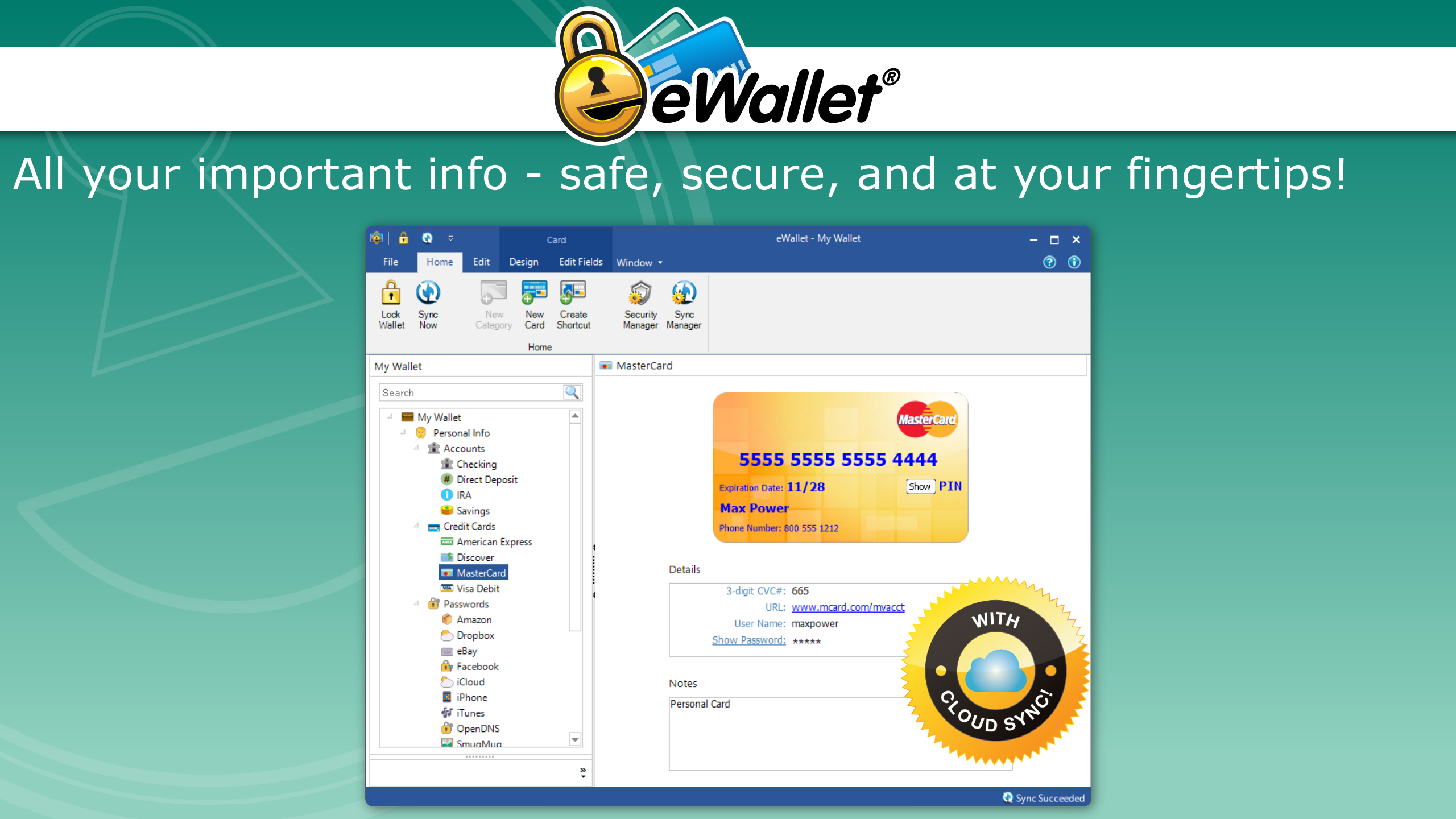
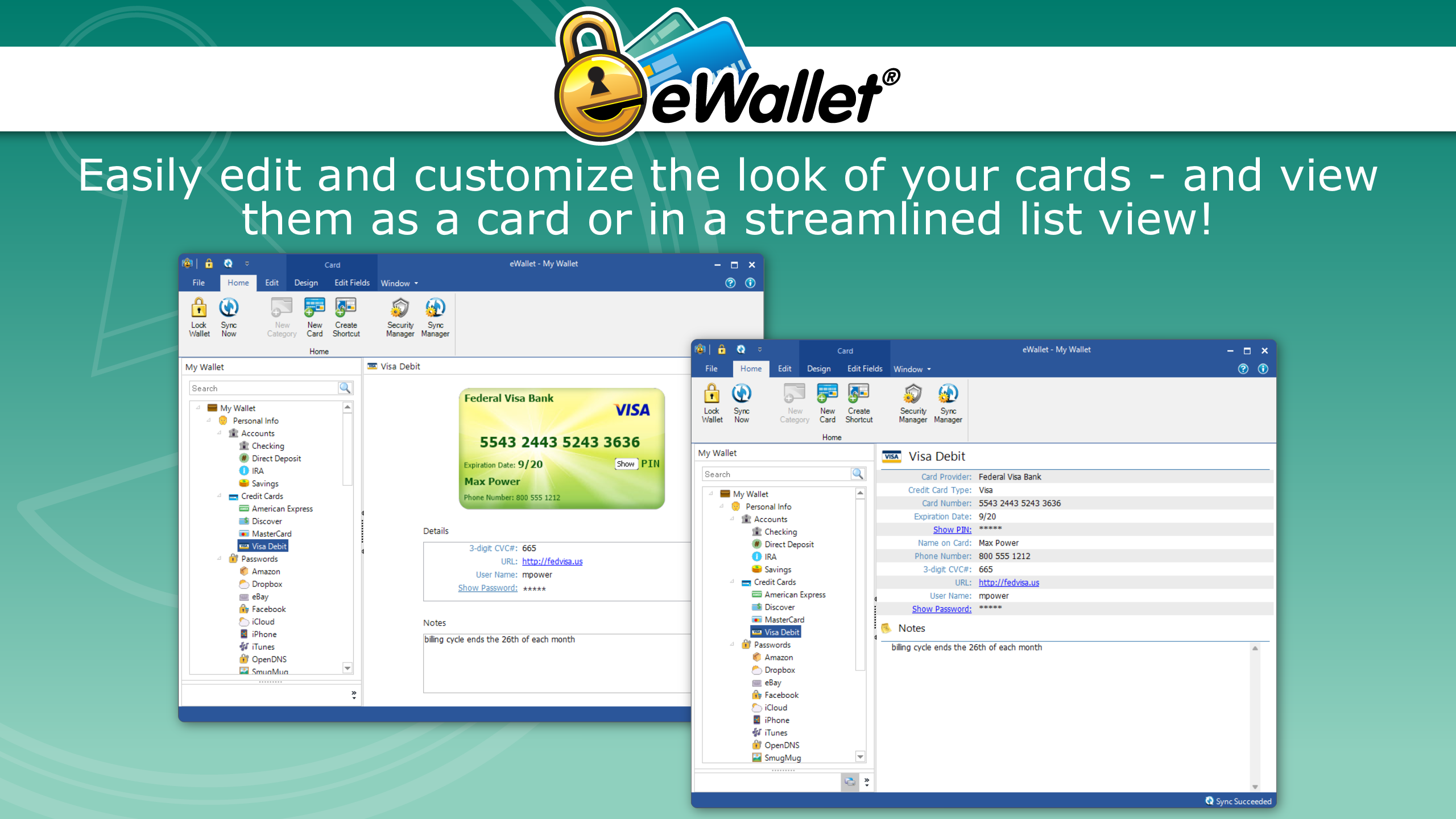
- User-Friendly Interface with Quick Access: The app's clean, organized interface allows for rapid retrieval and management of stored information, reducing time spent searching for credentials.
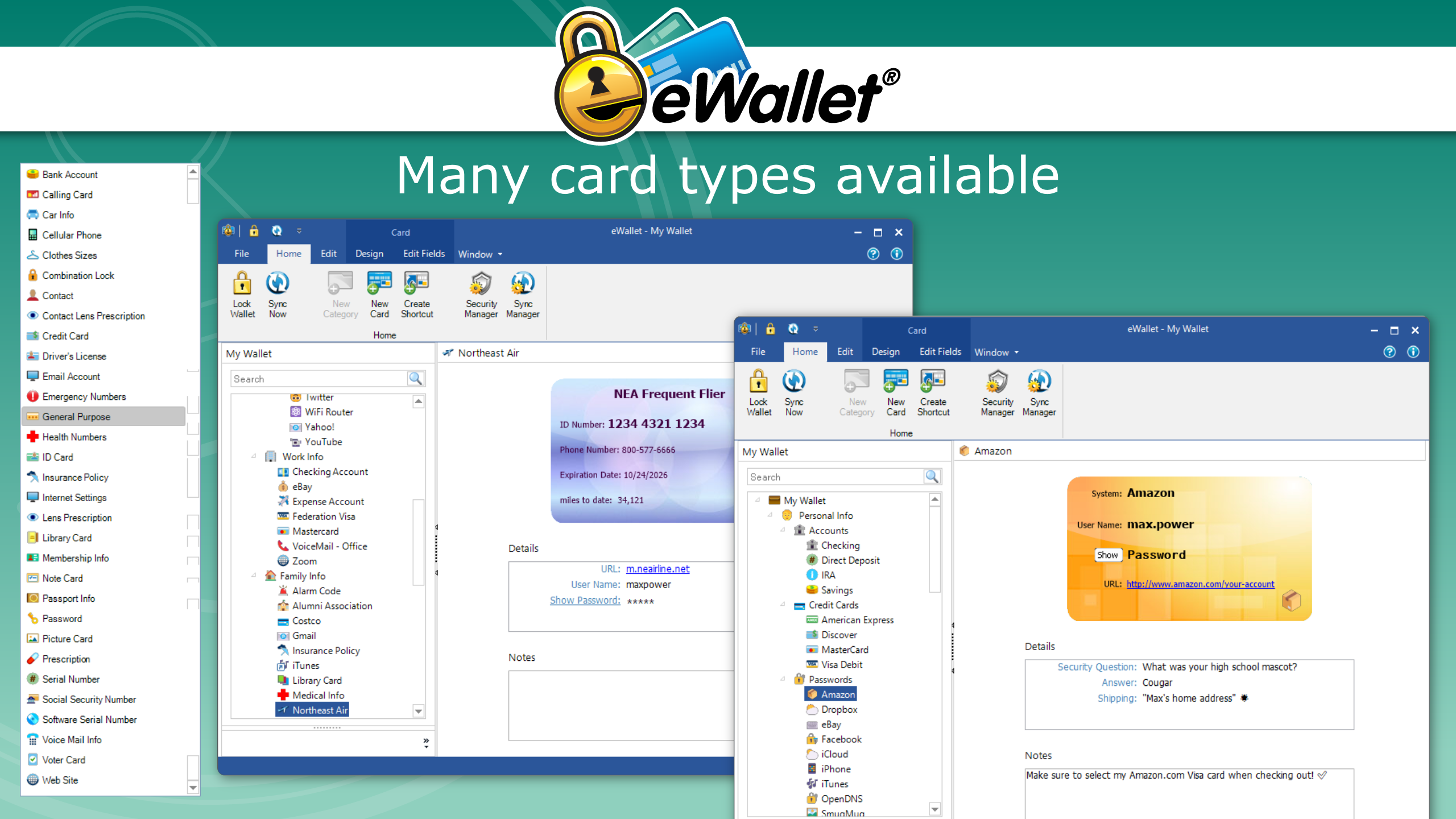
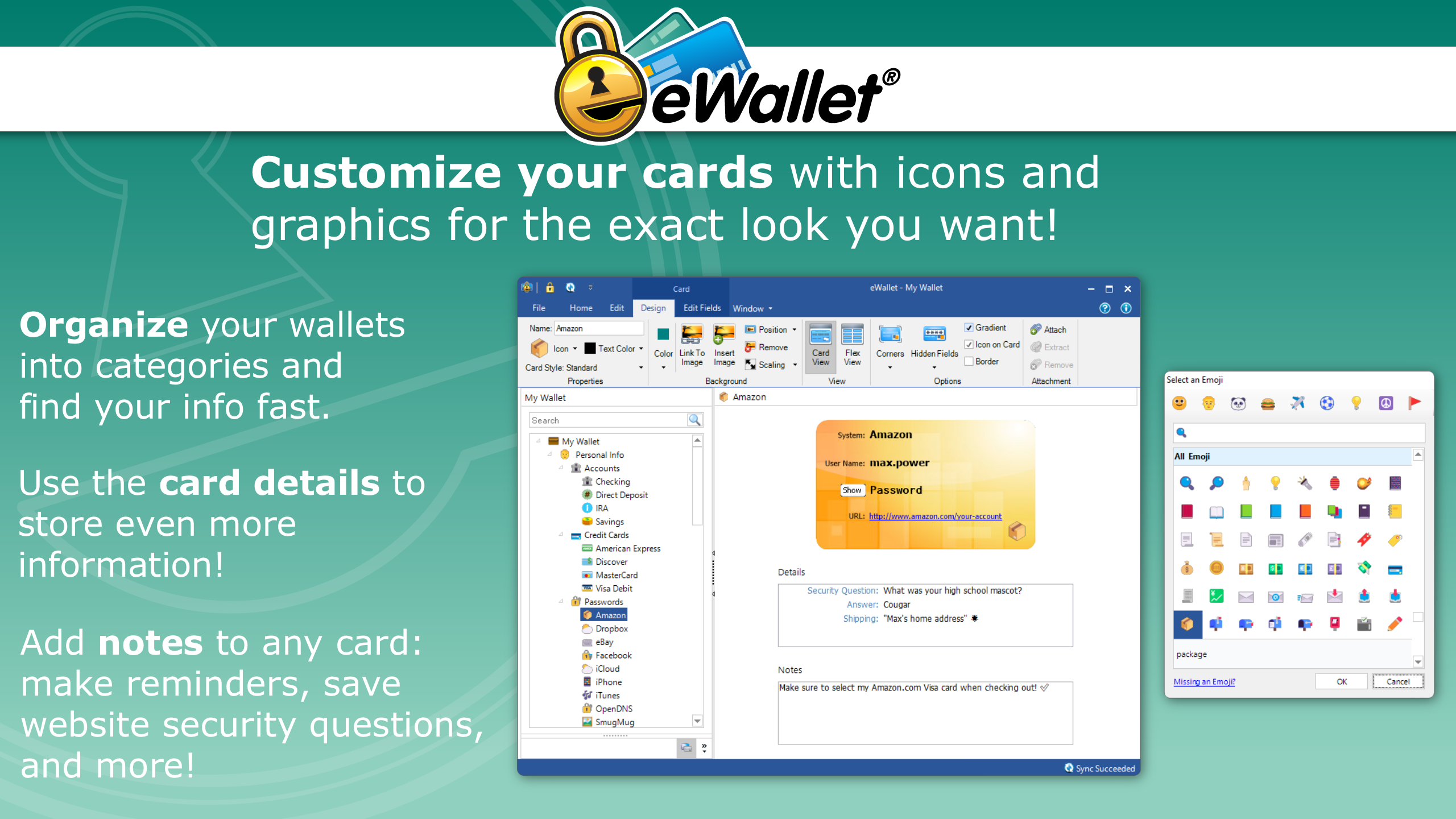
- Customizable Data Categories: Categorize your entries to keep everything orderly—be it financial info, login details, or personal notes—to fit your workflow perfectly.
Embarking on a User Experience Journey
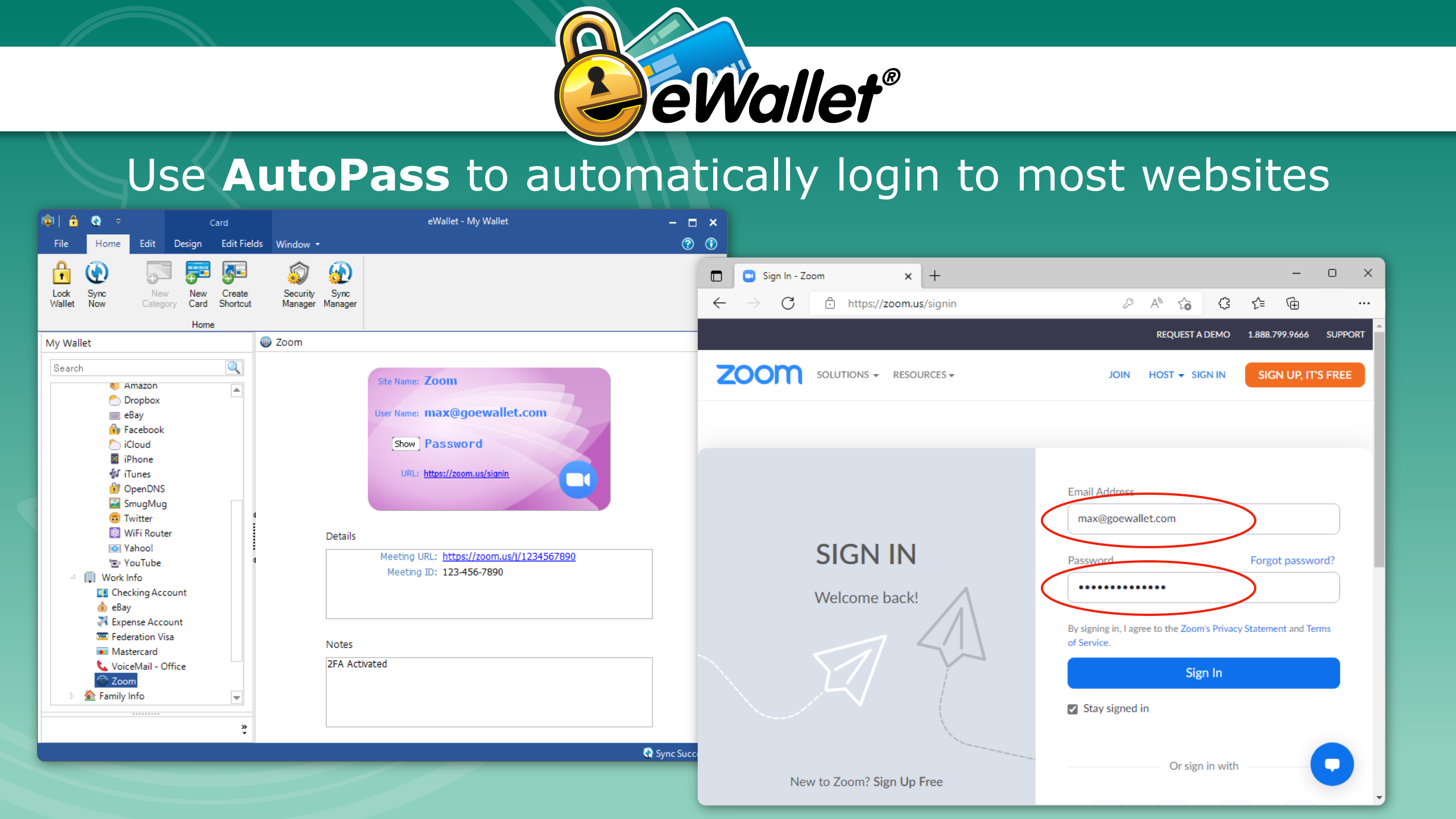
Imagine sitting down at your Windows PC ready to log into your favorite site. With eWallet, it's like having a trusted digital assistant that presents your credentials with a simple click—no fuss, no fussing with complex menus. The app's interface is thoughtfully laid out, with a straightforward navigation that even newcomers can grasp in minutes, akin to flipping through a well-organized physical safe. Transitions between sections are smooth, and entering or editing data feels seamless, thanks to optimized responsiveness that feels uncluttered and swift. This thoughtful design minimizes cognitive load, letting you focus on your tasks rather than wrestling with the tool itself.
Workflow Integration and Efficiency: The App's Hidden Gems
Compared to more feature-heavy competitors, eWallet's real strength lies in its balance—delivering core functionalities that directly enhance workflow without overwhelming the user. Its ability to securely auto-fill login credentials reduces repetitive steps, like having a collaborative assistant handle routine chores. For users managing multiple accounts, the organized categorization and quick search features act as a seasoned librarian, saving time and mental effort. This focus on workflow efficiency, combined with strong security measures, offers a clear advantage over apps that burden users with unnecessary complexity, thereby reducing cognitive load and facilitating a smoother digital experience.
Should You Give It a Try?
If you're seeking a straightforward, secure, and efficiently integrated digital wallet on Windows, eWallet for Windows deserves serious consideration. Its standout features—robust encryption and smooth workflow integration—make it particularly suitable for busy professionals, students, or anyone needing reliable data storage without the hassle. While it might lack some bells and whistles of more elaborate solutions, its minimalist approach aligns well with users craving simplicity without sacrificing security. I broadly recommend this app for those who value quick access and safe storage, but if your needs extend to highly customizable automation or multi-factor workflows, exploring additional options might be warranted.
Pros
- Secure Wallet Storage
- User-Friendly Interface
- Multi-Device Synchronization
- Offline Access
- Regular Updates
Cons
- Limited Platform Support
- Syncing Issues
- Basic Features
- Learning Curve
- Limited Customization










