

- Name MyLifeOrganized - To-Do List
- Category Productivity
- Developer MyLifeOrganized.net
- Available on PC
- OS Windows 10 version 0.0 or higher
- Keyboard Integrated Keyboard
- Mouse Integrated Mouse
- languages English, German, Spanish, Portuguese, Russian, Ukrainian, Chinese (Simplified)
A Sleek and Powerful To-Do List for Windows Enthusiasts
MyLifeOrganized (MLO) is a robust task management app designed to keep your daily plans streamlined and accessible on Windows. It's like having a personal project manager right at your fingertips, ready to organize, prioritize, and remind you of your commitments.
Who's Behind the Curtain?
Developed by MyLifeOrganized.net and published by Andriy Tkachuk, this app benefits from a dedicated team focused on productivity tools tailored for busy individuals seeking clarity in their task management. Their experience shines through in creating an app that's both functional and user-centric.
Top Features that Make MLO Stand Out
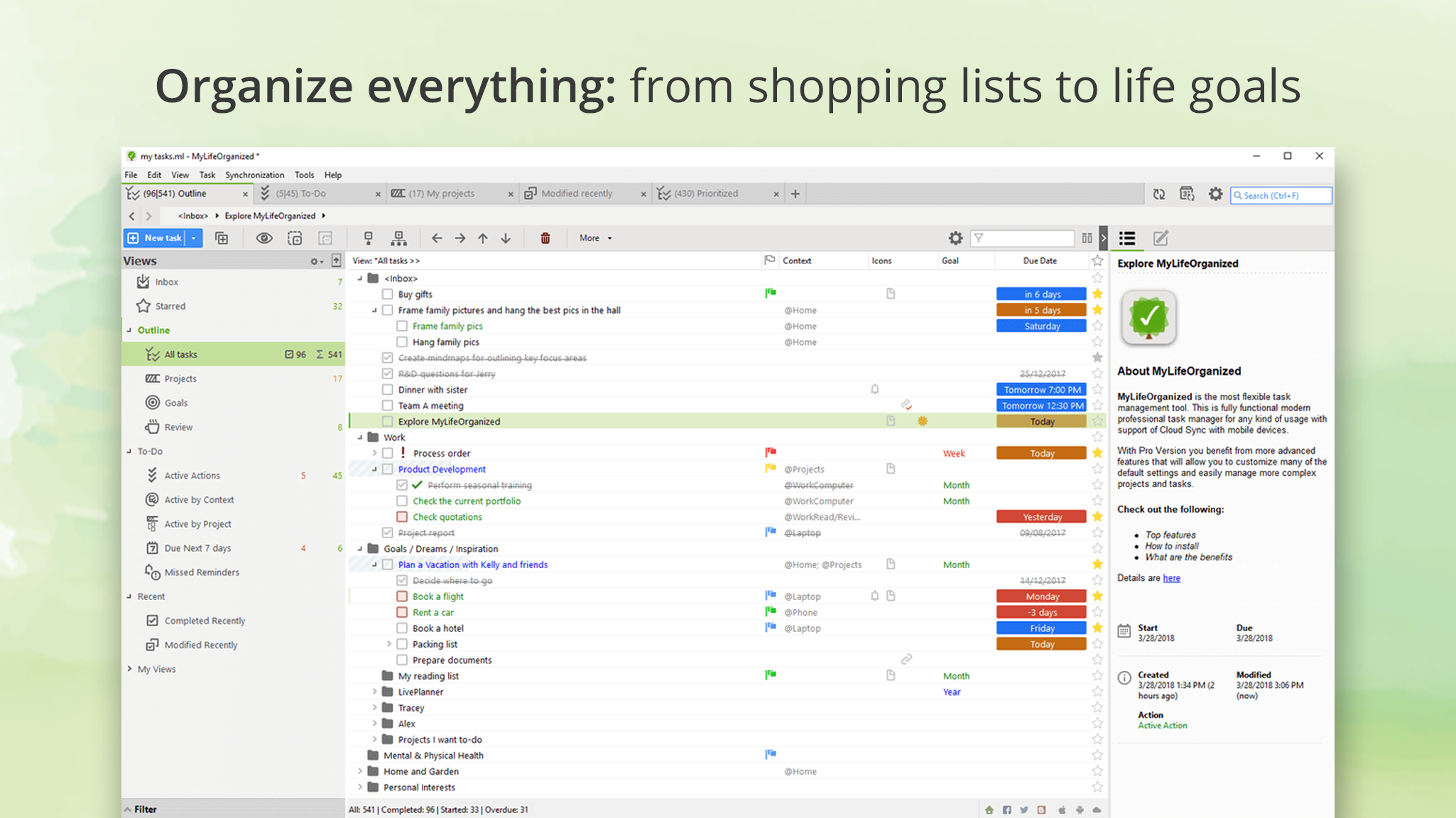
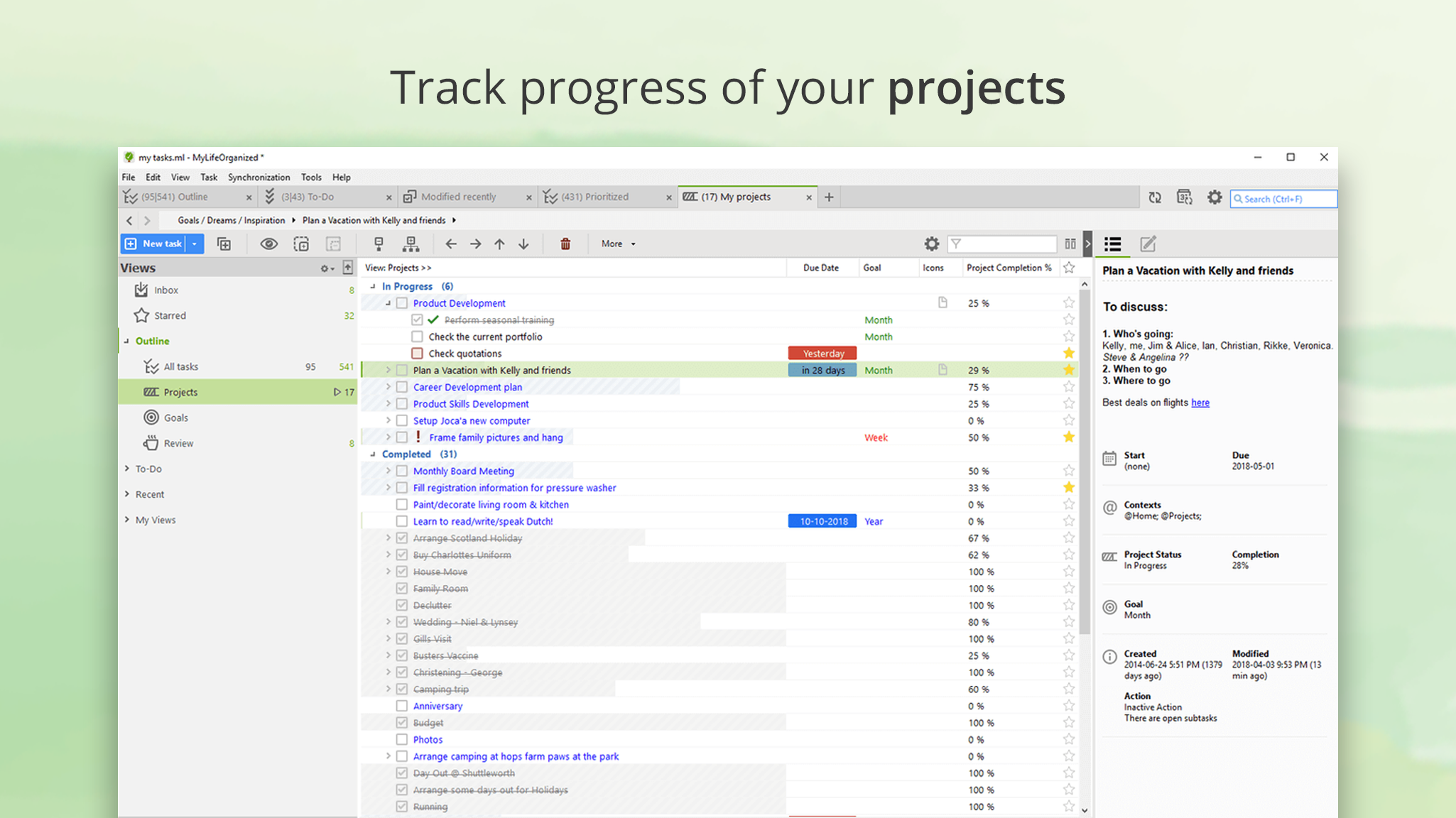
- Hierarchical Task Structuring: Break down projects into nested sub-tasks, offering a clear view of complex workflows.
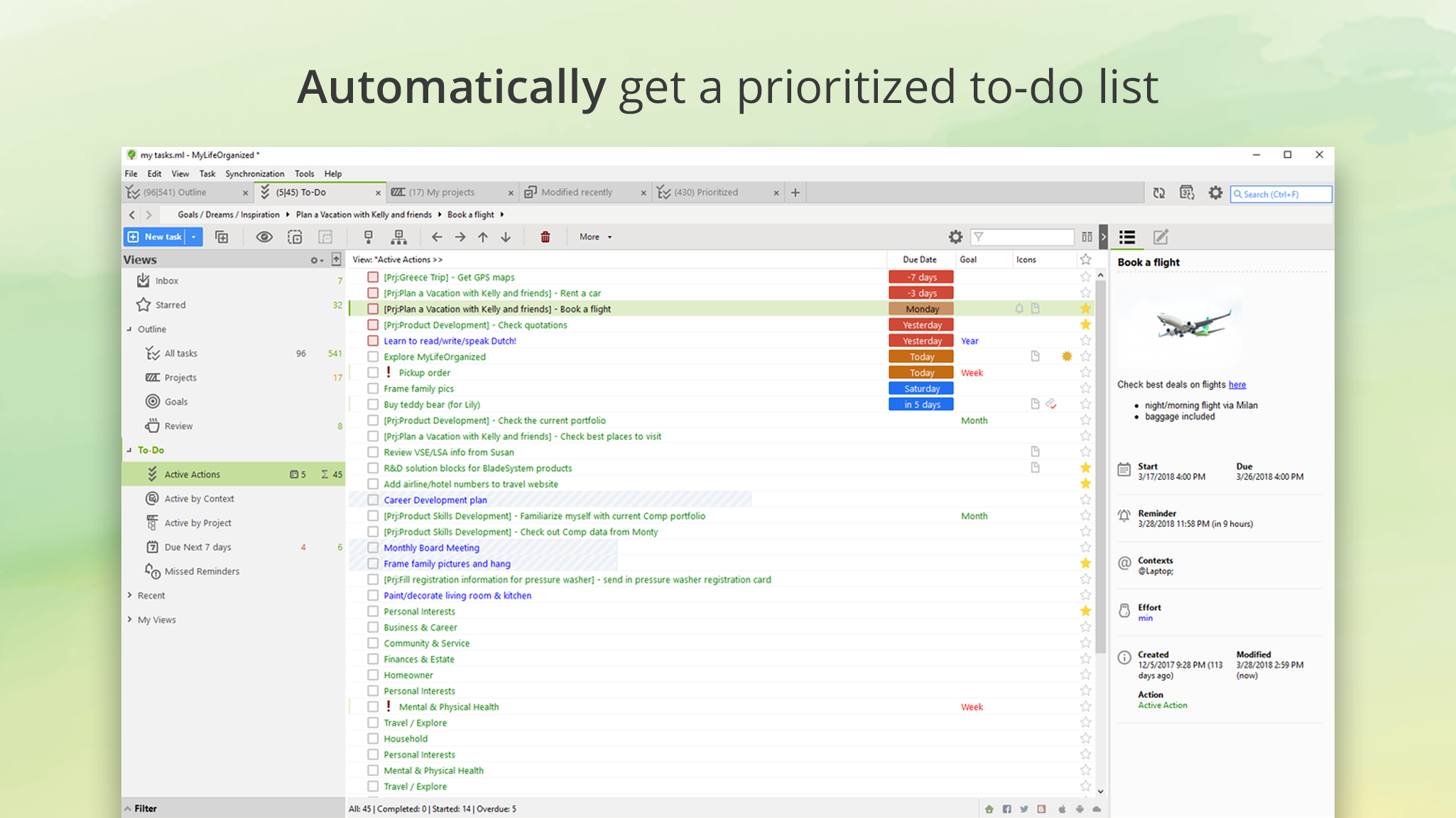
- Sophisticated Scheduling & Reminders: Set deadlines, recurring tasks, and time-based alerts to keep you on track without overwhelming.
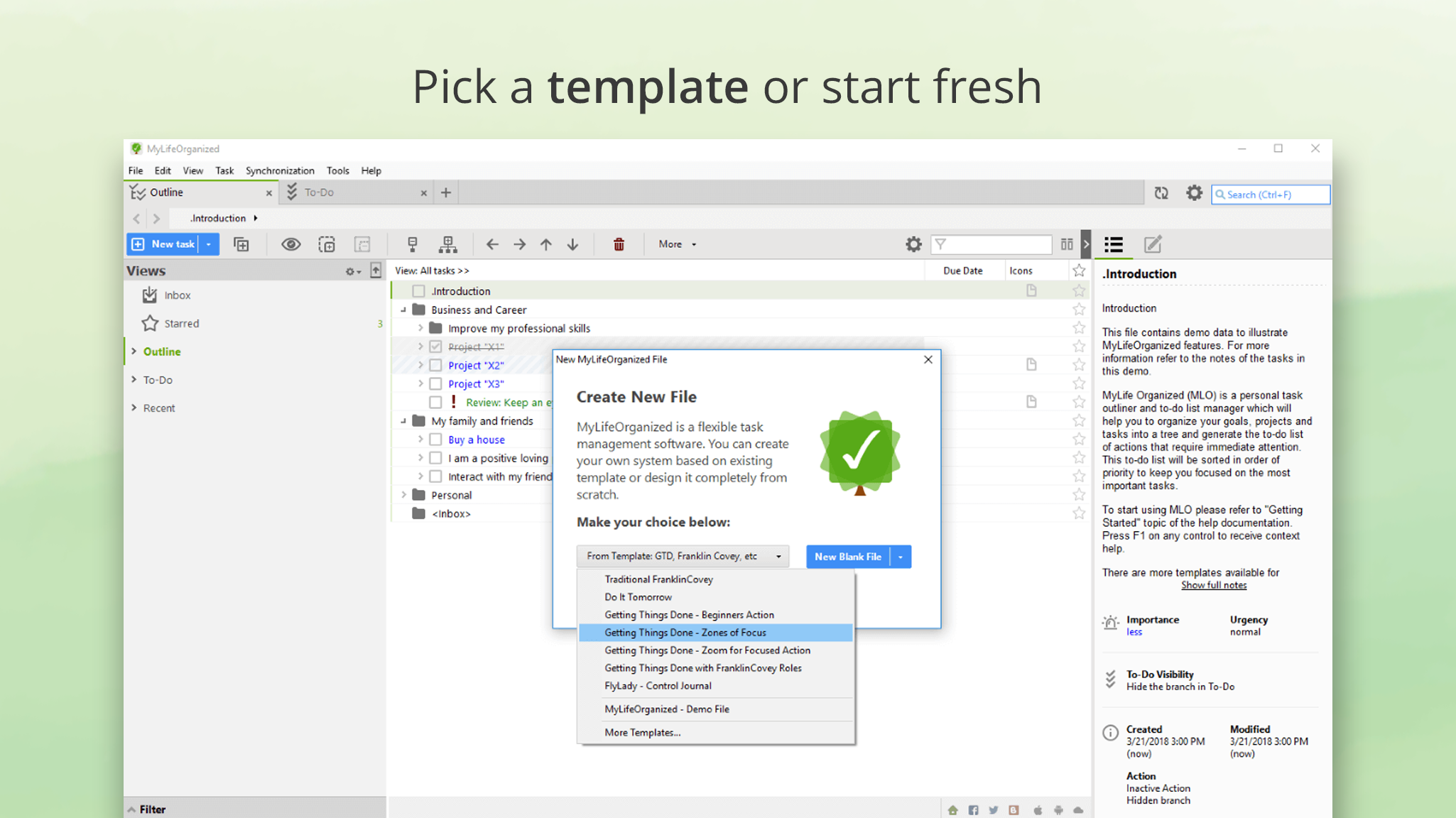
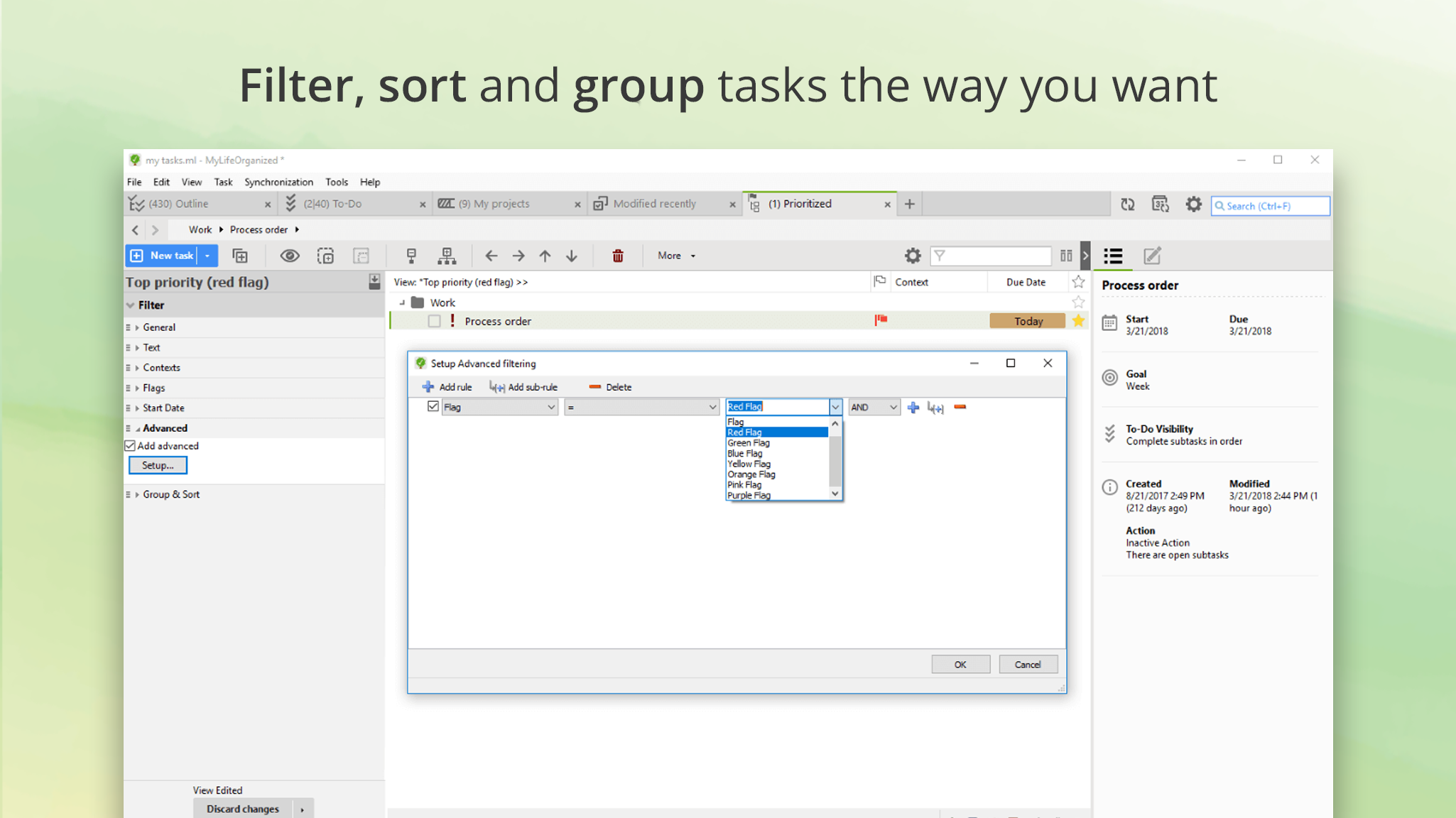
- Workflow Integration & Customization: Adapt the app to your personal process with customizable views, filters, and prioritization schemes.
Engaging Introduction: Your Digital Task Companion
Imagine trying to juggle a dozen balls—some bouncing high, others slipping. Now, picture having a reliable coach reminding you which ball to catch next, helping you keep the rhythm. That's MyLifeOrganized, transforming the chaos of to-do lists into a choreographed dance where each step feels natural. Whether you're managing a busy work schedule or personal projects, MLO aims to be your steady partner, offering both depth and simplicity wrapped into a tidy package.
The Core Pillars of Productivity
Organizational Structure and Task Hierarchy
MLO's standout feature is its ability to nest tasks into multi-level hierarchies. Think of it as a well-organized closet—categories, subcategories, and items—all accessible with a few clicks. This structure not only clarifies what needs to be done but also allows users to focus on actionable items without overload. Compared to more linear to-do apps, MLO's layered approach reduces cognitive load, giving you a clear mental map of your projects.
Advanced Scheduling and Reminders
Often, the biggest challenge in task management is ensuring nothing slips through the cracks. MLO addresses this with flexible scheduling options—recurring tasks, priority-based reminders, and contextual notifications. Imagine a personal assistant who nudges you gently at just the right moment to keep you moving forward. This feature integrates seamlessly into your workflow, reducing stress and boosting efficiency, especially during busy days when mental clutter can be overwhelming.
User Interface & Experience: Balancing Power with Simplicity
MLO's interface adopts a clean, professional look reminiscent of a well-organized digital planner, making navigation intuitive even for newcomers. Its design facilitates quick task addition, easy drag-and-drop reordering, and straightforward customization. The app feels snappy and responsive on Windows, with smooth transitions that foster a sense of control rather than frustration. While there's a learning curve to unlocking all advanced features, basic operations are accessible and don't require steep effort, making it suitable for both tech-savvy users and those new to productivity apps.
Differentiation: What Sets MLO Apart?
Unlike many productivity apps that trade depth for simple checklists, MLO excels in workflow integration. Its hierarchical task design mirrors real-world projects—big goals broken into manageable steps—reducing the cognitive strain of juggling multiple responsibilities. Instead of drowning in a sea of features, it offers a curated set that focuses on reducing mental workload and enhancing clarity. The app's emphasis on hierarchical planning, combined with its powerful customization options, makes it uniquely suited for users who desire a detailed, yet unobtrusive, task management system.
Final Thoughts & Recommendations
Overall, MyLifeOrganized is a commendable choice for those who need more than a simple tick-off list. Its core strengths lie in reducing mental clutter through hierarchical task organization and intelligent scheduling. If you're someone who appreciates a structured approach to productivity and prefers a customizable, feature-rich environment, MLO deserves a close look. Beginners may want to start with basic features, but for power users ready to dive deep, its advanced options can make a substantial impact on your workflow.
I would recommend MLO particularly for project managers, professionals handling multiple responsibilities, or students juggling coursework and personal goals. For users seeking a lightweight, minimalist app, this may feel too comprehensive. However, for those craving control and clarity, MyLifeOrganized offers a compelling, logically structured digital assistant that can streamline your productivity without overwhelming your mind.
Pros
- Intuitive task organization
- Robust offline capabilities
- Powerful customization options
- Reminders and notifications
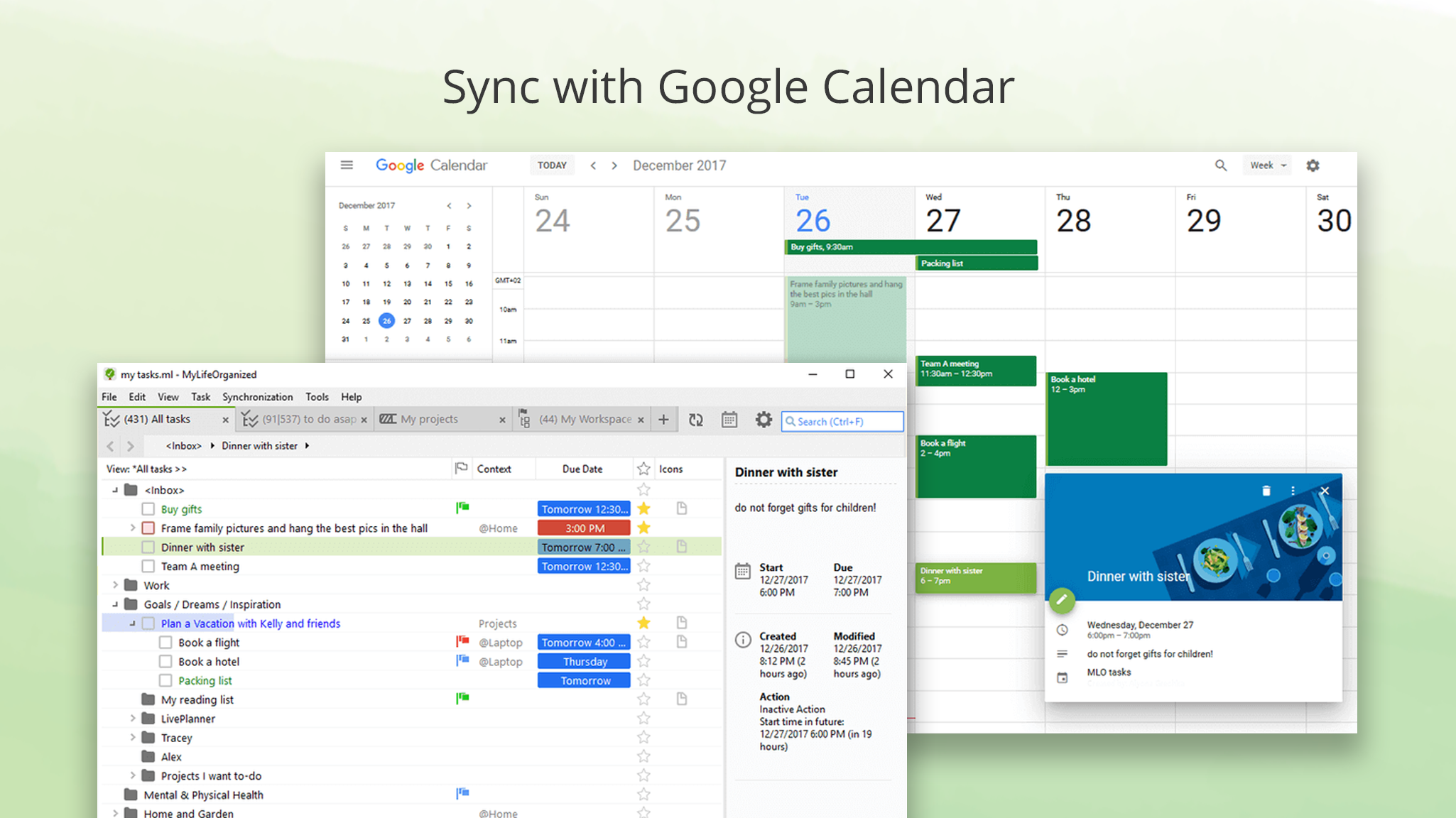
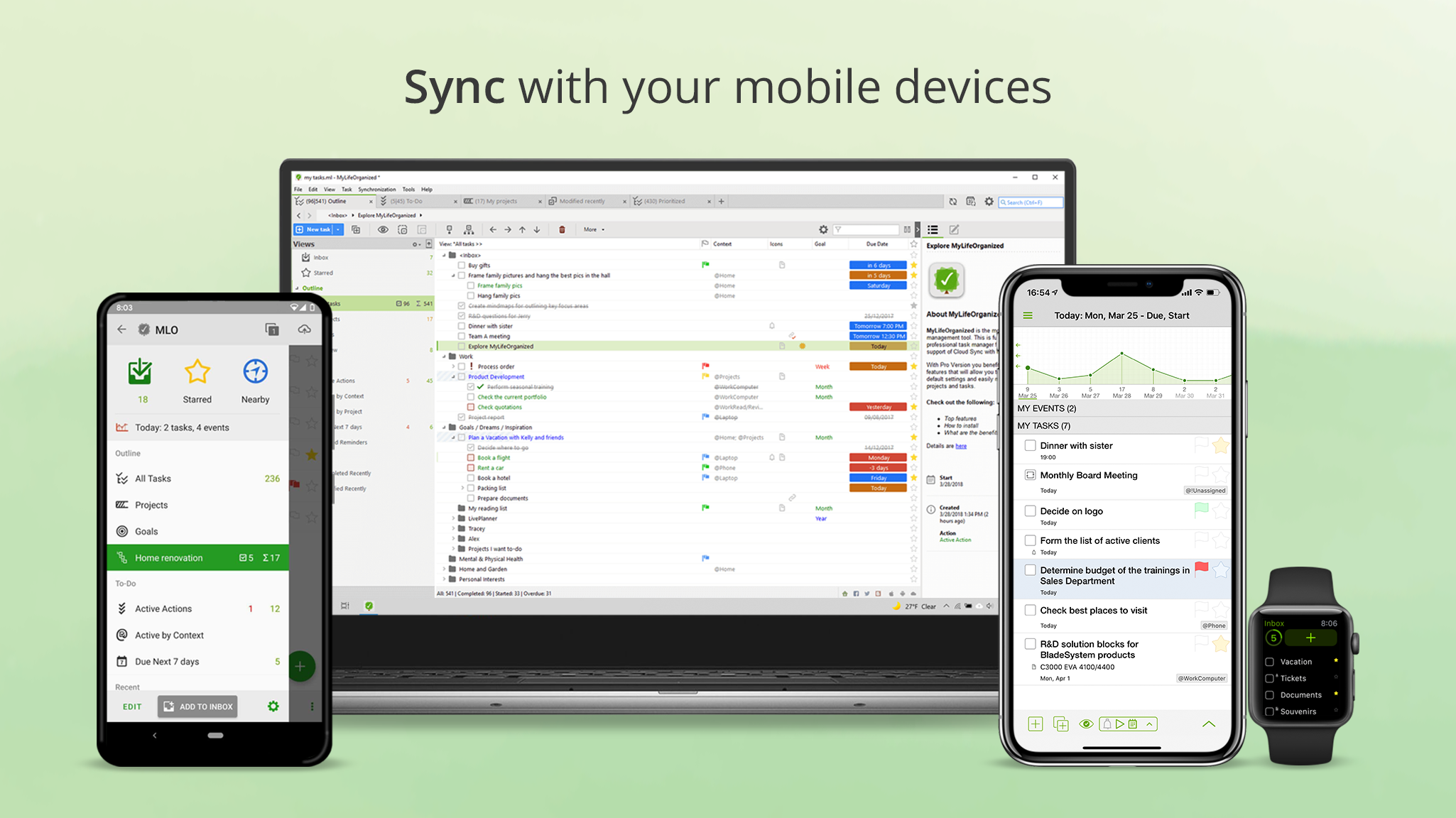
- Cross-platform support
Cons
- Steep learning curve
- Limited collaboration features
- Some features require in-app purchase
- UI can be cluttered for new users
- Sync speed can vary










