

- Name xlCompare
- Category Productivity
- Developer Komarov Sergii Oleksandrovich, FOP
- Available on PC
- OS Windows 10 version 0.0 or higher
- Keyboard Integrated Keyboard
- Mouse Integrated Mouse
- languages English
Introduction: Streamlining Your File Syncing Tasks with xlCompare
Imagine comfortably managing complex file comparisons and merges without losing your mind—that's exactly what xlCompare for Windows promises. Designed as a robust yet user-friendly tool, it aims to reduce the hassle of file management by intelligently comparing, merging, and synchronizing data with precision. Developed by Komarov Sergii Oleksandrovich, FOP, and published under Spreadsheet Tools, this application caters especially to power users who frequently handle multiple versions of spreadsheets and data files. Whether you're a software developer, a data analyst, or an IT professional, xlCompare positions itself as an essential time-saver in your productivity toolkit.
Core Functionality: Deep Dive into What Makes xlCompare Stand Out
1. Intelligent File and Folder Comparison
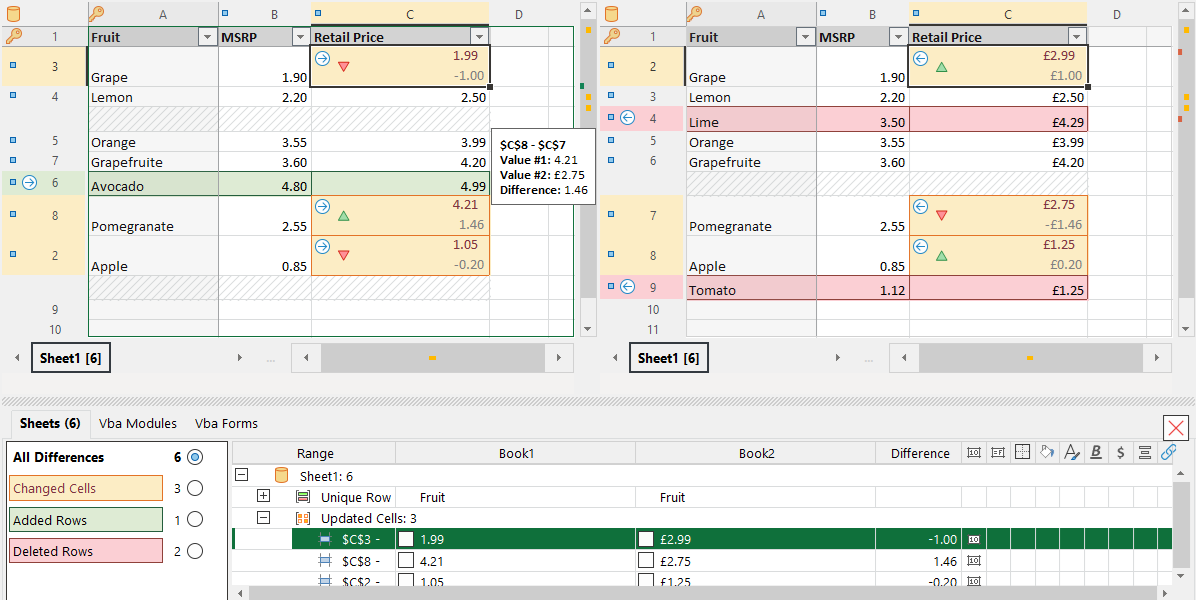
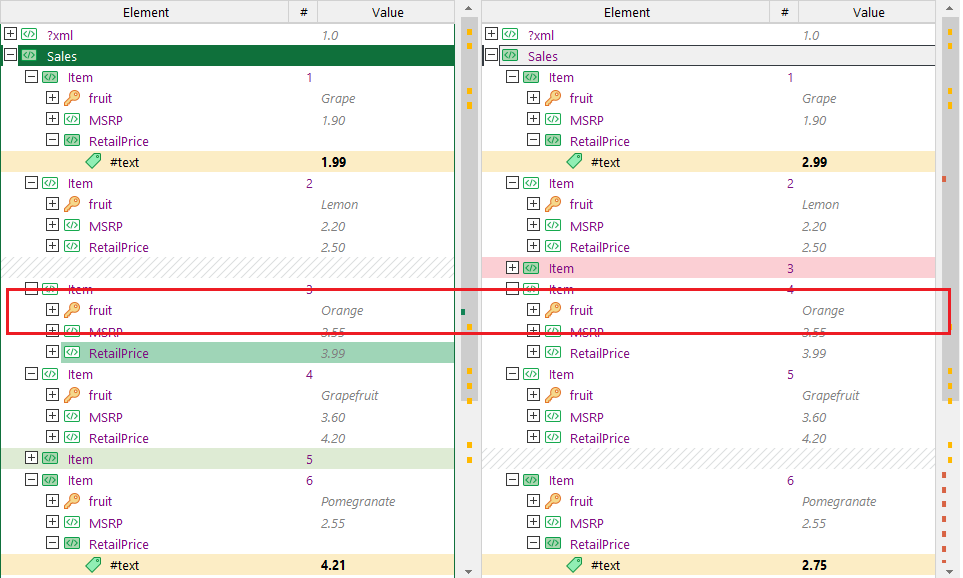
At the heart of xlCompare is its advanced comparison engine that can dissect differences between files and folders with surgical precision. Unlike basic diff tools, it doesn't just highlight line changes; it interprets cell-by-cell differences in spreadsheets, making it invaluable for version control and collaborative workflows. The software visualizes discrepancies through intuitive color coding and side-by-side views, enabling users to quickly grasp what's changed, added, or removed—saving hours previously spent scrolling through tangled documents.
2. Seamless Merge and Synchronization
Once differences are pinpointed, xlCompare simplifies the consolidation process. Its merge feature allows you to selectively integrate changes from multiple sources into a unified file. Think of it as a skilled editor that helps merge several drafts into one flawless version—without overwriting important data. This is especially helpful in scenarios where multiple team members make concurrent edits, ensuring data integrity without the chaos of manual copy-pasting. The tool also supports bidirectional synchronization, keeping your files perfectly aligned over time.
3. Advanced Data Management and Script Automation
Beyond simple comparisons, xlCompare offers automation capabilities that let advanced users craft scripts to handle repetitive comparisons, scheduled synchronization, or custom reports. This leverages the power of automation to reduce cognitive load and streamline workflows, particularly in environments where large datasets or regular updates are the norm. While not as heavy on flashy features, this focus helps users integrate xlCompare smoothly into existing data pipelines without additional overhead.
User Experience: Intuitive Design Meets Robust Functionality
From the moment you launch xlCompare, it greets you with a clean, well-organized interface that feels less like a labyrinth and more like a well-laid map. Navigating between comparison modes is straightforward, with clearly labeled buttons and wizard-style prompts guiding even first-time users. The interface's visual cues—like color-coded differences and layered views—serve as a guiding light, making complex comparisons feel less daunting. Smooth operation and quick responses keep the process flowing naturally, while the learning curve is gentle enough for casual users yet comprehensive enough for power users seeking advanced features.
Unique Advantages: Workflow Efficiency & Cognitive Load Reduction
What truly sets xlCompare apart from other productivity tools is its laser focus on reducing cognitive load by simplifying the complex. Unlike feature-heavy, cluttered diff tools that require constant switching and interpretation, xlCompare emphasizes clarity and streamlined workflows. Its ability to integrate seamlessly with existing data workflows—especially Excel-centric environments—means less time spent juggling disparate tools and more time analyzing meaningful insights. The dual capability of detailed comparison combined with automated merging addresses both the need for precision and efficiency, making it a standout for users who prioritize workflow integration and accuracy.
Recommendation and Usage Tips
Based on its features and user experience, I would recommend xlCompare for professionals who regularly handle large sets of data or multiple file versions. It's particularly well-suited for teams that need reliable comparison tools that don't add unnecessary complexity. For casual users or those just managing small documents, its richness might be more than needed—but for power users, it can be an indispensable addition. To maximize its potential, I suggest incorporating xlCompare into your regular data validation routines or version control processes, especially when accuracy and consistency are critical.
In sum, xlCompare stands out as a thoughtfully designed, reliable tool that effectively balances feature depth with user-friendliness. Its core strength—clear, precise comparisons combined with streamlined merge capabilities—makes it a valuable companion for anyone serious about efficient file management. So if you're tired of manual comparison messes, give xlCompare a try and experience a smarter way to manage your data.
Pros
- User-Friendly Interface
- Supports Multiple File Formats
- Precise Difference Detection
- Batch Comparison Feature
- Integration with Microsoft Office
Cons
- Limited Customization Options
- Slow Performance with Large Files
- Lack of Detailed Change Reports
- Minor User Interface Glitches
- Limited Free Trial Period











