

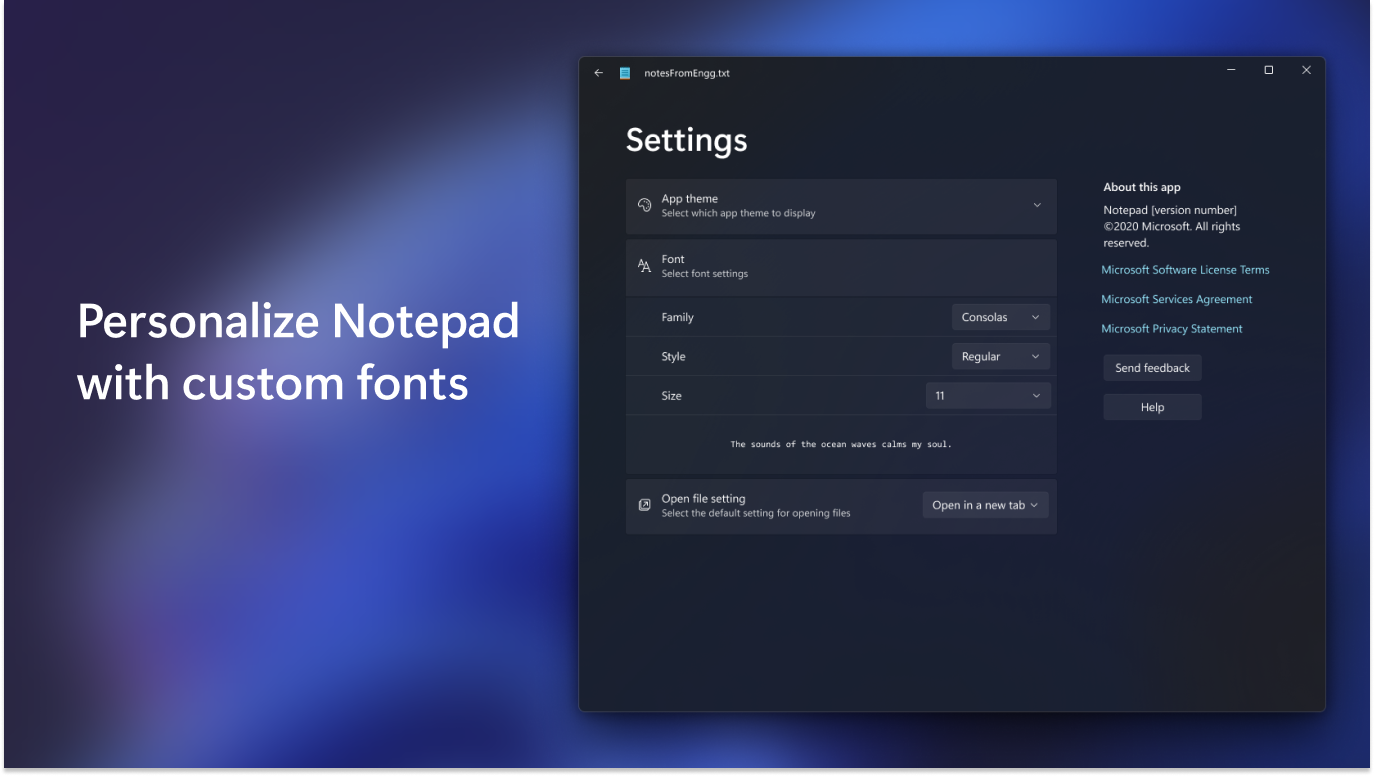
- Name Windows Notepad
- Category Productivity
- Available on PC
- OS Windows 11 version 22000.0 or higher
- languages Afrikaans, Albanian, Amharic, Arabic, Armenian, Assamese, Azerbaijani, Bangla (Bangladesh), Bangla (India), Basque, Belarusian, Bosnian (Latin, Bosnia and Herzegovina), Bulgarian, Catalan, Central Kurdish (Iraq), Cherokee (Cherokee), Chinese (Simplified), Chinese (Traditional), Croatian, Czech, Danish, Dari, Dutch, English (United Kingdom), English (United States), Estonian, Filipino, Finnish, French, French (Canada), Galician , Georgian, German, Greek, Gujarati, Hausa (Latin), Hebrew, Hindi, Hungarian, Icelandic, Igbo, Indonesian, Irish, isiXhosa, IsiZulu, Italian, Japanese, Kannada, Kazakh, Khmer, Kinyarwanda, Kiswahili, Konkani, Korean , Kyrgyz, Lao, Latvian, Lithuanian, Luxembourgish, Macedonian, Malay, Malayalam, Maltese, Maori, Marathi, Mongolian (Mongolia), Nepali, Norwegian (Bokmål), Odia, Persian, Polish , Portuguese (Brazil), Portuguese (Portugal), Punjabi (Arabic), Punjabi (India), QUC-LATN-GT, Quechua, Romanian, Russian, Scottish Gaelic, Serbian, Serbian (Cyrillic, Bosnia and Herzegovina), Serbian (Latin, Serbia), Sesotho sa Leboa, Setswana, Sindhi (Arabic), Sinhala, Slovak, Slovenian (Slovenia), Spanish (Mexico), Spanish (Spain), Swedish, Tajik, Tamil, Tatar, Telugu, Thai, Tigrinya, Turkish, Turkmen, Ukrainian, Urdu, Uyghur, Uzbek, Valencian, Vietnamese, Welsh, Wolof, Yoruba
A Fresh Take on a Classic Tool: Windows Notepad for Windows
In an age saturated with complex text editors and feature-laden IDEs, sometimes simplicity and efficiency are the most valuable assets. Microsoft's redesigned Notepad for Windows emerges as a surprisingly versatile and thoughtful update, offering a streamlined experience for everyday note-taking and lightweight text editing.
Meet the Developer: Microsoft Corporation's Evolution of Notepad
Developed by Microsoft Corporation, this iteration of Notepad is part of their broader effort to modernize and optimize core Windows apps. With a focus on minimalism coupled with enhanced functionality, Microsoft aims to reintroduce Notepad as a practical and reliable tool for both casual users and professionals.
- Key Features: Enhanced text editing with improved performance, integration with Windows Search, and a more customizable interface.
- Target Audience: Students, writers, developers, and general users seeking a simple yet efficient text editor.
A User-Friendly and Efficient Workspace
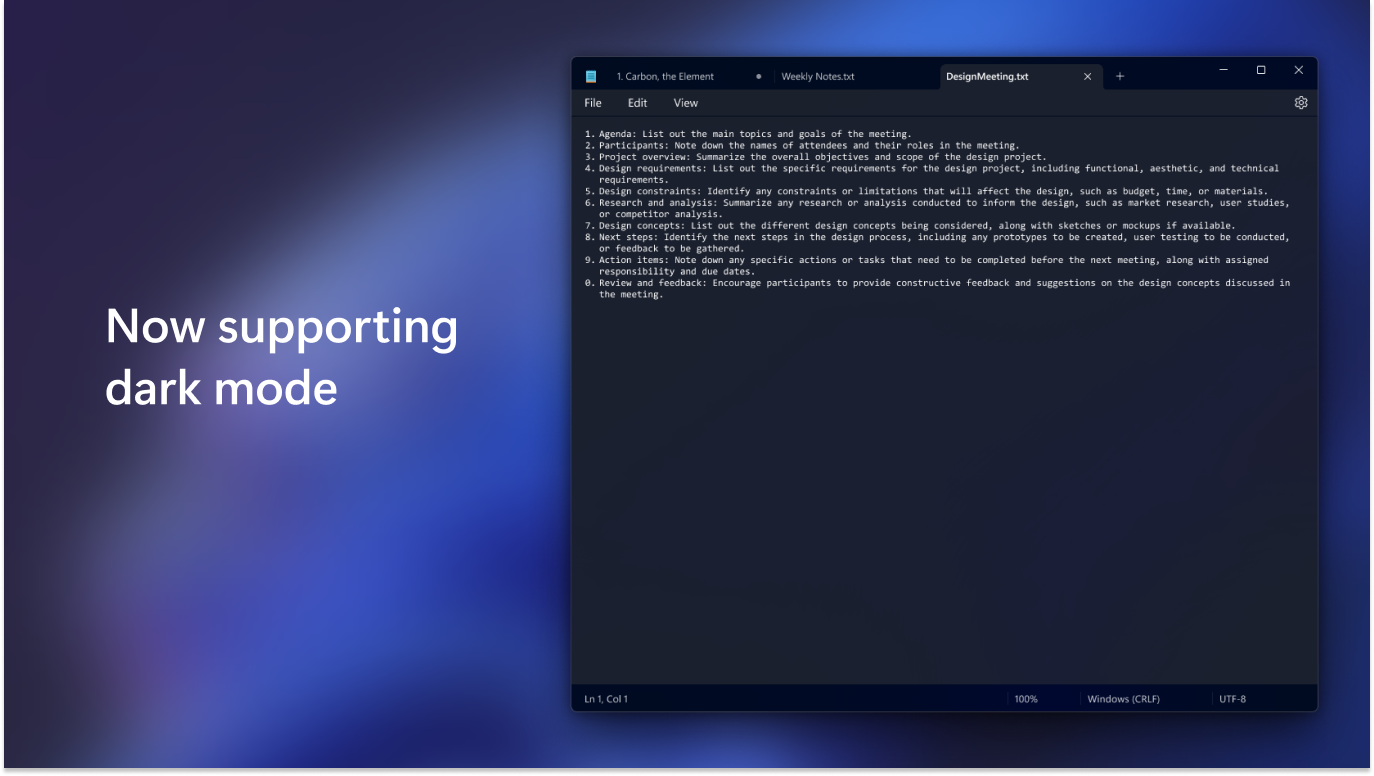
Imagine sitting down after a busy day, opening Notepad, and instantly feeling at home—no clutter, just a clean, familiar interface. This update preserves the simplicity users love but infuses it with thoughtful improvements that make daily tasks smoother. The minimalistic design acts like a blank canvas—inviting creativity and focus, free from unnecessary distractions.
Core Functionality 1: Smarter, Faster Text Editing
One of the most compelling improvements is the application's performance boost. Loading files now feels instantaneous, and the editing experience is notably more responsive. Features like seamless undo/redo, line numbering, and improved scrolling contribute to an experience akin to a well-tuned instrument—precise and effortless. For those working with large logs or lengthy notes, these enhancements reduce cognitive load, letting users focus purely on their content without battling lag or interface clutter.
Core Functionality 2: Seamless Windows Search & Enhanced Compatibility
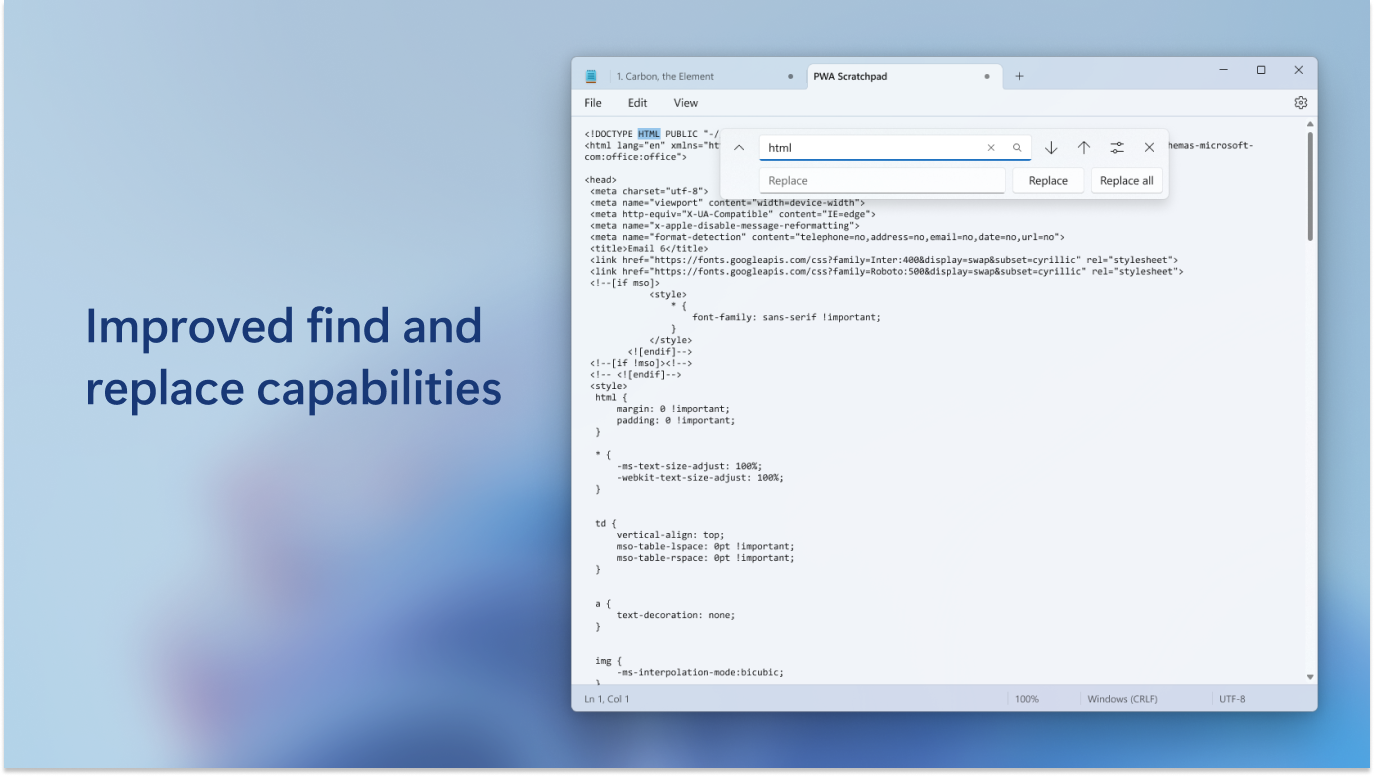
Integration with Windows Search means you can effortlessly locate your notes without switching apps. Simply type in the file name or keywords, and Notepad's quick search feature pinpoints your content in a flash—like having a trusted librarian at your side. Additionally, the app retains compatibility with all Windows features, supporting rich text saving options and line endings, making it a reliable companion whether you're jotting down quick ideas or preparing code snippets.
Design and User Experience: A Balance of Simplicity and Modernity
The interface strikes a harmony between classic familiarity and modern elegance. The clean, minimal design helps reduce cognitive load, akin to a clear desktop workspace that invites focus rather than distraction. Navigating through menus and options feels intuitive, with a gentle learning curve reminiscent of rediscovering an old favorite but with some subtle, delightful enhancements. The app's responsiveness and stability make for a smooth, frustration-free user experience—ideal for both quick notes and longer writing sessions.
Standout Features: Workflow Integration and Cognitive Load Reduction
Distinct from other productivity tools, Notepad's standout strength lies in how effortlessly it integrates into the Windows workflow. Unlike feature-heavy editors that require steep learning curves or constant customization, this version minimizes cognitive load—users spend less time navigating menus and more time creating. Its rapid launch times and search capabilities mean your notes are always within reach, making it ideal for high-efficiency environments. This simplicity and strategic feature set directly support focused work, setting it apart from more complex text editors or note apps that can often be overwhelming with options.
Final Verdict: A Refreshing Classic—Highly Recommended for Everyday Use
Overall, Windows Notepad for Windows emerges as a thoughtfully refined tool that balances simplicity with meaningful improvements. It resonates well with users who value efficiency and unobtrusive performance—think of it as your trusty notebook made digital. While it might not replace more comprehensive text editors for heavy-duty programming or formatting, it excels as a reliable, lightweight companion in daily tasks. For anyone seeking a no-fuss, fast, and integrated note-taking solution, this App comes highly recommended. It's the kind of app that makes you wonder how you ever managed without it—quietly reliable and always ready when you need it.
Pros
- Lightweight and fast startup
- Simple and intuitive interface
- Basic editing features
- File compatibility
- Light system resource usage
Cons
- Limited formatting options
- No Unicode or rich text support
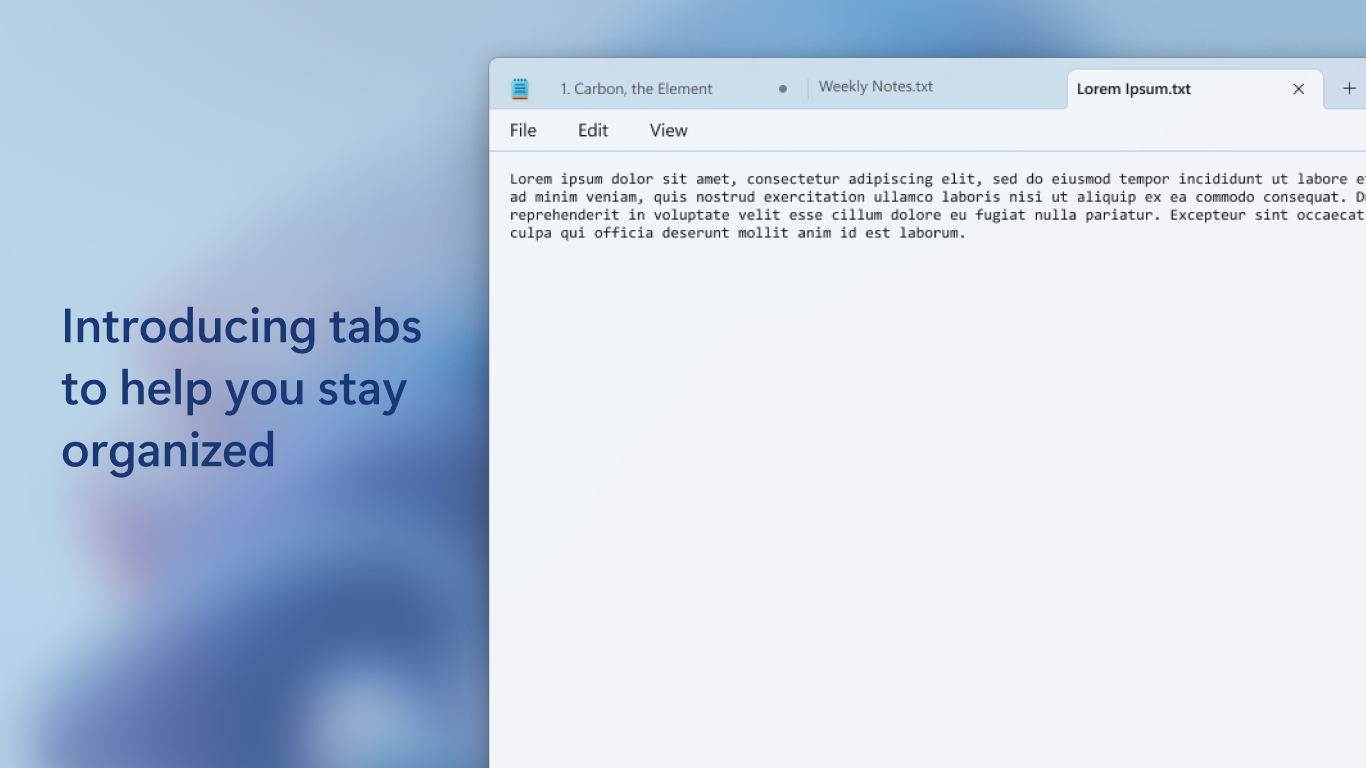
- Absence of tabbed editing
- Limited advanced editing functions
- No cloud integration or autosave











