

- Name Webex
- Category Productivity
- Developer Cisco Systems, Inc.
- Available on PC
- OS Windows 10 version 0.0 or higher
- Keyboard Integrated Keyboard
- Mouse Integrated Mouse
- Memory 2 GB
- languages Arabic, Bulgarian, Catalan, Chinese (Simplified) (China), Chinese (Simplified), Chinese (Traditional Chinese), Chinese (Traditional) (Hong Kong), Croatian, Croatian, Czech, Czech, Danish, Danish, Dutch, Dutch, Dutch (Belgium), English, English (United States), English (United Kingdom), French (Canada), French, German, German, Hebrew, Hebrew, Hungarian, Hungarian, Indonesian, Indonesian, Italian, Italian, Japanese, Japanese, Korean, Korean , Norwegian, Norwegian (Bokmål), Norwegian (Bokmål), Norwegian (Nynorsk), Polish, Polish , Portuguese (Brazil), Portuguese, Portuguese (Portugal), Romanian, Romanian, Russian, Russian, Russian (Ukraine), Serbian, Serbian (Latin, Serbia), Serbian (Latin), Spanish, Spanish (Spain), Spanish (Latin America), Swedish, Swedish, Turkish, Turkish, Ukrainian, Ukrainian
Webex for Windows: A Seamless Collaboration Companion
Webex for Windows by Cisco Systems is a professional-grade collaboration tool designed to streamline virtual meetings, messaging, and team connectivity directly from your desktop.
Introduction: Bringing Teams Closer Without the Clutter
Imagine trying to coordinate a complex project across different time zones—your team scattered globally but craving a virtual hub as reliable as a conference room. Webex for Windows steps into this scene like a trusted bridge, transforming how professionals connect, collaborate, and share ideas effortlessly. It's not just another meetings app; it's a thoughtfully crafted workspace enhancement aimed at boosting productivity while minimizing digital fatigue. Whether you're a remote worker, a project manager, or an executive juggling multiple teams, this application promises to make your virtual interactions smarter and smoother.
Core Functionality Highlights
Crystal-Clear Video Conferencing and Integrated Audio
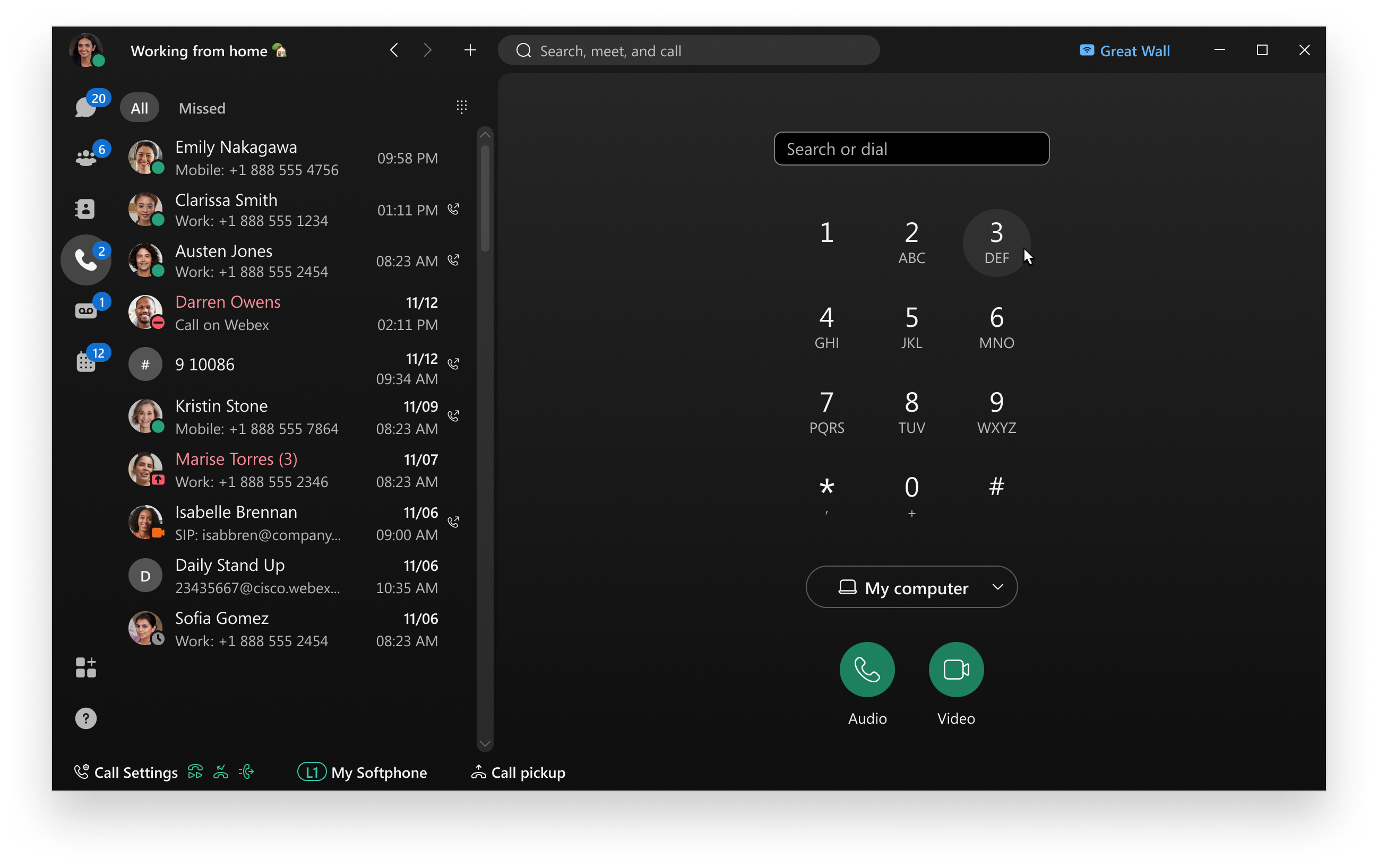
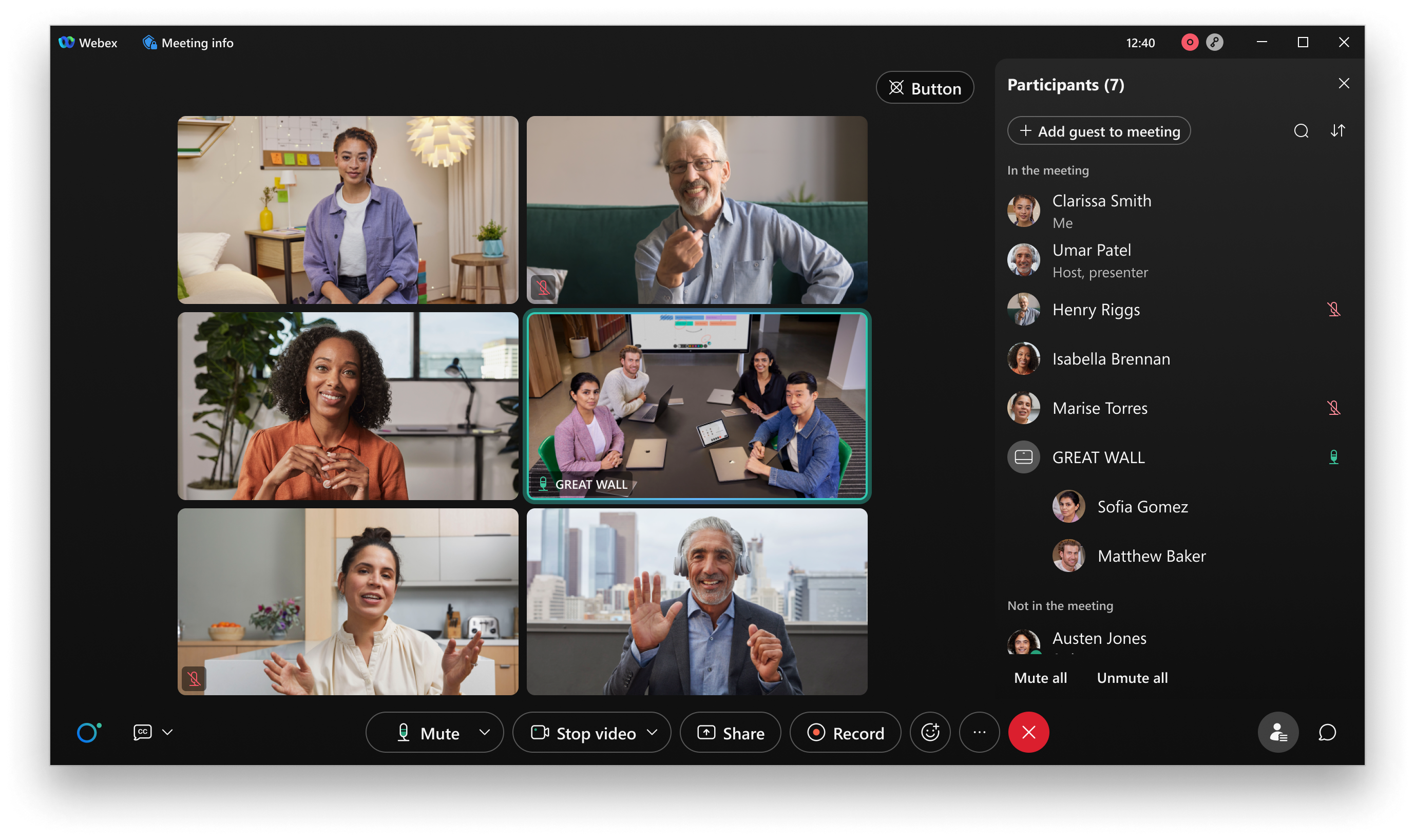
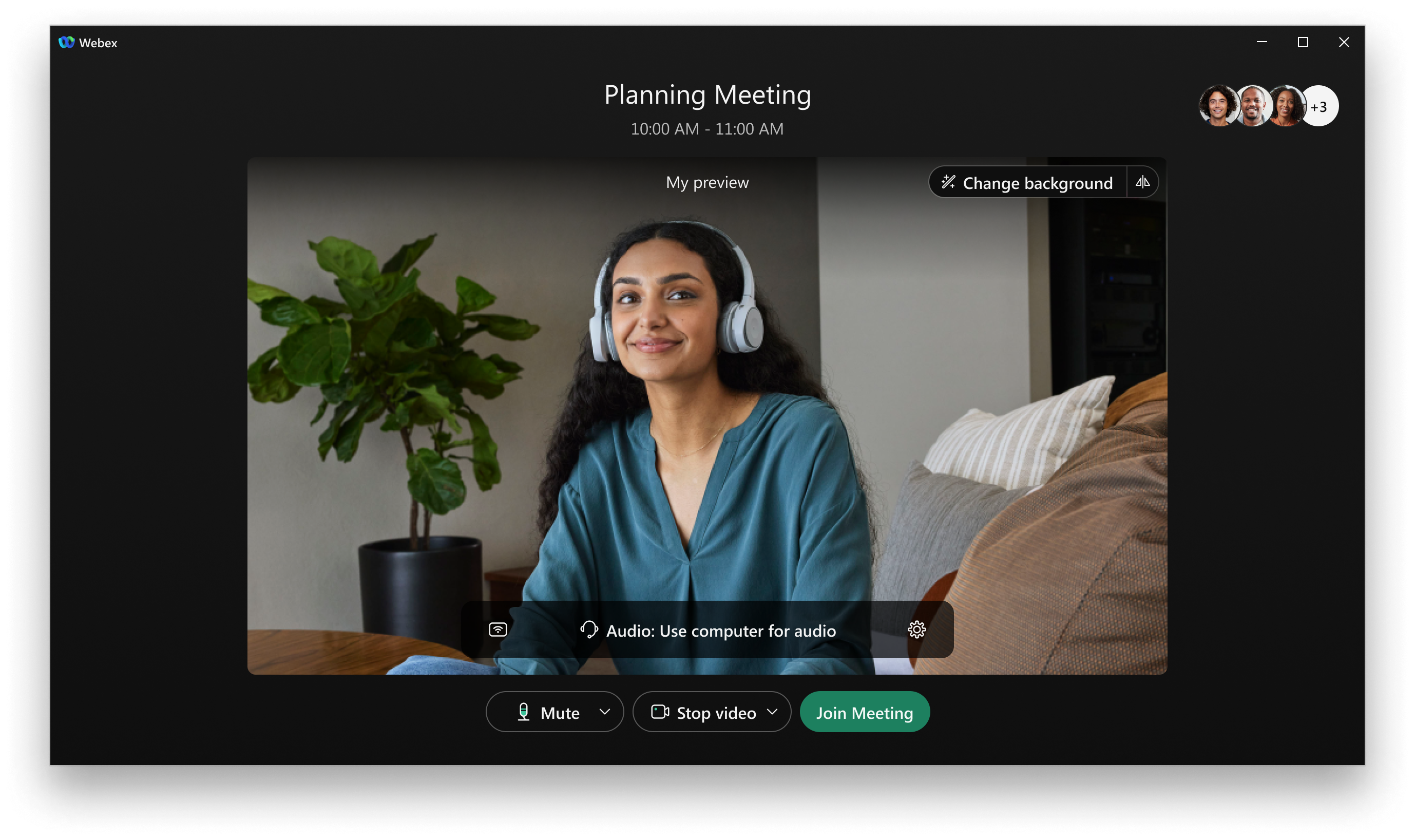
At the heart of Webex for Windows lies its robust video conferencing engine. Offering HD video quality with adaptive bandwidth management, it ensures your meetings are crisp and uninterrupted, even when network conditions are less than ideal. The intuitive interface allows quick setup of meetings, with one-click join options and seamless audio integration. The app supports both VoIP and traditional dial-in options, giving users flexibility based on their environment and preferences, making remote collaboration feel as vivid as being in person.
Smart Meeting Management & Collaboration Tools
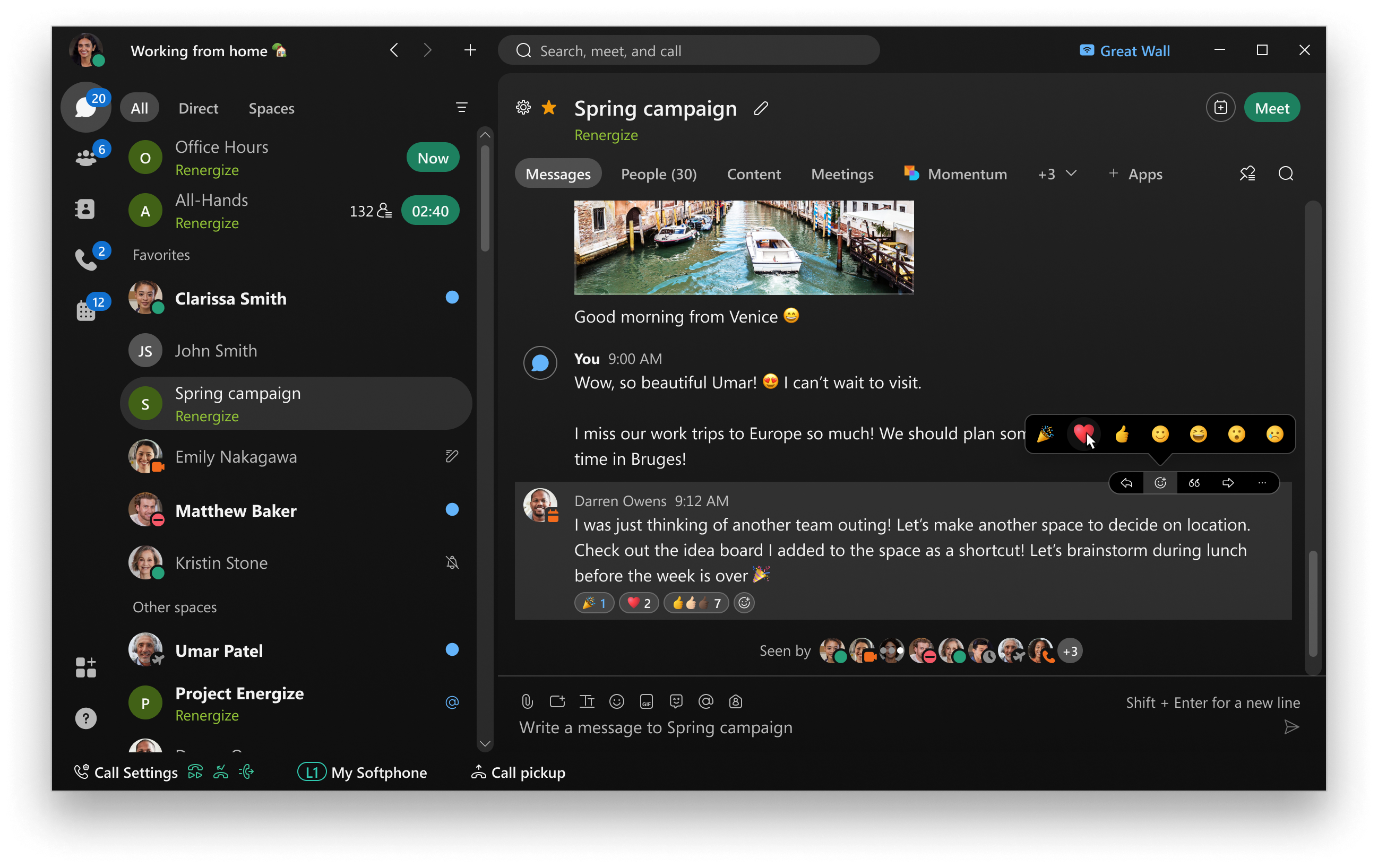
Webex excels in elevating the meeting experience through features like real-time screen sharing, whiteboarding, and document sharing—all within a single interface. It automatically highlights key speakers, offers an 'impromptu breakout room' feature for spontaneous discussions, and timestamps chat comments for easier follow-up. The platform caters well to dynamic workflows, enabling teams to pivot and adapt without fuss. The integration of live transcription and recording functionalities allows for documentation and review, turning meetings into actionable insights rather than just fleeting conversations.
Focus on Workflow Efficiency & Reduced Cognitive Load
One of Webex's distinctive strengths is its emphasis on reducing cognitive overload amidst busy schedules. Unlike cluttered productivity apps bursting with features, Webex adopts a minimalist approach that emphasizes essential tools, streamlining user focus. Its seamless integration with Outlook and other Microsoft Office apps enables scheduling and joining meetings with a few clicks, minimizing the mental effort needed for scheduling logistics. The real-time notifications and intelligent alerts keep users informed without overwhelming, allowing for smoother workflows and less context switching—much like having a highly attentive assistant managing your virtual calendar and meeting prep.
Design and User Experience: Friendly, Intuitive, and Efficient
The interface of Webex for Windows is clean, modern, and approachable—think of it as the dashboard of a well-designed vehicle: everything within reach, not cluttered, inviting users to explore features comfortably. Transitioning between chat, meeting, and collaboration modes feels fluid, akin to shifting gears smoothly in a car. The app is responsive, with minimal lag, and the learning curve is gentle for new users, thanks to clear icons and guided prompts. This thoughtful design reduces frustration, ensuring that users spend less time figuring out how to start a meeting and more time accomplishing their goals.
Comparison with Competitors: Standing Out in the Productivity Crowd
While many virtual meeting tools offer similar core features, Webex distinguishes itself through its workflow integration efficiency. Its native synergy with Microsoft tools makes scheduling, joining, and sharing materials streamlined, reducing the steps and mental effort often involved in such tasks. Moreover, its focus on reducing cognitive load—by stripping away unnecessary features that often cause distraction—sets it apart from feature-rich but overwhelming competitors like Zoom or Teams. This nuanced balance between functionality and user simplicity offers a notably less taxing experience, enabling users to focus on content rather than interface navigation.
Final Verdict: A Practical Choice for Professionals
Overall, I recommend Webex for Windows as a reliable, user-friendly, and efficient collaboration platform—particularly suited for those already embedded within the Cisco or Microsoft ecosystems. Its most standout features—high-quality video communication and workflow-focused integrations—make it a valuable addition to any remote work toolkit. For teams prioritizing clarity, ease of use, and minimizing distraction, this app offers a compelling reason to streamline virtual interactions. It's not necessarily intended to replace all collaboration tools but to complement and enhance existing workflows with precision and grace.
Pros
- User-Friendly Interface
- High-Quality Video and Audio
- Excellent Screen Sharing Features
- Robust Security Measures
- Cross-Platform Compatibility
Cons
- Occasional App Crashes
- Limited Free Meeting Duration
- Syncing Issues with Calendar Integration
- Delayed Updates for Some Features
- High Battery Consumption on Mobile Devices











