

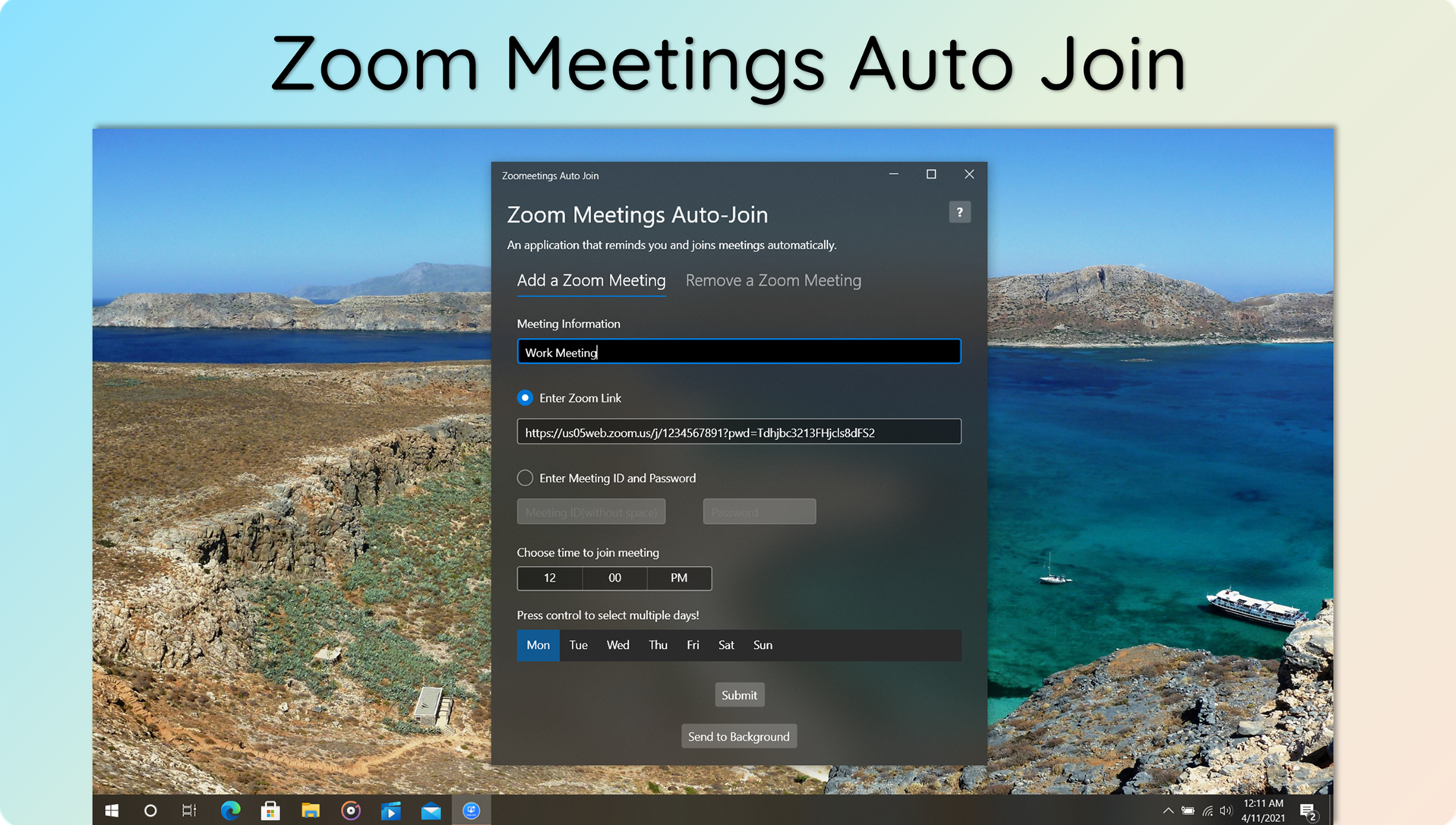
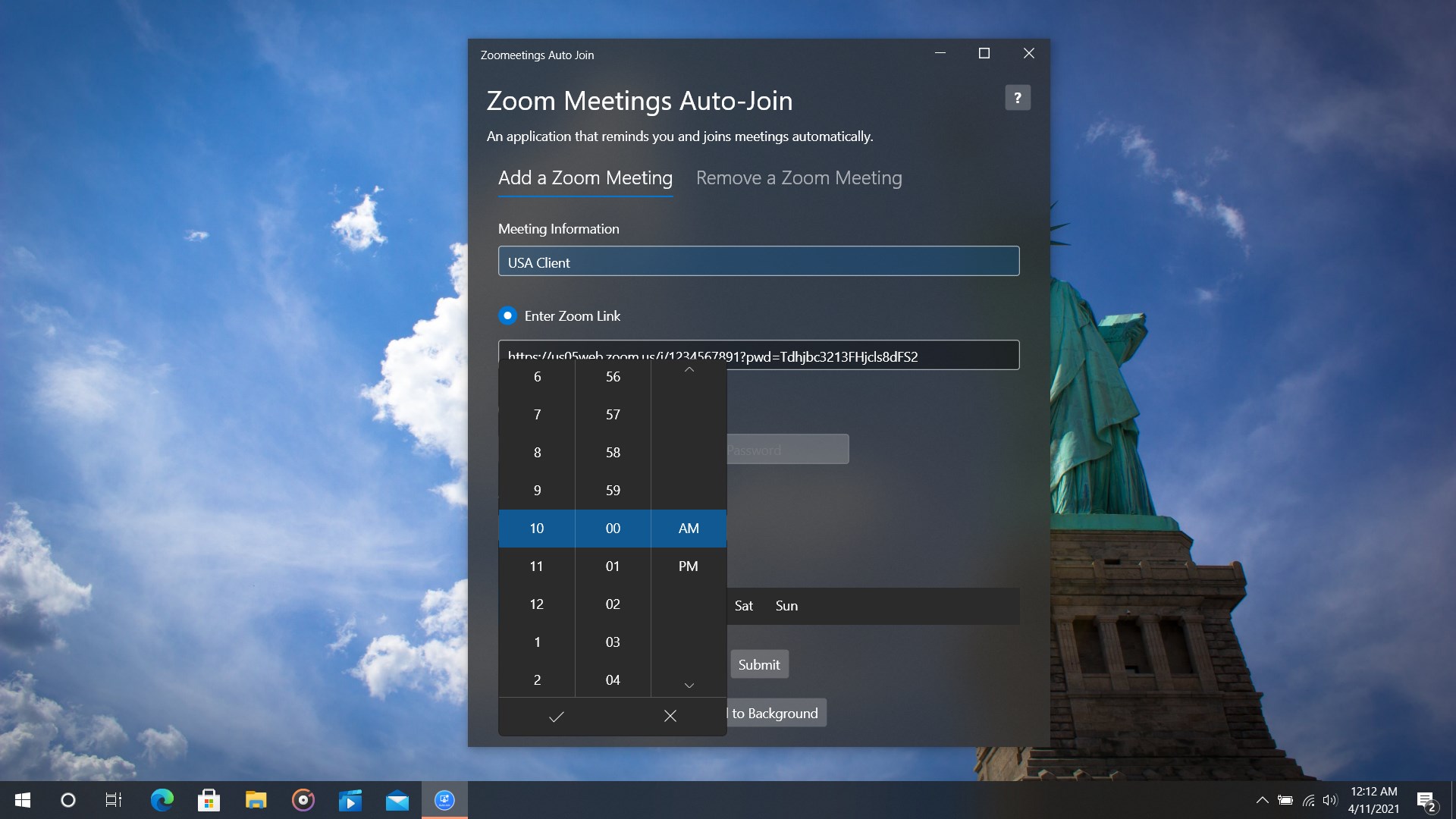
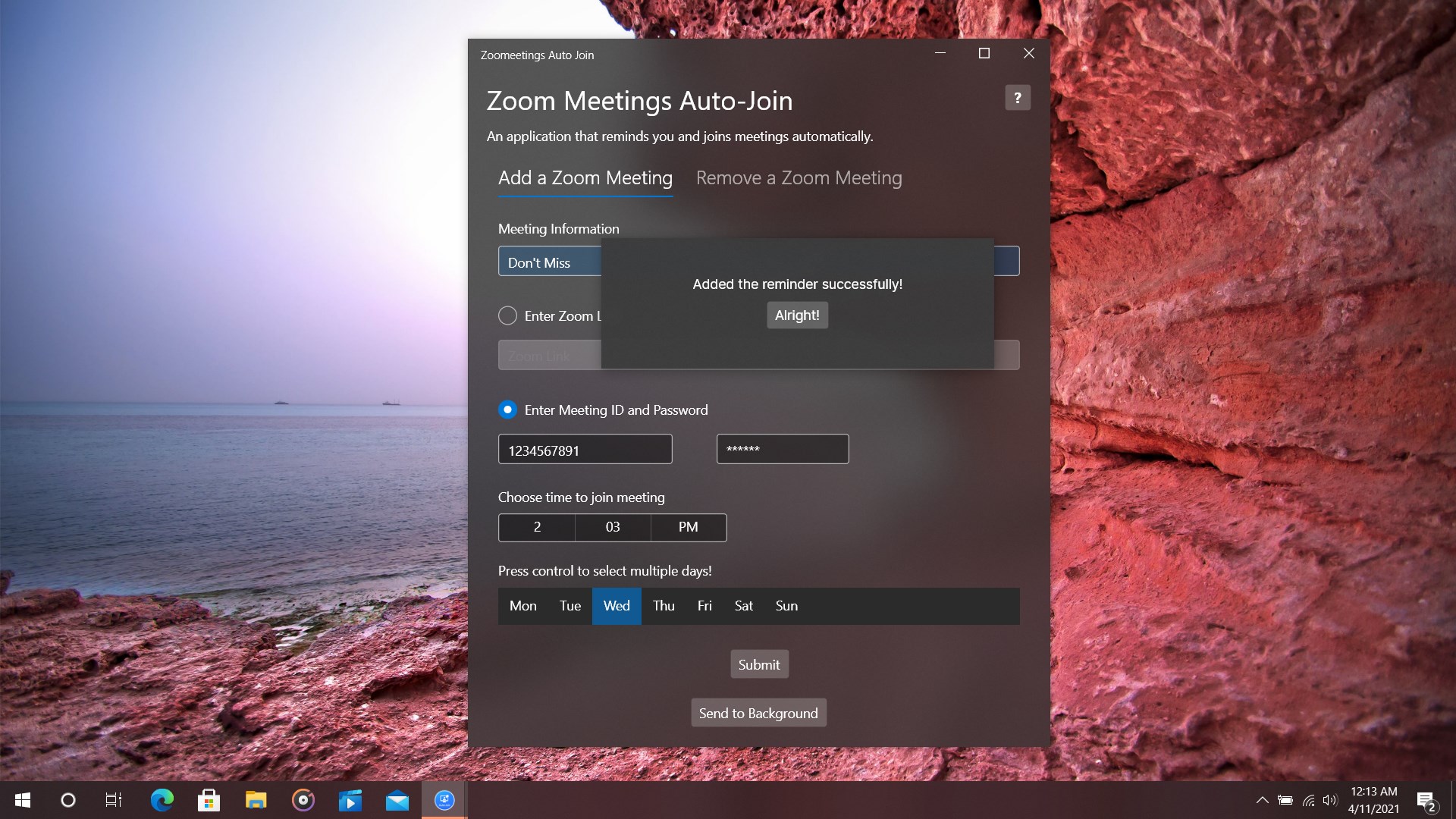
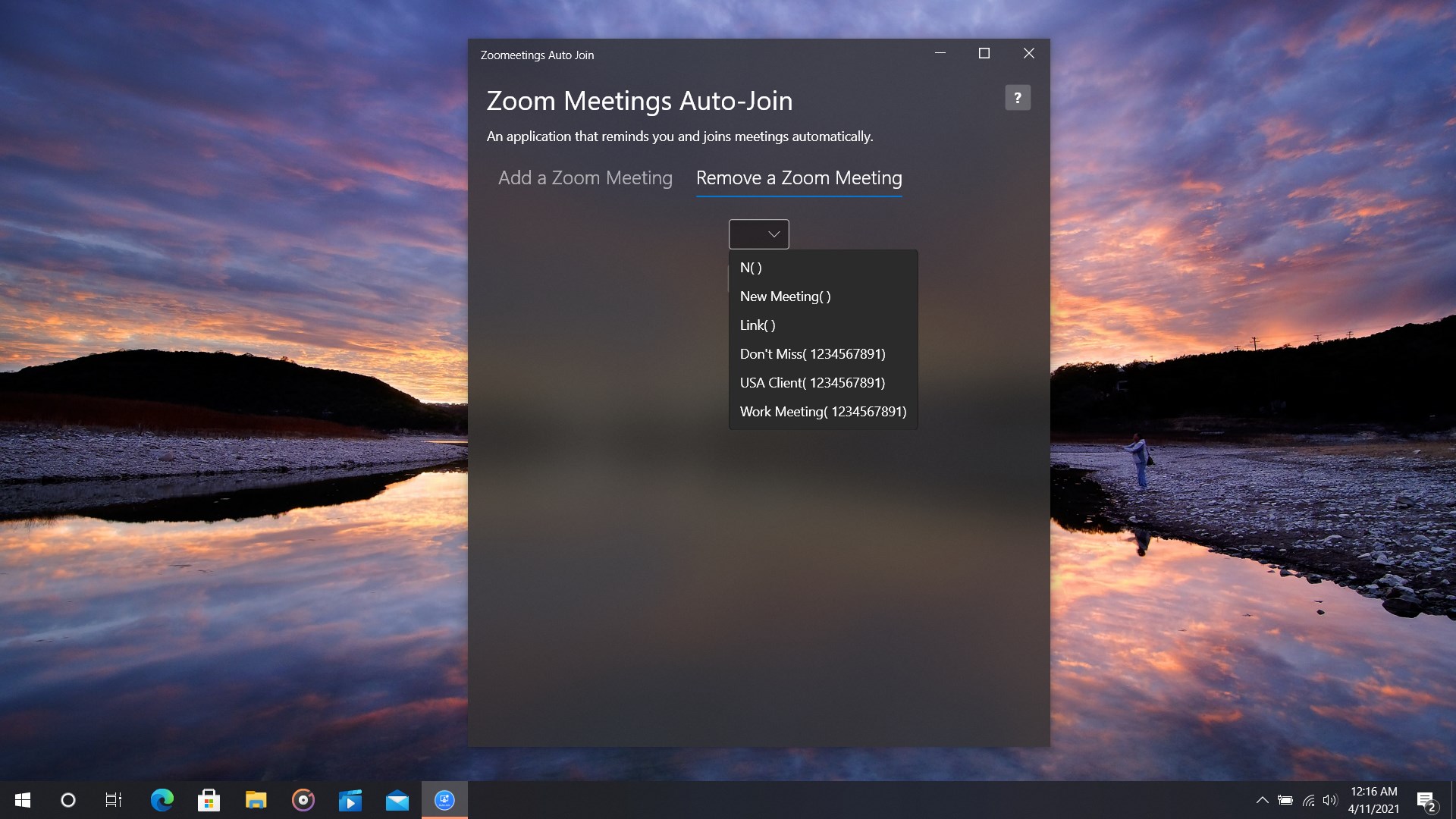

- Name Virtual Meetings Auto Join
- Category Productivity
- Developer mvkapps
- Available on PC, Surface Hub
- OS Windows 10 version 14393.0 or higher
- languages English (United States)
Introducing Virtual Meetings Auto Join for Windows: Seamless Meeting Automation
Imagine never fumbling through multiple clicks to join your scheduled virtual meetings again—Virtual Meetings Auto Join for Windows by MVKApps promises just that, streamlining your workflow with smart automation. Designed to reduce the hassle and cognitive load of managing multiple meeting links, this lightweight application aims to be your reliable assistant for a smoother virtual collaboration experience.
Core Highlights That Make It Stand Out
- Automatic Meeting Joining: The app detects upcoming meetings and automatically joins them at the scheduled time, eliminating the need for manual clicks.
- Integration with Calendar and Meeting Platforms: Seamlessly syncs with popular calendar apps and virtual meeting services like Teams, Zoom, and Skype to retrieve meeting info.
- Customizable Join Settings: Allows users to set preferences such as audio/video preferences, device selection, and waiting room bypass options.
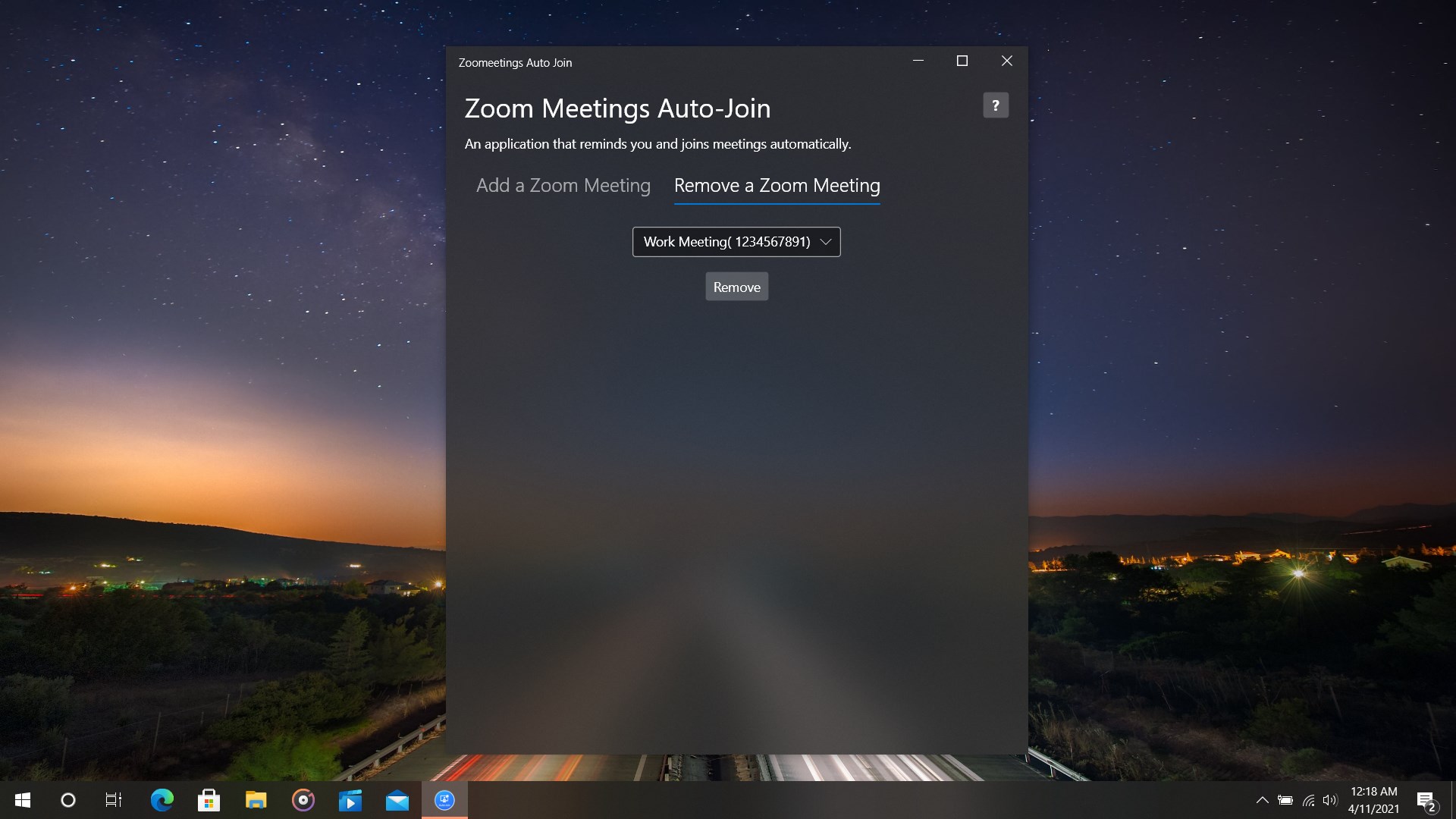
- Lightweight and User-Friendly Interface: Minimalist design ensures quick setup and easy navigation, making it accessible even for less tech-savvy users.
A Splash of Fun with a Focused Utility
Picture this: It's Monday morning, and your day is packed with back-to-back meetings. Instead of frantically searching through your calendar and clicking ‘Join' amid the chaos, Virtual Meetings Auto Join is like having a reliable personal assistant who whispers, “I've got this,” and takes care of the joining process for you. The app's intuitive interface and smart automation turn the often tedious task of virtual meeting management into a silent, behind-the-scenes operation, so you can focus on what's truly important—your discussions and ideas.
Deep Dive into Its Core Functionalities
Smart Meeting Detection
This feature is the heart of the app. By integrating with your calendar and meeting apps, it preemptively identifies scheduled meetings with minimal setup. When the scheduled time arrives, the app quietly opens the meeting link, joins the call, and configures your audio-visual settings based on your preferences. It's like having a vigilant assistant who keeps an eye on your schedule and takes care of the logistics so you don't have to. The detection process is smooth, requiring just initial permissions, and subsequent meetings are automatically handled without additional intervention. This significantly reduces the cognitive effort, especially for those juggling multiple meetings daily.
Customization and Flexibility
While automation is essential, flexibility remains key. The app offers straightforward options to customize how meetings are joined—whether to mute upon entry, disable video, or select specific audio devices. These settings ensure the automation aligns perfectly with your workflow and preferences. For example, if you prefer to join meetings muted and only unmute when needed, the app can be configured accordingly. This feature exemplifies how user-centric design reduces mental clutter, allowing users to customize automation without becoming overwhelmed by complex options.
Design, Performance, and User Experience
The application boasts a sleek, clutter-free interface, reminiscent of a calm control tower overseeing your virtual engagements. Its minimal design ensures that even tech novices find it accessible, with clear prompts guiding initial setup. The responsiveness is impressive—clicks, detection, and auto-joining occur swiftly without noticeable lag, maintaining a smooth user experience. Learning curves are gentle, thanks to well-thought-out defaults and straightforward configuration options. The app's lightweight nature means it runs unobtrusively in the background, consuming minimal system resources—an essential trait for a productivity tool that's meant to streamline tasks rather than complicate them.
Differentiation & Comparing with Similar Tools
Unlike many productivity or meeting management apps that offer verbose options or cluttered dashboards, Virtual Meetings Auto Join emphasizes workflow integration and cognitive load reduction. Its core advantage lies in its focus on seamless automation that doesn't demand constant user input once configured. While other solutions may provide manual scheduling or notifications, this app fully automates the actual joining process, acting as a silent co-pilot. This distinction makes it especially valuable for heavy meeting users who wish to minimize the mental toll of virtual schedules—a rare blend of simplicity and utility. Its design philosophy reduces feature overload, prioritizing efficiency over complexity, and thus enhances productivity by letting the user focus on content rather than logistics.
Final Thoughts & Recommendations
If your virtual meeting calendar is your daily battleground and you're seeking a way to ease the chaos, Virtual Meetings Auto Join for Windows is worth a try. It's particularly suited for professionals who have tightly packed schedules and for teams aiming to streamline collaboration workflows. The app's ability to automatically detect and join meetings, combined with user-friendly customization, positions it as a practical, no-nonsense tool in your productivity arsenal. While it may not replace comprehensive meeting management suites, it excels at alleviating routine joining tasks. I recommend giving it a trial run, especially if reducing daily friction is a priority. For users who value efficiency, clarity, and simplicity, this app could become the unsung hero of your virtual meetings.
Pros
- Automated Meeting Joinings
- Easy Integration with Calendar
- User-Friendly Interface
- Multi-Platform Compatibility
- Customizable Settings
Cons
- Limited Support for Non-Microsoft Platforms
- Occasional False Autoclosures
- Requires Persistent Internet Connection
- Limited Customization for Meeting Preferences
- Potential Privacy Concerns











