
- Name SpeechPulse Speech-to-Text
- Category Productivity
- Developer AVbeam software
- Available on PC
- OS Windows 10 version 0.0 or higher
- Memory 4 GB
- languages English
SpeechPulse Speech-to-Text for Windows: Turning Your Voice into Clear, Organized Text
If you've ever wished for a tool that captures your spoken words with precision, transforming busy thoughts into tidy text without fuss, SpeechPulse Speech-to-Text for Windows might just be your new best friend. It promises to streamline your workflow, reduce cognitive load, and make transcription tasks smoother than ever—all wrapped up in an intuitive interface that feels more like chatting with a colleague than wrestling with complex software.
About the Developer and Core Features
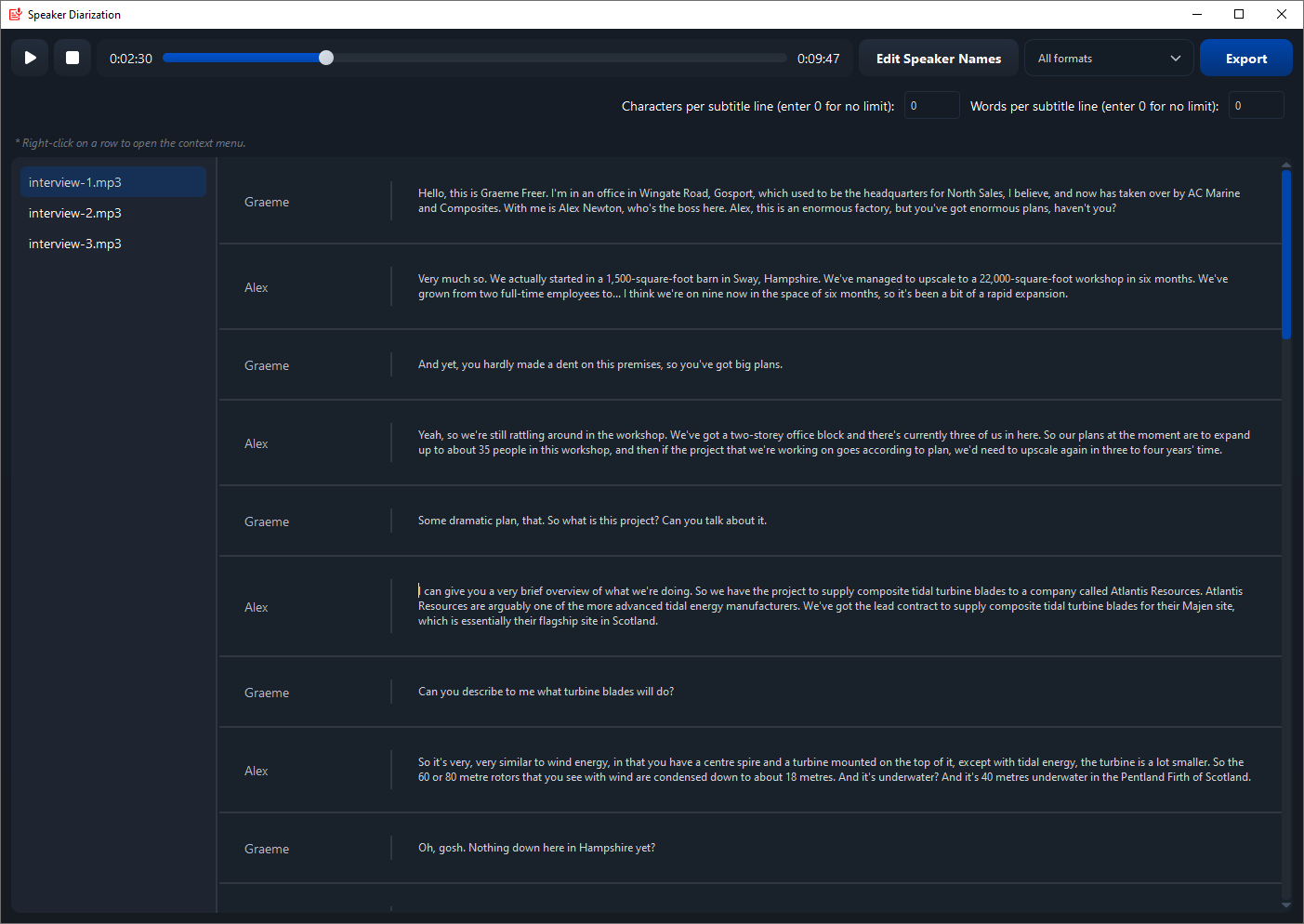
Developed by AVbeam Software, a team dedicated to innovative productivity solutions, SpeechPulse aims to bridge the gap between spoken language and digital text seamlessly. It's a straightforward yet powerful application designed for professionals, writers, researchers, and students who need quick, accurate speech transcriptions.
Key features include:
- Real-time Speech Recognition: Converts spoken words into editable text instantly, minimizing delays and enhancing productivity.
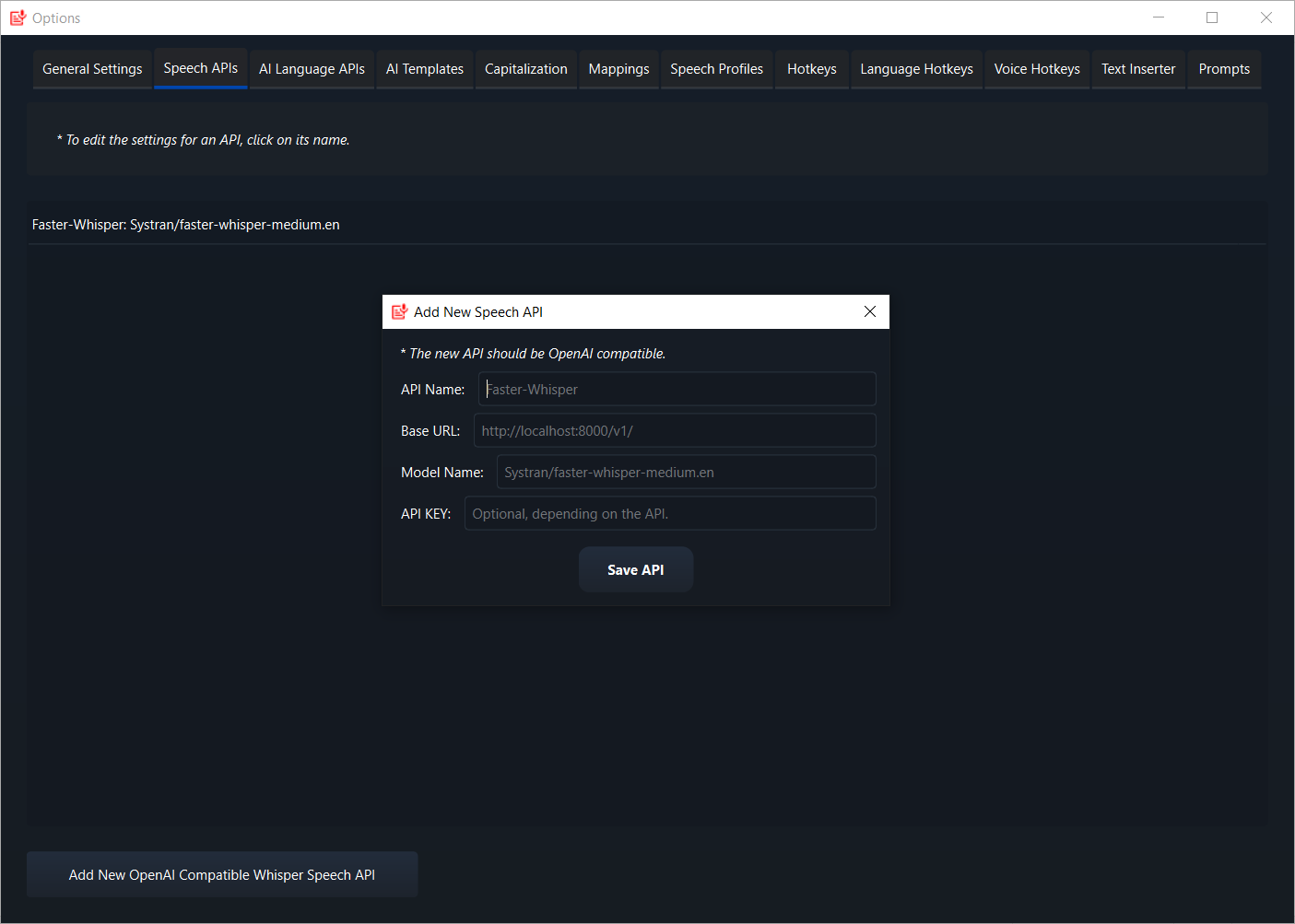
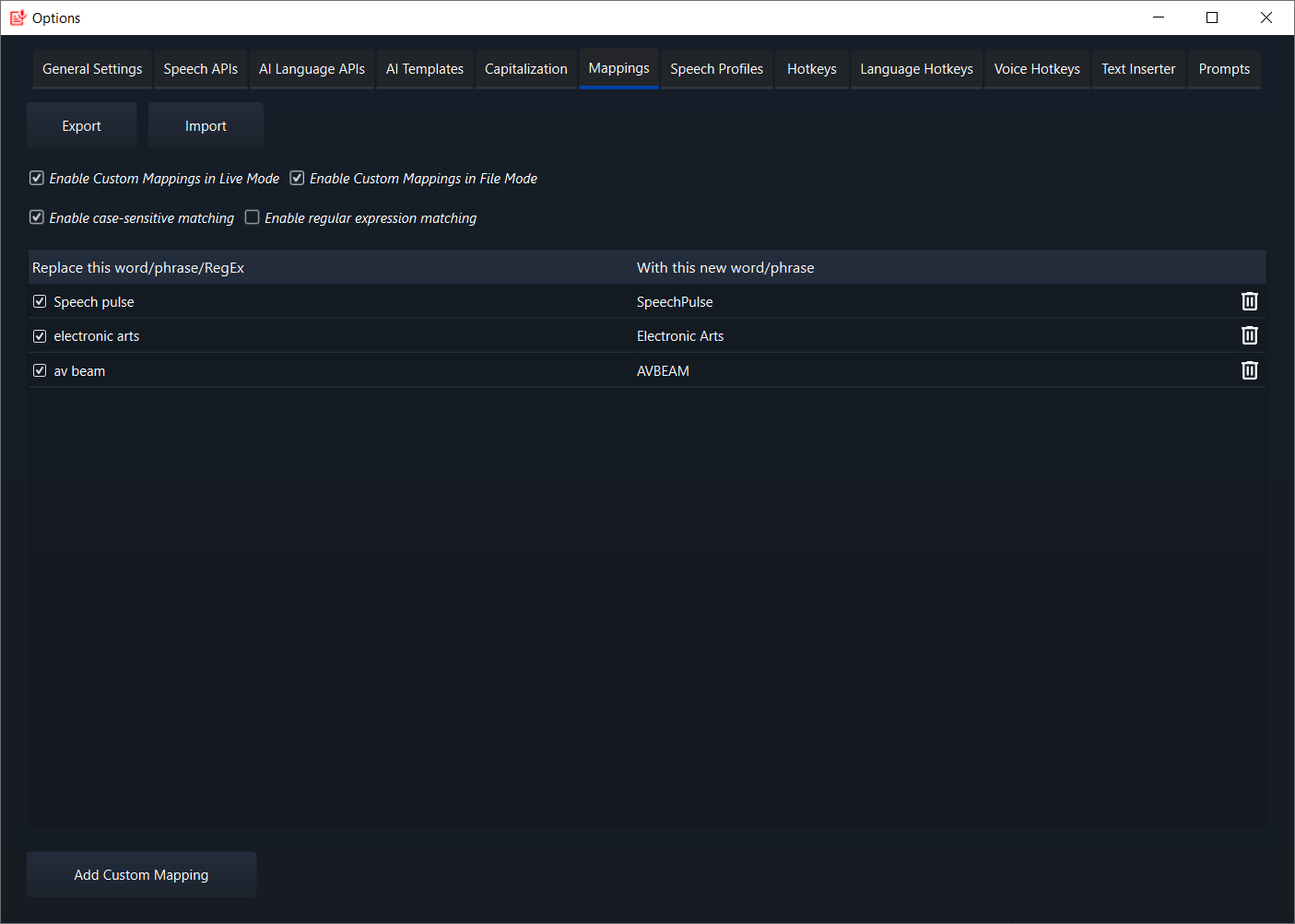
- Custom Vocabulary Support: Allows users to add specialized terms or names, boosting accuracy for niche industries or personal terminologies.
- Multilingual Support: Recognizes multiple languages, catering to diverse user needs around the globe.
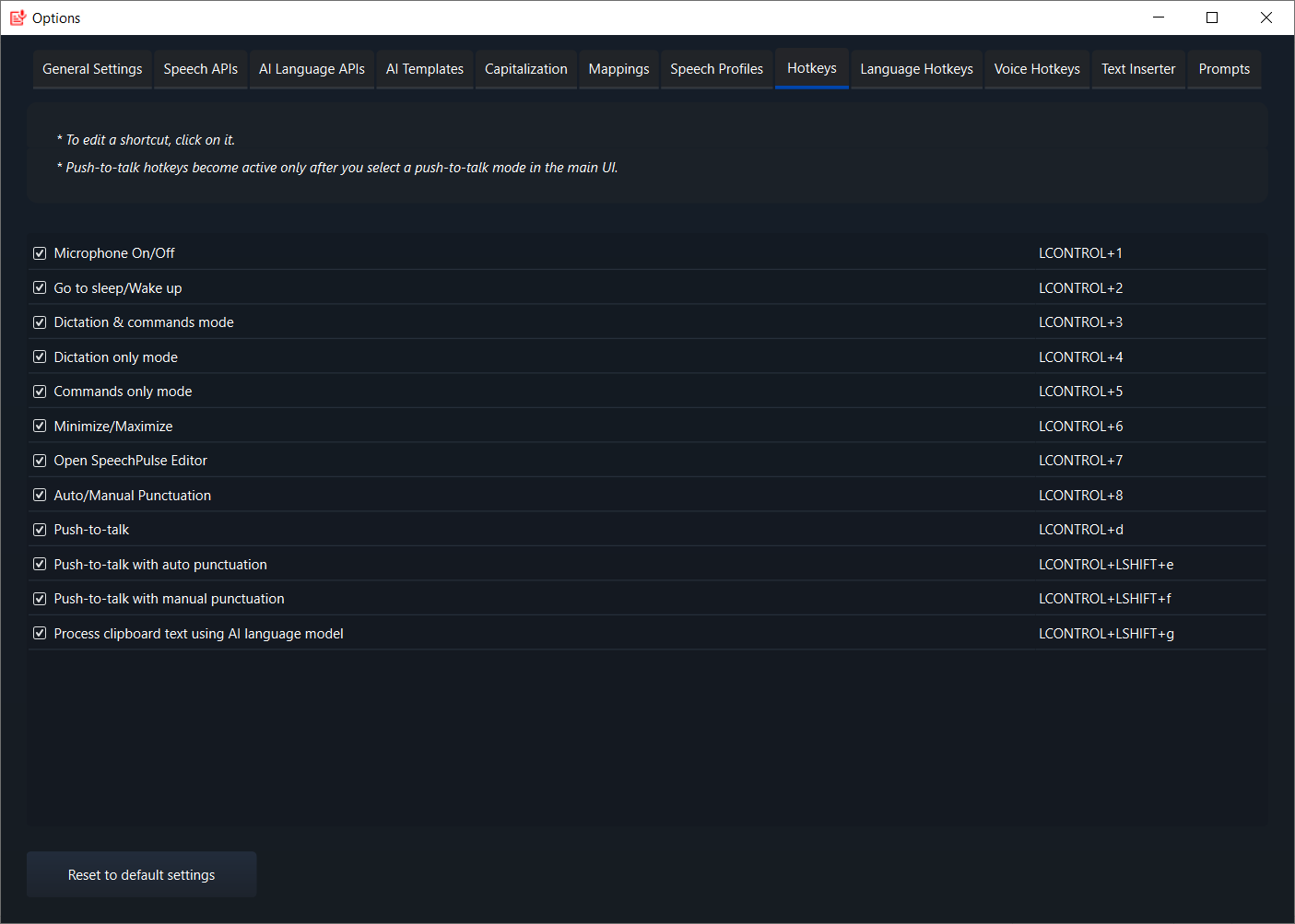
- Integration with Windows Ecosystem: Seamlessly works with other Windows applications, facilitating smooth workflow transitions.
The target audience spans professionals requiring quick transcription (like journalists and researchers), students taking notes, content creators, and individuals with accessibility needs who benefit from speech-to-text capabilities.
A Dive into User Experience: The SpeechPulse Journey
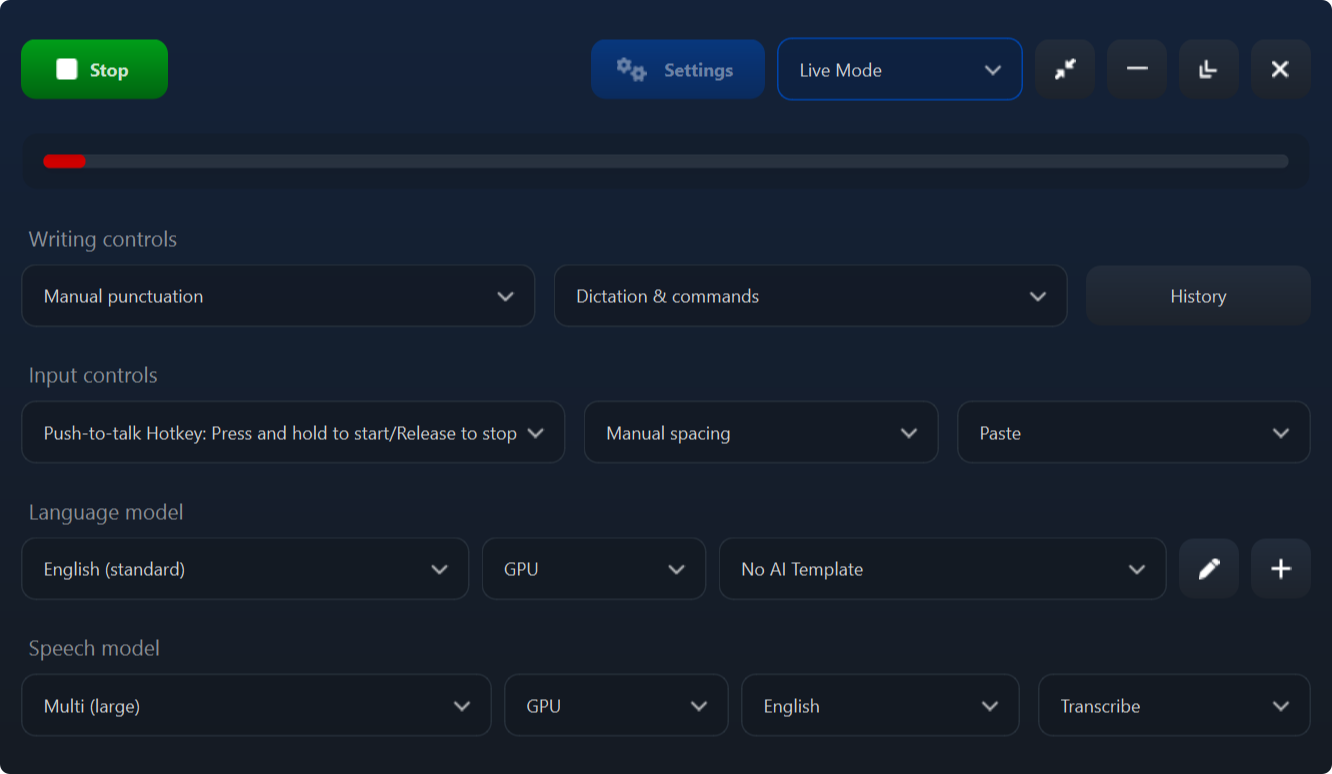
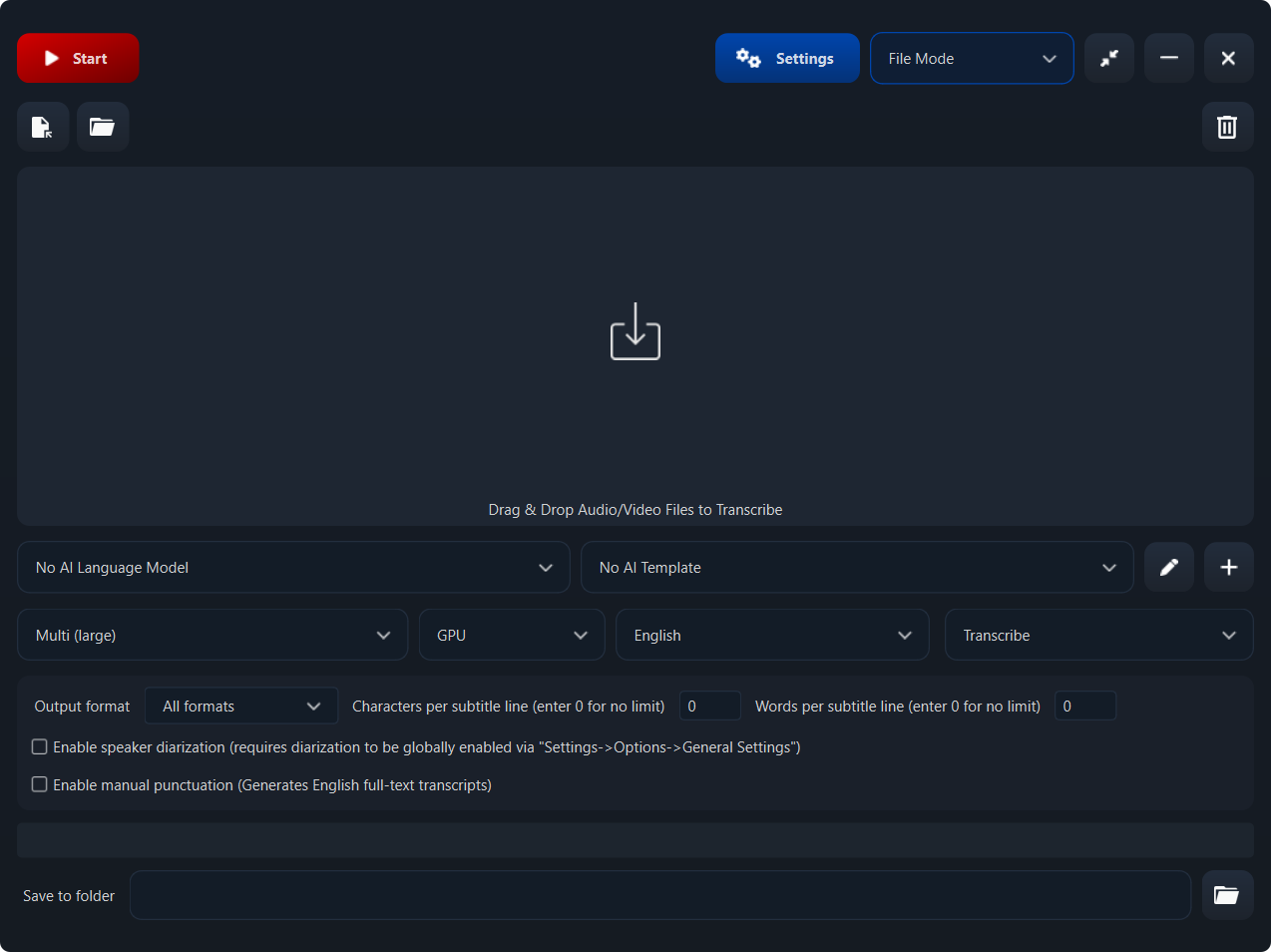
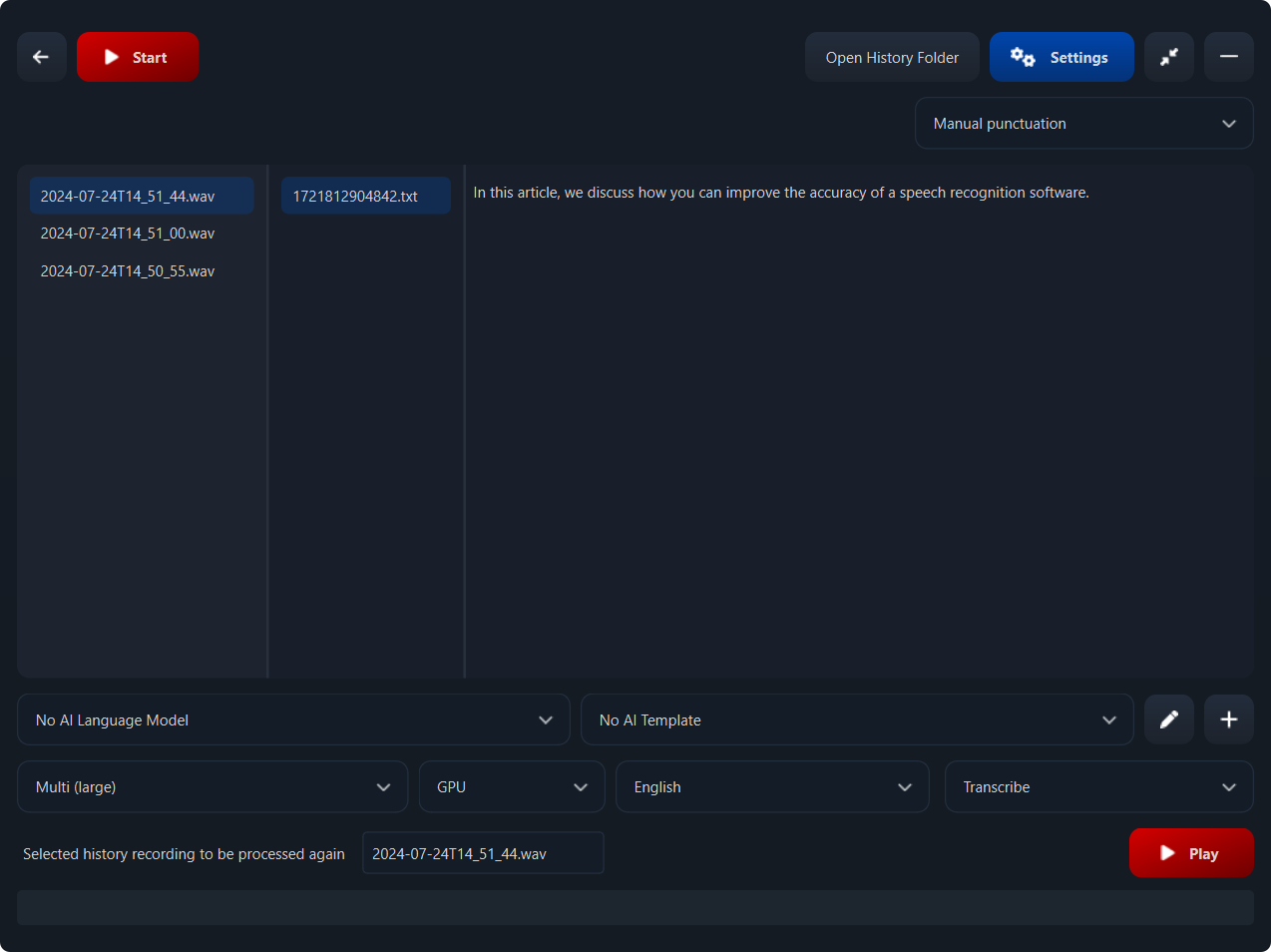
Imagine sitting at your desk, speaking naturally as if chatting with a friend, and watching your words materialize on the screen with satisfying immediacy—that's the core promise SpeechPulse offers. The interface is clean and inviting, with large buttons and minimal clutter, making it easy for first-time users to jump right in without a steep learning curve.
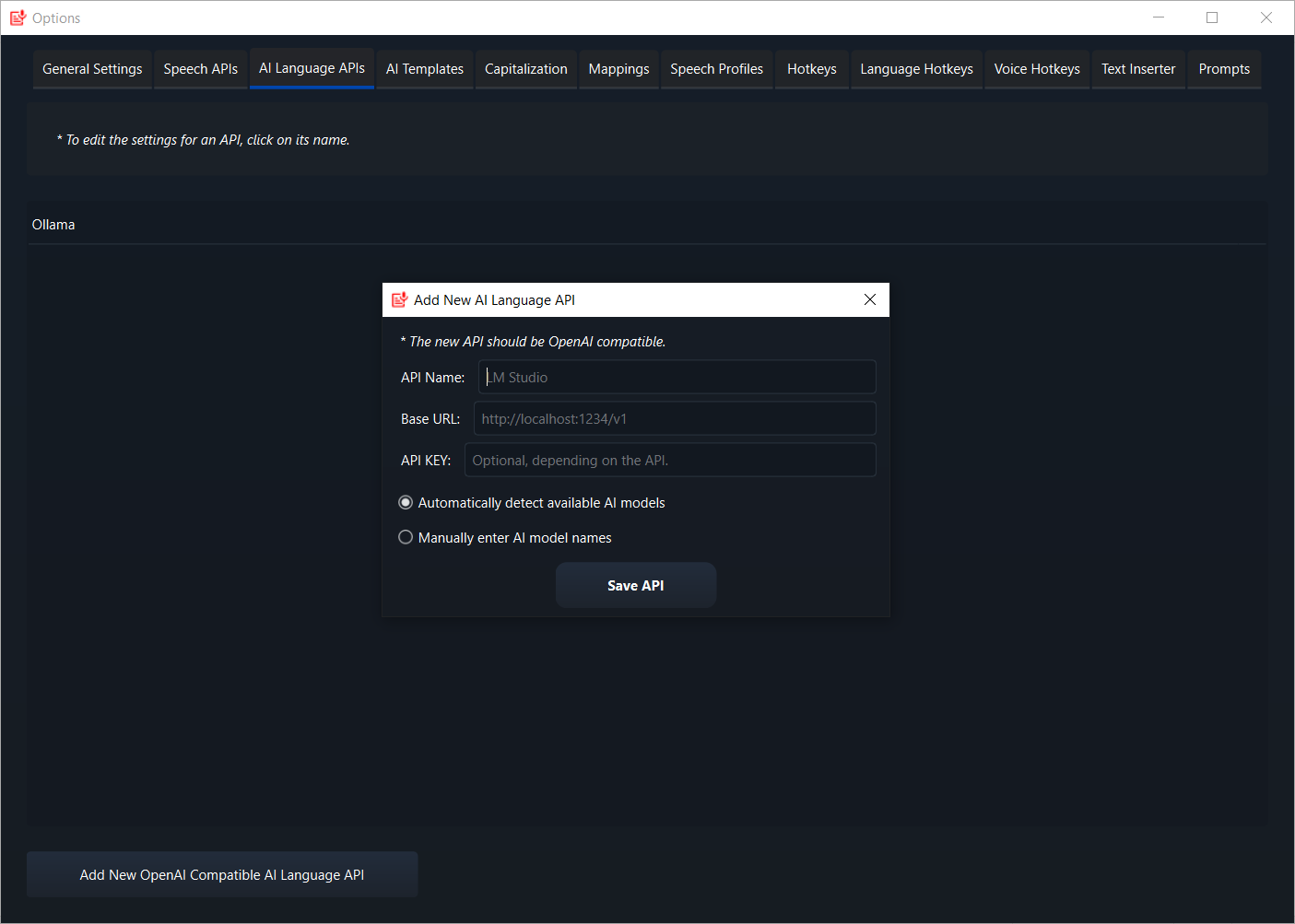
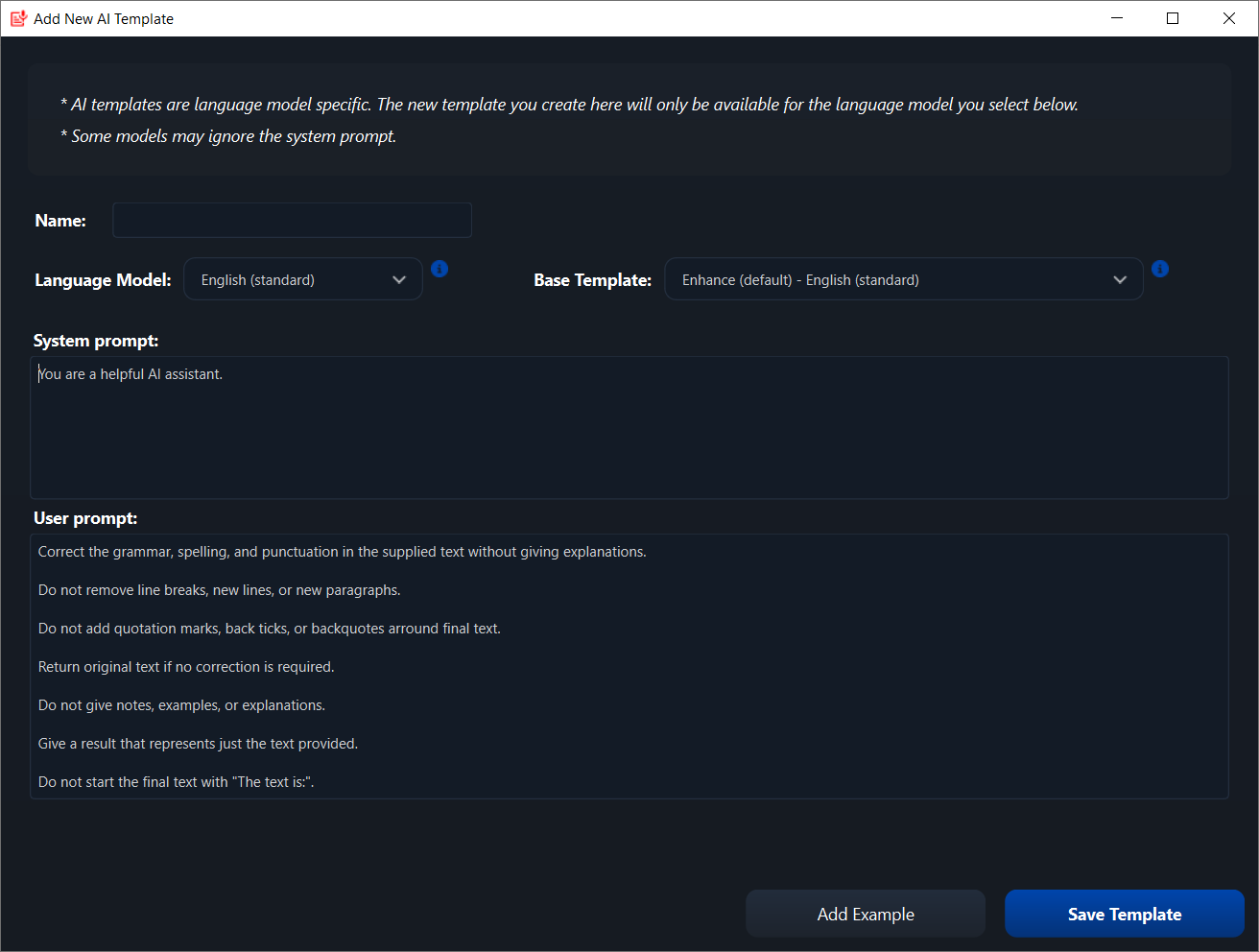
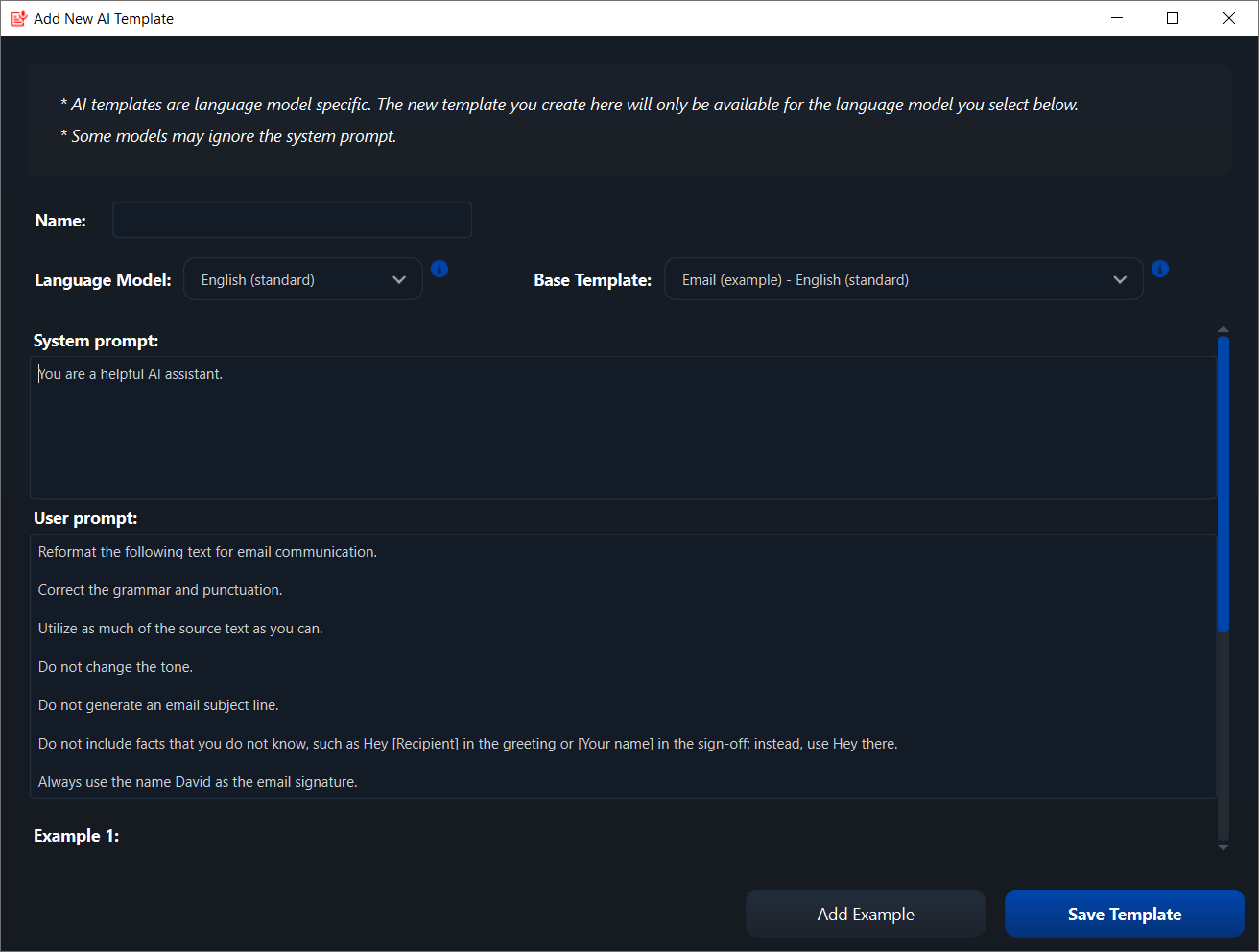
Using SpeechPulse is a smooth ride. The recognition engine responds swiftly, even with complex sentences, without noticeable lag. The settings are straightforward, allowing you to customize language and vocab preferences swiftly. For those concerned about accuracy, the option to add user-specific vocabulary significantly reduces errors, enabling more precise transcription in specialized contexts.
One of the standout aspects is how well the app reduces cognitive load. Instead of juggling between different tools or manually correcting messy transcripts, users can focus on their thoughts, knowing SpeechPulse will handle the heavy lifting. Its focus on reducing feature complexity for essential functions makes it an accessible yet capable tool, highly suitable for those who prefer simplicity over bloated functionalities.
What Sets SpeechPulse Apart from Other Productivity Tools?
Compared to other speech-to-text apps, SpeechPulse emphasizes workflow integration efficiency above all. While many tools offer similar transcription features, SpeechPulse's real strength lies in its seamless compatibility with Windows, allowing users to incorporate it effortlessly into their existing routines—be it note-taking, drafting emails, or scripting content—without switching contexts or juggling multiple apps.
Moreover, its intelligent design minimizes cognitive load. Instead of overwhelming users with a flood of options, it delivers a focused experience that prioritizes task completion. The incorporation of custom vocabularies means you can tailor the recognition engine to your specific needs, which is a significant advantage for niche professionals or multilingual users.
This approach contrasts with feature-heavy products that often sacrifice usability in favor of extensive options. SpeechPulse's streamlined operation makes it a compelling choice for those who value efficiency and clarity over complexity.
Final Verdict: Is It Worth Your Time?
In summary, SpeechPulse Speech-to-Text for Windows is a carefully crafted tool that marries simplicity with practical power. If you're someone who wants reliable, quick transcription without the hassle of learning complicated software, it's highly recommended. Its standout features—real-time accurate conversion and custom vocabulary—are what truly make it shine, especially in professional or academic settings.
For users looking for an unobtrusive, efficient speech recognition solution that integrates smoothly into their Windows environment, SpeechPulse offers a balanced mix of user-friendliness and robustness. It's a tool that doesn't just promise to capture your words; it promises to make your workflow more natural and less taxing. Give it a try, and let your voice do the work!
Pros
- High transcription accuracy in clear audio
- Supports multiple languages and accents
- Real-time transcription capability
- Intuitive and user-friendly interface
- Offline mode available for certain functionalities
Cons
- Limited support for noisy environments
- Occasional delays in processing long recordings
- Requires frequent updates to maintain compatibility
- Limited customization options for transcription settings
- Occasional misinterpretation of homophones or context-specific terms











