
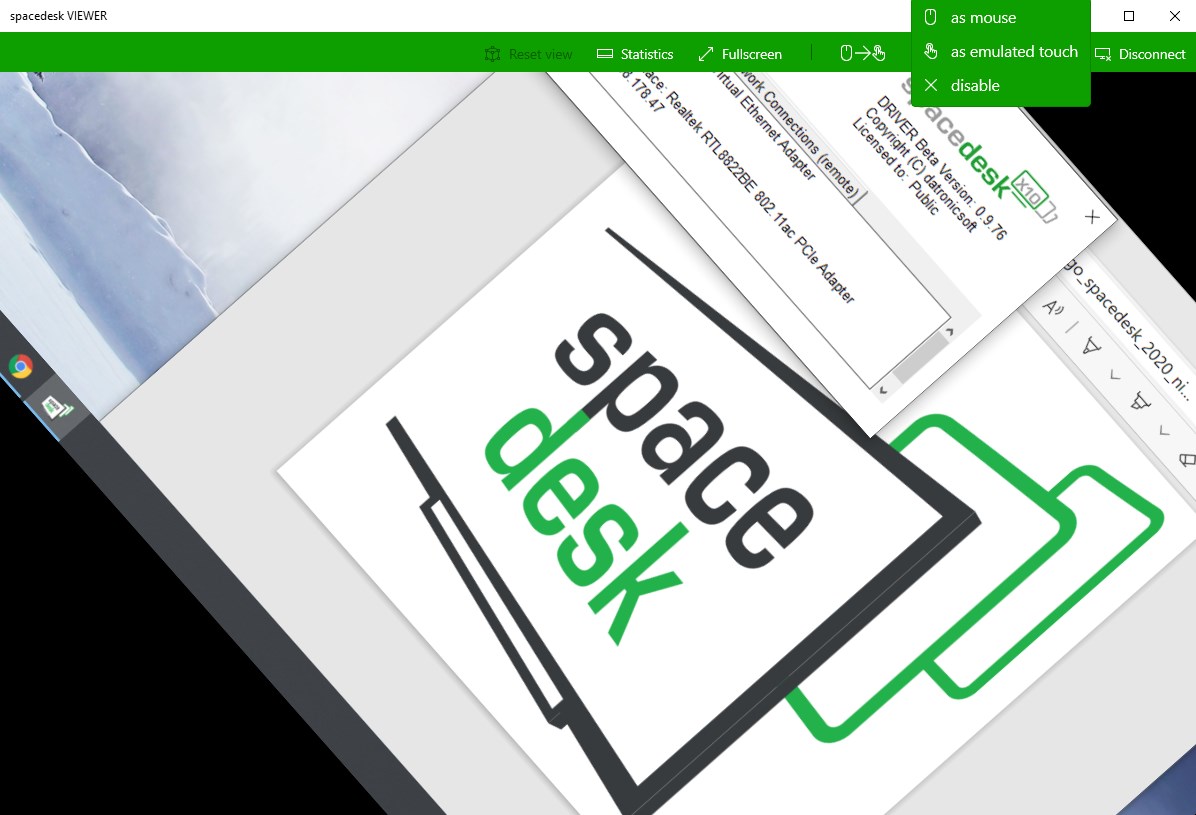
- Name spacedesk
- Category Productivity
- Developer datronicsoft
- Available on PC, Mobile
- OS Windows 10 version 19041.0 or higher
- Mouse Integrated Mouse
- DirectX Version 11
- Memory 2 GB
- languages English (United States)
Unleashing Extended Desktop Capabilities with Spacedesk for Windows
Spacedesk for Windows is a versatile app that transforms your existing devices into additional screens, seamlessly expanding your workspace and boosting productivity without the need for costly hardware upgrades.
Who Developed and What Does It Do?
Developed by datronicsoft and published under datronicsoft Technology GmbH, this application is designed to facilitate multi-device display setups, making it easier for users to extend their desktop environment across various screens.
- Main Features Highlights:
- Wireless multi-monitor extension using existing Wi-Fi networks.
- Support for Windows, Android, and iOS devices as second screens.
- High responsiveness with real-time screen sharing, suitable for graphics-intensive workflows.
- Simple setup with minimal hardware requirements, emphasizing mobility and convenience.
- Target Users:
- Professionals seeking flexible multi-monitor arrangements.
- Remote workers and digital nomads needing portable display extensions.
- Content creators and designers desiring extra screen real estate for editing and reference.
- Students and educators enhancing presentations or study setups.
Vividly Expanding Your Digital Workspace
Imagine sitting in your cozy home office, cluttered with multiple gadgets and screens, trying to juggle various windows—spacedesk is like that friendly assistant who quietly, yet effectively, adds extra monitors to your environment, turning a single-screen setup into a bustling control hub. The app's ability to convert tablets, phones, or secondary computers into full-fledged displays is reminiscent of opening a new window into your digital universe, all without the bulk of extra hardware or complicated setups.
Harnessing the Power of Dual (or Multiple) Displays
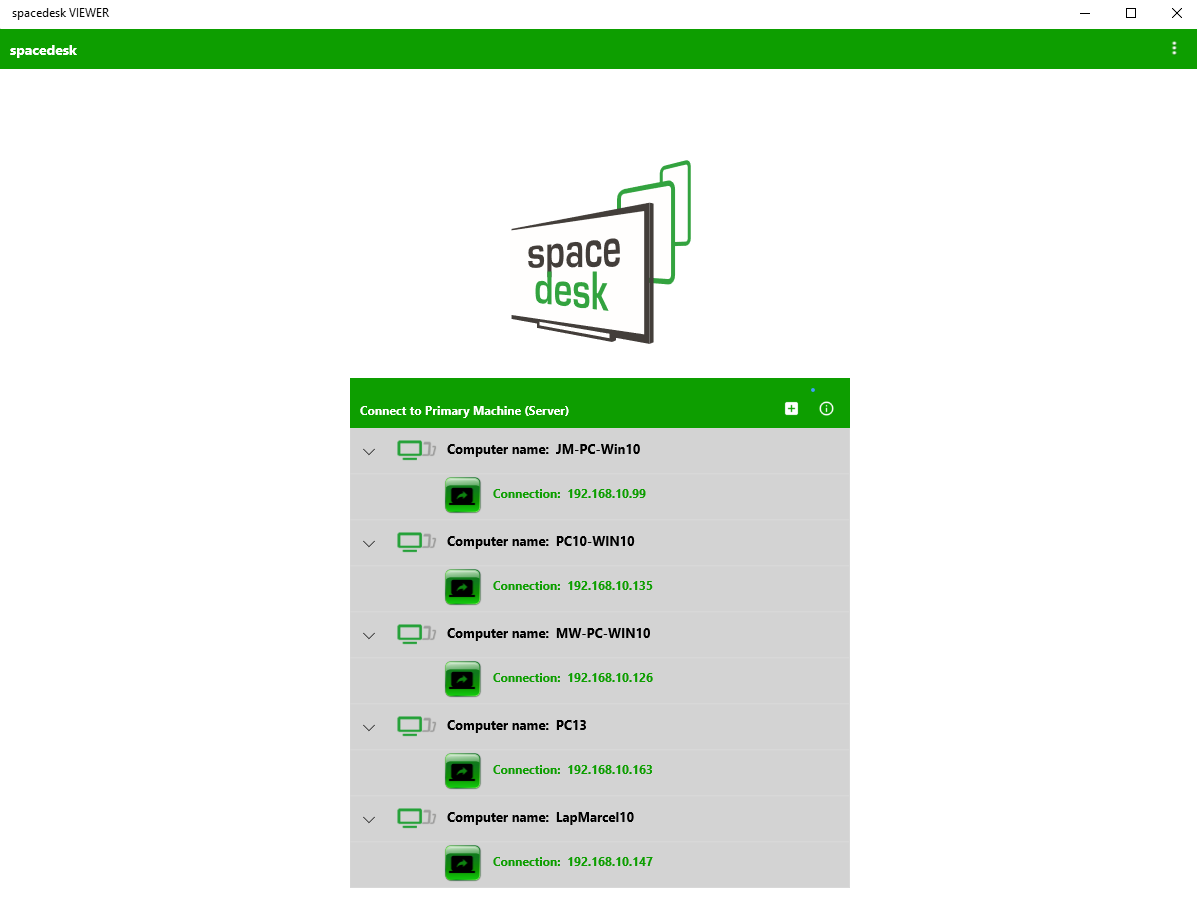
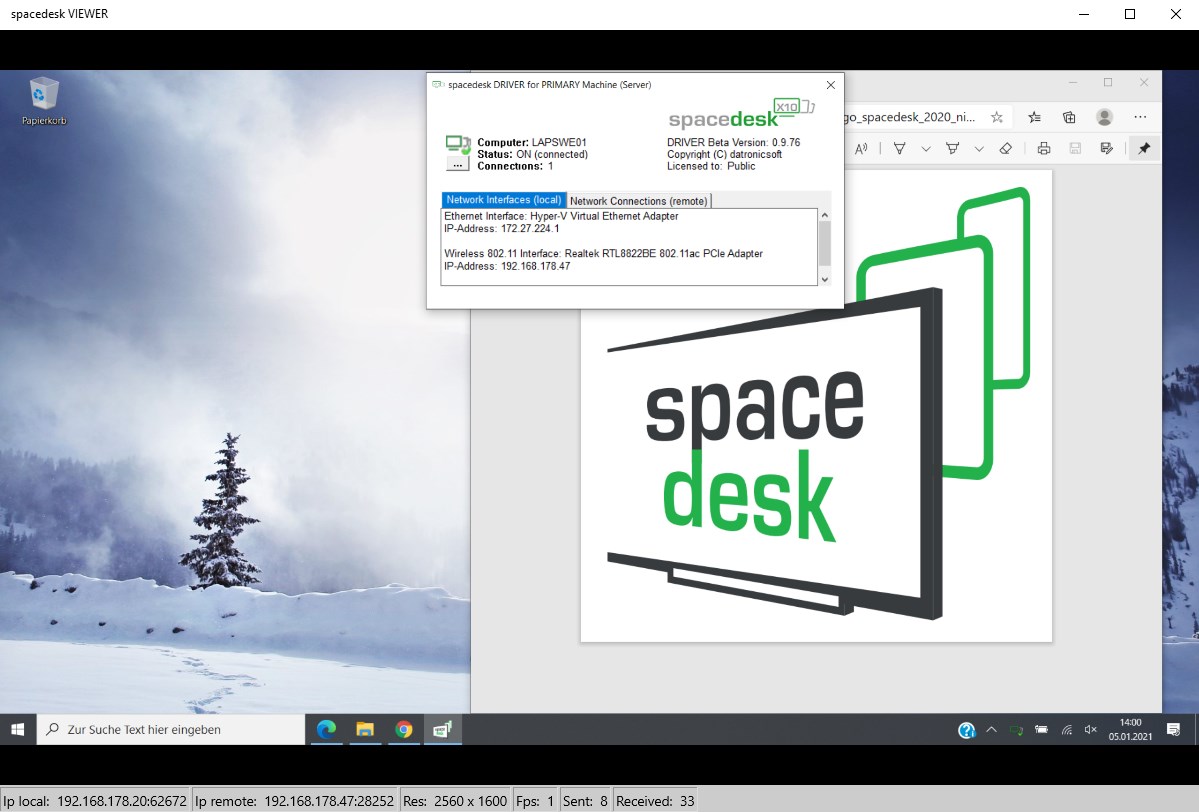
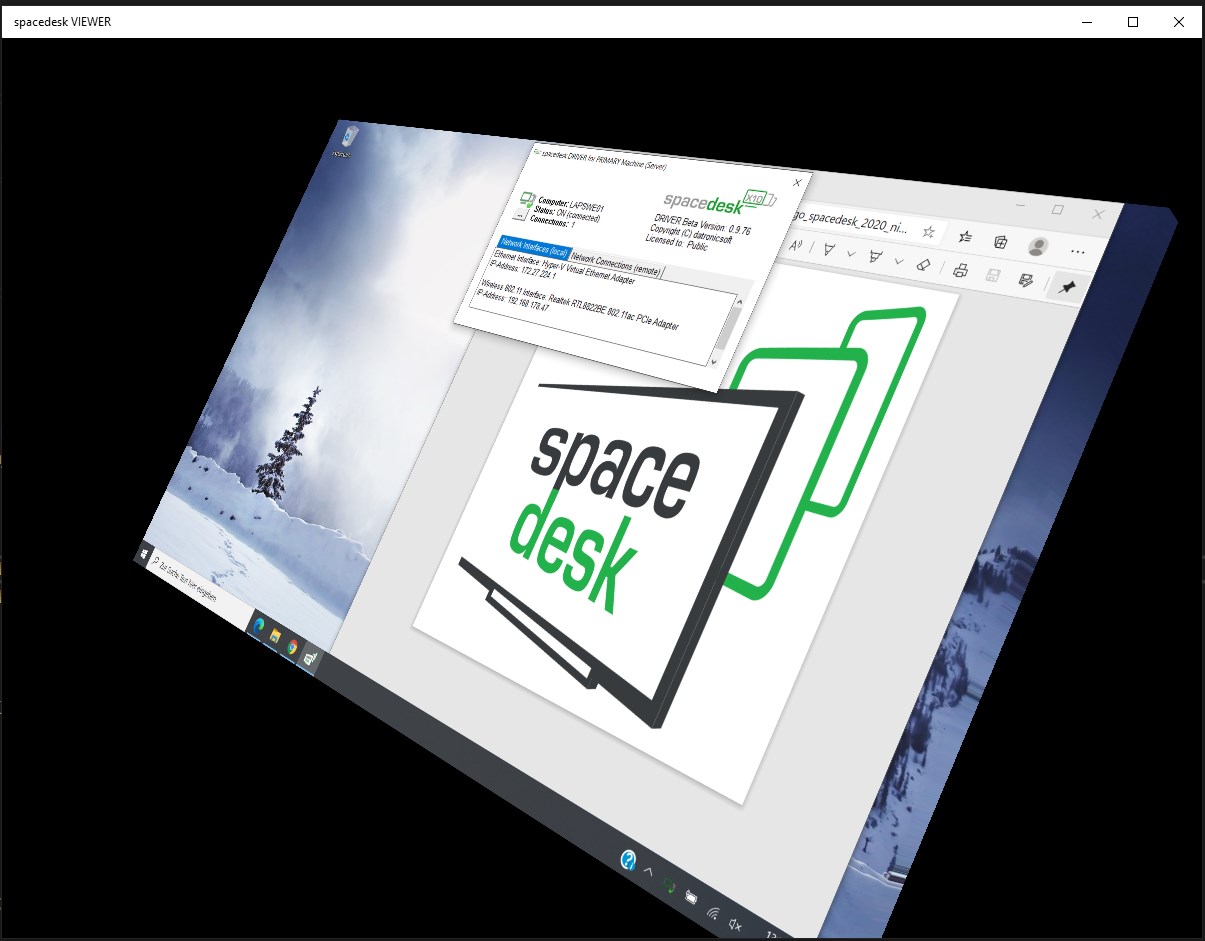
The core strength of spacedesk lies in its multi-monitor extension capabilities. Once installed, it cleverly bridges your primary Windows device with other devices over Wi-Fi, creating a seamless extension of your desktop. This is particularly useful during intensive tasks like video editing, coding, or multi-application workflows where screen real estate is at a premium. The application's real-time screen sharing ensures that movements and interactions are fluid, akin to flipping through different pages in a well-orchestrated dance. The setup is straightforward; the app automates many configuration steps, reducing the learning curve to almost zero. Its intuitive interface provides clear connection prompts, status indicators, and easy device management, ensuring you're never lost in complicated menus or settings.
Design and User Experience: Smooth Sailing
The interface design of spacedesk is purposefully minimalist—it looks clean, with a layout that feels like a calm, well-organized control room, rather than a cluttered cockpit. This aesthetic choice reduces cognitive overhead and invites users to jump in without hesitation. Operationally, the app boasts impressive responsiveness; moving windows across screens feels as natural as sliding a book across a table. The learning curve is gentle, even for users unfamiliar with multi-monitor setups, thanks to clear instructions and straightforward controls. The stability and lag-free experience reclaim the flow of work, making the transition between devices smooth as butter.
Distinctive Strengths in the Productivity Arena
Unlike many multi-monitor solutions that may labor under feature bloat or complex configurations, spacedesk shines with its focus on workflow integration and simplicity. Its hallmark is the ability to extend screens wirelessly, reducing clutter and enhancing mobility—think of it as giving your workspace a portable, flexible boost. Additionally, it excels at minimizing cognitive load; the app's intuitive layout and rapid connection process allow users to set up and start working almost instantaneously, without drowning in settings or troubleshooting. This thoughtful balance of functionality and ease-of-use makes spacedesk stand out among productivity tools—it's less about overwhelming users with features and more about empowering them to work smarter, not harder.
Should You Give It a Try?
Absolutely. If you're seeking a cost-effective, flexible way to increase your display real estate without investing in extra monitors or docks, spacedesk is a clear choice. It's particularly recommended for those who value workflows that benefit from additional screens but want to keep setup simple and non-intrusive. For users engaged in multitasking, creative work, or remote presentation scenarios, this app offers a reliable, user-friendly solution. That said, for intense gaming or highly demanding graphical workflows, some latency may be noticeable, so consider your specific needs. Overall, spacedesk for Windows is a practical, well-crafted app that can genuinely make your digital workspace more expansive and efficient—think of it as the effortless extension of your creative and professional horizons.
Pros
- Seamless multi-screen extension
- High compatibility across devices
- Responsive performance with minimal latency
- Easy setup process
- Supports high-resolution displays
Cons
- Occasional connectivity issues
- Requires local network for operation
- Limited free usage with some restrictions
- Potential high CPU usage on host device
- Latency may increase with complex graphics or high workflow loads











