

- Name Sniptool
- Category Productivity
- Developer Dan Stromi
- Available on PC
- OS Windows 10 version 14393.0 or higher
- languages English (United States)
Sniptool for Windows: A Streamlined Screen Snipping Companion
Sniptool for Windows emerges as a fresh alternative in the realm of screen capture tools, crafted to make quick, precise snipping effortless within a seamless workflow.
Who Developed This Handy Tool?
Developed and published by Dan Stromi, Sniptool is designed to serve users seeking an intuitive screenshot solution that integrates smoothly into their Windows environment, emphasizing simplicity and efficiency.
Key Features That Stand Out
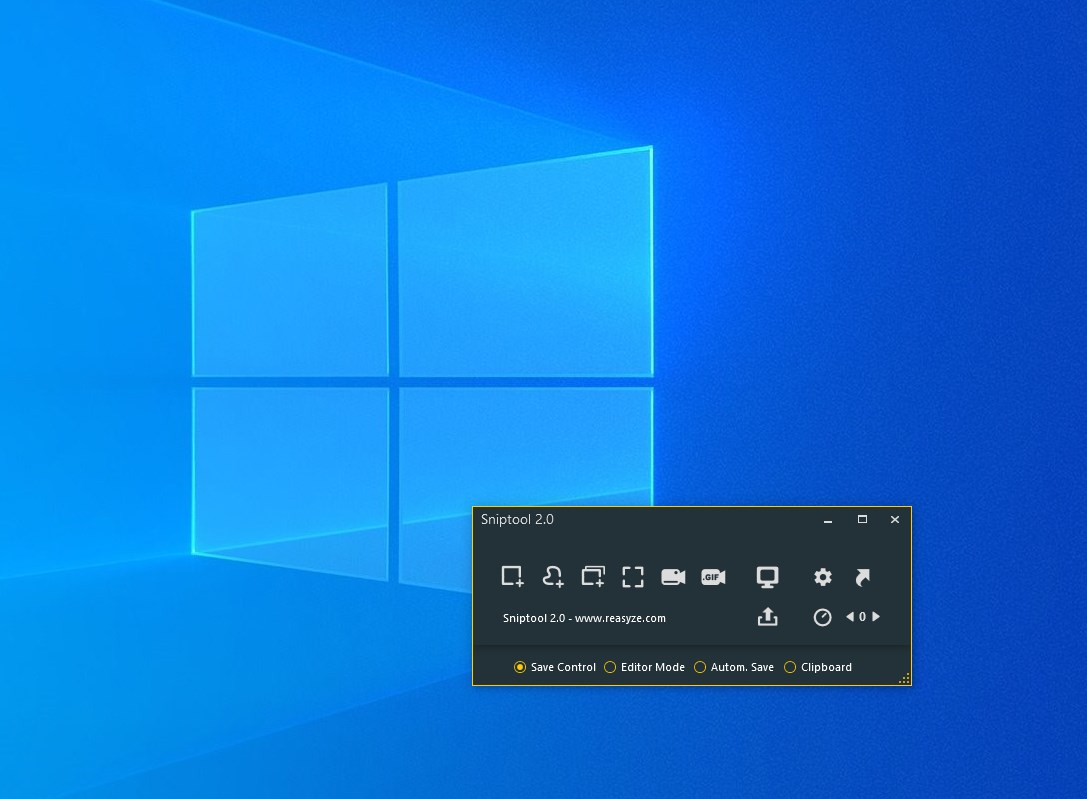
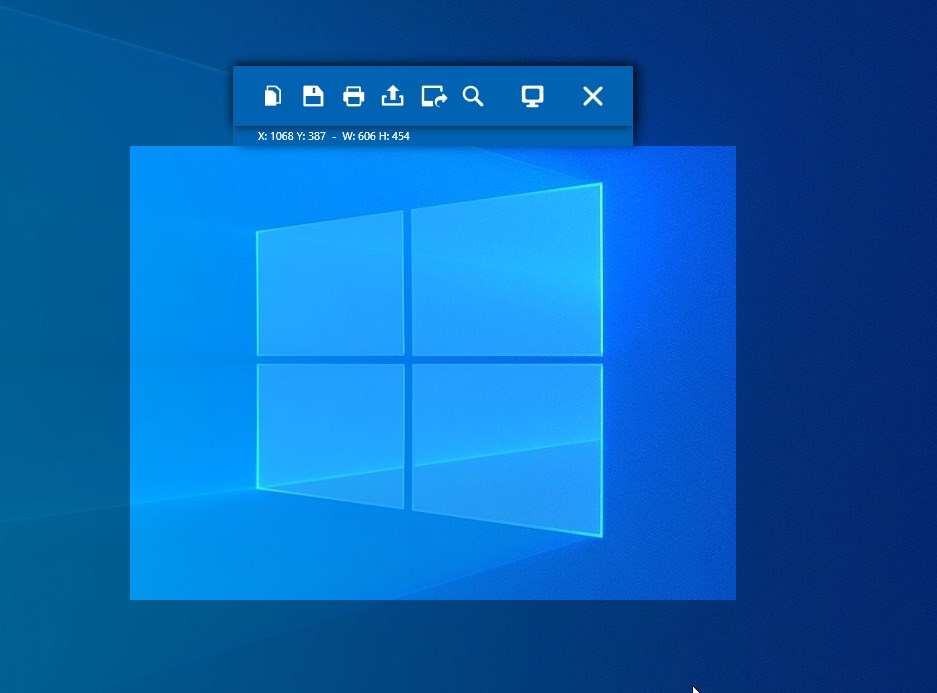
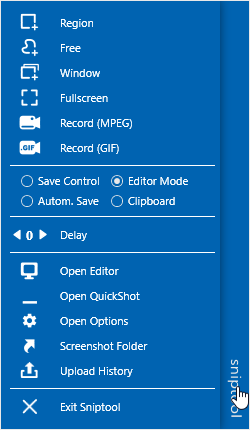
- Focused Snipping Modes: Offers various capture modes such as rectangular, freeform, window, and full-screen snips, catering to diverse screenshot needs.
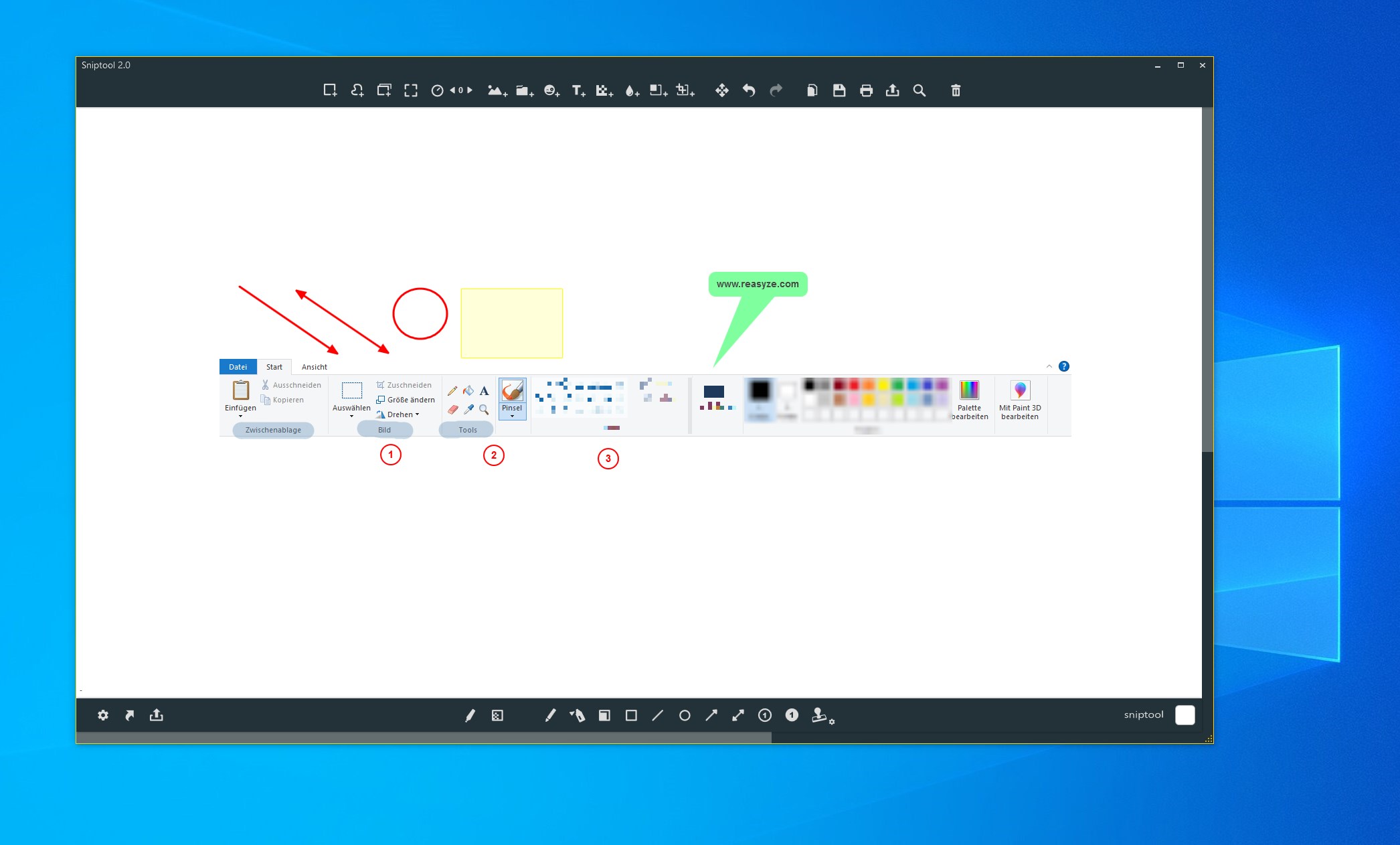
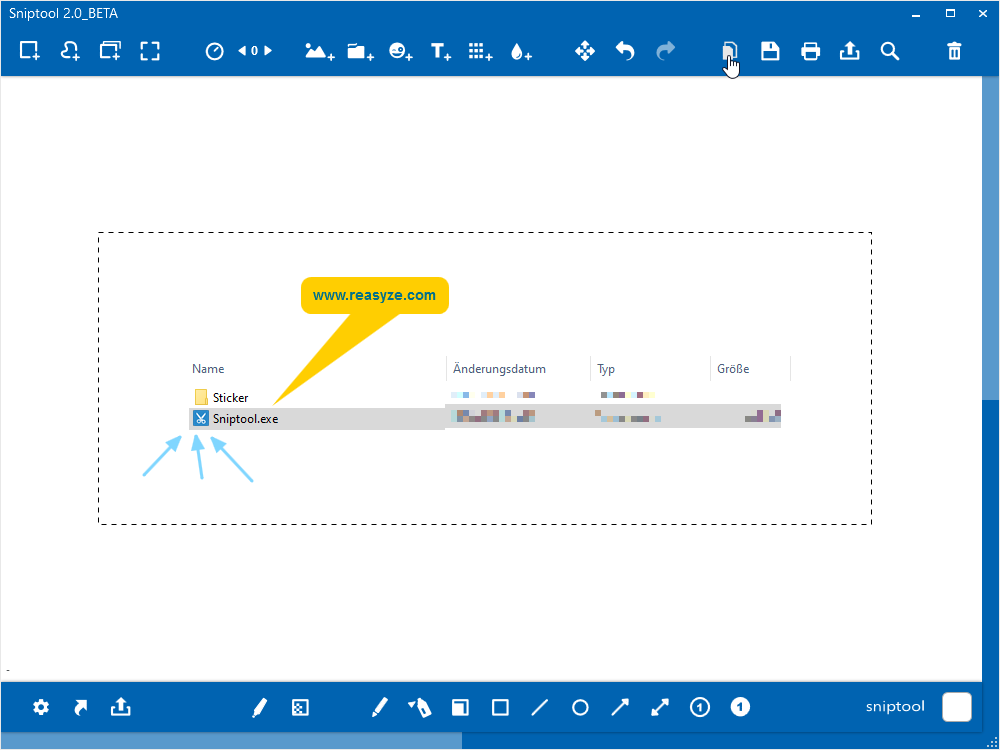
- Instant Annotation and Editing: Provides quick editing tools right after capture, enabling users to annotate, highlight, or crop images without switching apps.
- Seamless Workflow Integration: Designed to minimize disruption, Sniptool can be activated swiftly via hotkeys or system tray, streamlining repetitive tasks.
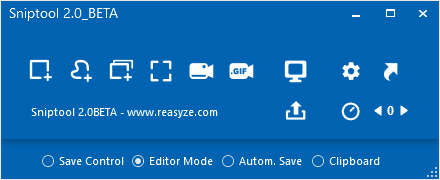
- Lightweight and User-Friendly Interface: Maintains a clean, distraction-free UI that reduces cognitive load and accelerates the snipping process.
Experience and Usability: More Than Just a Snipping Tool
Imagine needing to grab a quick screenshot of a tricky software bug or an elaborate webpage section. Sniptool steps in like a trusty companion, ready to capture precisely what you need with minimal fuss. The interface exudes simplicity — think of it as a minimalist workspace where every click leads you closer to your goal. Its responsive performance ensures no delays or lag, whether you're taking a quick snip or editing on the fly.
The learning curve is pleasantly gentle. Even new users can master it within minutes, thanks to intuitive icons and clear functions. The app supports hotkeys, allowing power users to incorporate it seamlessly into their existing workflow, akin to flipping a switch for immediate access.
Distinctive Advantages Over Competitors
Compared to more feature-laden tools like Snagit or Lightshot, Sniptool's “less is more” philosophy shines brightly. It reduces cognitive load by focusing on core snipping functions without drowning users in menus or complex features. By integrating snip & edit functions into a single, fluid process, it lowers the mental effort required to perform routine tasks — a vital trait for productivity aficionados.
Additionally, its lightweight design ensures that using Sniptool won't bog down your system or slow your workflow. Its rapid activation via hotkeys allows users to capture screenshots without breaking concentration, much like having a silent, reliable assistant on hand. This efficiency stands out especially for professionals who need quick, repeatable captures during intense work sessions.
Final Verdict: A Practical Tool with Focused Strengths
Sniptool is highly recommended for users who value speed, simplicity, and workflow integration. While it may lack some of the advanced features of larger competitors, its focus on providing the essential tools in an unobtrusive package makes it ideal for daily use, especially in fast-paced environments. Whether you're a programmer, designer, or casual user, Sniptool's straightforward approach helps you capture what matters efficiently.
If your priority is to reduce the cognitive effort involved in taking and editing screenshots while seamlessly integrating into your existing workflow, Sniptool deserves a solid trial. It's a trustworthy partner that keeps the focus on productivity — not clutter.
Pros
- Intuitive Snipping Tools
- Multiple Capture Modes
- Built-in Editing Features
- Lightweight and Fast
- Seamless Integration
Cons
- Limited Advanced Editing
- No Cloud Storage Options
- Occasional Stability Issues
- Limited Export Formats
- Minimal Customization Options











