

- Name Snagit
- Category Productivity
- Developer TechSmith Corporation
- Available on PC
- OS Windows 10 version 0.0 or higher
- Keyboard Integrated Keyboard
- Mouse Integrated Mouse
- Memory 4 GB
- languages English, French, German, Japanese, Portuguese, Spanish
Snagit for Windows: The All-in-One Screen Capture and Annotation Tool
Snagit for Windows, developed by TechSmith Corporation, is a versatile screen capture software designed to streamline your digital workflows through efficient image and video capturing combined with powerful editing features. It aims to simplify the way professionals, educators, and content creators document and communicate visually.
User-Friendly Design Meets Powerful Functionality
Upon opening Snagit, you're greeted with a clean, intuitive interface that feels more like a helpful assistant than a complex tool. Whether you're capturing a quick screenshot, recording an intricate tutorial, or annotating critical information, everything is logically laid out. The application's minimal learning curve makes it accessible even for newcomers, while offering advanced options for power users. Transitions between capture modes are seamless, allowing you to switch from still images to videos with just a few clicks—much like switching channels on a TV, but with the added benefit of a unified workspace.
Core Functionality: Capture, Edit, Share—Easier Than Ever
1. Robust Capture Options
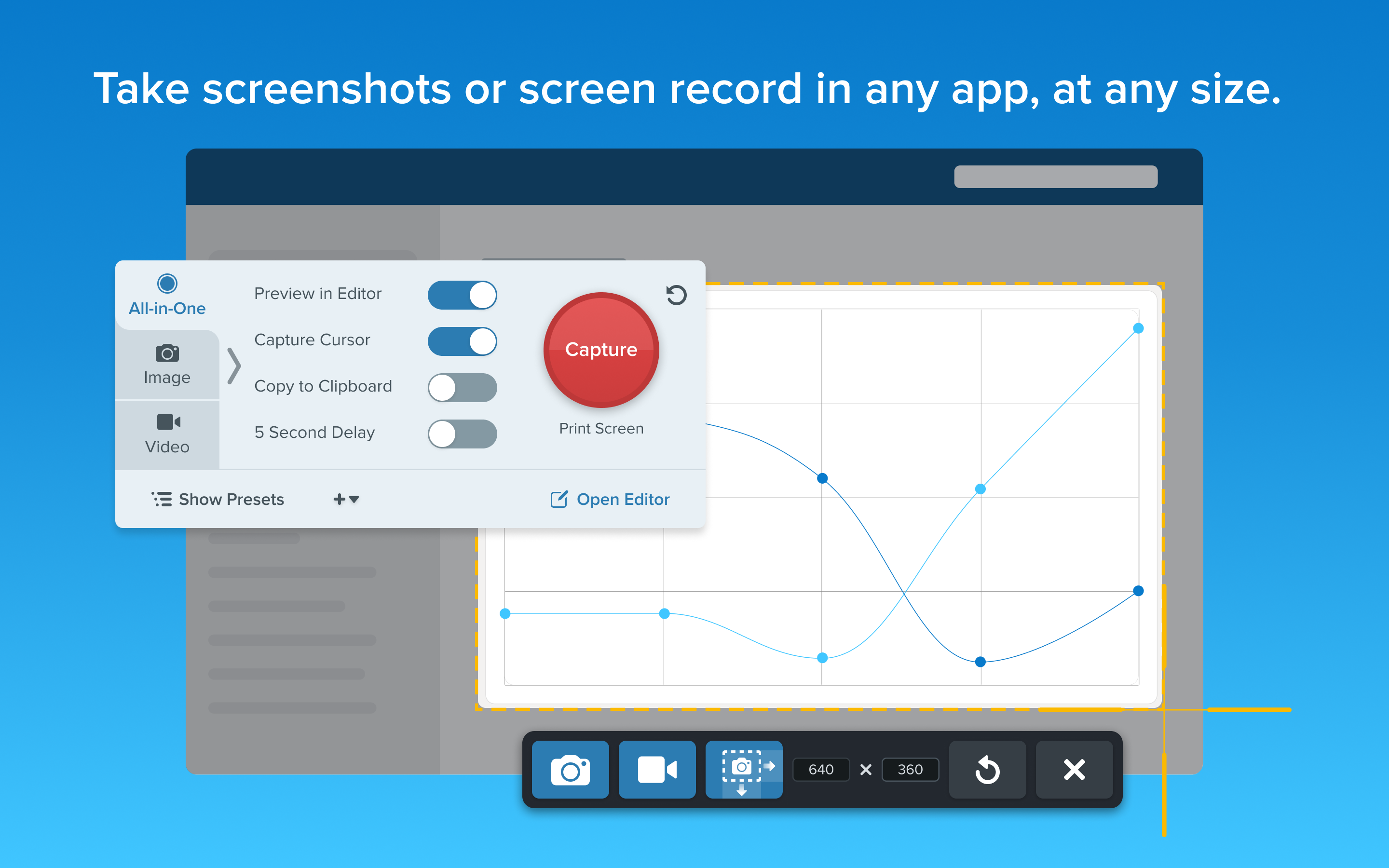
Snagit's core strength lies in its versatile capture capabilities. It offers predefined shortcuts to capture specific regions, entire screens, or scrolling windows—imagine effortlessly capturing an entire web page or a long document in a single scroll, something that often feels like trying to catch a flowing river with a bucket. The scrolling capture feature is particularly powerful, enabling users to document complex workflows or lengthy articles without breaking a sweat. This means more accurate documentation and less time fiddling with multiple images.
2. Advanced Annotation and Editing
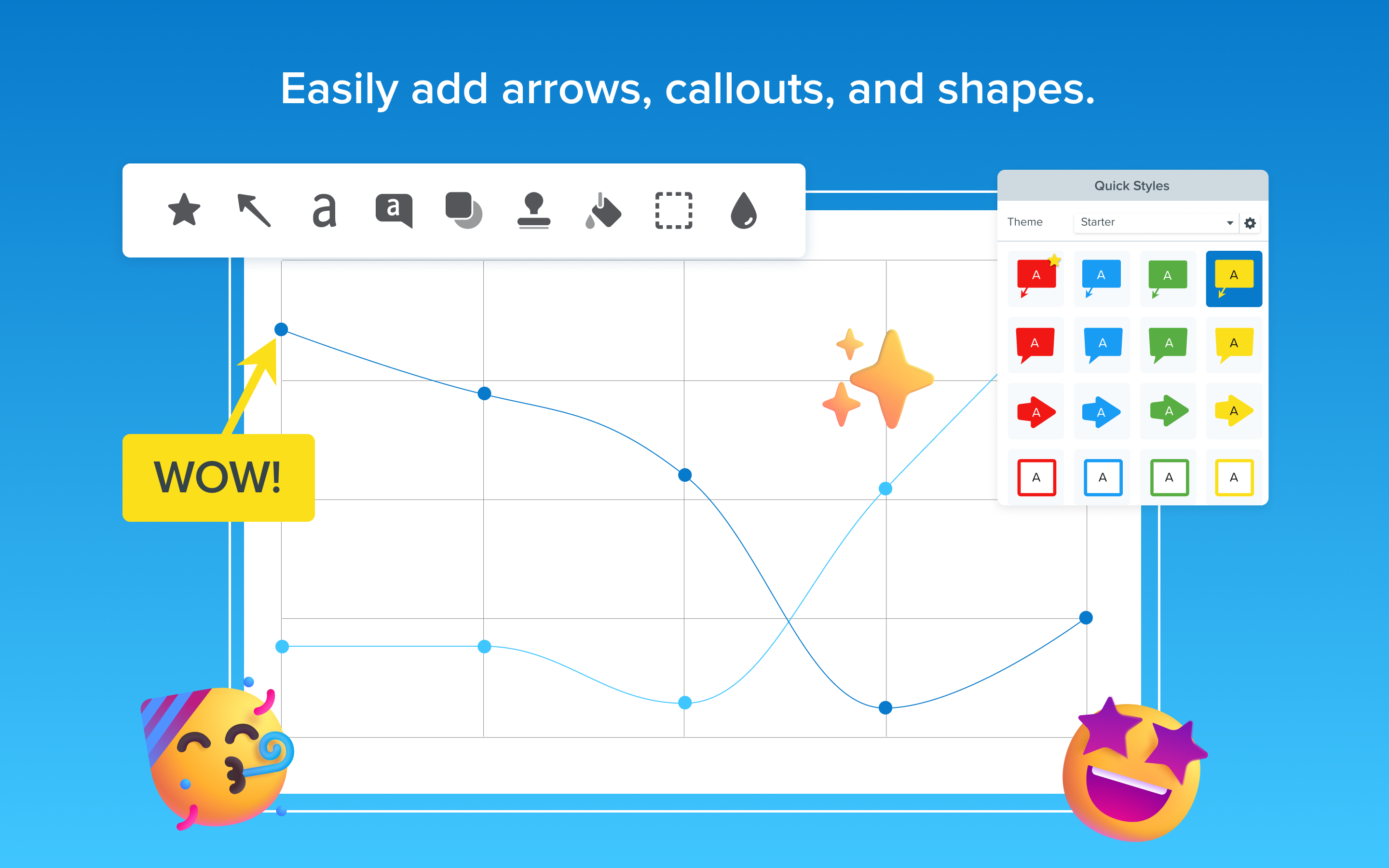
Once the capture is complete, Snagit's editing suite kicks in, turning simple screenshots into polished visual messages. You can annotate with arrows, callouts, text, or highlight important sections—think of transforming a plain snapshot into a compelling, easy-to-understand visual story. The editing tools are thoughtfully designed to reduce cognitive overload; the interface is streamlined enough to avoid feature bloat yet rich enough to meet most professional needs. This important balance minimizes frustration, allowing users to focus on their message rather than navigating complicated menus.
3. Effortless Sharing and Workflow Integration
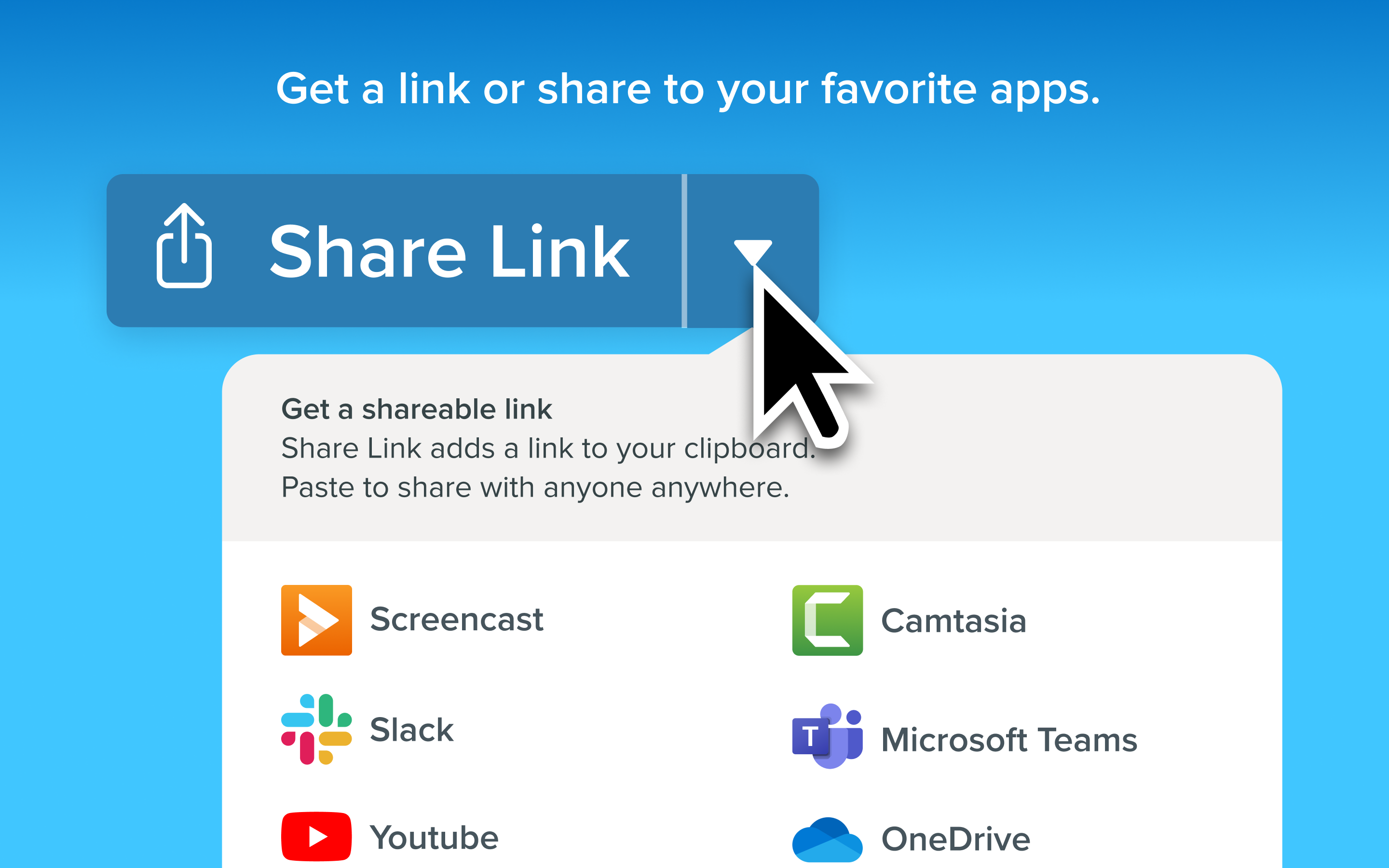
Snagit isn't just about capturing; it's about making those captures work for you. Integrated directly with popular platforms like Microsoft Teams, Slack, and email, sharing your visuals is a one-click affair. Additionally, Snagit supports seamless exporting formats suited for documentation, presentations, or social media. Its ability to embed captures into workflows reduces unnecessary steps—akin to having a personal assistant that not only records your screen but ensures everyone receives the message efficiently. These features set Snagit apart from other productivity tools that often require cumbersome integrations or multiple apps to achieve similar results.
Comparing Snagit to Its Peers
Many screen capture tools exist, but Snagit's real strength lies in its focus on workflow efficiency and cognitive load reduction. Unlike minimalist tools that may lack advanced features, or overly complex applications that overwhelm beginners, Snagit strikes a delicate balance—offering just enough power without complicating the user experience. Its unique scrolling capture feature reduces the need for multiple screenshots and stitching, fundamentally improving the documentation process. Furthermore, the intelligent annotation tools are designed to highlight what matters without clutter, making information more digestible and saving users precious time.
Would I Recommend Snagit? Absolutely, with a Caveat
For professionals who frequently need to create visual content—be it tutorials, reports, or quick troubleshooting guides—Snagit proves to be a reliable, efficient companion. Its ease of use coupled with powerful features means you can produce high-quality visuals without a steep learning curve. If your workflow involves regular screen capturing and sharing, this tool will integrate smoothly into your daily tasks, effectively reducing cognitive load and boosting productivity.
However, for casual users or those who require only occasional captures, the investment might feel a bit heavy relative to their needs. Nonetheless, for users aiming to streamline communication and documentation processes, Snagit stands out as a practical, thoughtfully designed solution worth considering.
Pros
- User-friendly interface
- Powerful annotation tools
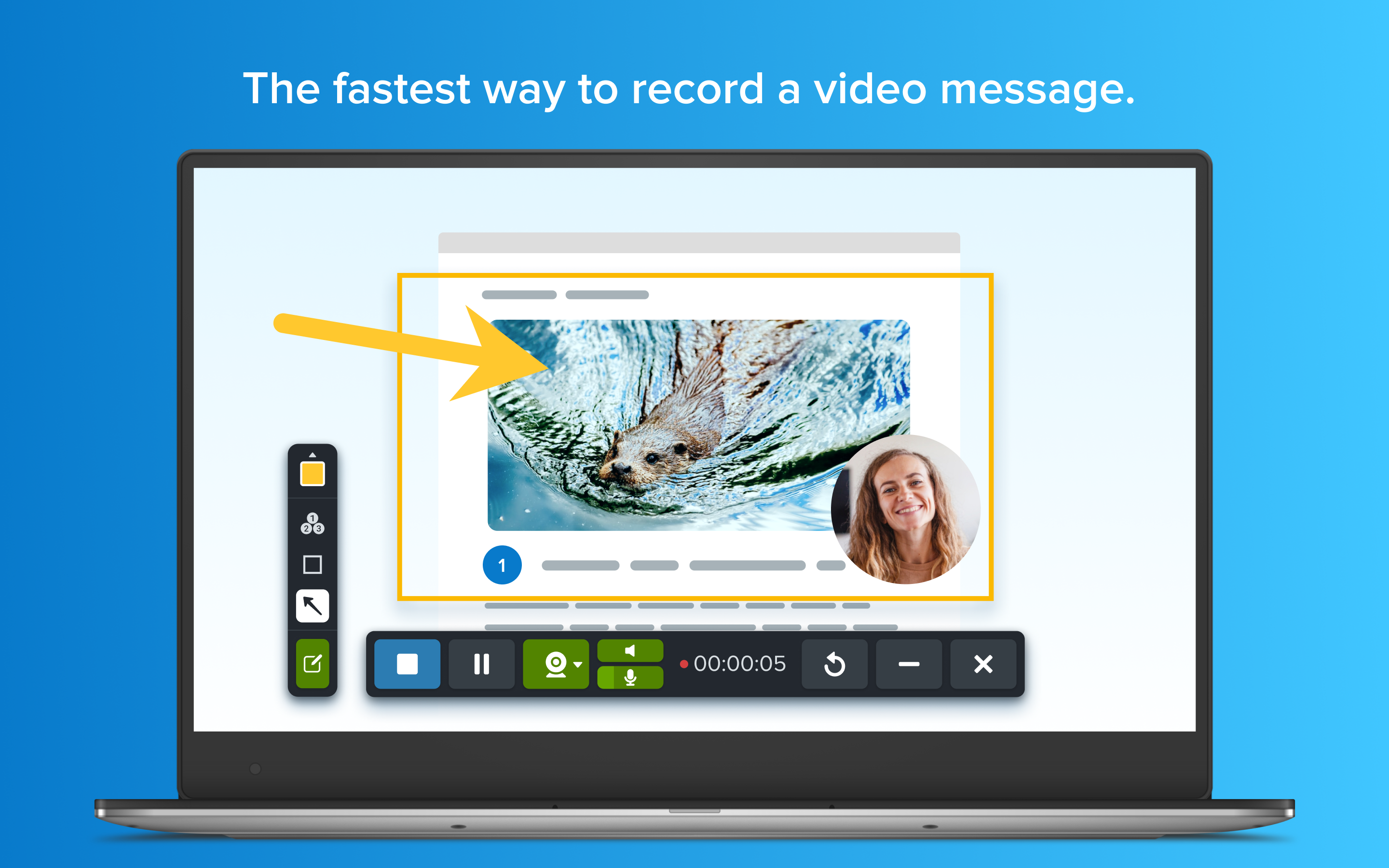
- Excellent screen recording capabilities
- Efficient workflow integration
- Reliable performance
Cons
- Relatively high cost
- Limited editing features compared to dedicated graphics software
- Occasional lag during high-resolution recordings
- Automatic cloud backup options are limited
- Learning curve for advanced features











