
- Name Smart Scan App - Scanner Driver Installer
- Category Productivity
- Developer MC Studio
- Available on PC, Mobile, Surface Hub, HoloLens
- OS Windows 10 version 17763.0 or higher
- languages English (United States)
Smart Scan App – Simplifying Your Scanner Driver Management on Windows
If you've ever battled with elusive scanner drivers or tangled driver installations, Smart Scan App by MC Studio promises a streamlined solution, condensing what used to be a technical headache into a few clicks. Designed for Windows users seeking efficiency, this app aims to automate and simplify scanner driver installation and updates, making device management less daunting and more reliable.
About Smart Scan App
Smart Scan App is a dedicated driver installer designed specifically for Windows scanners, facilitating quick and easy setup without the need for tedious manual downloads. Created by MC Studio, a developer known for practical utility tools, the app focuses on reducing time and effort for users to keep their scanner drivers up-to-date. Its core features include automated driver detection, simplified installation processes, and regular update checks. The main target audience comprises small office users, home tech enthusiasts, and anyone who regularly manages multiple scanner devices without wanting to dive into complex driver troubleshooting.
Engaging and Practical: Why Users Will Love It
Imagine grabbing your scanner, expecting a straightforward scan, but stumbling over driver issues that seem to sprout like weeds every few months. Smart Scan App feels like a friendly metronome in that chaos—coordinating your device's health with gentle precision. Straightforward and reliable, it turns the driver management process into a background task that runs smoothly, like a well-oiled machine quietly humming along behind the scenes. Its simplicity makes it a breath of fresh air amid often cluttered driver-installation routines.
Core Functionality Unpacked
Automated Driver Detection and Installation
One of the most compelling features is Smart Scan's ability to automatically detect your connected scanner hardware and identify whether the appropriate drivers are installed or outdated. No more guessing games or rummaging through manufacturer websites—the app scans your system like a detective on a mission, then presents you with the essential driver packages. The installation process is seamless, guiding users through minimal steps, akin to having a tech-savvy friend holding your hand through setup—even if you're not a tech expert.
Intelligent Update Management
Beyond initial setup, Smart Scan App excels at ongoing maintenance. It periodically checks for driver updates and alerts you when a newer version is available, taking the cognitive load off your shoulders. This proactive approach ensures your scanner remains compatible with the latest Windows updates and software, maintaining performance stability. Think of it as a vigilant guardian, quietly ensuring everything runs smoothly behind the curtain, conserving your time and mental energy.
User Interface and Experience
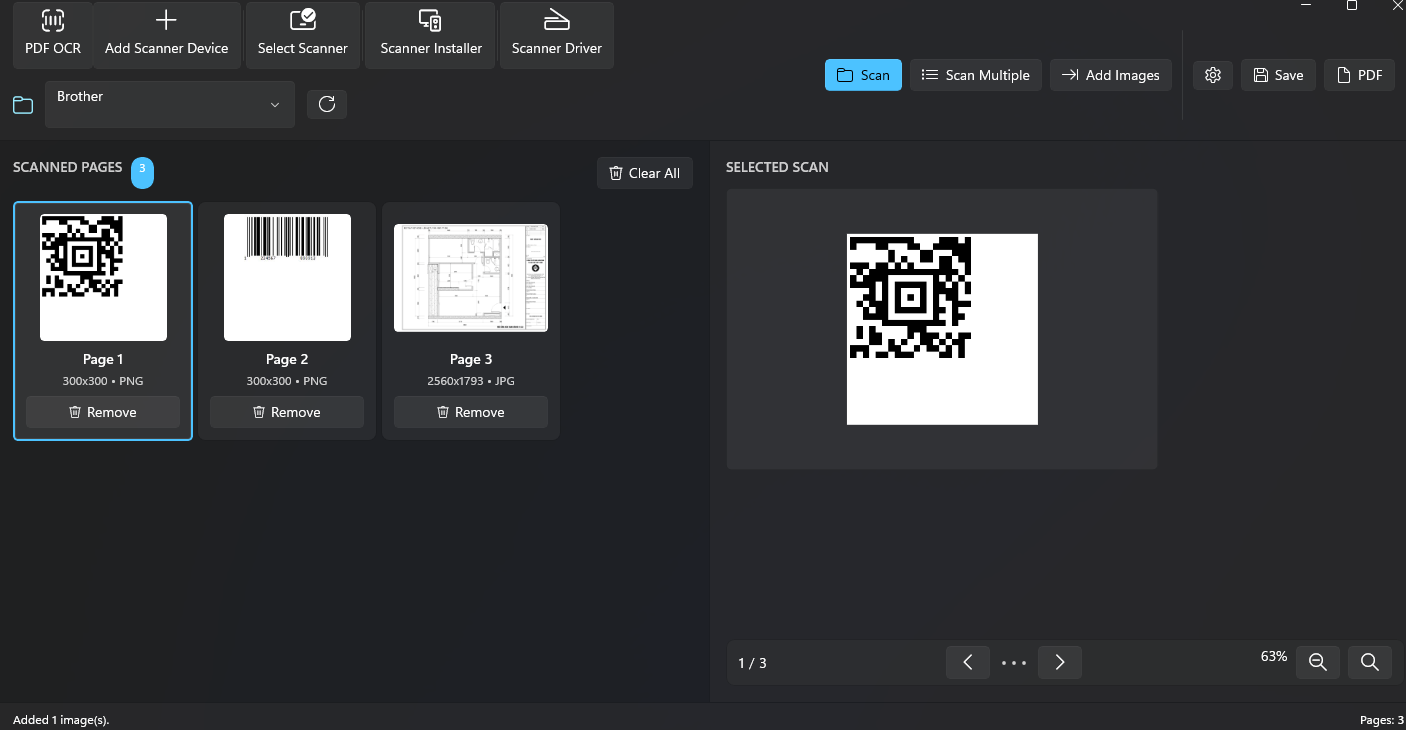
The app boasts a clean, intuitive interface that resembles a modern control dashboard—minimalistic but functional. With thoughtfully organized menus and large buttons, users can navigate effortlessly, whether they're seasoned IT personnel or casual users. Operation flows naturally: detection, review, install, and update are simplified into clear steps. The learning curve is gentle, making first-time users feel confident within minutes, much like assembling a new gadget with clear instructions.
What Sets It Apart from Similar Tools
Compared to generic driver management utilities, Smart Scan App shines in its workflow integration efficiency. It acts like a dedicated concierge for your scanner drivers, reducing the metaphorical “cognitive load”—the mental effort needed to keep drivers functional and current. Unlike feature-heavy tools that may overwhelm with options, this app focuses sharply on its core task: hassle-free driver management. This focus streamlines the process, saving users from the “paradox of choice” and ensuring the action is straightforward and reliable.
Final Verdict & Recommendations
Overall, Smart Scan App presents a practical, no-nonsense solution for Windows users who need to manage scanner drivers efficiently without diving into technical depths. It's particularly well-suited for small offices, home setups, and casual users who desire reliable device management without complex configurations. While it may not replace comprehensive enterprise driver management tools, its targeted, user-friendly approach makes it a valuable addition to any device maintenance routine.
We recommend trying out Smart Scan App if you're tired of driver installation frustrations or want a proactive way to keep your scanner functioning optimally. Its particular strength in workflow automation and cognitive load reduction makes it stand out among similar utilities—an unobtrusive helper that ensures your scanner keeps pace with your productivity needs.
Pros
- Easy installation process
- Reliable scanner driver updates
- User-friendly interface
- Fast scanning and driver setup
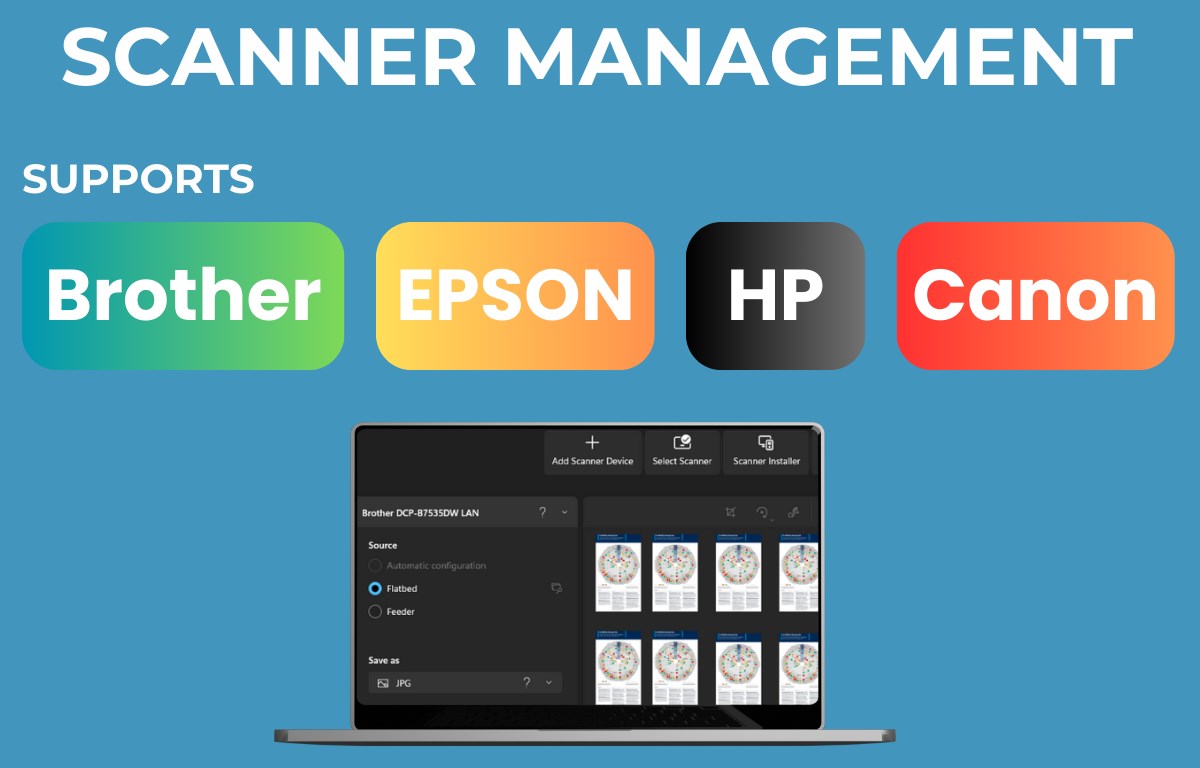
- Supports a wide range of scanner models
Cons
- Limited customization options
- Occasional detection delays
- Requires internet connection for updates
- Bug that occasionally causes installation failures
- Limited language options











