- Name Sketchbook Pro
- Category Multimedia design
- Developer Sketchbook, Inc.
- Available on PC
- OS Windows 10 version 17763.0 or higher
- Memory Not specified
- languages Chinese (Simplified), Chinese (Traditional), English (United States), French, German, Italian, Japanese, Korean , Portuguese (Brazil), Russian, Spanish (Spain)
Sketchbook Pro for Windows: A Creative Canvas for Digital Artists
Sketchbook Pro for Windows stands out as a robust, professional-grade digital drawing application designed to empower artists with a comprehensive set of tools and an intuitive interface, making it an ideal companion whether you're a hobbyist or a seasoned illustrator.
About the App
Developed by Sketchbook, Inc., Sketchbook Pro for Windows is a versatile digital art application focusing on sketching, illustration, and concept art creation. It combines a user-friendly design with powerful features tailored for creative expression.
- Main Highlights: A vast collection of customizable brushes, a responsive and smooth drawing experience, and an innovative predictive stroke feature that enhances line stability.
- Target Audience: Digital artists, illustrators, designers, students, and hobbyists seeking professional quality tools in an accessible package.
In-Depth Review: A Digital Sketchbook for Every Artist
Imagine opening a physical sketchbook that responds effortlessly to your pencil strokes—Sketchbook Pro for Windows offers this magic through a sleek digital interface. Its blend of powerful features and thoughtful design makes it feel like a natural extension of your creative hand. Whether you're sketching quick ideas or polishing detailed illustrations, this app is like having an art studio at your fingertips.
User Interface and Core Features
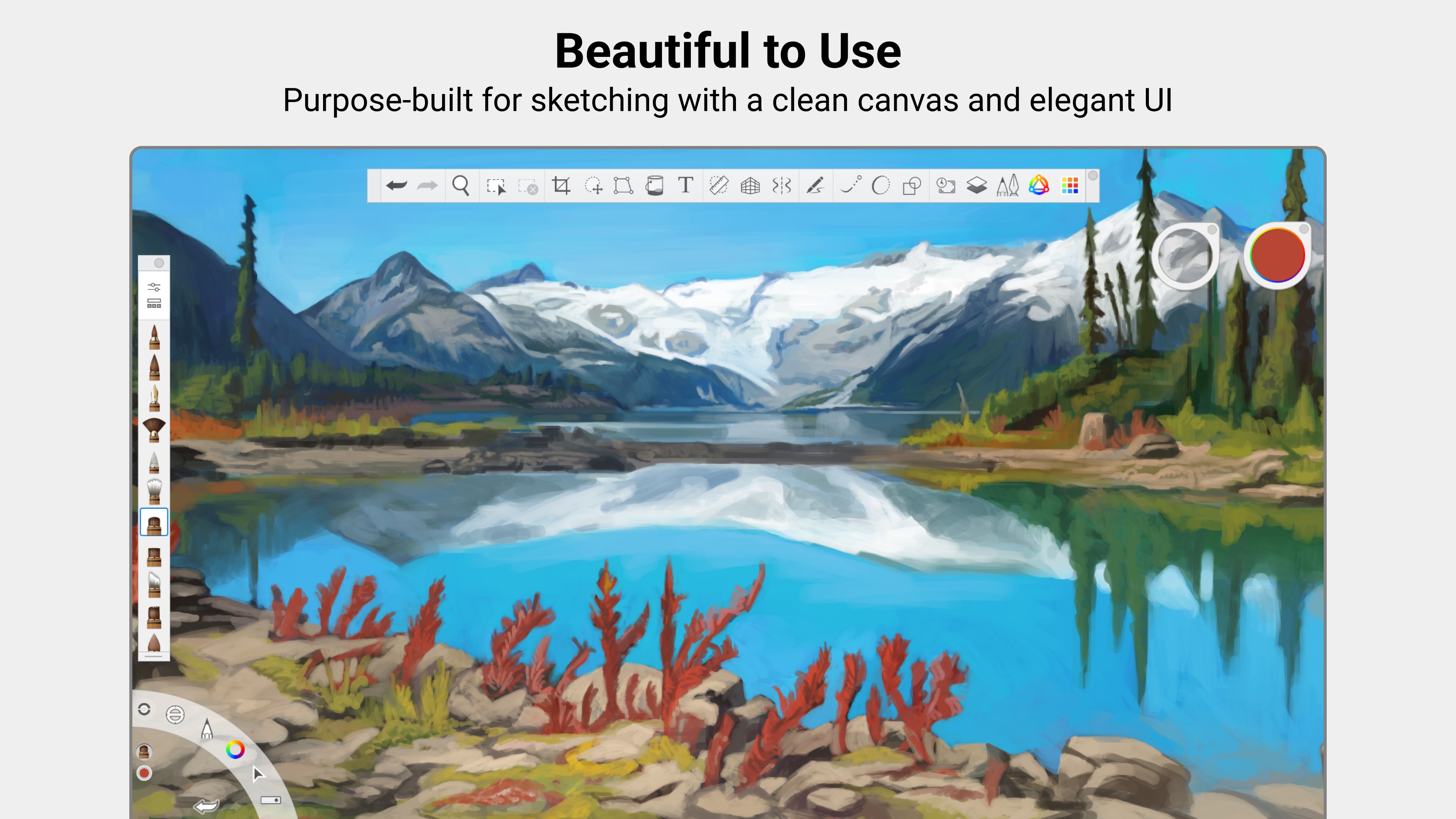
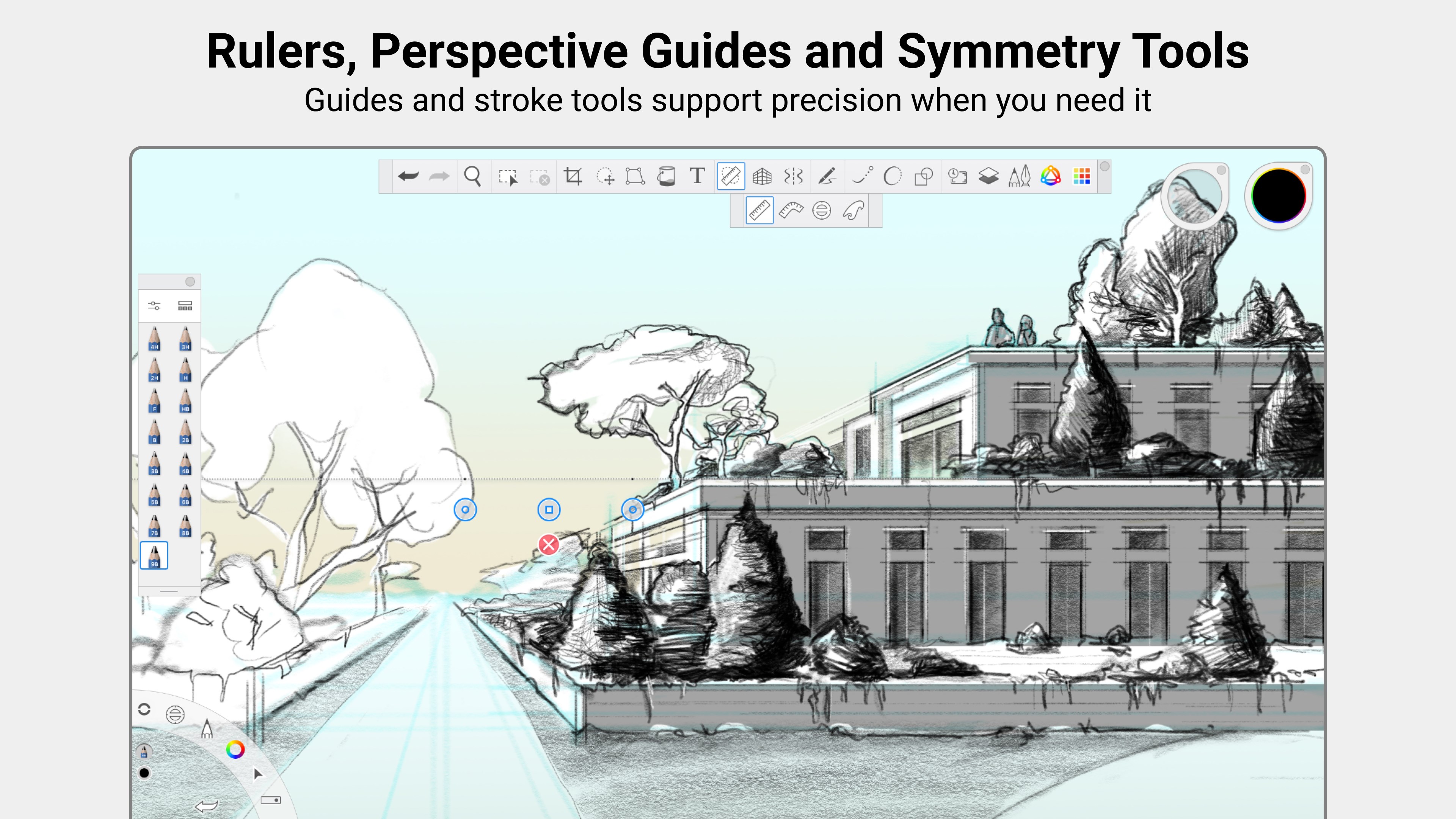
From the moment you launch Sketchbook, you're greeted with a clean, clutter-free workspace that mimics traditional artists' studios—maximizing focus while keeping tools within easy reach. The customizable toolbar allows quick access to brushes, colors, and layers, facilitating a seamless workflow.
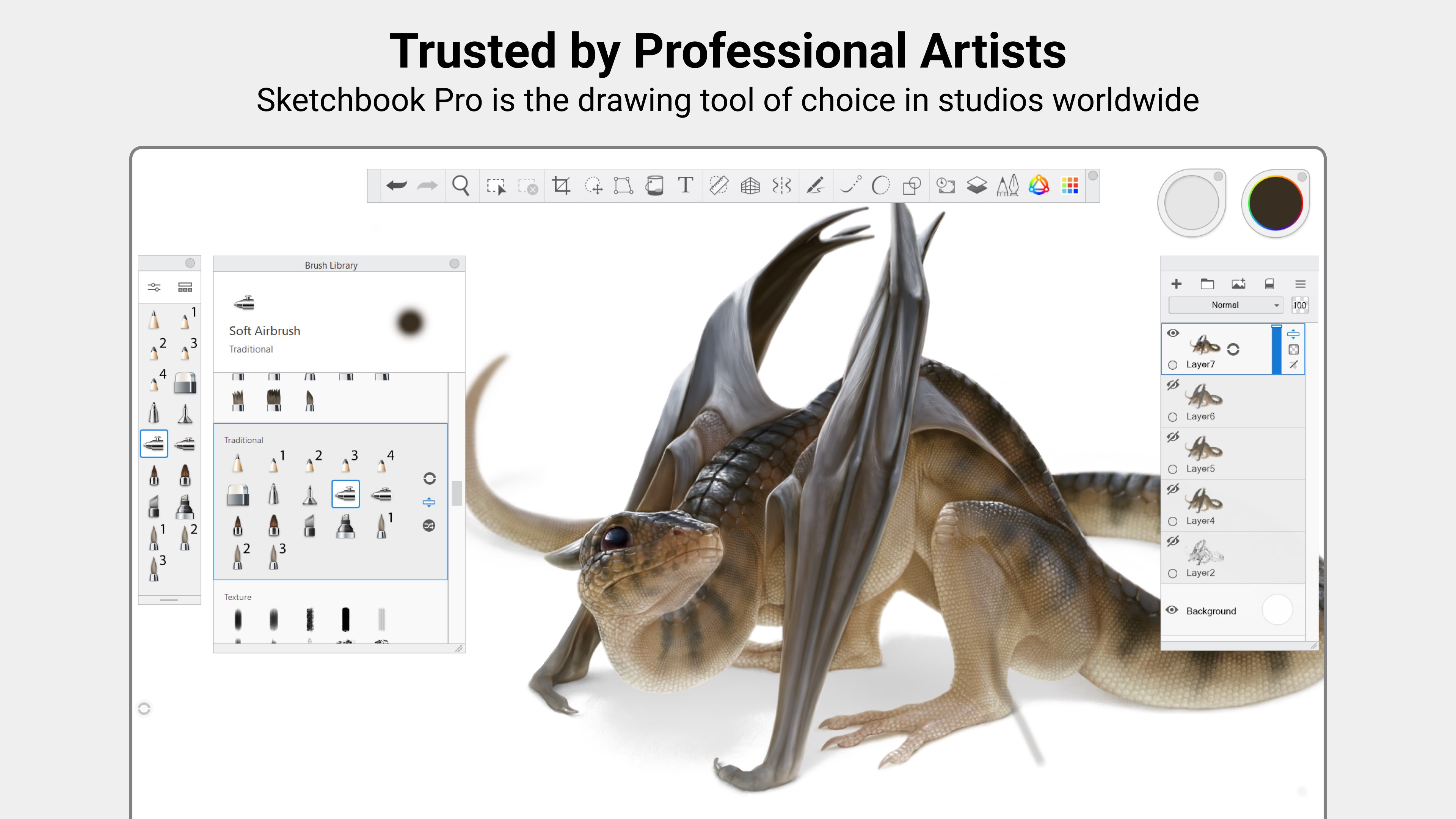
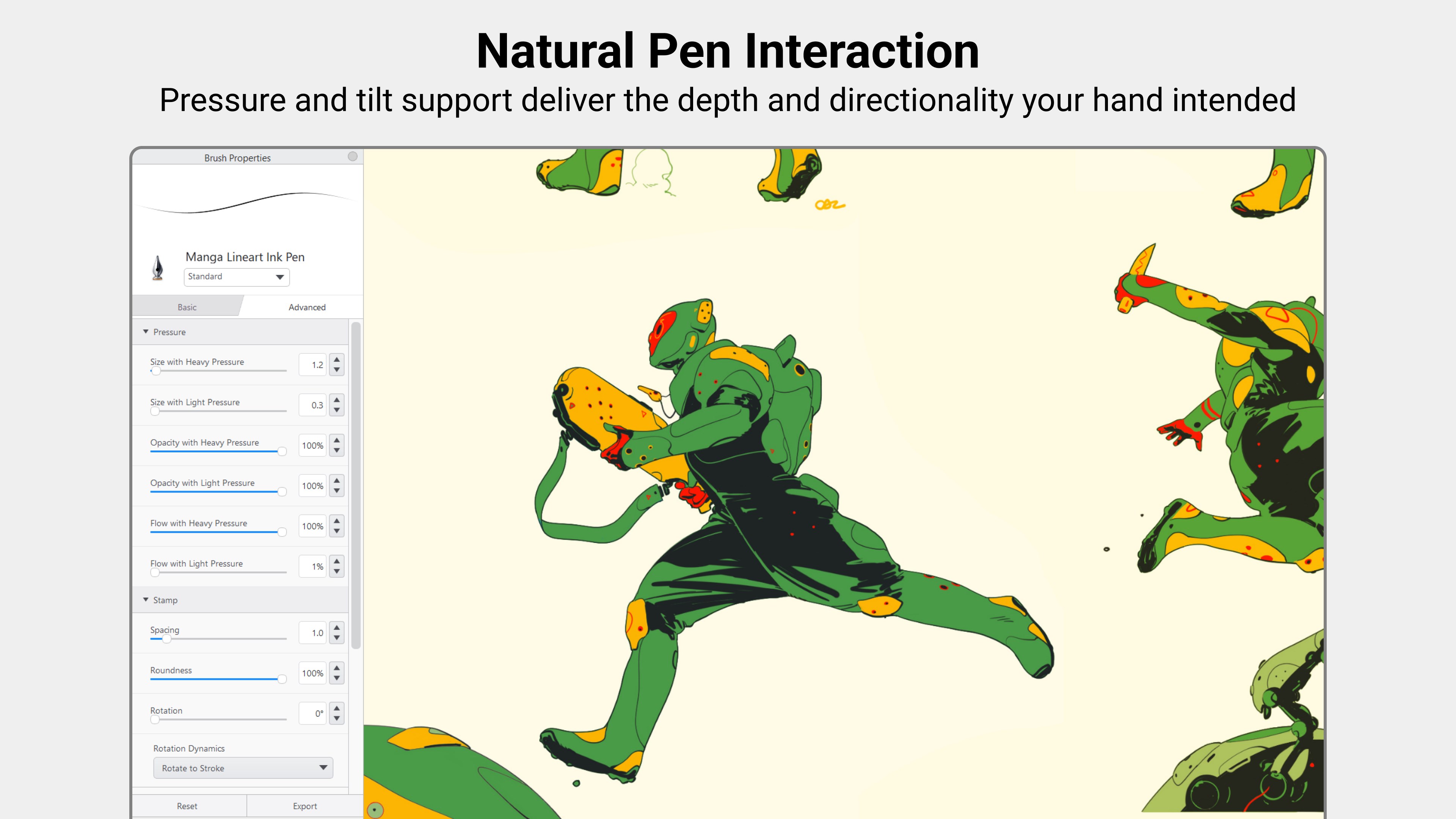
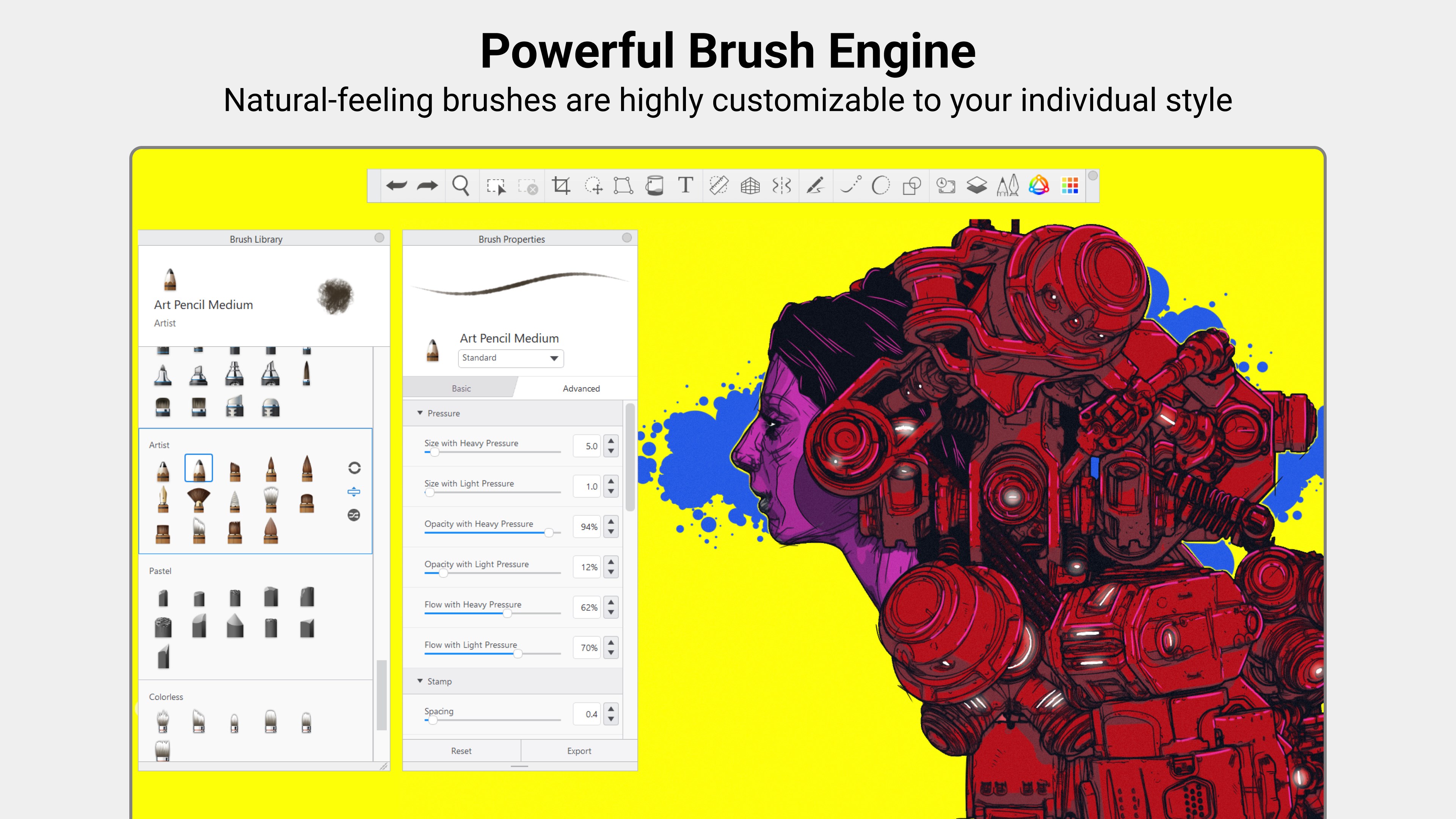
One shining aspect is the **Precision Brush Engine**, which delivers incredibly natural strokes, whether you're sketching light outlines or bold shading. The brushes are highly customizable, allowing artists to craft unique styles—think of it as having a paint palette tailored precisely to your taste. The **Predictive Stroke** feature is a standout—imagine having an intelligent assistant that smooths jagged lines and suggests refined shapes, transforming shaky sketches into polished artworks in real-time.
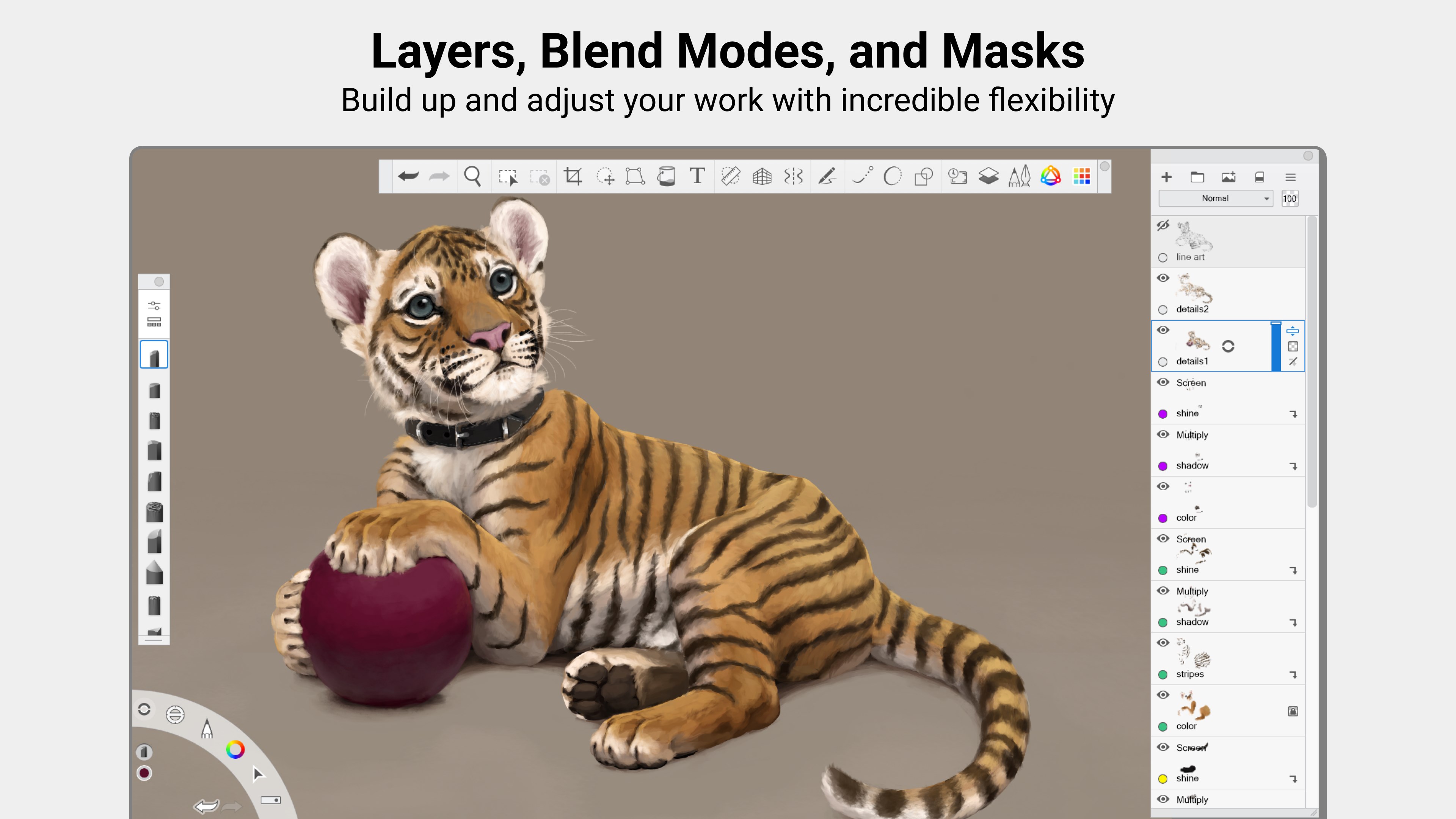
The app's **Layer Management System** is intuitive yet powerful. It supports multiple layers with blending modes, masking, and adjustment layers, essential tools for complex compositions. Plus, the addition of a top-notch color palette with vibrant, customizable swatches makes color selection a breeze, akin to having a professional artist's palette always at your fingertips.
Performance and User Experience
Drawing with Sketchbook feels like sketching on paper—lines glide smoothly without lag, thanks to optimized rendering optimized for Windows hardware. The interface is minimalistic but responsive, encouraging freeform creativity without distraction. The learning curve is gentle; newcomers can quickly pick up basic functions, while advanced users will appreciate the depth of customization available. Navigating between brushes, layers, and tools is intuitive, akin to flipping through an artist's sketchbook with fluid ease.
Compared to other multimedia design applications, Sketchbook Pro's interface is notably streamlined, avoiding the clutter that often hampers workflow. Its real-time responsiveness makes it suitable for quick thumbnail sketches or detailed illustrations, effectively bridging the gap between simplicity and professional depth.
Unique Strengths and Differentiating Features
The most remarkable innovation here is **Predictive Stroke**, which elevates line quality by intelligently smoothing and completing your strokes as you draw—like having a digital pen that anticipates your intentions. This feature is particularly advantageous for artists aiming for precision and fluidity without the hassle of meticulous editing. Unlike many other apps that require external stabilization tools, Sketchbook's built-in prediction empowers users to focus on creativity rather than technical corrections.
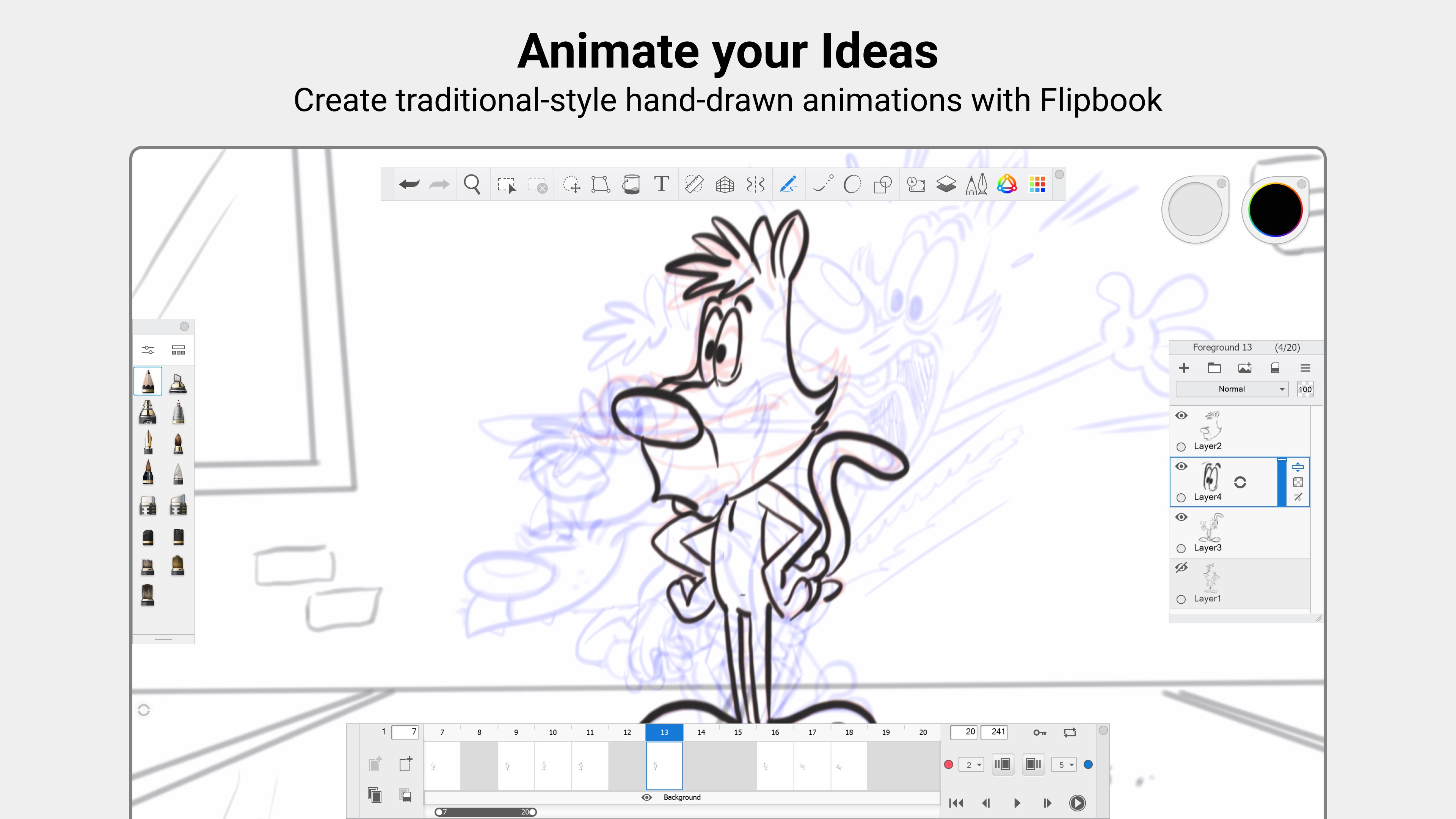
Another benefit is its versatility in adapting to different workflows. Whether you're doing quick sketches, storyboards, or detailed designs, the app's adaptable interface and tools cater to all levels of artistic complexity, setting it apart from more specialized or rigid design programs.
Conclusion and Recommendations
Sketchbook Pro for Windows offers a compelling blend of ease of use and professional-grade features. Its standout **Predictive Stroke** makes it especially attractive for artists seeking both precision and natural drawing flow. The intuitive interface and performance optimization ensure that creative inspiration isn't hampered by technical limitations.
For anyone in search of a digital sketchbook that's both approachable and powerful, I'd recommend giving Sketchbook Pro a try—it's like having a portable studio that adapts perfectly to your creative needs. Whether you're a casual doodler or a professional illustrator, this app merits serious consideration as your next creative tool.
Pros
- Intuitive and user-friendly interface
- Wide range of brushes and tools
- High-resolution canvas support
- Excellent integration with Microsoft ecosystem
- Advanced layering and masking features
Cons
- Occasional lag during intensive editing
- Limited import formats for custom brushes
- Learning curve for new users
- Basic animation tools are limited
- Occasional stability issues on older devices