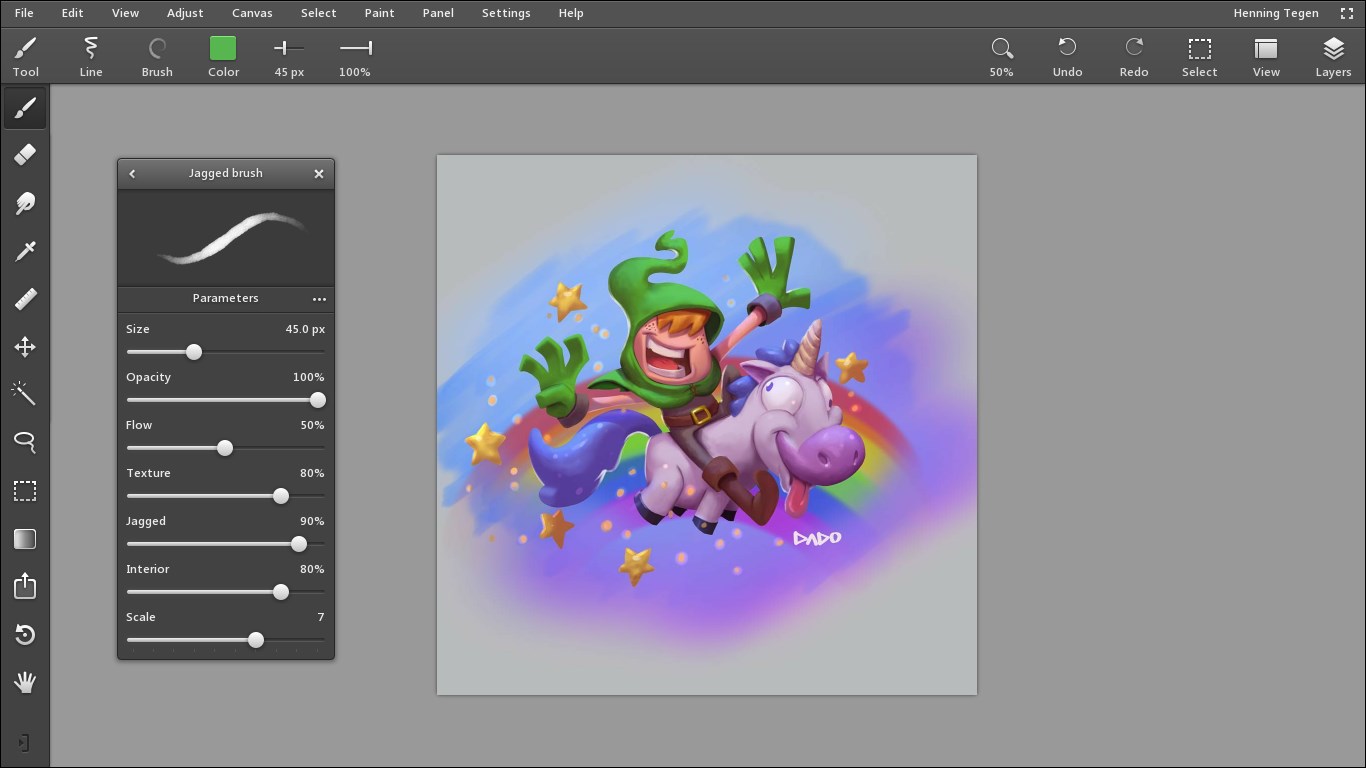
- Name Leonardo
- Category Multimedia design
- Available on PC
- OS Windows 10 version 15063.0 or higher
- DirectX Version 9
- Memory 2 GB
- languages Chinese (Simplified), English (United States), French, German, Japanese
Introducing Leonardo for Windows: A Stylish Tool for Creative Visuals
Leonardo for Windows by Xade Software AB is a multimedia design application tailored to streamline the creation of engaging visual content through an intuitive interface and innovative features. Whether you're a professional designer or a hobbyist, Leonardo aims to elevate your projects with ease and elegance.
Target Audience and Core Strengths
This app addresses digital artists, content creators, marketers, and educators seeking a user-friendly yet powerful tool for designing multimedia assets. Its main highlights include a clean, customizable workspace, AI-assisted design suggestions, and versatile export options, making complex tasks approachable for users across skill levels.
Vibrant Creativity at Your Fingertips
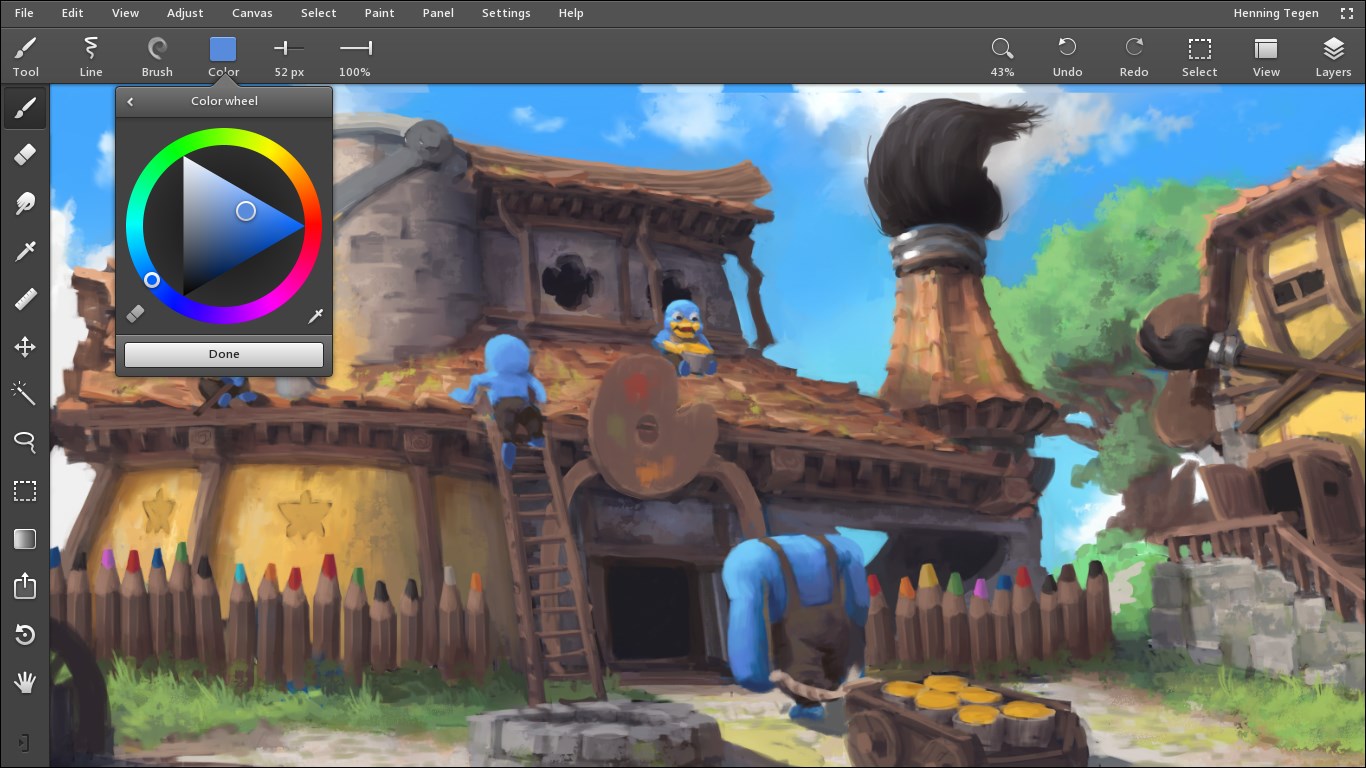
Imagine sitting at your laptop, ready to craft a presentation or a social media graphic—Leonardo offers a palette of tools that are as welcoming as a sketchbook but as versatile as a full-fledged art studio. Its sleek design invites exploration, and its responsive performance ensures you won't be waiting around, just creating. From the moment you launch the app, the intuitive layout makes it easy to dive into projects, even if you're new to multimedia design.
Powerful and Intuitive Design Tools
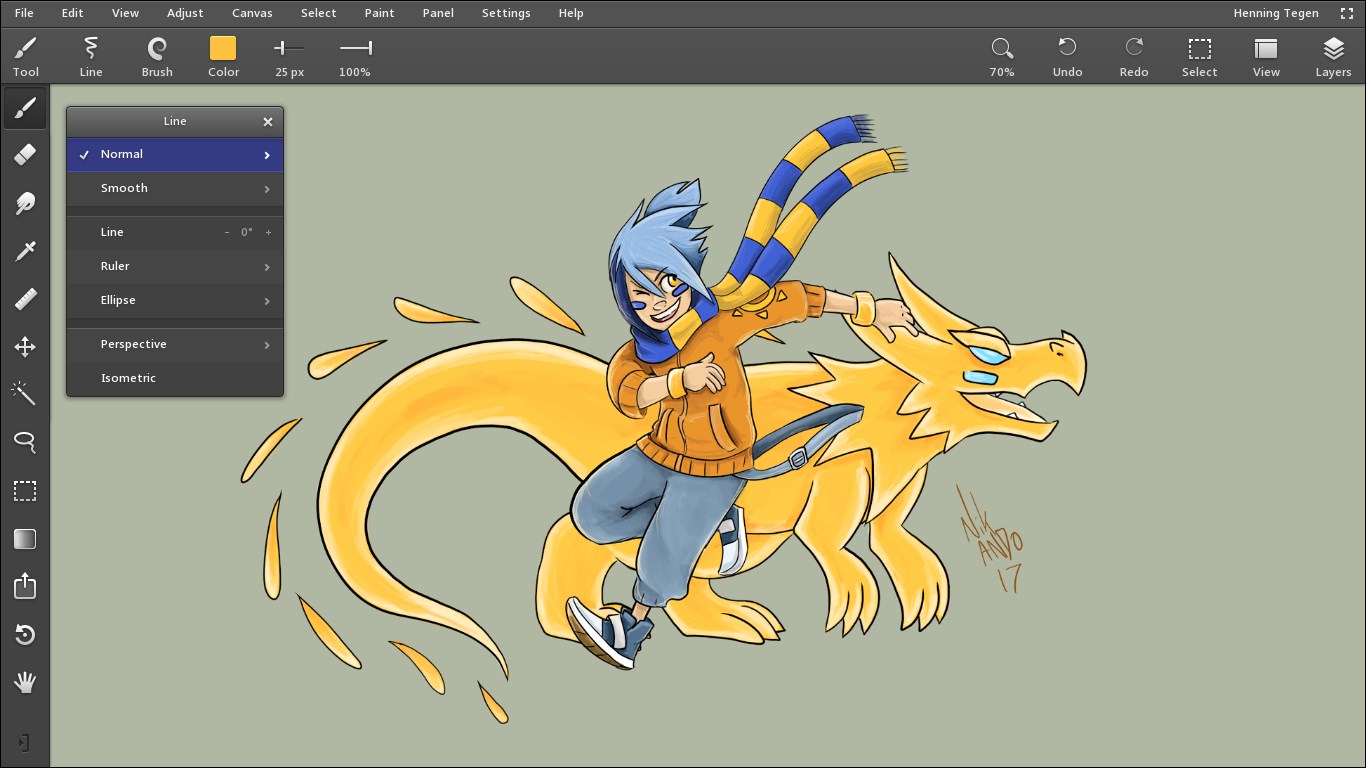
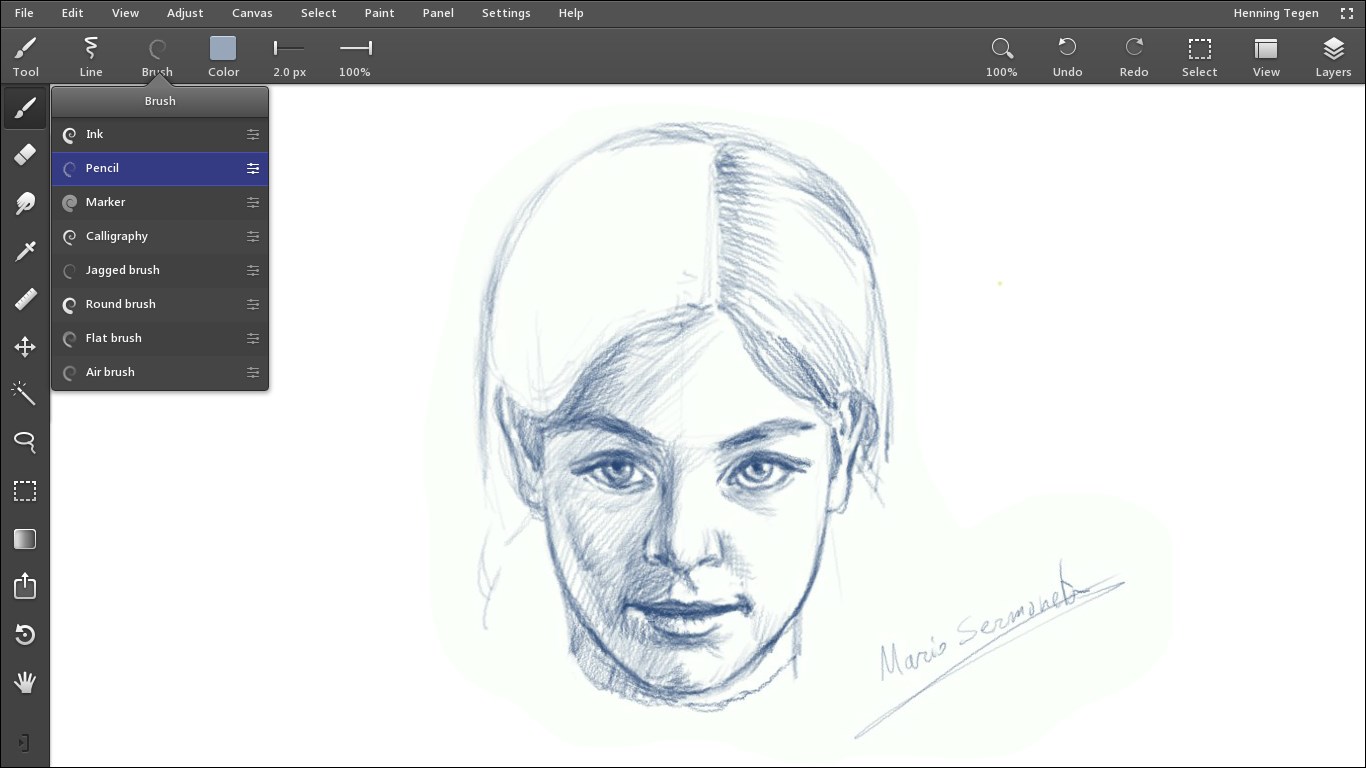
Leonardo's core strength lies in its user-centric design features. The application boasts a rich toolkit consisting of customizable templates, drag-and-drop functionality, and an intelligent layer management system. These tools allow users to assemble complex visuals effortlessly—much like assembling a puzzle where each piece is designed to fit perfectly. The AI-driven suggestions help identify design improvements in real-time, guiding users towards professional-looking results without a steep learning curve.
Seamless User Experience and Interface
One of Leonardo's standout qualities is its polished, aesthetically pleasing interface, which feels akin to browsing through a well-organized digital studio. Navigation is smooth, with responsive controls that respond instantly to user input, akin to gliding your hand over a glass surface. The learning curve is gentle; even first-time users can quickly grasp the essentials through interactive tips and guides built into the app. Its performance remains stable during intensive design sessions, thanks to optimized hardware utilization, making your creative flow uninterrupted.
What Sets Leonardo Apart?
Unlike many multimedia apps that try to be jack-of-all-trades, Leonardo specializes in blending simplicity with smart features. Its most notable trait is the AI-assisted design system—an intelligent virtual assistant that suggests layout enhancements, color schemes, and element arrangements based on your project's context. This sets it apart by offering a collaborative feel, almost like having a digital creative partner guiding your hand. Additionally, its flexible export options ensure your work is ready for any platform—be it social media, presentations, or print—without fuss.
Final Verdict and Best Use Cases
All things considered, Leonardo for Windows is a commendable tool for those who seek a balance between powerful features and ease of use. It's especially recommended for users who want to produce professional-looking visuals quickly, without delving deep into complex design software. If you're looking for a multimedia design app that can help you craft stunning content with minimal fuss, Leonardo deserves a spot on your desktop.
While it may not replace high-end professional tools for intricate, high-stakes projects, its intelligent assistance and user-friendly interface make it a noteworthy choice for everyday creative tasks and rapid content development. For casual designers, marketers, or educators aiming to communicate ideas visually, Leonardo is a reliable and inspiring companion.
Pros
- Intuitive User Interface
- Advanced AI Capabilities
- Wide Range of Art Styles
- Fast Processing Speed
- Regular Updates and Improvements
Cons
- Limited Free Usage
- Occasional Output Inconsistencies
- Steep Learning Curve for Advanced Features
- Battery Consumption
- Limited Customization Options