- Name Screen Record‘
- Category Multimedia design
- Developer Screen Record
- Available on PC
- OS Windows 10 version 14393.0 or higher
- languages English (United States)
A Friendly Guide to Screen Record for Windows
If you're on the hunt for a straightforward yet reliable screen recording tool, Screen Record for Windows might just be your new best friend. Designed to capture your on-screen moments with ease, this app aims to make recording simple, efficient, and accessible—whether you're creating tutorials, capturing gameplay, or saving webinar snippets.
Basic Information & Core Highlights
Developed by Screen Record, a dedicated team committed to user-friendly recording solutions, this app stands out with its sleek interface and targeted features. The main selling points include: 1. High-quality screen recording with customizable settings to suit various needs. 2.Easy-to-use interface that minimizes the learning curve even for novices. 3. Ability to record system audio, microphone input, or both, providing versatility. 4. Support for recording in multiple formats, making sharing and editing seamless.
The app primarily targets general users who need quick, reliable screen capture tools—ranging from students to content creators and business professionals. Its approachable design caters to users of all levels who desire effective recording without unnecessary complexity.
Engaging Introduction: Seeing Is Believing
Imagine trying to explain a tricky software trick to a friend or sharing a memorable gameplay moment with your community. Instead of complicated setups or bulky software, you just open this little marvel, press record, and voilà—your screen's story is captured effortlessly. Screen Record for Windows claims to be the friend that's always ready to record your screen adventures, turning everyday computer use into shareable stories without fuss or frustration. It's like having a personal cameraman in your PC—ready at a moment's notice.
Deep Dive into Core Features
Intuitive and Elegant User Interface
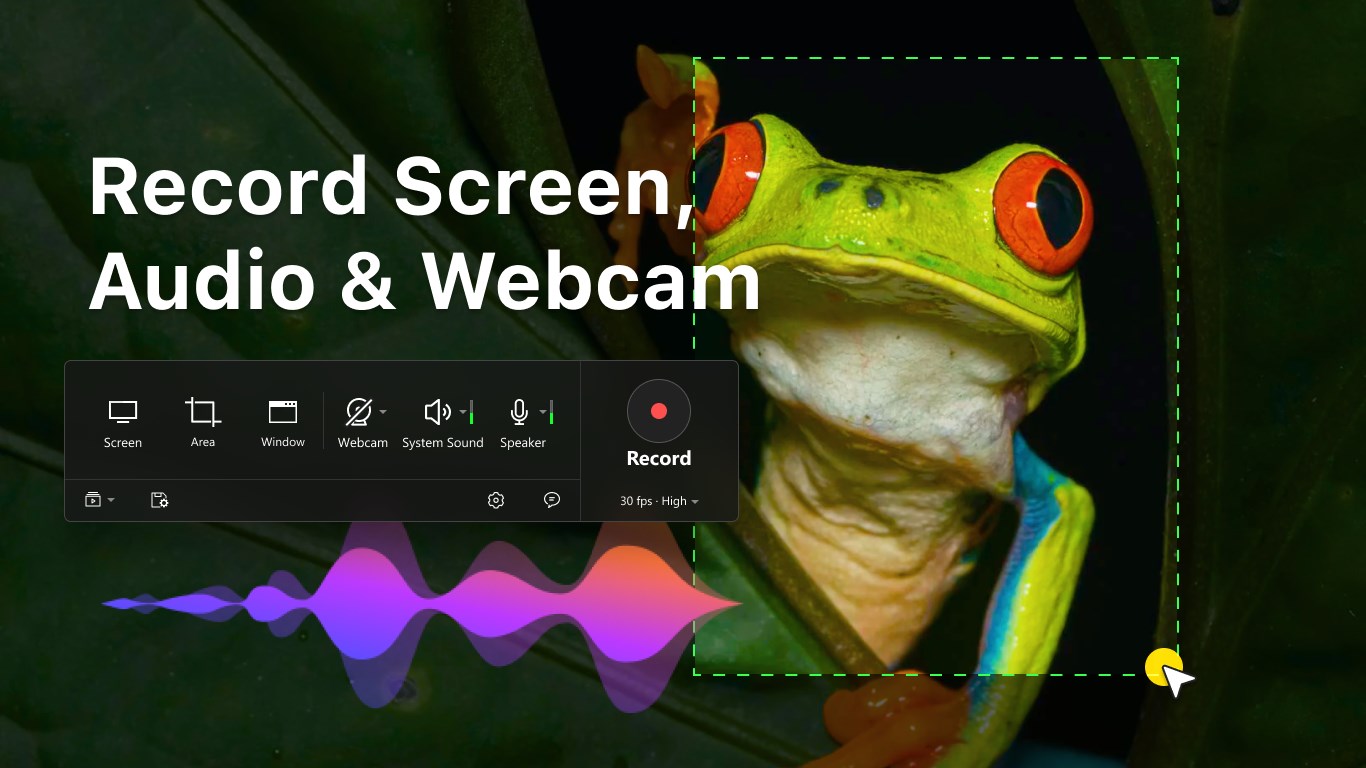
From the moment you launch Screen Record, the minimalist design welcomes you with a clean dashboard that feels more like an app launcher than a complicated tool. Large, clearly labeled buttons immediately tell you where to go—hit record, pause, and stop—so no need to sift through menus or fiddly settings. This simplicity makes it ideal for users who want a fuss-free experience. The interface adapts well across different screen sizes, and visual cues help guide new users through the process smoothly.
Customizable Recording Options and Quality Control
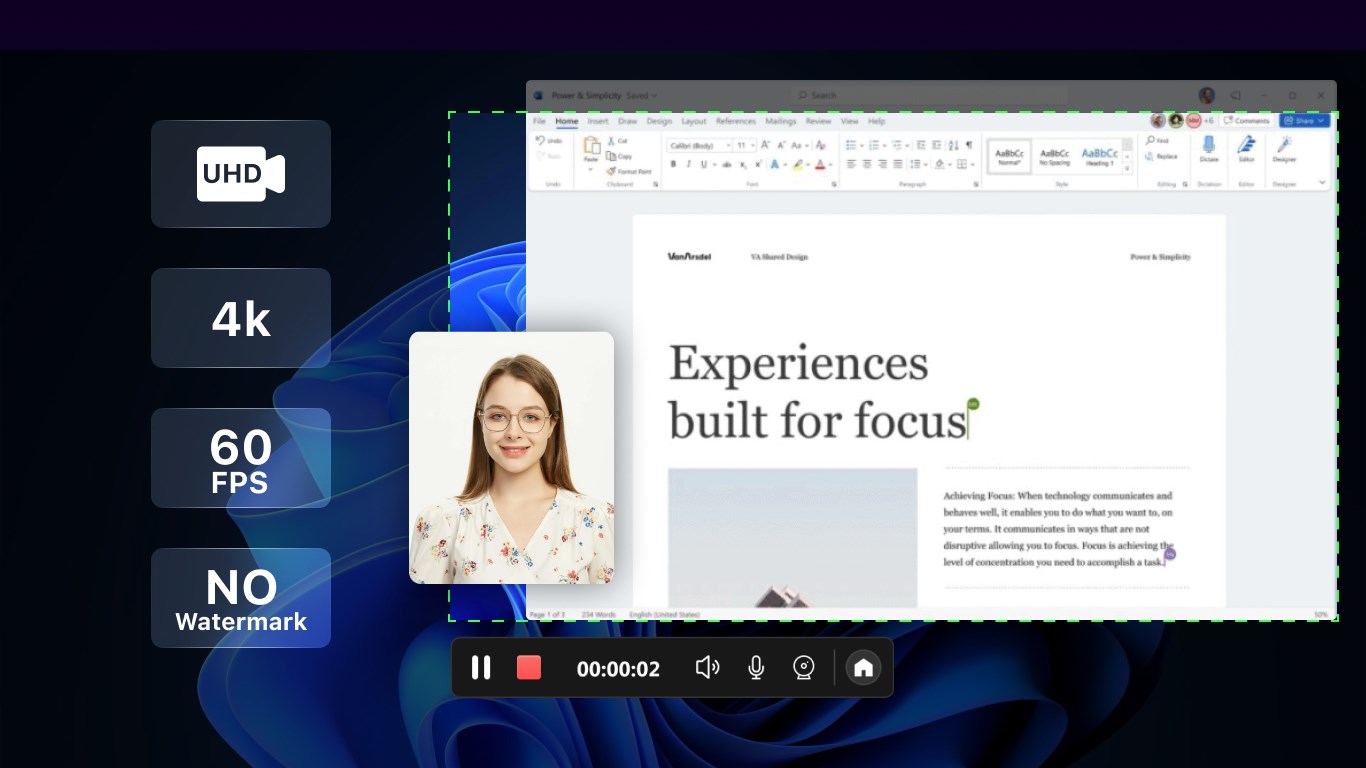
The app's core strength lies in its flexibility. You can choose to record the entire screen, specific windows, or customize the capture area—think of it as a camera lens focusing on just the part you want to highlight. Additionally, audio recording options are straightforward: pick your microphone input, enable system sounds, or combine both. The quality settings are adjustable, ensuring you can balance between clear visuals and manageable file sizes. This granularity makes the app suitable for professional tutorials, game streams, or quick demos, without overwhelming you with unnecessary options.
Smooth Performance & User Experience
When it comes to performance, Screen Record performs reliably without noticeable lag or crashes—like a good movie, it keeps rolling smoothly in the background. Its operation is responsive, with minimal delay between clicking start and beginning to record, making capturing live moments seamless. The app's learning curve is gentle; even beginners will find it intuitive to pick up in minutes. The process from setup to recording feels like turning on a camera—simple, natural, and hassle-free.
Unique Selling Points & Differentiation
Compared to other multimedia recording tools, Screen Record distinguishes itself through its focus on essential features combined with an ultra-friendly interface. Unlike complex, feature-burdened applications, this tool zeroes in on core recording needs with precision. Its biggest advantage is the ability to quickly generate high-quality recordings without a steep learning curve or unnecessary bells and whistles. For content creators or professionals who need a dependable capture app that's quick to operate yet flexible enough for variety, Screen Record offers a compelling proposition.
Another noteworthy aspect is its support for multiple output formats, which simplifies your workflow—whether you want to upload quick clips on social media or prepare polished presentations. Its performance stability and straightforward controls make it a dependable companion for everyday recording tasks.
Recommendation & Usage Suggestions
Considering its ease of use, reliable performance, and focused feature set, I would recommend Screen Record for Windows to anyone needing a simple yet effective screen capturing solution. It's particularly well-suited for beginners, educators, and casual content creators who want a no-fuss tool that gets the job done efficiently. If you're someone who values ease of access over a laundry list of advanced features, this app deserves a spot on your desktop.
However, if you require professional editing, annotations, or more complex post-processing capabilities, you might need to complement it with dedicated video editing software. But for quick captures and straightforward sharing, Screen Record offers excellent value with minimal hassle. Give it a try and turn your screen into a story—fast, simple, and reliable.
Pros
- User-Friendly Interface
- High-Quality Recording
- Customizable Recording Areas
- Built-in Editing Tools
- Stable Performance
Cons
- Limited Export Formats
- Lack of Advanced Editing Features
- No Cloud Storage Integration
- Basic Audio Controls
- No Priority Customer Support