
- Name MKVToolNix
- Category Multimedia design
- Developer Moritz Bunkus et al.
- Available on PC
- OS Windows 10 version 17135.0 or higher
- Keyboard Integrated Keyboard
- Mouse Integrated Mouse
- Memory 1 GB
- languages English (United States)
MKVToolNix for Windows: A Robust Tool for MKV File Management
Looking for a reliable yet straightforward way to manipulate MKV video files without the fuss? MKVToolNix for Windows offers a comprehensive suite of features crafted for both casual users and seasoned video enthusiasts alike.
Developer and Core Highlights
Developed and published by Moritz Bunkus, MKVToolNix is a free and open-source application designed to facilitate the creation, editing, and inspection of MKV (Matroska) multimedia files. Its main strengths include precise muxing and demuxing capabilities, extensive support for various subtitle and audio tracks, and an intuitive command-line interface complemented by a user-friendly GUI. The app targets users ranging from hobbyists aiming to customize their video collections to professionals needing reliable media processing tools.
Introduction: Why MKVToolNix Stands Out in the Multimedia Arena
Imagine sitting at your computer, looking to streamline a cluttered video library or craft the perfect MKV file for playback—MKVToolNix for Windows feels like your trusty toolkit. Its clean interface and logically organized functions make complex editing tasks feel almost effortless. Whether you're syncing subtitles, extracting audio streams, or recombining video components, this software acts like an experienced craftsman's toolbox—compact but mighty. For those who find heavy multimedia software intimidating, MKVToolNix offers a pleasant middle ground: powerful enough to handle intricate projects but accessible enough to learn quickly.
The Power of Precise Muxing and Demuxing
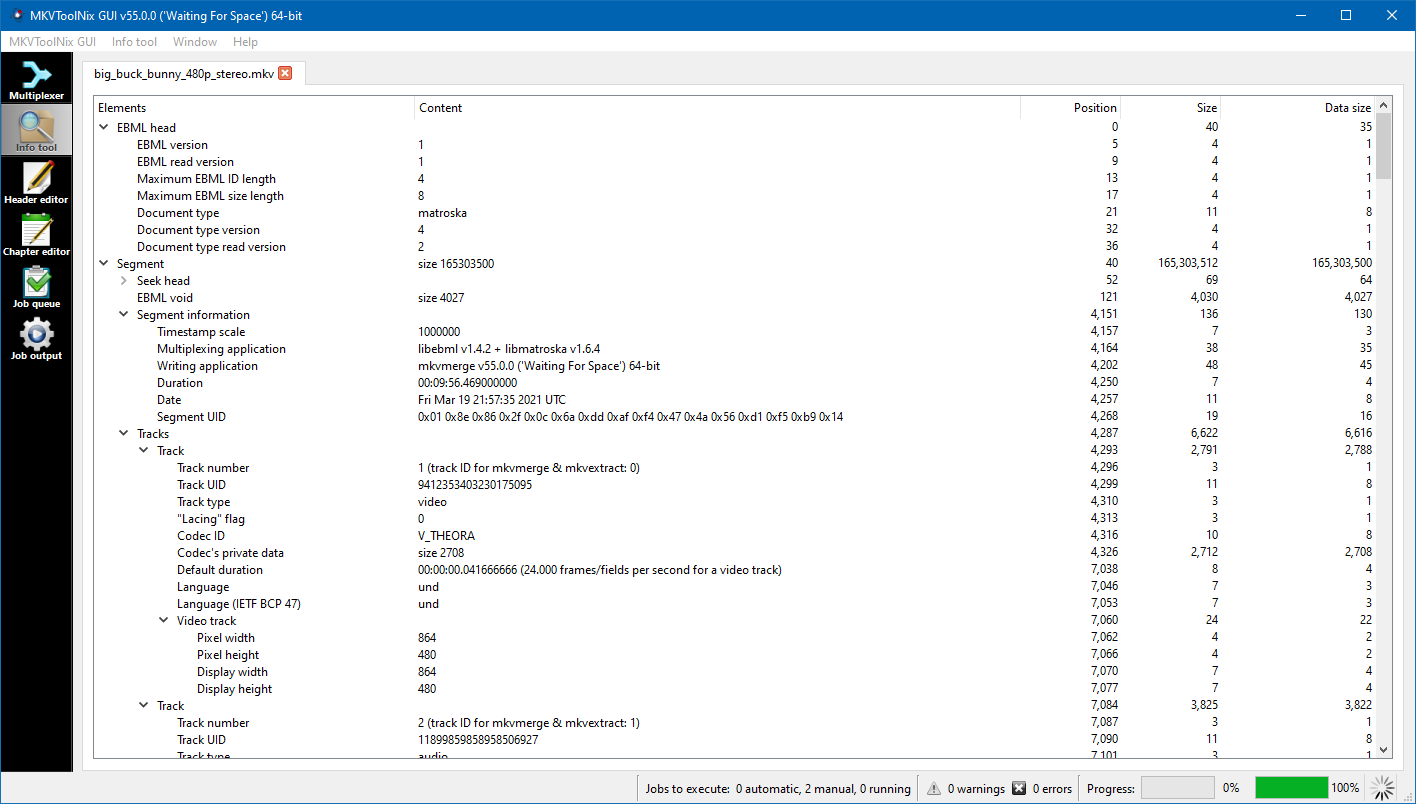
The core feature that sets MKVToolNix apart is its ability to handle muxing (combining various media streams into an MKV container) and demuxing (separating streams for editing or inspection) with surgical precision. Unlike some bulkier video editing suites, MKVToolNix focuses exclusively on MKV files, which means it can perform these tasks with remarkable speed and accuracy. For example, if you need to remove an unwanted audio track or add a high-quality subtitle file, MKVToolNix can do it seamlessly, preserving the integrity of the video data without re-encoding—a process akin to editing a book by rearranging pages instead of photocopying the entire manuscript.
Supporting a Wide Range of Media Alternatives
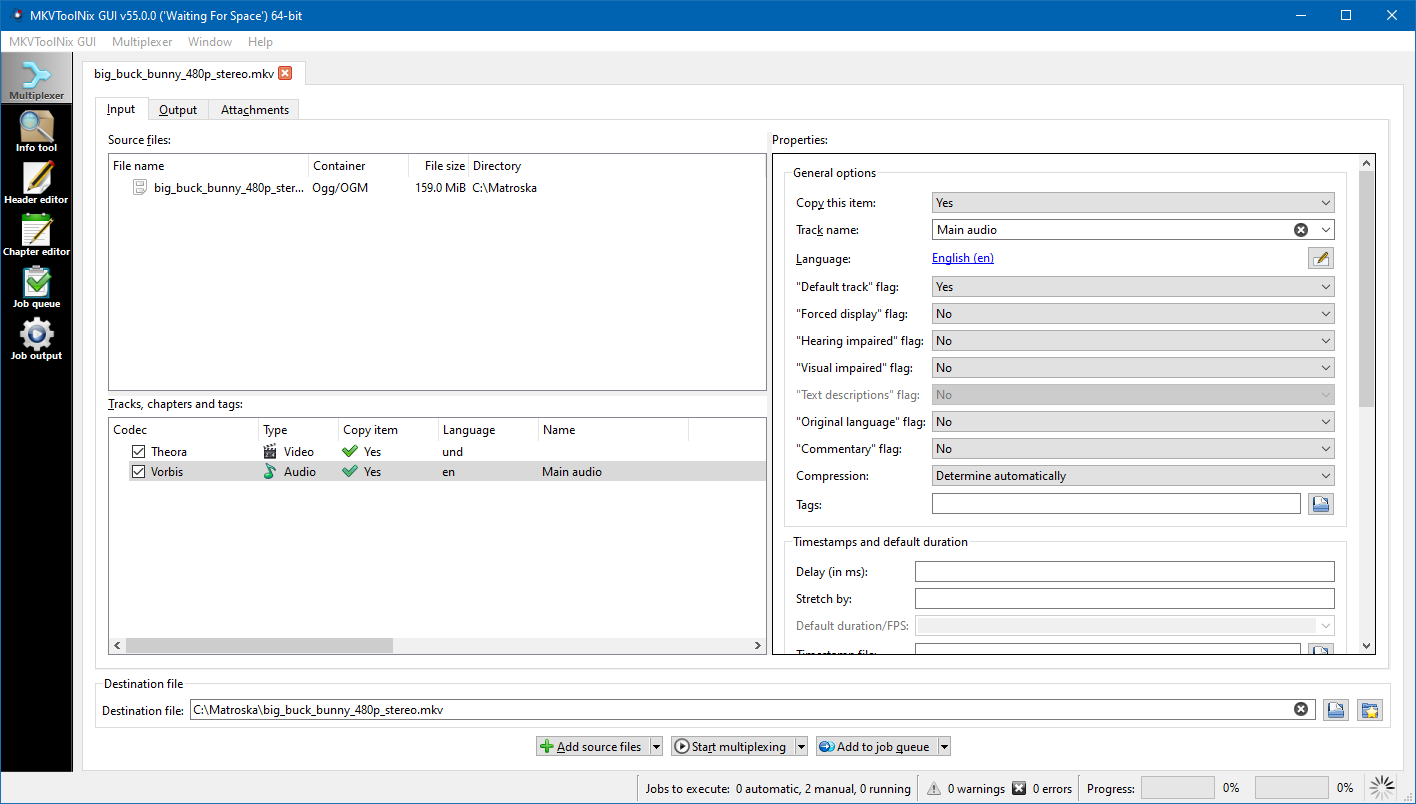
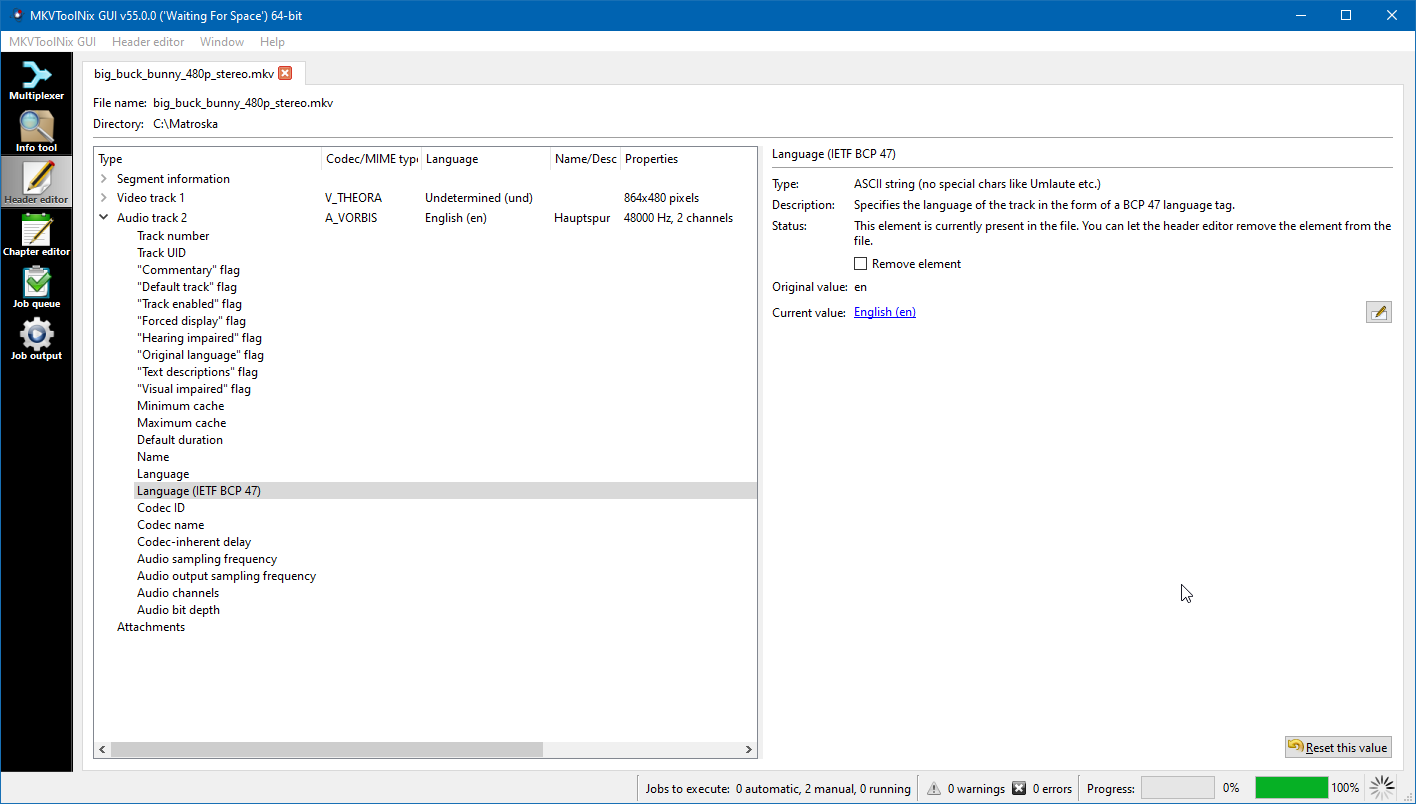
Another standout feature is its support for multiplexing multiple audio and subtitle streams within a single MKV container. Whether you're dealing with director's commentary, multilingual subtitles, or alternate audio languages, MKVToolNix makes it easy to organize and switch between these options. The application even allows for detailed track editing—renaming, ordering, or setting default streams—empowering users to tailor their media experience down to the tiniest detail. This level of granular control is especially beneficial for media archivists or enthusiasts who want their files perfectly structured.
User Interface and Experience: Clean, Consistent, Slightly Steeped in Learning Curve
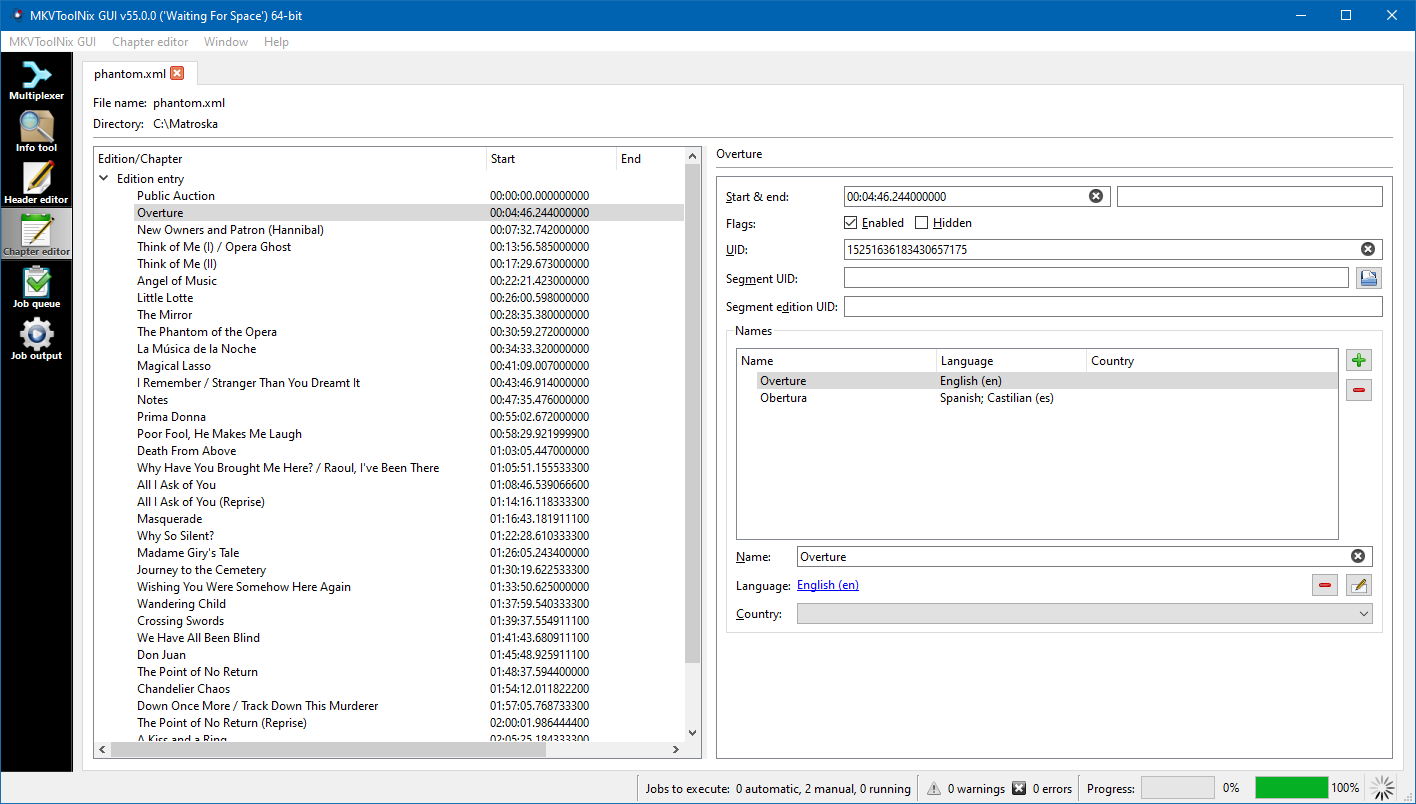
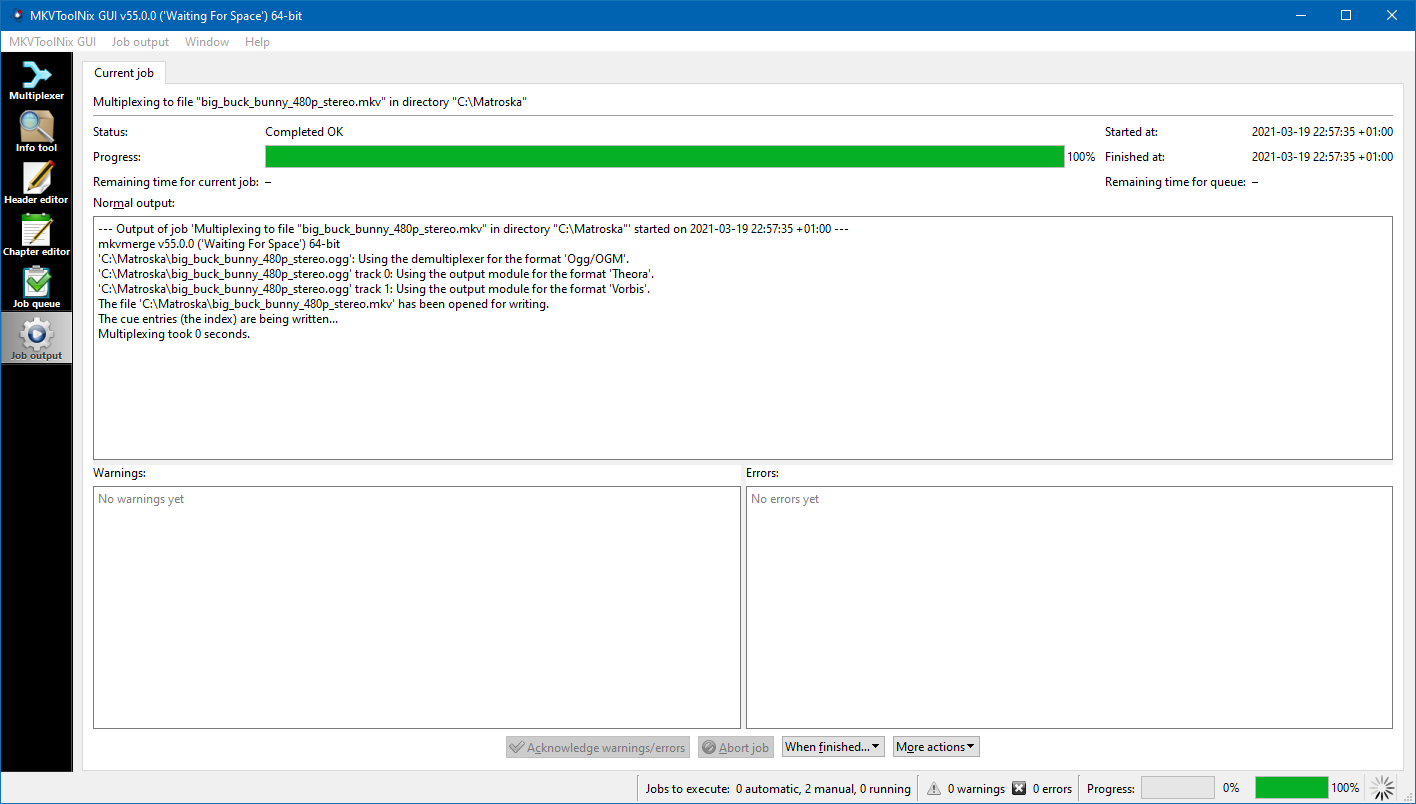
The software's interface is straightforward, serving as a digital workbench where core functions are neatly organized. For beginners, the layout might feel a tad minimalistic—think of it as a well-organized toolbox—but with some initial exploration, users will find it intuitive. Operations such as adding files, selecting streams, and choosing output options are executed via simple dialog boxes. Transitions from simple tasks to more advanced features are smooth, but mastering some of the deeper options (like tag editing or chapter creation) does require a bit of patience and reading the documentation. Overall, the experience is satisfying; the workflow flows logically, and the app responds swiftly, making even complex tasks feel manageable.
Unique Selling Points: Focused Functionality and User Empowerment
What truly distinguishes MKVToolNix from other multimedia tools is its laser-focus on the MKV format combined with its ability to manipulate media streams with surgical precision. Unlike full-fledged editing platforms that aim to re-author entire videos, MKVToolNix zeroes in on stream-level editing—ensuring quality preservation when rearranging or modifying media. Its capacity to handle multiple tracks—video, audio, subtitles—and associate precise language tags, default flags, and track order makes it a standout choice for users who prioritize technical correctness and media organization over visual editing.
Recommendation and Usage Advice
Overall, MKVToolNix for Windows earns a solid recommendation, especially for users comfortable with a slightly technical interface or those willing to invest a little time learning its features. It's an invaluable utility for anyone looking to manage MKV files efficiently, whether for personal media collection curation or professional purposes. For casual users seeking an all-in-one editing suite, it might seem too specialized; but for those who need precise control over media tracks without the hassle of re-encoding, this tool is a true gem. I suggest pairing it with basic tutorials to unlock its full potential and ensure smooth, error-free media processing.
Pros
- User-Friendly Interface
- Wide Format Support
- Batch Processing Capability
- Detailed Metadata Editing
- Stable Performance
Cons
- Limited Video Preview
- Complex Settings for Beginners
- Slow Processing Speeds with Large Files
- Limited Export Options
- Occasional Compatibility Issues with New OS Updates