- Name OBS Studio
- Category Multimedia design
- Developer OBS Project
- Available on PC
- OS Windows 10 version 0.0 or higher
- DirectX Version 11
- languages Basque, Catalan, Chinese (Simplified), Chinese (Traditional Chinese), Czech, Danish, Dutch, English, English (United Kingdom), Finnish, French, Galician, Georgian, German, Greek, Hungarian, Indonesian, Italian, Japanese, Korean, Malay, Persian/Farsi, Polish, Portuguese, Portuguese (Brazil), Portuguese (Portugal), Romanian, Russian, Slovak, Slovenian, Spanish, Swedish, Turkish, Ukrainian, Vietnamese
Introducing OBS Studio for Windows: The Powerhouse Streaming Tool
In the fast-paced world of live streaming and recording, OBS Studio for Windows stands out as a versatile and robust solution for content creators, gamers, educators, and professionals alike. Its open-source nature and extensive feature set make it a compelling choice for anyone looking to elevate their multimedia production game.
About the Developer and Key Features
The application is developed and published by the OBS Project, a renowned community-driven team dedicated to creating high-quality streaming tools. OBS Studio's main highlights include:
- Powerful Scene Composition: Easily switch between multiple scenes and sources, allowing dynamic content presentation.
- High-Performance Encoding: Supports hardware and software encoding options to ensure smooth streaming and recording without overloading your system.
- Extensive Customization & Plugins: Offers a wealth of plugins and customizable options, enabling tailored workflows suited to varied user needs.
- Multiplatform Support: Although this review focuses on Windows, it's also compatible with macOS and Linux, showcasing its flexibility.
The primary target audience encompasses gamers, streamers, educators, podcast creators, and anyone involved in multimedia production seeking a powerful, free tool.
Why OBS Studio Excels: A Closer Look
Getting Started with a Clear Interface
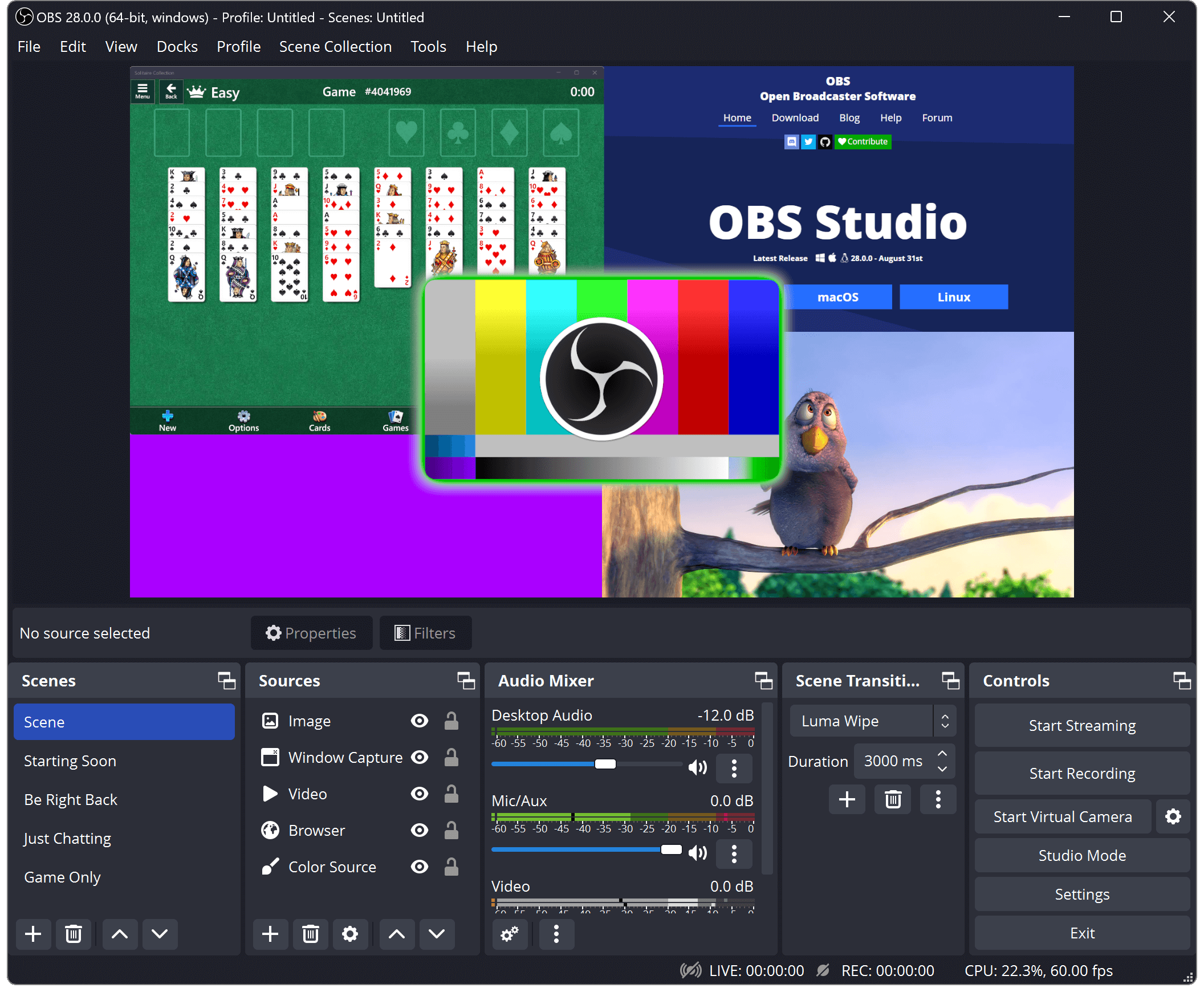
Imagine walking into a control room filled with levers, screens, and buttons—OBS Studio offers a clean, intuitive layout that manages complex workflows with ease. Its interface is visually organized, with distinct sections for Scenes, Sources, and Controls, enabling users to set up their streams methodically. For newcomers, the learning curve is gentle; with a bit of exploration, most functions become accessible. For veterans, it provides the flexibility to customize and streamline their setup, reducing the clutter often found in complex tools.
Core Functionality: Scene Composition & Source Management
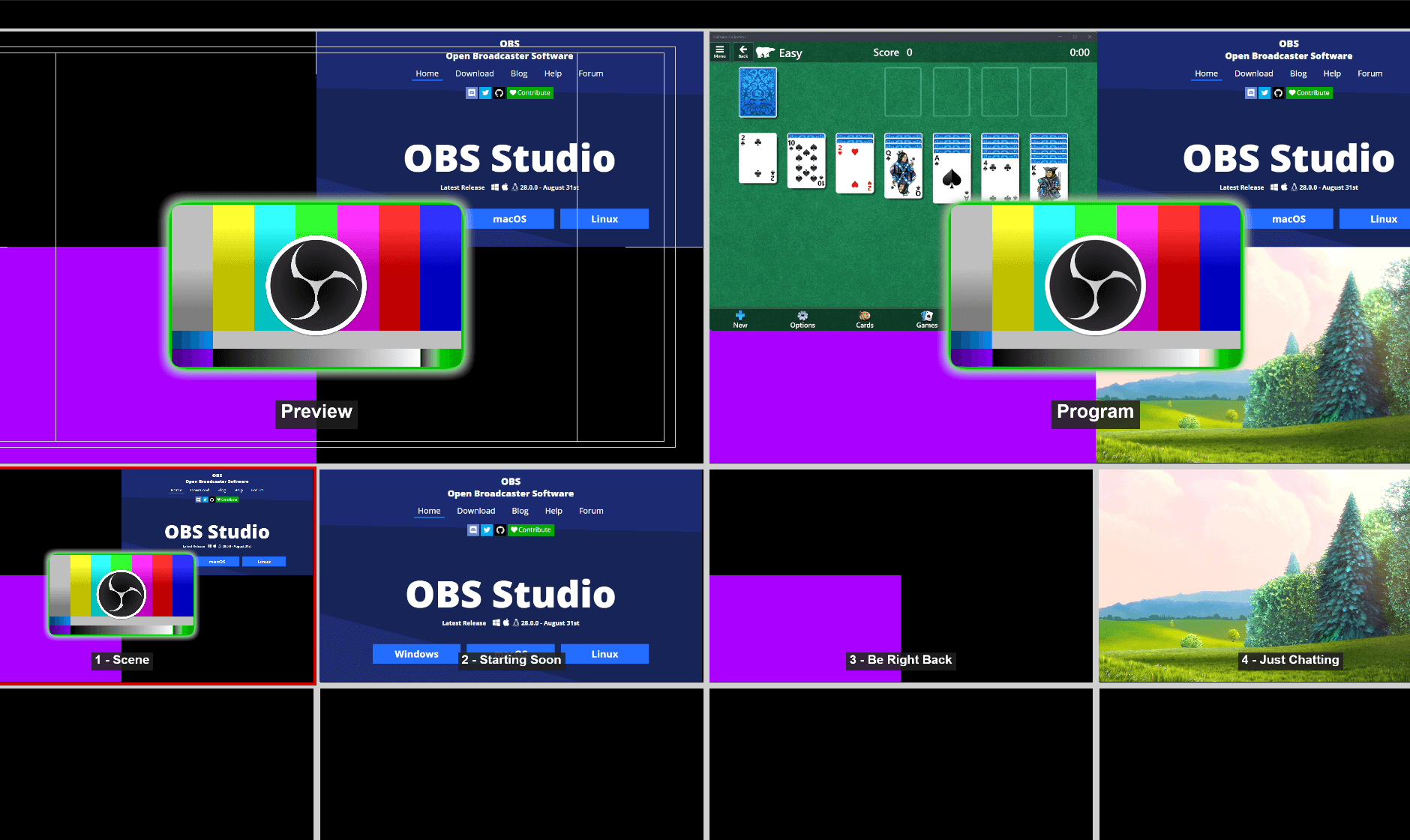
The standout feature of OBS Studio is its scene composition capability. Think of it as having a virtual studio space where you can seamlessly switch between different environments—game feeds, webcam overlays, images, browser windows, or custom media—at a click, enriching your content and captivating your audience. The process is straightforward: users create multiple scenes and assign sources to each, which can include live input, pre-recorded videos, images, or text. This modular approach allows for creative freedom and professional-grade presentations.
Moreover, its source management system is highly versatile, supporting capturing from a variety of sources—your screen, specific windows, webcams, or even remote feeds. The ability to resize, crop, and apply filters ensures that every visual element looks polished. This flexibility helps users craft a streaming environment that matches their personal or brand style, whether it's a gaming frenzy or a professional webinar.
Performance & User Experience: Smooth, Stable, and Customizable
OBS Studio's performance is like a well-tuned engine—efficient and reliable, even during demanding streams. The software leverages hardware acceleration options, ensuring minimal CPU load and high quality. The interface, while packed with features, remains responsive, with drag-and-drop elements and keyboard shortcuts that streamline workflow. For new users, the beginners' mode offers simplified options, while advanced users can delve into extensive configurations, making the software adaptable to skill levels and project complexities.
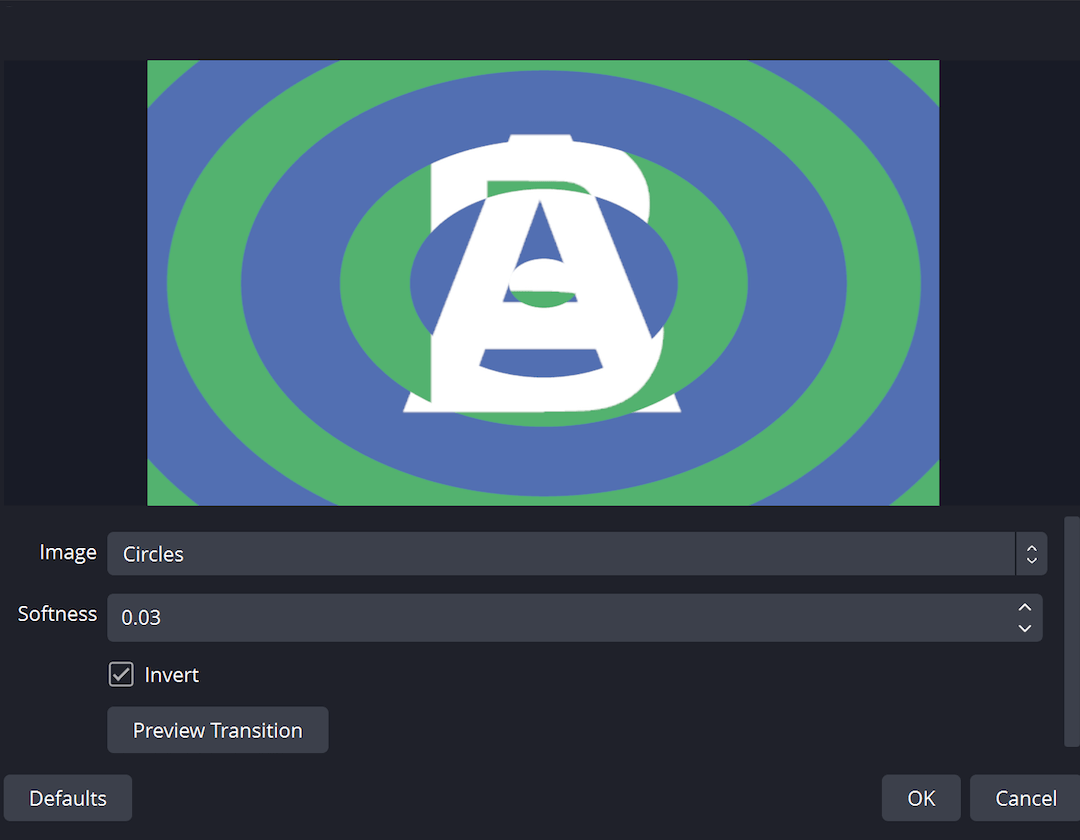
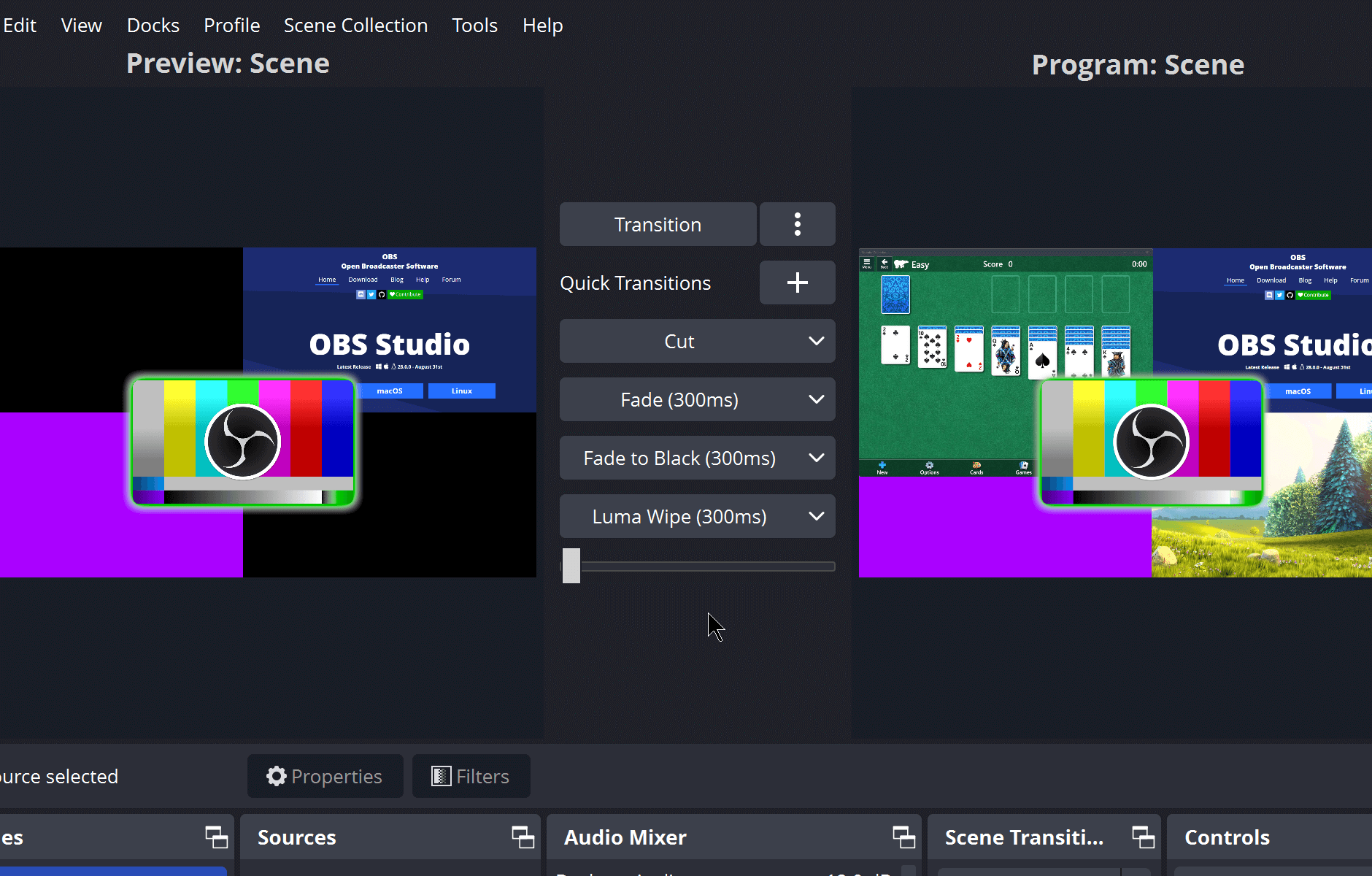
Transition effects, multiple scene hotkeys, and real-time previews further contribute to a smooth user experience—think of it as having a professional multi-camera setup at your fingertips, without the physical clutter. However, some users might need a brief period to master the full potential of its features, but abundant online tutorials and community support help shorten that learning journey.
Unique Advantages & Differentiation
Unlike many multimedia applications, OBS Studio's biggest strength lies in its open-source nature and customizability. It doesn't box users into limited templates; instead, it encourages a DIY ethos with its broad ecosystem of plugins and scripts, making it adaptable to niche needs. The multi-source compositing and scene transitions are so seamlessly integrated that they resemble the capabilities of high-end broadcast equipment, but available freely. This makes it particularly attractive to creators who seek professional-grade tools without a hefty price tag.
Another key differentiator is its ability to handle complex workflows with multiple input sources and overlays—imagine directing a live event or performing a multi-camera shoot, all from your desktop. This flexibility, paired with active community development and frequent updates, positions OBS Studio as a future-proof and user-centric option in the multimedia domain.
Final Verdict & Usage Recommendations
Overall, OBS Studio for Windows stands out as a highly capable, customizable, and reliable live streaming and recording solution. While it does require an initial investment of time to explore its full potential, the payoff is a professional-level tool that adapts to virtually any streaming scenario. For content creators ready to invest a little time into mastering its features, OBS Studio is strongly recommended—especially given its zero cost and active community support.
If your goal is to produce engaging live content with multiple scenes and sources, and you appreciate flexibility over pre-designed simplicity, OBS Studio is an excellent choice. Meanwhile, beginners seeking an easy-to-use starter platform might want to start with simpler tools but keep OBS in mind as they grow. In the realm of multimedia production, OBS Studio remains a standout—powerful, versatile, and constantly evolving. Happy streaming!
Pros
- High-Quality Streaming and Recording
- Extensive Customization Options
- Open-Source and Free
- Broad Compatibility
- Robust Plugin Ecosystem
Cons
- Steep Learning Curve
- Resource Intensive
- Occasional Stability Issues
- Limited Built-in Themes and UI Customization
- Initial Setup Can Be Time-Consuming