- Name Sketch Board
- Category Multimedia design
- Available on PC, Mobile, Surface Hub, HoloLens
- OS Windows 10 version 18362.0 or higher
- languages Chinese (Simplified), English (United States)
A Review of Sketch Board for Windows: A Creative Canvas for Visual Thinkers
If you're on the hunt for a versatile and intuitive digital sketching tool that feels like a friendly creativity buddy, Sketch Board for Windows might just become your new favorite companion. Designed to streamline your idea visualization, this app offers a clean, straightforward interface paired with powerful features to ignite your imagination without overwhelming you with complexity.
Basic Information: What Is Sketch Board for Windows?
Sketch Board for Windows is a user-friendly digital drawing application crafted to support brainstorming, sketching, and visual note-taking. Developed by Yu-weiz, the app aims to provide a seamless experience for artists, designers, educators, and anyone eager to translate thoughts into visual form. Its core strengths lie in simplicity combined with essential tools that enhance creativity, making it ideal for both casual doodlers and professional practitioners.
- Positioned as a straightforward yet potent sketching and visual planning tool.
- Developer: Yu-weiz.
- Key features include an intuitive interface, customizable drawing tools, and versatile workspace management.
- Target users encompass students, educators, designers, and hobbyists seeking a smooth digital sketching platform.
Engaging and Friendly: Diving into the Sketch Board Experience
Imagine unlocking a digital sketchbook that feels just like your favorite real-world notebook—except this one's smarter, cleaner, and instantly accessible. From the moment you launch Sketch Board, its simple yet inviting interface welcomes you to start visually capturing ideas, whether you're brainstorming for a new project or doodling during a break. The app's charm lies in its balanced approach: offering enough tools to be expressive without the clutter that often accompanies more complex design software.
Core Functionality #1: Effortless Sketching Tools
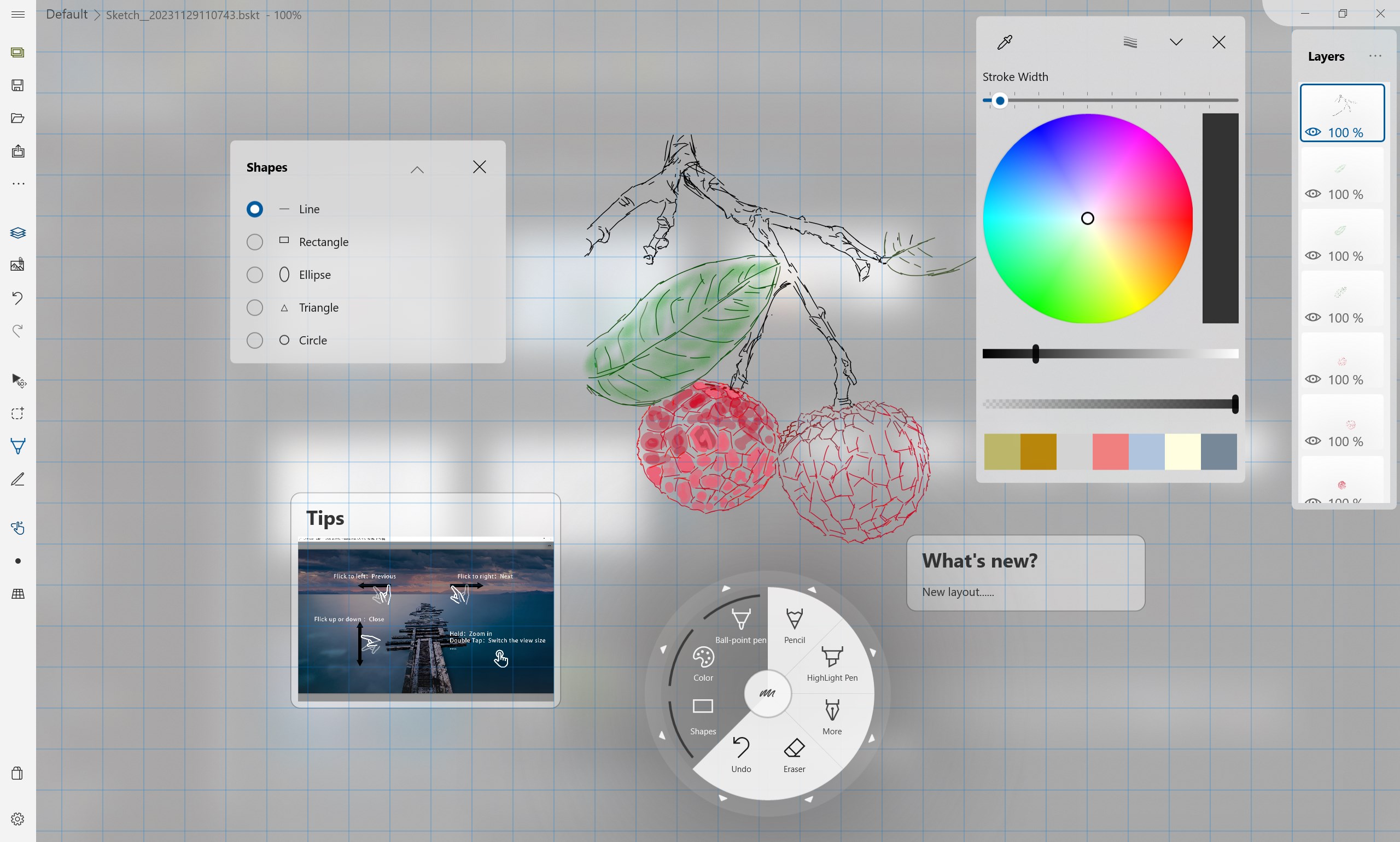
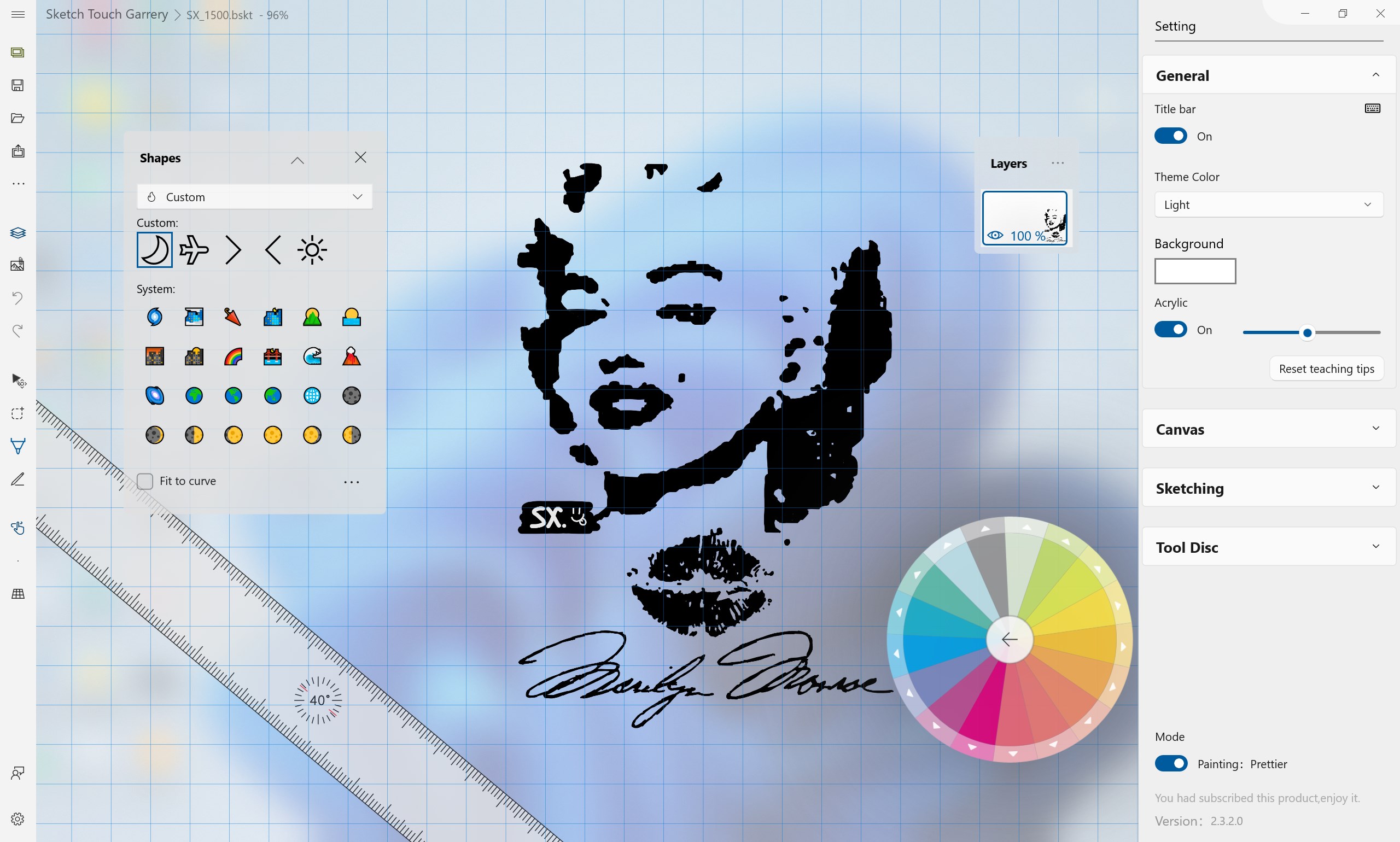
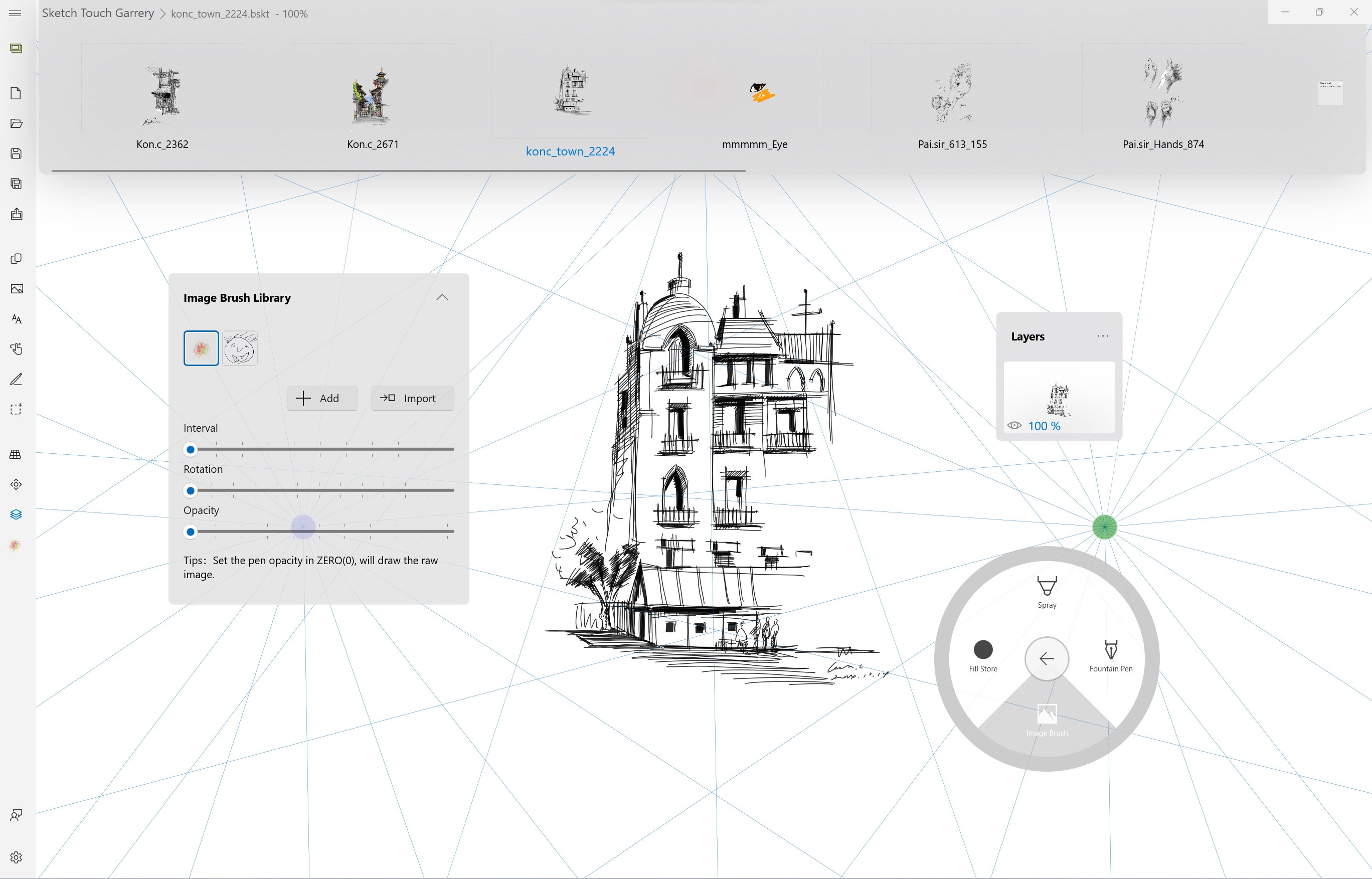
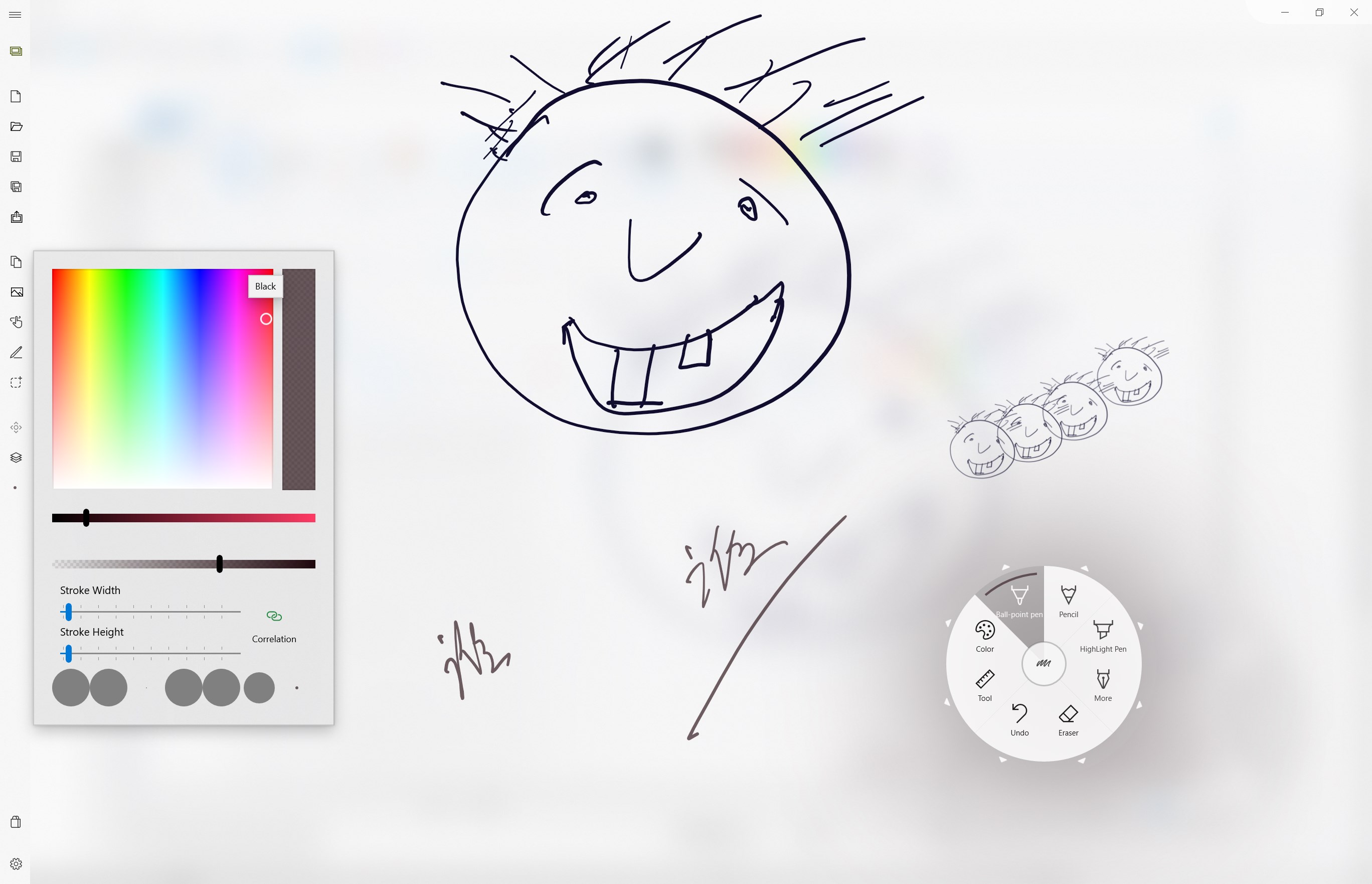
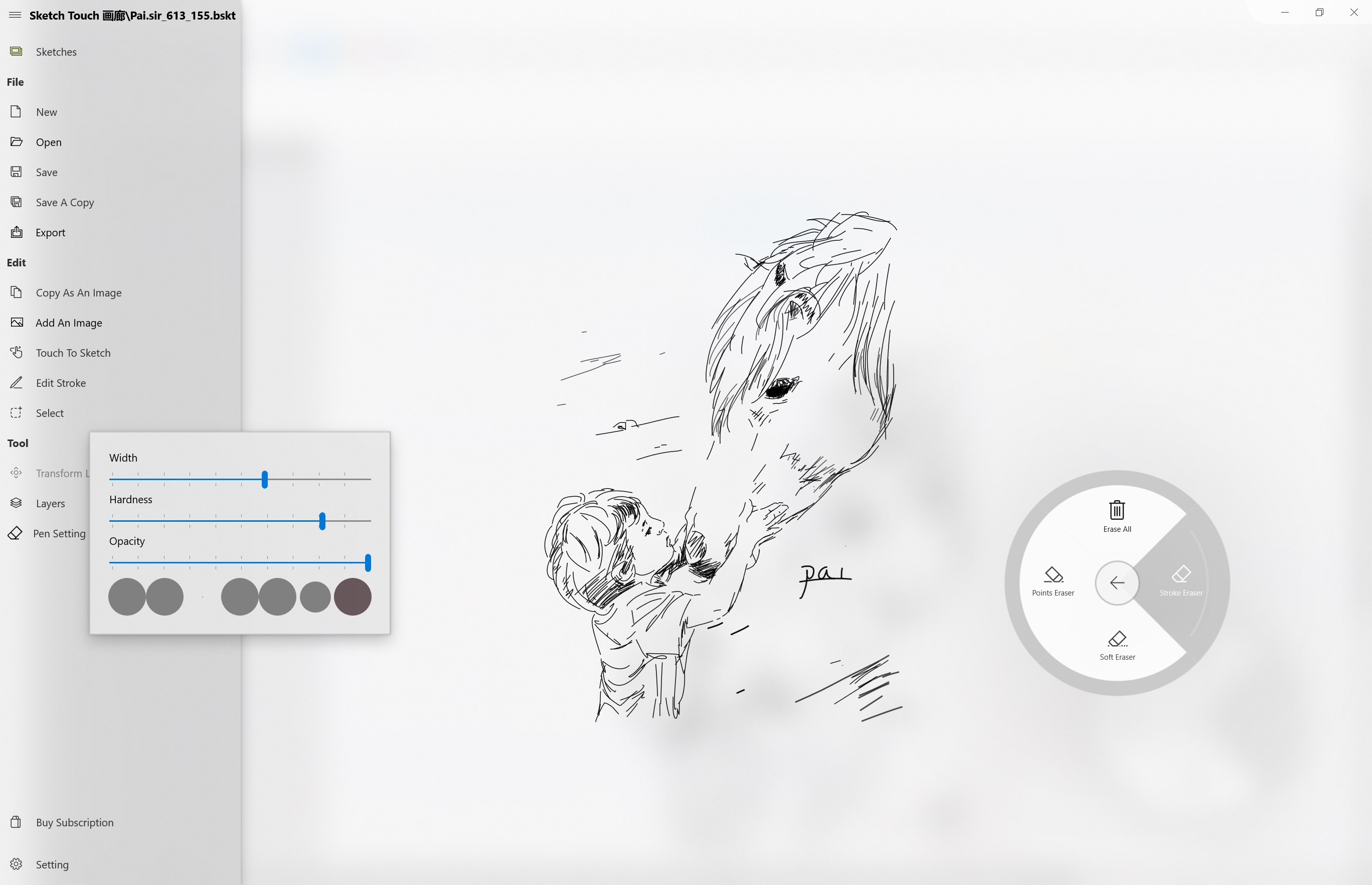
Sketch Board's primary strength is its suite of customizable drawing tools. Whether you prefer a fine pen, a broad brush, or textured markers, the app allows you to tweak settings easily to match your style. These tools feel natural—like using different pencil grades on paper—and respond smoothly to pen pressure or finger gestures. This ensures your lines are fluid and expressive, helping ideas flow freely without technical hiccups.
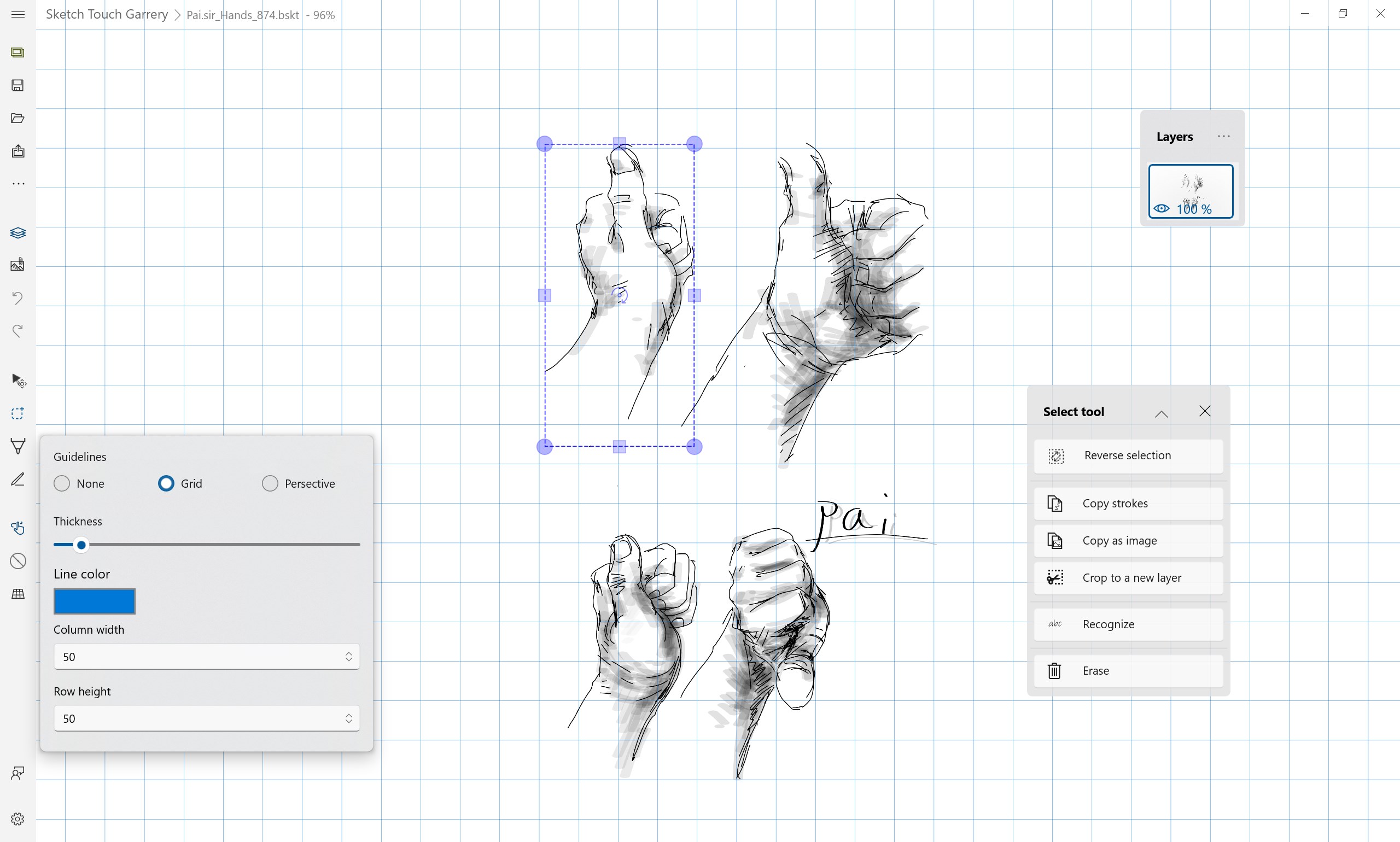
What's especially effective is the ability to create multiple layers, giving you freedom to experiment without risking your initial sketches. This layered approach fosters a playful environment where trial and error become effortless, encouraging users of all skill levels to explore their creativity confidently.
Core Functionality #2: Smart Workspace & Organization
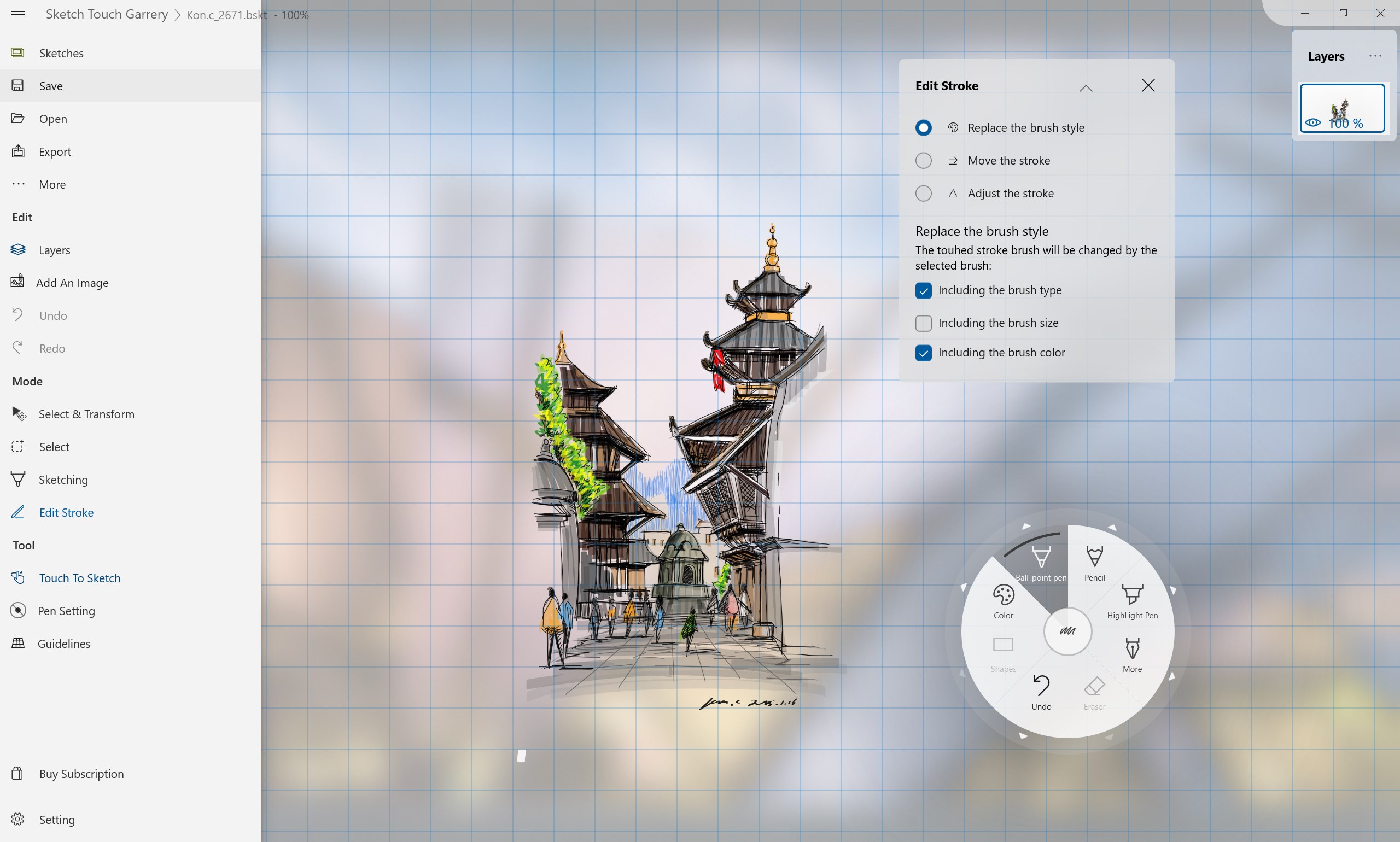
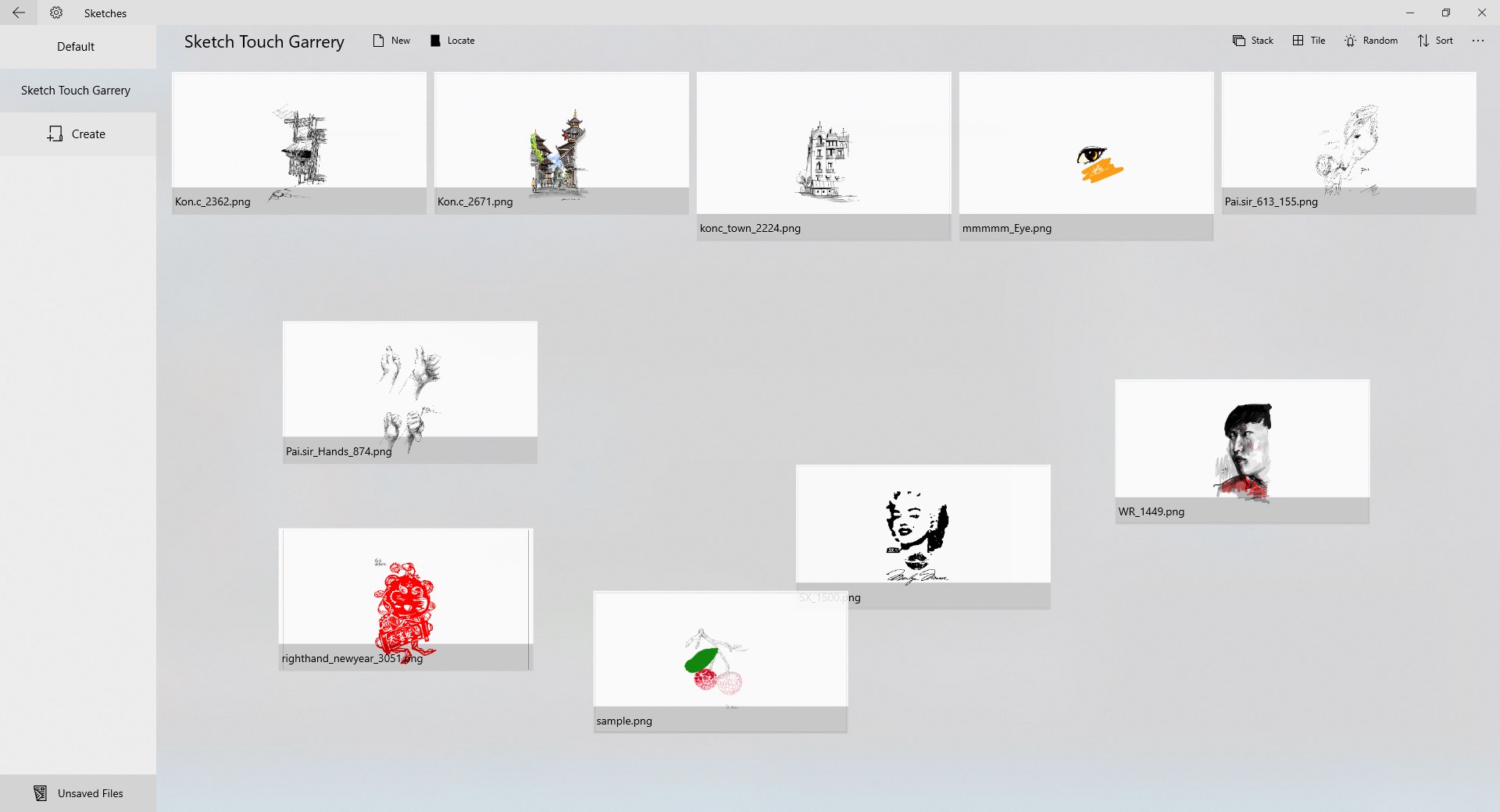
Beyond just drawing, Sketch Board excels in organizing your creative flow. The workspace dynamically adapts to your needs—whether you're sketching, taking notes, or arranging ideas. The app allows for quick grouping of sketches, easy resizing, and intuitive navigation, making it feel like flipping through a well-organized portfolio. You can also save templates or reuse previous sketches, transforming the app into a productive hub rather than just a blank canvas.
This intelligent workspace management particularly stands out by reducing clutter and keeping your focus strictly on your work—much like having a dedicated corner in your physical studio where everything is just right at your fingertips.
User Experience: Beautiful Simplicity and Ease of Use
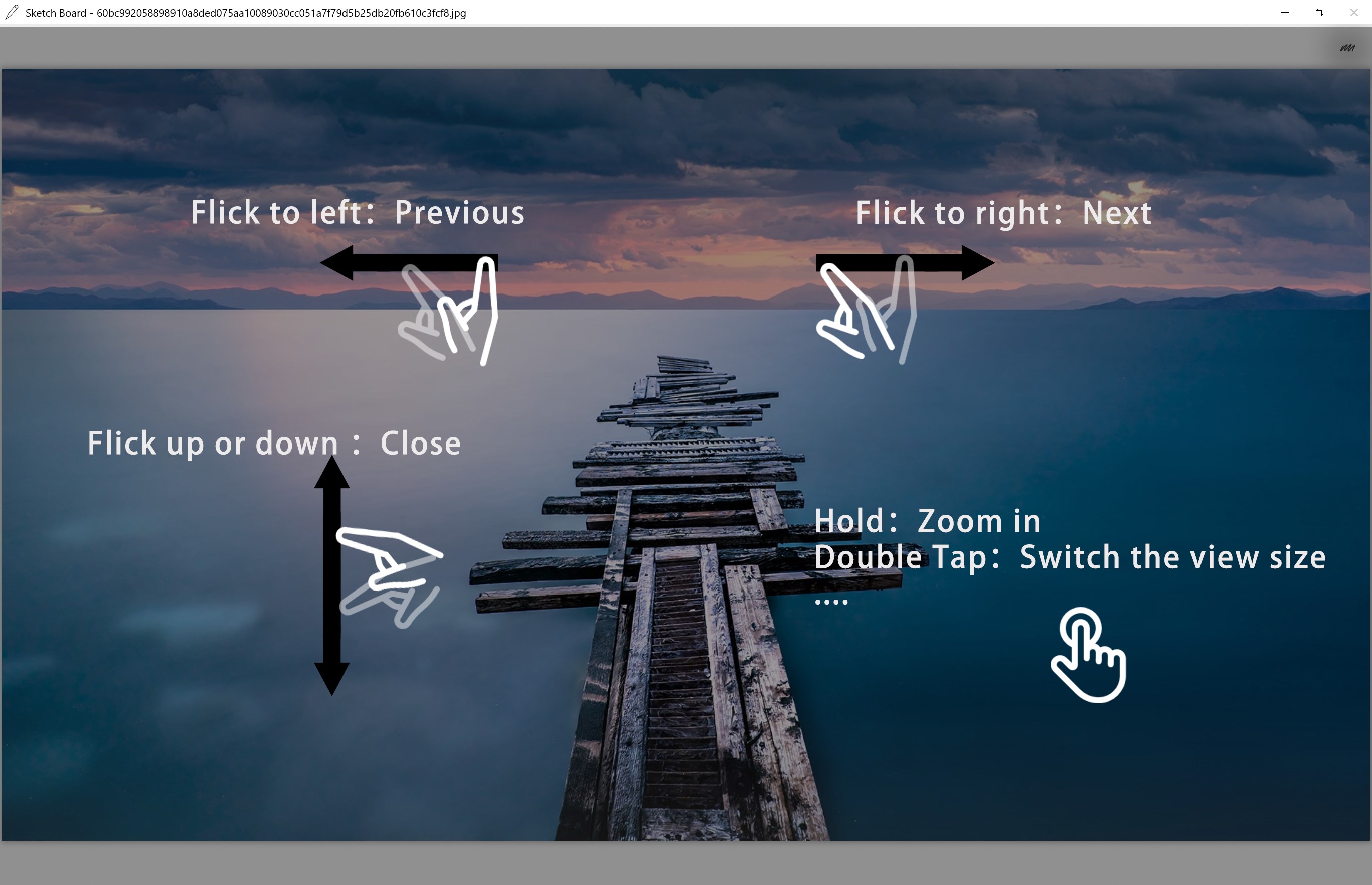
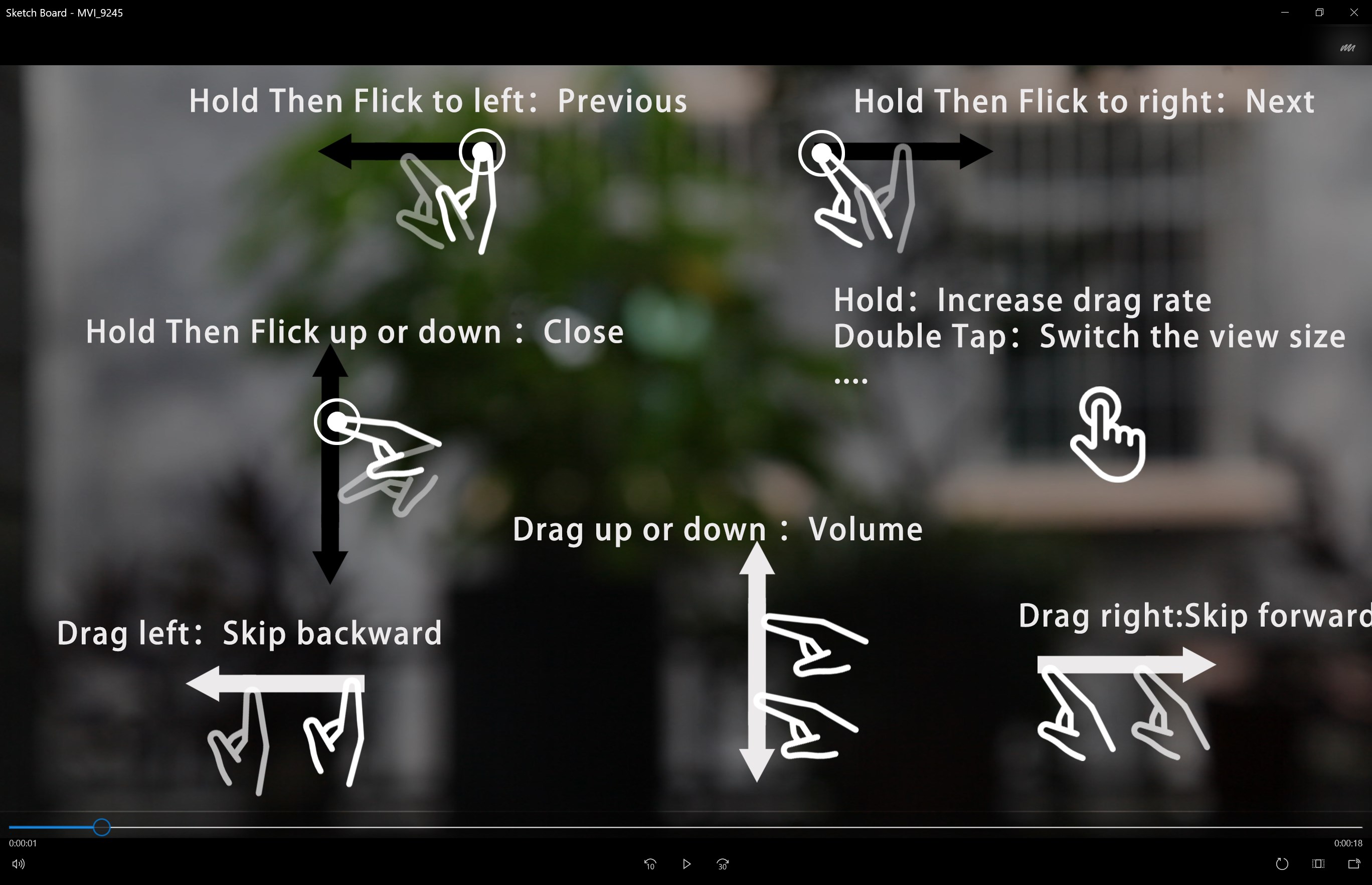
One of the most striking aspects of Sketch Board is its smooth, responsive interface. Navigating menus and tools feels natural, almost like walking into a familiar art studio where everything is in its place. The learning curve is gentle, particularly for users familiar with basic sketching apps, and new users can catch on quickly with minimal guidance. The app responds instantly to touch gestures and pen inputs, making drawing feel fluid and satisfying, whether on a touchscreen or with a mouse.
Compared to more complex multimedia design tools, Sketch Board keeps things lean and focused—like a minimalist art supply drawer—allowing users to concentrate on expressing rather than configuring complex features.
What Sets Sketch Board Apart?
While many digital sketching tools flood the market with feature bloat and intricate interfaces, Sketch Board takes a refreshingly straightforward approach. Its standout feature is the emphasis on an intelligent, adaptable workspace combined with intuitively customizable tools—imagine having a personal artist's studio that reconfigures itself to your workflow. The app supports quick idea sketching and seamless organization, making it uniquely suited for rapid prototyping or visual note-taking.
Additionally, its ability to handle multiple sketches within a single workspace without cluttering your screen is a notable advantage, especially for users who prefer brainstorming sessions that flow effortlessly from concept to refinement. The app's focus on simplicity and efficiency makes it a compelling choice for those seeking an accessible yet capable digital drawing environment.
Final Thoughts & Recommendations
If you're a creative enthusiast looking for a clear, easy-to-use drawing app that encourages spontaneous ideas without overwhelming you with tools, Sketch Board for Windows deserves a spot on your desktop. It's especially well-suited for brainstorming, quick sketches, and visual note-taking rather than detailed design work. For educators and students, its straightforward interface also makes it a great teaching and learning tool.
While it may lack some of the advanced features found in more heavyweight multimedia applications, its focus on core sketching and organization sets it apart. I'd recommend it for anyone who values simplicity paired with practicality—and particularly for those who want an app that can keep pace with their spontaneous creative moments.
Overall, Sketch Board offers a refreshing take on digital sketching—friendly, efficient, and beautifully straightforward. It's more like a trusted sketchpad than a complex toolkit, making it a delightful addition to your creative arsenal.
Pros
- Intuitive touch and pen support
- Real-time collaboration features
- Easy integration with Microsoft ecosystem
- Minimalistic and user-friendly interface
- Multiple export options including image and PDF formats
Cons
- Limited advanced drawing tools
- No offline mode
- Occasional lag with complex diagrams
- Basic undo/redo functionality
- Limited templates and predefined shapes