

- Name SimpleOne Label Maker
- Category Productivity
- Developer Aidaluu Inc.
- Available on PC, Mobile, Surface Hub
- OS Windows 10 version 19041.0 or higher
- languages English (United States)
A streamlined solution for quick label creation on Windows
SimpleOne Label Maker for Windows by Aidaluu Inc. is designed to simplify the process of creating professional labels directly within the Windows environment. It aims to serve users who need efficient, customizable labeling tools without navigating through complex design software.
Meet the developer and core features
Developed and published by Aidaluu Inc., a company known for intuitive productivity applications, SimpleOne Label Maker offers a clean, user-focused experience. Its highlights include an easy-to-use interface, versatile template options, and seamless integration with Windows workflows. It caters primarily to small business owners, educators, organizers, and individuals who often need labels for organizing belongings, files, or products.
Engaging introduction: Making labels less of a chore
Imagine this: you're in a rush to organize your overflowing file cabinet or prep for a craft fair, and the last thing you want is to wrestle with complicated software. SimpleOne Label Maker feels like your smart assistant—turning a potentially tedious task into a quick, straightforward process. With just a few clicks, you can create customized labels that look professional without breaking a sweat, turning what used to be manual or time-consuming into a breeze. Think of it as having a mini-labeling workshop right on your desktop, ready whenever you need it.
Core functionalities that truly stand out
1. Intuitive Label Design with Smart Templates
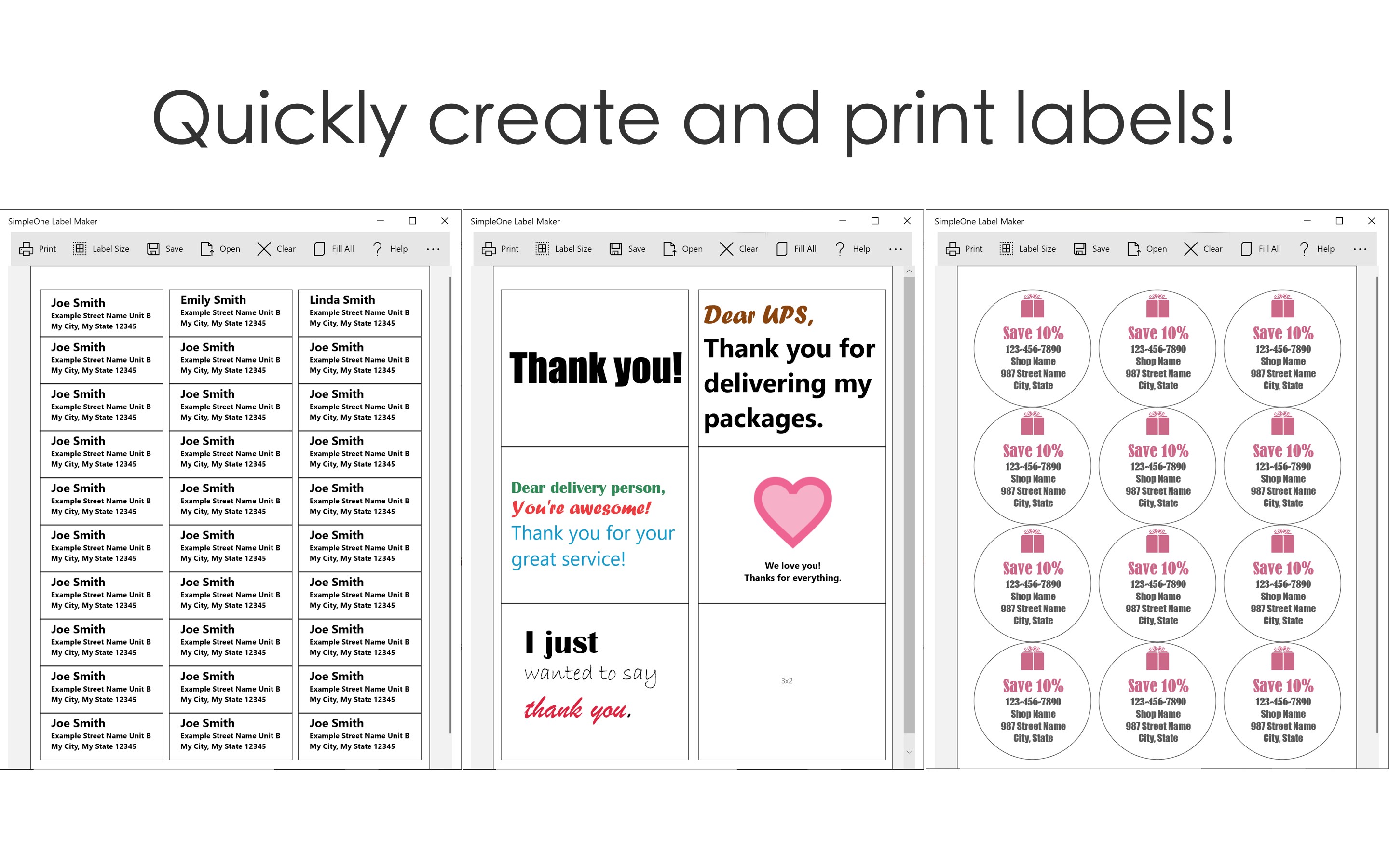
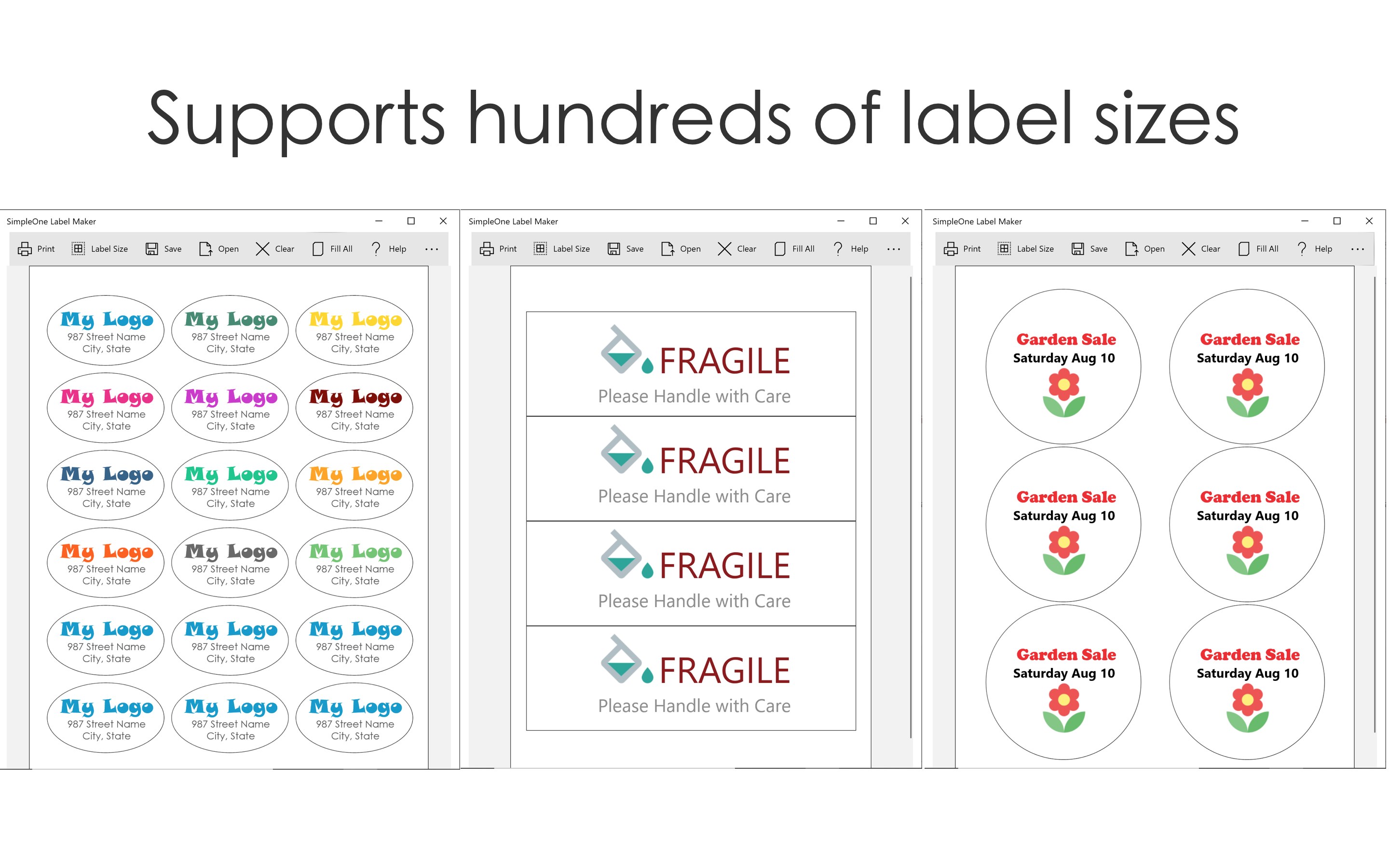
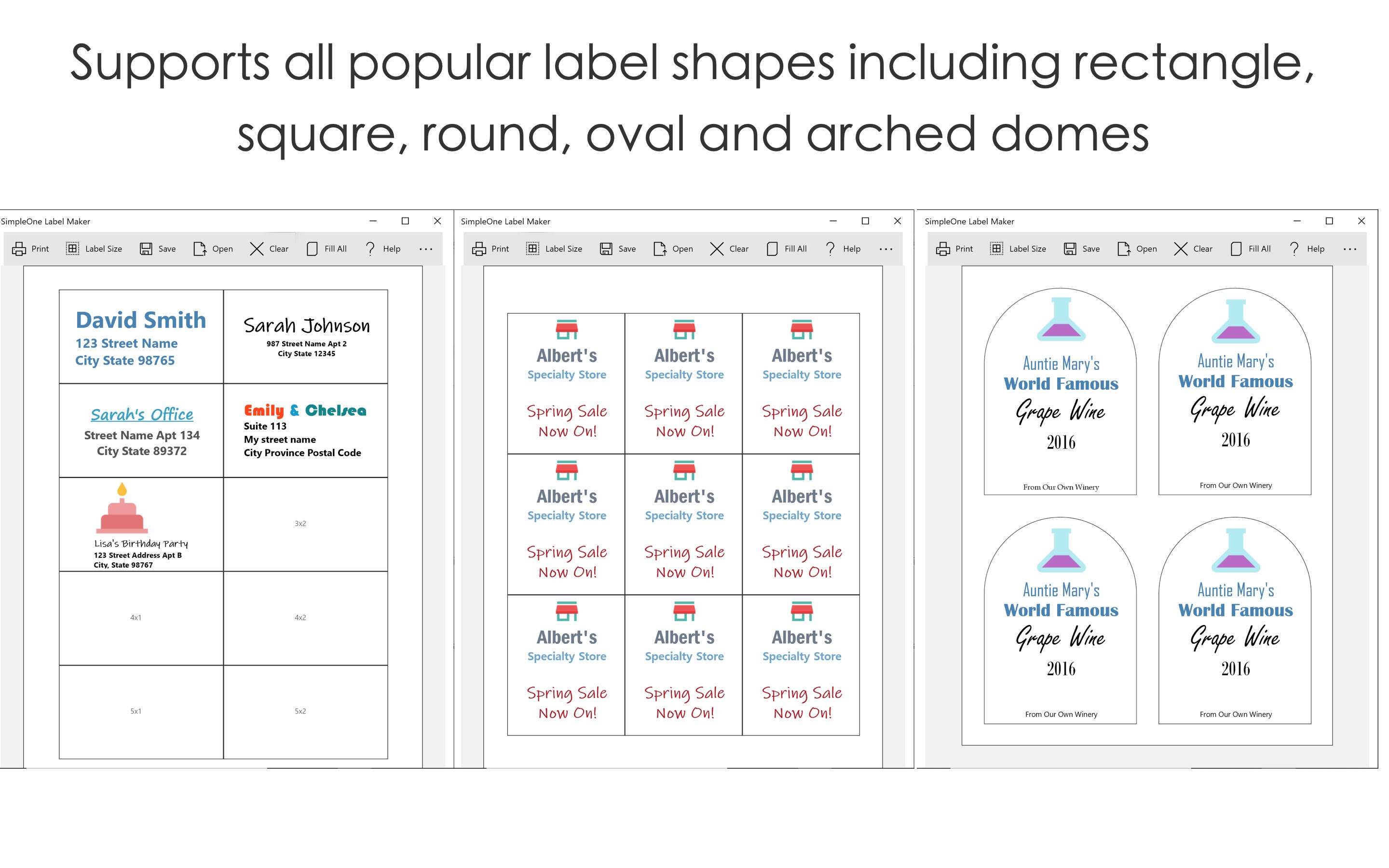
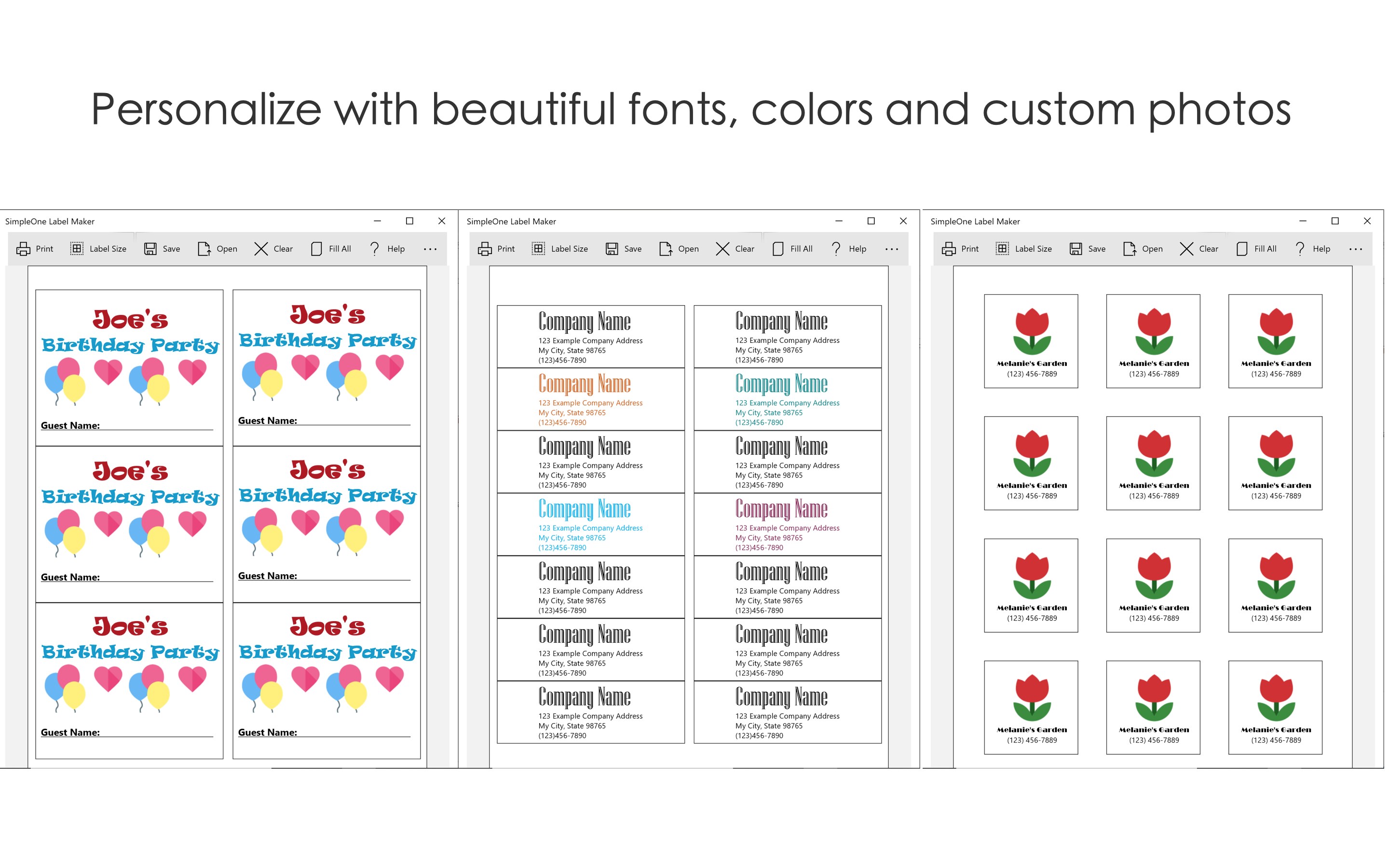
The heart of SimpleOne lies in its well-curated library of templates, which serve as a blank canvas or a starting point for your creativity. Whether you're making address labels, product tags, or organization markers, the templates are customizable with easy drag-and-drop tools—no design degree required. This approach reduces cognitive load, allowing users to focus on their content instead of wrestling with design complexities. The interface for editing text, colors, and images feels akin to assembling a puzzle—simple pieces, satisfying results.
2. Seamless Workflow Integration and Efficiency
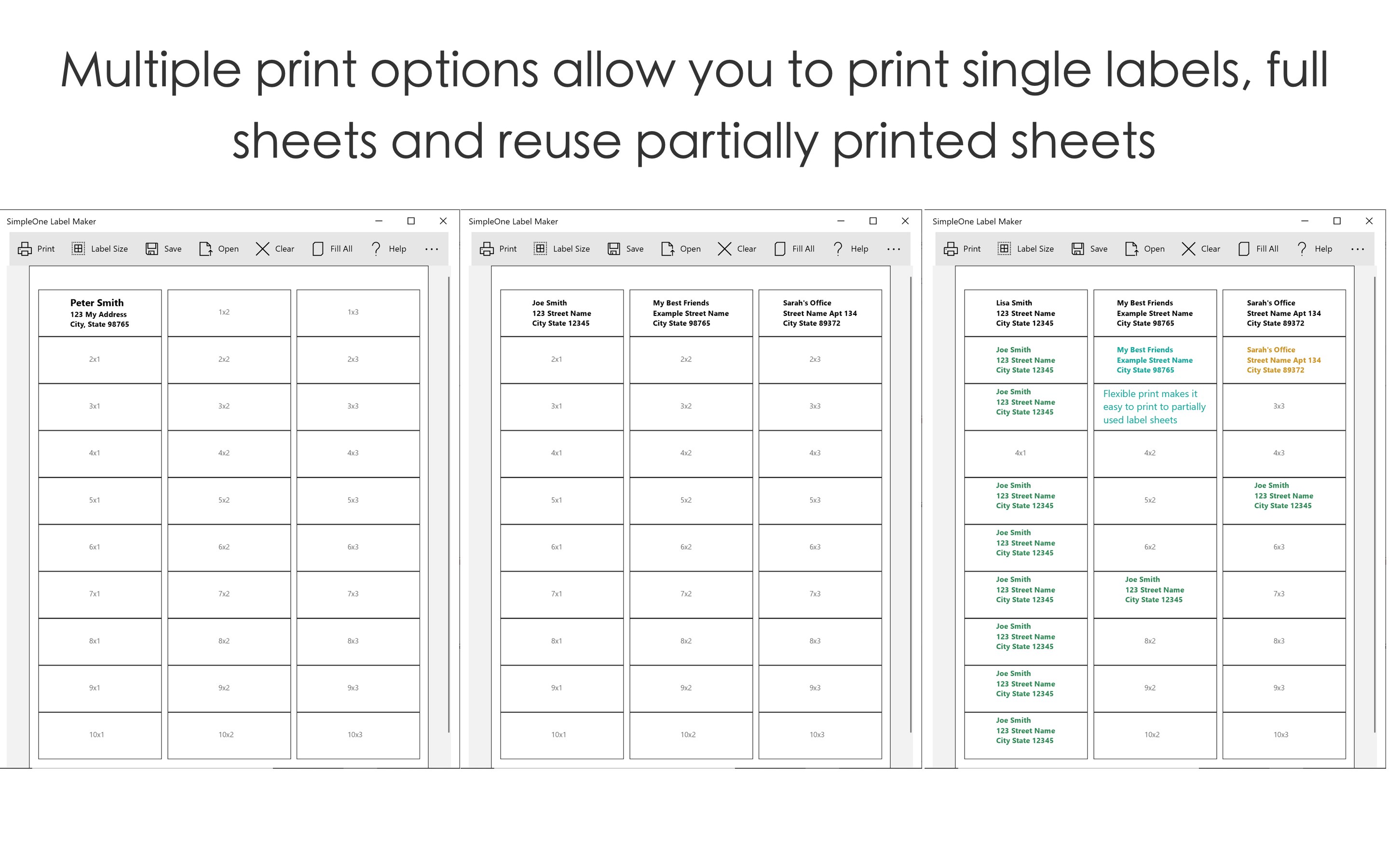
One of the app's most notable strengths is its tight integration with Windows. You can import data from other Windows applications, such as Excel or Word, to generate bulk labels rapidly. This reduces manual input and minimizes errors—imagine importing your contact list directly into your label template. Furthermore, the app supports quick printing or saving, streamlining your workflow and saving valuable time. It acts as a bridge, connecting your data and design processes efficiently.
3. User-Friendly Interface and Learning Curve
The app's interface is akin to a friendly, uncluttered workspace—bright, organized, and easy to navigate. Icons are self-explanatory, and the step-by-step guidance makes it accessible even for beginners. Testing the app reveals a minimal learning curve; most users can begin designing labels within minutes, which ensures productivity doesn't stall at setup. The smooth operation and logical layout make it feel more like a helpful assistant than a complicated software package.
What sets SimpleOne Label Maker apart from similar tools?
Compared to other labeling solutions, SimpleOne emphasizes workflow efficiency and cognitive simplicity. While many labeling apps tend to bombard users with features—sometimes leading to decision fatigue—SimpleOne cleverly focuses on core functionalities that empower users without overwhelming them. Its ability to import data directly from Windows applications and populate labels automatically significantly reduces manual data entry, much like having a digital assistant handling repetitive tasks. This design philosophy actively reduces cognitive load, making the entire labeling process less mentally taxing, especially for users who prioritize speed and simplicity over endless customization options.
Recommendation and usage scenarios
Overall, SimpleOne Label Maker is highly recommended for users who need fast, reliable, and easy-to-use labeling software. It's particularly suitable for small business owners, organizers, teachers, and hobbyists seeking a straightforward tool that integrates smoothly into their existing Windows workflow. If you value efficiency, clarity, and minimal learning curve, this app can become an invaluable part of your organizational arsenal.
For best results, use it when you have repetitive labeling tasks or need to create multiple labels from imported data. Its templates are perfect for standard labels, but it also offers enough flexibility for customized designs. If you're looking for complex graphic editing or advanced design features, however, you might want to consider more feature-rich software. But for everyday labeling needs, SimpleOne strikes an admirable balance between simplicity and functionality.
Pros
- User-Friendly Interface
- Wide Variety of Design Templates
- High-Quality Printing Support
- Quick Editing and Saving
- Free Basic Version
Cons
- Limited Advanced Features
- Printer Compatibility Issues
- Occasional Software Crashes
- Limited Export Formats
- In-App Ads in Free Version











