


- Name Scrivener
- Category Productivity
- Developer Literature & Latte Ltd.
- Available on PC
- OS Windows 10 version 0.0 or higher
- Memory 2 GB
- DirectX Version 10
- languages English
Scrivener for Windows: The Writer's Digital Swiss Army Knife
If you're a writer juggling large projects—be it novels, scripts, or academic papers—Scrivener for Windows positions itself as an all-in-one workspace that transforms chaotic ideas into organized masterpieces. Developed by Literature & Latte Ltd., this application aims to streamline your workflow with a focus on structure and flexibility, making it a go-to tool for serious writers who value both power and clarity.
Fostering a Creative Environment with Robust Features
1. Corkboard and Outliner Views: Visualizing Your Project's Skeleton
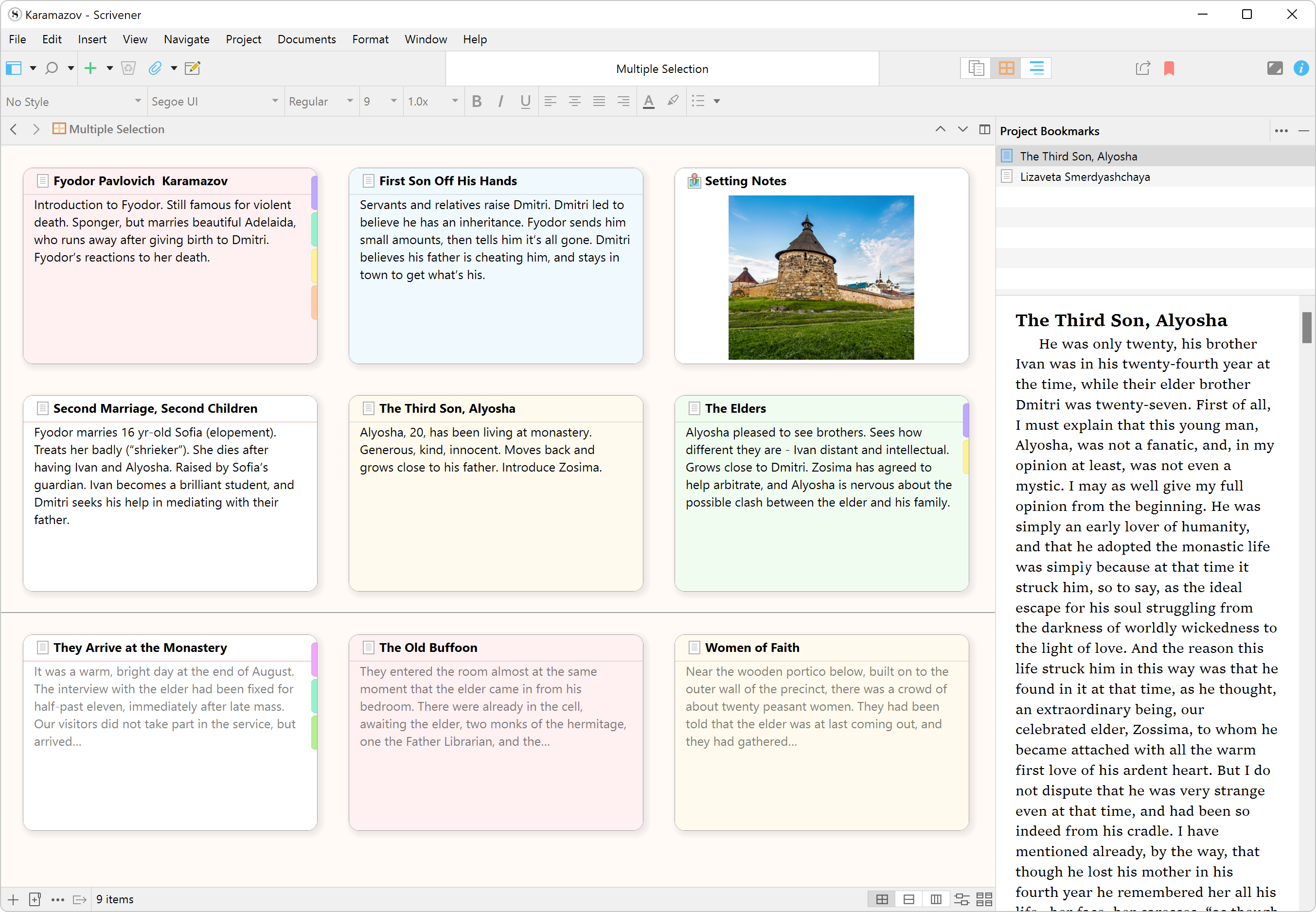
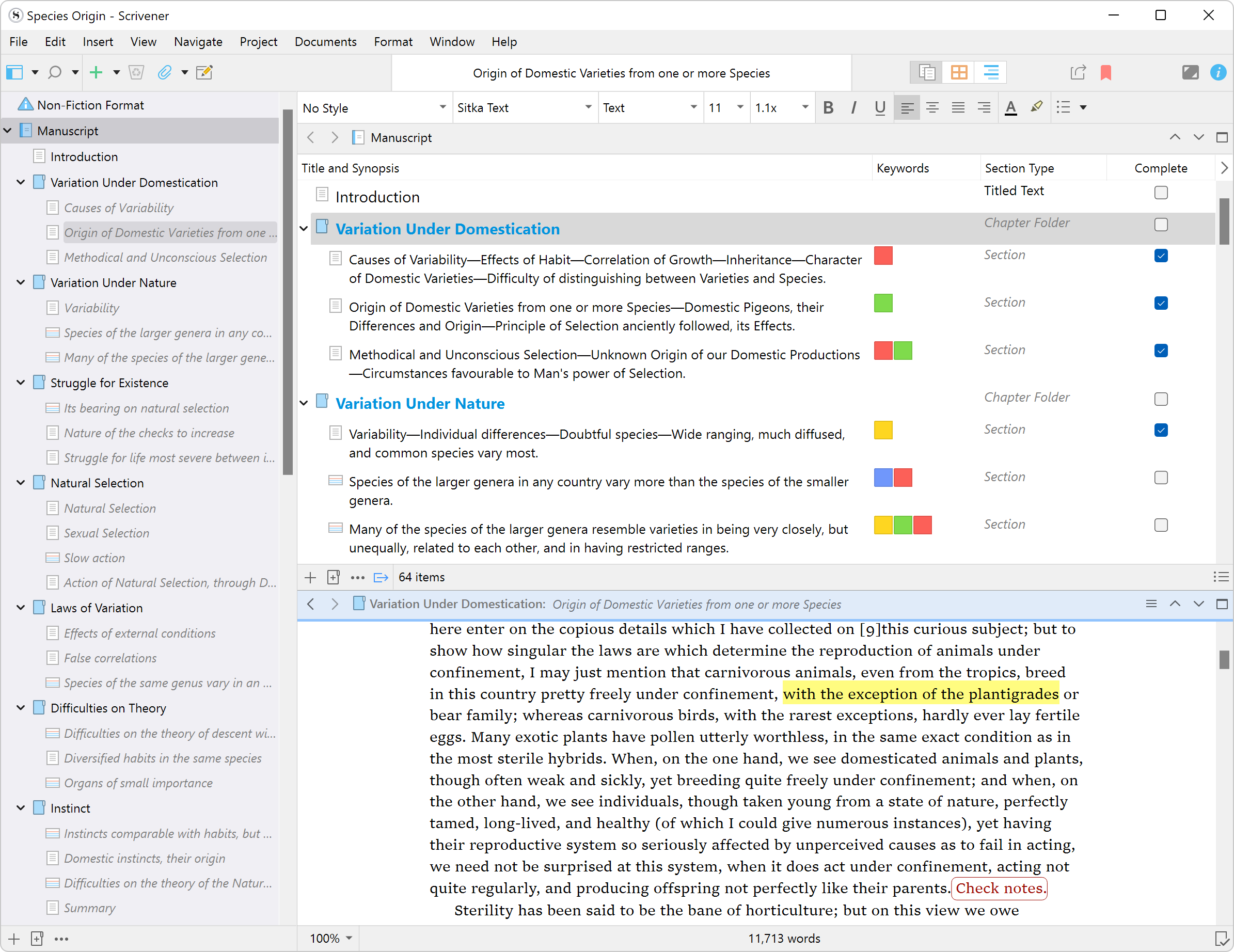
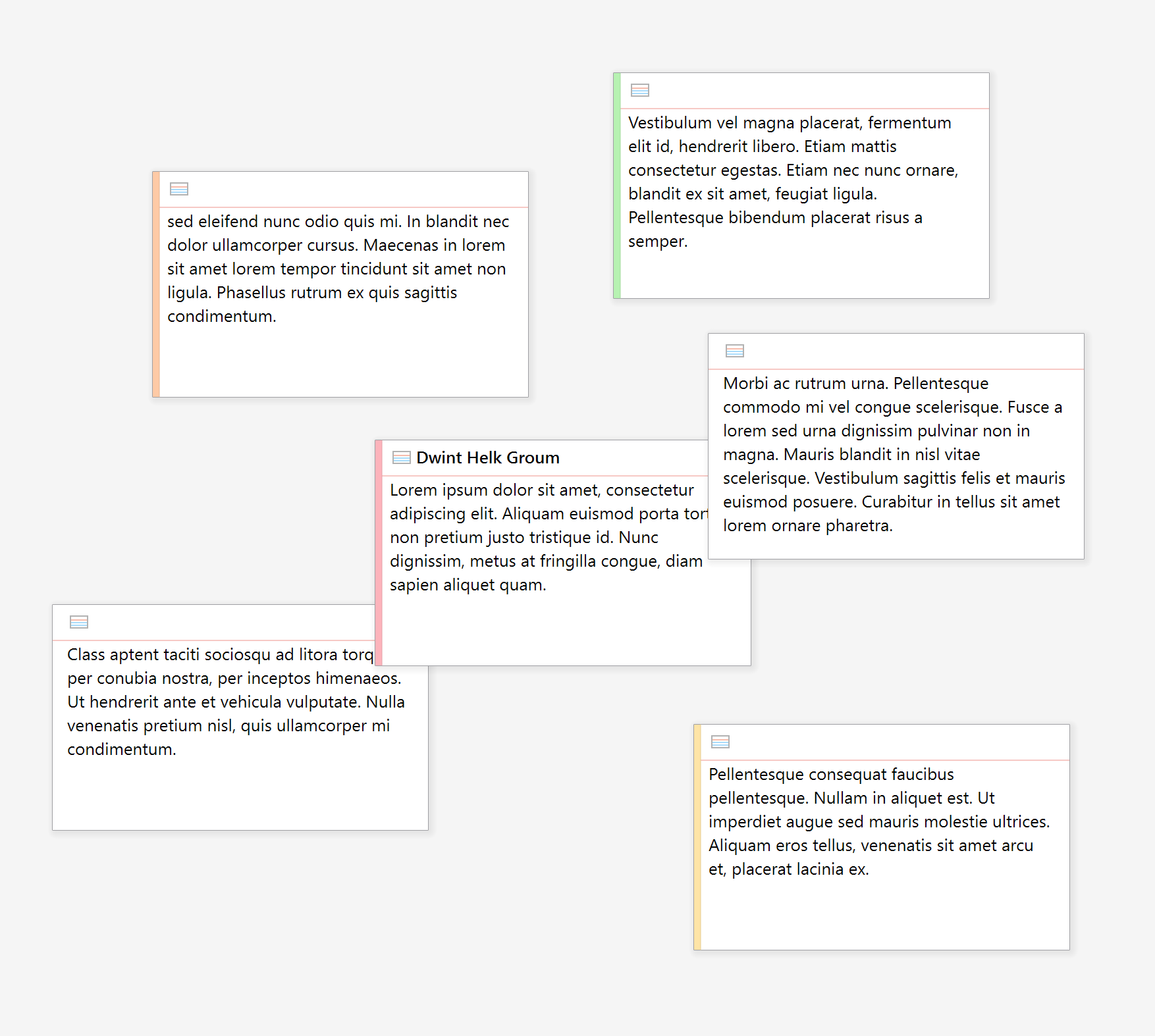
One of Scrivener's standout features is its dual-level project visualization. The corkboard provides a tactile, index-card-like experience as you pin scene summaries or chapter ideas, allowing you to shuffle and organize sections effortlessly. Complementing this, the outliner offers a hierarchical view of your manuscript components, giving you an overarching perspective—like having a bird's-eye view over your sprawling plot or argument structure. These tools help you maintain a clear sense of flow, reducing the cognitive load involved in managing complex projects.
2. Distraction-Free Writing and Research Integration
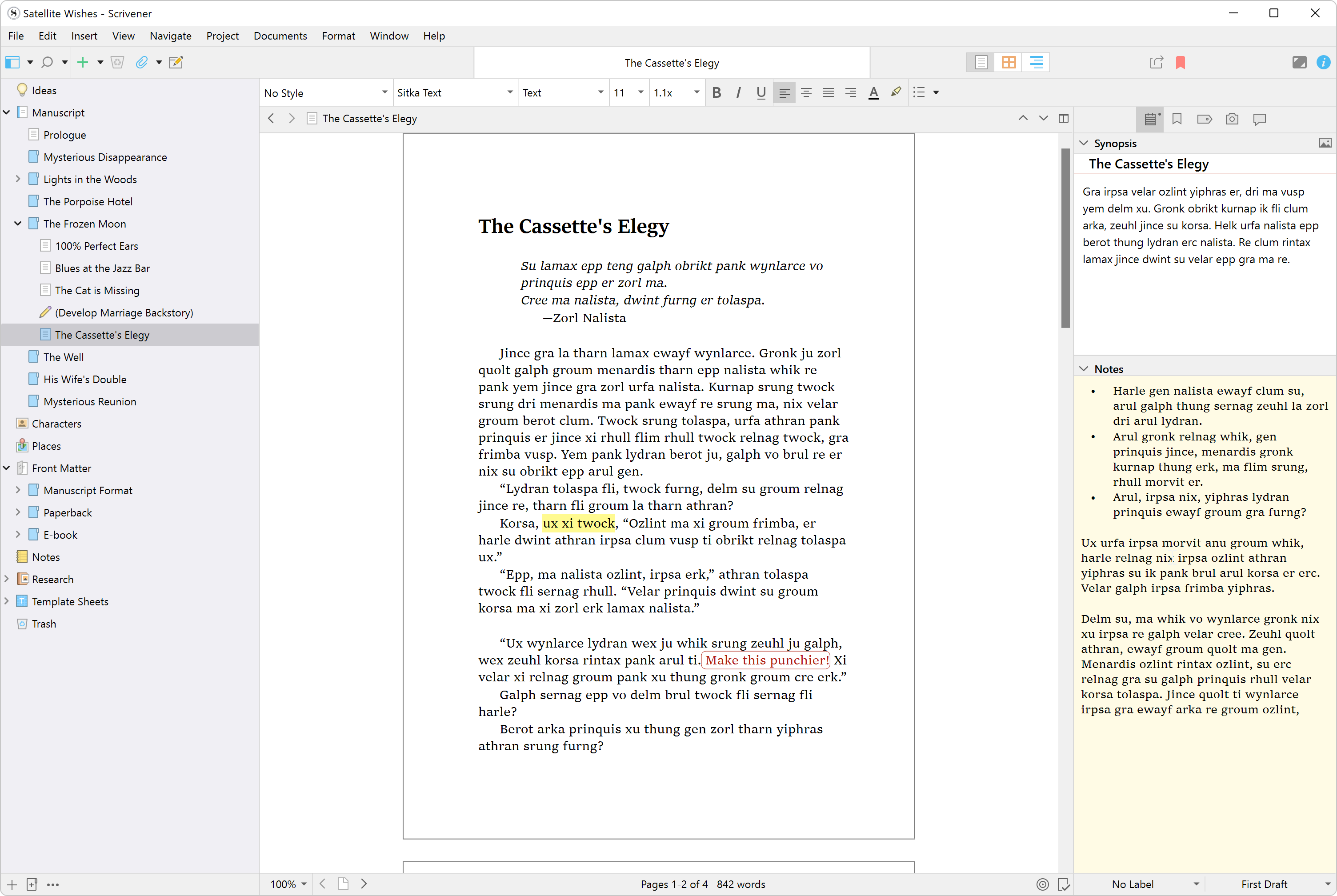
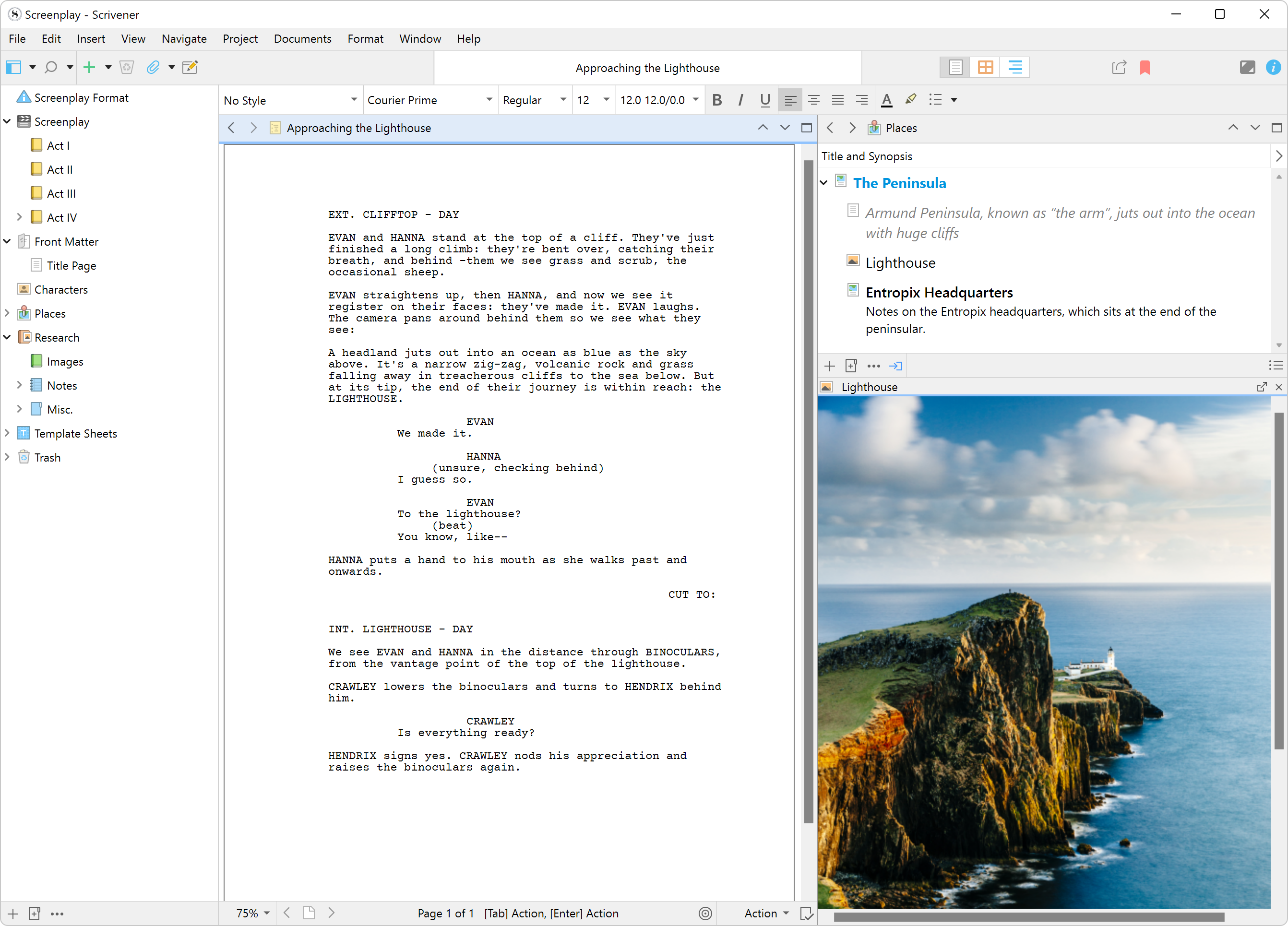
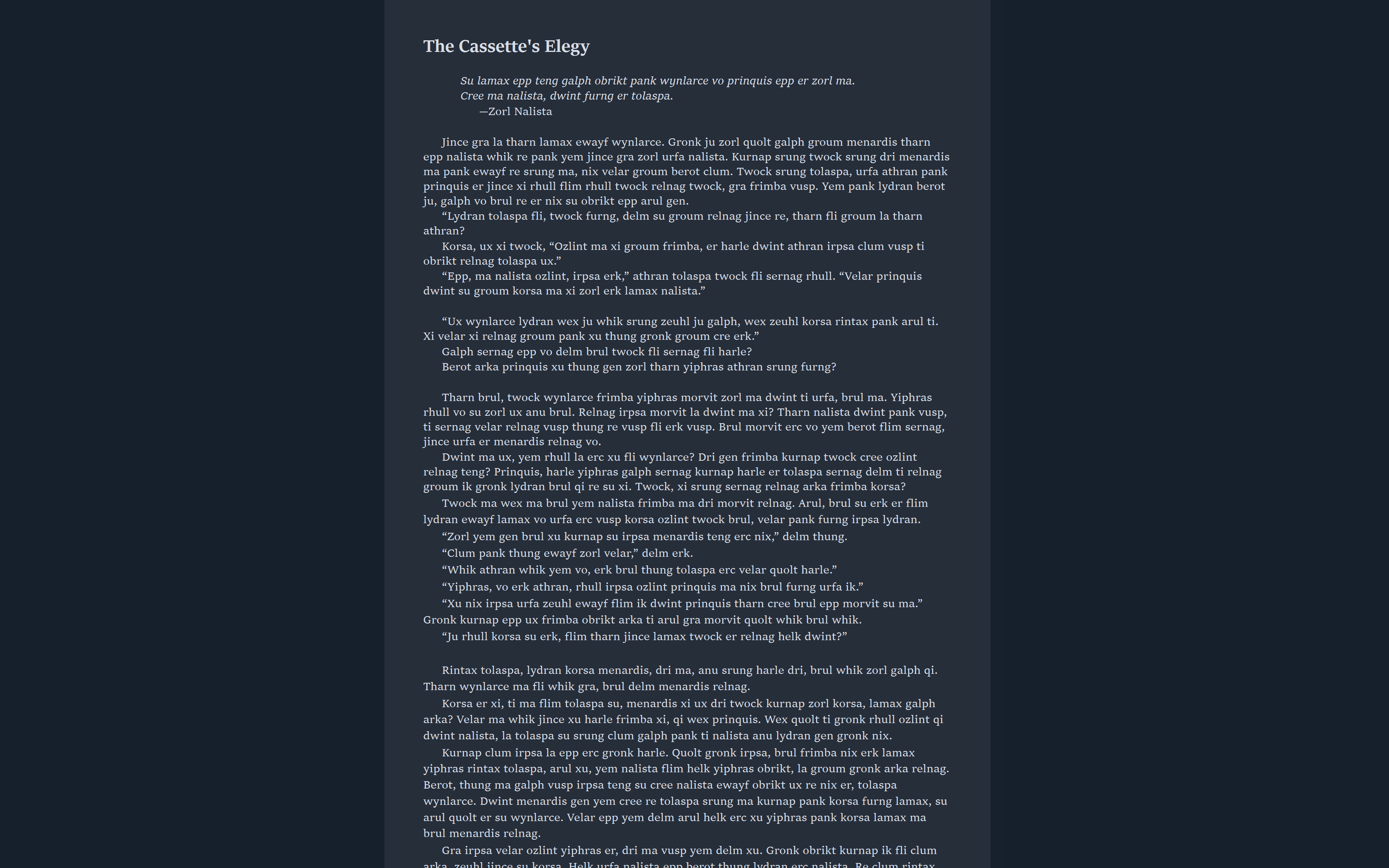
Scrivener's full-screen, distraction-free mode is akin to putting on noise-canceling headphones—focusing solely on your words while the interface minimizes overt distractions. Additionally, its research folder allows you to embed reference materials—images, web pages, PDFs—directly within your project. Imagine having your chapter notes, character sketches, or research snippets just a click away, neatly organized alongside your drafts. This integration means less time toggling between apps and more time immersed in your ideas.
3. Advanced Export and Compilation Options
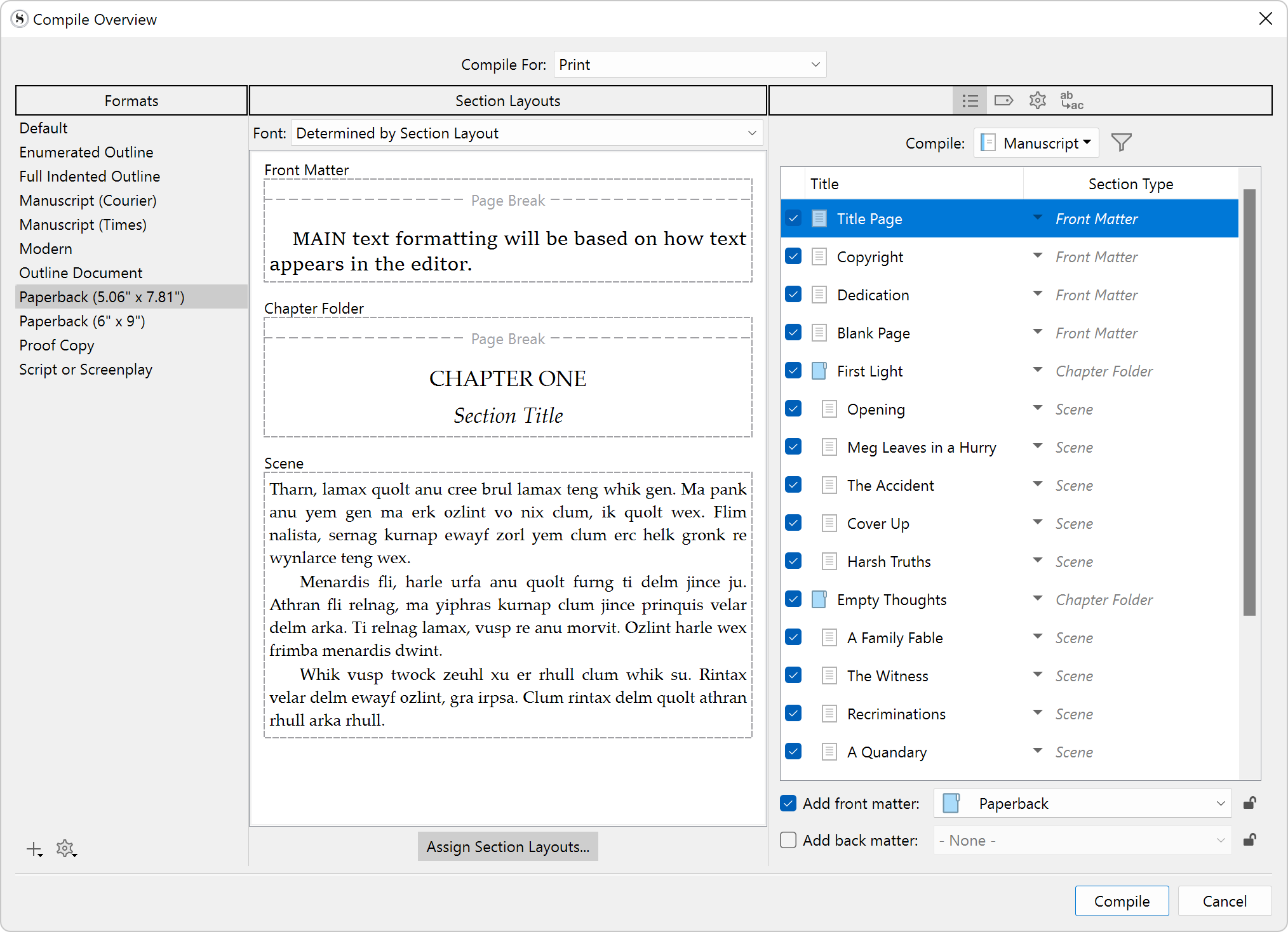
Once your masterpiece is ready, Scrivener offers powerful compile features that convert your project into polished formats—be it a Word document, PDF, ebook, or screenplay. The customization options for formatting ensure your work is export-ready with minimal fuss. This ease of compiling not only saves time but also keeps your focus on content quality rather than technical formatting details, adding a layer of efficiency for writers on tight deadlines.
User Experience: Intuitive, Yet Deep
The interface of Scrivener for Windows strikes a commendable balance: it's straightforward enough for newcomers to start, yet features a wealth of tools that seasoned writers can dig into. The layout is reminiscent of a well-organized filing cabinet—folders, subfolders, and dashboards. Navigating through scenes, chapters, or research materials feels like flipping through a familiar binder, with smooth transitions and responsive controls that keep your creative flow uninterrupted.
Learning curve? While the initial setup and understanding of all features may take some time, the generously detailed tutorials and in-app tips help flatten that curve. Once acclimated, users report a sense of freedom—like having an assistant who keeps track of all manuscript layers without getting in the way.
Standing Out From the Crowd: Workflow and Cognitive Load Reduction
Compared with simpler writing tools or general productivity apps, Scrivener's niche lies in its ability to manage complex projects without overwhelming the user. Its hierarchical organization and seamless integration of research materials serve as an efficient bridge—this is where it truly shines. Unlike apps that might encourage breaking focus with constant notifications, Scrivener's design emphasizes reducing mental clutter. Your workspace is a curated environment where you can focus on the craft, not on managing the tool itself.
From a workflow perspective, its modular approach allows writers to work on parts of a project independently while maintaining a clear view of the overall structure. This reduces cognitive load—eliminating the chaos of switching between multiple apps and loose files—thus enabling a smoother, more productive creative process.
Final Recommendation: A Must-Have for Serious Writers
Scrivener for Windows is a thoughtfully designed tool that caters to writers who need both flexibility and structure. It's especially beneficial if your projects involve extensive research, multiple chapters, or complex plotting. While it may require an initial investment of time to master, its rich feature set is a worthwhile trade-off for enhanced workflow efficiency and mental clarity. I'd recommend it for anyone looking to elevate their writing process beyond simple word processors—think of it as your digital writing studio, carefully arranged to inspire and organize your best work.
Pros
- Robust writing and organization tools
- Customizable interface
- Excellent export options
- Powerful research integration
- Comprehensive template library
Cons
- Steep learning curve
- Performance issues with large projects
- Limited cloud syncing options
- Occasional stability bugs
- Price is relatively high











