- Name Screen recorder - Screen record & Screen capture
- Category Multimedia design
- Developer Wuhan Net Power Technology Co., Ltd.
- Available on PC
- OS Windows 10 version 17763.0 or higher
- Keyboard Integrated Keyboard
- Mouse Integrated Mouse
- DirectX Version 11
- Memory 4 GB
- languages Chinese (Simplified), English, French, German, Japanese, Korean, Portuguese, Russian, Spanish, Thai, Vietnamese
A Clear and Simple Screen Recorder for Windows Enthusiasts
Screen Recorder - Screen record & Screen capture for Windows by Wuhan Net Power Technology Co., Ltd. stands out as a lightweight yet effective tool tailored for users seeking straightforward screen recording capabilities without unnecessary complexity. Whether you're a casual streamer, student, or professional need, this app aims to streamline your recording tasks with ease and clarity.
Meet the Developer and Core Highlights
Developed by Wuhan Net Power Technology Co., Ltd., this application brings a fresh approach to screen capturing on Windows devices. Its standout features include high-quality recording, an intuitive interface, and flexible capture options, all packaged in a clean, unobtrusive design. The app's primary user base ranges from content creators to educators, or anyone eager to record their screen activities quickly and efficiently.
Engaging with the App: A User-Friendly Experience
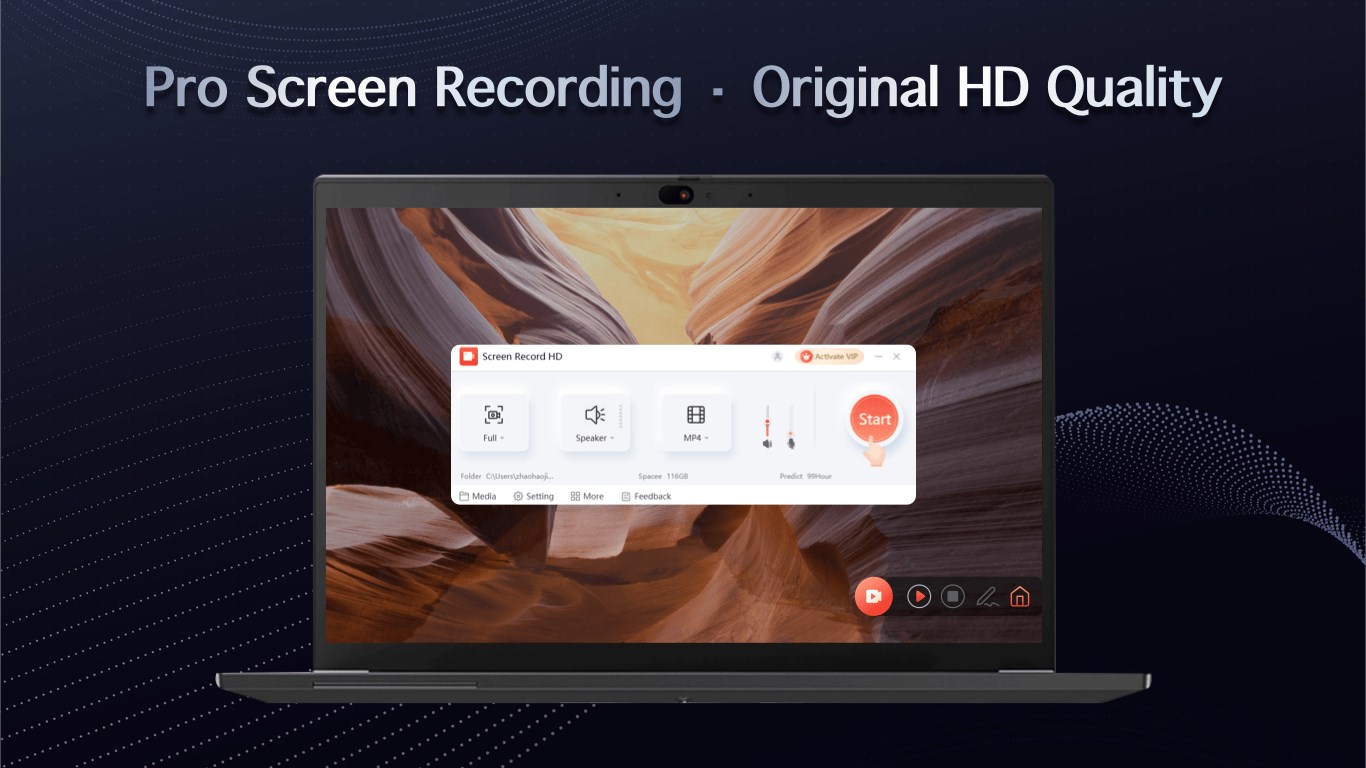
Imagine pressing the record button for the first time; the experience should feel seamless, like turning on a familiar device. Screen Recorder offers just that—responsive controls combined with a minimal learning curve. Once launched, users are greeted with a sleek, straightforward interface that resembles a smart control panel rather than a cluttered toolbox. The app responds smoothly, with minimal lag, ensuring recording sessions are error-free and reliable. Navigating through options is intuitive; even newcomers can start recording within minutes, thanks to helpful prompts and clear icons.
Delving into Core Functionalities
High-Quality Video Recording Made Easy
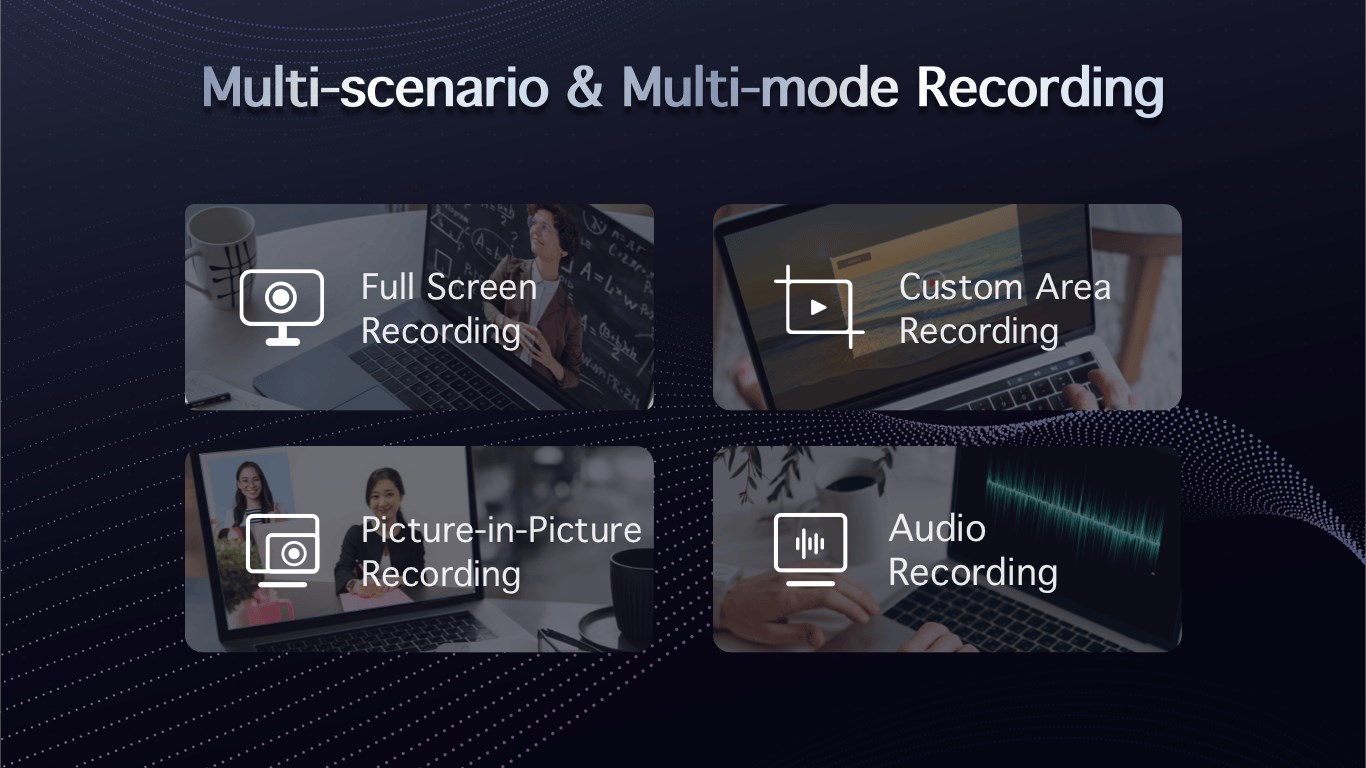
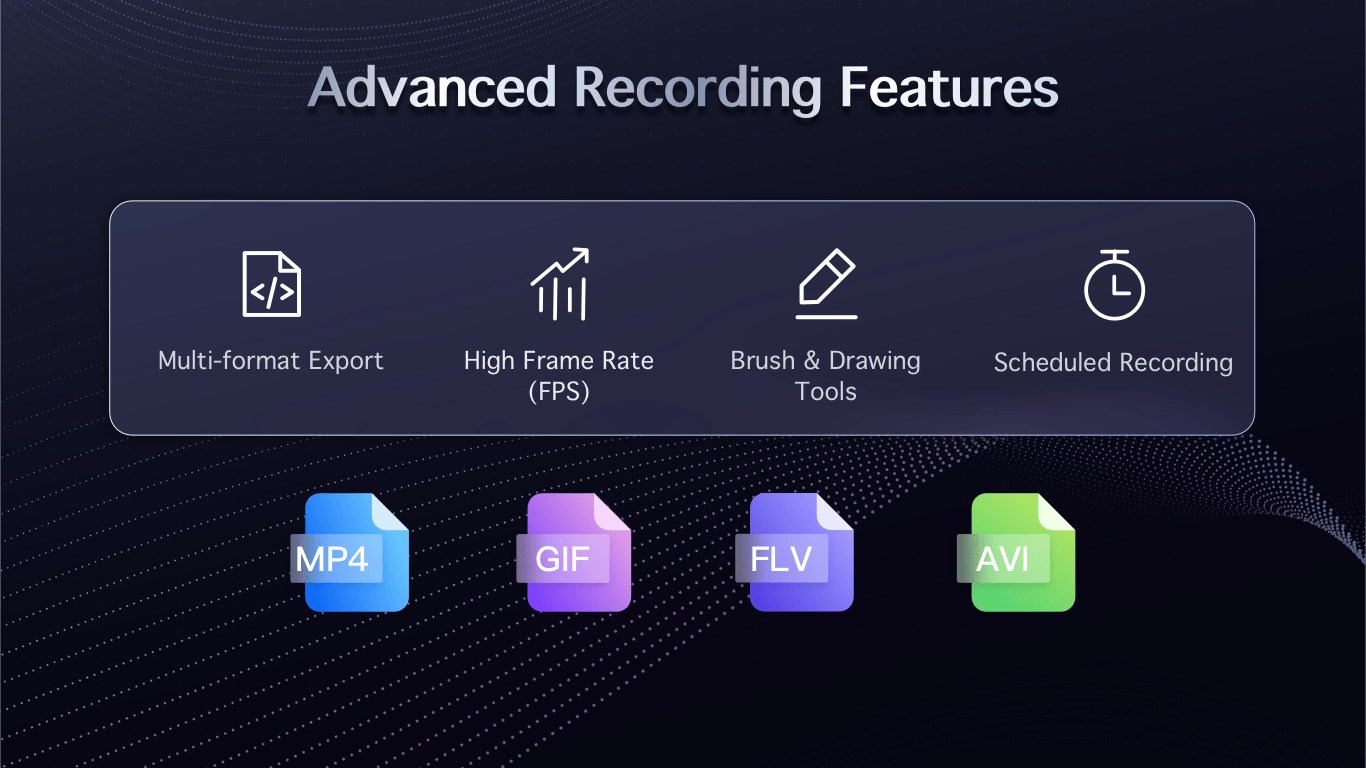
This app allows users to capture their screens in crisp HD quality, with options to choose custom frame rates and resolutions. The recordings are stored locally, ensuring quick access and sharing. What makes this particularly compelling is its ability to handle both full-screen captures and selected regions—perfect for detailed tutorials or quick demos. The seamless switch between recording modes demonstrates thoughtful design, catering to varied user needs.
Convenient Screen Capture and Annotation
Beyond simple recording, the app provides quick snapshot capabilities, allowing users to capture still images of their screens with a single click. These images can be edited instantly with basic annotation tools like arrows, text, or highlights. This feature is especially useful for educators or business professionals who need to highlight specific parts of their screen during presentations or troubleshooting, adding a layer of interactivity and clarity to their content.
Effortless Sharing and Storage Options
After recording, the app facilitates easy sharing options, supporting common formats compatible with various platforms, and offers direct saving to desired locations. Its lightweight design ensures that it doesn't bog down system resources—crucial during longer recording sessions. Moreover, the quick-access toolbar and minimal setup mean users can jump from recording to sharing without juggling multiple menus or losing precious time.
Distinctive Features that Set It Apart
While many screen recording tools exist, this application shines in its simplicity and dedicated focus on core functions. Its most notable feature is the balance between high-quality output and effortless operation—perfect for those who find complex software overwhelming. The app's ability to quickly switch between recording full screens, regions, and capturing still images, combined with straightforward editing options, makes it an ideal choice for users who value efficiency without sacrificing quality.
Compared to other multimedia design tools that often come with steep learning curves or feature bloat, this app offers a streamlined, purpose-built experience. It excels at doing a few things really well, making it a 'go-to' for quick, reliable screen captures and recordings.
Final Thoughts: Would I Recommend It?
Absolutely. Considering its ease of use, quality output, and focus on essential features, I'd recommend Screen Recorder - Screen record & Screen capture for Windows to anyone needing a reliable, no-fuss screen recording tool. It's best suited for users who want quick results and straightforward functionality. More advanced content creators or those requiring intricate editing might look for additional software, but for everyday needs, this app hits the sweet spot.
Pros
- User-friendly interface
- High-quality screen recordings
- Quick sharing options
- Flexible recording modes
- Built-in editing tools
Cons
- Limited customization for recording settings
- Occasional lag during long recordings
- Watermark added in free version
- Limited editing features
- Audio recording may occasionally desynchronize