
- Name Screen Mirroring - Cast to TV
- Category Productivity
- Developer Niente
- Available on PC, Mobile, Surface Hub, HoloLens
- OS Windows 10 version 17763.0 or higher
- languages English (United States)
Seamless Screen Mirroring Experience with Cast to TV for Windows
If you're tired of tangled cables and clunky setups when trying to display your device on a bigger screen, "Screen Mirroring - Cast to TV for Windows" by Niente offers a straightforward solution that aims to make wireless casting both simple and reliable. Designed for users seeking quick, hassle-free screen sharing, this app positions itself as a handy tool to enhance your multimedia and presentation workflows without the usual technical headaches.
Introduction to the App
Screen Mirroring - Cast to TV for Windows is a utility application crafted to facilitate wireless streaming from your Windows device directly onto your TV or compatible display. Developed and published by Niente, this app focuses on providing an intuitive experience that bridges your device and large-screen displays seamlessly. Its core strengths lie in easy connection setup, multi-device support, and minimal performance lag, making it an attractive choice for both casual users and professionals alike.
The app's primary target audience includes individuals who often deliver multimedia presentations, stream content for entertainment, or want a quick way to mirror their screens during meetings—all without fuss or complex configurations. Whether you're a tech-savvy user or someone new to screen casting, this app aims to serve as your go-to solution for hassle-free wireless mirroring.
Vivid Scenes and Core Functionality
Picture this: you're in a cozy office or a lively living room, eager to showcase your photos, videos, or presentation slides on a larger screen. "Screen Mirroring - Cast to TV for Windows" steps into the scene like a trusted friend with a magic wand—easy to activate, unobtrusive, and ready to stream at a tap.
Effortless Device Discovery and Connection
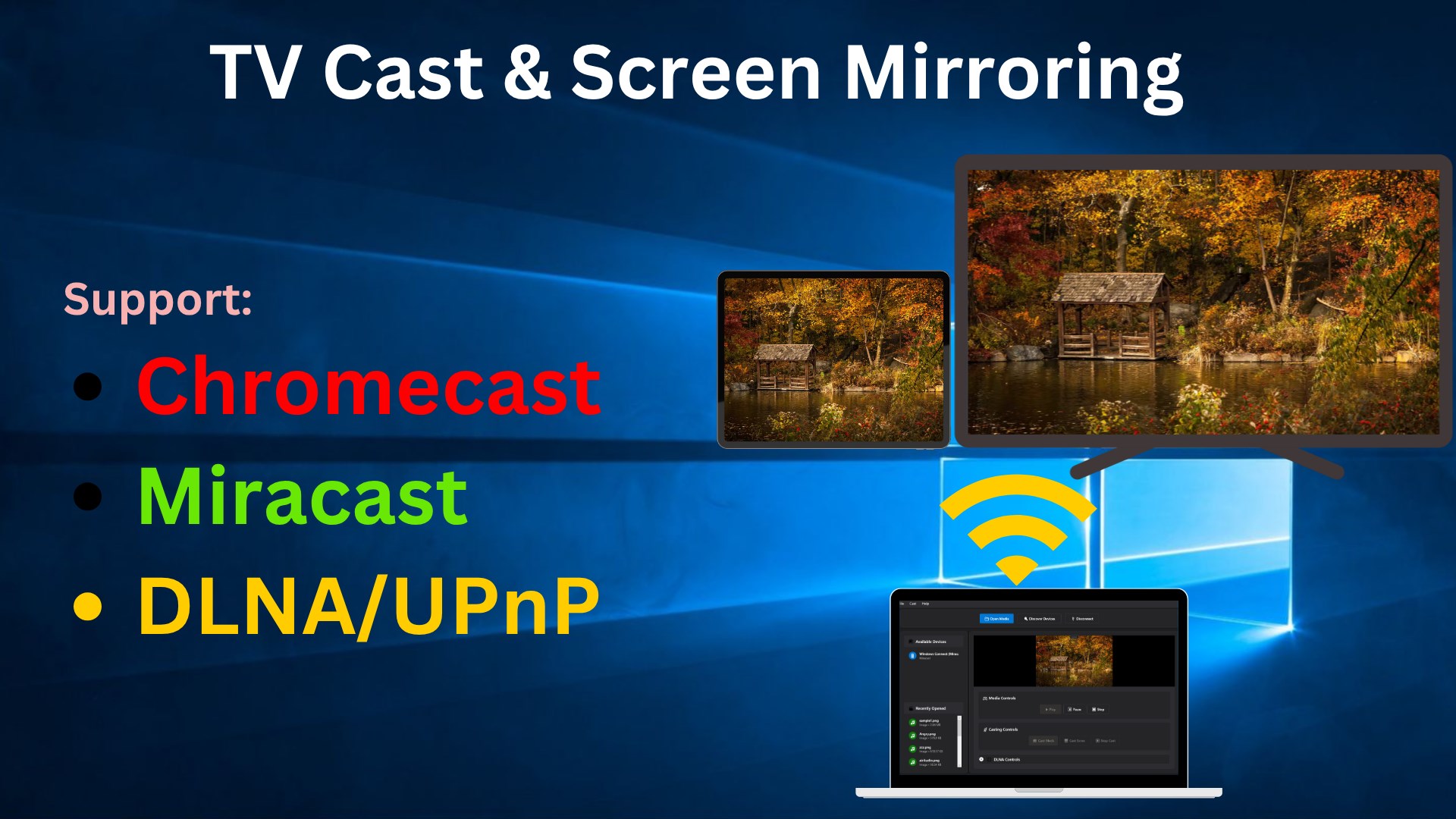
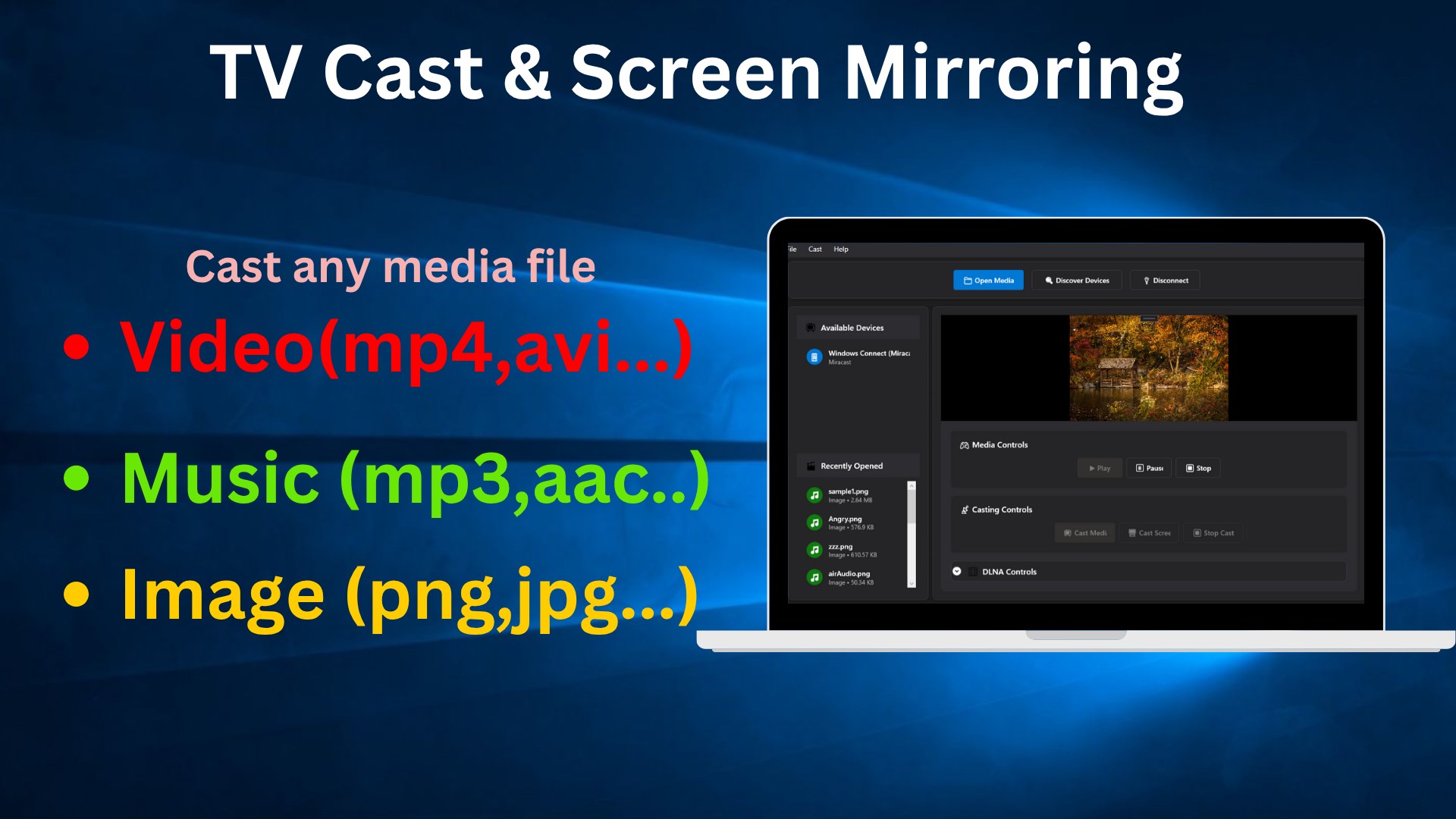
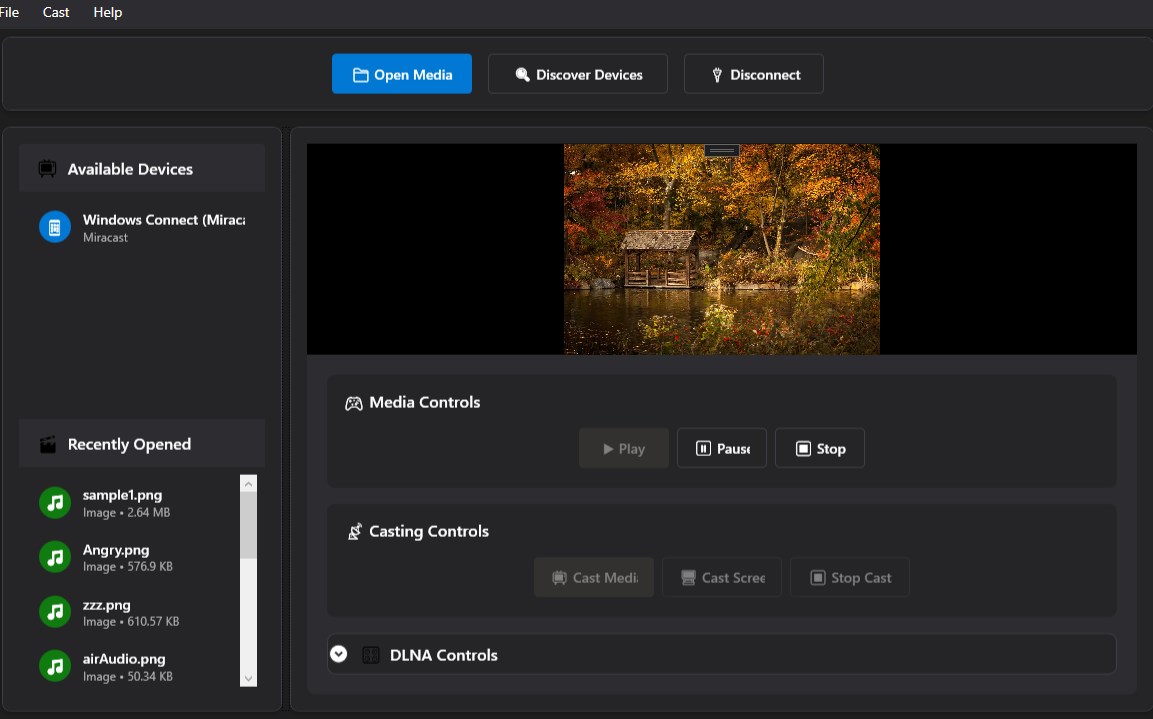
The app's most standout feature is its rapid device detection capability. When you open the app, it scans your local network and displays available TVs or cast-compatible devices within seconds. The process is akin to casting a fishing net—wide and quick—ensuring you spend less time fiddling with settings and more time enjoying your media. The connection process is streamlined, with a single tap to start mirroring, no complex configurations necessary. This simplicity significantly reduces cognitive load, allowing even less tech-savvy users to set up with confidence.
High-Quality, Low-Latency Streaming
Once connected, the app offers robust streaming quality with high-resolution support, ensuring your content appears crisp and vibrant. Thanks to efficient compression and optimized data transfer, latency remains minimal—for example, when mirroring gameplay or navigating slides, the experience feels natural, akin to watching events unfold directly on the TV. The app's ability to handle higher bitrates without lag is particularly impressive, making it suitable for watching videos or giving live presentations where timing matters.
User Interface and Workflow Optimizations
The interface design exudes clarity—simple icons, intuitive navigation, and minimal clutter create a user experience reminiscent of a well-organized workspace. The learning curve is gentle; even first-time users can pick it up quickly. Transitioning from setup to streaming is as smooth as flipping a switch, and the app's stability over extended use contributes to a workflow that's both efficient and stress-free.
Compared to other screen mirroring apps on the market, this app distinguishes itself by emphasizing minimal feature complexity combined with reliable performance. It avoids overwhelming users with excessive options, instead focusing on the core necessity: quick, high-quality wireless display. This approach significantly reduces cognitive effort—users don't waste time sifting through settings but instead concentrate on what truly matters: presenting or enjoying content.
Final Recommendations and Usage Tips
Overall, "Screen Mirroring - Cast to TV for Windows" proves to be a practical and dependable tool for users seeking straightforward wireless screen sharing. Its top features—fast device discovery and low-latency streaming—make it stand out, especially for those who value efficiency and simplicity over feature-rich complexity.
We recommend this app for anyone from educators and presenters to casual media consumers who want a hassle-free mirroring experience. For the best results, ensure your devices are connected to the same Wi-Fi network, and avoid network congestion for smoother streaming. Though it may not offer extensive customization options found in more elaborate solutions, its core strengths make it a valuable addition to your digital toolkit.
In summary, if you're searching for an unobtrusive, reliable, and easy-to-use screen mirroring app, "Screen Mirroring - Cast to TV for Windows" is worth a try—your large-screen moments are just a tap away.
Pros
- Easy setup and user-friendly interface
- High compatibility with multiple devices
- Stable streaming with minimal lag in most scenarios
- Supports multiple display resolutions
- Free to download and use
Cons
- Occasional connectivity drops
- Limited customization options for display settings
- Requires stable Wi-Fi connection
- Ads may appear in free version, causing minor interruptions
- Some devices may have compatibility issues with certain TV brands











