
- Name Scrble Ink
- Category Productivity
- Developer Claudia Wey
- Available on Xbox console, PC, Mobile, Surface Hub, HoloLens
- OS Windows 10 version 17763.0 or higher
- Keyboard Not specified
- Memory Not specified
- languages Arabic, Chinese (Simplified), Chinese (Traditional Chinese), Chinese (Traditional), English, French, German, Italian, Japanese, Korean, Korean , Malay, Spanish, Spanish (Spain), Tamil
Scrble Ink for Windows: A Fresh Take on Digital Note-Taking
Scrble Ink for Windows is a thoughtfully designed handwriting and note-taking app that aims to streamline your workflow and keep your ideas flowing seamlessly on your PC. Developed by Claudia Wey, this app combines simplicity with functionality, making it a compelling choice for both casual users and professional writers seeking an intuitive digital ink experience.
Core Features That Stand Out
At its heart, Scrble Ink offers intuitive handwriting capture with a focus on smooth user interactions. Its standout features include real-time handwriting recognition, flexible organizational tools, and efficient exports—all crafted to enhance your productivity without overwhelming your cognitive load.
Intuitive Handwriting & Recognition
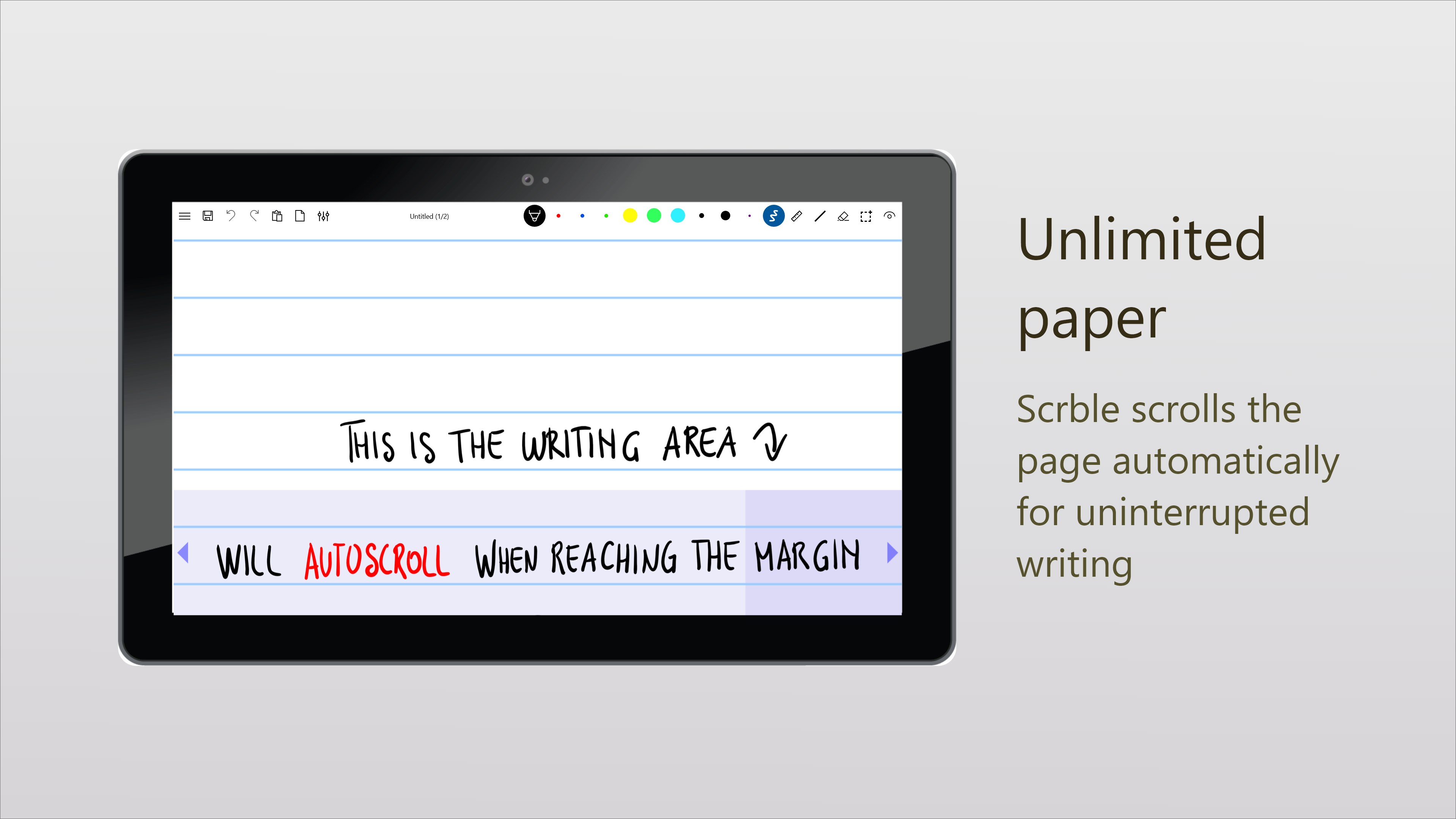
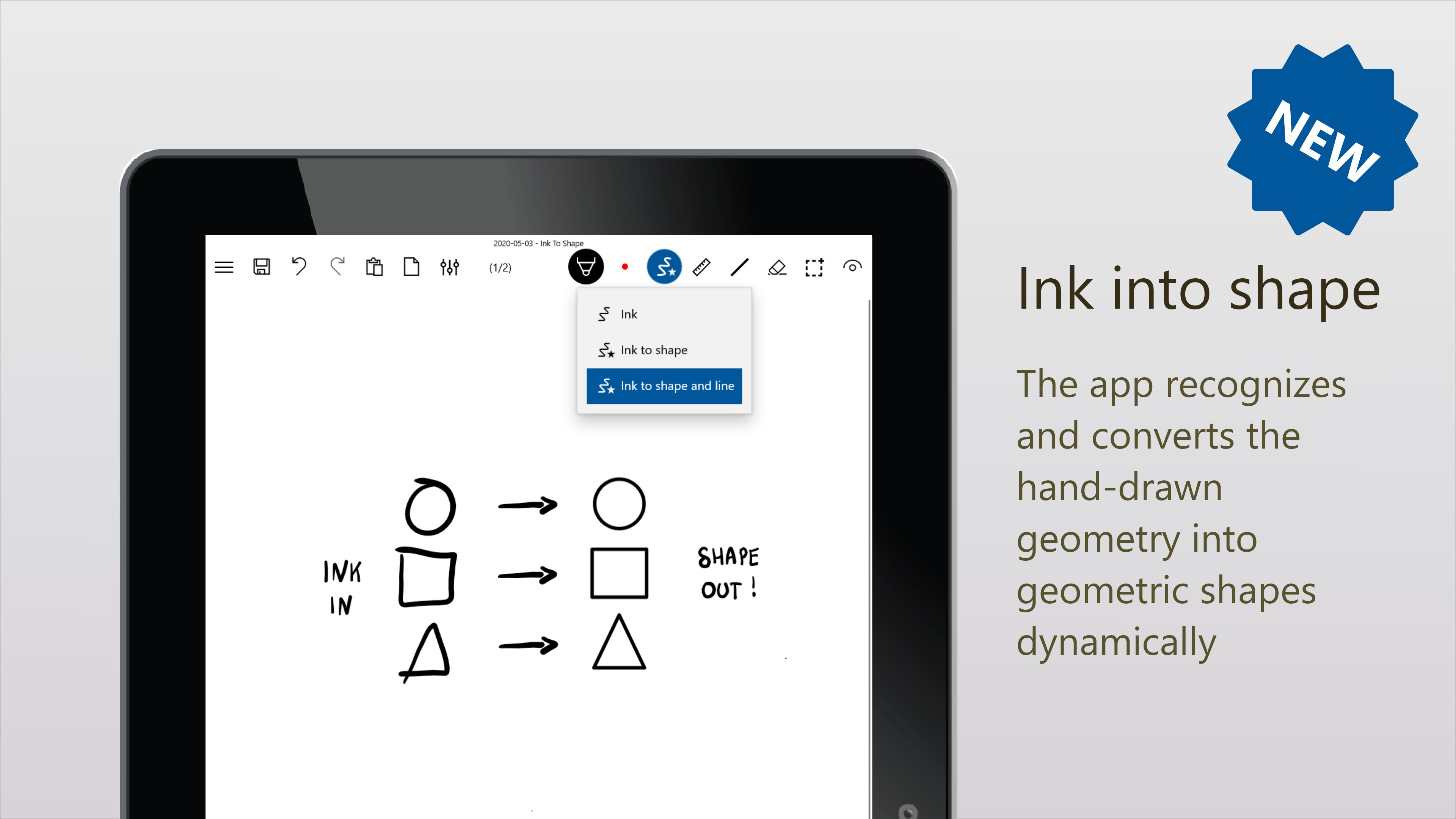
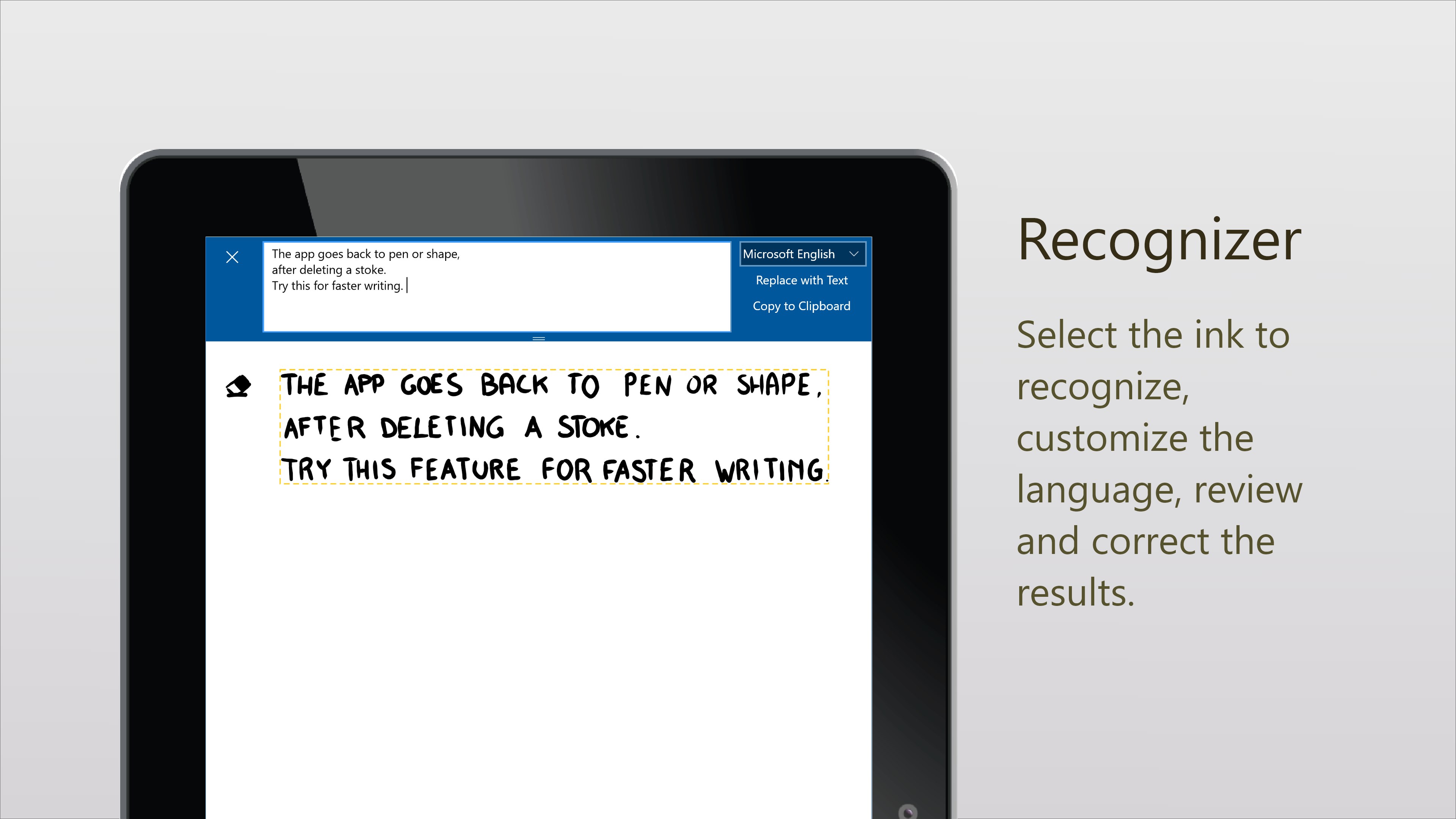
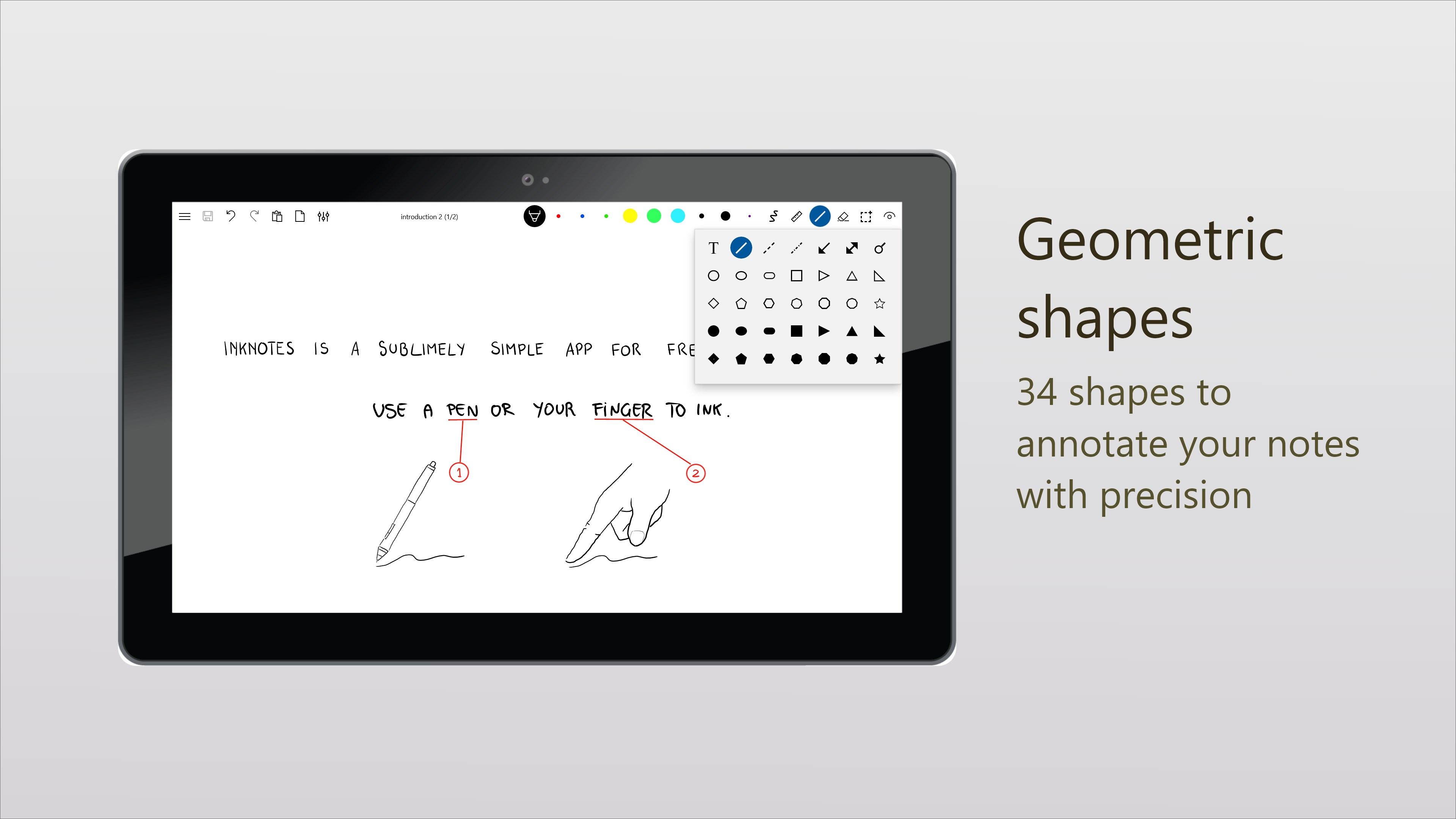
Imagine jotting down notes with a pen on paper—Scrble Ink recreates this experience digitally. Its smooth drawing engine responds naturally to your strokes, whether you're jotting quick thoughts or detailed sketches. What's more impressive is its handwriting recognition capability, converting your scribbles into editable text, which can save time and increase flexibility when revising or sharing notes. This blend of natural writing and accurate recognition is especially valuable for brainstorming sessions or quick note captures during meetings.
Organizational Tools Designed for Flow
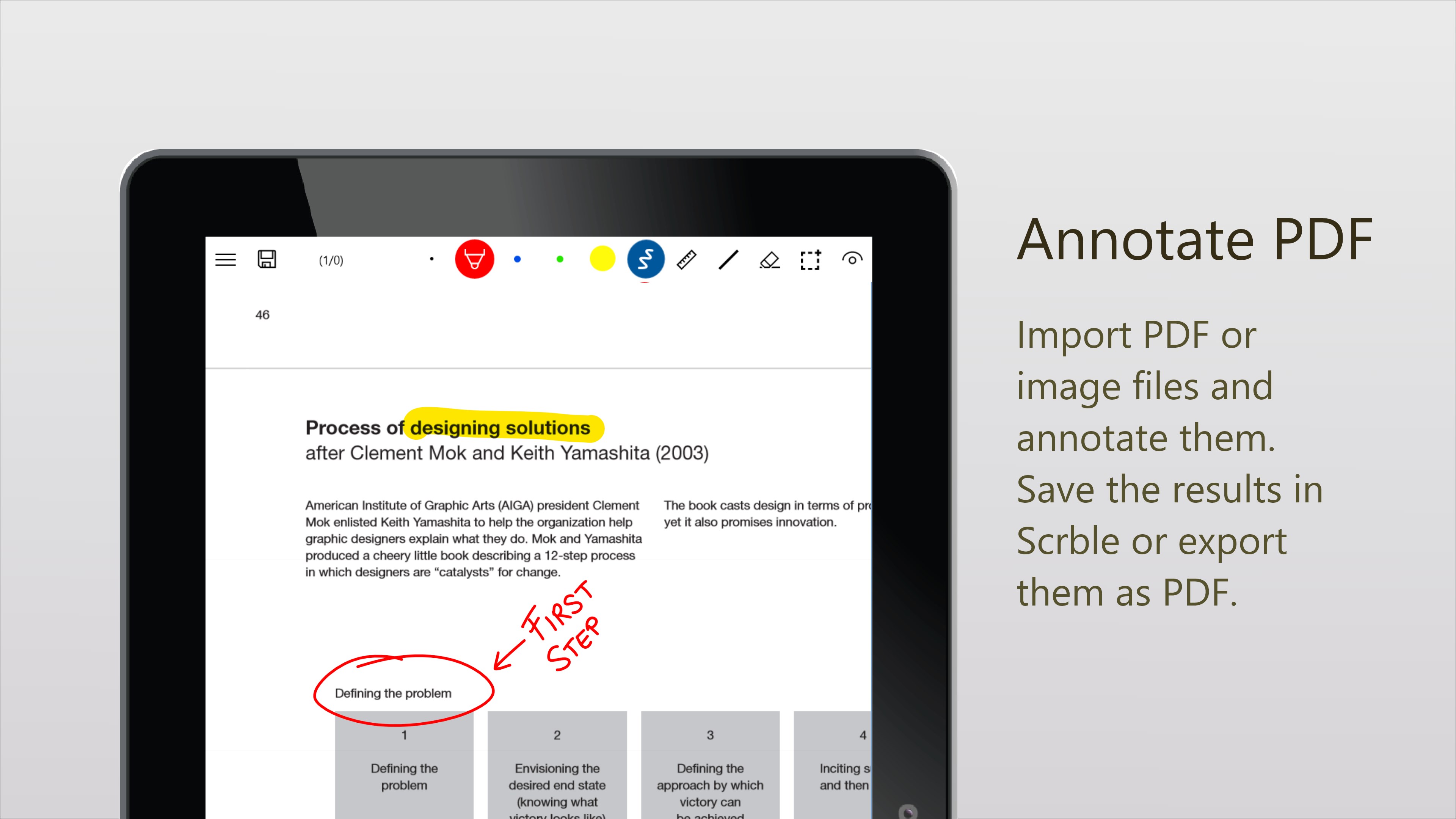
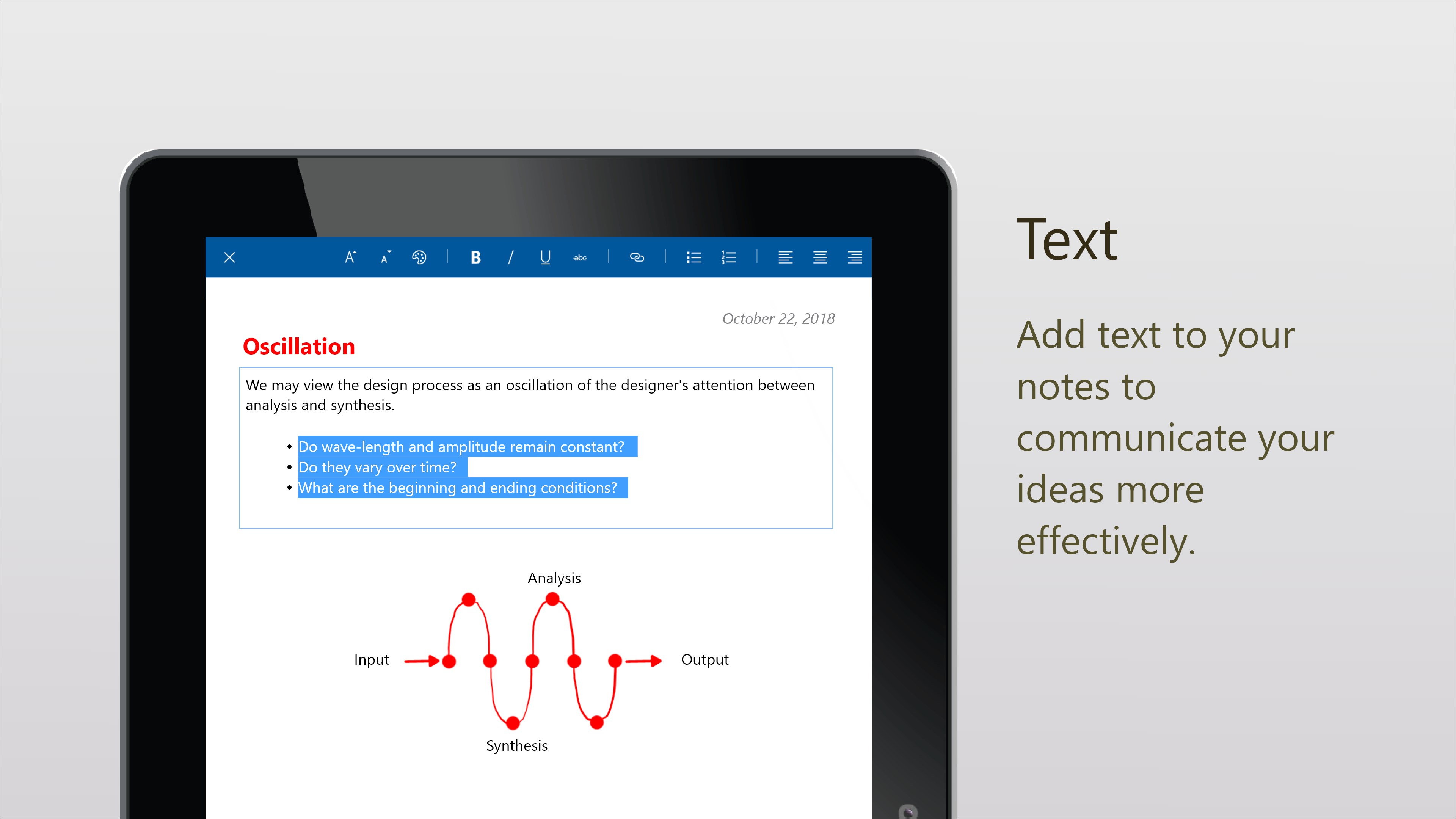
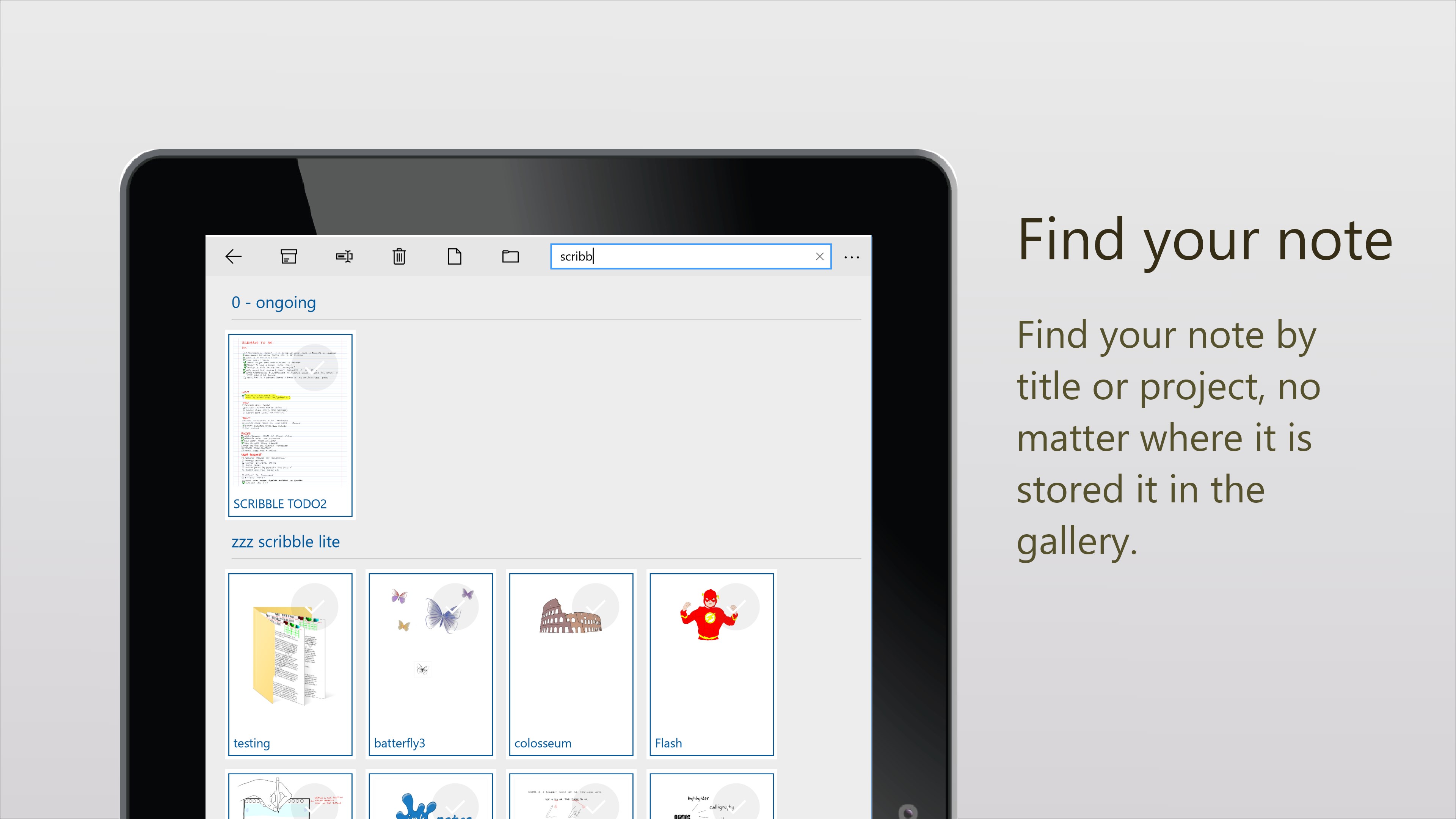
The app also features a straightforward organizational system, allowing you to categorize notes into notebooks or tags effortlessly. You can mark important sections, add annotations, or combine sketches with text—all within a clean interface that minimizes clutter. This ensures your workflow remains uninterrupted, and information retrieval is swift, making Scrble Ink more than just a sketchpad but a practical workspace.
Seamless Export & Sharing Options
When your notes are ready, exporting them is a breeze. Whether you need high-resolution images, PDFs, or editable text files, Scrble Ink offers multiple export formats that integrate smoothly with your existing tools. This reduces cognitive overhead, letting you focus on content rather than the fuss of managing multiple files or formats.
Design, Ease of Use, and User Experience
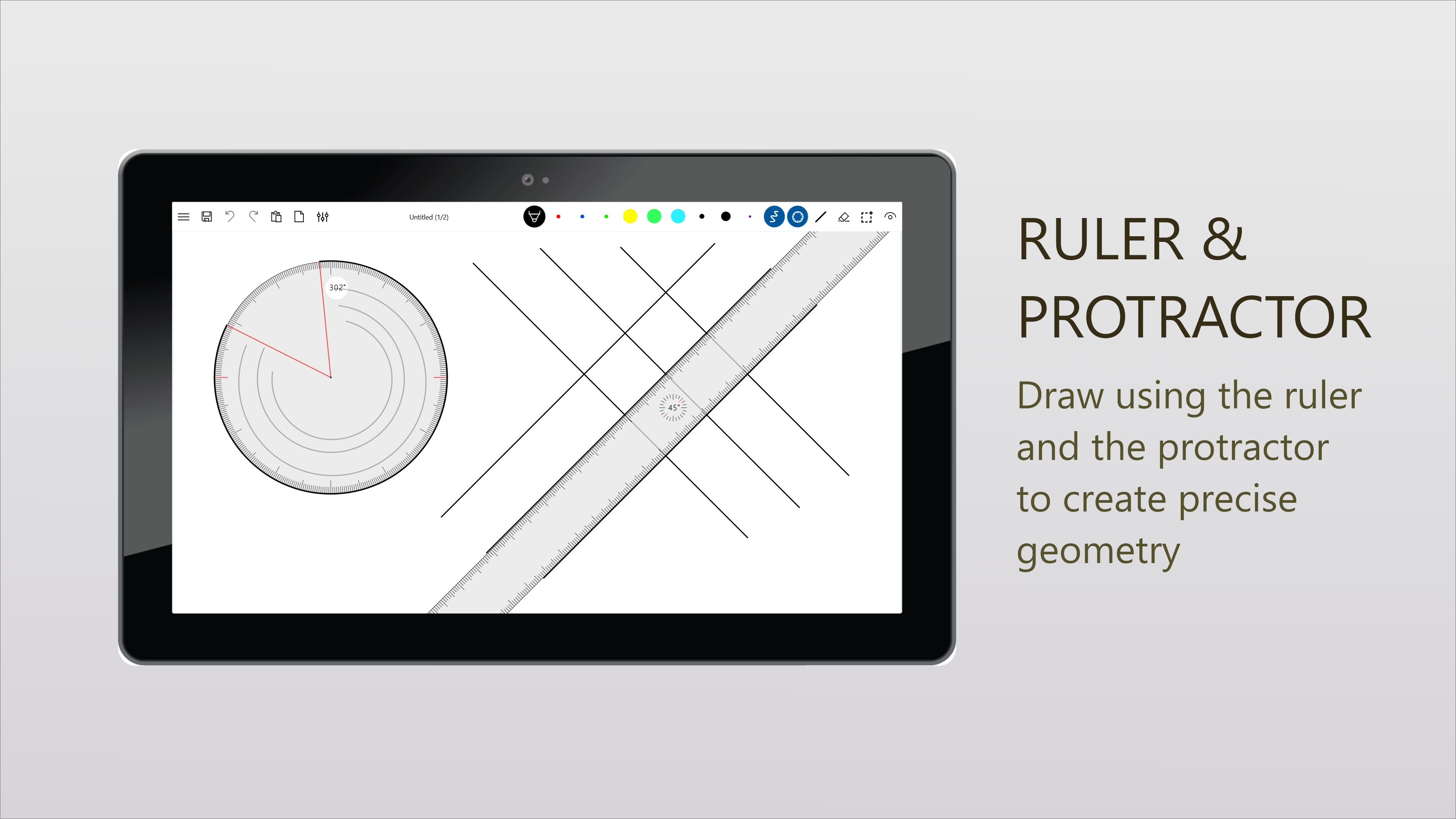
Scrble Ink sports a minimalistic interface reminiscent of a classic notebook, with a modern touch. The handwriting area is spacious and clutter-free, inviting creativity. Drawing with a stylus or finger feels natural, with responsive strokes and minimal lag. The learning curve is gentle; newcomers can quickly grasp basic features, while power users will appreciate advanced options like multi-layer management and customizable tools. Overall, the app promotes a smooth experience that feels both familiar and refreshingly straightforward.
What Sets Scrble Ink Apart?
Compared to other productivity apps, Scrble Ink's primary edge lies in its focus on workflow integration and reducing cognitive load. Unlike feature-packed apps that often burden users with complex settings, Scrble Ink emphasizes clarity and efficiency. Its handwriting recognition is finely tuned to KISS (Keep It Simple and Smart) principles, lowering the barrier to quickly transforming handwritten notes into usable digital content. This makes it uniquely suited for users who want to avoid the distraction of excessive features while still retaining powerful functionality essential for focused work. For instance, its seamless export options and intuitive organization mean you spend less time managing notes and more time ideating.
Final Recommendation and Usage Suggestions
All in all, Scrble Ink for Windows is a commendable digital ink app for those who prefer handwriting but want the convenience of digital tools. I recommend it to students, professionals, or anyone who values quick, natural note-taking without the clutter of overly complicated interfaces. If your workflow involves frequent sketches, annotations, or handwritten notes that need to be shared and edited effortlessly, Scrble Ink could be a valuable addition to your productivity arsenal. As a friend might suggest over coffee: it's simple, effective, and gets out of your way—letting your ideas shine through with less fuss.
Pros
- Intuitive handwriting experience
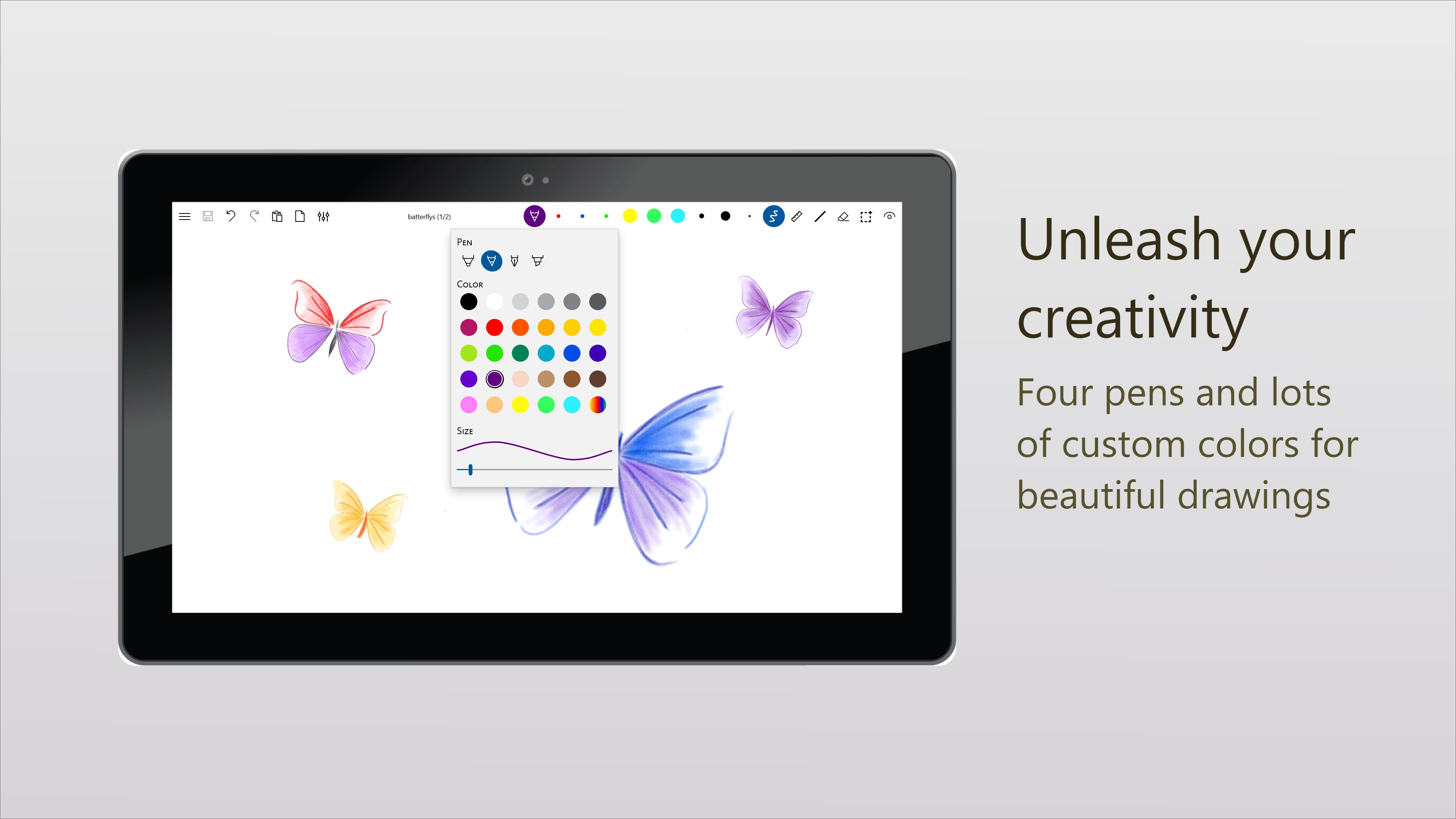
- Support for various ink colors and styles
- Excellent integration with Microsoft ecosystem
- Robust Undo and redo features
- Optimized for touch and pen devices
Cons
- Limited export options
- Occasional lag with complex drawings
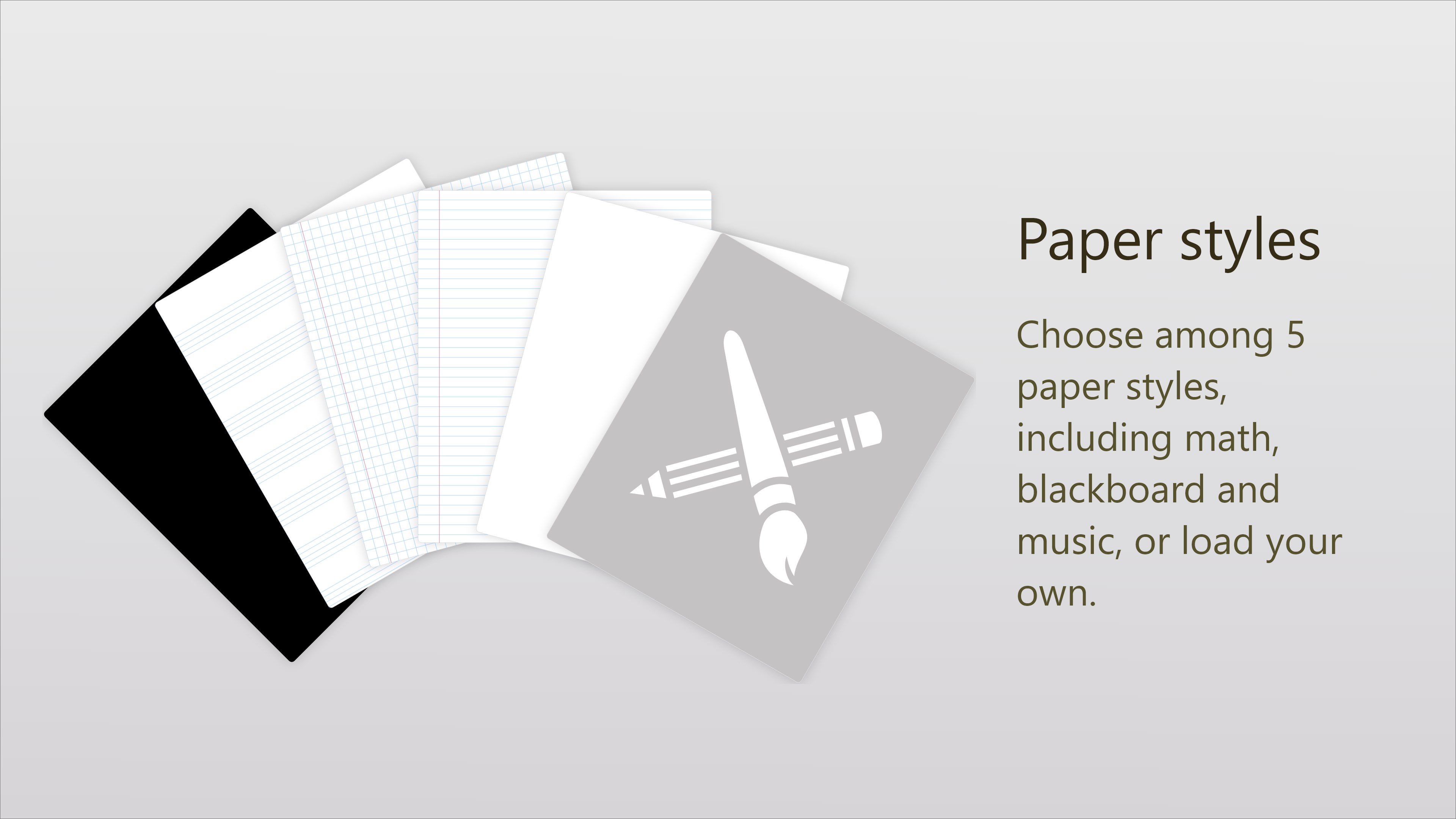
- Minimal template variety
- Learning curve for new users
- Limited collaboration features











