
- Name Samsung Cloud
- Category Productivity
- Available on PC, Mobile, Surface Hub
- OS Windows 10 version 18362.0 or higher
- languages Chinese (Simplified), Chinese (Traditional), Chinese (Traditional, Hong Kong SAR), Danish, Dutch, English (United Kingdom), English (United States), Finnish, French, French (Canada), German, Hungarian, Icelandic, Italian, Korean , Norwegian (Bokmål), Polish , Portuguese (Brazil), Portuguese (Portugal), Russian, Spanish (Argentina), Spanish (Chile), Spanish (Latin America), Spanish (Mexico), Spanish (Paraguay), Spanish (Spain), Spanish (Uruguay), Swedish, Thai
An Efficient Cloud Companion for Windows: Samsung Cloud
Samsung Cloud for Windows seamlessly integrates your Samsung device's storage with your PC, delivering a straightforward and reliable cloud solution tailored for Samsung users.
About Samsung Cloud for Windows
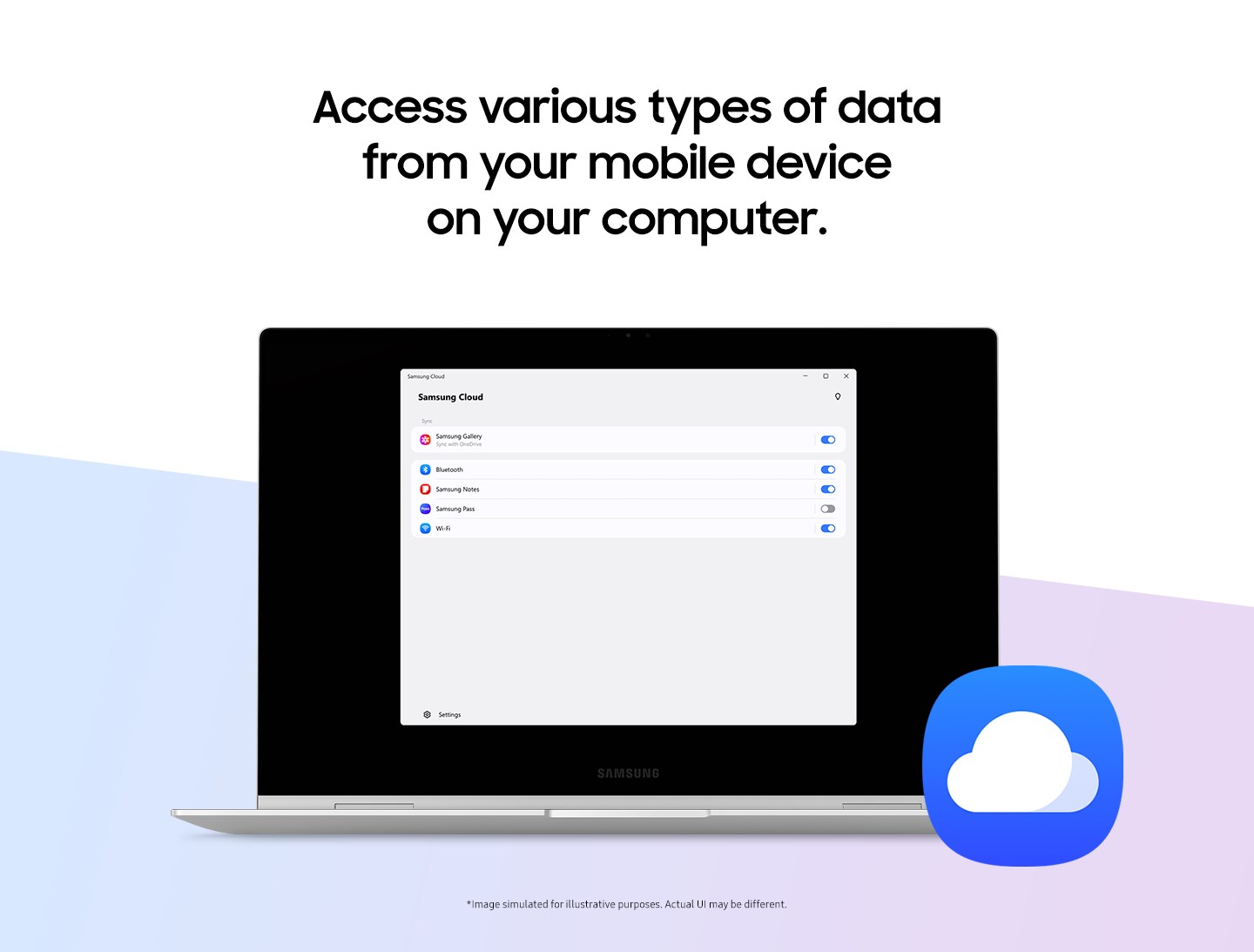
Developed by Samsung Electronics Co. Ltd., this app functions as a bridge between your Samsung smartphone and Windows computer, enabling smooth access and management of your cloud-stored data directly from your desktop. Its primary features include effortless photo and video synchronization, backup and restore capabilities, and seamless file sharing. Designed mainly for Samsung device owners who seek a cohesive ecosystem, the app aims to streamline their digital workflow without unnecessary complexity.
Engaging and User-Friendly Experience
Imagine standing at the intersection of your mobile world and your desktop workspace—Samsung Cloud for Windows acts as a friendly guide helping you navigate this junction. The interface exudes a clean, minimalistic aesthetic reminiscent of a well-organized digital library, making it inviting even for tech novices. The app's operation feels smooth as a well-oiled machine, with swift response times and intuitive navigation that minimize learning time. Whether you're a casual user wanting quick photo uploads or a professional backing up critical data, the app's straightforward layout makes the process feel like a stroll in the park rather than a high-stakes operation.
Core Functionality: Sync, Backup, and Sharing
Seamless Synchronization with Your Samsung Devices
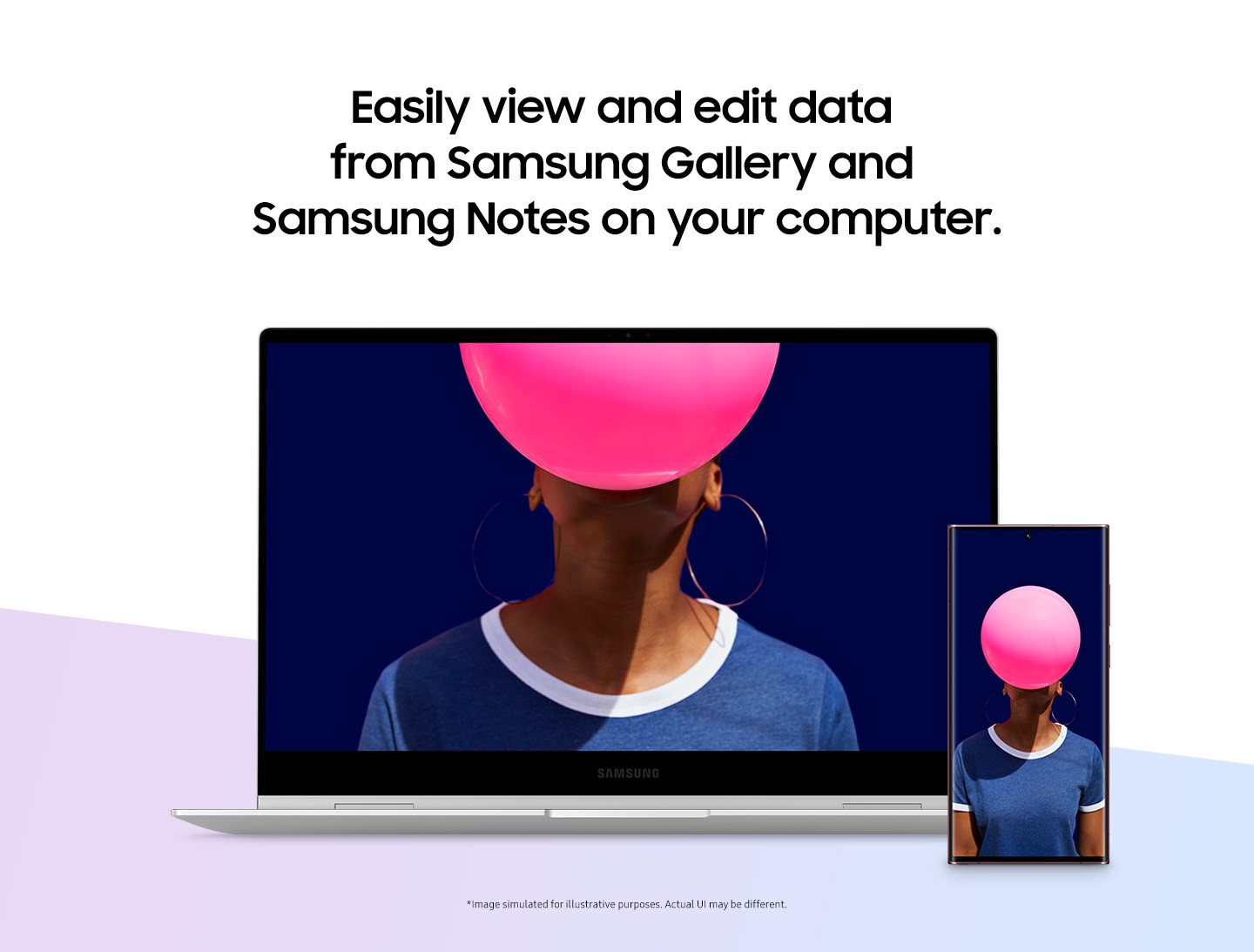
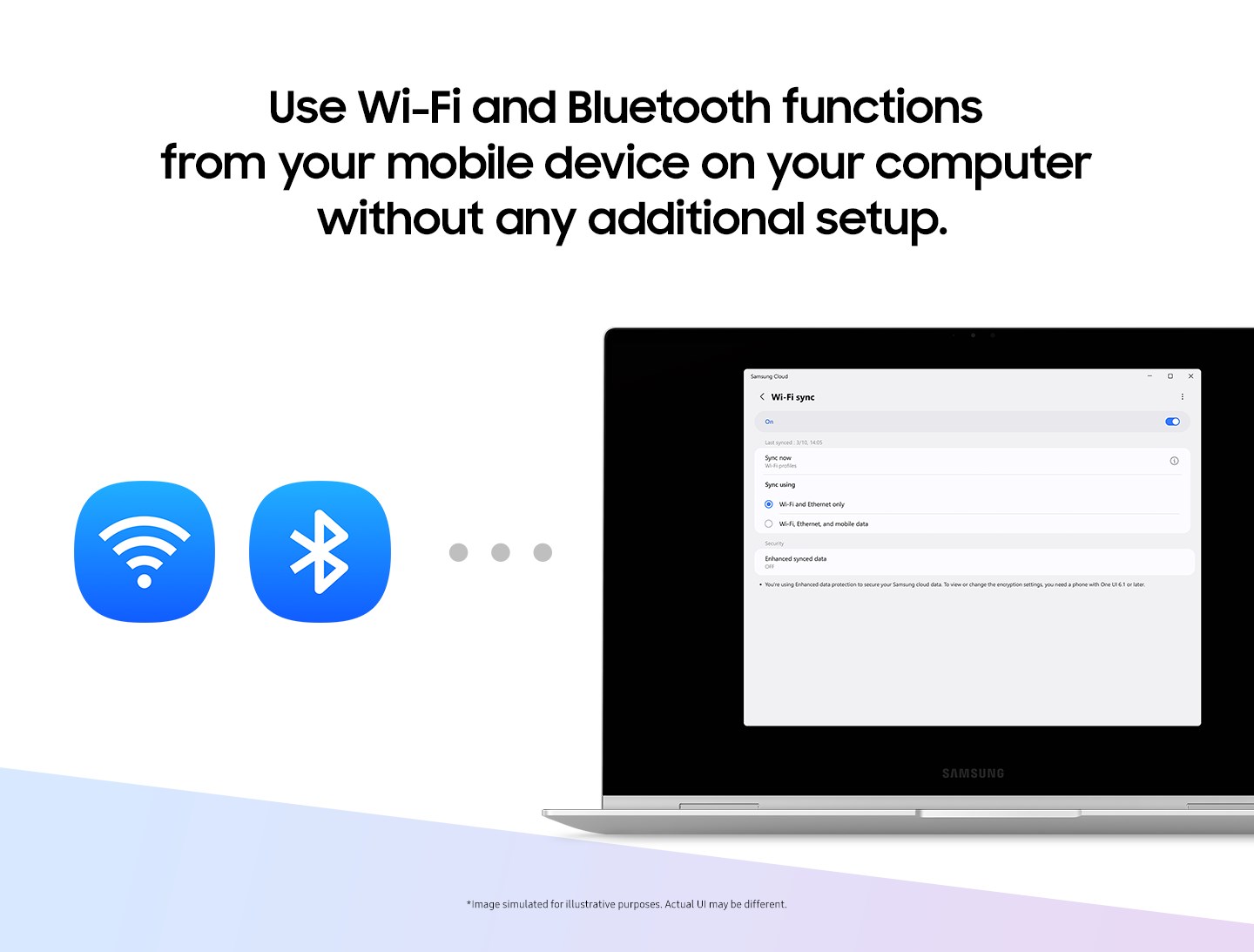
The standout feature of Samsung Cloud for Windows is its ability to automatically sync photos, videos, and documents between your Samsung device and PC. Imagine your smartphone and PC sharing a secret handshake, whereby new photos taken during the day instantly appear on your desktop's folder without you lifting a finger. This automatic sync reduces the cognitive effort of manually transferring files, freeing you to focus on more productive tasks.
Reliable Backup and Restore
This app functions as a personal safety net, allowing easy backup of important files directly from your PC. Restoring data from the cloud is similarly effortless—think of it as pulling a safety parachute when needed. This capability ensures your data remains protected and accessible, helping reduce the stress and uncertainty often associated with manual backups or using multiple apps for similar tasks.
Efficient File Sharing with Cross-Device Ease
Sharing files between your PC and Samsung device is as simple as drag-and-drop, with minimal setup needed. This simplicity enhances workflow efficiency for users who need quick access to files across devices, making the app a practical daily tool rather than a cumbersome add-on.
User Experience and Differentiation
Samsung Cloud for Windows offers a refreshingly straightforward experience compared to some feature-heavy, cluttered productivity tools. Its UI is akin to a well-organized workspace—nothing feels overwhelming, yet all essential functions are readily available. The app's lightweight design ensures operations are fluid, even on lower-powered machines, and its low learning curve means users can start benefiting immediately.
Unlike generic cloud solutions like Dropbox or OneDrive, Samsung Cloud is tightly integrated with Samsung's ecosystem. This focus reduces cognitive load—users don't have to remember multiple app interfaces or juggle different environments. The automatic synchronization and backup functions demonstrate a clear priority on workflow integration and efficiency, minimizing unnecessary steps or complex configurations. It's like having a personal assistant who anticipates your needs without cluttering your desk with extra tools.
Recommendation & Usage Suggestions
Overall, I recommend Samsung Cloud for Windows especially for users already invested in the Samsung ecosystem. It's most beneficial for those who prioritize simplicity, automatic sync, and reliable backup features over highly customizable but complex cloud platforms. For casual users, students, or professionals needing a straightforward solution that integrates smoothly into their daily workflow, this app is a solid choice. However, if your requirements include advanced collaboration features or extensive cross-platform integrations, you might consider more comprehensive options.
Pros
- Seamless Samsung device sync
- User-friendly interface
- Automatic cloud backup
- Large storage capacity integration
- Multi-device accessibility
Cons
- Limited file format support
- Occasional sync delays
- App stability issues on some devices
- Lack of advanced file management features
- Need for stable internet connection











