

- Name Samsung account
- Category Productivity
- Developer Samsung Electronics Co. Ltd.
- Available on PC, HoloLens
- OS Windows 10 version 17763.0 or higher
- languages Albanian, Arabic, Armenian, Assamese, Azerbaijani, Bangla (Bangladesh), Bangla (India), Basque, Belarusian, Bosnian (Latin), Bulgarian, Catalan, Chinese (Simplified), Chinese (Traditional), Chinese (Traditional, Hong Kong SAR), Croatian, Czech, Danish, Dutch, English (Canada), English (Philippines), English (United States), Estonian, Finnish, French, French (Canada), Galician , Georgian, German, Greek, Gujarati, Hindi, Hungarian, Icelandic, Indonesian, Irish, Italian, Japanese, Kannada, Kazakh, Khmer, Korean , Kyrgyz, Lao, Latvian, Lithuanian, Macedonian, Malay, Malayalam, Marathi, Mongolian (Mongolia), Nepali, Norwegian (Bokmål), Odia, Persian, Persian/Farsi, Polish , Portuguese (Brazil), Portuguese (Portugal), Punjabi (India), Romanian, Russian, Serbian (Latin), Sinhala, Slovak, Slovenian, Spanish (Argentina), Spanish (Chile), Spanish (Latin America), Spanish (Mexico), Spanish (Paraguay), Spanish (Spain), Spanish (United States), Spanish (Uruguay), Swedish, Tamil, Telugu, Thai, Turkish, Ukrainian, Urdu, Uyghur, Uzbek, Vietnamese
Unlocking Seamless Workflow: An In-Depth Review of Samsung Account for Windows
Navigating today's digital landscape requires a smooth blend of hardware and software harmony, and Samsung Account for Windows aims to be your trustworthy companion in this quest. Designed to streamline device management and enhance productivity, this app offers a tailored experience for Samsung device users on Windows platforms.
About the App: Essential Details in a Nutshell
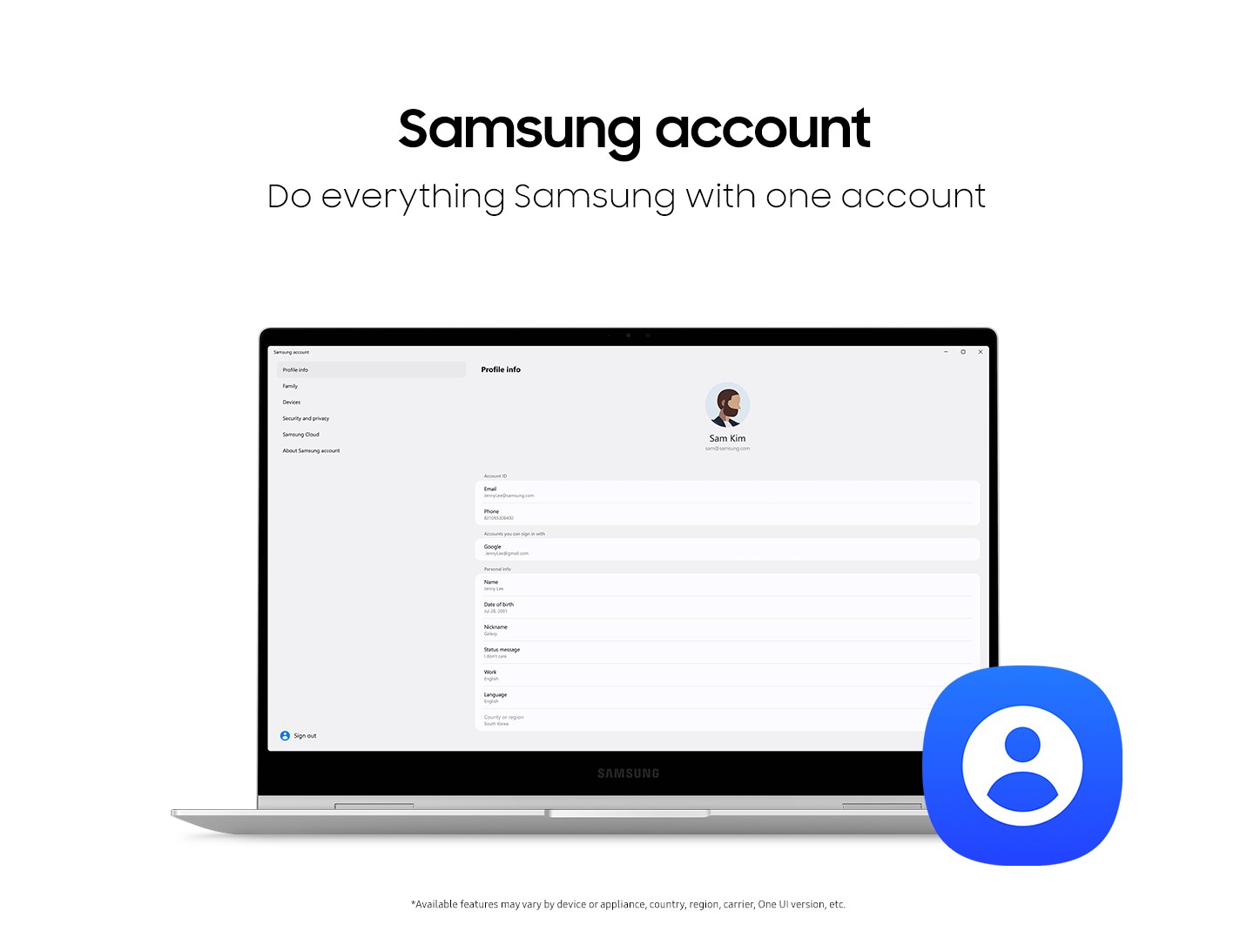
Samsung Account for Windows is a comprehensive platform that centralizes your Samsung device ecosystem within the Windows environment. Developed and published by Samsung Electronics Co. Ltd., the app focuses on facilitating device synchronization, data sharing, and personalized settings management. Key features include seamless device pairing, remote device management, and personalized content synchronization. This app mainly targets Samsung device owners who use Windows PCs—be it for work, leisure, or creative pursuits—seeking an integrated and efficient experience.
Engaging and Practical: An Introduction to the Experience
Imagine sitting at your desk, gazing at your sleek Windows laptop, and effortlessly accessing everything Samsung—from synchronizing your Galaxy smartphone notifications to controlling your tablet remotely, as if your devices share a secret language. Samsung Account for Windows is like a well-orchestrated conductor, ensuring that all your devices perform in harmony without missing a beat. Its streamlined interface and intuitive flow make device management feel less like juggling and more like a choreographed dance.
Core Features that Make a Difference
1. Effortless Device Synchronization and Management
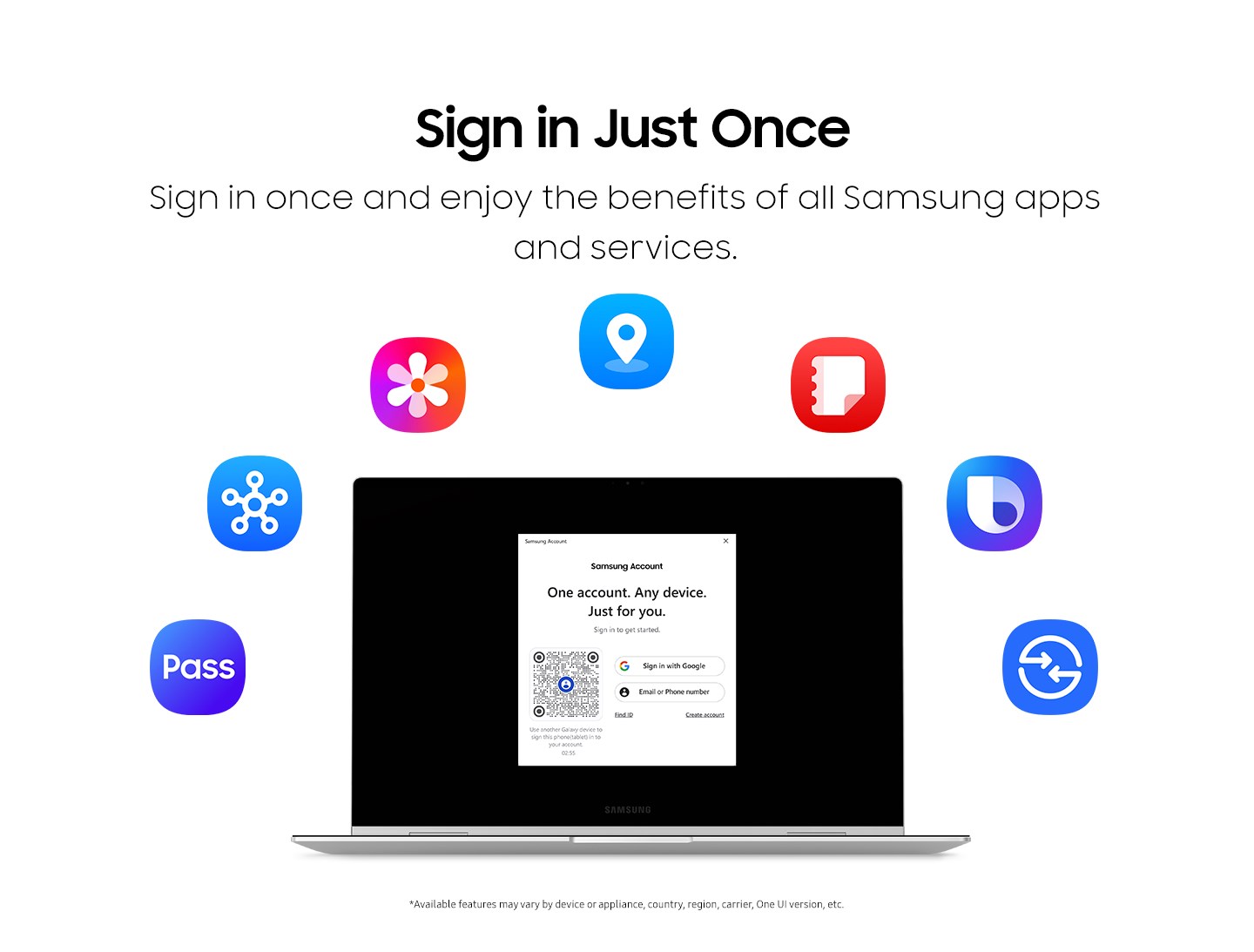
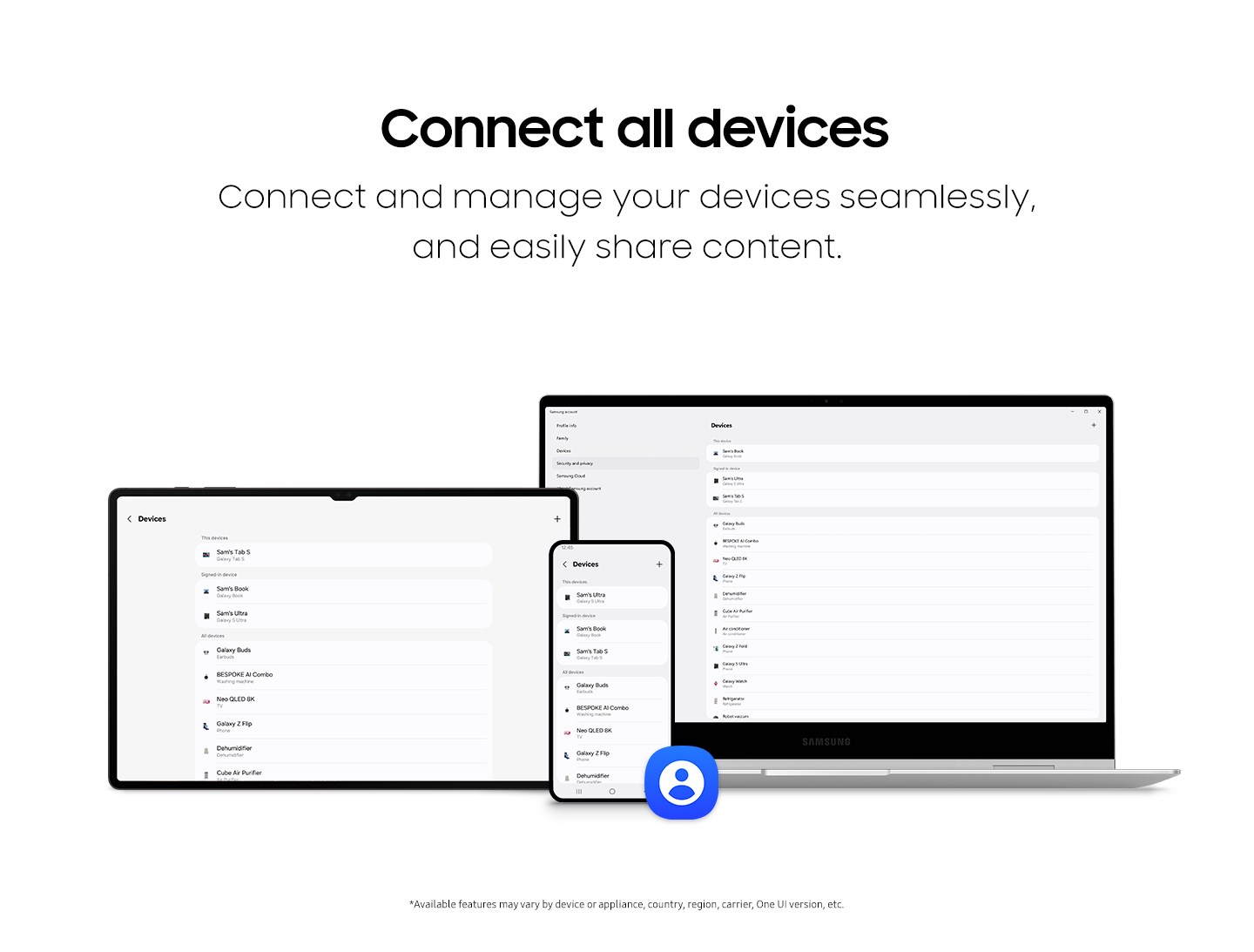
This feature acts as a central hub, enabling users to link their Samsung devices—smartphones, tablets, and even wearables—within the Windows environment. The process is straightforward: sign in once, and the app proactively syncs your preferences, notifications, and data across all devices. Compared to other productivity apps, Samsung Account's deep integration reduces cognitive load by eliminating the need to jump between different apps or accounts, making your digital life feel more unified and manageable.
2. Remote Device Control and Content Sharing
The app excels with its remote control functionalities, allowing users to interact with their Samsung devices directly from their Windows PC. Whether it's unlocking your Galaxy phone to retrieve photos or forwarding messages without picking up your device, this feature simplifies multitasking. Moreover, content sharing functions let you quickly transfer files between devices or share screen content seamlessly. These capabilities significantly cut down on redundant steps, streamlining work and entertainment workflows alike.
3. Personalized Experience with Smart Notifications
Stay connected without distraction. Samsung Account for Windows intelligently pushes notifications from your Samsung devices to your PC, ensuring you're never out of the loop. This reduces the cognitive effort required to switch devices constantly. Simple customization options further enhance this experience, letting you choose which alerts matter most—be it calls, messages, or app notifications—thus helping you focus while remaining connected.
Design, Performance, and User Experience
The app sports a clean, modern interface that resembles a well-organized dashboard—picture a well-lit control room where everything is within arm's reach. The transition between different sections is smooth, with fluid animations that enhance usability rather than distract. Response times are quick, with minimal lag even when managing multiple devices. Learning curves are gentle; most users will find themselves up and running within minutes, thanks to clear, concise instructions embedded within the app. Overall, the user experience feels polished, intuitive, and — importantly — efficient, reducing unnecessary cognitive load by consolidating features into a unified workspace.
Standout Differentiators: Simplicity Meets Depth
Compared with traditional productivity tools, Samsung Account for Windows shines in its workflow integration capabilities. Unlike generic device management apps that can be overwhelming with a plethora of options, Samsung's app focuses on core functionalities that truly matter—device synergy and content sharing—delivering each with a refined simplicity. Its ability to cut down on the mental effort typically required to switch contexts or manage multiple devices makes it a compelling choice for Samsung ecosystem enthusiasts. Essentially, it offers a smarter way to handle interconnected devices, emphasizing a balanced mix of feature richness without adding complexity.
Final Recommendation: Should You Use It?
If you're immersed in the Samsung ecosystem and seek a reliable, efficient way to manage your devices from your Windows PC, this app is worth exploring. Its strengths lie in reducing the friction of multi-device workflows, making daily tasks faster and less mentally taxing. For casual users, it provides enough automation and convenience to enhance everyday productivity. Power users and professionals who rely on multiple Samsung devices will find it indispensable for maintaining a cohesive and streamlined device environment.
Overall, Samsung Account for Windows stands out not just as a feature set but as a philosophy—making device management feel less like a chore and more like a well-oiled process. It's a practical tool that, when set up right, turns your Windows PC into the command center of your Samsung universe.
Pros
- User-friendly interface
- Seamless Samsung account integration
- Fast performance
- Regular updates with new features
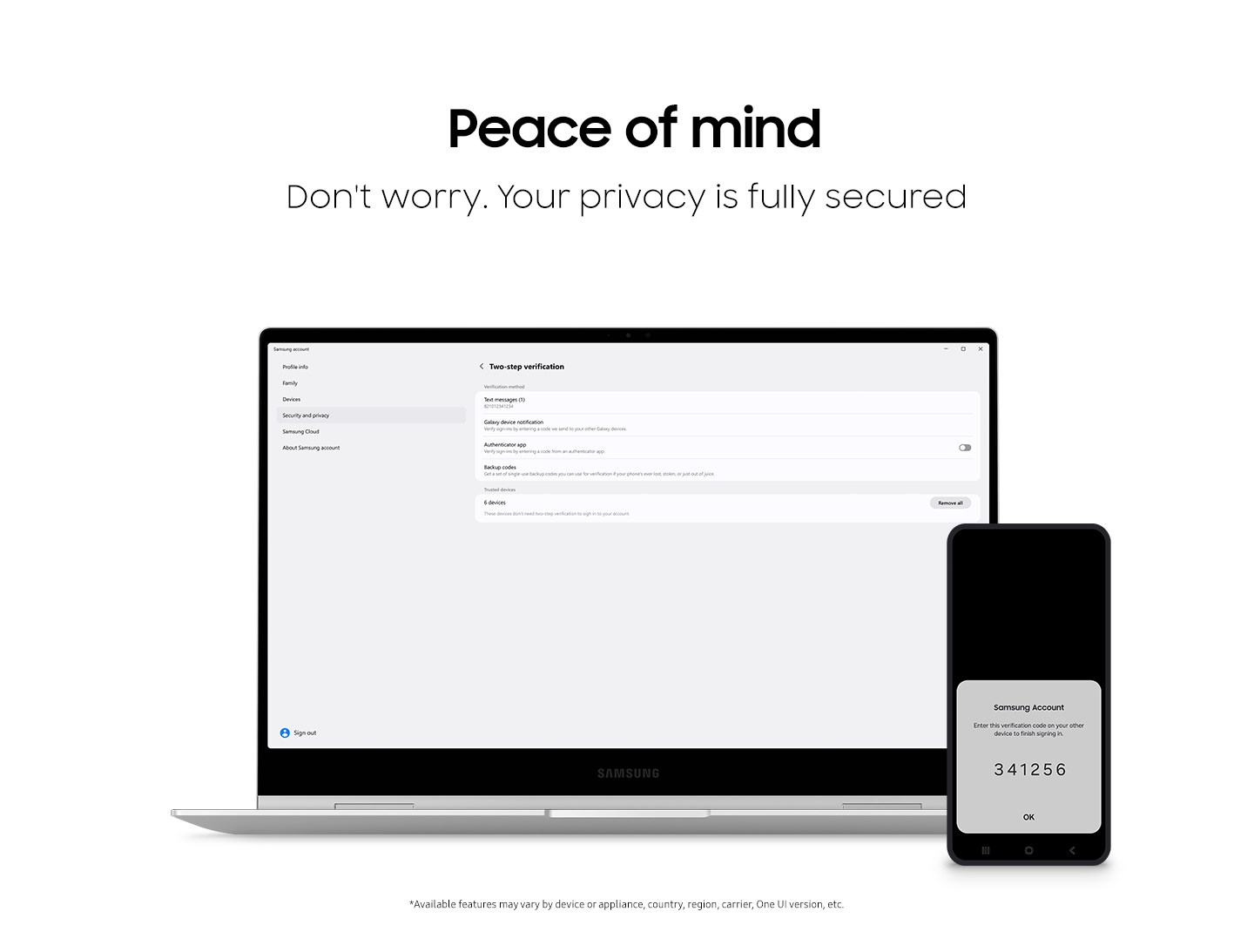
- Secure login process
Cons
- Limited device compatibility
- Occasional login issues
- Occasional slow loading times
- Limited customization options
- In-app advertisements











