
- Name RealVNC Server
- Category Productivity
- Developer RealVNC Ltd.
- Available on PC
- OS Windows 10 version 0.0 or higher
- languages English, Spanish, French, German, Portuguese (Brazil)
A Reliable Remote Access Tool That Keeps It Simple
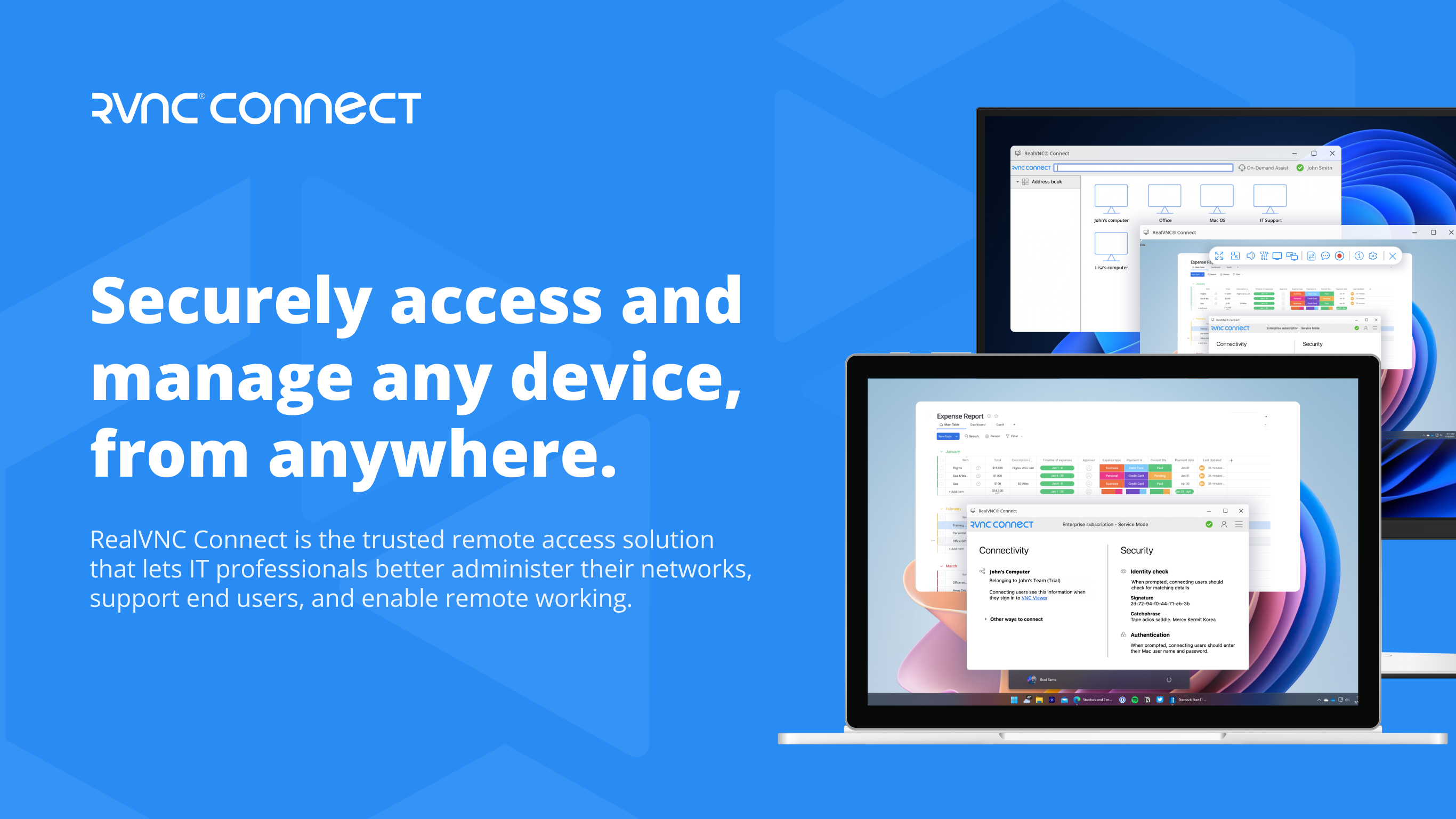
RealVNC Server for Windows acts as a seamless bridge allowing users to access and control their Windows machines remotely. Designed with efficiency and straightforwardness in mind, this application serves both IT professionals and casual users who need secure, reliable remote connectivity within their workflow.
Meet RealVNC Ltd.: The Brain Behind the Innovation
Developed by RealVNC Ltd., a company renowned for its longstanding expertise in remote access software, this product leverages a deep understanding of enterprise needs and user-friendly design. Their focus remains on providing robust, secure remote connectivity solutions that integrate effortlessly into various operational environments.
Key Features That Make a Difference
- Seamless Remote Control: Enables real-time access to Windows desktops from various devices, ensuring you can work or troubleshoot from anywhere without hassle.
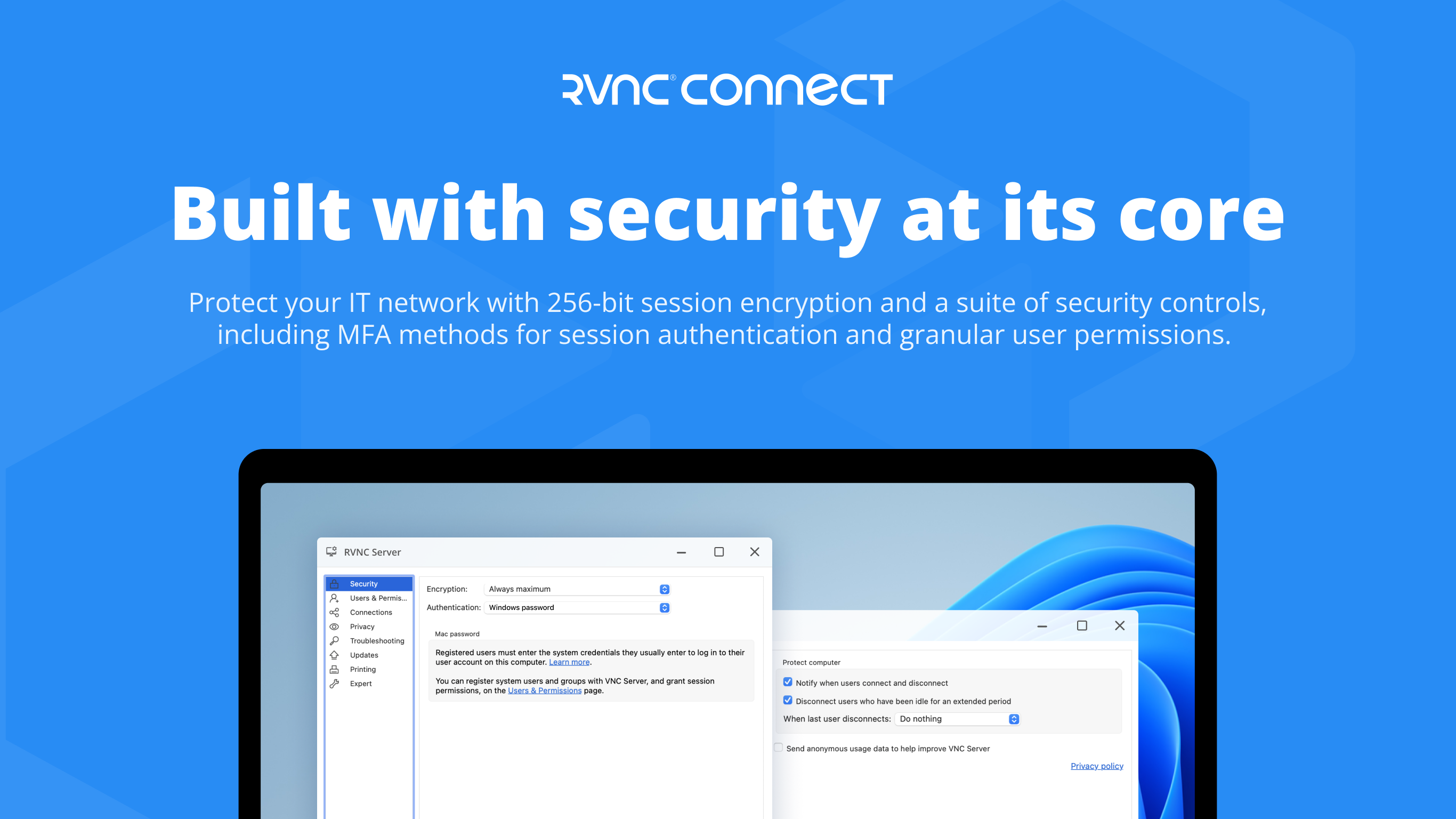
- Secure Data Transmission: Implements end-to-end encryption, safeguarding sensitive information during remote sessions—a necessity for professional environments.
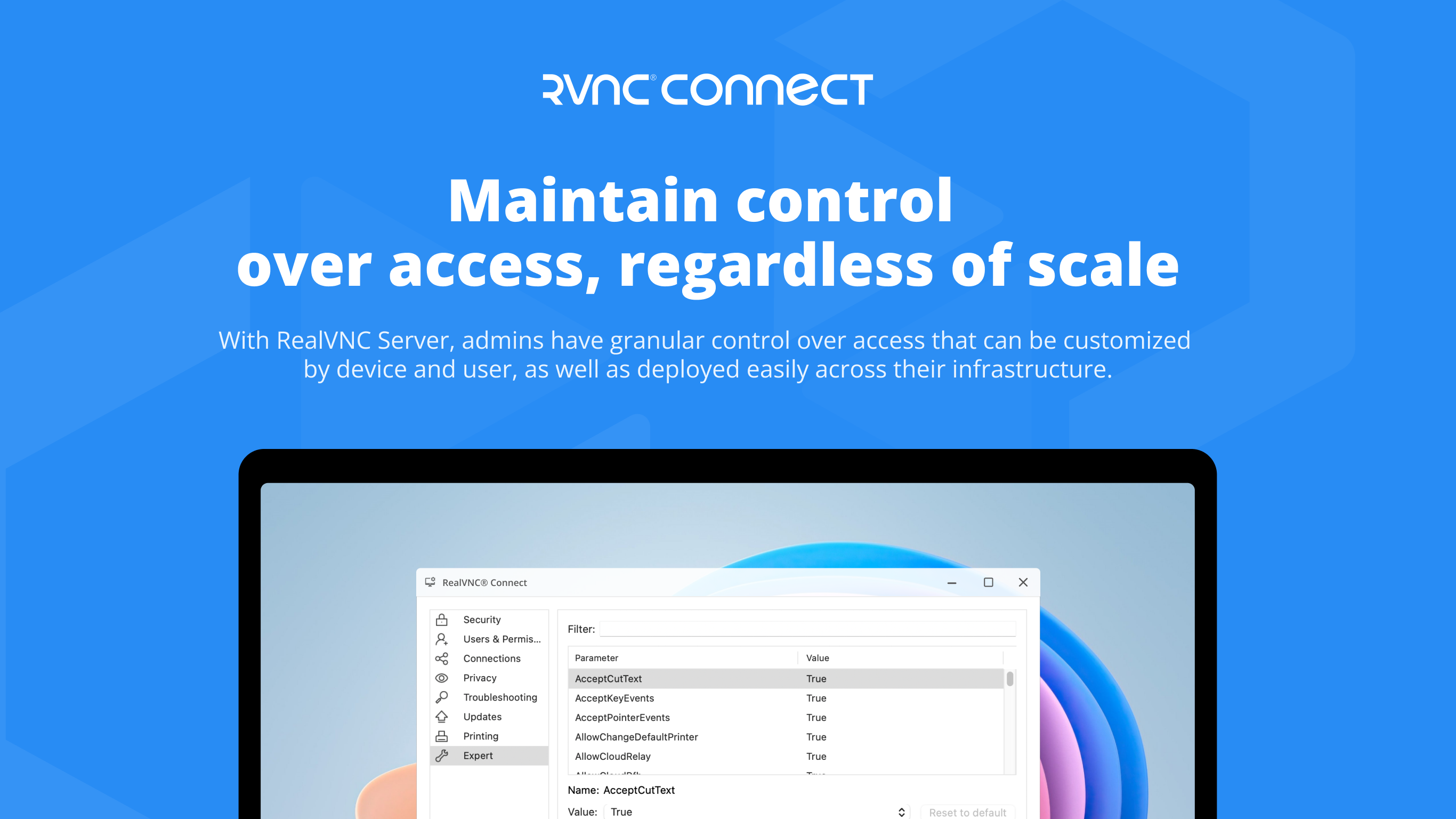
- Simple Setup and Management: Designed for quick installation and minimal configuration, reducing the learning curve and enabling immediate productivity.
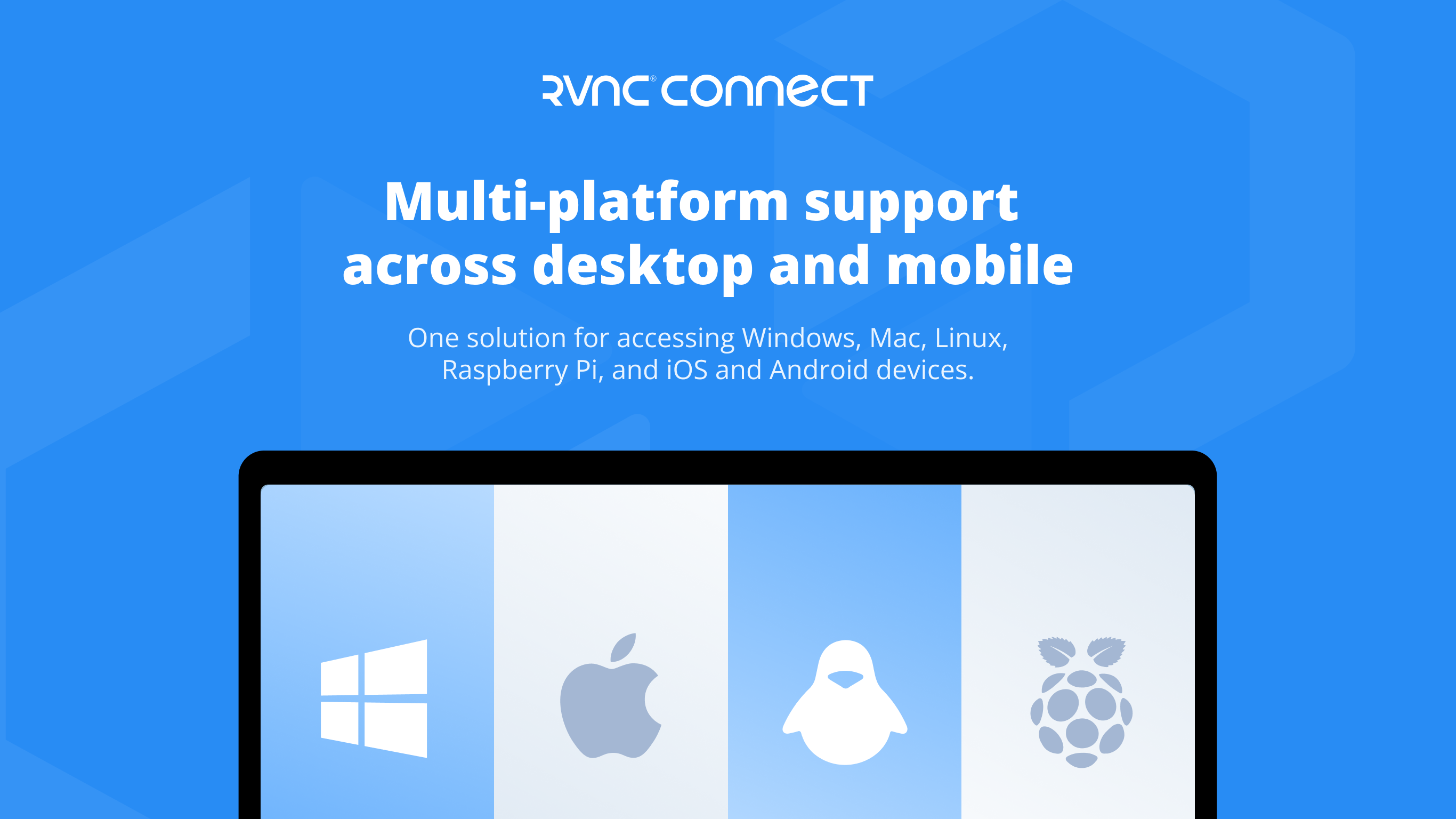
- Cross-Platform Compatibility: Supports connecting to Windows from multiple operating systems, enhancing flexibility for diverse user setups.
Diving Into the User Experience
Using RealVNC Server for Windows is akin to unlocking a door to your desktop from afar—everything feels intuitive from the start. The interface is clean and straightforward, with controls laid out logically, making navigation feel akin to operating a familiar app rather than a complex tool. Setup process is streamlined; much like turning a key, once configured, it smoothly opens access without laborious steps. During usage, operations are fluid, with minimal lag—imagine attending a virtual meeting with your desktop as if it's right beside you.
One of its standout aspects is how it balances powerful features with an approachable learning curve. It doesn't drown users in options but instead hones in on core functionalities that support efficient workflows. Users won't feel overwhelmed by clutter; instead, they get just what they need to stay productive.
Standout Advantages: Less Noise, More Focus
Compared to other productivity tools, RealVNC Server excels at integrating into your existing workflow without adding unnecessary cognitive load. Its core strength lies in delivering reliable remote access while maintaining simplicity—this cuts down on the mental effort usually required to master feature-rich applications. Unlike some competitors that can feel like navigating a maze of options, this app's minimalistic yet comprehensive design ensures users spend less time figuring out how to connect and more time actually working.
Particularly remarkable is its emphasis on security and cross-platform support, making it a worry-free choice for remote work scenarios. Rather than juggling multiple incompatible solutions, users can rely on one tool that plays well across different environments, streamlining their workflow and boosting efficiency.
Final Verdict: A Practical Choice for Remote Work
Given its ease of use, robust security, and focus on core remote access functionalities, I confidently recommend RealVNC Server for Windows to anyone needing a dependable remote control solution. It's especially suited for IT teams managing multiple endpoints or remote workers seeking quick and secure access to their desktops. For those who value stability and simplicity over labyrinthine features, this app is indeed a smart choice.
In summary, if your aim is to connect to your Windows machine effortlessly without sacrificing security or adding cognitive burden, RealVNC Server for Windows deserves a strong consideration. It's like having a reliable helper that's always ready to bridge the distance, with none of the fuss.
Pros
- Reliable remote access
- Cross-platform compatibility
- High-quality screen sharing
- Strong security features
- Easy setup and user interface
Cons
- Limited free features
- Occasional connectivity issues
- Resource consumption on host devices
- Limited customization options
- Pricing structure











