


- Name QuickLook
- Category Productivity
- Available on PC
- OS Windows 10 version 14316.0 or higher
- Keyboard Integrated Keyboard
- Mouse Integrated Mouse
- languages English (United States)
QuickLook for Windows: A Seamless Spotlight for File Previews
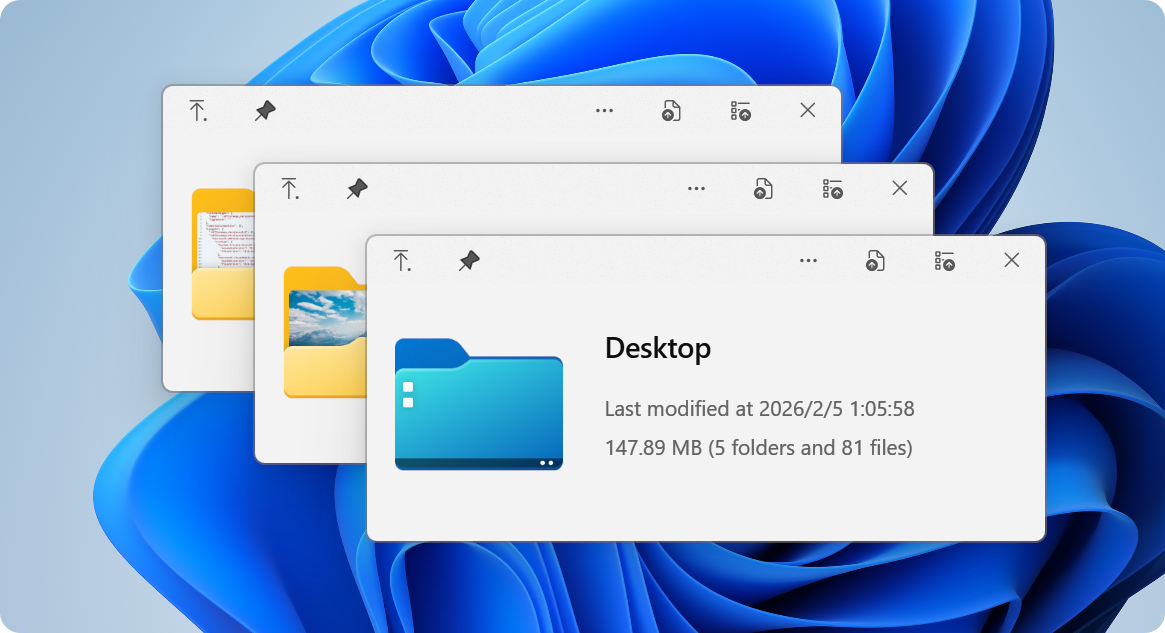
Imagine opening a folder and instantly seeing detailed previews of your files—no more constant back-and-forth opens and close cycles. QuickLook for Windows turns this dream into reality, offering a fast, integrated, and intuitive way to glimpse your documents, images, videos, and more at a glance. Think of it as your personal window into the contents of your files, all without disrupting your workflow.
About the App: Basic Information
QuickLook for Windows is a lightweight, yet powerful file preview tool designed to elevate your productivity by providing instant visual insights into your files. Developed by the team at emako, this application brings the familiar macOS Quick Look experience to a Windows environment, making file browsing more efficient and less stressful.
Its key highlights include support for a wide variety of file types, real-time previewing, and seamless integration into the Windows Explorer context menu. The target audience primarily comprises professionals, students, and anyone who handles a high volume of diverse files and seeks to streamline their workflow.
Engaging Efficiency: Why QuickLook Stands Out
Picture this: you're buried in a mountain of documents, videos, and images, trying to locate that one crucial file. Instead of wasting precious minutes opening each file, QuickLook acts like a magician, revealing detailed previews with a mere tap of the spacebar—or a right-click. It's like having a mini-magic mirror for all your files, instantly showing you what's inside, so you can decide quickly whether to open, ignore, or organize.
Core Functionality Highlights
1. Instant, Universal Previews
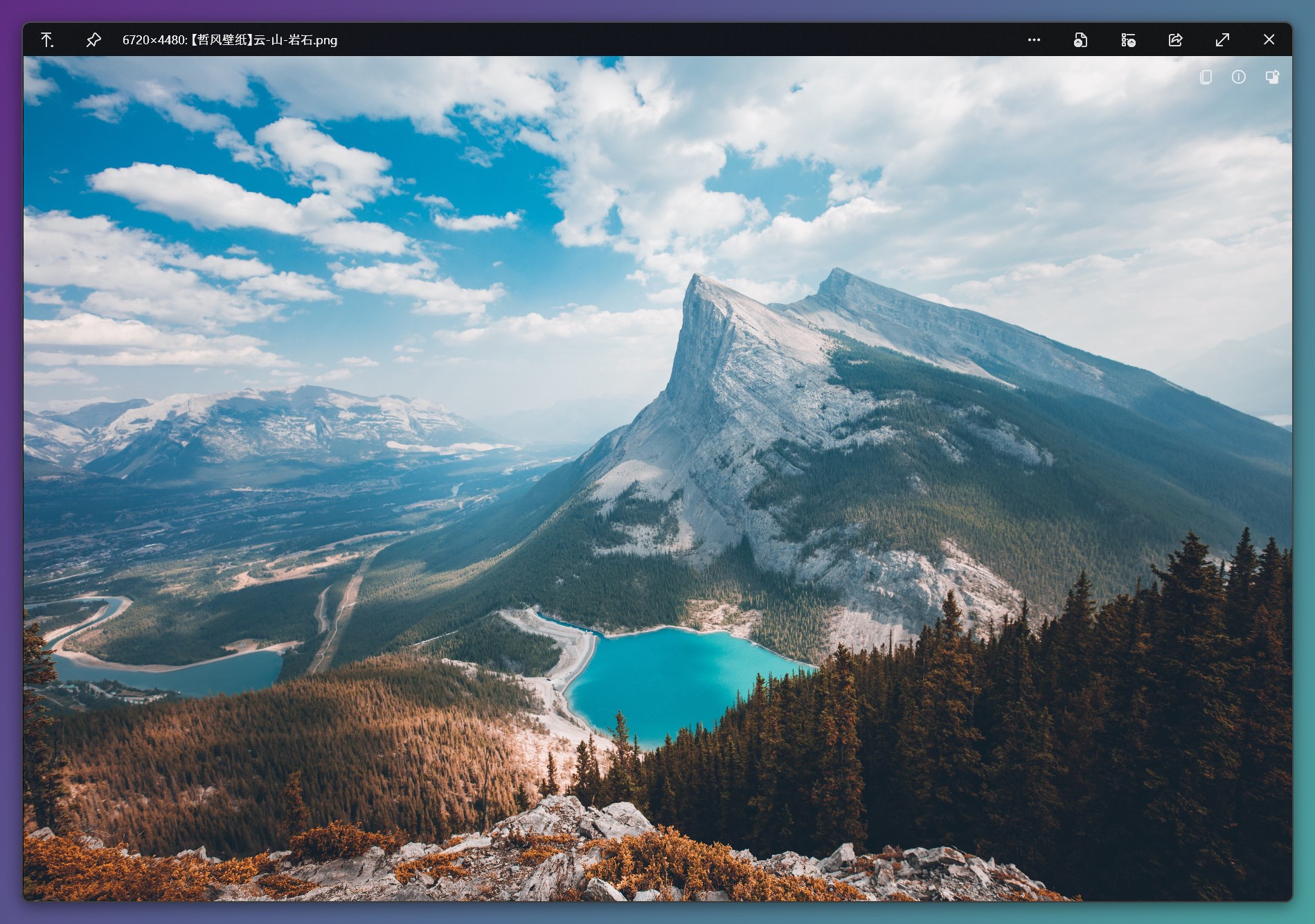
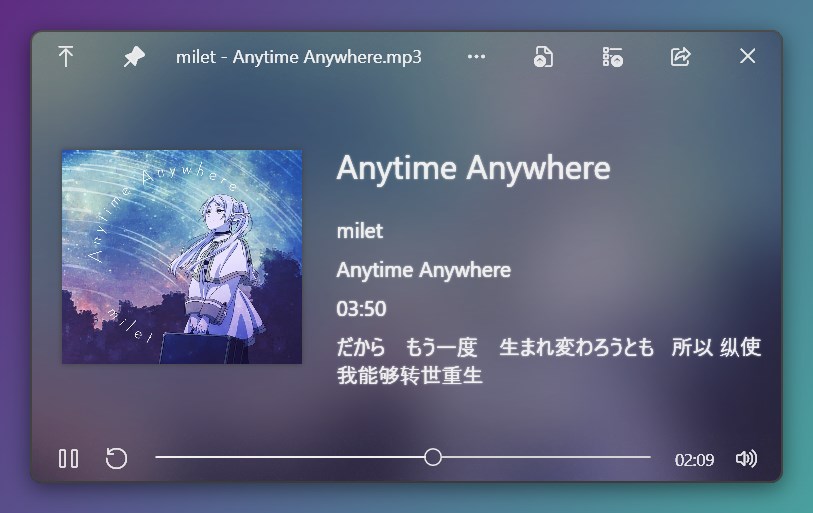
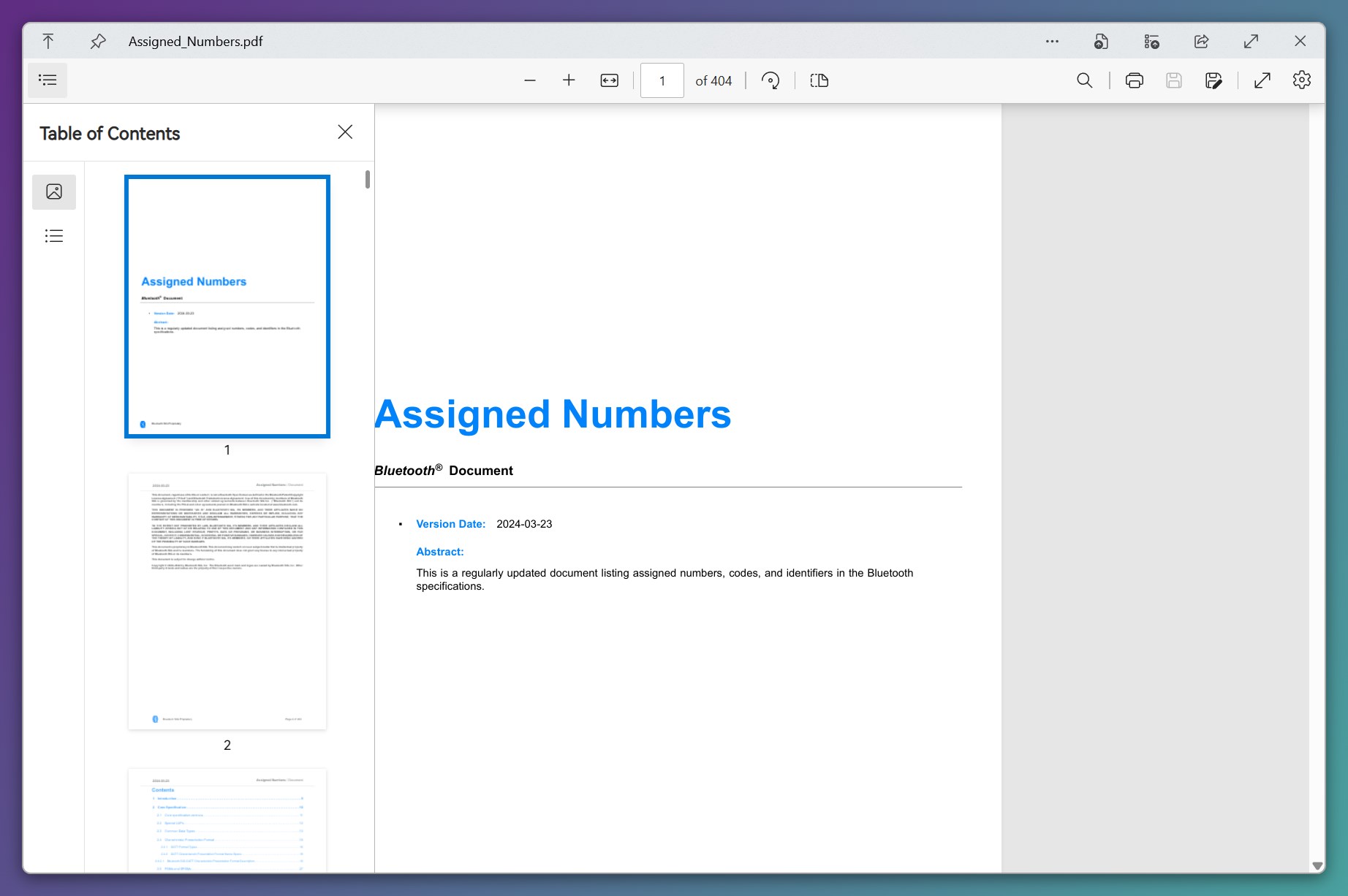
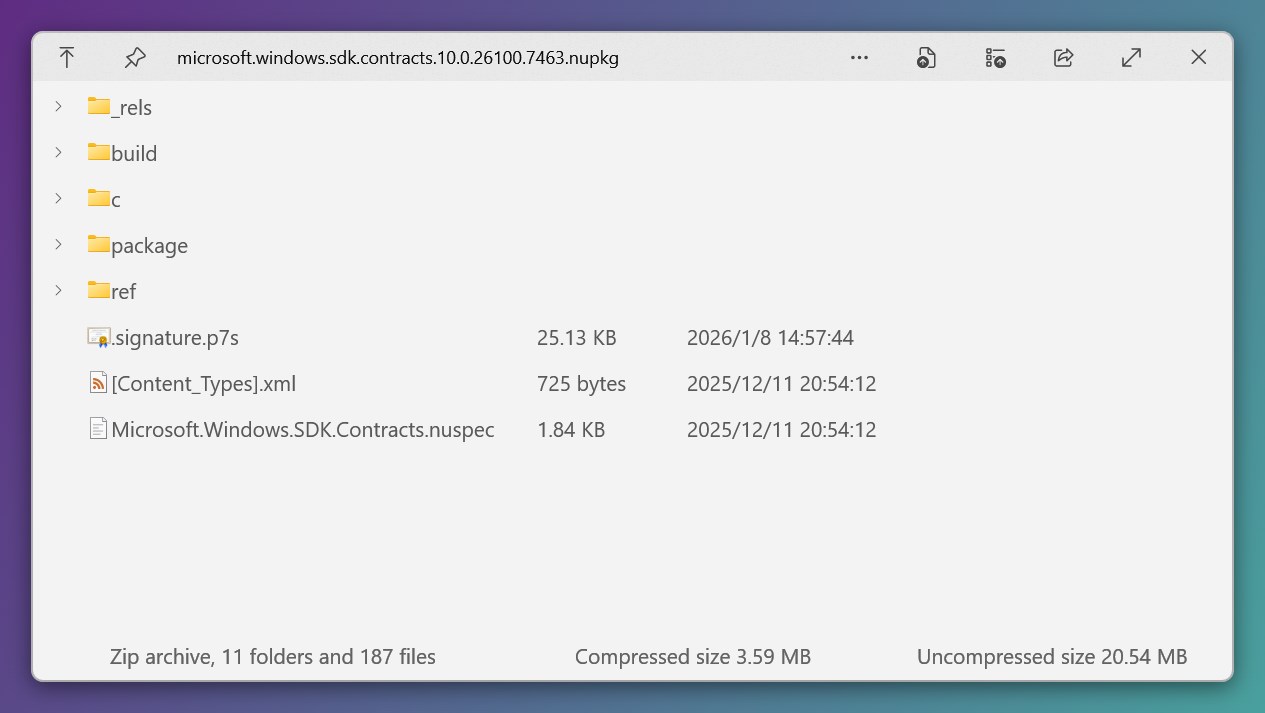
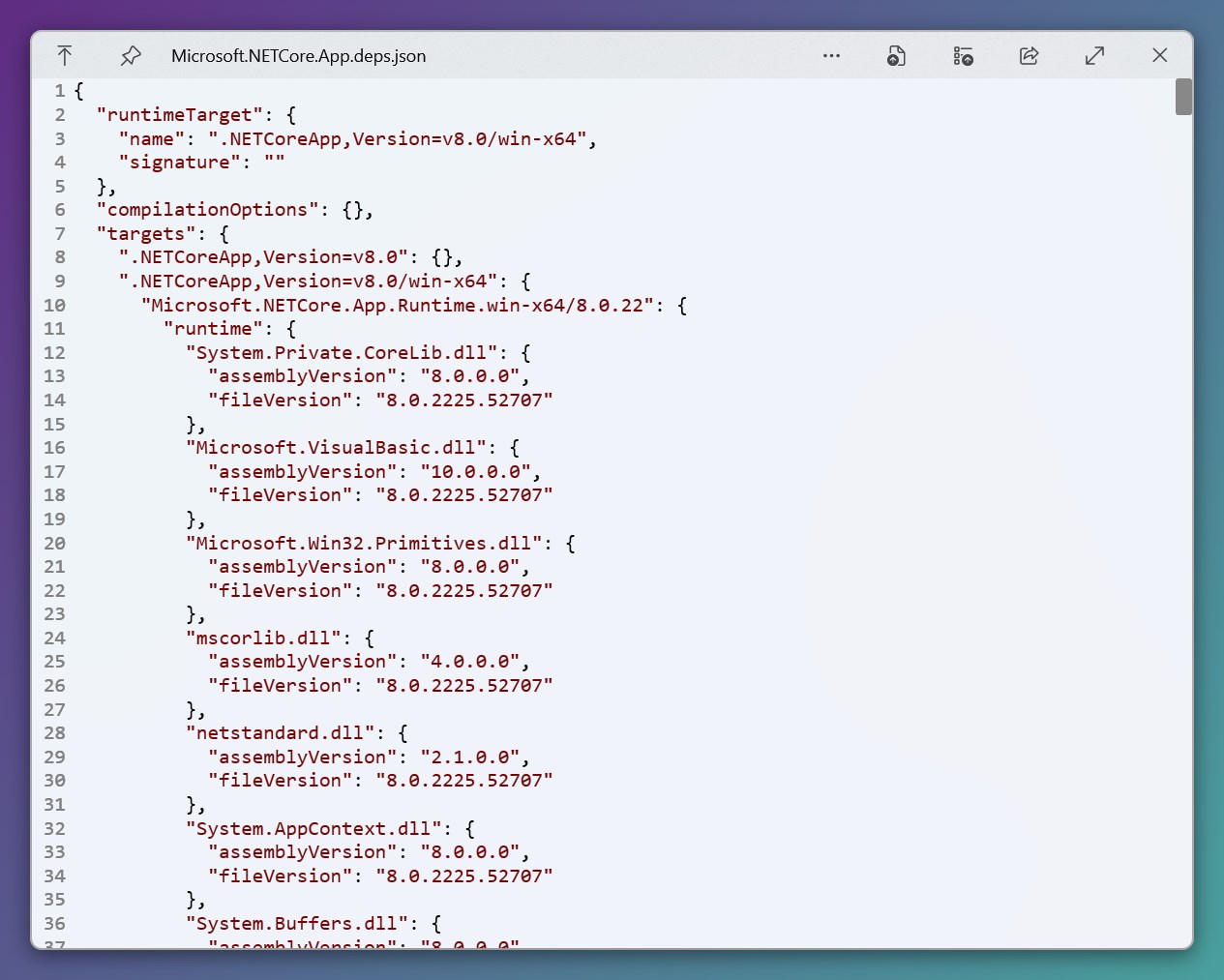
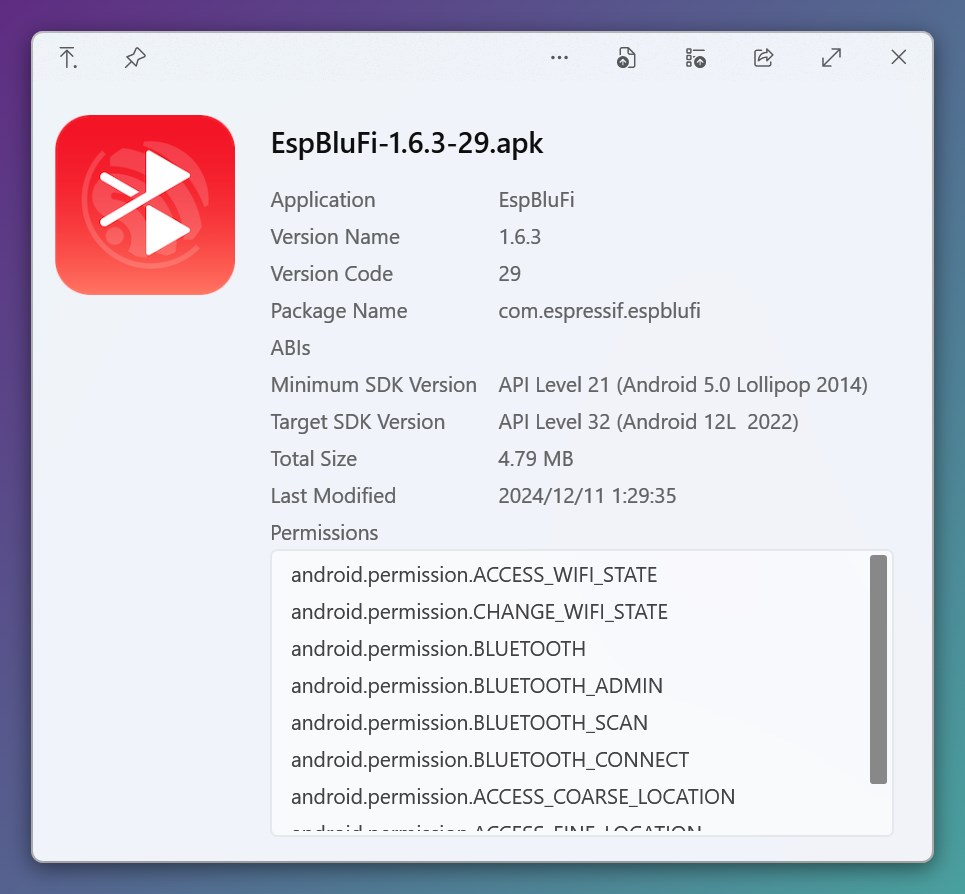
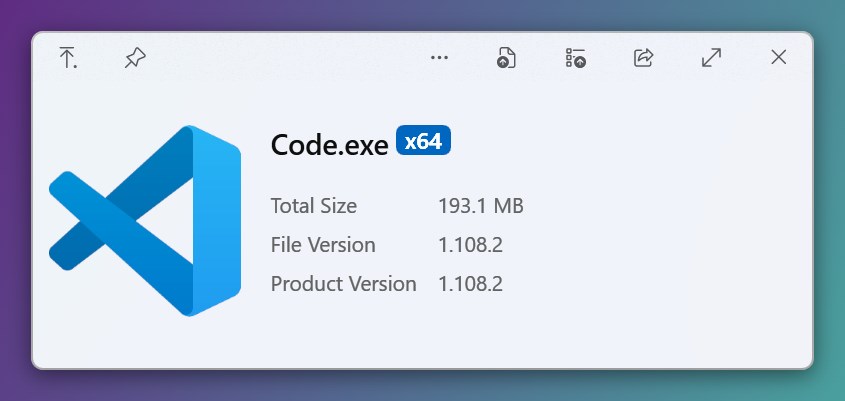
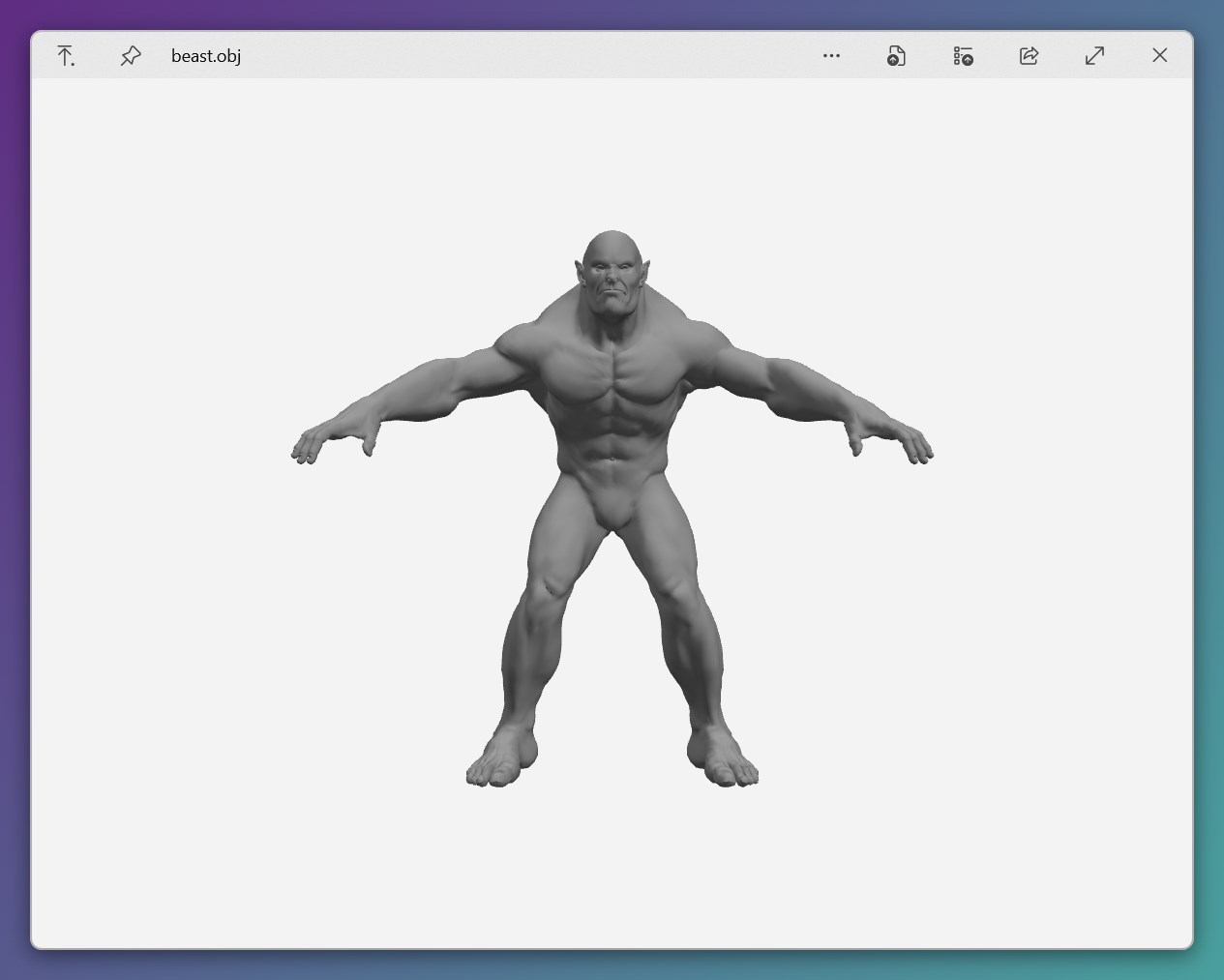
The standout feature of QuickLook is its ability to preview nearly any file type—images, PDFs, videos, and even complex office documents—directly from Windows Explorer. This means you can peek into a presentation slide deck or a high-resolution photo without waiting for applications to load, drastically reducing wait times and cognitive load. The app dynamically opens a pop-up window or pane over the folder window, displaying rich previews in real-time.
2. Seamless Workflow Integration
Unlike some third-party previewers requiring manual toggles or cumbersome interfaces, QuickLook integrates smoothly into your native Windows environment. A simple spacebar press offers instant access to previews, mimicking the familiar macOS experience and making for a minimal learning curve. It respects your existing workflow, so you can focus on your task without interruption or confusion. This tight integration is what makes QuickLook feel like a natural extension of Windows rather than an external add-on.
3. Minimalist Design for Maximal Productivity
The app sports a straightforward, clean interface that prioritizes function over form—think of it as a crisp, modern dashboard. It doesn't distract with unnecessary buttons or options; instead, it offers a clutter-free experience, encouraging focus. The interface's simplicity means users spend less time figuring out how the tool works and more time benefiting from its capabilities.
The User Experience: Fluid, Intuitive, and Approachable
From the moment you first launch QuickLook, the intuitive design invites you in like a trusted coworker offering a helpful hand. Its operation feels as effortless as flipping through a magazine; a quick keystroke, and your preview appears. The app's responsiveness is remarkable—slides render promptly, and there's no noticeable lag even with large files or high-resolution images. Its learning curve is gentle, suitable for tech novices and seasoned professionals alike.
Compared to other productivity tools, QuickLook emphasizes reducing cognitive load—no more juggling multiple applications, switching contexts, or fumbling through menus. Its minimalist approach to feature complexity ensures that users are not overwhelmed by options, which makes it especially suitable for busy workflows that demand speed and accuracy.
Distinctive Advantages: Focus on Workflow and Simplicity
What truly sets QuickLook apart from similar tools is its harmonious balance between feature breadth and operational simplicity. While some previewers boast a plethora of options but at the cost of bloated interfaces and steep learning curves, QuickLook maintains a Zen-like focus on core functionality—instant, reliable previews. It effectively reduces your cognitive load by eliminating unnecessary steps, enabling you to keep your attention on the task at hand.
Furthermore, its seamless integration into Windows Explorer means you can continue your usual workflow without disruptions, unlike third-party apps that force you to open separate windows or manually trigger previews. This harmony translates into more efficient workflow cycles, especially when managing large files or during rapid file comparisons.
Would I Recommend It? Usage Suggestions
Absolutely. For anyone who frequently navigates through a multitude of files—be it in academia, content creation, or corporate settings—QuickLook offers a tangible time and mental load savings. Its simplicity and speed make it an invaluable tool for quick assessments, reducing unnecessary opens and closes, and keeping your focus sharp.
For best results, I recommend integrating QuickLook into your daily routine if you value fast file insights and want a lightweight, non-intrusive preview solution. It's especially useful if you often work with multimedia and diverse document types. However, if you require extremely advanced file editing or markup tools, this app should be viewed as a complementary utility—not a replacement for dedicated applications.
In summary, QuickLook for Windows is a thoughtfully designed, high-impact productivity booster that transforms how you interact with your files. Its focus on effortless, instant previews and smooth workflow integration makes it a trusty sidekick in the quest for efficiency—and I happily recommend giving it a try.
Pros
- Instant File Previews
- User-Friendly Interface
- Customizable Hotkeys
- Lightweight Performance
- Supports Multiple File Formats
Cons
- Limited Preview Customization
- Occasional Preview Failures
- Requires Windows 10 or Later
- No Batch Preview Feature
- Limited Annotation Tools











