

- Name Power Automate
- Category Productivity
- Available on PC
- OS Windows 10 version 17763.0 or higher
- Keyboard Integrated Keyboard
- Mouse Integrated Mouse
- languages Basque, Bulgarian, Catalan, Chinese (Simplified), Chinese (Traditional), Croatian, Czech, Danish, Dutch, English (United States), Estonian, Finnish, French, Galician , German, Greek, Hindi, Hungarian, Indonesian, Italian, Japanese, Kazakh, Korean , Latvian, Lithuanian, Malay, Norwegian (Bokmål), Polish , Portuguese (Brazil), Portuguese (Portugal), Romanian, Russian, Serbian, Serbian (Latin, Serbia), Slovenian (Slovenia), Spanish (United States), Swedish, Thai, Turkish, Ukrainian, Vietnamese
Empowering Workflow Automation on Windows: An In-Depth Look at Power Automate for Windows
Imagine transforming your repetitive daily tasks into seamless, automated workflows that run effortlessly in the background—Power Automate for Windows makes this vision a reality, providing users with a robust tool to streamline productivity directly from their desktops.
Basic Information: What Is Power Automate for Windows?
Power Automate for Windows is a desktop application designed to enable users to create automated workflows that connect various services and applications, enhancing productivity through effortless task management.
Developed by
Microsoft Corporation, renowned for its enterprise-level productivity tools and cloud services, develops and maintains Power Automate for Windows.
Main Features at a Glance
- Seamless Workflow Creation: Easily design workflows that integrate Windows apps, cloud services, and third-party applications.
- Rich Connectivity: Connects with a myriad of Microsoft 365 apps, Azure, and external services like Twitter, Dropbox, and more.
- Pre-Built Templates: Offers a variety of ready-to-use templates, reducing setup time and complexity for common automation tasks.
- Trigger-Based Automation: Initiate workflows based on specific events like file changes, emails, or scheduled times.
Target Audience
This application caters to business professionals, IT administrators, and power users seeking to optimize workflows, automate repetitive tasks, and bridge application gaps on Windows desktop environments.
Vivid Introduction: Turning Manual Boring into Automated Brilliant
Picture this: you're sitting at your desk, staring at a mountain of emails, daily reports, and mundane data entry. Power Automate for Windows acts like your digital assistant, quietly working behind the scenes—saving you hours of tedious manual labor, allowing you to focus on what truly matters. This app is like having a personal task conductor, orchestrating actions across your favorite apps and services with a few clicks or even just a prompt. It's not just productivity; it's liberation from repetitive chores, coded elegantly into your workflow.
Deep Dive into Core Features
Intuitive Workflow Builder and Templates
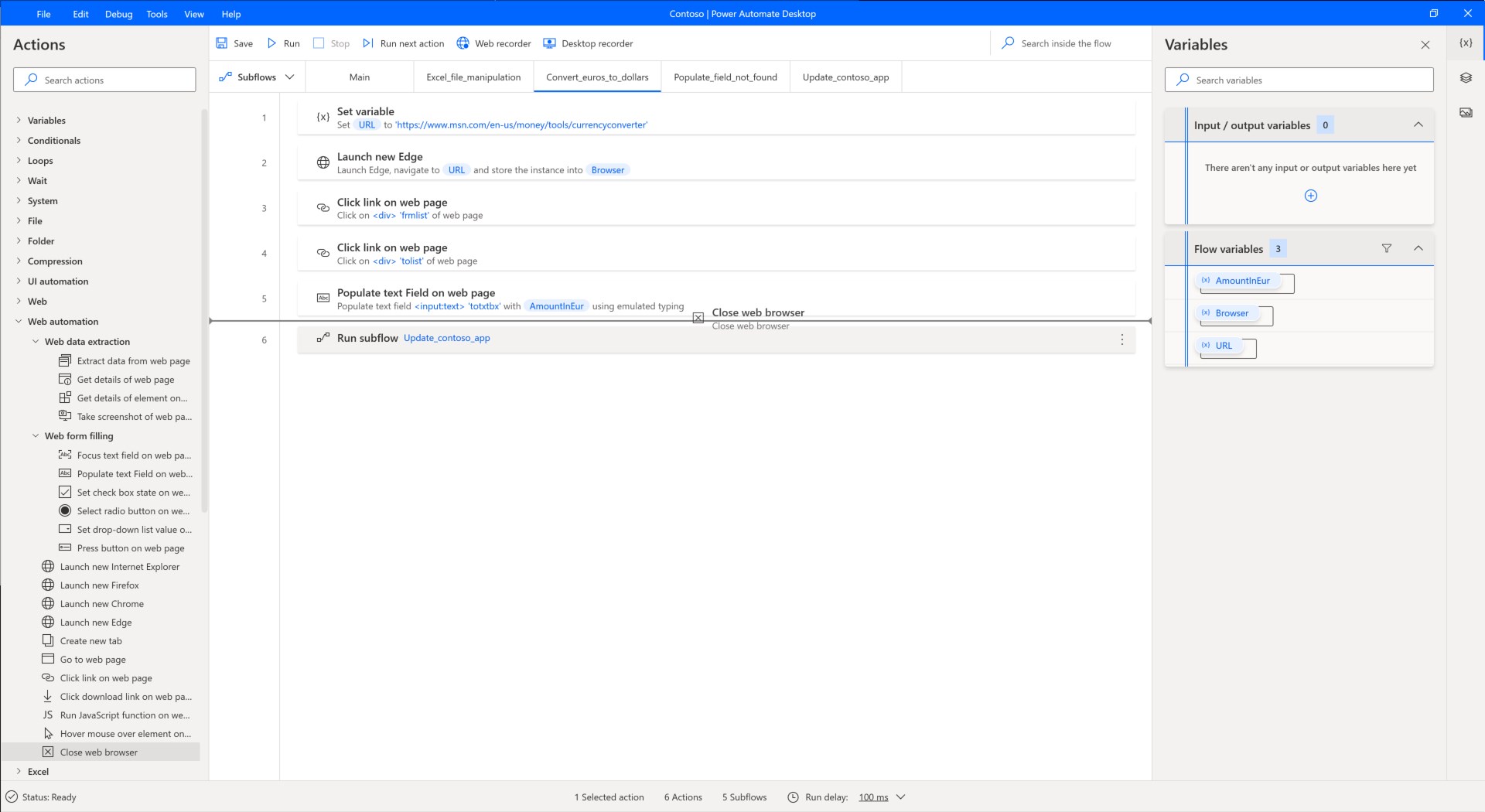
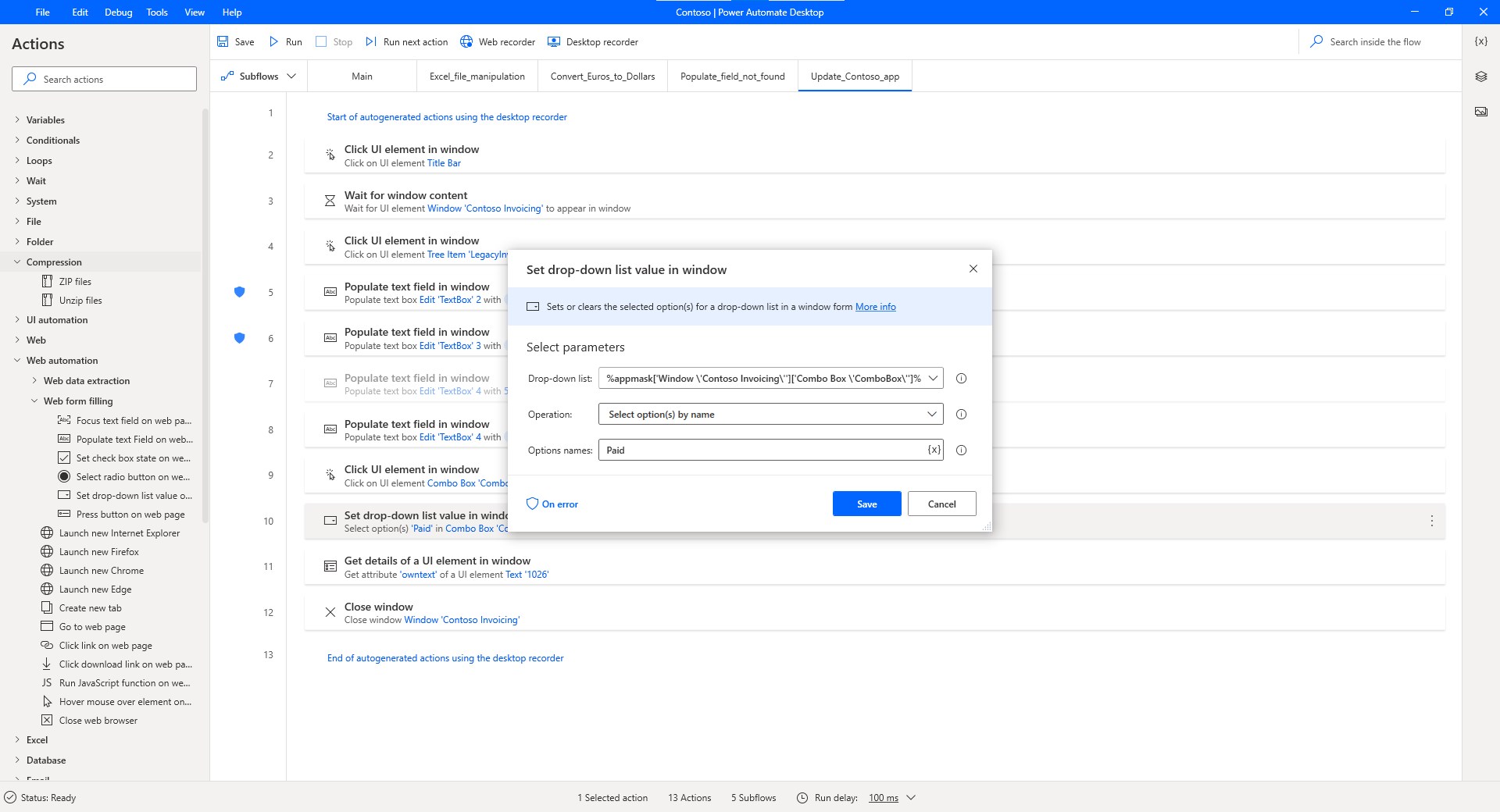
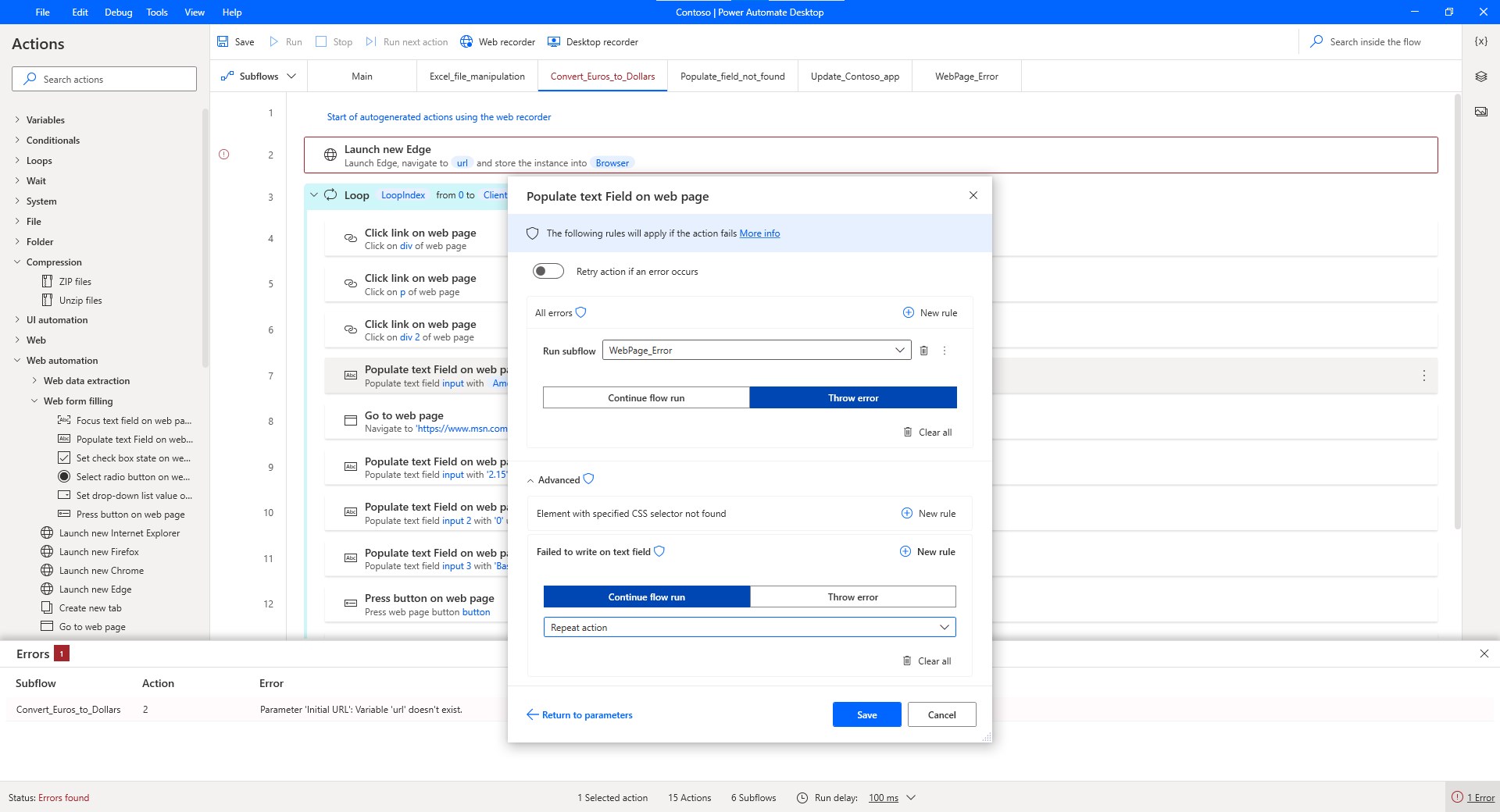
The heart of Power Automate is its user-friendly workflow designer. Designed with a drag-and-drop interface, it transforms complex processes into visual maps, making automation accessible even to users with minimal coding experience. The library of pre-built templates acts like a treasure chest—imagine pulling out an automation recipe for saving email attachments directly to OneDrive or reminding team members of upcoming deadlines. These templates considerably lower the entry barrier, providing a quick launch pad for personalized automation routines.
Robust Connectivity and Trigger Mechanisms
This application excels in connecting diverse applications through a rich ecosystem of connectors. Whether it's automating responses to incoming emails, syncing files between services, or scheduling tasks, Power Automate leverages triggers that kick off workflows—think of these as the starting gun in a race. For instance, a new file uploaded to Dropbox can automatically trigger a data entry in Excel, all orchestrated seamlessly. This level of integration reduces cognitive load by automating multi-step processes that previously required manual intervention.
Automation Management and Monitoring
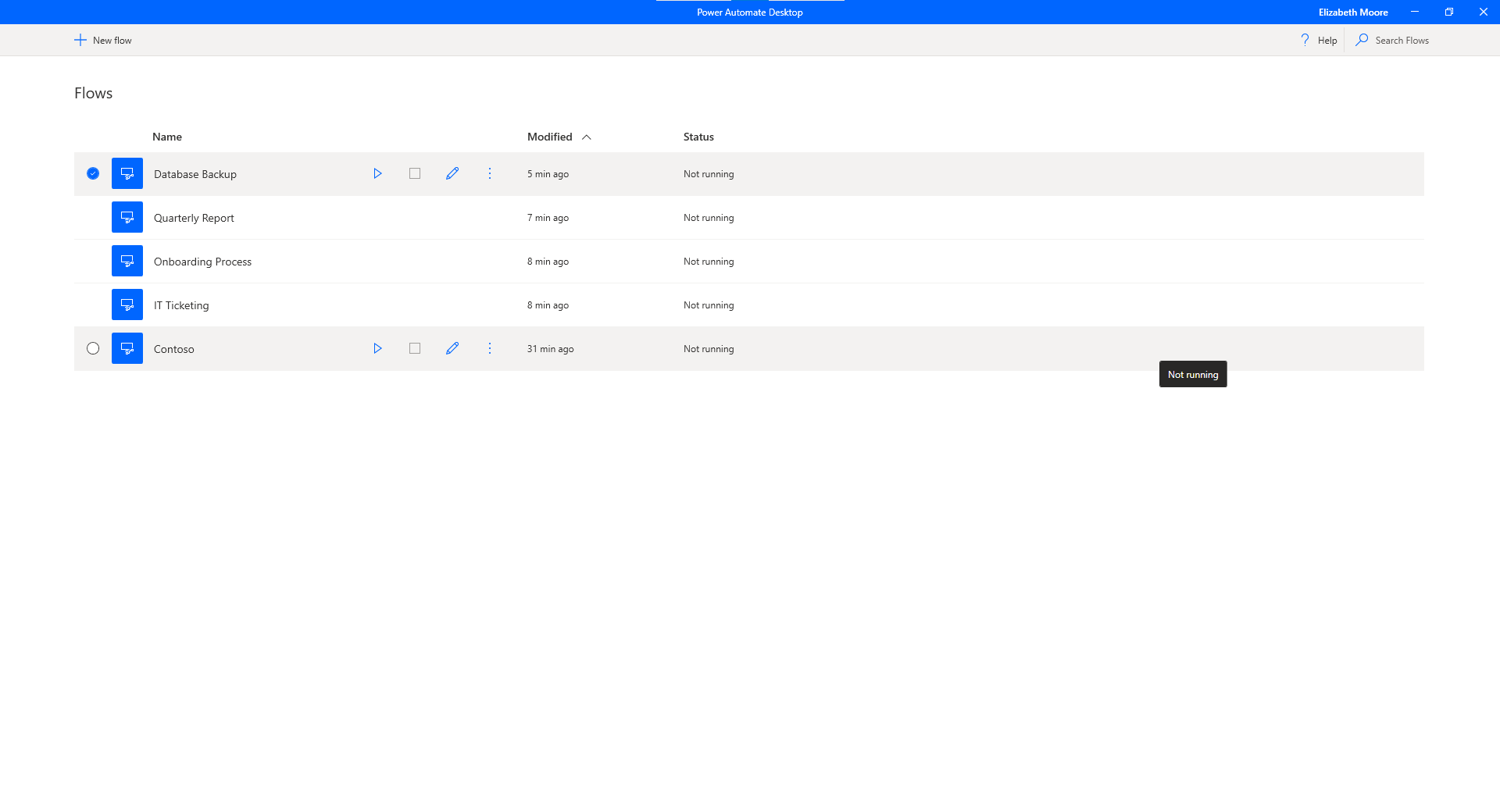
Once workflows are active, the app offers an intuitive dashboard showing real-time status, execution history, and success rates. This transparency turns automation from a mysterious black box into a manageable component—think of it like having a control tower that ensures your digital routines are running smoothly, alerting you only when manual intervention is needed. The straightforward management experience ensures users spend less time troubleshooting and more time leveraging their automated workflows.
Understanding the User Experience and Differentiators
The interface of Power Automate for Windows balances simplicity with depth. Unlike some productivity tools that drown users in settings and options, Microsoft's design presents a gentle learning curve, akin to entering a well-organized workshop rather than a cluttered garage. The overall operation is fluid—dragging, dropping, and configuring workflows feels natural, with minimal lag or complexity.
What sets Power Automate apart from similar platforms like IFTTT or Zapier is its superior workflow integration efficiency tailored to Windows environments. Its direct integration with Microsoft 365 apps and enterprise-grade connectors reduces the cognitive load—users do not need to juggle multiple apps with complex configurations. Instead, they orchestrate tasks from a centralized platform with clarity and precision. This focus on reducing feature complexity while maximizing functionality makes it an attractive choice for professional settings.
Recommendations and Use Cases
Power Automate for Windows earns a solid recommendation for users who crave automation but prefer a straightforward, manageable platform. Business teams aiming to streamline document workflows, IT departments automating service requests, or individuals looking to minimize routine tasks will find this tool particularly beneficial. For those already entrenched in the Microsoft ecosystem, its deep integrations amplify productivity gains.
However, if your needs involve highly specialized or complex multi-app workflows outside the Microsoft environment, you might find some limitations. Still, for most standard automation scenarios, this app offers a compelling balance between power and usability.
In summary, Power Automate for Windows is like your digital assistant that simplifies workflow orchestration—efficiently reducing cognitive load without overwhelming you with features. Whether you're starting small or building enterprise-level automation, this tool is worth exploring, especially if you prioritize seamless integration and user-friendly design.
Pros
- Intuitive workflow automation
- Wide range of integrations
- Pre-built templates available
- Cloud-based platform
- Robust support for event triggers
Cons
- Steep learning curve for advanced features
- Limited customization options in templates
- Occasional performance latency
- Pricing can be restrictive for large-scale use
- Limited offline functionality











