
- Name PDF-XChange Editor
- Category Productivity
- Developer PDF-XChange Co Ltd.
- Available on PC
- OS Windows 10 version 0.0 or higher
- Keyboard Integrated Keyboard
- Mouse Integrated Mouse
- Memory 2 GB
- languages Arabic, Azerbaijani (Latin), Czech, Danish, English, French, German, Greek, Finnish, Galician, Hebrew, Croatian, Hungarian, Indonesian, Italian, Japanese, Korean, Dutch, Polish, Portuguese, Portuguese (Brazil), Portuguese (Portugal), Russian, Romanian, Slovak, Slovenian, Serbian (Latin, Serbia), Spanish, Swedish, Kiswahili, Thai, Turkish, Ukrainian, Chinese (Simplified), Chinese (Traditional) (Taiwan), Chinese (Traditional Chinese), Czech, Danish, Serbian (Latin), Serbian
Unveiling PDF-XChange Editor: A Robust Tool for PDF Management on Windows
If you often find yourself juggling multiple PDFs—annotating, editing, or converting—then the PDF-XChange Editor for Windows is like having a Swiss Army knife in your digital toolbox. Designed to streamline your PDF workflows, this application promises a balance between powerful features and an approachable interface, making document management less of a chore and more of a seamless experience.
About the Developer and Core Features
Developed and published by PDF-XChange Co Ltd., this application is positioned as a comprehensive PDF editing solution tailored for professionals, students, and casual users alike. The main highlights include:
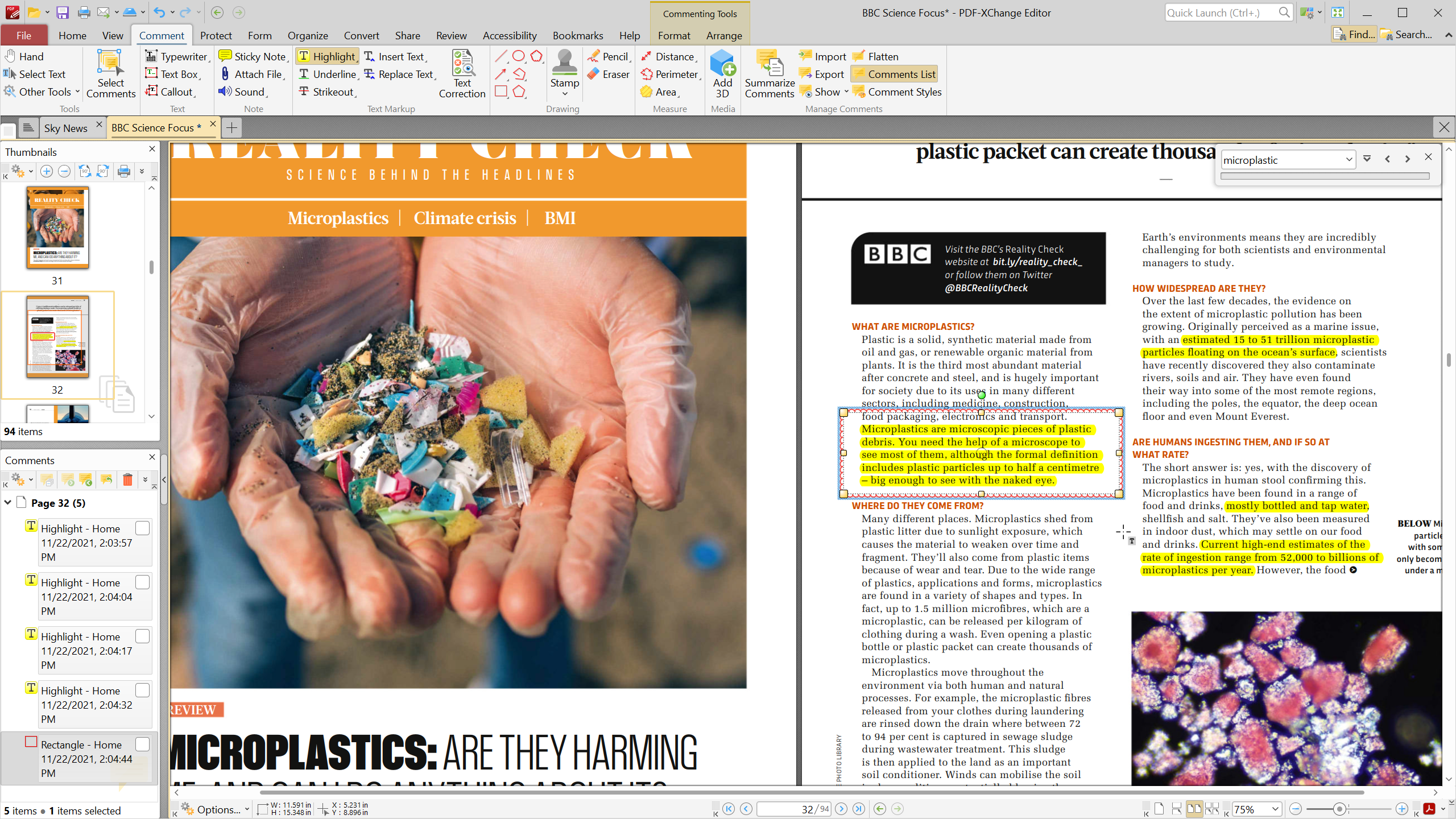
- Advanced Annotation Tools: From sticky notes to freehand highlights, it offers an extensive suite of annotation options that make reviewing documents effortless.
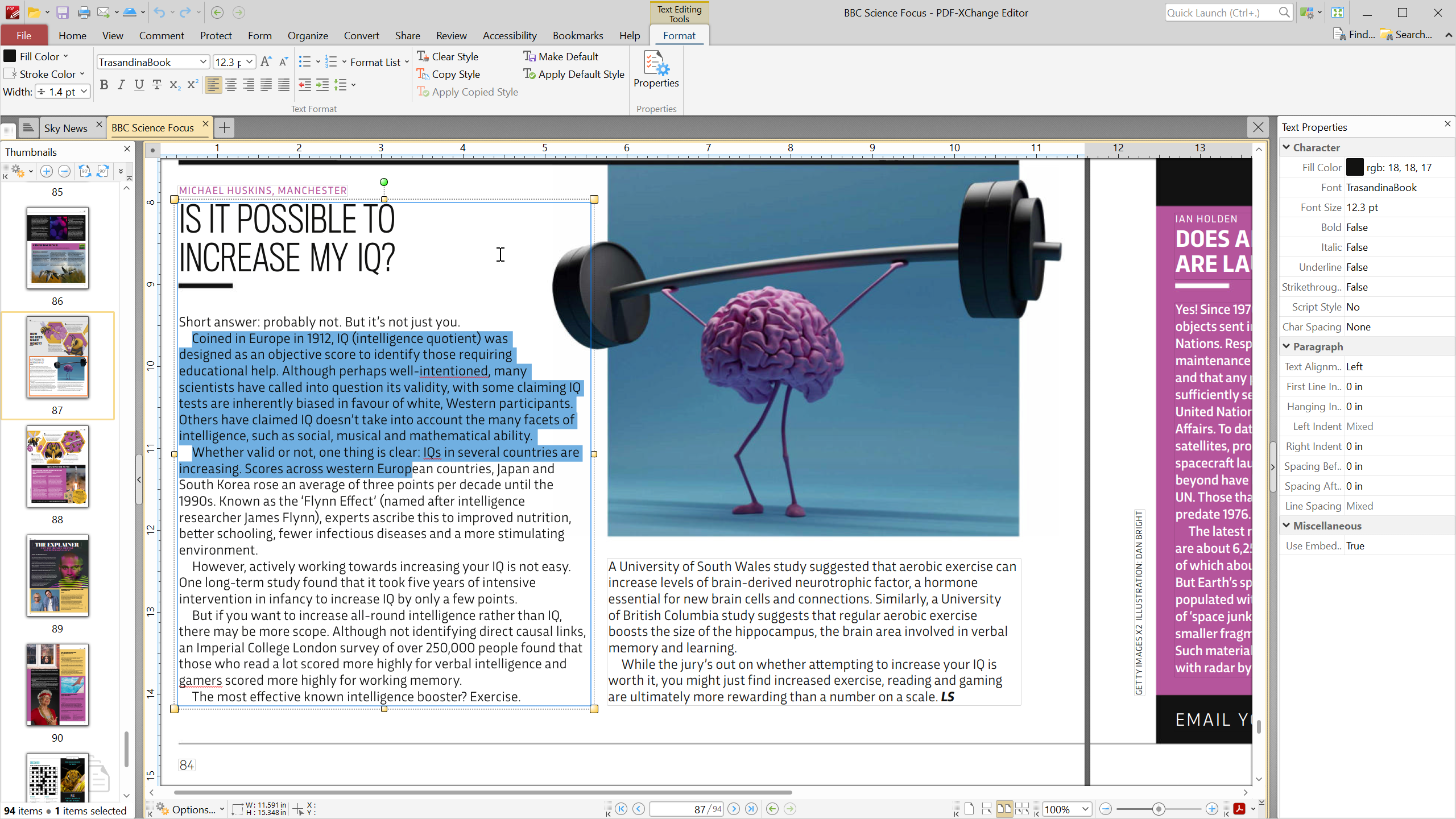
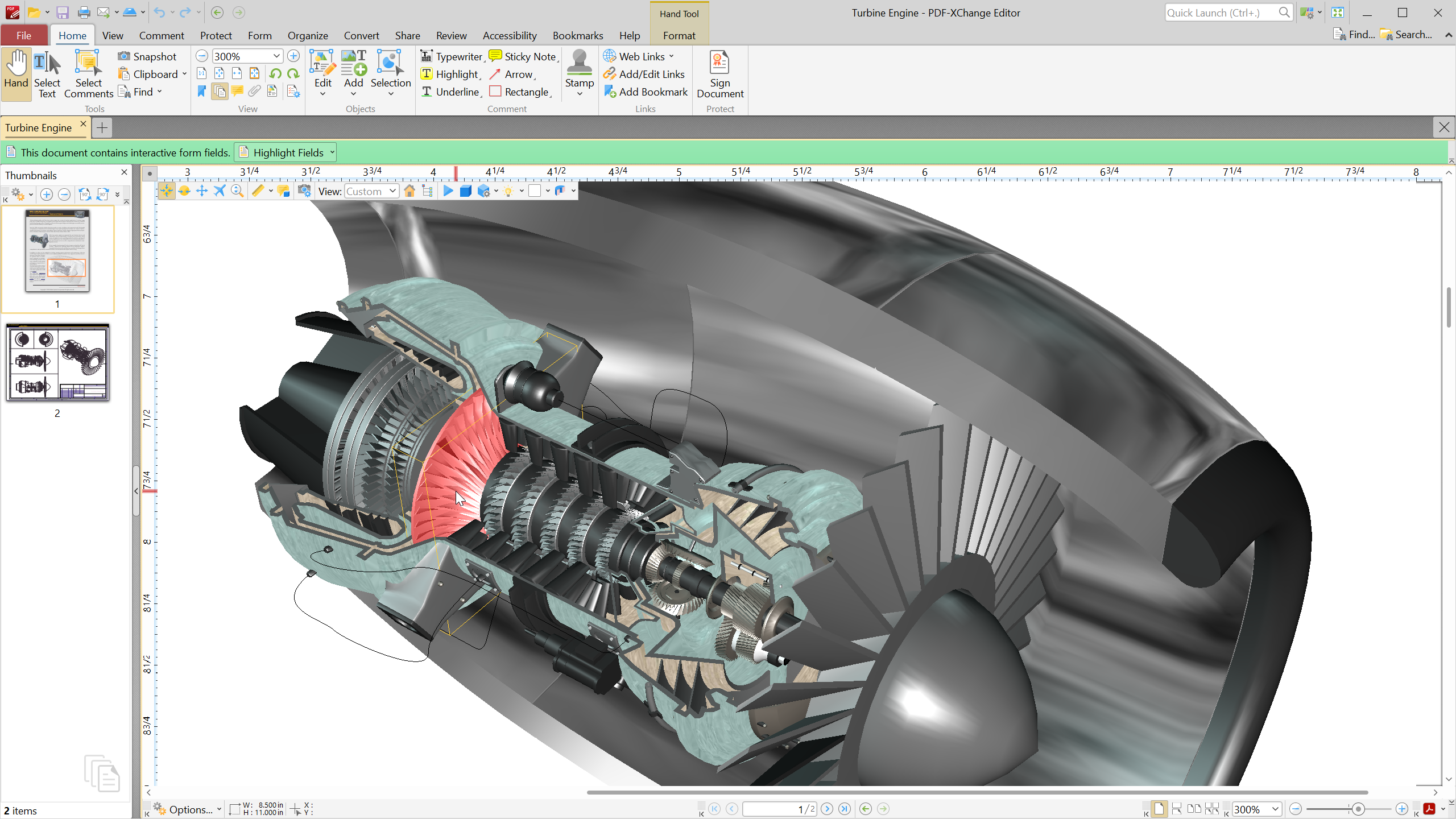
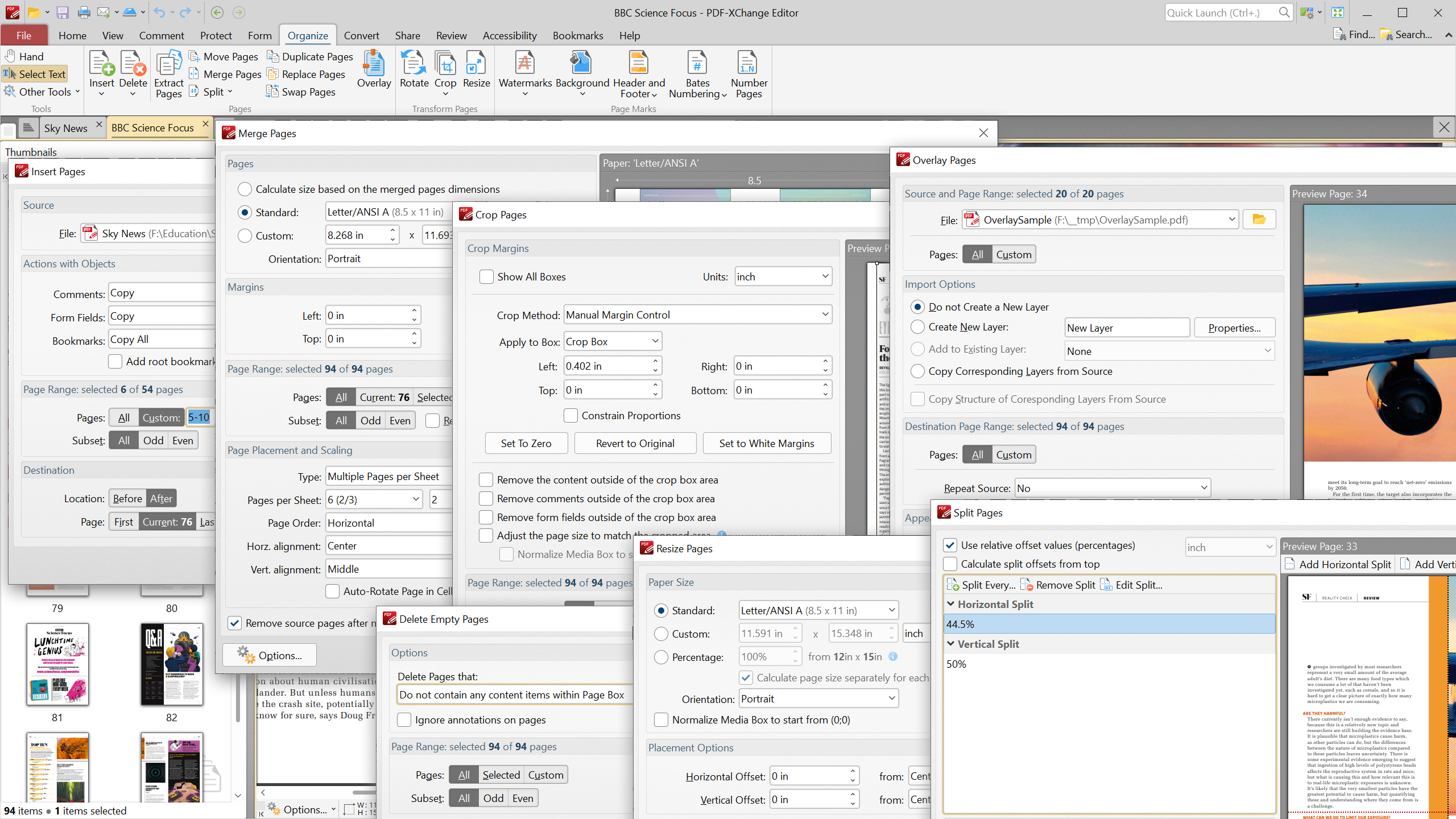
- Rich Editing Capabilities: Modify text, insert images, or restructure layouts without needing external tools—effectively turning static PDFs into dynamic documents.
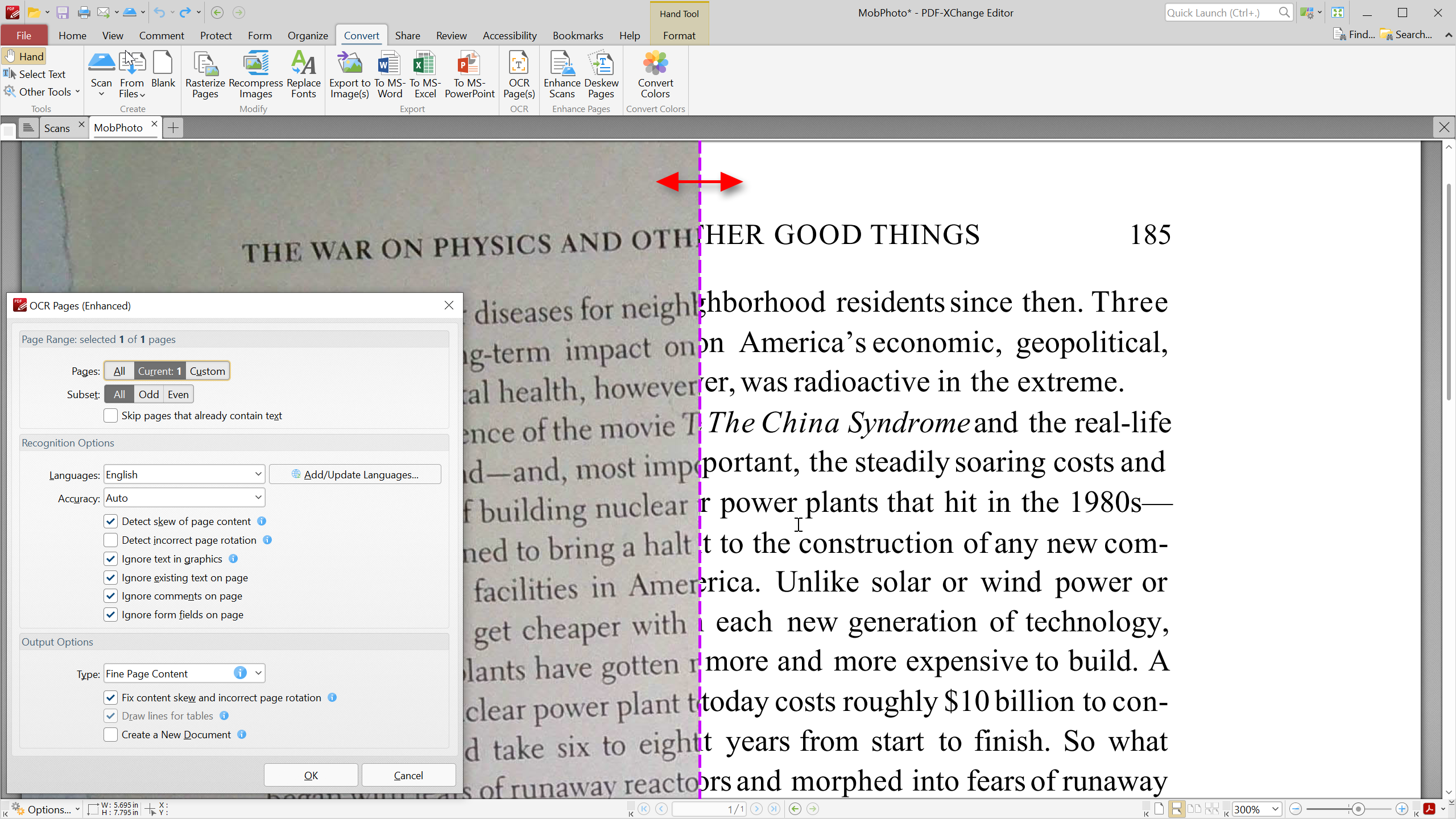
- OCR Functionality: Convert scanned images into searchable and editable text, bridging the gap between physical and digital workflows.
- Form Creation and Filling: Build interactive forms or seamlessly fill out existing ones, perfect for business or academic use.
Its targeted audience includes business professionals, educators, students, and anyone needing a versatile yet user-friendly PDF editor.
Engaging Introduction: Making PDFs Less Daunting
Imagine opening a PDF and feeling like stepping into a cluttered workshop—tools scattered, confusing options everywhere. Now picture the PDF-XChange Editor as a neatly organized craft table, where every tool is clearly labeled and within arm's reach. Whether you're marking up a report, editing a contract, or extracting text from a scanned document, this app aims to transform what used to feel like a chore into an engaging, efficient process. It's like having a personal assistant that anticipates your needs, allowing you to focus on what truly matters—your content and your workflow.
Core Functionality Deep Dive
Streamlined Annotation and Markup Features
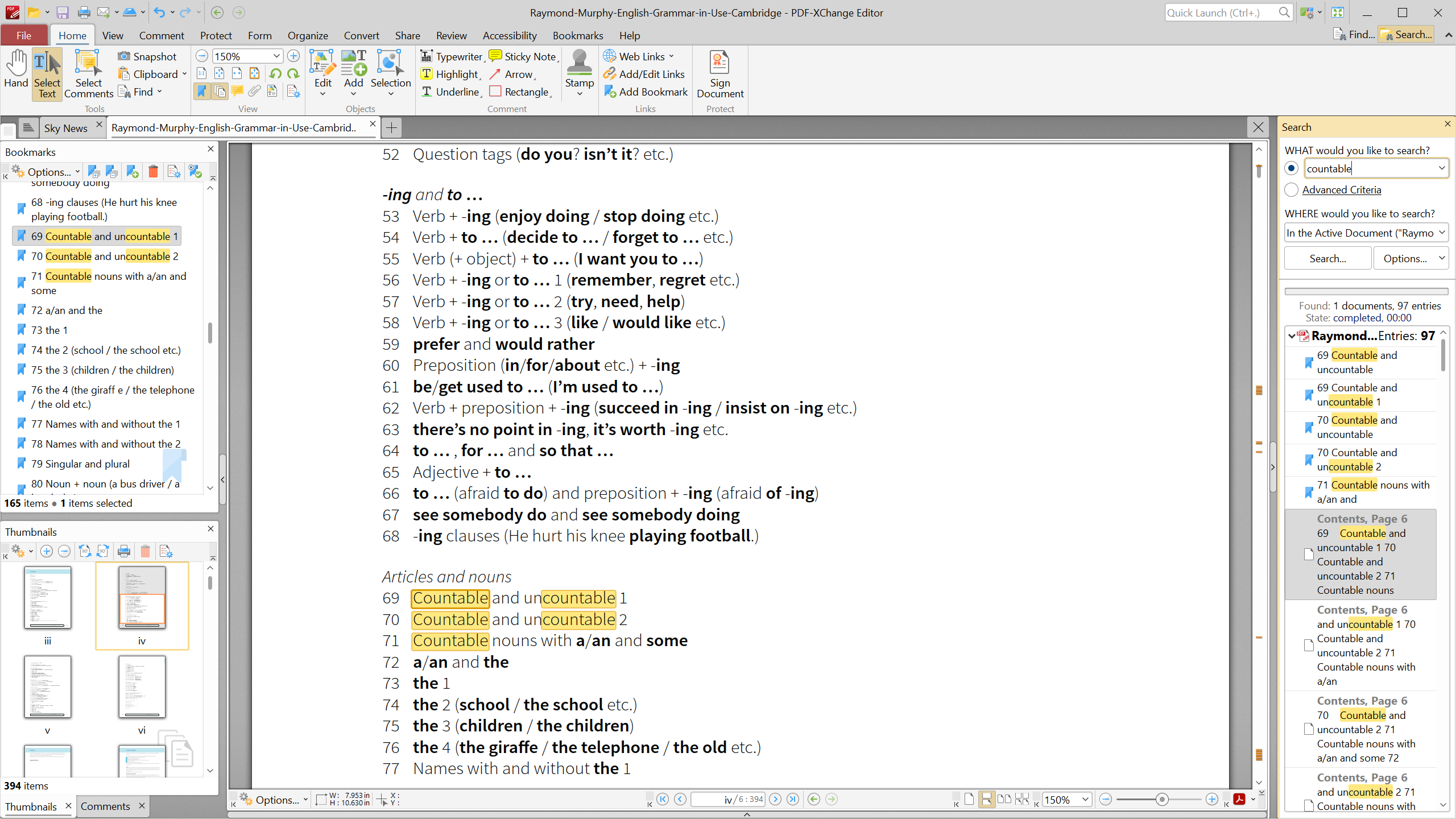
The annotation toolbox in PDF-XChange Editor is where it shines brightest. It's intuitive yet packed with options—think of it as a digital highlighter on steroids. Whether you're adding comments, drawing freehand, or stamping official seals, the interface supports rapid, clutter-free workflow. Its layered approach to annotations allows you to gather feedback or highlight crucial data without the cognitive overload often associated with feature-heavy tools. Plus, the real-time rendering ensures that your notes appear immediately, avoiding frustrating lag and keeping your focus sharp.
Powerful Editing and OCR Conversion
Ever tried editing a PDF and found yourself wishing for a magic wand? This application's editing suite acts just like that. With straightforward tools, users can modify text, rearrange pages, or embed images effortlessly. The standout feature here is the built-in OCR—optical character recognition—that converts scanned documents into editable, searchable text. Imagine transforming a scanned invoice or an old handwritten manuscript into a digital file you can efficiently search, copy, or reformat—this feature is a true game-changer for anyone dealing with legacy documents. Its accuracy and speed significantly reduce the cognitive load of manual transcription, making workflow smoother and more reliable.
Design, Usability, and Differentiators
The interface of PDF-XChange Editor strikes a pleasing balance—familiar enough for first-time users yet customizable for power users. Laid out akin to a well-organized workshop, it minimizes unnecessary complexity, helping you find tools without rummaging through menus. Operations are fluid, with snappy response times that make editing feel natural rather than sluggish. The learning curve is gentle; even users unfamiliar with advanced PDF tools often find themselves productive within minutes.
What sets PDF-XChange Editor apart from other productivity apps is its focus on workflow integration and cognitive efficiency. While many PDF editors bombard users with features, this app emphasizes reducing cognitive load—offering essential tools that integrate seamlessly into your tasks. Its ability to handle complex editing and collaborative annotations without overwhelming the user exemplifies this. For instance, its streamlined annotation workflow allows quick feedback cycles, crucial for collaborative environments or deadlines.
Recommendation and Usage Tips
Based on its feature set and user experience, I confidently recommend PDF-XChange Editor for users seeking a comprehensive yet approachable PDF management tool. It's especially suitable for those who need to frequently annotate, edit, or extract data from PDFs without becoming mired in overly complex interfaces.
For optimal productivity, I suggest exploring the customizable toolbar and shortcut keys—these small adjustments can significantly expedite your workflow. Also, leveraging the OCR capabilities can dramatically enhance your handling of scanned documents, turning physical pages into digital assets with minimal fuss.
In conclusion, PDF-XChange Editor stands out as a reliable, efficient, and thoughtful solution for Windows users striving to simplify their PDF tasks. Its focus on reducing cognitive load while offering rich, essential features makes it a commendable choice for a broad spectrum of users—from casual to professional.
Pros
- Robust PDF Editing Tools
- User-Friendly Interface
- Fast and Smooth Performance
- Strong Compatibility
- Advanced Security Features
Cons
- Occasional Software Stability Issues
- Limited Free Features
- Cluttered Menu Layout
- Watermark in Free Version
- Search Function No Advanced Filters











