
- Name PDF Reader - PDF Editor
- Category Productivity
- Developer PDFLe
- Available on PC, Mobile, Surface Hub, HoloLens
- OS Windows 10 version 19041.0 or higher
- languages English (United States)
Streamlined PDF Management with a Modern Touch
PDF Reader - PDF Editor for Windows by PDFLe stands out as a sleek, user-friendly tool designed to simplify your document workflow. Whether you're quickly reviewing contracts or annotating research papers, this application promises efficiency without sacrificing clarity—a trustworthy companion for both casual users and professionals alike.
Meet the Developers and Core Features
Made by the dedicated team at PDFLe, and published under PDFApps, this app aims to bring robust PDF management directly to your Windows desktop. Its main highlights include:
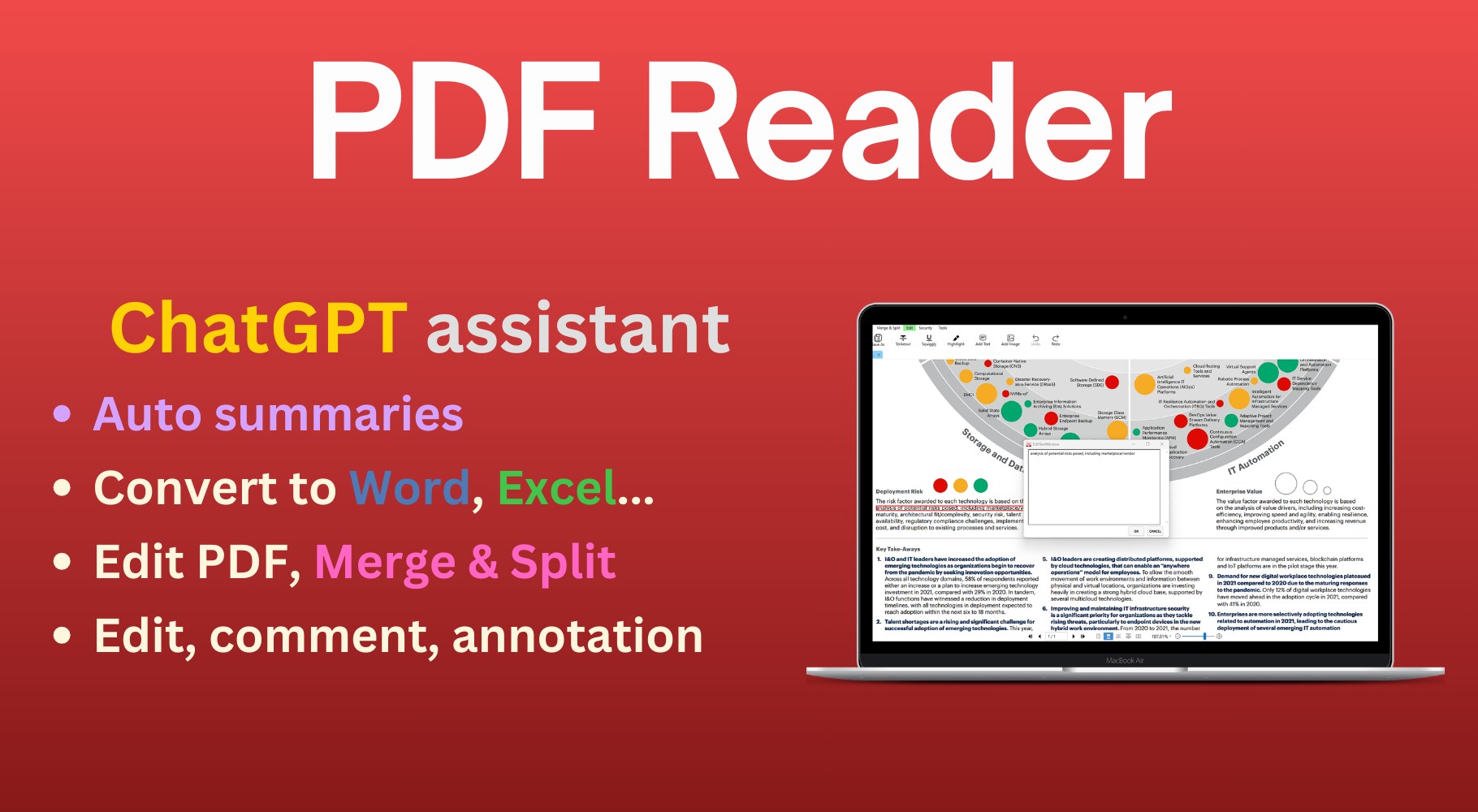
- Intuitive PDF Viewing and Navigation: Enjoy smooth scrolling, handy thumbnails, and easy page jumping that make browsing large documents effortless.
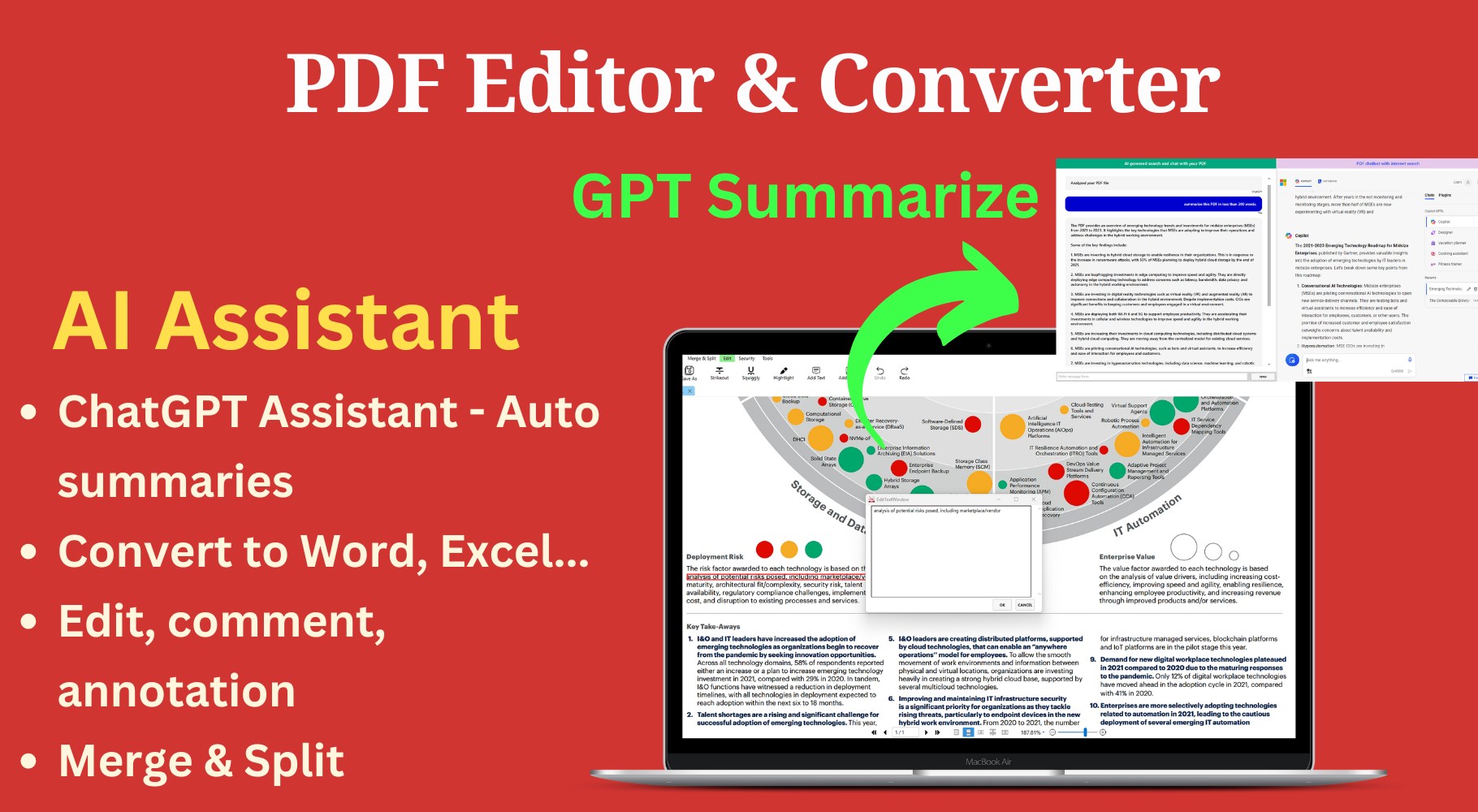
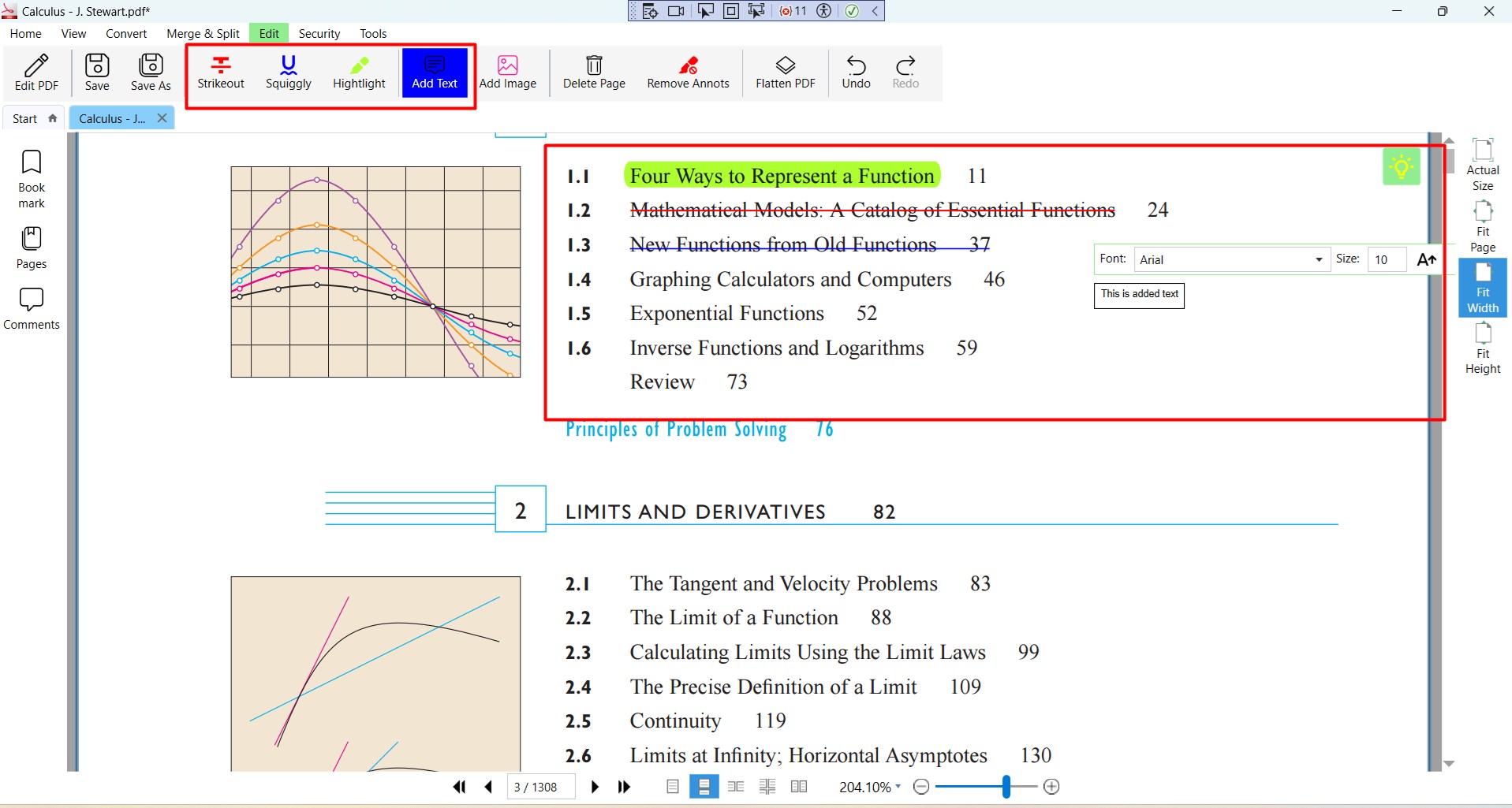
- Powerful Annotation & Editing Tools: Highlight, underline, add comments, or modify text to tailor your PDFs for collaboration or review.
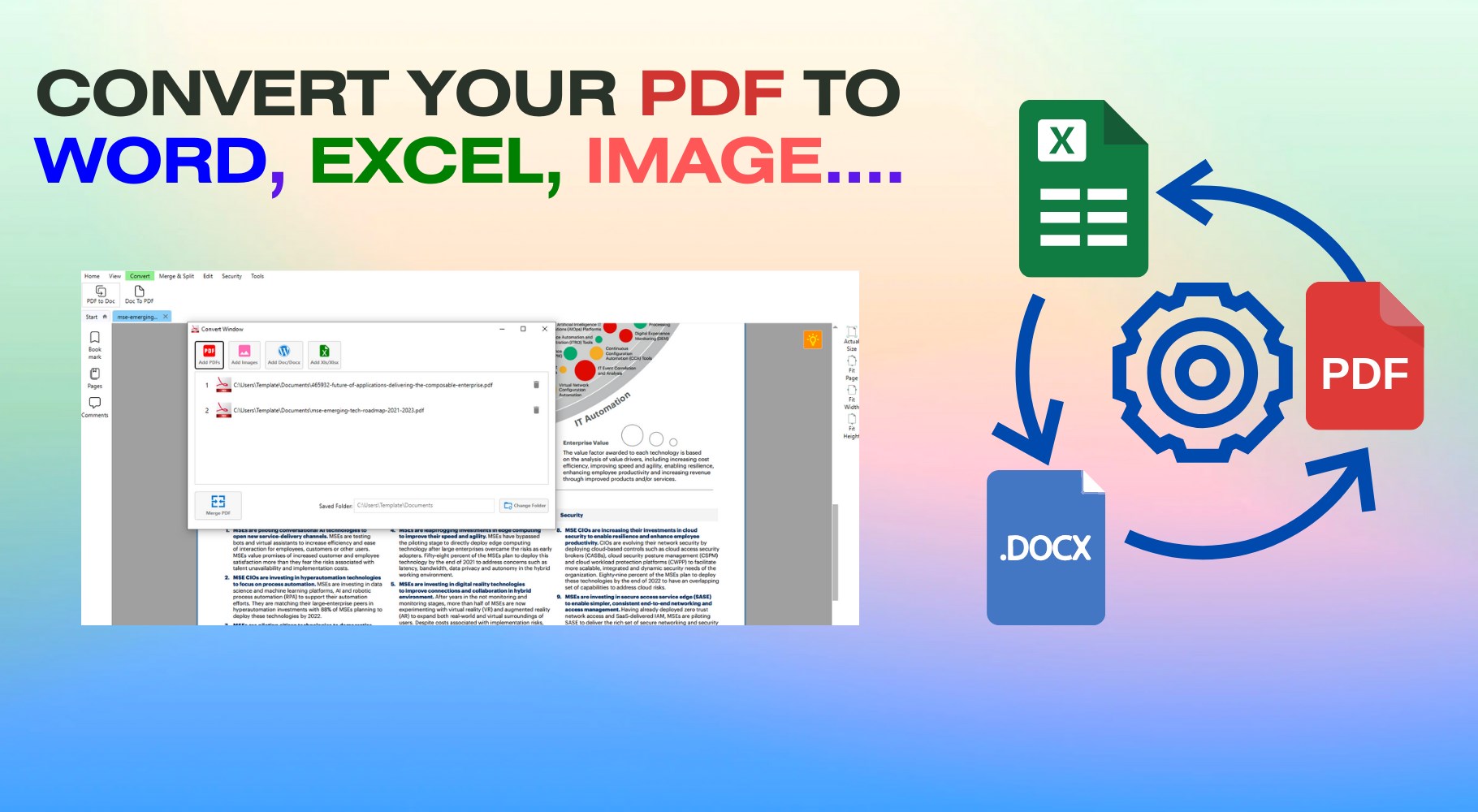
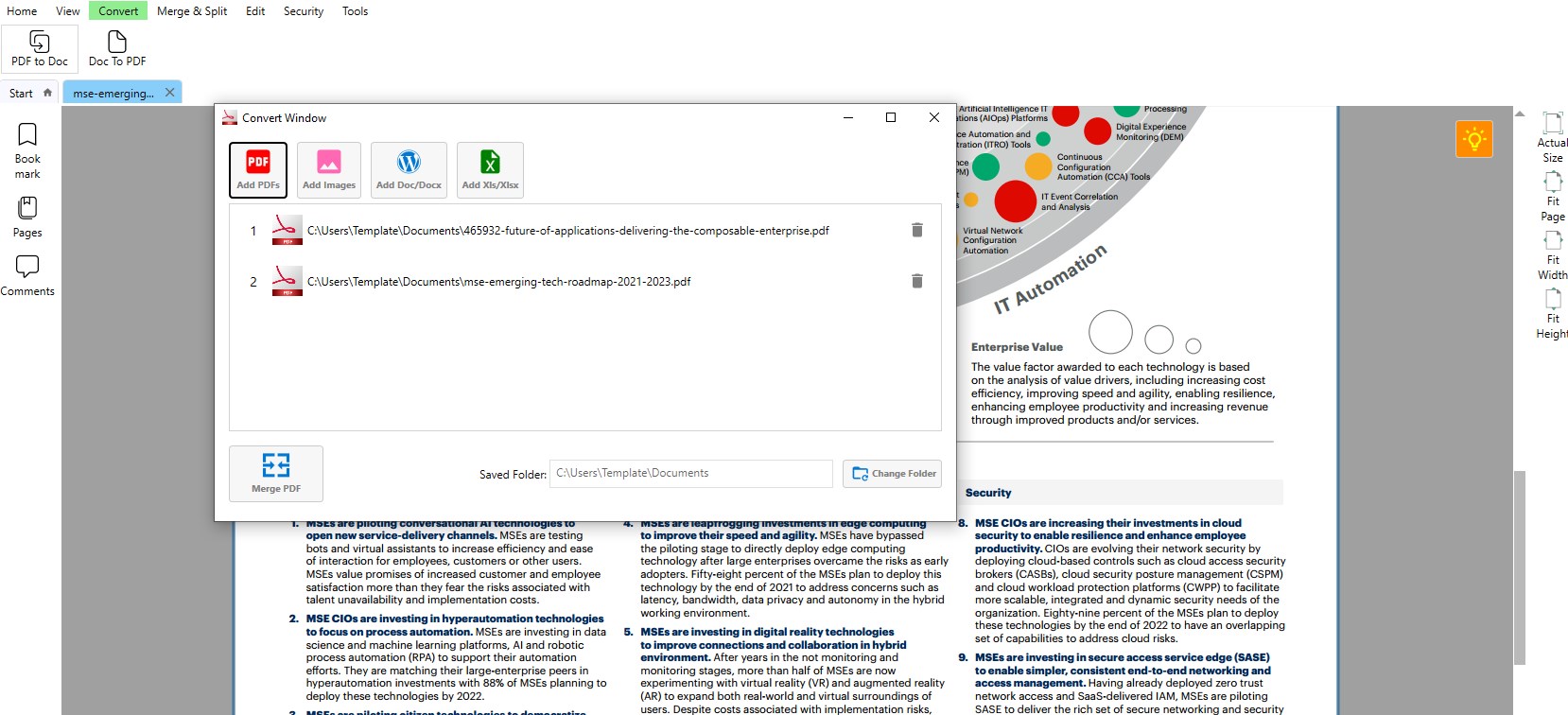
- Seamless File Management: Convert, merge, or split PDFs within the same interface, simplifying complex document tasks.
- Robust Search Capabilities: Quickly locate specific words or phrases across lengthy documents, saving time and frustration.
This app is tailored for students, researchers, office workers, or anyone who deals with PDF documents regularly and values an integrated, straightforward environment.
Engaging in the PDF World: A Fresh Perspective
Imagine opening a hefty PDF file that resembles a dense textbook—rather than being overwhelmed, you find yourself calmly browsing through with the ease of flipping through a magazine. The interface feels like opening a well-organized binder, where every page and annotation is just a click away. The overall experience is designed to feel familiar yet powerful, making every interaction feel natural and responsive.
Deep Dive into Core Functionalities
Effortless Viewing and Navigation
The first thing users will notice is how smoothly PDF Reader handles large files. The interface offers a clear layout with thumbnail previews on the side, allowing you to jump between pages instantly—think of it as flipping through a photo album rather than struggling with a clunky, cumbersome interface. The zooming and scrolling are fluid, enhancing the reading comfort. It's akin to having a personal assistant who knows exactly when to zoom in on critical details or zoom out for the bigger picture.
Annotation and Editing Made Simple
The annotation tools are thoughtfully designed, providing a variety of options like highlighters, underlines, strikethroughs, sticky notes, and text additions. These features are not layered with unnecessary complexity; instead, they're intuitively grouped, making editing feel more like doodling on paper than wrestling with a complicated set of menus. This reduces cognitive load significantly, allowing users to focus on content rather than fighting with the toolset. It's like having a digital notepad integrated directly into your PDF, streamlining review sessions or collaborative feedback.
Effective Document Management & Searchability
Beyond viewing, the app enables quick file conversions and document restructuring—merging multiple PDFs or splitting a large file into manageable sections. The powerful search function indexes your entire document, delivering instant results that cut down on endless scrolling. This feature feels akin to having a GPS system for your PDFs, guiding you directly to the information you need without detours, which dramatically improves workflow efficiency.
Comparative Advantages and Unique Selling Points
Compared to other productivity tools, this PDF reader emphasizes minimalism in feature complexity while maximizing workflow integration. Its ribbon of core functions doesn't burden the user with options that are rarely used, yet it maintains enough flexibility for comprehensive editing. The app's standout feature—its harmony of powerful annotation tools embedded in an easy-to-navigate interface—reduces cognitive load. Users are not bogged down by menus or steps; instead, they experience a frictionless workflow akin to flipping through a well-organized paper document.
Final Verdict and Recommendations
Overall, PDF Reader - PDF Editor for Windows emerges as a reliable, straightforward solution for managing PDFs efficiently. Its clean interface, combined with the key features of annotation, navigation, and file management, makes it suitable for the everyday user who seeks simplicity with robustness. I would recommend it to students, professionals, or anyone needing quick, stress-free PDF handling, especially if workflow clarity and ease of use are top priorities.
While it may not boast the extensive advanced features found in high-end PDF editors, its focus on reducing learning curve and cognitive load sets it apart. If you want a tool that feels natural yet powerful, this application deserves a spot on your software lineup.
Pros
- User-friendly interface
- Comprehensive PDF editing tools
- Fast and smooth performance
- Supports cloud integration
- Regular updates and improvements
Cons
- Limited free features
- Occasional app crashes
- Basic annotation tools
- Limited export formats
- User tutorial availability











