
- Name PDF Reader, Editor & Converter – PDFly
- Category Productivity
- Developer PDF by Wuxxu
- Available on PC
- OS Windows 10 version 16299.0 or higher
- languages English (United States)
Streamlined PDF Management in a Small Footprint
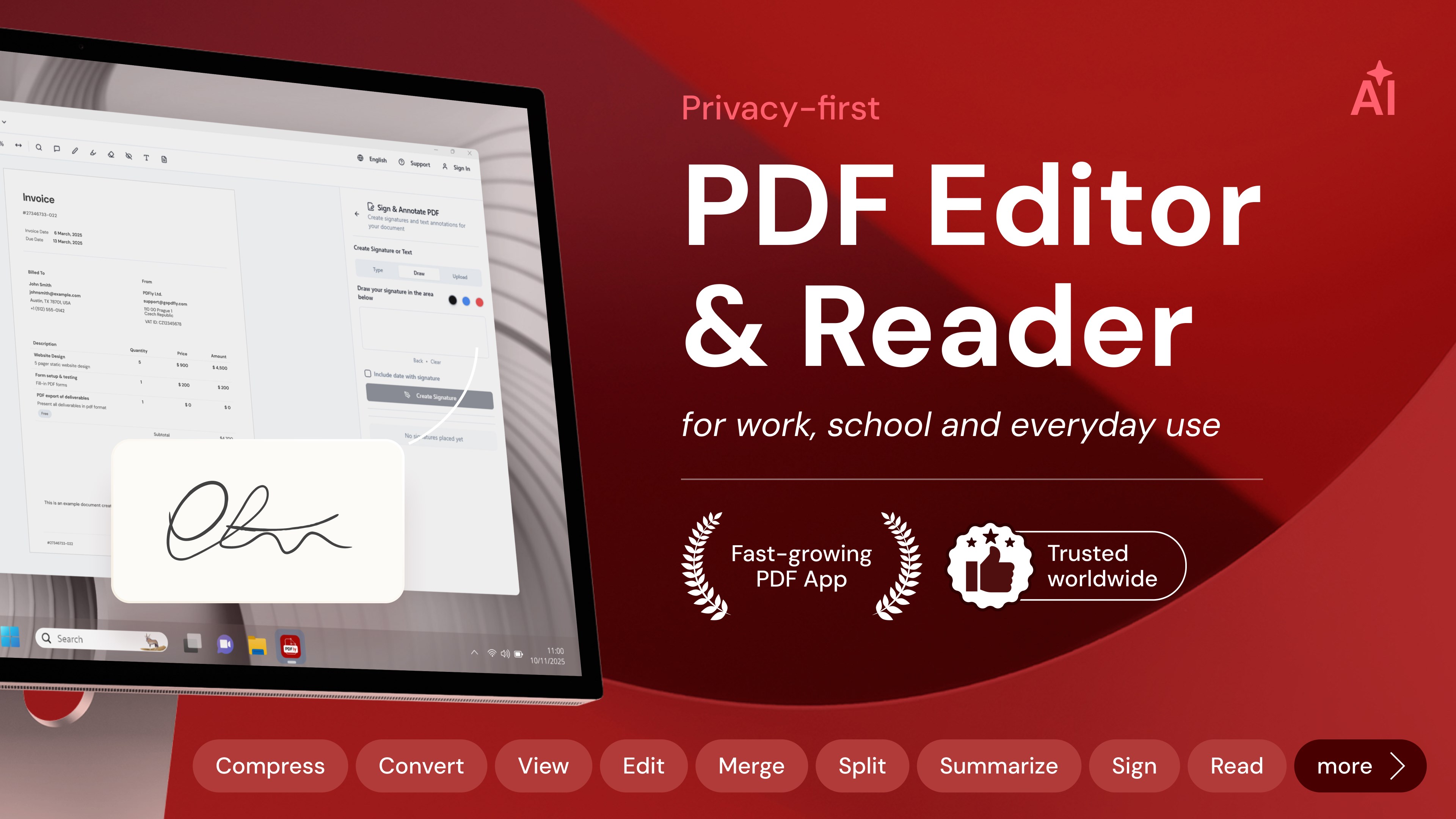
PDFly for Windows positions itself as an efficient all-in-one tool for viewing, editing, and converting PDFs without the bloat often found in larger suites. Developed by PDF by Wuxxu, this application aims to deliver core PDF functionalities with a focus on user experience and workflow efficiency. Its lightweight design belies a robust feature set, making it a compelling choice for anyone who needs quick, reliable PDF handling without the complexity of traditional tools.
Core Functionality Highlights
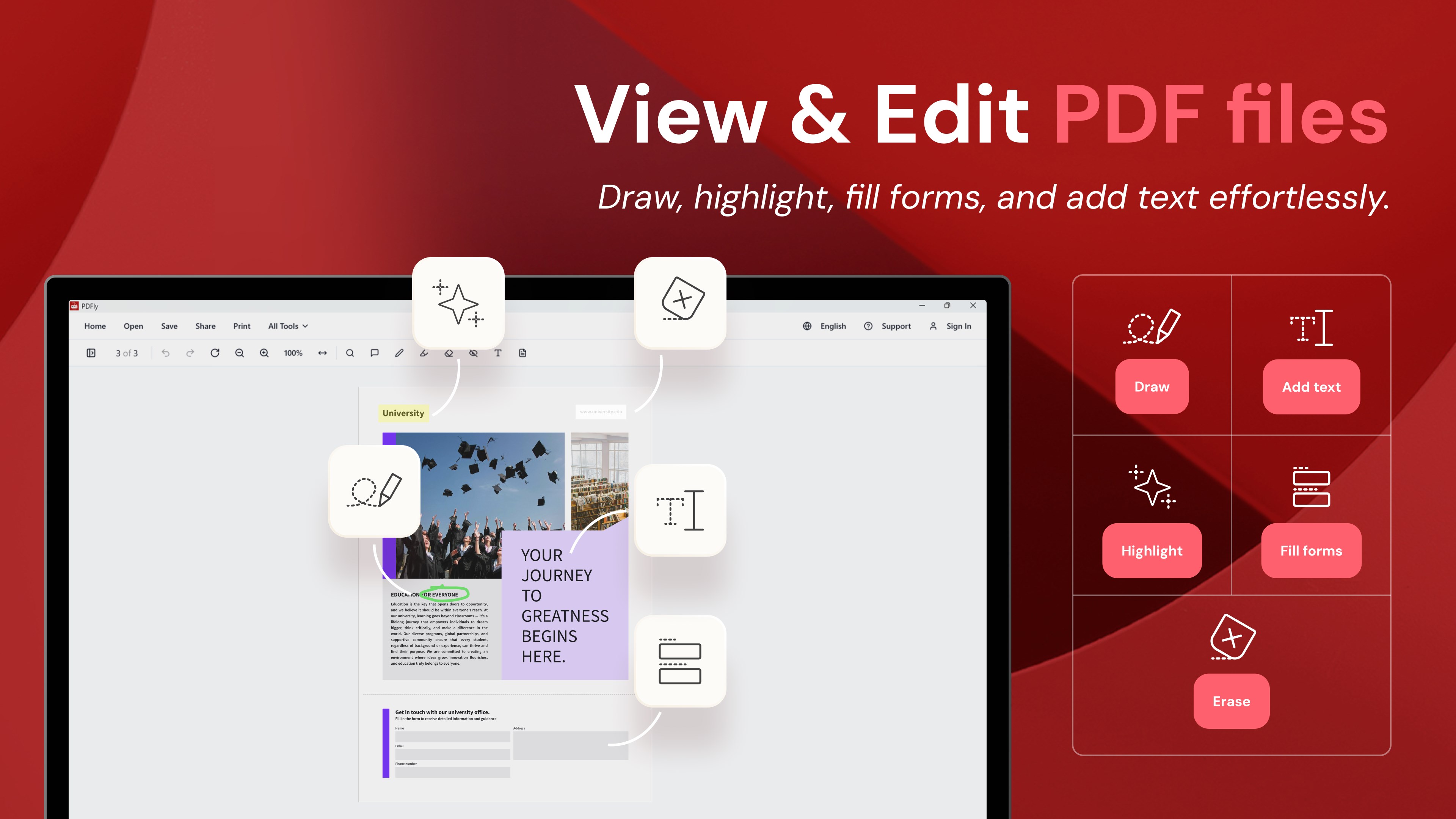
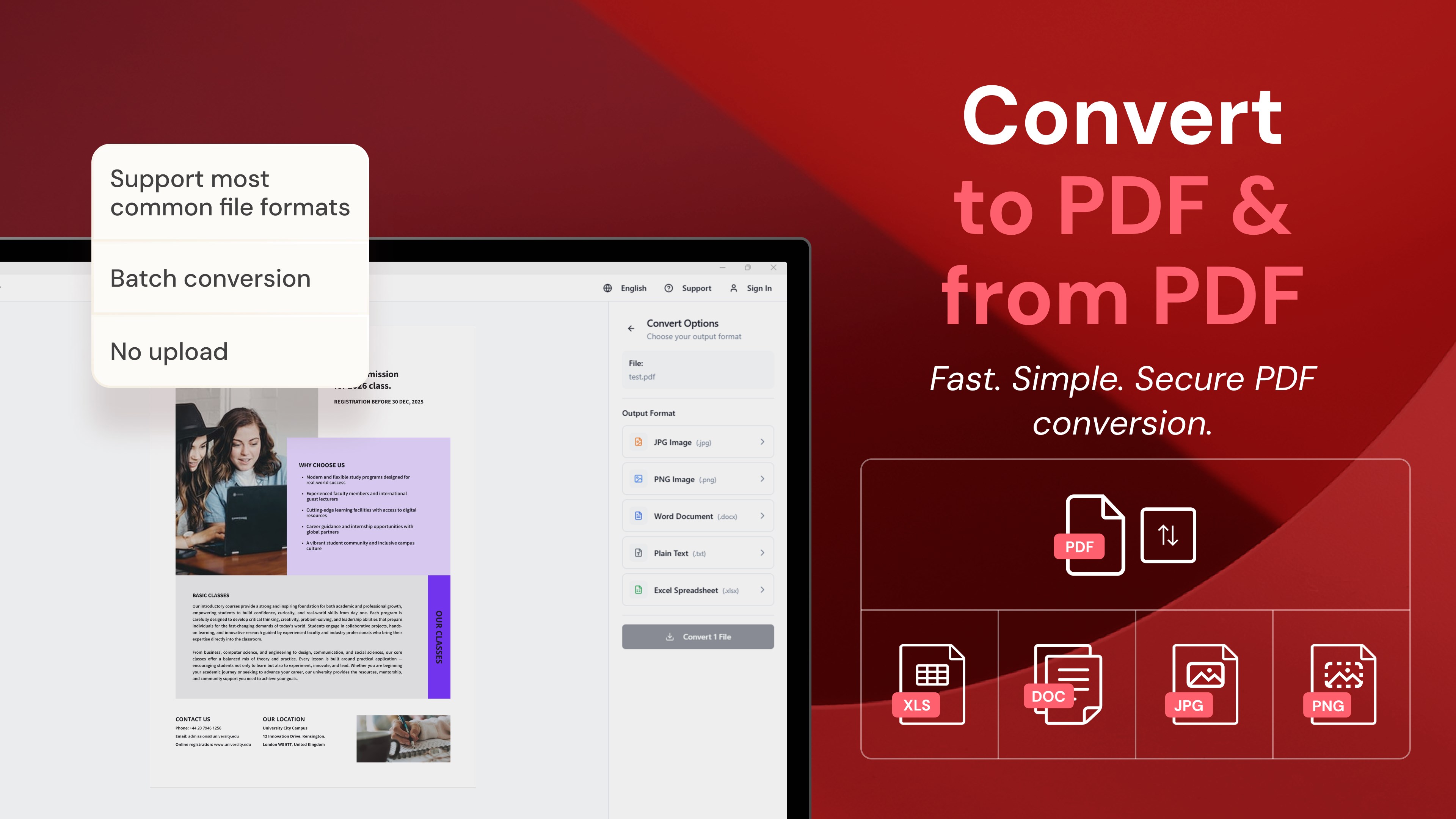
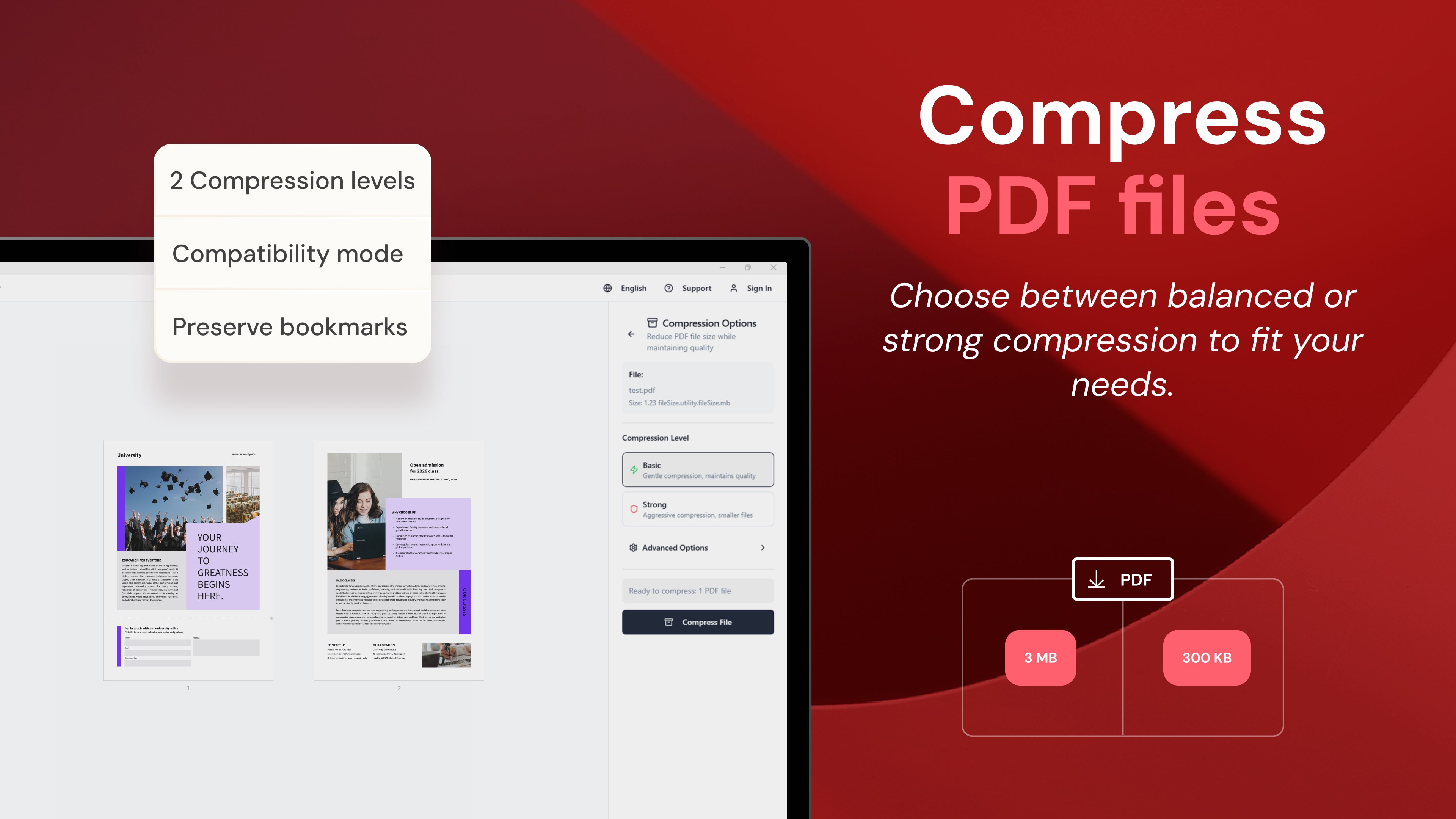
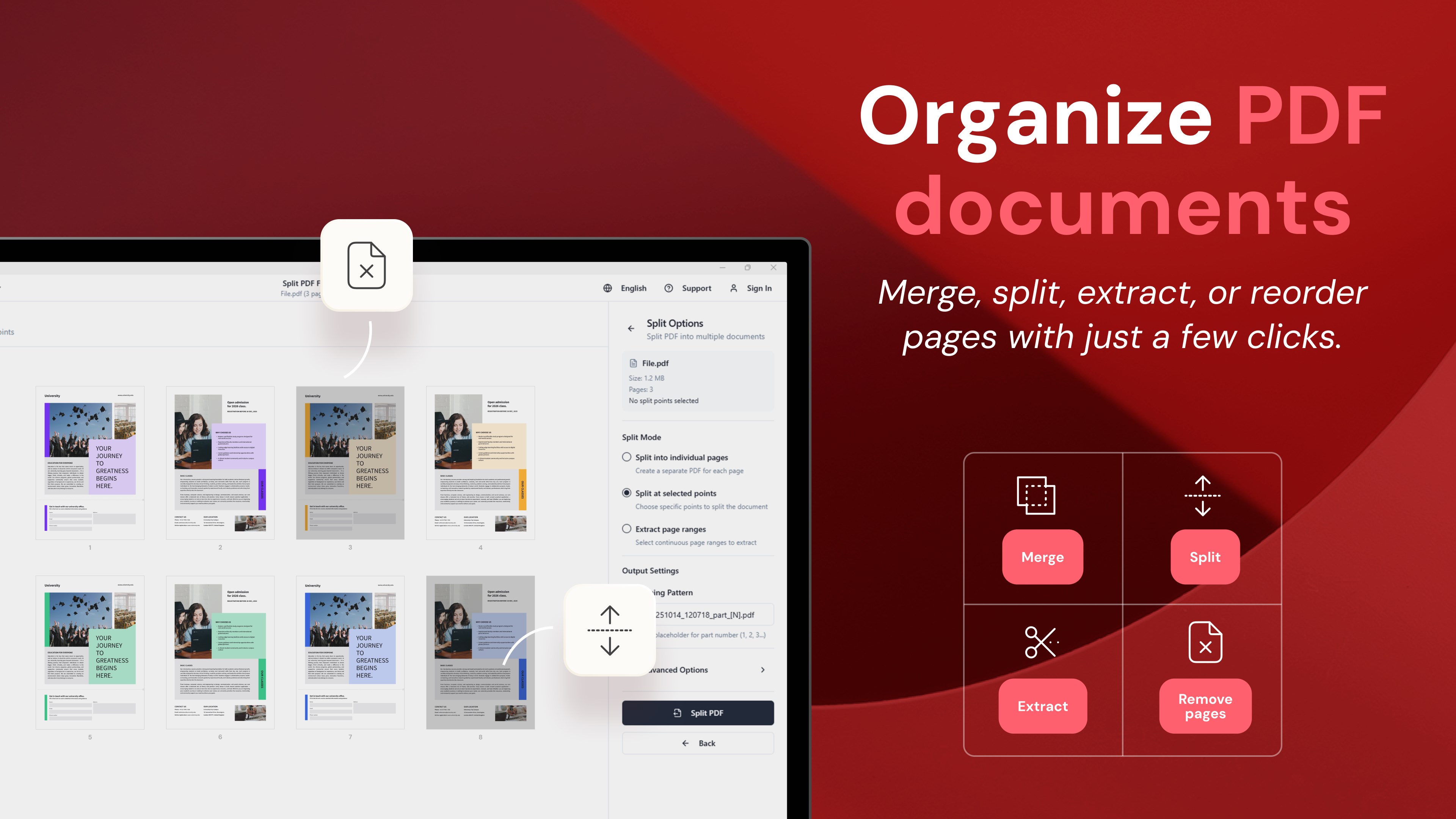
First, PDFly shines in its seamless PDF viewing experience—offering smooth navigation, zooming, and page management that feels natural and clutter-free. Second, its editing functions allow you to modify text, annotate, or reorganize pages easily, catering to users who need quick adjustments on the fly. Last, the converter feature supports converting PDFs to various formats (like Word, Excel, images) and vice versa, streamlining document workflows without relying on external software.
User Experience: Smooth, Intuitive, and Accessible
Once you open PDFly, you're greeted with a clean, modern interface that feels more like a well-organized workspace than a cluttered toolbox. The layout minimizes distractions, ensuring that even new users can quickly locate essential features. Actions such as editing or converting PDFs are straightforward—think of it as having a trusty Swiss Army knife for PDFs where each fold and blade is just a click away.
The application's responsiveness is notable; operations like page switching, zooming, or annotating react instantly, giving users a fluid experience reminiscent of flipping through a well-oiled digital notebook. Its learning curve is gentle, making it accessible to a broad audience—from casual users to professionals who need reliable, no-nonsense PDF tools.
Differentiating Features: Focused Workflow Integration
Compared to many productivity apps loaded with superfluous features, PDFly adopts a lean approach that emphasizes workflow integration efficiency. Its ability to efficiently handle multiple tasks—viewing, editing, and converting—within a single, minimal interface reduces cognitive load, allowing users to focus on content rather than tool management. This streamlined design reduces the mental overhead involved in switching between different apps or complicated menus that often bog down productivity.
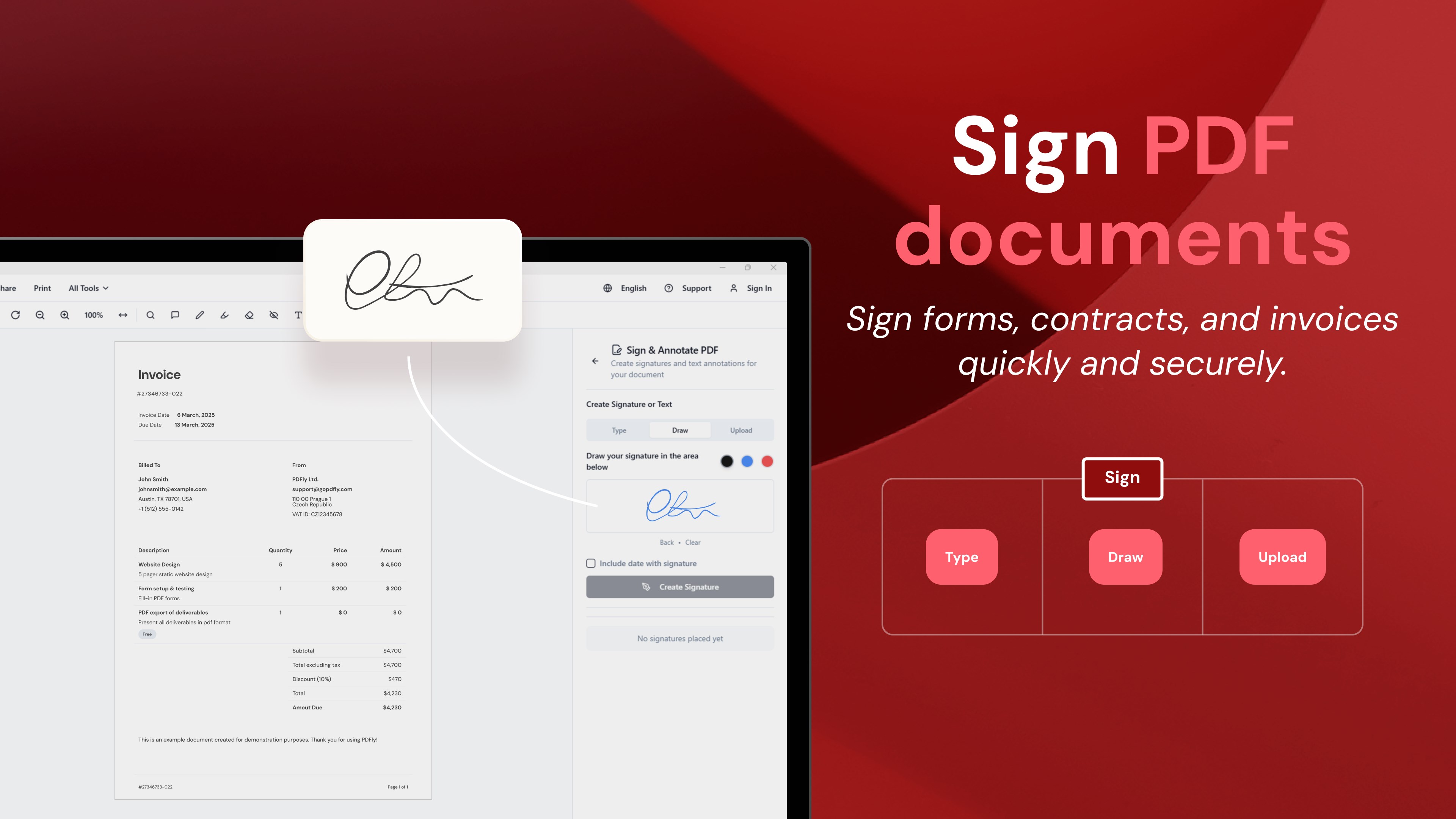
What truly sets PDFly apart is its balanced feature set: it provides enough power to handle most common PDF tasks without overwhelming users with options. For instance, its conversion tools are straightforward, offering high-quality results with minimal configuration. The direct editing capabilities—such as highlighting, adding text, and rearranging pages—are intuitive, akin to marking up a physical document with a familiar pen or scissors, rather than wrestling with complex menus.
Final Thoughts and Recommendations
Overall, PDFly for Windows earns its place as a practical, user-friendly PDF solution emphasizing workflow simplicity and effectiveness. It's ideally suited for professionals and everyday users who need reliable PDF handling without the fuss of feature bloat. If your daily tasks involve quick edits, conversions, and seamless viewing, this app deserves a close look.
I recommend giving PDFly a try if you're seeking a lightweight, efficient PDF tool that respects your time and cognitive load. Its focus on core functionalities with a polished, approachable interface makes it a trustworthy companion for both casual and frequent PDF users. For anyone tired of convoluted interfaces or sluggish performance, PDFly might just be the straightforward solution you're seeking.
Pros
- User-friendly Interface
- Comprehensive PDF Editing Tools
- Fast and Accurate Conversion
- Cloud Integration Support
- Robust Search Functionality
Cons
- Limited Free Features
- Occasional Crashes on Large Files
- Basic OCR Capabilities
- Need for Better Annotation Tools
- Syncing Delays with Cloud Services











