
- Name PDF Printer Utility Desktop
- Category Productivity
- Developer Avinash Parashar
- Available on PC
- OS Windows 10 version 17763.0 or higher
- Keyboard Integrated Keyboard
- Mouse Integrated Mouse
- Memory 2 GB
- languages English (United States)
Streamlining Your Printing Tasks: An Overview of PDF Printer Utility Desktop
In today's fast-paced digital workspace, efficiently managing document workflows is crucial. The PDF Printer Utility Desktop for Windows, developed by Avinash Parashar, positions itself as a lightweight yet powerful tool designed to simplify PDF creation and management directly from your desktop environment. Whether you're a professional seeking to streamline conversions or a casual user needing quick PDF access, this app aims to deliver seamless functionality without cluttering your workflow.
Key Features That Elevate Your PDF Handling
Simplified PDF Conversion with One Click
The standout feature of this utility is its ability to turn any printable document into a PDF effortlessly. Imagine you're preparing a report from a complex Word document or a web page; with just a click, the app acts like a virtual printer, capturing your content in high-quality PDF format. This process is swift and intuitive, making it ideal for users who value speed and reliability in document conversion.
Batch Printing and File Management Efficiency
Another highlight is its support for batch processing, allowing users to queue multiple documents for PDF conversion without manual intervention. This is particularly advantageous in environments where large volumes of documents are processed regularly. The utility also integrates straightforward file naming and storage options, helping you organize your PDFs systematically, reducing cognitive load and avoiding clutter.
User Interface and Experience: Smooth and User-Friendly
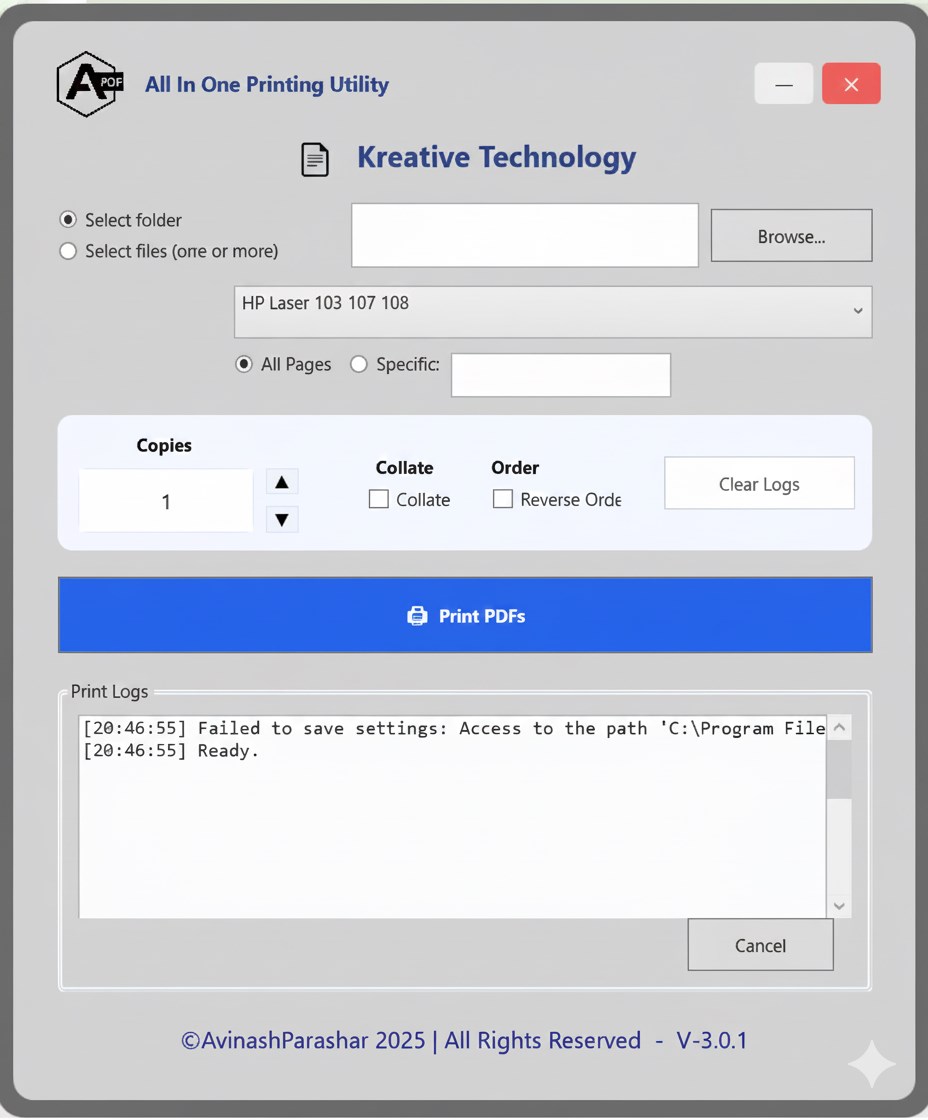
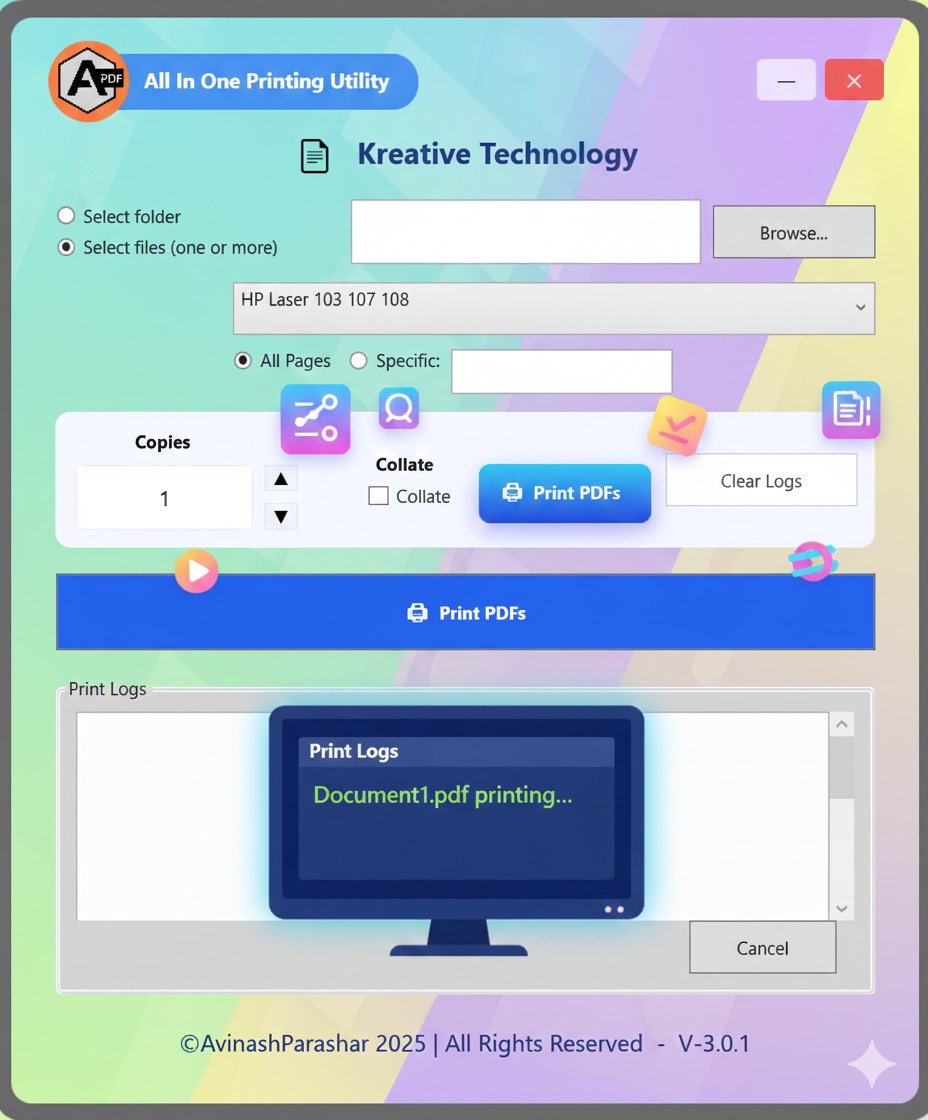
The app boasts a clean, minimalistic interface that resembles the familiar Windows printing dialogue—familiarity that reduces the learning curve. The design emphasizes clarity and ease of use, with clearly labeled buttons and simple navigation. Users report that the app operates smoothly, even with batch processes, exemplifying well-optimized performance that feels as seamless as gliding on ice. The straightforward operation means you need not spend valuable time deciphering complex menus—it's all about reducing friction in your workflow.
Unique Edge: Focused Workflow Integration & Low Cognitive Load
What sets PDF Printer Utility Desktop apart from other productivity tools is its laser focus on integration efficiency. Unlike multifunctional PDF editors laden with features that can overwhelm users, this app zeroes in on straightforward printing-to-PDF tasks, significantly trimming down cognitive load. It's like having a specialized assistant dedicated solely to your PDF needs—reducing the mental clutter of navigating complex options or feature bloat. This specialization ensures that users can accomplish their goals with minimal fuss, making it an ideal companion for those who want quick, reliable PDF creation integrated seamlessly into existing workflows.
Recommendation and Usage Tips
Overall, PDF Printer Utility Desktop is a solid choice for users who need a straightforward, reliable PDF printing utility without bells and whistles. Its simplicity does not come at the expense of performance—if anything, it enhances it by focusing on core functionalities with precision. I would recommend this app to professionals, students, or anyone who frequently converts documents into PDFs and values a clutter-free, efficient tool. For best results, integrate it into your daily document processing routine and explore batch processing to maximize productivity. Its minimal learning curve means you'll be up and running in no time, making it a practical addition to your digital toolkit.
Pros
- User-friendly interface
- High compatibility with various printers
- Supports batch printing of multiple documents
- Includes customizable page settings
- Lightweight and fast performance
Cons
- Limited advanced editing features
- Occasional compatibility issues with newer PDF formats
- Basic error messages without detailed troubleshooting
- No cloud integration or remote printing options
- Limited customization options for print profiles











