
- Name PDF Manager - Merge, Split, Trim
- Category Productivity
- Available on PC, Surface Hub
- OS Windows 10 version 10586.0 or higher
- languages English (United States)
Streamlining Your PDF Tasks with Ease
PDF Manager - Merge, Split, Trim for Windows by User Camp emerges as a practical tool designed to simplify the labyrinthine world of PDF handling. Whether you're a busy professional, a student, or someone who often juggles multiple documents, this app promises to make PDF modifications more accessible without requiring hefty software or complex workflows.
About the App
Positioned as a straightforward yet versatile PDF toolkit, PDF Manager aims to bridge the gap between complexity and usability. Developed by User Camp, a company focusing on efficient productivity solutions, this app consolidates essential PDF operations into a single, easy-to-navigate interface.
Core features include:
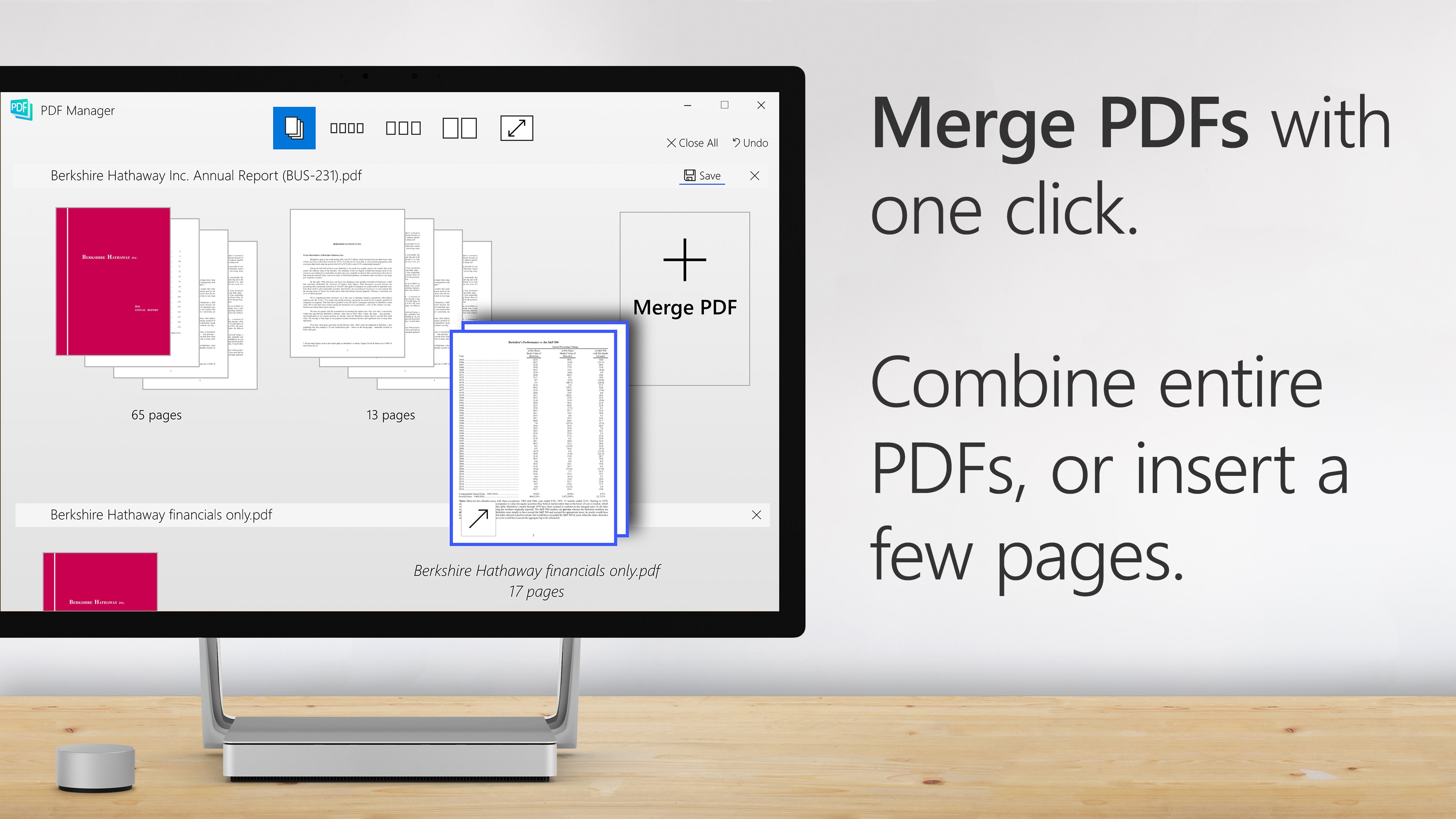
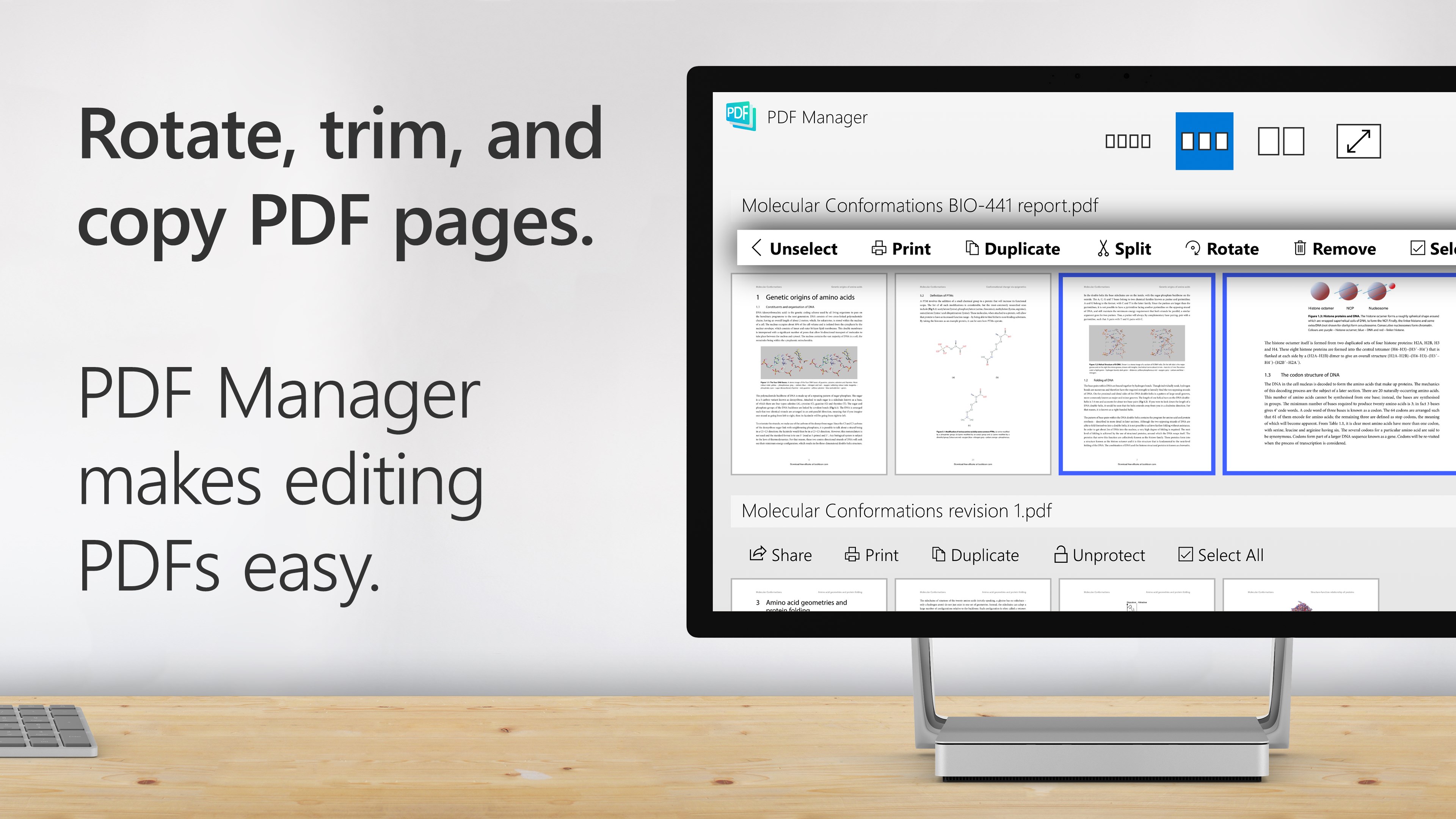
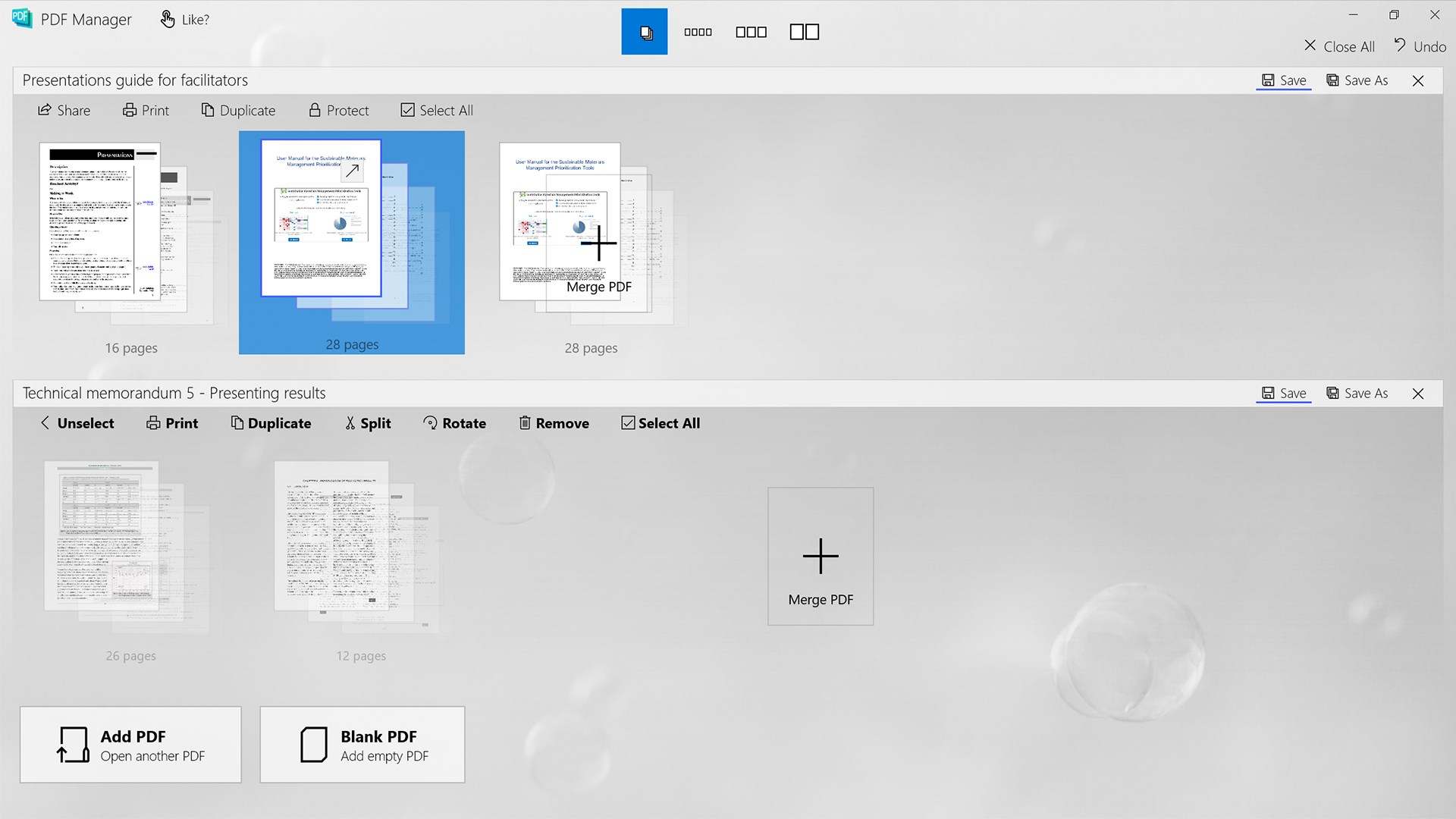
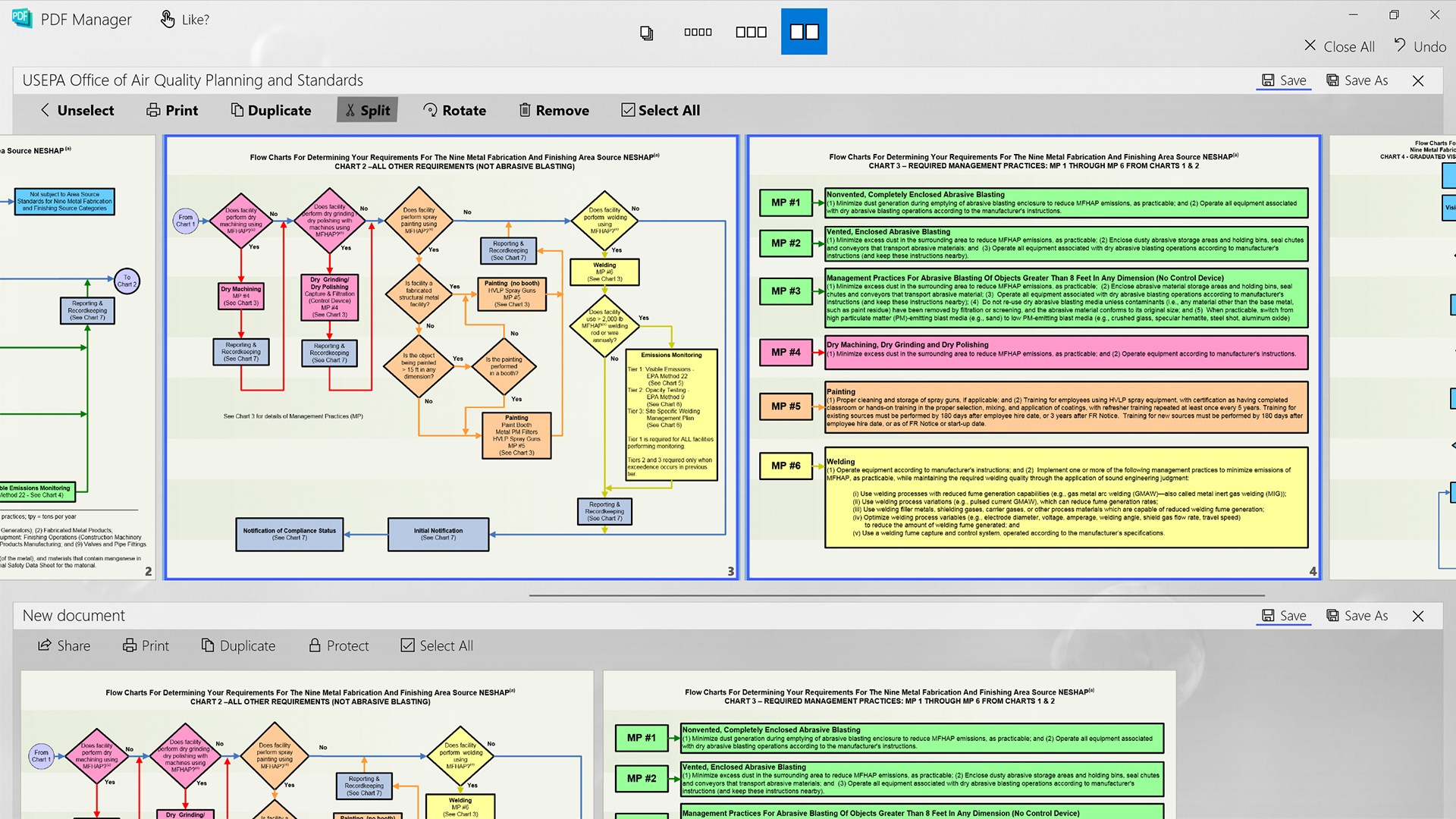
- Merge PDFs seamlessly: Combine multiple files into one cohesive document, preserving layout and formatting.
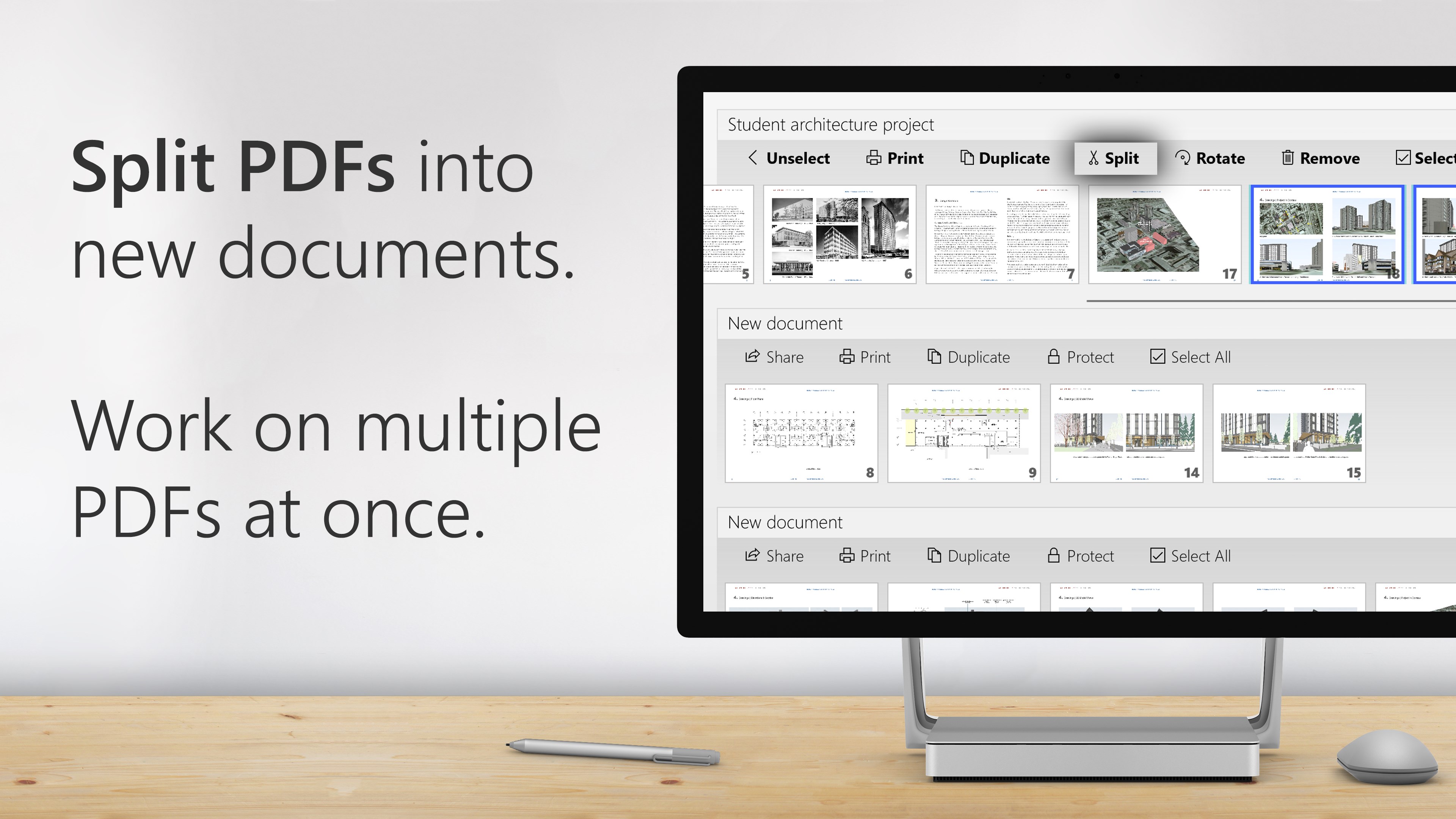
- Split PDFs with precision: Divide large documents into manageable sections, whether for sharing or editing.
- Trim PDFs effortlessly: Remove unwanted margins or pages to focus on the content that matters.
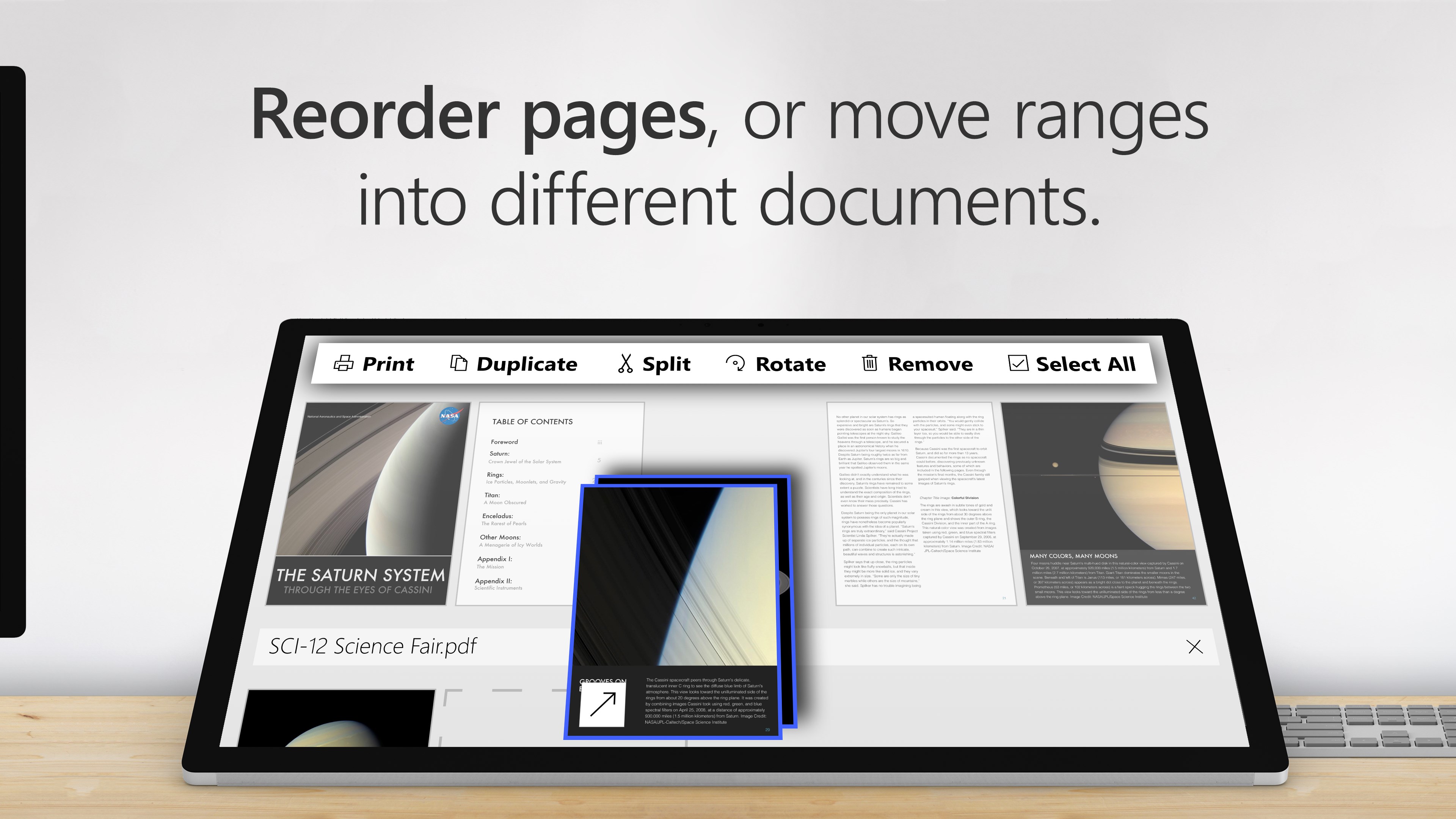
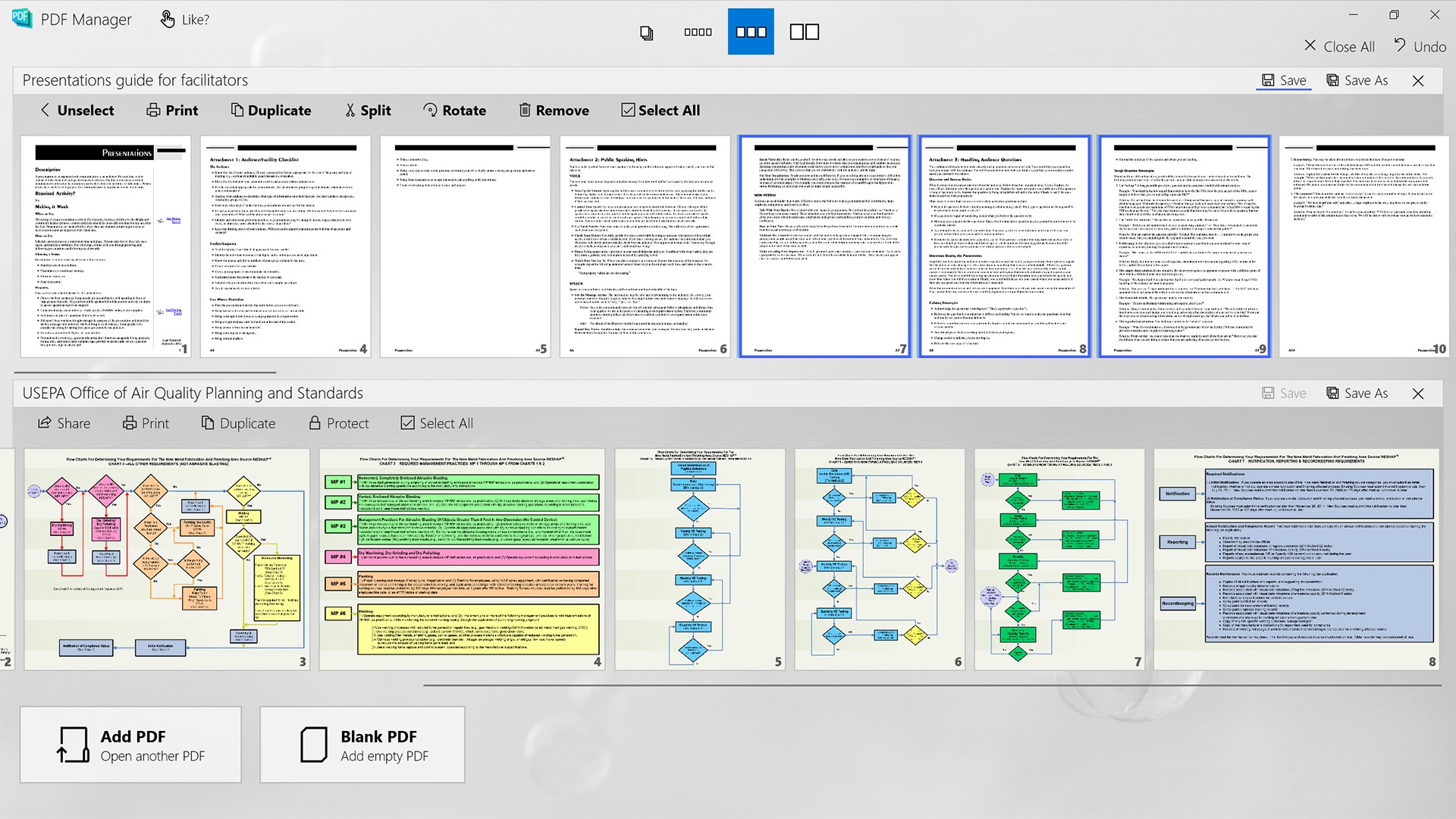
- Batch processing capabilities: Handle multiple files simultaneously to save time and effort.
Its target user base spans students, educators, business professionals, and anyone needing quick, reliable PDF editing without complex software learning curves.
Vivid Insights into Functionality
Intuitive Interface and User Experience
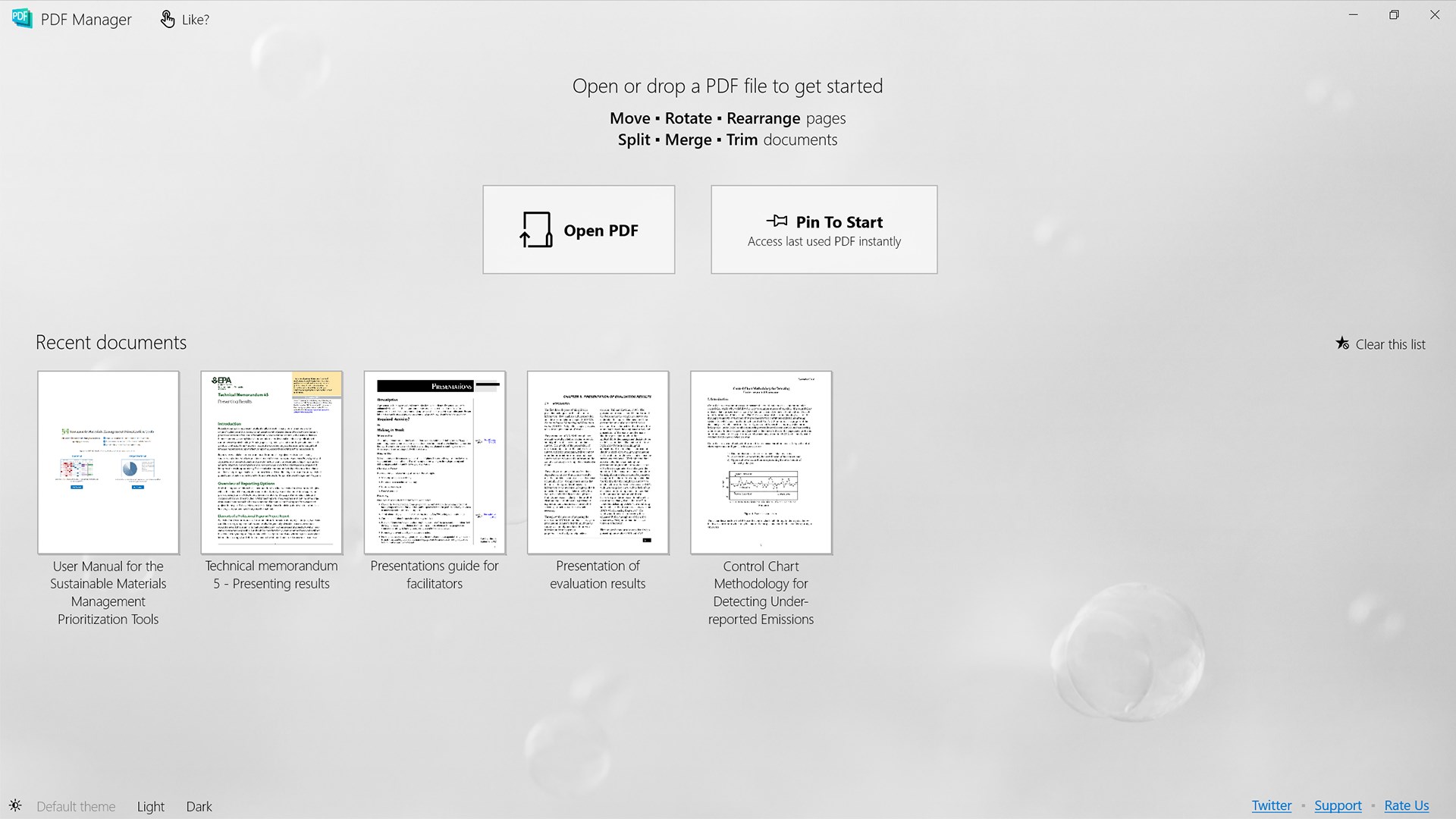
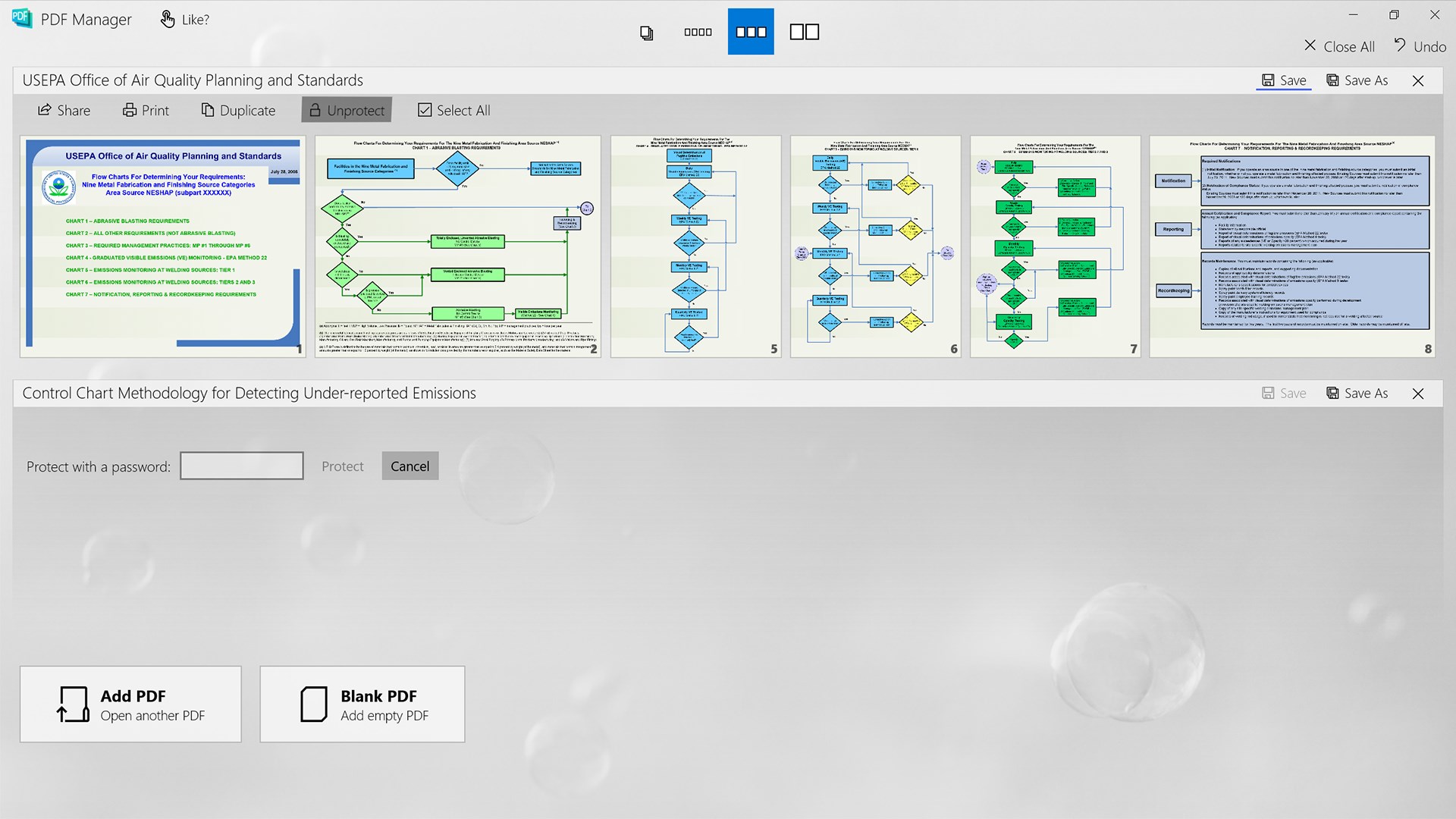
Imagine entering a well-organized workspace where everything is laid out like a neatly arranged toolbox—bright, clear icons guide you through each process, making even first-time users feel like seasoned pros. The interface design emphasizes simplicity, avoiding clutter and overwhelming menus. Operations flow smoothly—dragging and dropping files, selecting options from straightforward menus, results are achieved in a handful of clicks. The learning curve is gentle; even tech novices can navigate the app within minutes, empowering users to focus on their tasks rather than fiddling with confusing settings.
The Heart of the App: Merge, Split, Trim
Among its standout features, the merging capability stands out as a real time-saver. Imagine you've collected scattered pages from different sources and want them in one unified document—this app makes it as simple as selecting files and clicking 'Merge,' with no fuss about formatting anomalies. The splitting function is equally intuitive; just specify the pages or sections to carve out, and voilà—perfectly segmented files ready for distribution or focused study.
Trimming functionality shines especially when dealing with scanned documents or PDFs with excess margins. It automates the removal process, mimicking the exactness of a professional paper trimmer—no manual cropping needed, which streamlines preparation for presentations or archiving.
Workflow Efficiency and Differentiation
What sets this app apart from other productivity tools is how well it integrates into existing workflows by emphasizing ease and cognitive load reduction. Unlike overly feature-rich PDF solutions that overwhelm users, PDF Manager focuses on core tasks with minimal fuss. Its straightforward interface reduces the mental effort often expended in navigating complex menus or figuring out obscure options. This attribute makes it a particularly valuable addition to daily routines where time and mental clarity are precious commodities.
Moreover, the batch processing feature exemplifies its commitment to workflow efficiency, allowing users to prepare multiple documents at once. This reduces repetitive tasks and helps maintain focus on higher-level productivity rather than getting bogged down in file management minutiae.
Final Recommendations and Usage Tips
All things considered, PDF Manager is a reliable, user-friendly choice for quick PDF edits that don't need the heavyweight features of more complex software. I would recommend it to anyone frequently working with PDF files—be it students, teachers, or small business owners—who value simplicity and efficiency over bells and whistles.
If your daily routine involves merging reports, splitting source documents, or trimming out unnecessary parts, this app can become an indispensable tool, seamlessly fitting into your workflow. Keep in mind, though, it's best suited for straightforward tasks; for highly ornate PDFs or advanced editing, more comprehensive solutions might be necessary. Nevertheless, for what it offers, PDF Manager strikes a fine balance—streamlining your document processes without adding layers of complexity.
Pros
- User-friendly interface
- Fast processing speed
- Multiple editing options
- Supports various file sizes
- No additional software needed
Cons
- Limited advanced editing features
- Occasional stability issues
- Watermark in free version
- Limited support for very large files
- Lack of cloud integration











