

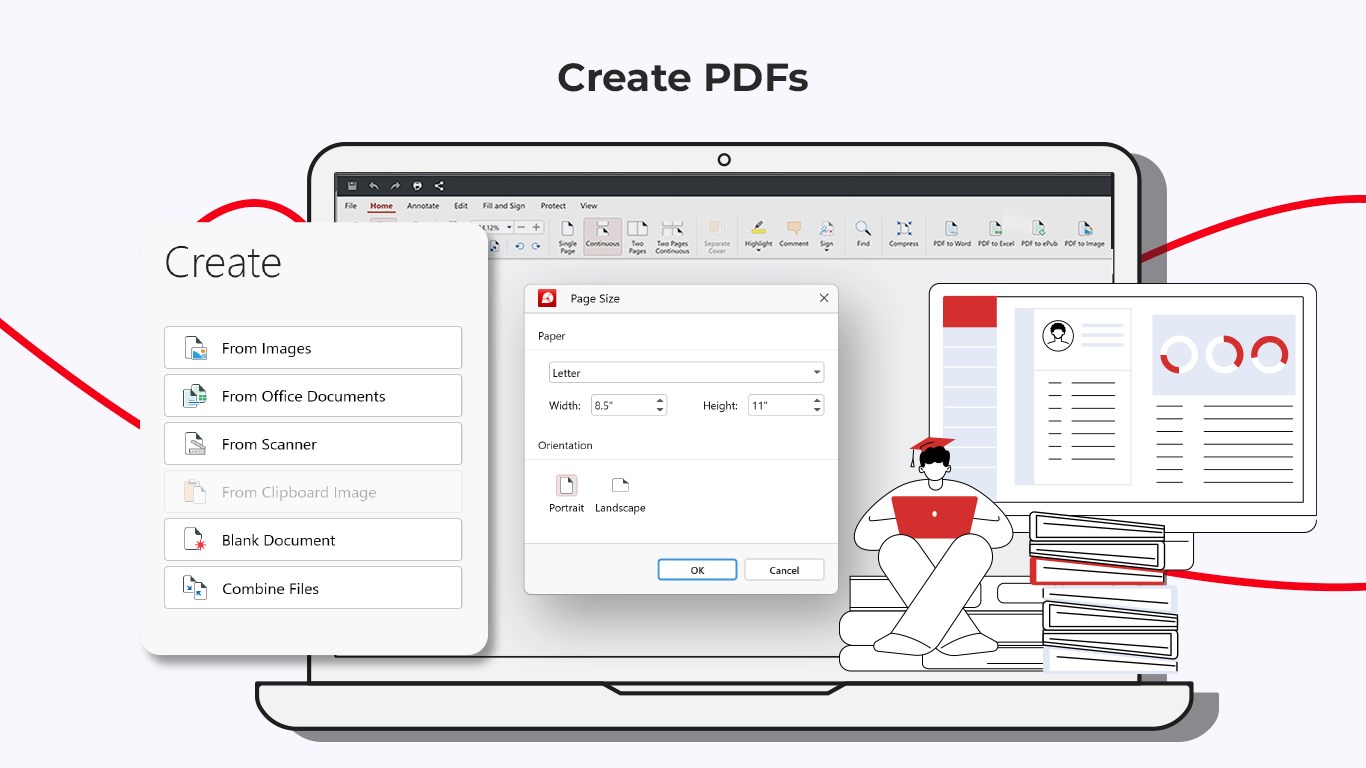
- Name PDF Extra Lifetime - PDF Editor and Reader
- Category Productivity
- Developer MobiSystems Inc.
- Available on PC, Mobile, Surface Hub, HoloLens
- OS Windows 10 version 17763.0 or higher
- Memory 1 GB
- languages Arabic (Egypt), Bulgarian, Chinese (Simplified), Czech, English (United States), French, German, Hebrew, Hindi, Italian, Japanese, Polish , Portuguese (Brazil), Portuguese (Portugal), Russian, Spanish (Spain), Swedish, Thai
An Introduction to PDF Extra Lifetime: Your All-in-One PDF Companion
Designed to transform your digital document management, PDF Extra Lifetime stands out as a comprehensive PDF editor and reader tailored for Windows users seeking efficiency, reliability, and simplicity in handling PDFs. Developed by MobiSystems Inc., this tool aims to streamline your workflow without drowning you in unnecessary features, making it an essential app for students, professionals, and casual users alike.
Core Features That Make a Difference
Robust PDF Editing and Annotation
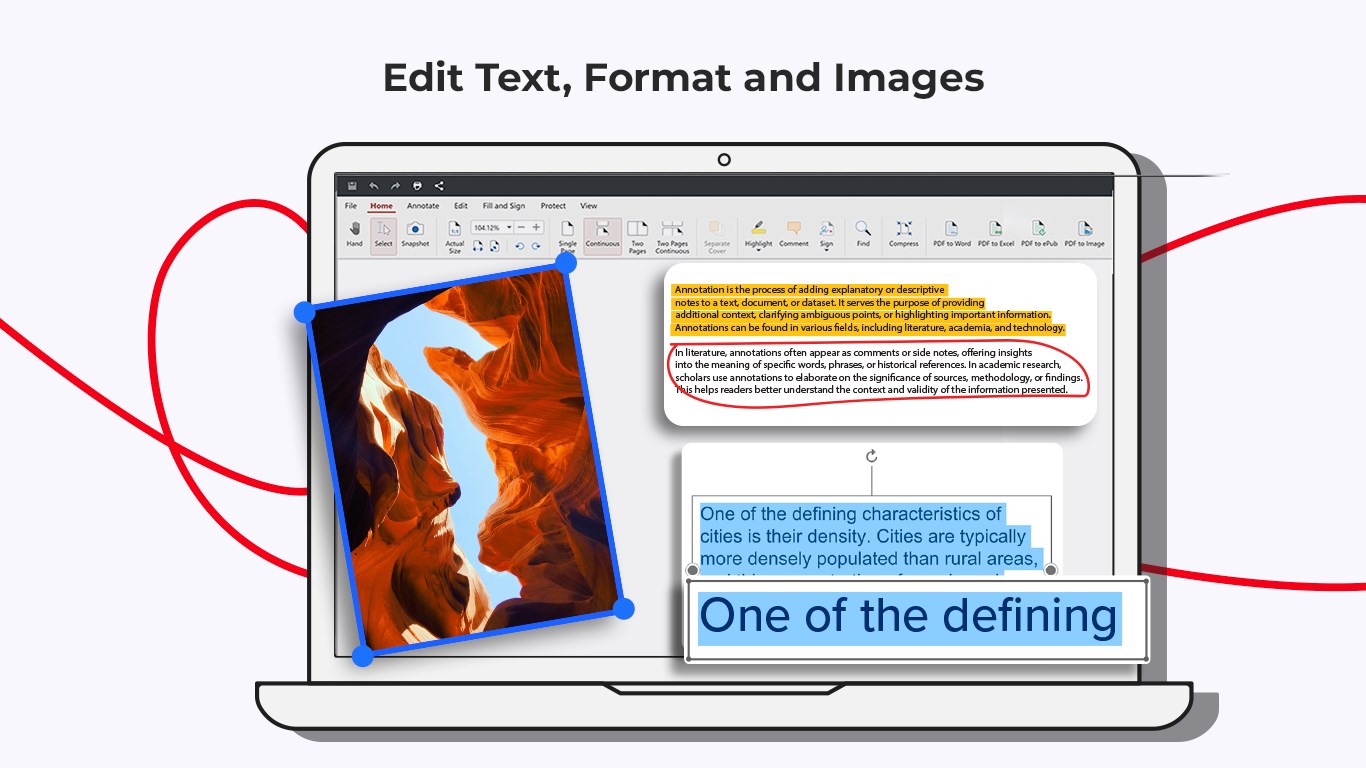
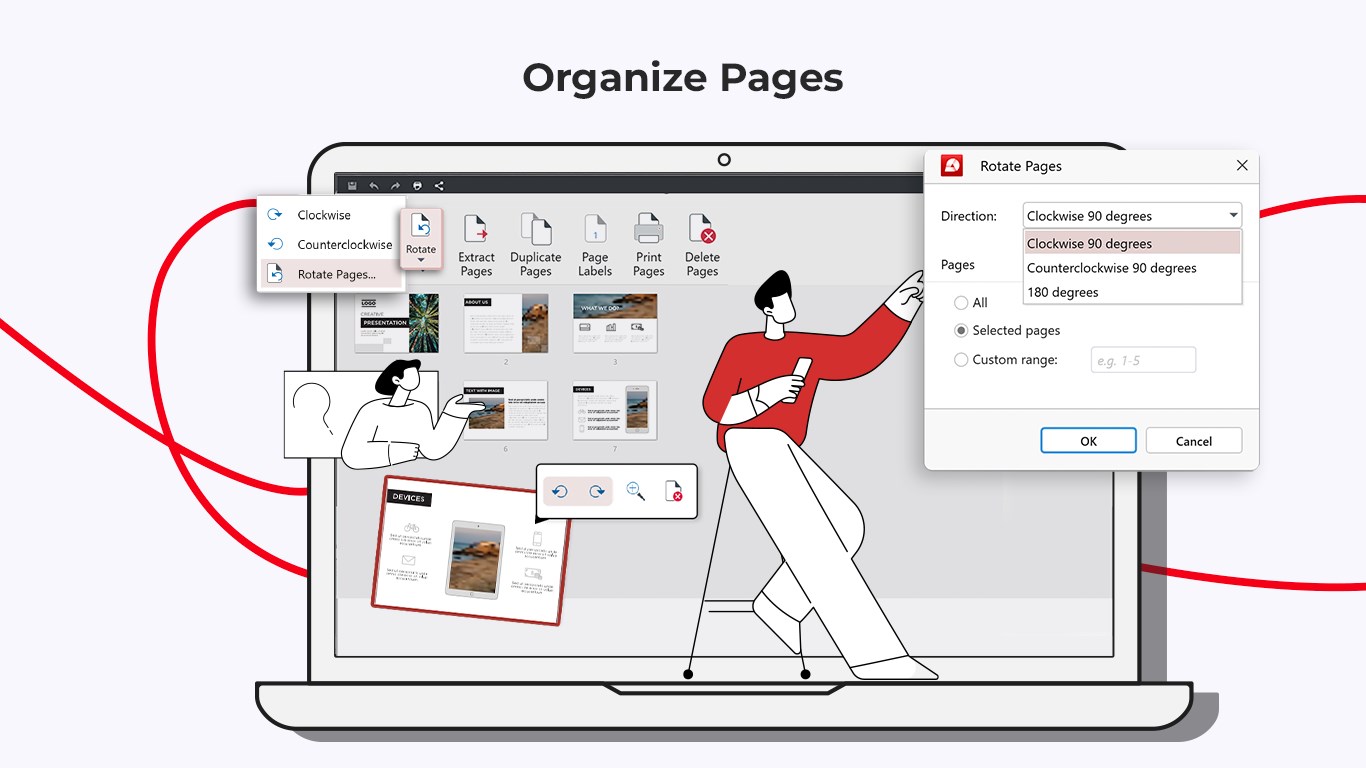
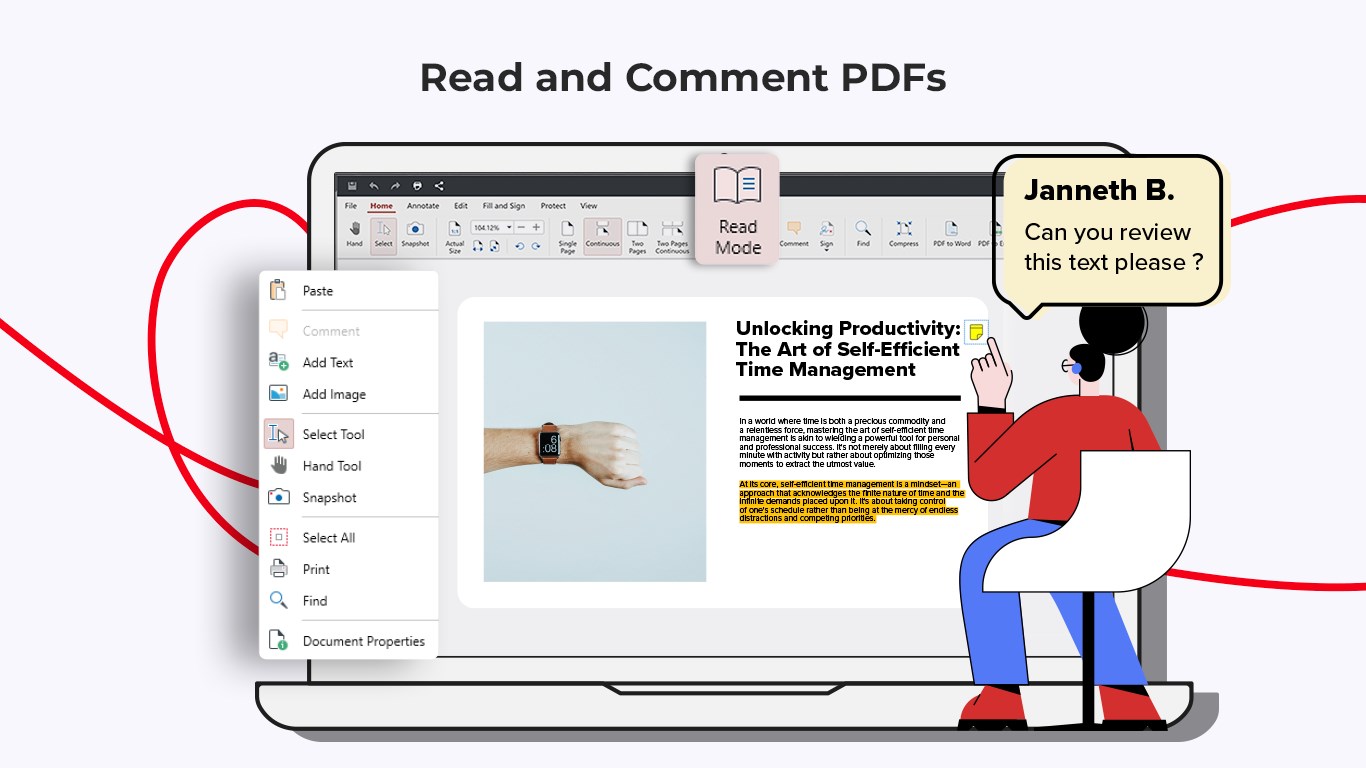
At its core, PDF Extra offers powerful editing capabilities—allowing you to seamlessly modify text, rearrange pages, and annotate with highlights, comments, and stamps. Imagine reviewing a report and being able to correct typos or underline key data without juggling multiple programs; it's just like having a virtual editing desk open right within your PDF reader.
Secure and Hassle-Free Conversion Tools
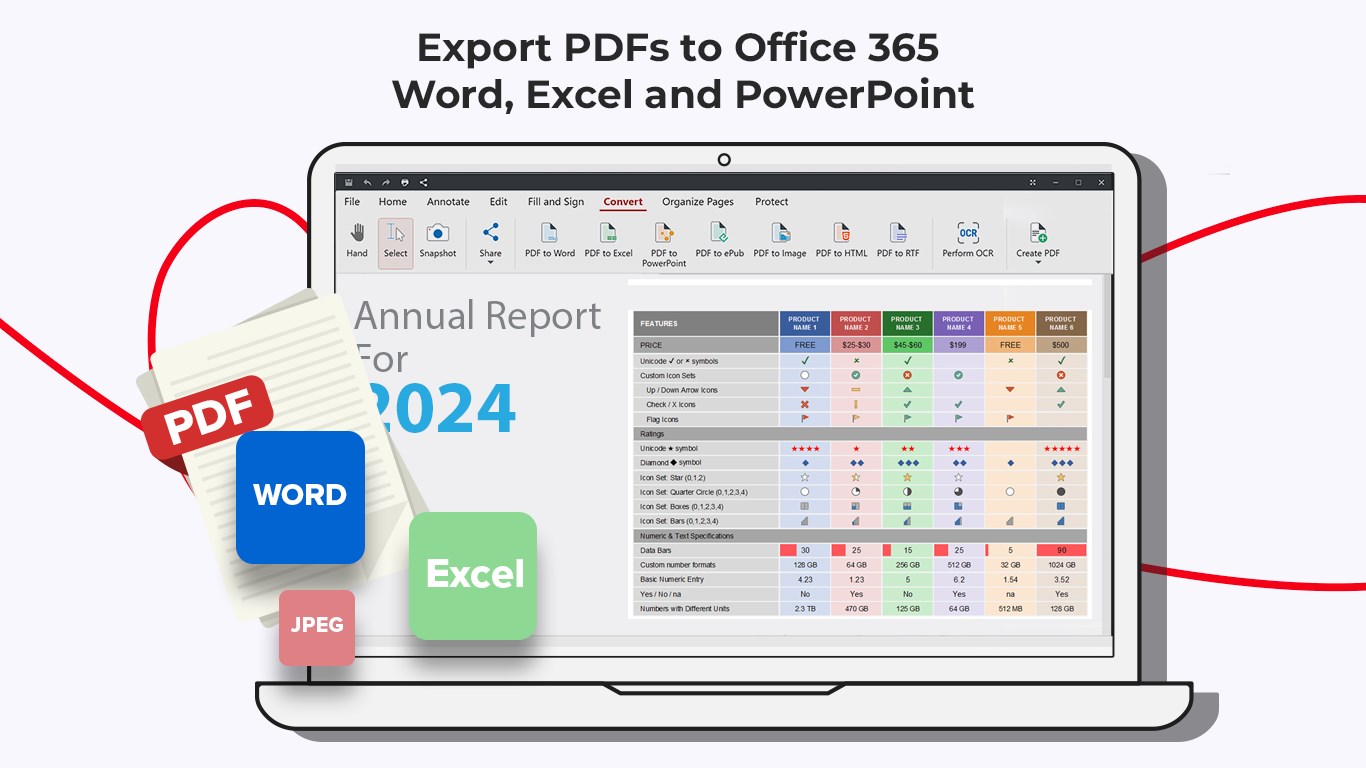
The app simplifies the process of converting PDFs into editable formats like Word, Excel, or PowerPoint, and vice versa. Its secure OCR (Optical Character Recognition) ensures that scanned documents become searchable and editable, saving you the trouble of retyping. Think of it as a personal translator that unlocks the content within your scanned paperwork, making it easy to repurpose your files.
Effective PDF Reading and Organization
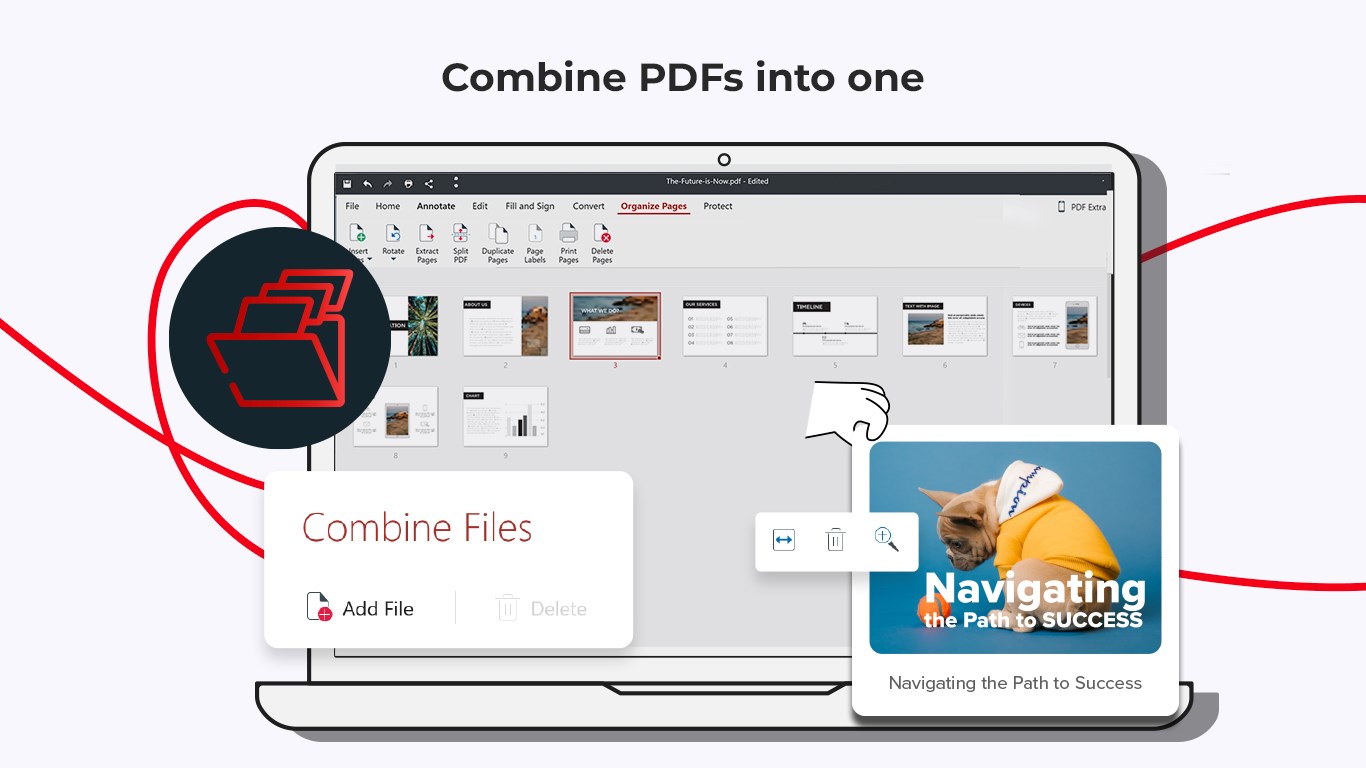
Beyond editing, PDF Extra offers a clean, intuitive reading experience—full-screen mode, adjustable viewing options, and easy navigation. Plus, with intelligent file organization and cloud integration support, managing your documents becomes as effortless as sorting your favorite photos. It's like having a well-organized digital filing cabinet at your fingertips.
Evaluating the User Experience
The app boasts a sleek, modern interface that resembles a well-organized workspace—offering a sense of familiarity and ease. Navigating through menus and tools feels fluid, like gliding smoothly over polished wood surfaces, thanks to its well-optimized responsiveness for Windows devices.
The learning curve is gentle; even first-time users can quickly locate essential functions without getting lost in a maze of features. The design favors clarity and minimalism, reducing cognitive load—a contrast to some feature-bloated PDFs that overwhelm users with options. This means less time figuring out how to do something and more time actually working on your document.
What Sets PDF Extra Apart from Its Peers?
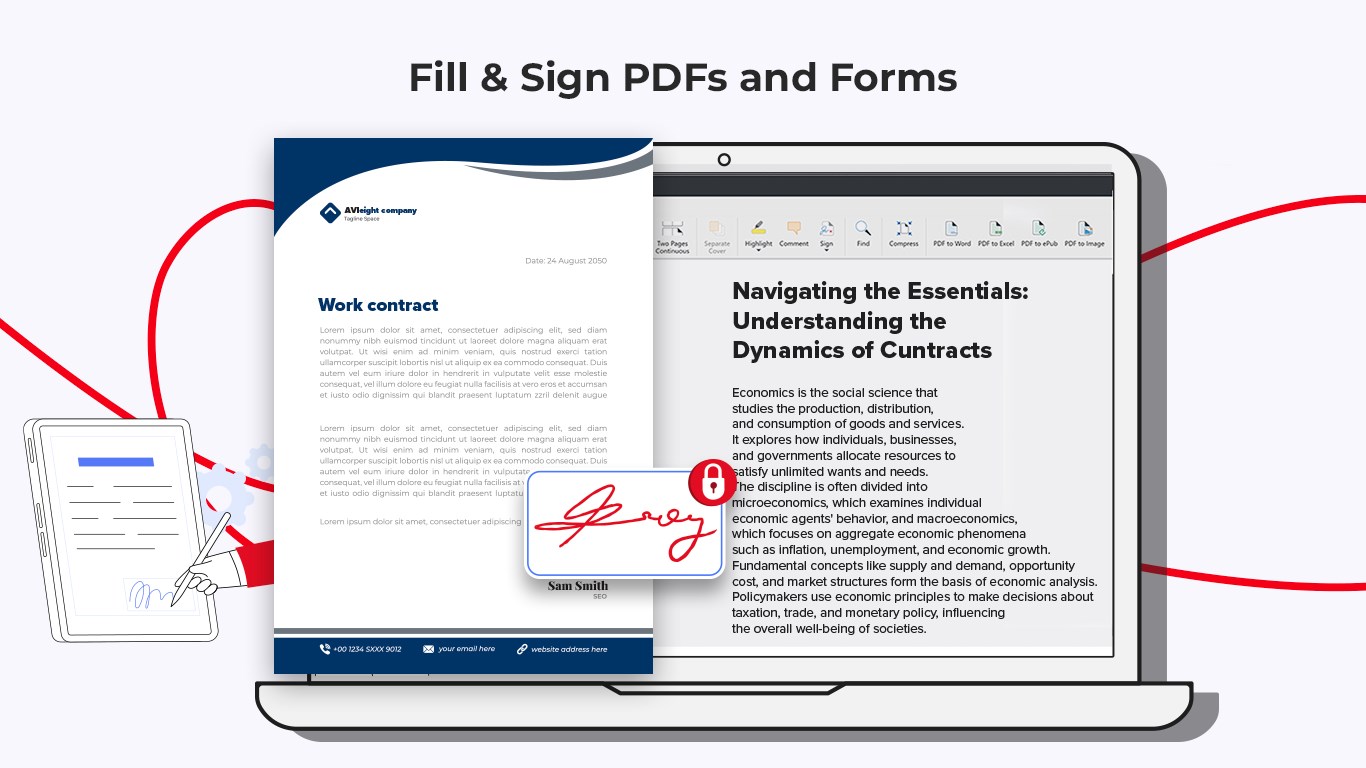
Unlike many PDF editors that offer a multitude of features but suffer from complexity, PDF Extra places a clear emphasis on workflow integration and user-friendliness. Its ability to unify reading, editing, converting, and signing within a single app notably cuts down on the need to switch between multiple tools, thereby boosting your productivity efficiency.
Additionally, its intelligent OCR and secure handling of sensitive documents mean you're not just throwing features against a wall hoping something sticks. Instead, the app focuses on reducing the cognitive overhead involved in managing PDFs—making complex tasks feel straightforward. This balance of feature richness and simplicity is what truly elevates PDF Extra in a crowded market.
Recommendation and Usage Tips
If you are someone who frequently works with PDF files—be it for editing reports, filling out forms, or managing scanned documents—PDF Extra Lifetime offers a reliable, efficient solution worth trying out. Its straightforward interface and core features cater well to both casual users and professionals aiming for seamless workflow integration.
For optimal use, leverage the conversion tools for preparing documents before meetings or presentations, and utilize the annotation features during reviews. However, if your work involves highly advanced PDF functionalities like 3D modeling or heavy form creation, you might need specialized tools. Still, for everyday tasks, PDF Extra strikes a compelling balance between capability and ease of use.
In summary, consider this app your digital Swiss Army knife for PDFs—robust yet accessible, designed to simplify your document handling rather than complicate it. Its standout OCR and unified workflow approach make it a top recommendation for those seeking to maximize productivity with minimal fuss.
Pros
- Intuitive User Interface
- Comprehensive PDF Editing Tools
- Lifetime Access with One-Time Purchase
- Fast Performance
- Secure Data Handling
Cons
- Limited Advanced Features
- Occasional App Crashes
- Incompatibility with Certain Cloud Services
- Watermark on Free Version
- Learning Curve for Advanced Features











