
- Name PDF Editor: PDF Reader
- Category Productivity
- Developer finetunesapp
- Available on PC, Mobile, Surface Hub, HoloLens
- OS Windows 10 version 17763.0 or higher
- languages English (United States)
Introducing PDF Editor: Your Streamlined PDF Companion for Windows
In a digital age where efficiency and clarity are paramount, PDF Editor: PDF Reader for Windows emerges as a thoughtfully designed tool aimed at simplifying the way users interact with PDF documents. Developed by FinetunesApp, this application seeks to bridge the gap between simplicity and functionality, offering an experience tailored for both casual users and professionals seeking quick, reliable PDF management.
Easy-to-Use Interface with Intuitive Navigation
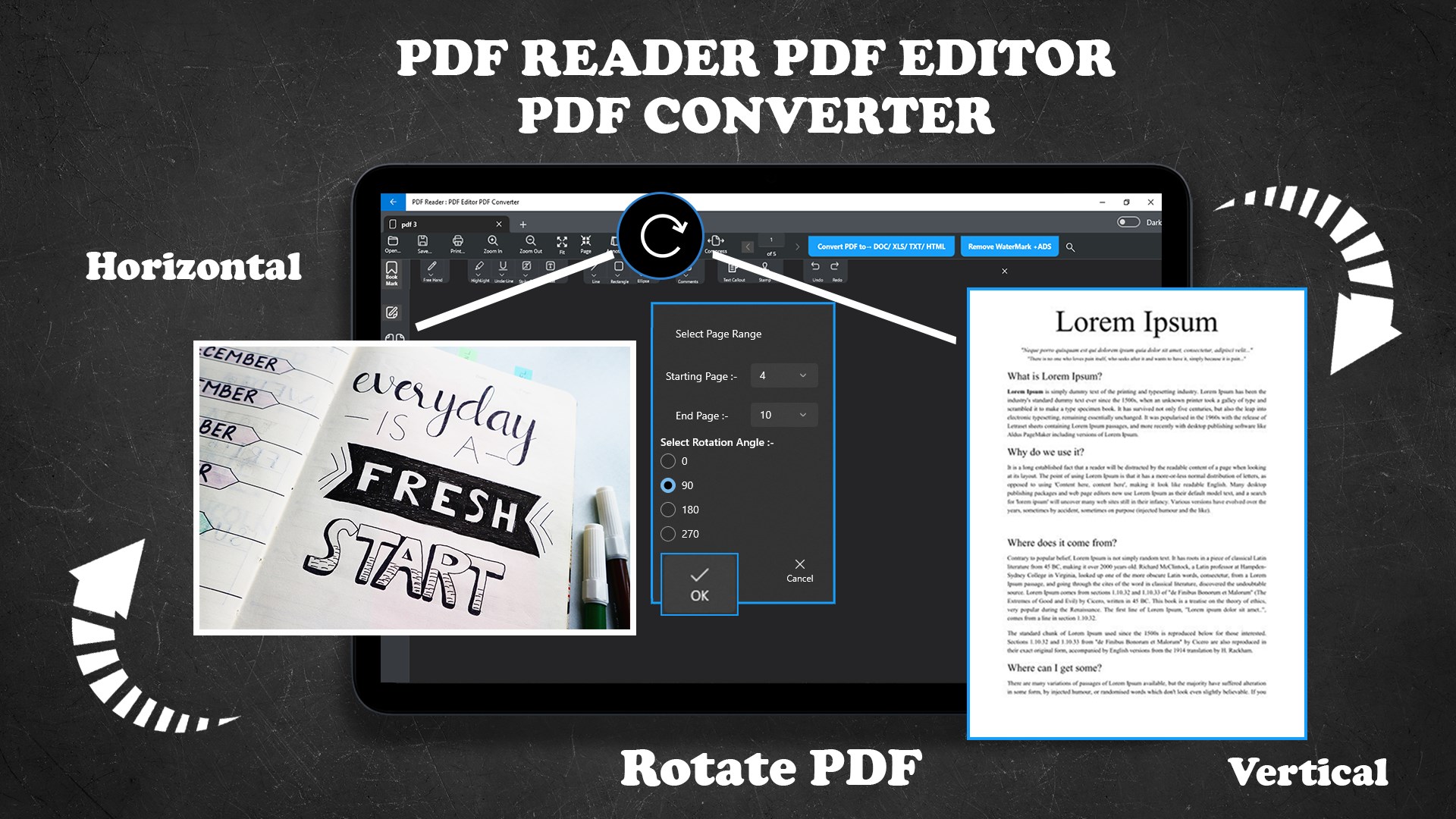
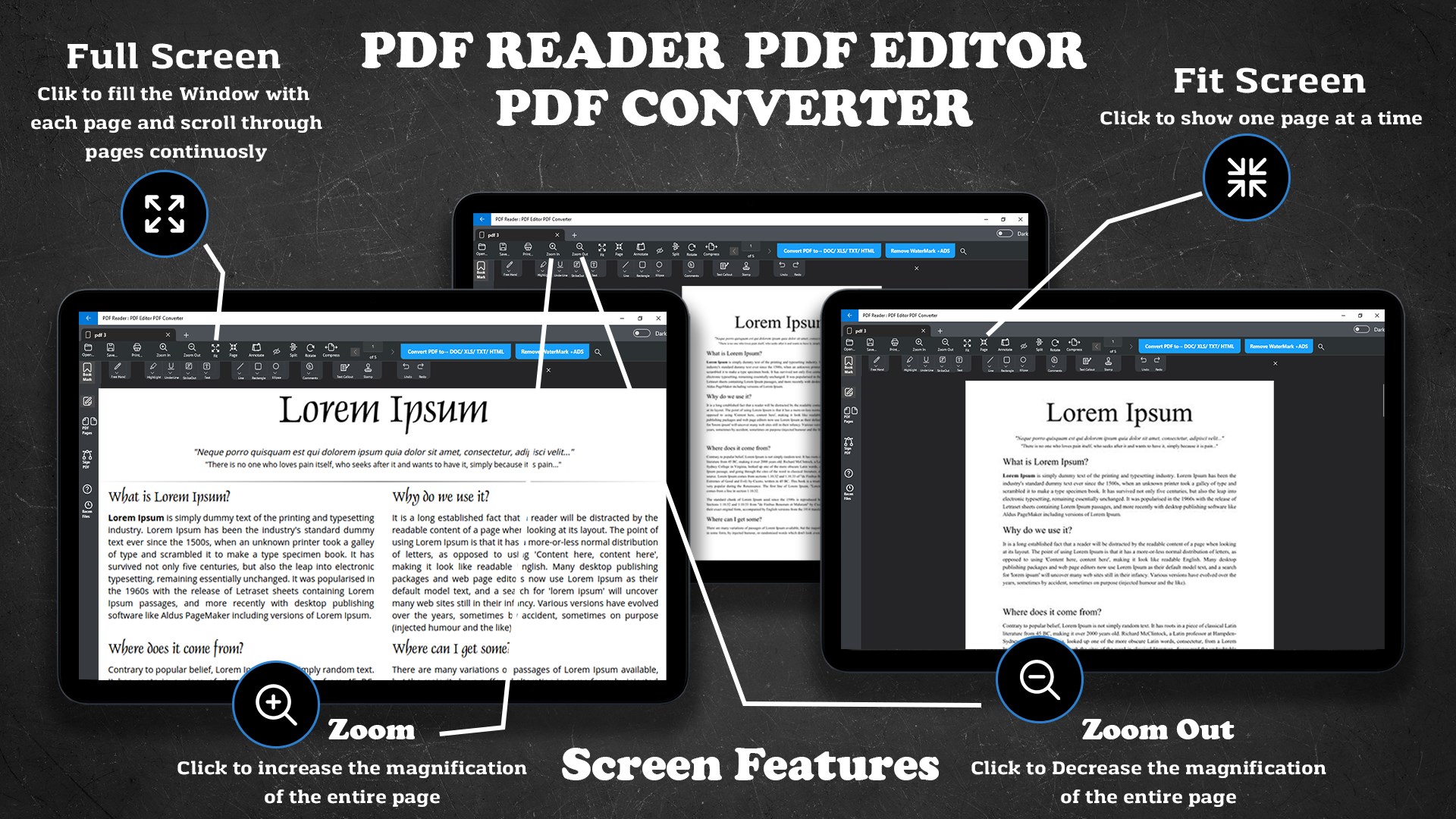
From the moment you launch PDF Editor, you're greeted with a clean, user-friendly interface that feels more like a well-organized workspace than a cluttered digital toolbox. The layout mimics familiar office environments—think of a neatly arranged desk with all tools within arm's reach—making navigation effortless. The minimalist design reduces cognitive load, allowing users to focus on their document tasks without distraction. Whether you're a first-time user or a frequent PDF editor, the learning curve is gentle; most features are discoverable through straightforward menus or toolbars, ensuring that you're not bogged down by confusing options.
Key Functionality: Editing, Annotation, and Conversion
Seamless Editing with Context-Aware Tools
One of the app's standout features is its intelligent editing capabilities. Whether you need to add or delete text, insert images, or reorganize pages, PDF Editor offers a smooth, drag-and-drop experience. Its context-aware tools automatically adapt to different document types, providing relevant options that simplify editing tasks. Imagine editing as if you're gently sculpting clay—precise, natural, and without the typical hassle of complex menus.
Efficient Annotation and Review System
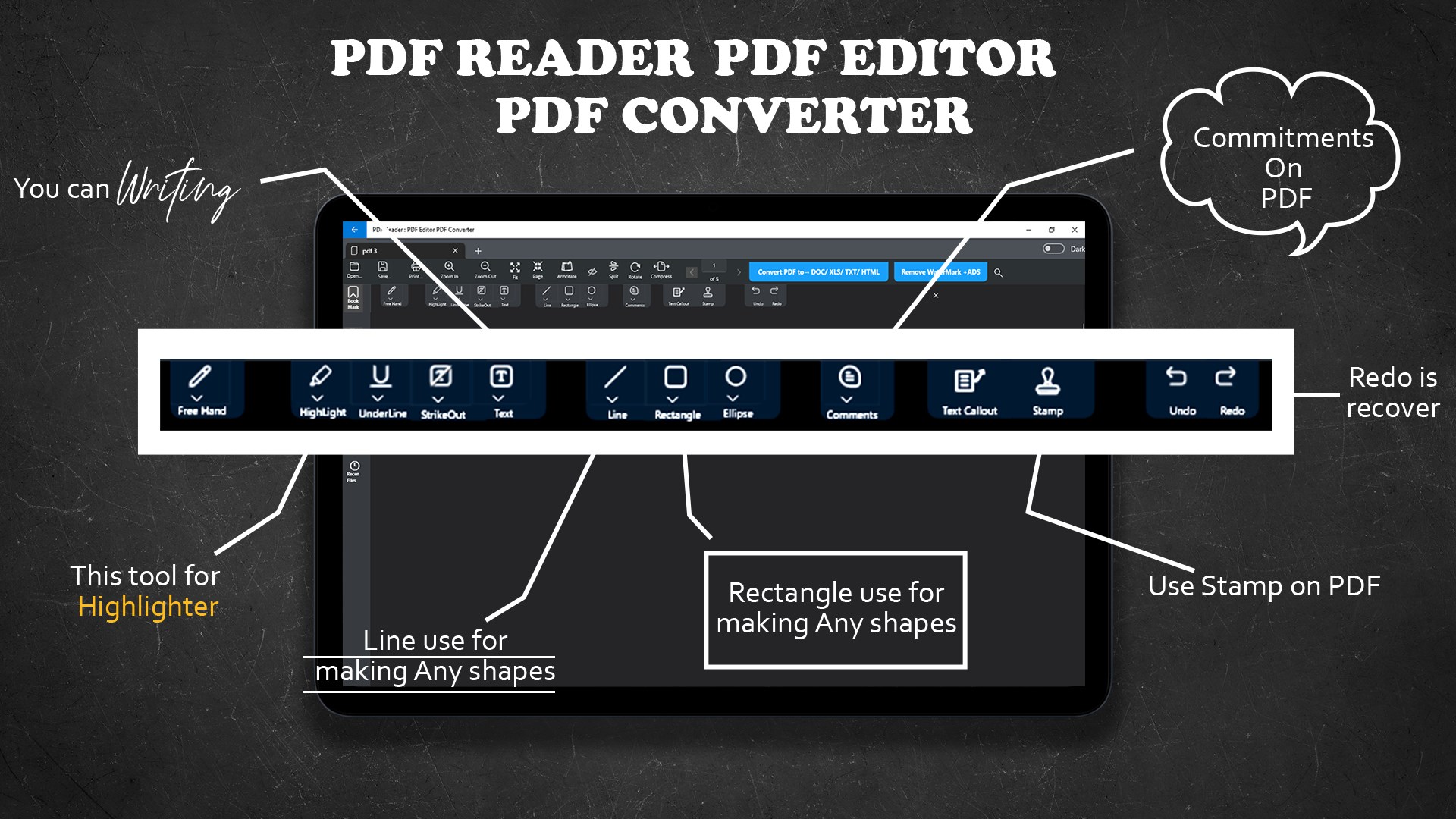
For those collaborating or reviewing documents, annotation tools are essential. PDF Editor enables users to highlight, underline, or add comments effortlessly—even supporting drawing and sticky notes. The annotations are smartly integrated, allowing for quick review cycles and easy sharing. This makes the app particularly useful for teams working remotely, where clear visual cues can replace lengthy email chains. The interface for annotations is intuitive, ensuring users don't get overwhelmed by options, yet still have all the necessary tools at their fingertips.
Robust PDF Conversion and Management
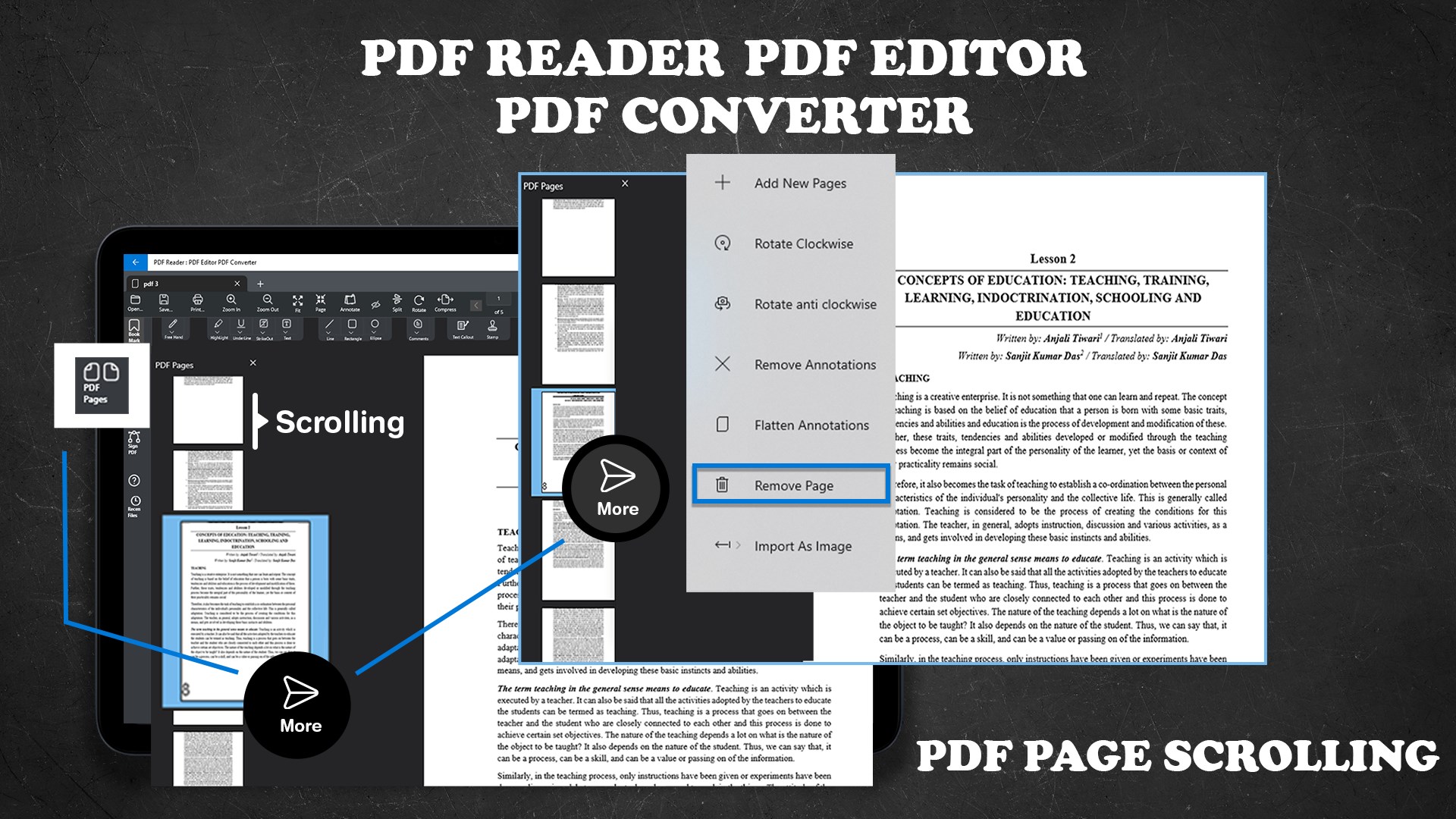
The app doesn't just handle PDFs; it also acts as a converter hub, transforming PDFs into editable Word, Excel, or PowerPoint files, and vice versa. The conversion process is fast and accurate, preserving original formatting and layouts. For users juggling multiple document formats regularly, this feature saves appreciable time, integrating conversion seamlessly into their workflow. Plus, with simple page management tools, reordering or extracting pages become straightforward tasks, akin to organizing physical documents on a desk rather than wrestling with complex file trees.
Assessing the User Experience: Flow and Differentiators
Using PDF Editor feels like operating a well-oiled machine; the application's responsiveness and smooth animation effects make every click feel intentional and satisfying. Unlike feature-heavy competitors that can overwhelm with options, this app emphasizes core functionalities—editing, annotating, converting—delivering just enough to get the job done efficiently. This focus significantly lowers cognitive load, allowing users to accomplish tasks faster and with less mental strain. It's akin to having a helpful assistant who knows exactly what you need without overloading your workspace with extraneous tools.
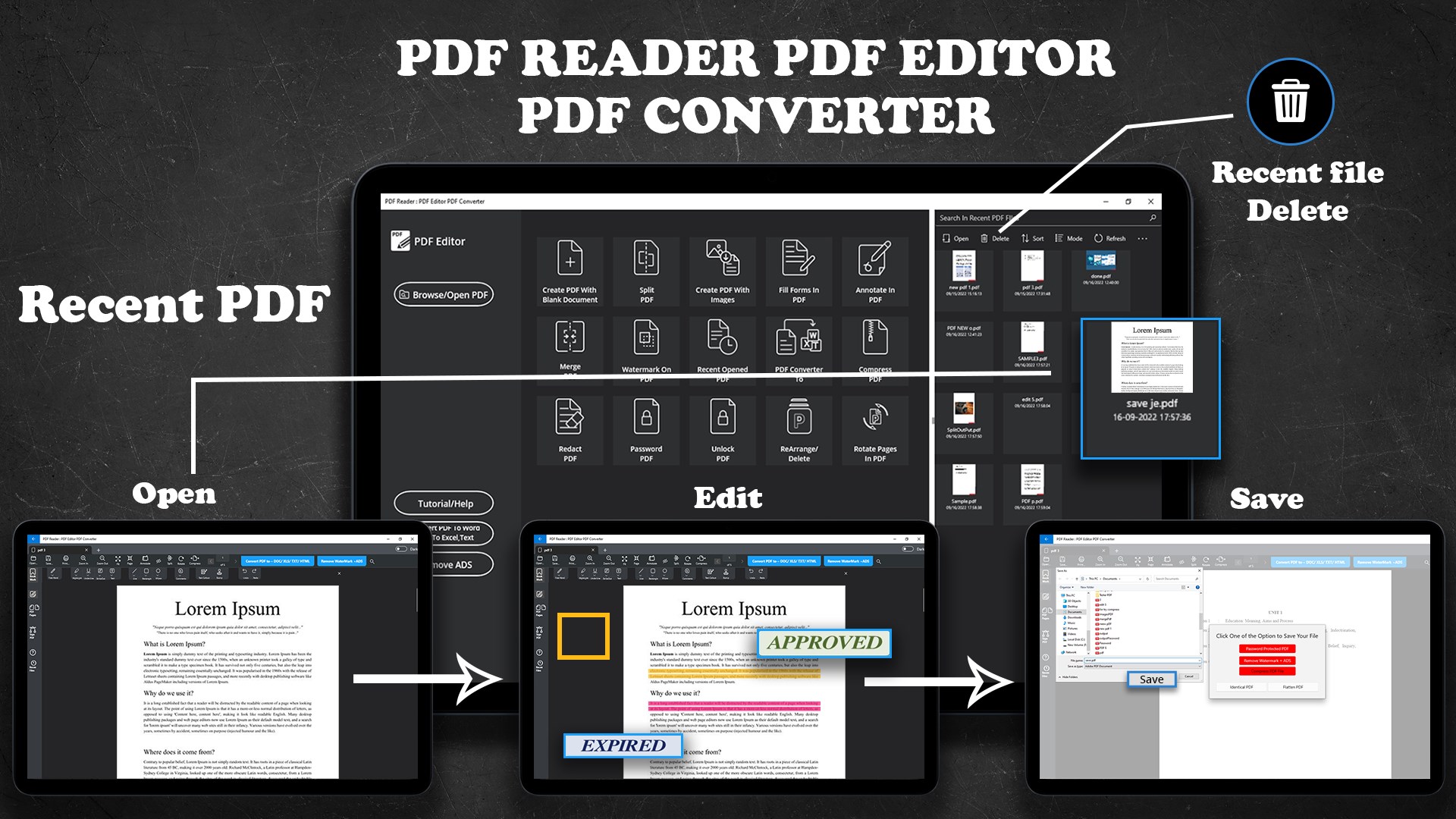
Another unique aspect lies in its workflow integration. Unlike traditional PDF editors that require multiple steps or external software, PDF Editor keeps everything in one window—fast, coherent, and organized. This seamless experience reduces context switching, boosting productivity and clarity. For professionals, especially those managing extensive paperwork or tight deadlines, this integration becomes a crucial advantage.
Final Verdict: A Practical, User-Centric PDF Tool
Overall, PDF Editor: PDF Reader for Windows stands out as a reliable, straightforward application tailored for users who value efficiency over flashy features. Its most notable strengths lie in its intuitive interface and smart editing tools that work harmoniously to streamline workflows. I'd recommend it for everyday PDF tasks—reading, annotating, quick edits—and especially for those who prefer a clutter-free environment that emphasizes clarity and ease of use. For anyone seeking a dependable PDF companion that saves time and reduces frustration, this app is worth trying out.
Pros
- Intuitive User Interface
- Comprehensive PDF Tools
- Fast Performance
- Cloud Integration
- Lightweight and Resource-Friendly
Cons
- Limited Advanced Editing Features
- Occasional Compatibility Issues
- Basic Annotation Tools Only
- Free Version Has Limited Features
- Offline Functionality Could Be Improved











