
- Name PDF Converter Pro : PDF To DOCX
- Category Productivity
- Developer finetuneapps
- Available on PC, Mobile, Surface Hub, HoloLens
- OS Windows 10 version 17763.0 or higher
- languages English (United States)
Effortless PDF Conversion at Your Fingertips
PDF Converter Pro: PDF To DOCX for Windows, developed by FinetuneApps, is a straightforward yet powerful tool designed to streamline your document management. It promises quick and reliable conversion of PDFs into editable Word documents, making it an ideal companion for students, professionals, and office workers alike.
About the App: Simplicity Meets Functionality
In a world saturated with complex productivity tools, PDF Converter Pro stands out with its focus on core functionality – converting PDFs to DOCX format seamlessly. Developed and published by FinetuneApps, this app is tailored specifically for Windows users seeking an efficient way to handle PDF content without unnecessary clutter. Its main highlights include high accuracy in text recognition, preservation of formatting, and intuitive batch processing capabilities. Targeted primarily at users who frequently need to extract editable content from PDFs, whether for editing, data analysis, or report preparation, this app simplifies what used to be a cumbersome task.
Bright and Intuitive User Interface
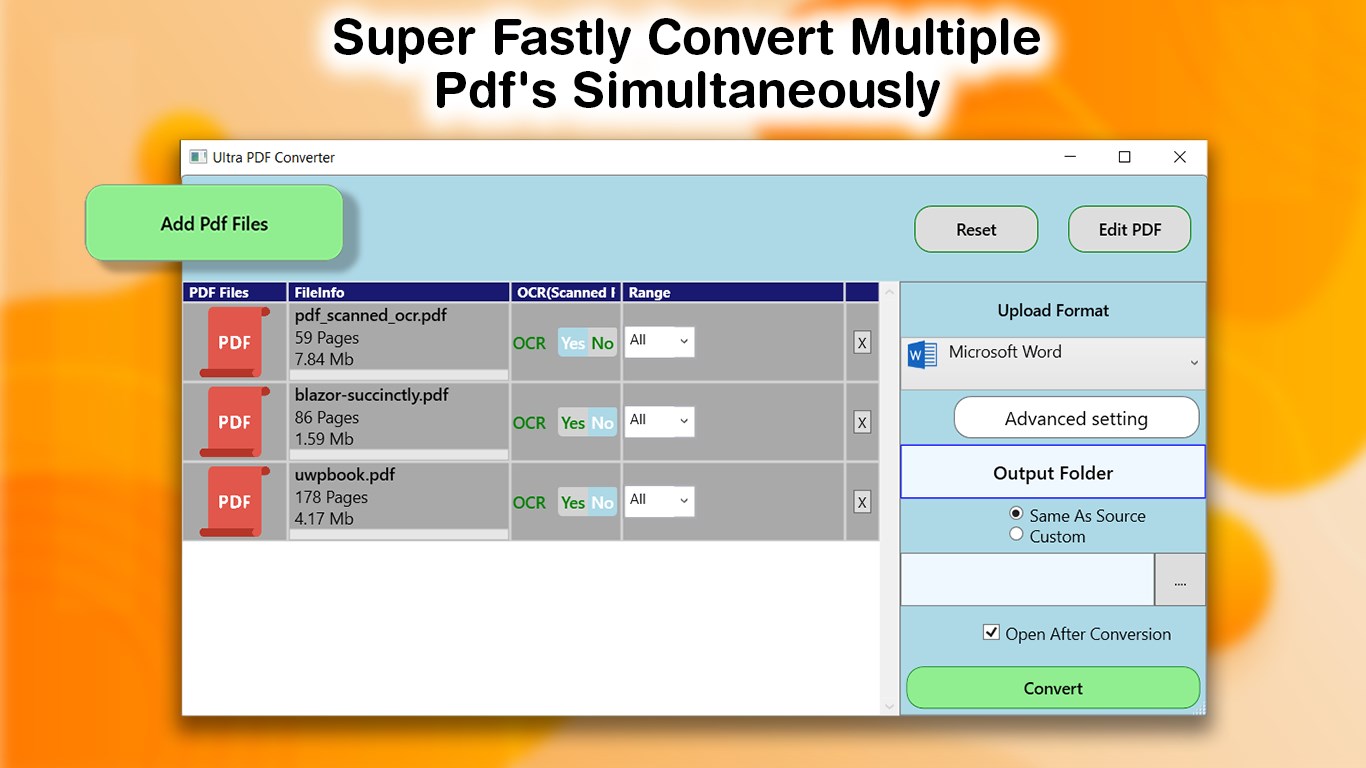
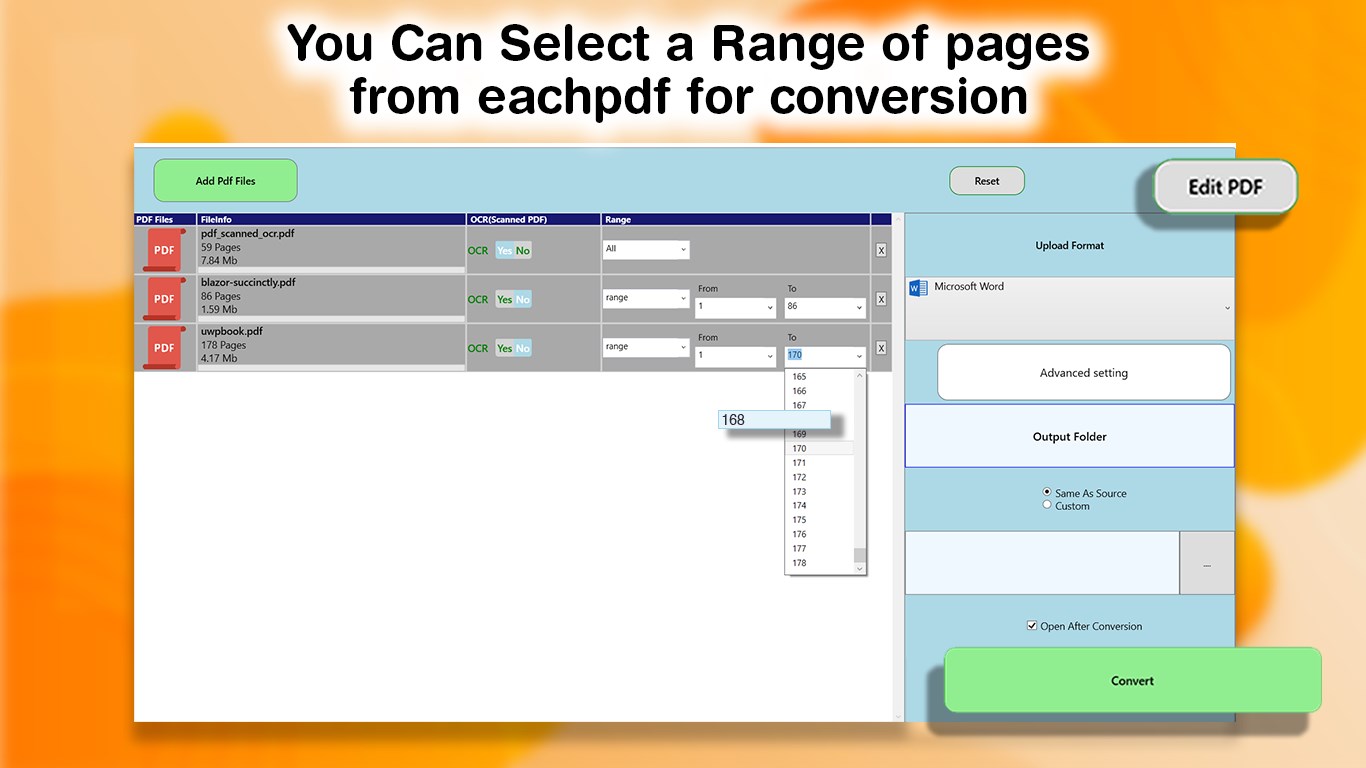
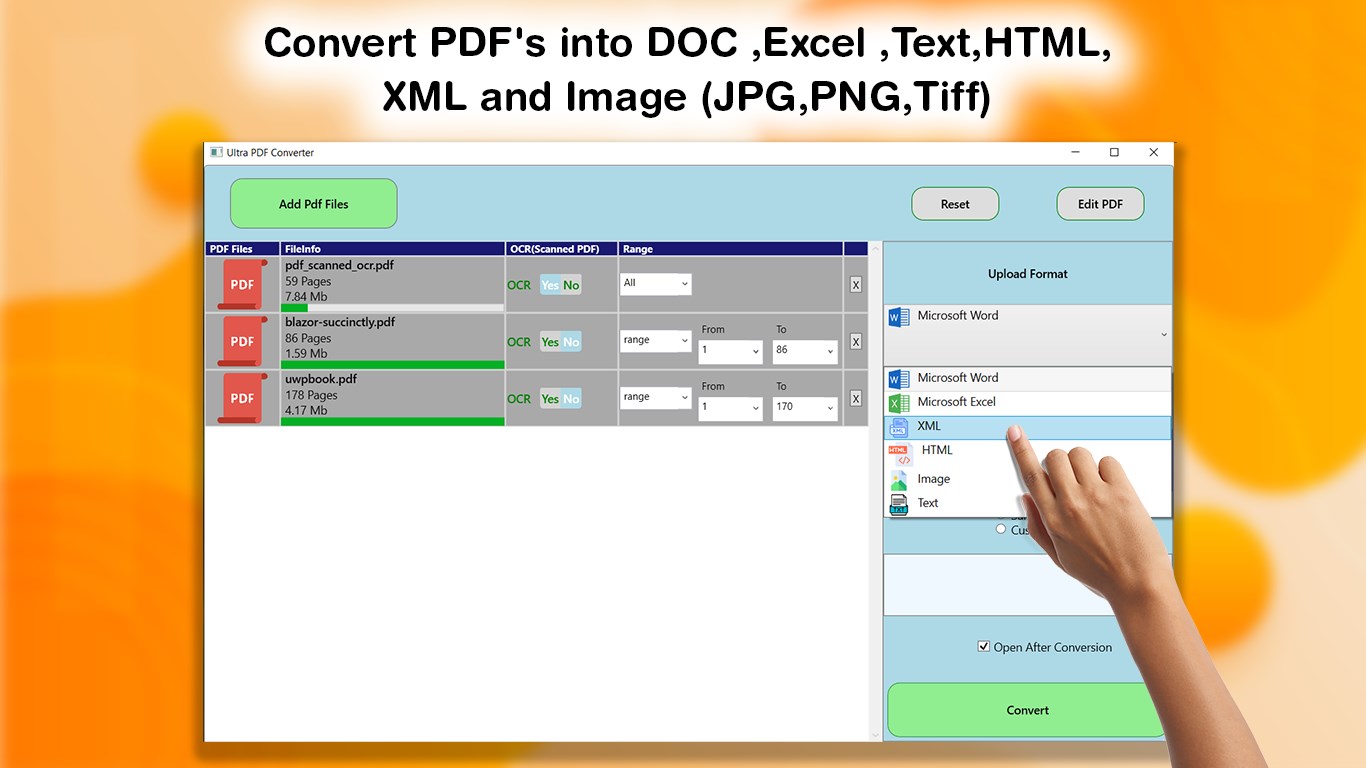
Launching PDF Converter Pro feels akin to opening a well-organized workspace — a clean interface that invites you in without overwhelming. The main window prominently displays your PDF files, with drag-and-drop support to speed up workflow. Its design emphasizes clarity, with simple icons guiding you through each step, making the learning curve minimal. The experience is smooth and responsive; transitioning between selecting files, setting conversion options, and executing the process feels effortless, akin to turning a well-oiled machine. Even users with little technical background can pick it up quickly, thanks to straightforward prompts and logical layout.
Key Functionalities: Precision, Speed, and Batch Brilliance
Accurate Text Recognition and Formatting Preservation
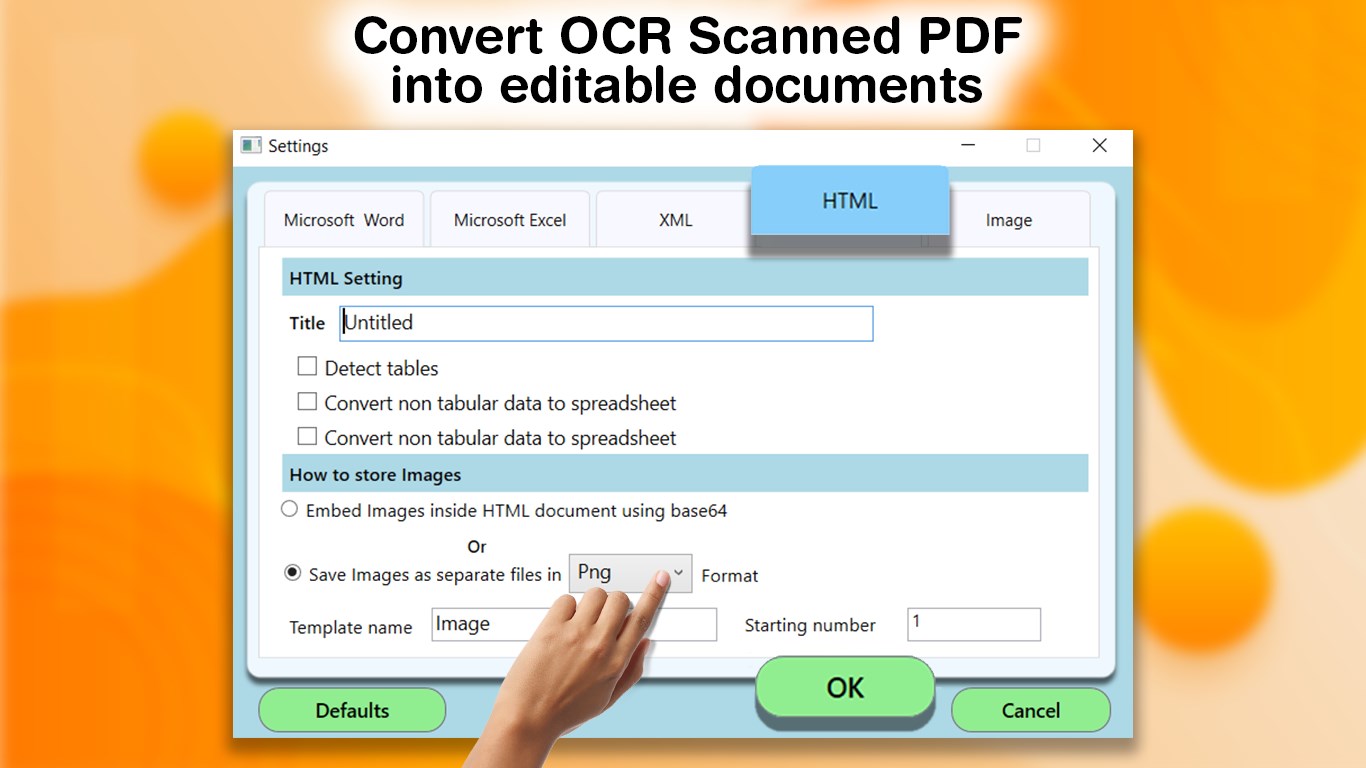
The core strength of PDF Converter Pro lies in its ability to produce DOCX files that closely mirror the original PDFs. Whether dealing with straightforward text documents or complex layouts with tables and images, the app maintains the integrity of the original content. Its OCR (Optical Character Recognition) engine efficiently captures text from scanned PDFs, making it a reliable choice for digitizing paper-based materials. Users will find that the converted documents preserve font styles, headings, and even embedded images, reducing post-conversion editing efforts significantly.
Batch Processing with Workflow Efficiency
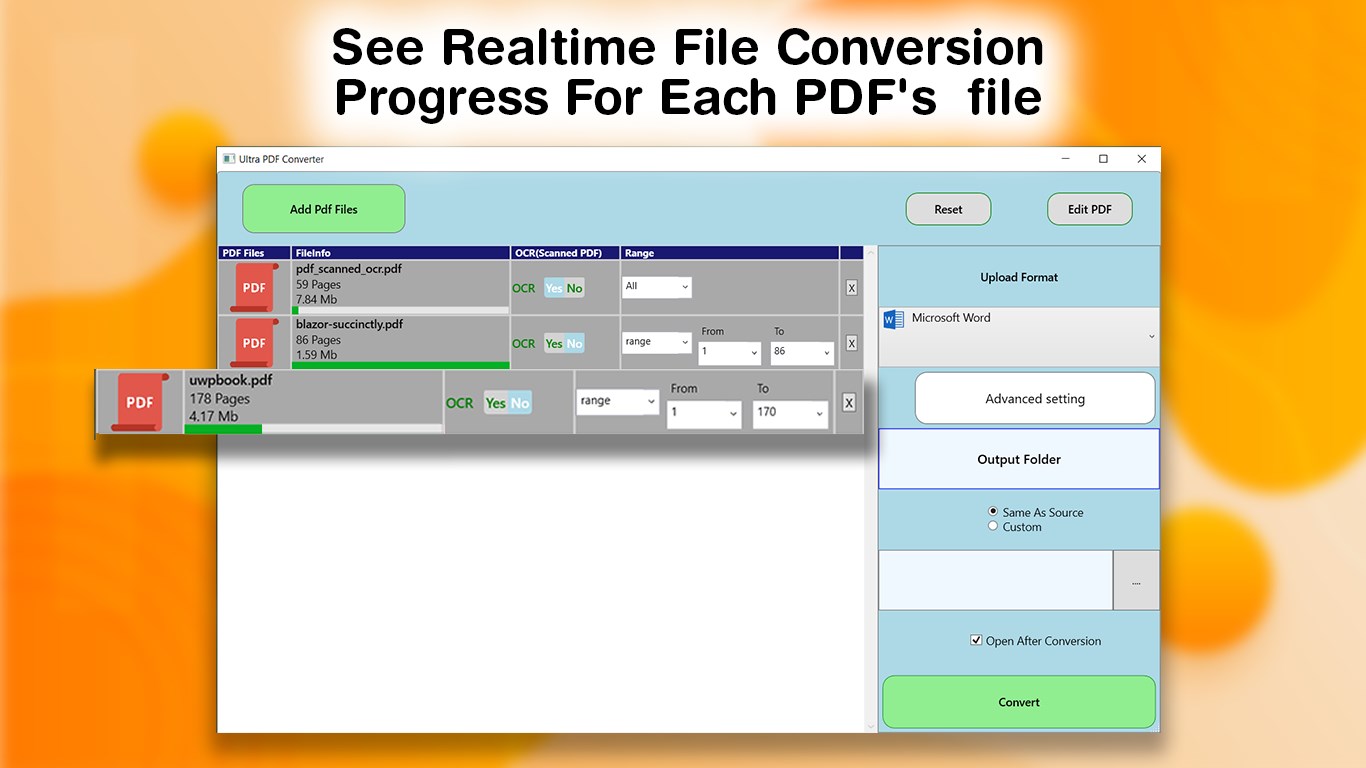
If you often handle multiple PDFs simultaneously, the batch processing feature becomes a lifesaver. Drag multiple files into the interface, set your preferences once, and let the app handle the rest. Conversion speed is notably fast, minimizing waiting times, especially for standard documents. This capacity not only accelerates document workflows but also reduces the cognitive load associated with task switching, allowing users to focus on higher-level analysis rather than repetitive manual conversions.
Balancing Functionality and User Experience
The app's design is akin to a friendly guide — it offers all the essential tools without drowning users in unnecessary options. Its minimal learning curve is a breath of fresh air compared to more bloated productivity suites. While some competitors may offer a plethora of features, they often come with increased complexity and cognitive load. PDF Converter Pro's focused approach ensures that users spend less time figuring out “how” and more time on “doing,” especially because the core process—conversion—is executed with precision and speed. This targeted efficiency is its unique advantage, effectively reducing user frustration and time spent on post-processing.
Final Verdict: A Practical Choice for Focused PDF to Word Conversion
Overall, PDF Converter Pro emerges as a reliable, user-friendly tool that excels at converting PDFs into editable DOCX files without unnecessary fuss. Its highlight features—especially its ability to handle batch conversions accurately and preserve document fidelity—make it stand out in the productivity landscape. For users who need a straightforward solution to convert PDFs regularly, this app offers an excellent balance of simplicity and effectiveness. I would recommend giving it a try if your workflow involves frequent PDF editing or data extraction tasks; it's a handy, no-nonsense tool that fits neatly into any professional or academic routine.
Pros
- High accuracy in converting PDFs to editable DOCX format
- Supports batch processing for multiple files at once
- User-friendly interface with simple navigation
- Includes cloud storage options for easy file import/export
- Offers high-speed conversion, saving time on large files
Cons
- Limited editing features within the app
- Occasional formatting inconsistencies in complex PDFs
- Some features available only in premium version
- Slow performance with very large or multi-page PDFs
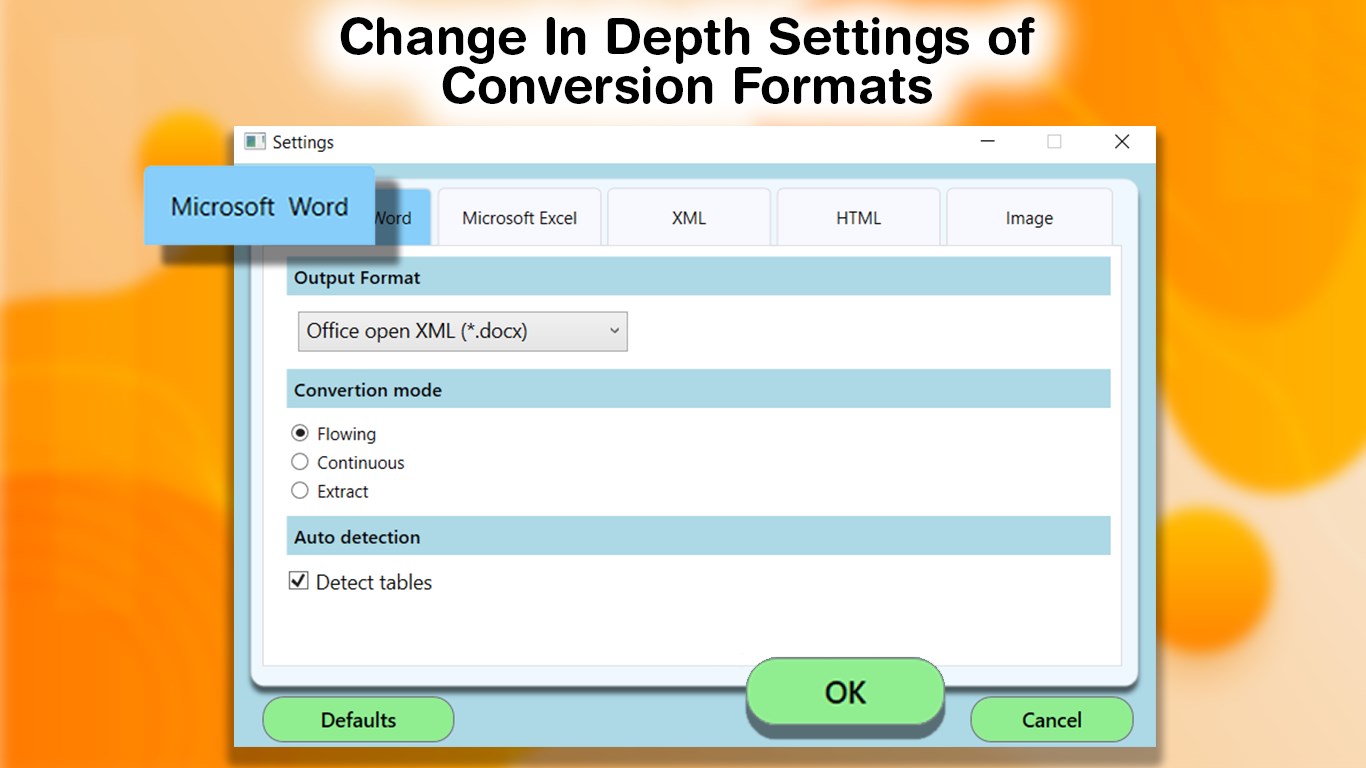
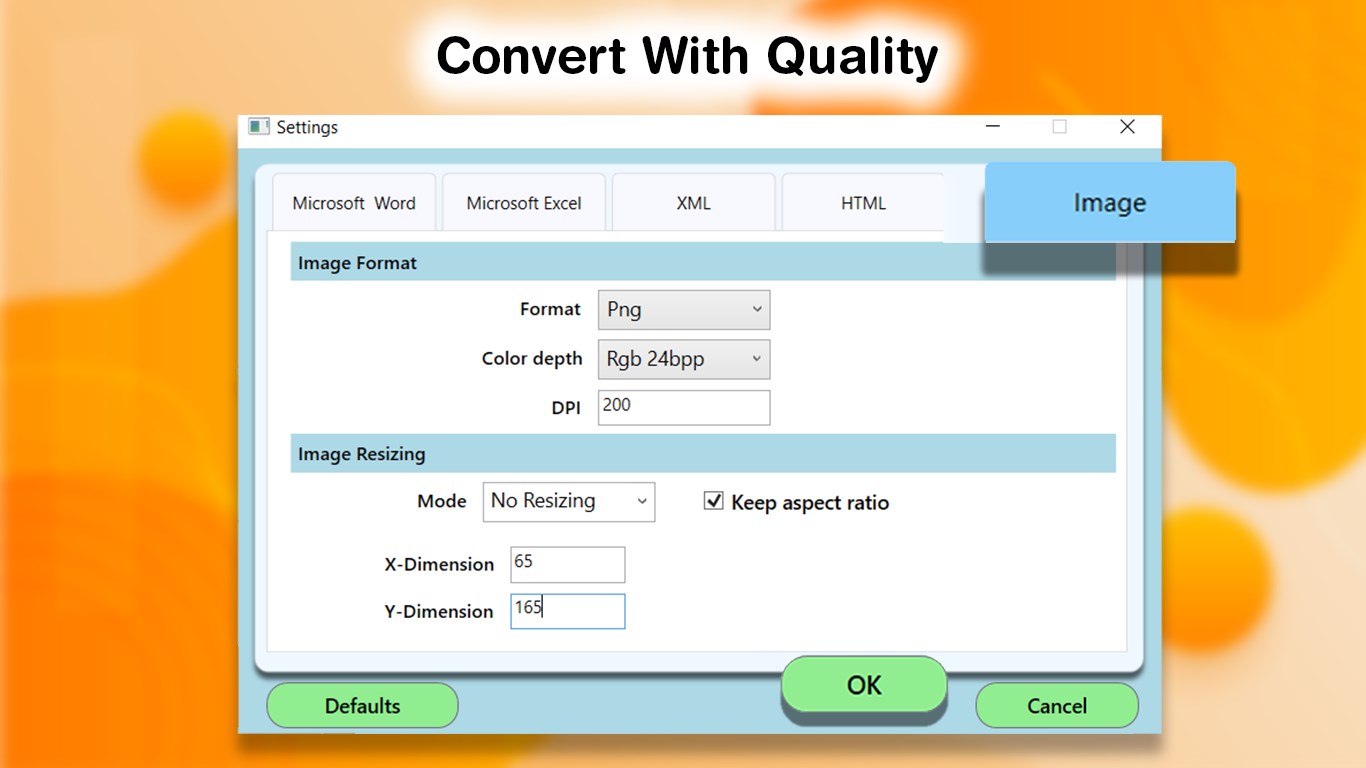
- Lack of detailed customization options during conversion











