

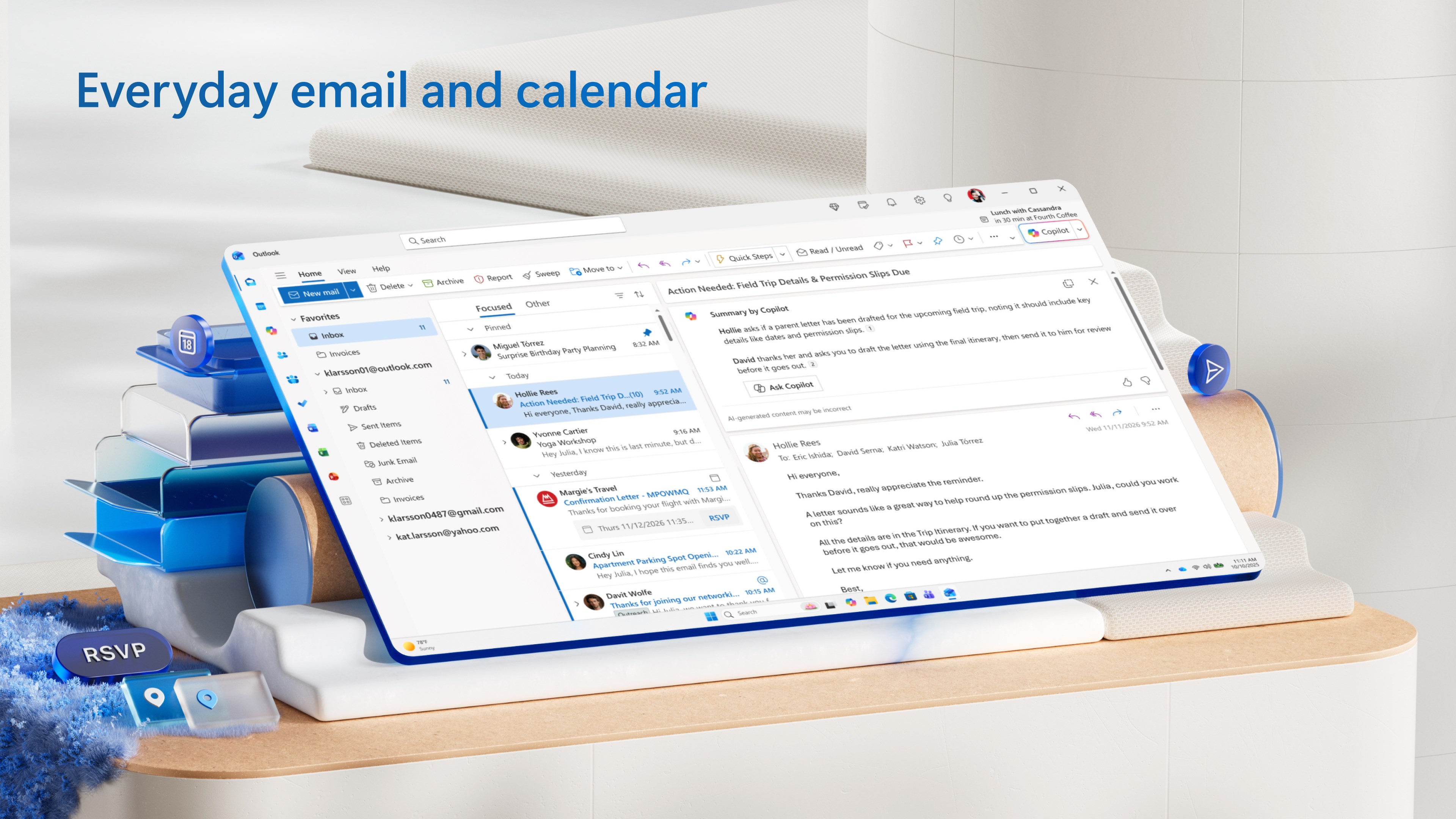
- Name Outlook for Windows
- Category Productivity
- Available on PC
- OS Windows 10 version 19041.0 or higher
- languages Afrikaans, Albanian, Amharic, Arabic, Armenian, Assamese, Azerbaijani, Bangla (India), Basque, Bosnian (Latin, Bosnia and Herzegovina), Bulgarian, Catalan, Chinese (Simplified), Chinese (Traditional Chinese), Croatian, Czech, Danish, Dutch, English, English (United Kingdom), English (United States), Estonian, Filipino, Finnish, French, French (Canada), Galician, Georgian, German, Greek, Gujarati, Hebrew, Hindi, Hungarian, Icelandic, Indonesian, Irish, Italian, Japanese, Kannada, Kazakh, Khmer, Konkani, Korean, Lao, Latvian, Lithuanian, Luxembourgish, Macedonian, Malay, Malayalam, Maltese, Maori, Marathi, Nepali, Norwegian, Norwegian (Bokmål), Odia, Persian/Farsi, Polish, Portuguese, Portuguese (Portugal), Punjabi (India), Quechua, Romanian, Russian, Scottish Gaelic, Serbian (Cyrillic), Serbian (Cyrillic, Bosnia and Herzegovina), Slovak, Slovenian, Spanish, Spanish (Mexico), Swedish, Tamil, Telugu, Thai, Turkish, Ukrainian, Urdu, Uyghur, Valencian, Vietnamese, Welsh
A Sleek Suite for Seamless Communication: An In-Depth Review of Outlook for Windows
Microsoft Outlook for Windows stands out as a comprehensive email and personal information management tool, designed to streamline your daily workflows. In this review, we'll explore how this application balances robust features with user-friendly design, making it an essential component for professionals and everyday users alike.
Basic Information at a Glance
Outlook for Windows is a productivity application developed by Microsoft Corporation, renowned for integrating email, calendar, contacts, and task management into a unified interface. Its core strengths include intelligent inbox organization, seamless calendar integration, and customizable workflows. The app targets a broad spectrum of users—from busy corporate executives and remote workers to students and casual users—who seek an efficient way to manage communications and schedules in one place.
Engaging the User: A Fresh Take on Email and Productivity
Imagine your digital workspace as a well-organized desktop where every tool has its place, allowing you to focus on what truly matters. Outlook for Windows transforms this vision into reality by offering a clean, intuitive interface that welcomes both newcomers and seasoned users. Its blend of smart features and straightforward navigation ensures your inbox no longer feels like a chaotic jumble of messages, but rather a curated stream of relevant information. Whether you're reviewing your upcoming meetings or responding to a flurry of emails, the app makes each task feel effortless and natural.
Core Functionality Deep Dive
Intelligent Email Management and Focused Inbox
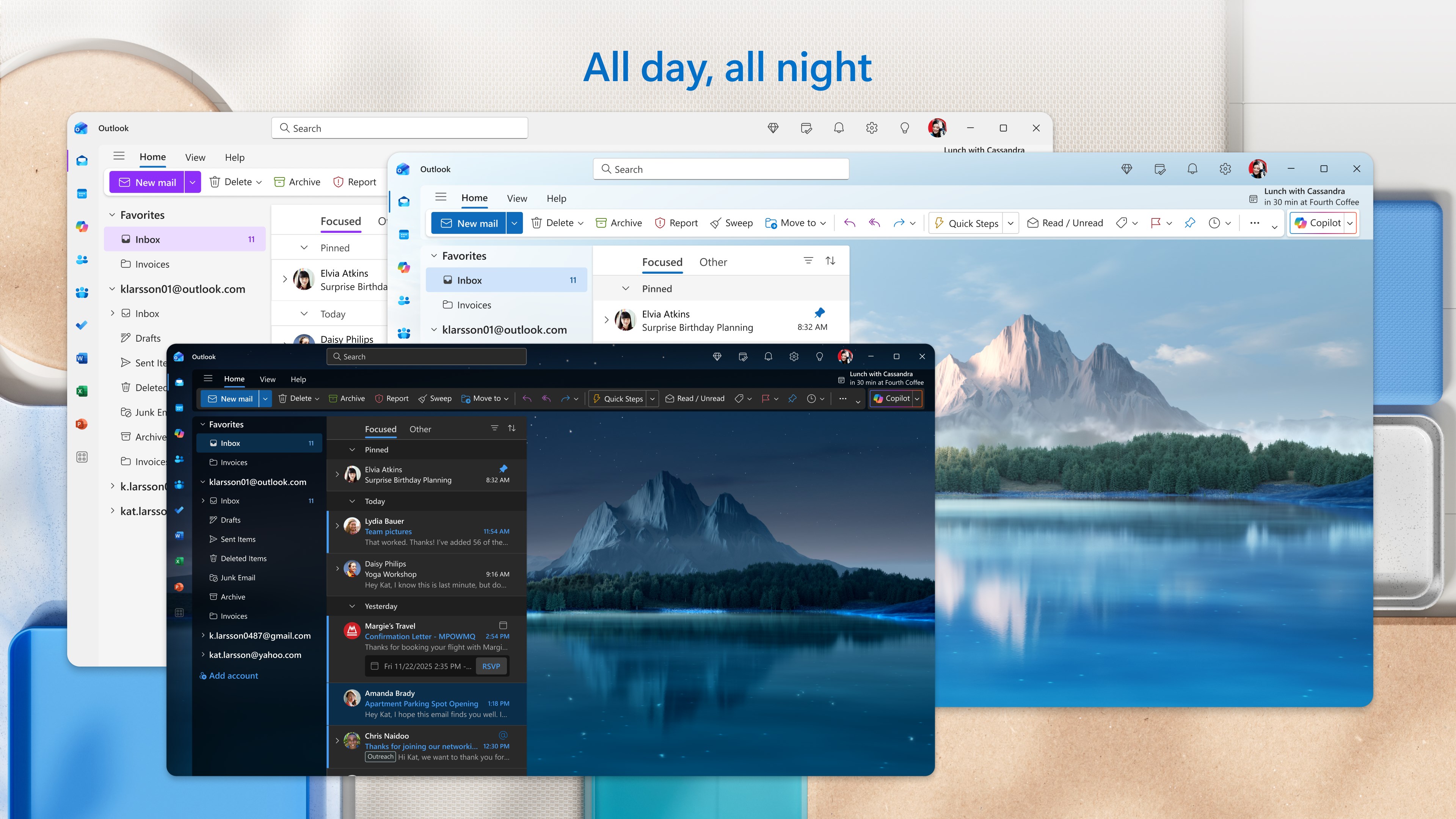
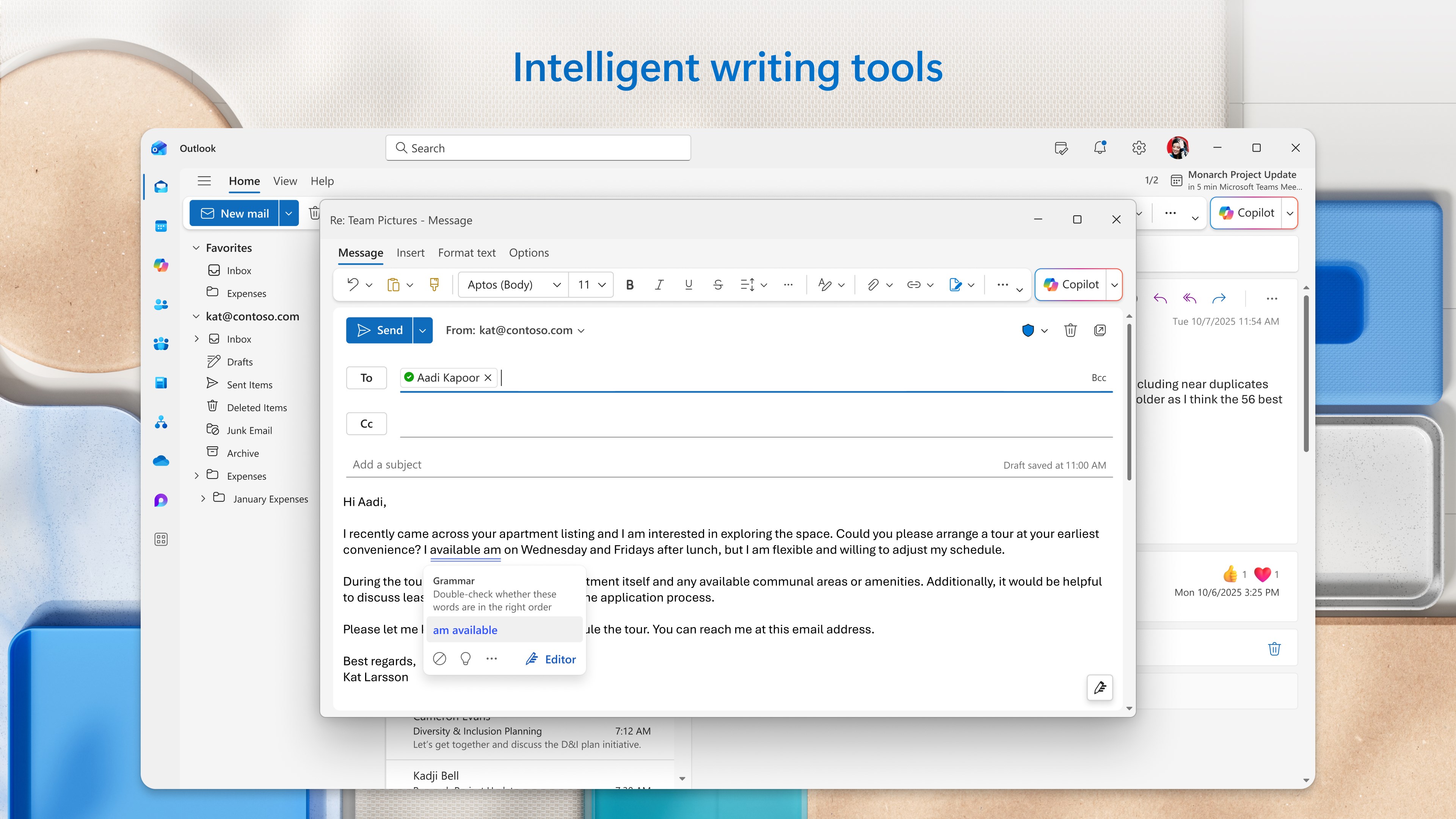
One of Outlook's hallmark features is its Focused Inbox, which intelligently filters your emails into 'Focused' and 'Other' categories. This smart sorting reduces cognitive load and helps users concentrate on high-priority messages without the distraction of clutter. The app learns from your habits over time, adapting its filtering criteria to suit your unique workflow—think of it as a personalized assistant who knows what deserves your attention. Beyond filtering, Outlook's rich set of rules and categorization options enable meticulous organization, turning a once-overwhelming inbox into a manageable task list.
Seamless Calendar and Task Integration
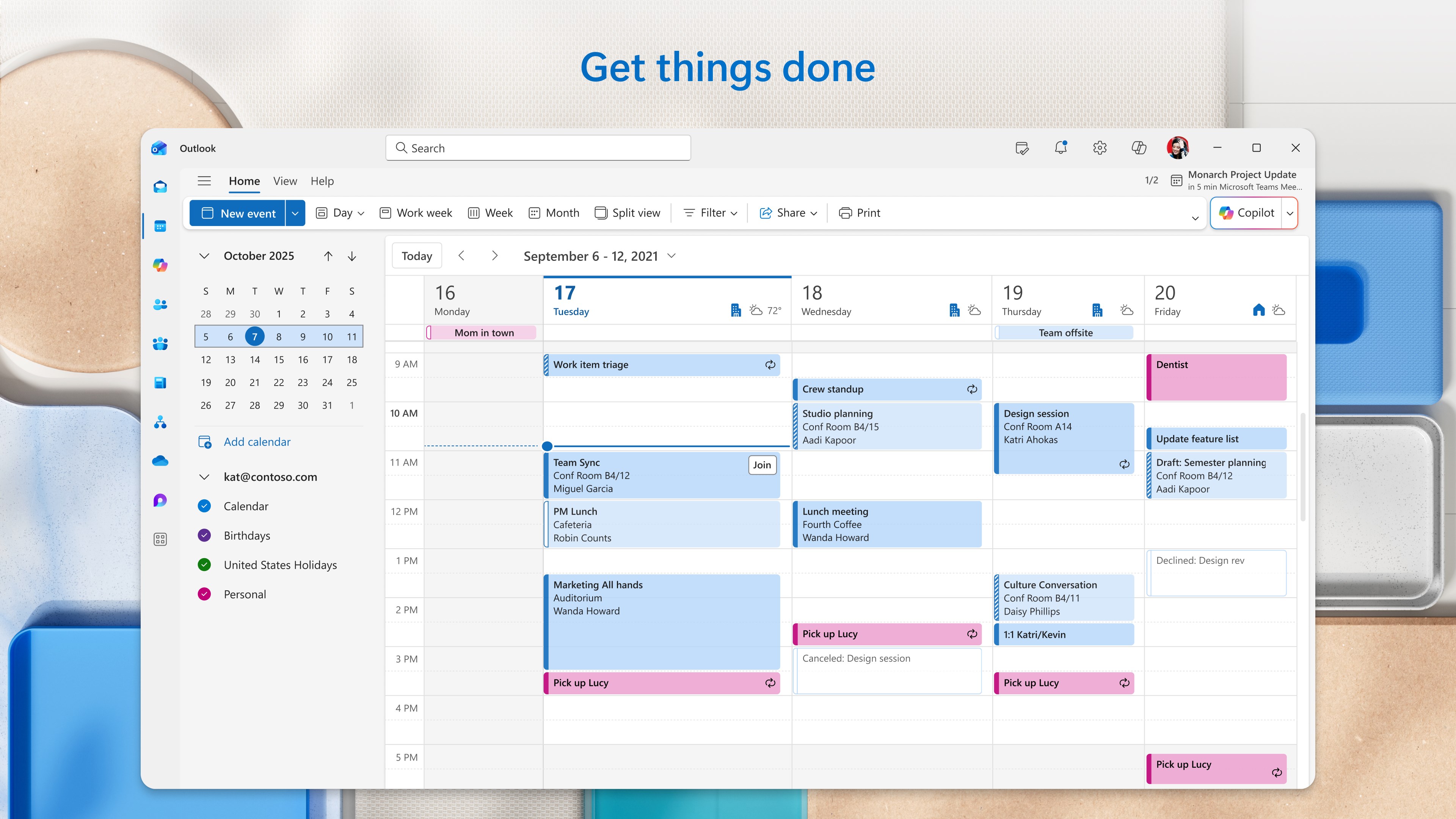
Outlook's calendar isn't just a static schedule; it's an interactive hub designed to coordinate meetings, deadlines, and reminders efficiently. Integration with email and tasks allows for effortless scheduling—when you receive an invitation, a simple click adds it to your calendar. Tasks and to-do lists can be created and tracked within the same environment, ensuring no item falls through the cracks. This interconnectedness fosters a smooth workflow, reducing the mental effort required to switch between apps or juggle separate systems.
Enhanced Collaboration and Customization
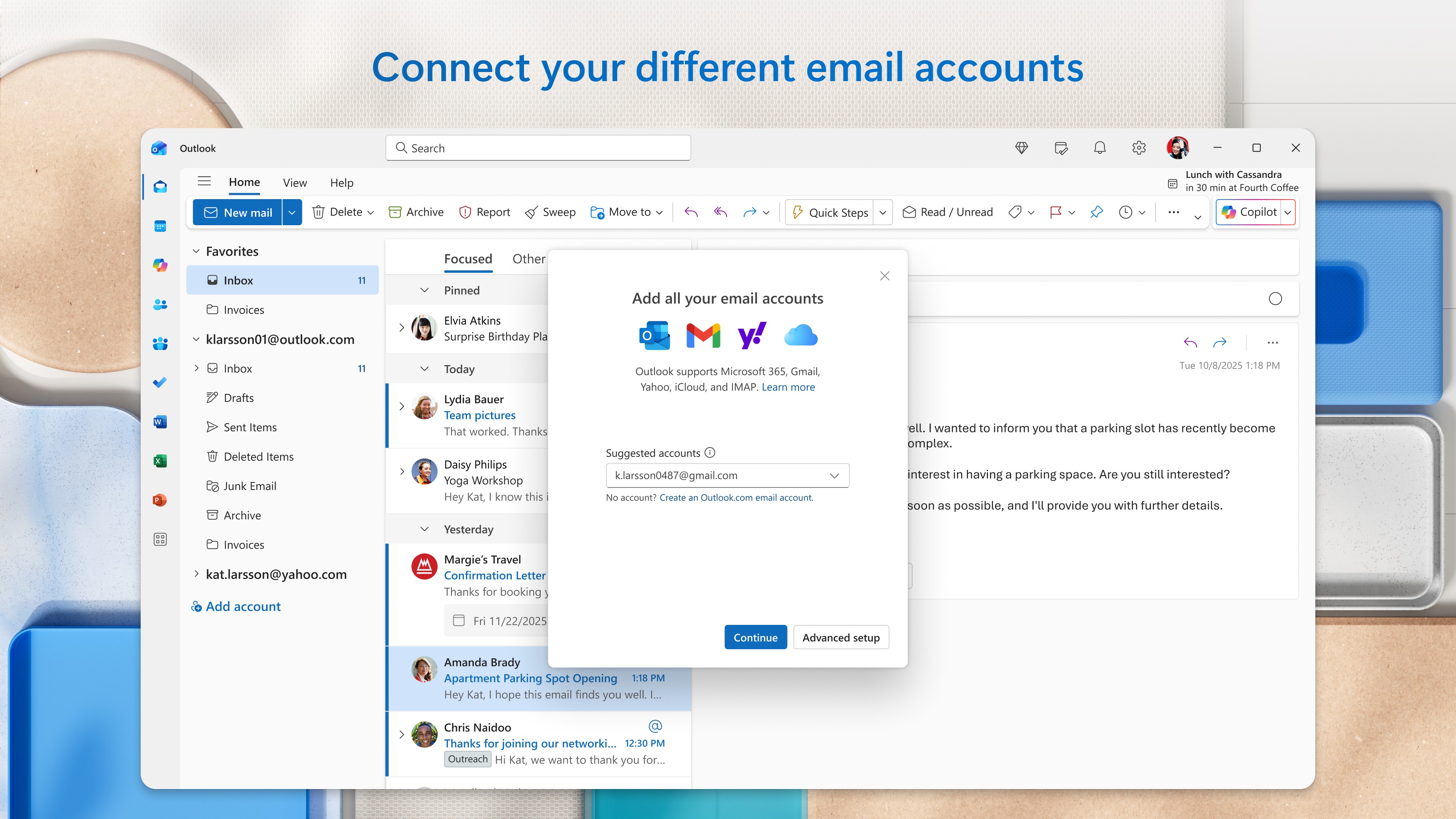
The app includes features such as real-time email threading, shared calendars, and integrated Microsoft Teams access, making collaboration straightforward. Custom views, notifications, and add-ins allow users to tailor the experience to their needs, supporting a personalized and efficient user journey. The familiarity of a familiar interface combined with these enhancements creates a low learning curve, even for those unfamiliar with enterprise productivity tools.
User Experience and Differentiation
Outlook for Windows excels in reducing the cognitive load associated with managing multiple communication channels. Its interface emphasizes clarity and ease of access, with a layout that resembles a well-organized desk—everything within arm's reach. Compared to other productivity apps like Thunderbird or Spark, Outlook's integration with the Microsoft ecosystem sets it apart. Features like intelligent email sorting and unified calendar management are not just add-ons but core pillars that enhance workflow efficiency.
Moreover, Outlook balances feature richness with simplicity. While some applications might drown users in a sea of options, Outlook's design keeps feature complexity in check, allowing users to adapt without feeling overwhelmed. Its deep integration with Microsoft 365 enables a fluid experience across devices, supporting remote and hybrid work models seamlessly.
Final Thoughts: Is It the Right Choice for You?
In summary, Outlook for Windows is a robust, well-rounded productivity companion that offers outstanding email management paired with smart organizational tools. Its most notable feature—the Focused Inbox—acts as a cognitive assistant, significantly cutting down mental effort to filter critical communications. With its intuitive interface and seamless ecosystem integration, it stands out as an ideal choice for users seeking to optimize their workflow without unnecessary complexity.
We recommend Outlook for Windows to professionals who require reliable communication tools combined with integrated scheduling and task management. For those already within the Microsoft environment or looking to streamline their daily operations, this app is a solid investment for enhancing productivity and reducing information overload.
Pros
- User-Friendly Interface
- Robust Calendar Integration
- Smart Email Sorting
- Excellent Security Features
- Strong Microsoft Ecosystem Integration
Cons
- Occasional Sync Delays
- Limited Customization Options
- Offline Mode Limitations
- Notification Overlap
- Performance with Large Mailboxes











