
- Name OneNote
- Category Productivity
- Developer Microsoft Corporation
- Available on PC
- OS Windows 10 version 0.0 or higher
- Keyboard Integrated Keyboard
- Mouse Integrated Mouse
- Memory 2 GB
- languages Chinese (Simplified), German, Spanish, Spanish (Spain), French, Italian, Japanese, Dutch, Portuguese (Brazil), Russian, Danish, Finnish, Korean, Norwegian (Bokmål), Norwegian (Bokmål), Polish, Swedish, Turkish, Chinese (Traditional Chinese), Czech, Greek, Hungarian, Slovak, Thai, Bulgarian, Indonesian, Romanian, Slovenian, Serbian, Ukrainian, Vietnamese, Hindi, Punjabi, Portuguese (Portugal), Portuguese, Afrikaans, Assamese, Albanian, Amharic, Armenian, Azerbaijani, Bangla, Basque, Belarusian, Bosnian (Latin), Catalan, English, English (United States), Filipino, Galician, Georgian, Gujarati, Icelandic, Irish, Kannada, Khmer, Luxembourgish, Macedonian, Malayalam, Maltese, Maori, Marathi, Nepali, Norwegian, Norwegian (Nynorsk), Norwegian (Bokmål), Odia, Persian/Farsi, Quechua, Tamil, Tatar, Telugu, Urdu, Uyghur, Uzbek, Valencian, Welsh, Spanish (Mexico), English (United Kingdom), Kazakh, Malay, Arabic, Hebrew, Estonian, Croatian, Lithuanian, Latvian
OneNote for Windows: A Dynamic Digital Notebook
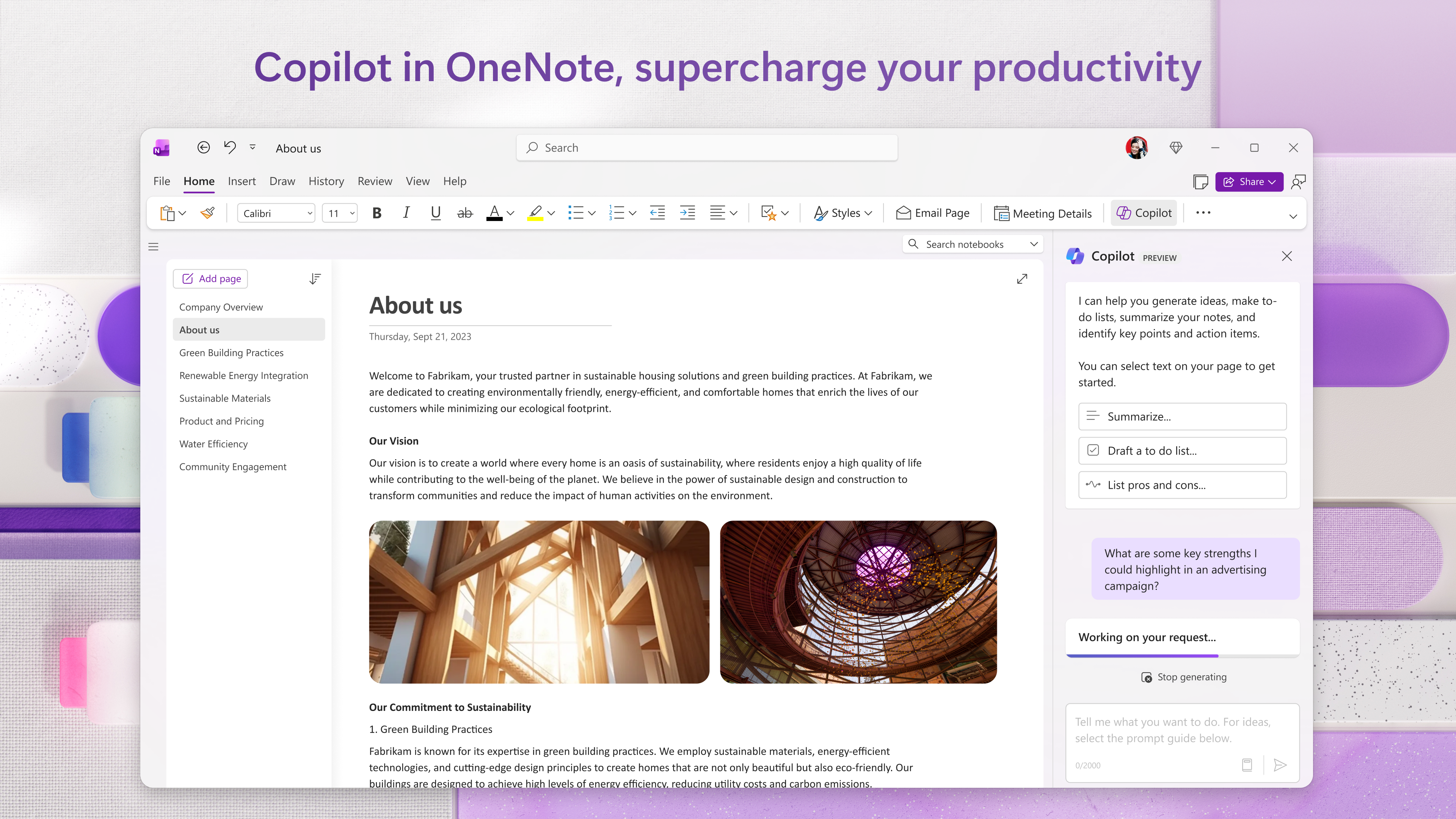
Microsoft's OneNote for Windows positions itself as a versatile organizational tool designed to streamline note-taking, information management, and collaborative work within a familiar digital workspace.
Who Stands Behind It?
Developed and published by Microsoft Corporation, OneNote benefits from the company's extensive experience in creating integrated productivity solutions, ensuring seamless compatibility across the Microsoft ecosystem.
What Makes It Shine? Key Features at a Glance
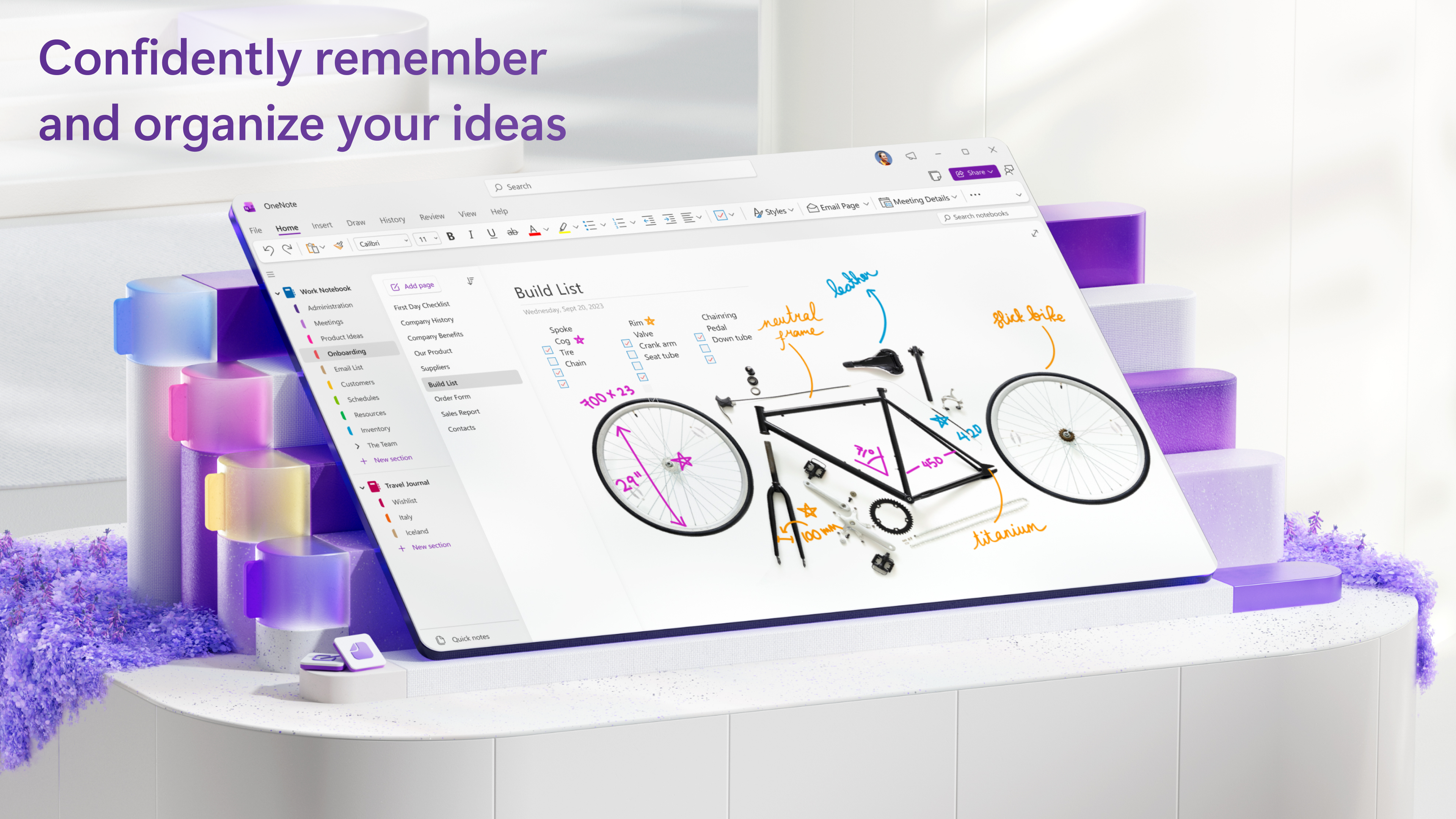
- Intelligent Content Organization: Powerfully categorize notes with sections, pages, and customizable tags to keep information logically structured and easily accessible.
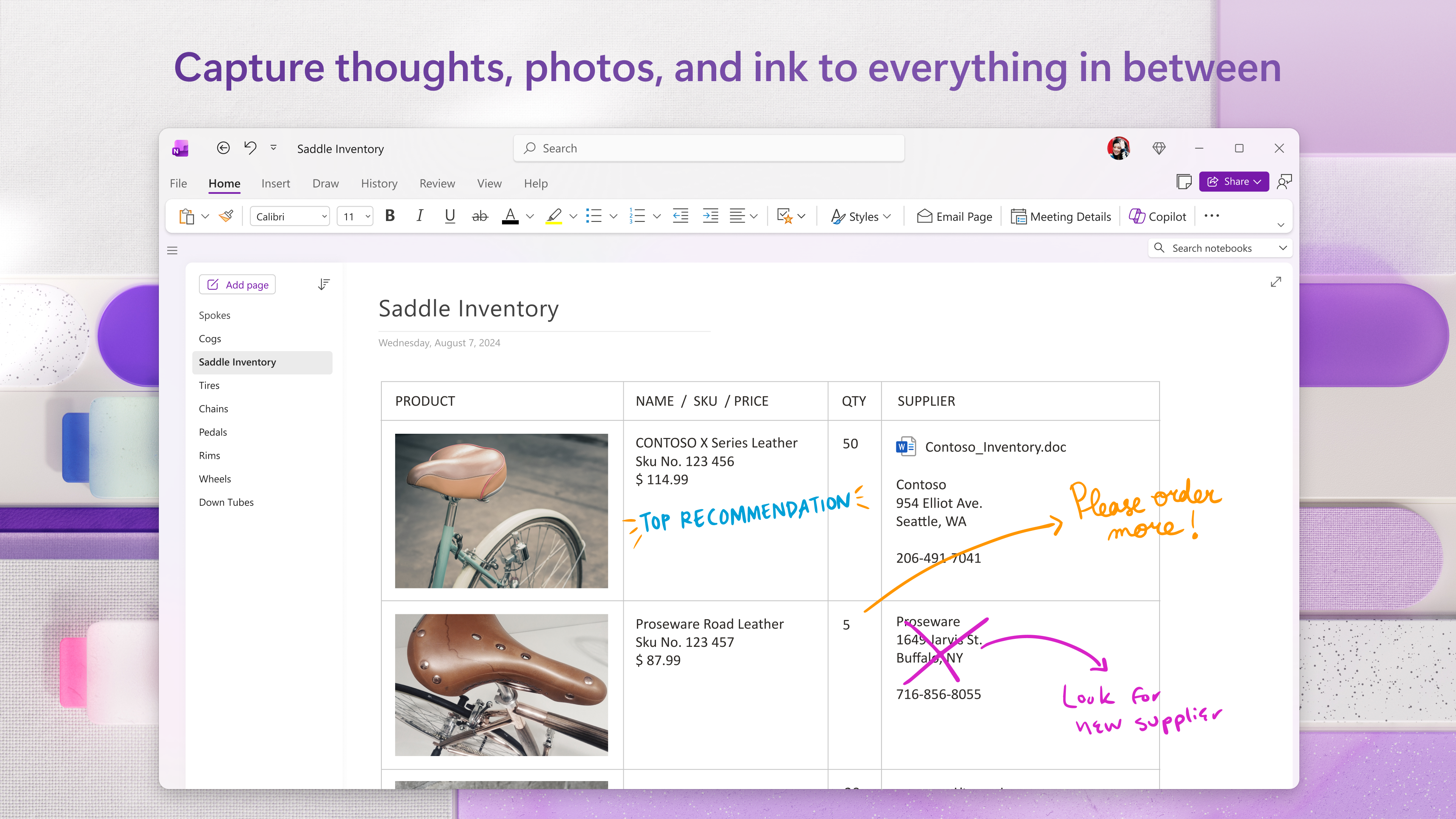
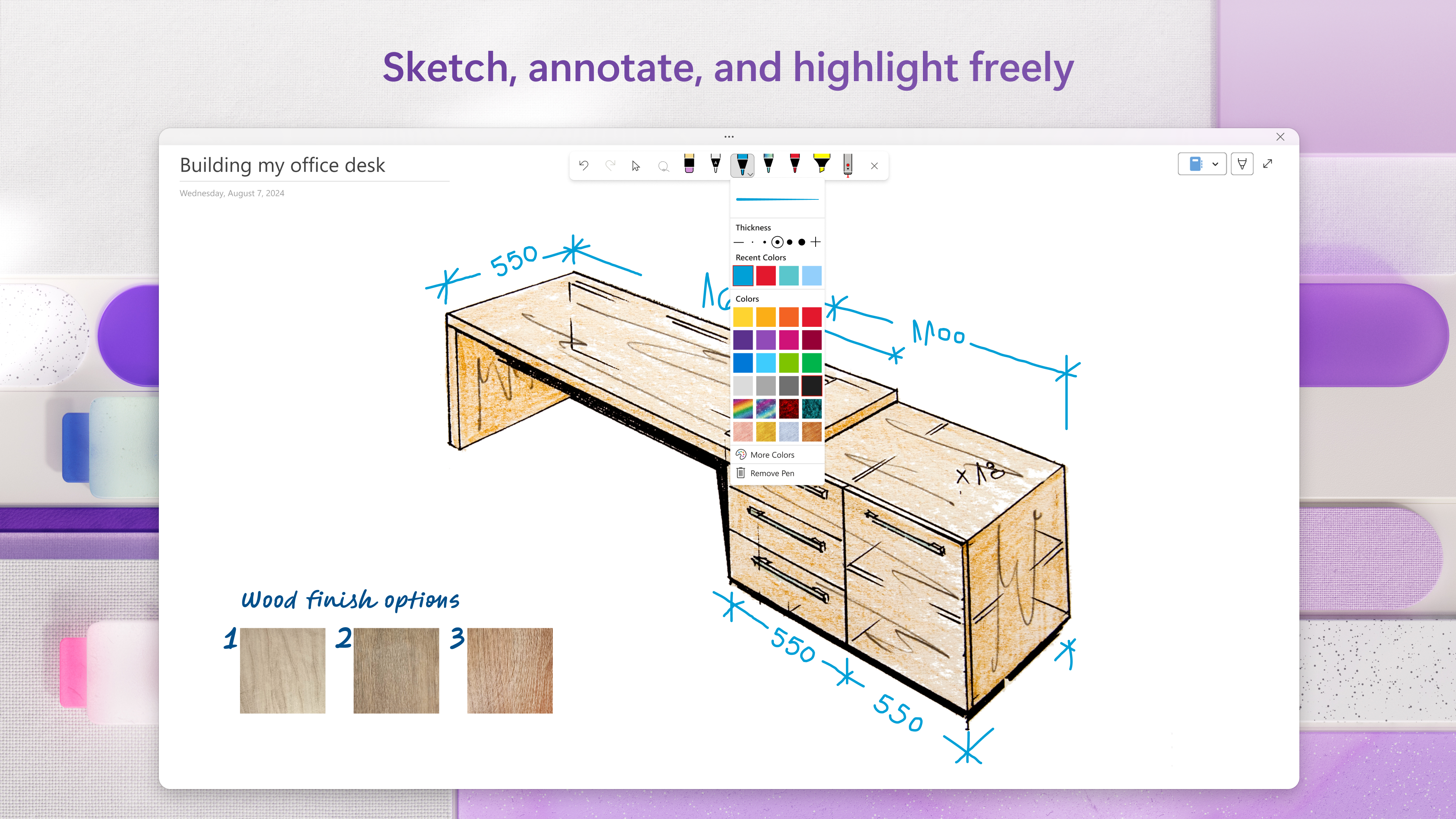
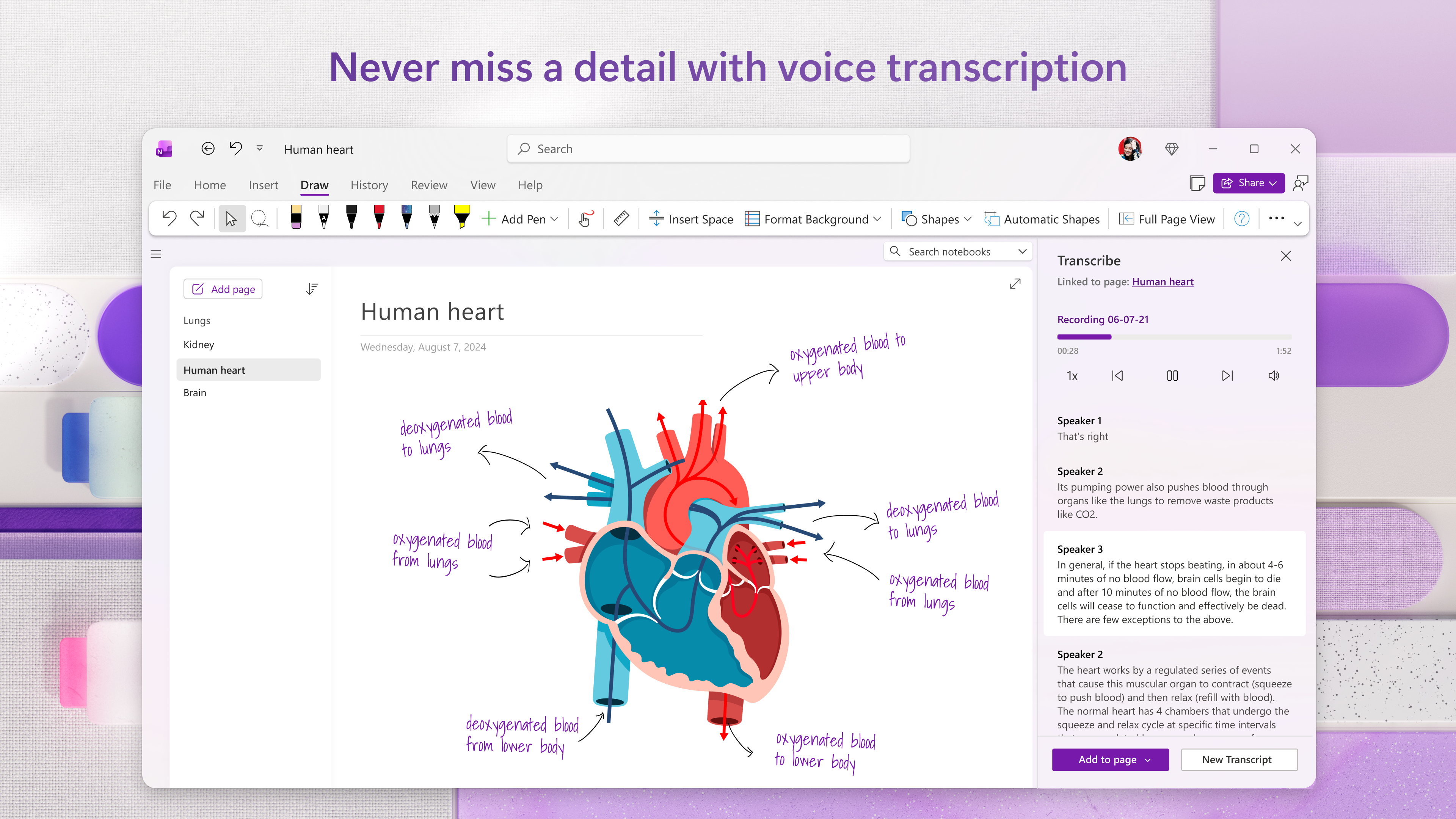
- Rich Media Integration: Effortlessly embed images, audio, handwritten notes, and links, transforming static text into a dynamic digital canvas.
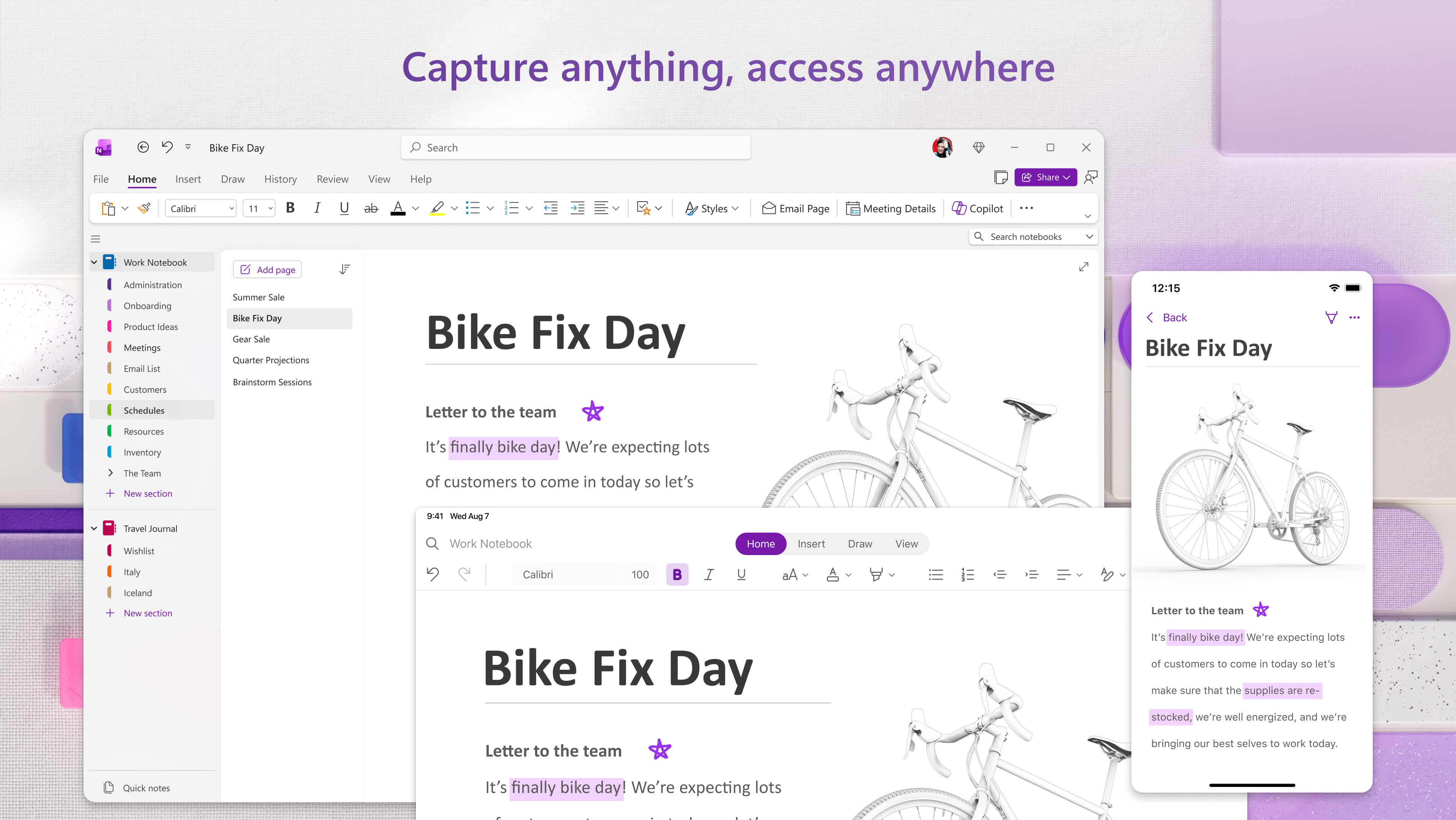
- Advanced Search and Sync: Quickly locate content through the robust search function while maintaining real-time synchronization across devices via cloud integration.
- Deep Workflow Integration: Seamlessly connect with other Microsoft 365 tools, enabling streamlined workflows within familiar applications like Outlook and Teams.
Immersive and Intuitive User Experience
Opening OneNote feels akin to flipping open a well-organized, expansive notebook where each section invites exploration. The interface adopts a clean, modern aesthetic, balancing visual clarity with functional depth. Whether you're scribbling quick notes or crafting detailed project plans, the app handles your input smoothly—typing feels natural, and handwriting recognition is responsive, mimicking the fluidity of pen on paper.
The learning curve is gentle; familiar Microsoft Office layouts ease new users into its features without overwhelming them. Transitioning from other note-taking apps is straightforward, with intuitive menu placements and context-aware toolbars simplifying common tasks. Multi-device support is frictionless, with sync speeds feeling instantaneous during typical workflow sessions. All these elements combine to minimize cognitive load, freeing your mind to focus on ideas rather than interface navigation.
Standing Out in the Productivity Crowd
Compared to other note-taking or productivity apps, OneNote distinguishes itself through its tightly integrated ecosystem. Its core strength lies in enabling an efficient workflow, where you can seamlessly incorporate notes into broader project management or communication strategies. For instance, you can embed meeting agendas directly into Outlook events or link notes from Teams conversations—this integration reduces the need to juggle multiple apps or duplicate efforts.
Moreover, OneNote's ability to handle diverse content types without adding complexity makes it accessible for both tech-savvy power users and casual note-takers. Its organization system minimizes clutter, helping you reduce cognitive load, contrary to overly feature-rich apps that can feel overwhelming. This balance between functionality and simplicity allows users to focus on content creation, not interface mastery.
Final Thoughts and Recommendations
If you're seeking a digital notebook that not only captures your thoughts effortlessly but also integrates smoothly into your existing Microsoft-powered workflow, OneNote for Windows is a solid choice. Its particularly standout features—the intelligent content organization and seamless workflow integration—make it ideal for students, professionals, and teams aiming for organized productivity without drowning in layers of complexity.
While it may not have all the bells and whistles of some markdown-focused or specialized note apps, its strengths in cohesion, ease of use, and broad compatibility outweigh those gaps. Recommended for anyone invested in the Microsoft ecosystem or looking for a reliable, flexible note-taking solution to keep their ideas flowing effortlessly across devices and platforms.
Pros
- Intuitive note-taking interface
- Robust synchronization across devices
- Integration with Microsoft Office apps
- Rich multimedia support
- Powerful search functionality
Cons
- Limited offline editing capabilities
- Steep learning curve for advanced features
- Occasional lag when handling large notebooks
- Limited customization options for the interface
- Annotations may not sync perfectly across devices











