

- Name Okular
- Category Productivity
- Available on PC
- OS Windows 10 version 14316.0 or higher
- Mouse Integrated Mouse
- Memory 1 GB
- languages English (United States)
Introducing Okular for Windows: A Robust PDF and Document Viewer with a Focus on Flexibility
Okular for Windows, developed by KDE e.V., is a versatile document viewer designed to handle a wide array of file formats, providing users with a seamless reading experience beyond standard PDFs.
Meet the Expert: KDE's Open-Source Solution
Created by the KDE community—a collaborative organization known for its innovative open-source projects—Okular brings the same spirit of customization and user empowerment to Windows users. Its core mission is to offer a comprehensive and adaptable document viewing experience.
Key Features That Stand Out
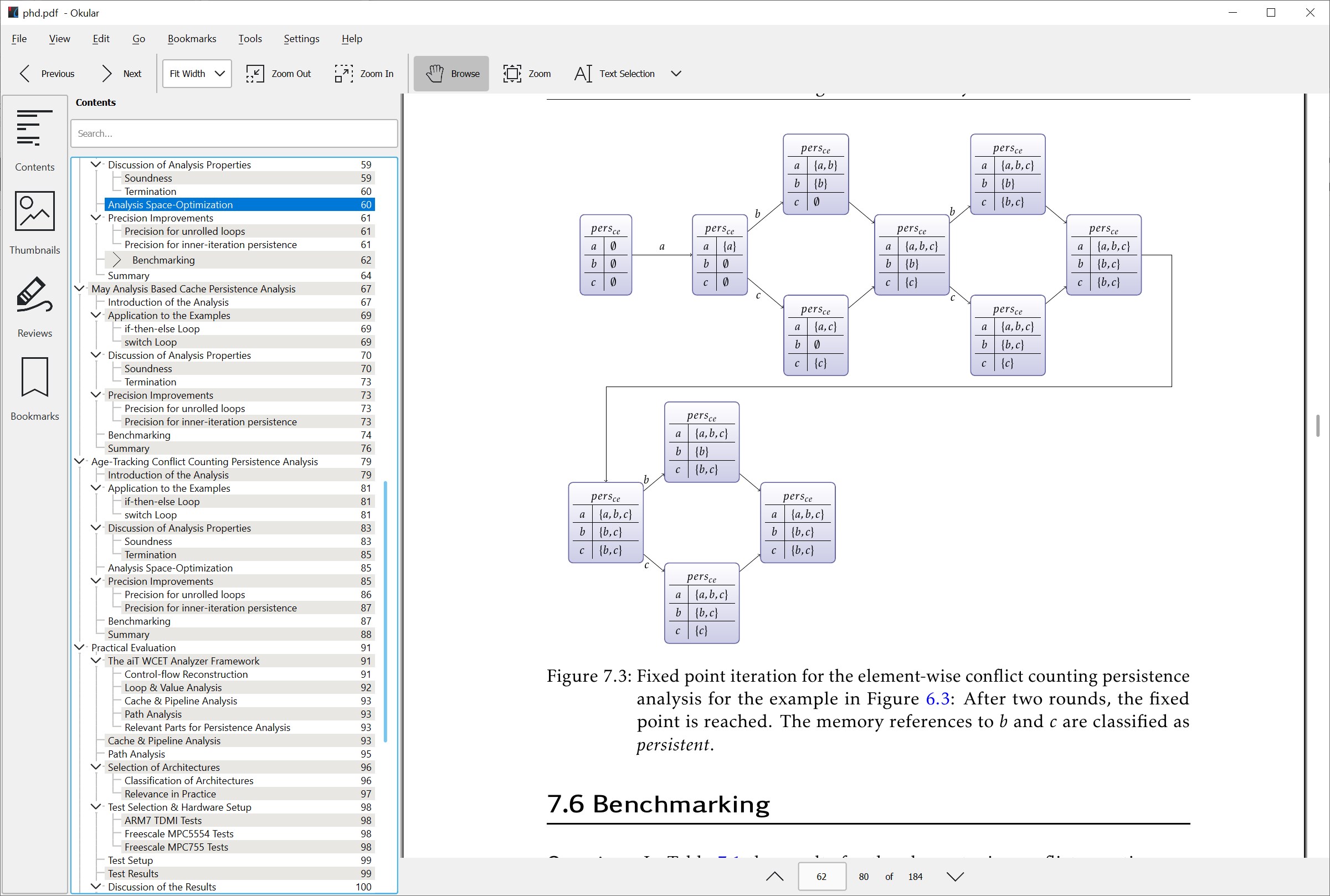
- Multi-Format Support: Handles PDFs, ePub, CHM, DjVu, and more—making it a one-stop reading tool for diverse document collections.
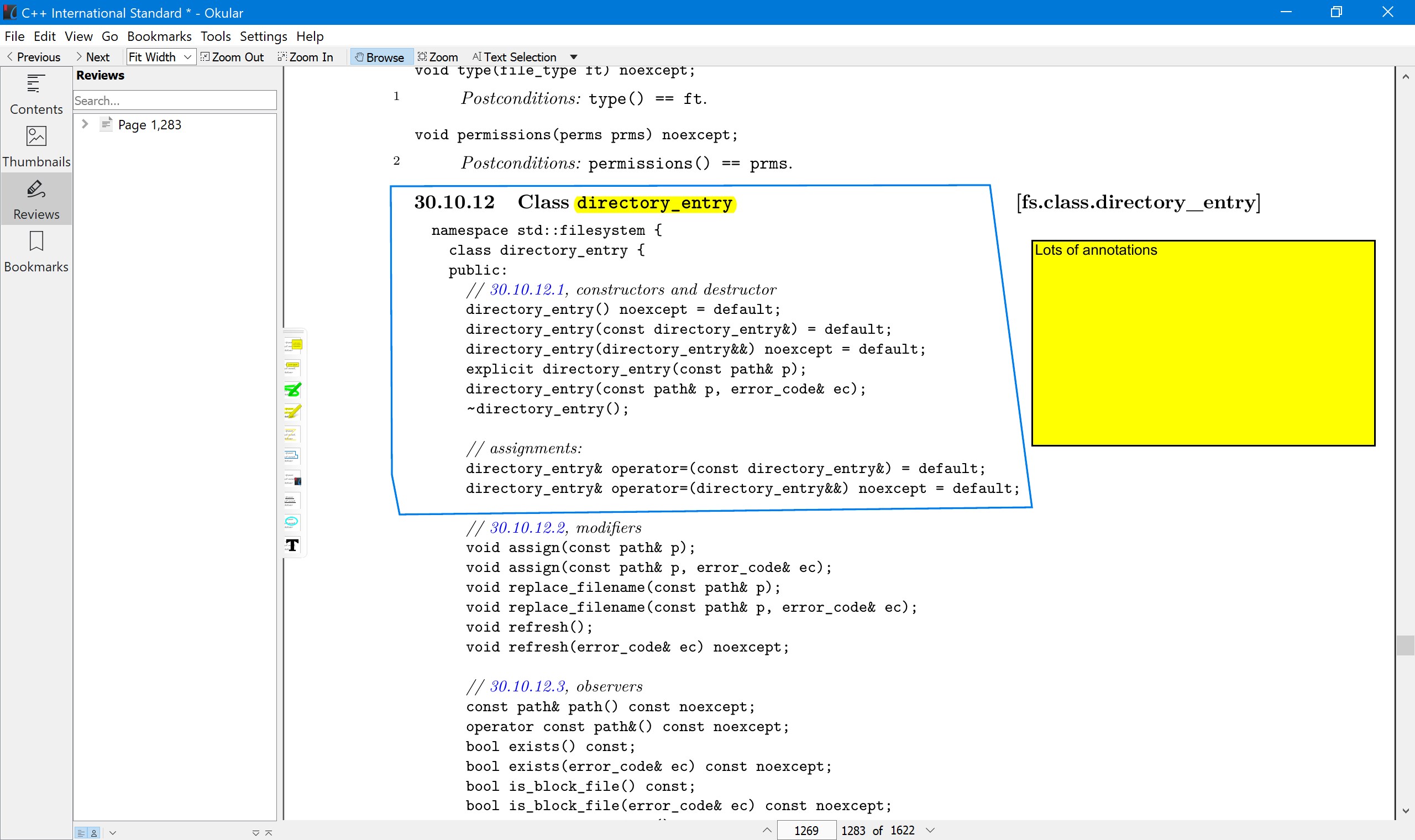
- Annotation and Bookmarking Tools: Enables users to highlight, comment, and bookmark sections, facilitating study, review, or collaborative work.
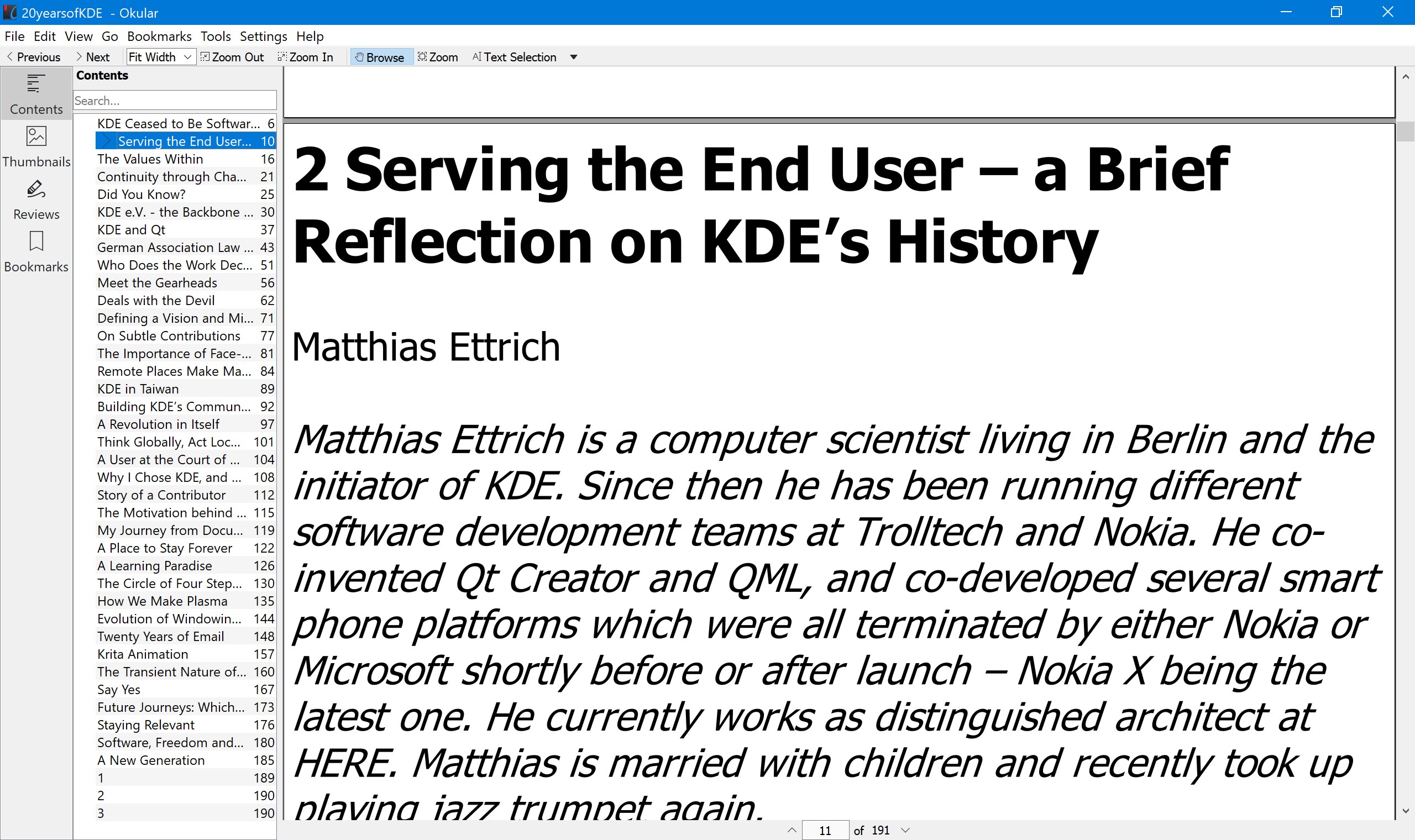
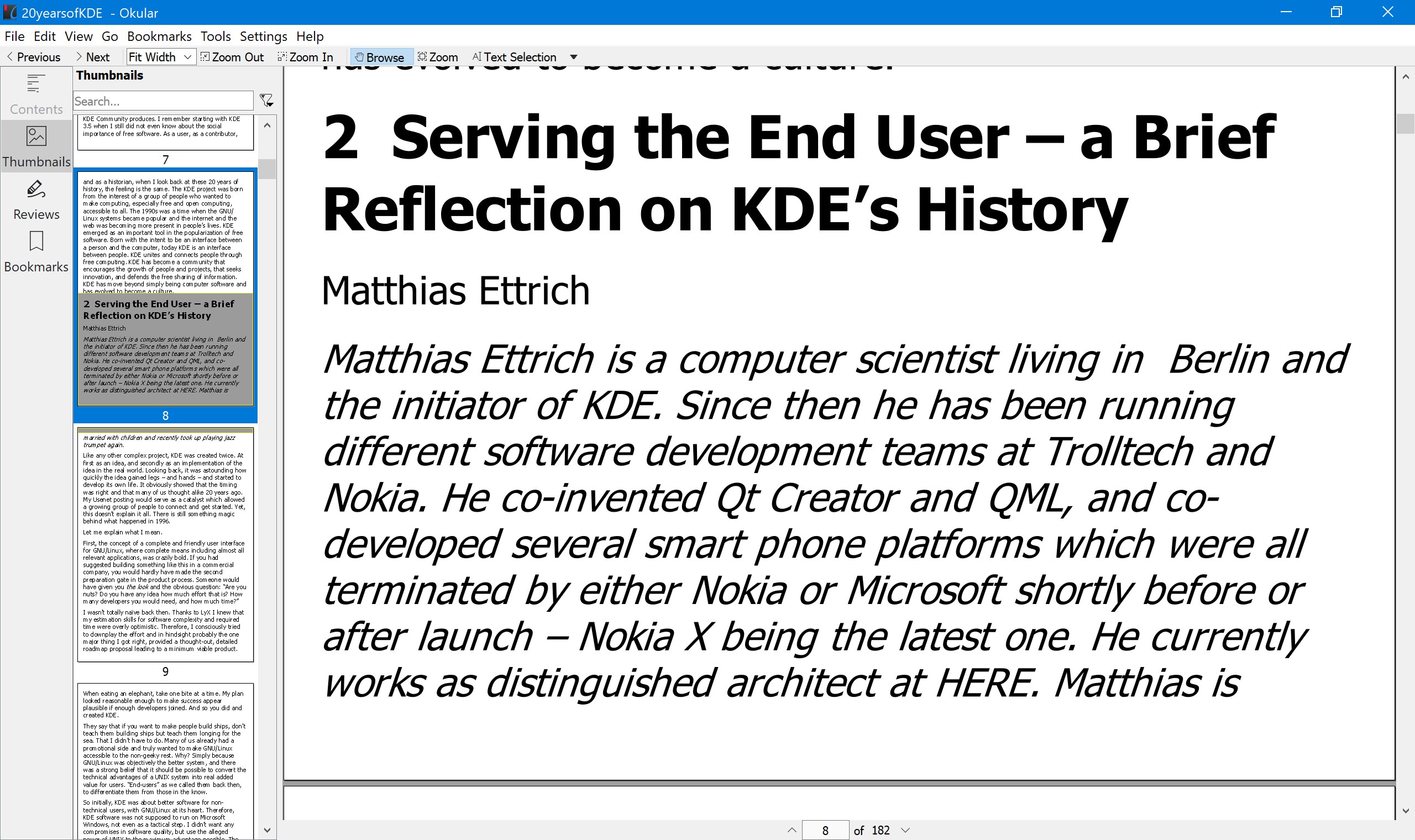
- Advanced Search and Navigation: Robust search functionalities and side panel navigation streamline finding information within lengthy documents.
- Customizable Interface and Plugins: Offers options to tailor the UI and extend features via plugins, appealing to power users.
A Bright, Clear Window into Your Documents
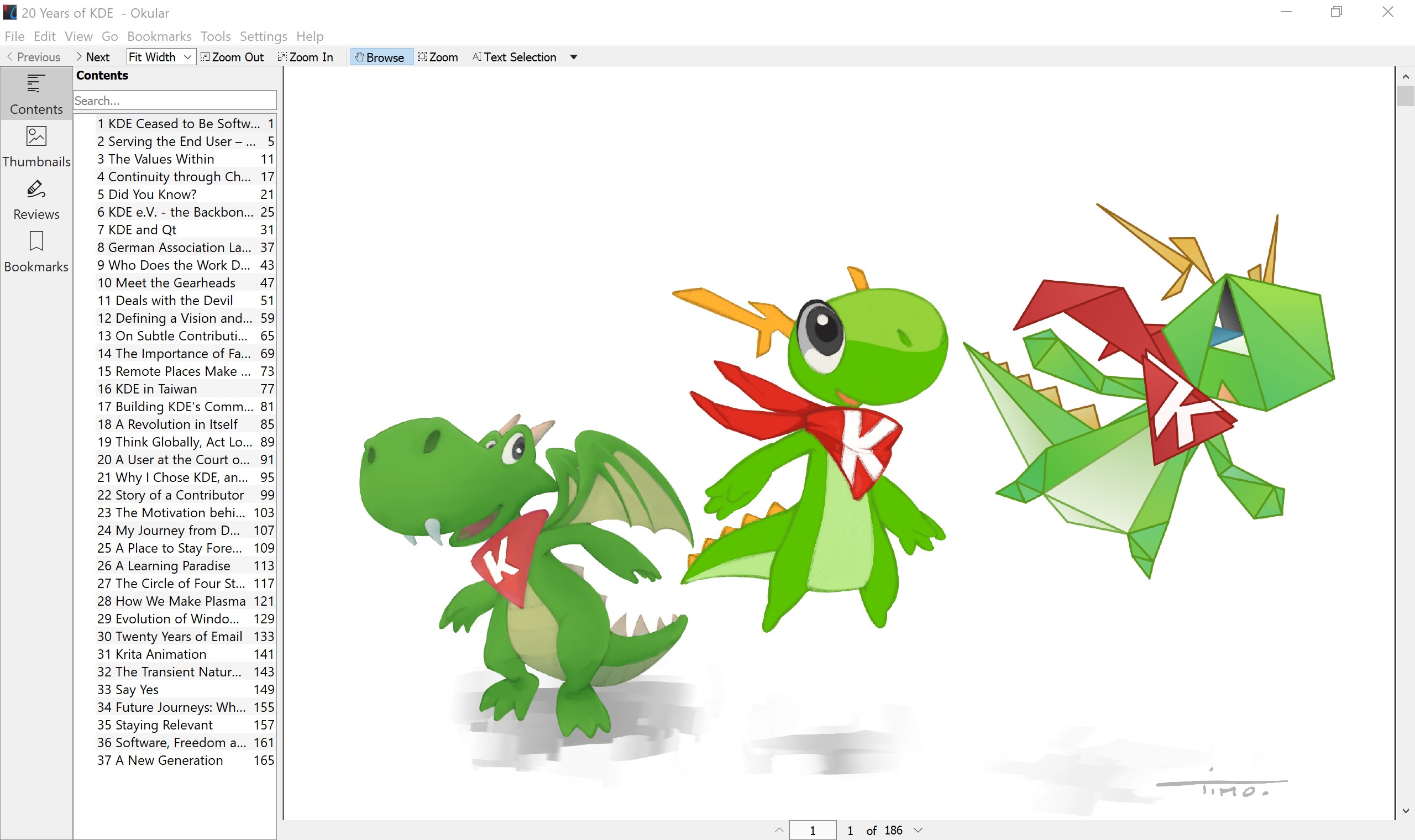
Imagine opening a PDF and feeling instantly at ease—everything is intuitive, crisp, and inviting. The interface is clean and modern, with a straightforward toolbar that feels like a familiar desk organizer, where tools are there when needed but never clutter your workspace. Navigating through pages and switching between tabs is buttery smooth, reminiscent of gliding your hand over a well-designed touchscreen. For new users, the learning curve is gentle—most functions are self-explanatory, and with a little exploration, you'll unlock power features that boost your productivity.
Core Functionalities in Focus
Versatile File Handling and Annotation Tools
Okular excels at supporting a broad spectrum of document formats, which is like having a Swiss Army knife for reading materials. Whether it's a complex scientific report, an eBook, or a scanned handwritten note, Okular tackles them all seamlessly. The annotation features are intuitive; you can highlight key sections, add sticky notes like virtual Post-its, or underline critical information—transforming a passive reading session into an interactive review. This is particularly useful for students or researchers who need to mark up large volumes of documents without jumping between multiple apps.
Powerful Search and Navigation
Finding specific information can sometimes be akin to searching for a needle in a haystack. Okular simplifies this with its advanced search panel, which allows wildcards, phrase search, and even search within annotations. The side panel provides a quick overview of pages and bookmarks, letting you jump directly to bookmarked sections or annotations. This feature dramatically cuts down the time spent scrolling or flipping pages—making your workflow more efficient.
User Experience and Differentiation
Compared to other document viewers that sometimes feel like a cluttered toolbox, Okular's design prioritizes clarity and workflow integration. Its interface resembles a well-organized library, where tools are accessible but not overwhelming. The app's responsive performance ensures that flipping through lengthy documents or navigating between multiple files is smooth as silk, reducing cognitive load and making the reading experience effortless.
The most distinctive advantage lies in its multi-format support and annotation capabilities combined with a no-nonsense interface. Unlike many competitors that heavily focus on either collaboration or note-taking, Okular provides a balanced experience that feels like a Swiss watch—precise, reliable, and thoughtfully engineered for everyday document management.
Is It For You? Our Recommendation
Given its robust feature set, user-friendly interface, and free, open-source nature, Okular is highly recommended for students, researchers, or professionals who need a dependable document viewer tailored for efficiency and flexibility. It's especially appealing if you handle a variety of file formats or require detailed annotations without sacrificing performance or simplicity.
While it may lack some of the advanced collaboration features found in commercial PDF editors, its strengths lie in smooth workflow integration, minimal cognitive overload, and broad format compatibility. If these qualities align with your needs, Okular for Windows deserves a prominent spot in your productivity toolkit.
Pros
- User-friendly interface
- Wide format support
- Powerful annotation tools
- Cross-platform compatibility
- Open-source development
Cons
- Limited performance with large files
- Fewer advanced editing features
- Occasional UI glitches on Windows
- Limited support for multimedia annotations
- Customization options are somewhat basic











