

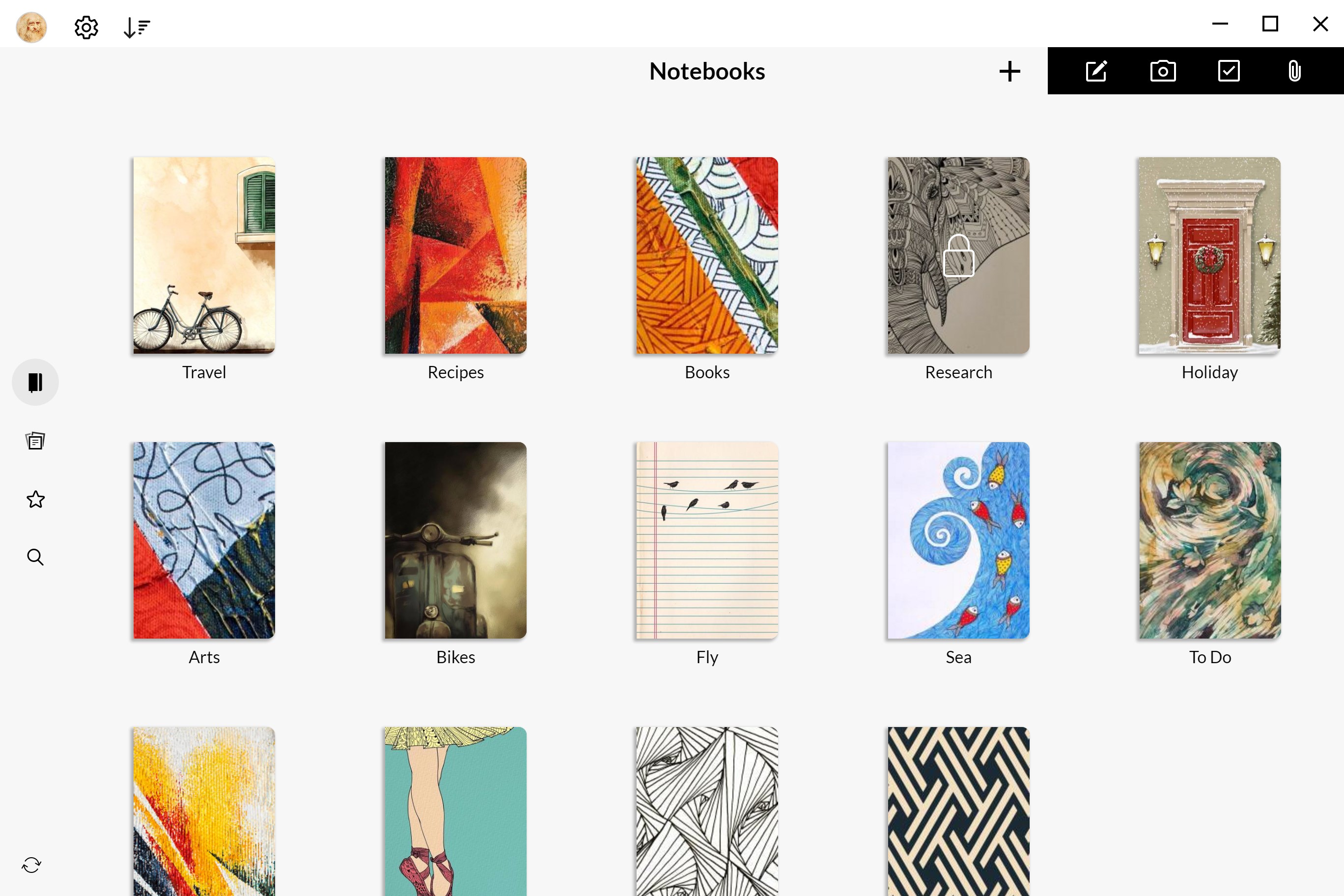
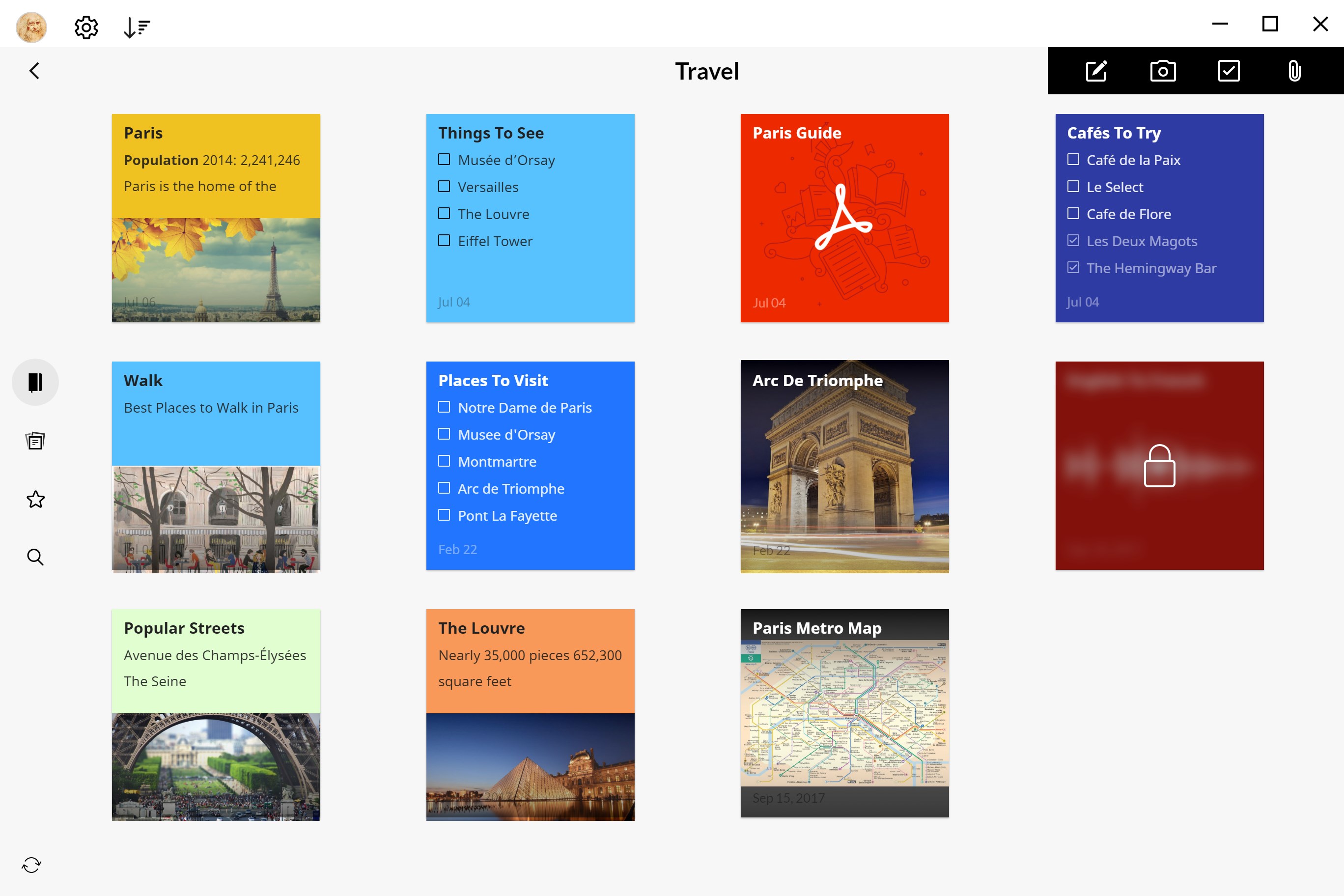
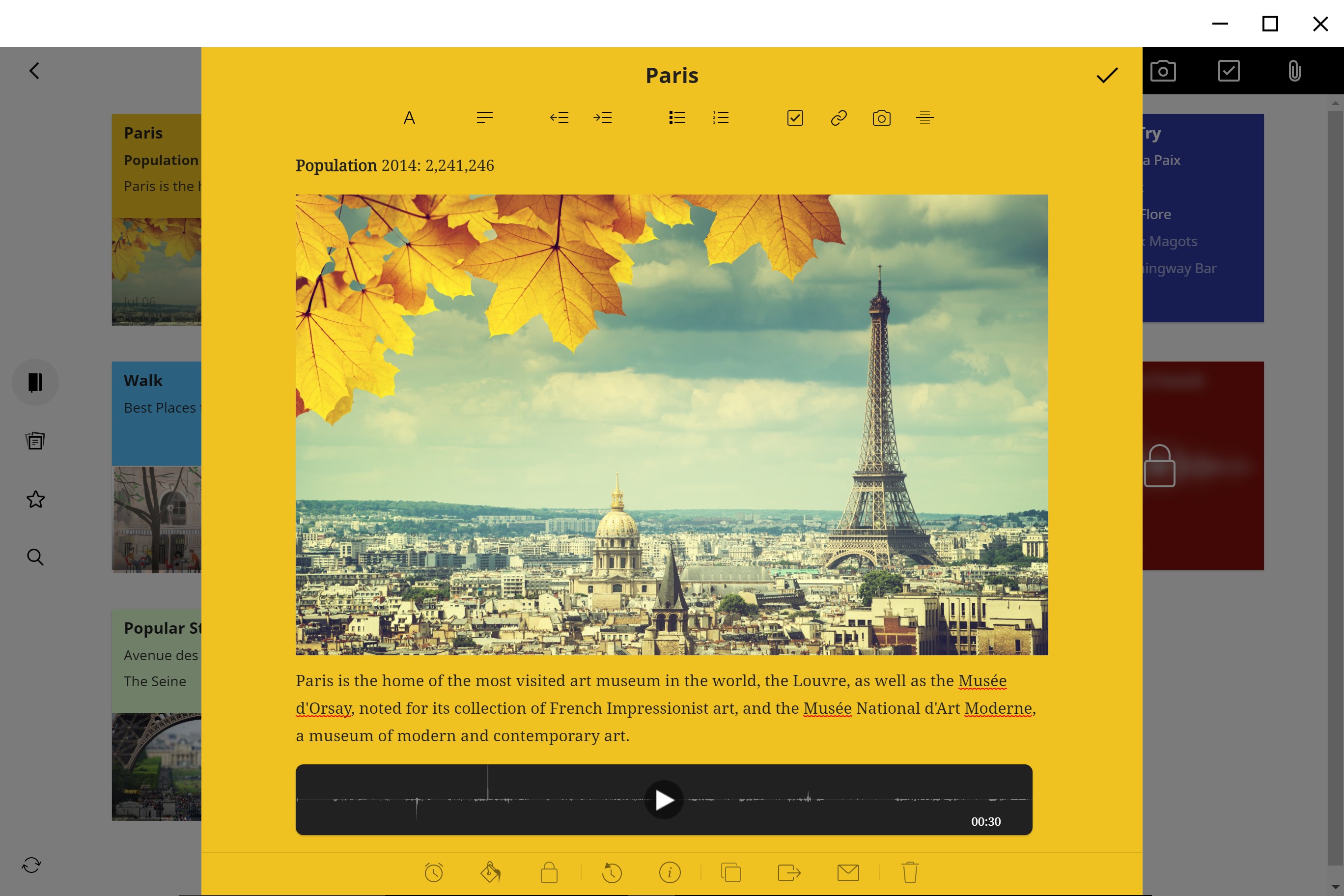
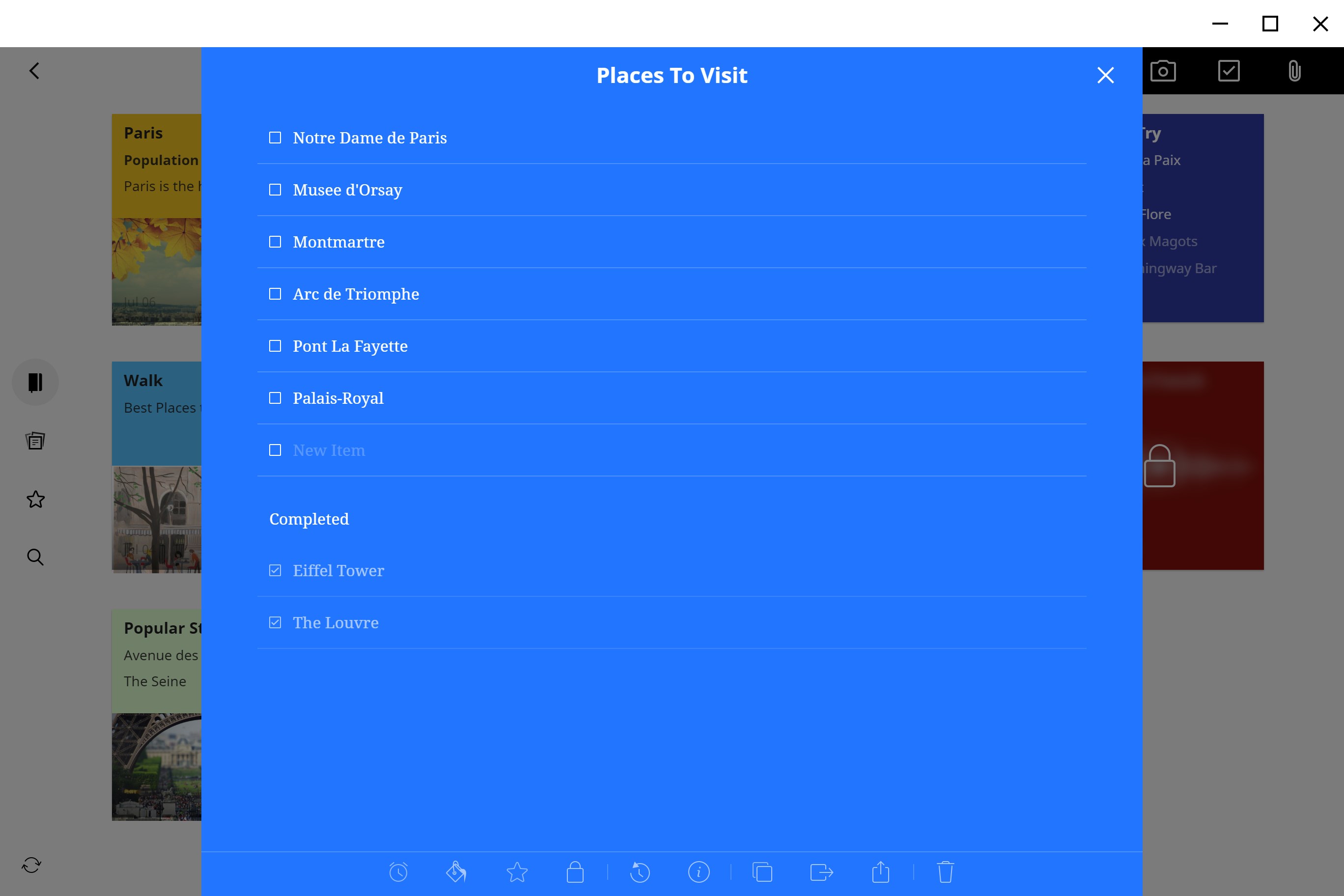
- Name Notebook - Notes & To-Do
- Category Productivity
- Developer Zoho Corporation
- Available on PC
- OS Windows 10 version 14316.0 or higher
- languages English (United States)
Efficient Note-Taking Meets Seamless Task Management
Notebook - Notes & To-Do for Windows emerges as a user-friendly solution designed to streamline your ideas and daily tasks into one cohesive app. With its intuitive interface and thoughtful features, it caters to students, professionals, and anyone seeking an organized digital workspace without the clutter.
Meet the Innovators: Zoho Corporation's Busy Workspace
Developed by Zoho Corporation, a renowned name in productivity software, this application embodies the company's mission to empower users with smart, integrated tools. The team's expertise shines through in creating a unified platform that simplifies note-taking and task planning, all while maintaining a sleek, accessible design.
Core Features That Make a Difference
1. Dual-Pane Workspace for Notes & Tasks
This app allows you to maintain notes and to-do lists side by side, much like having your writing desk and planner in perfect harmony. You can switch between sections effortlessly, making it easy to reference notes while ticking off tasks or jotting down fresh ideas without disruption.
2. Intelligent Task Organization & Reminders
Beyond simple checklists, the app offers smart categorization, priority tagging, and reminder notifications. It's akin to having an attentive assistant who nudges you just when needed—keeping your commitments front and center without manual overhead.
3. Seamless Workflow Integration & Productivity Enhancements
Unlike many standalone notes apps, this tool syncs smoothly with Windows and potentially other Zoho apps, reducing cognitive load by centralizing your info. Its focus on workflow efficiency helps users stay in their groove, reducing the mental clutter that often hampers productivity.
A User Experience that's Both Pleasant and Practical
The interface design strikes a balance between clean minimalism and visual clarity. It's like walking into a well-organized office—everything at your fingertips, no unnecessary menus or bright distractions. Navigating through your notes and tasks feels fluid, similar to gliding on a well-paved road rather than fighting through traffic. The learning curve is gentle, especially for users familiar with Windows environments, which makes onboarding swift and frustration-free.
How Does It Stand Out in a Crowded Field?
Compared to generic productivity apps, Notebook's standout feature is its tight integration that minimizes switching costs and cognitive load. While many apps bloat with features, this application emphasizes clean workflow and effortless task-note synergy. It resembles a well-orchestrated symphony, where each element enhances overall harmony without overwhelming individual instruments. This focus makes it particularly suited for users who prefer straightforward tools that synchronize well with their existing routines, rather than complex, feature-heavy platforms.
Recommendation & Usage Tips
I would recommend Notebook - Notes & To-Do for Windows to anyone looking for a streamlined, intuitive organizational tool that respects your mental bandwidth. It's ideal for students managing coursework, professionals juggling multiple projects, or busy individuals eager to declutter their digital lives.
For maximum benefit, start by dedicating a moment to customize categories and reminders to match your workflow. Use its dual-pane view to keep essential notes visible alongside your task list, helping you stay focused and efficient without feeling overwhelmed.
In summary, this app isn't just another note-taking tool; it's a carefully crafted assistant aimed at reducing cognitive load and enhancing workflow seamlessly. Its thoughtful design and target-centric features make it a commendable choice for those who value simplicity and integration over superficial complexity.
Pros
- Intuitive Note-Taking Interface
- Seamless Synchronization Across Devices
- Rich Text and Multimedia Support
- Effective Organization Features
- Lightweight and Fast Performance
Cons
- Limited Customization Options
- Occasional Sync Delays
- Basic Task Management Features
- Limited Offline Functionality
- Absence of Cross-Platform Mobile App











