
- Name Network Scanner Ultra
- Category Productivity
- Developer Art Group
- Available on PC, Mobile, Surface Hub, HoloLens
- OS Windows 10 version 17763.0 or higher
- languages Chinese (Simplified), Chinese (Traditional, Hong Kong SAR), English (United States), French, German, Hindi, Italian, Japanese, Korean , Polish , Portuguese (Portugal), Russian, Spanish (Spain), Ukrainian
An Efficient Network Scanning Tool for Windows
Network Scanner Ultra for Windows, developed and published by Art Group, stands out as a reliable and user-friendly application designed to quickly analyze and inventory network devices. It offers a streamlined approach to network management, perfect for IT professionals and tech enthusiasts eager to keep their digital environments organized and secure.
What Is Network Scanner Ultra? A Snapshot
In essence, Network Scanner Ultra functions as an all-in-one network exploration assistant, enabling users to scan local networks, discover connected devices, and gather detailed information swiftly. Whether you're managing a small office network or troubleshooting home setups, this app aims to simplify complex network tasks in a single, accessible interface.
Developer and Main Features
- Developer: Art Group
- Publisher: Art Group
Key features that make Network Scanner Ultra shine include:
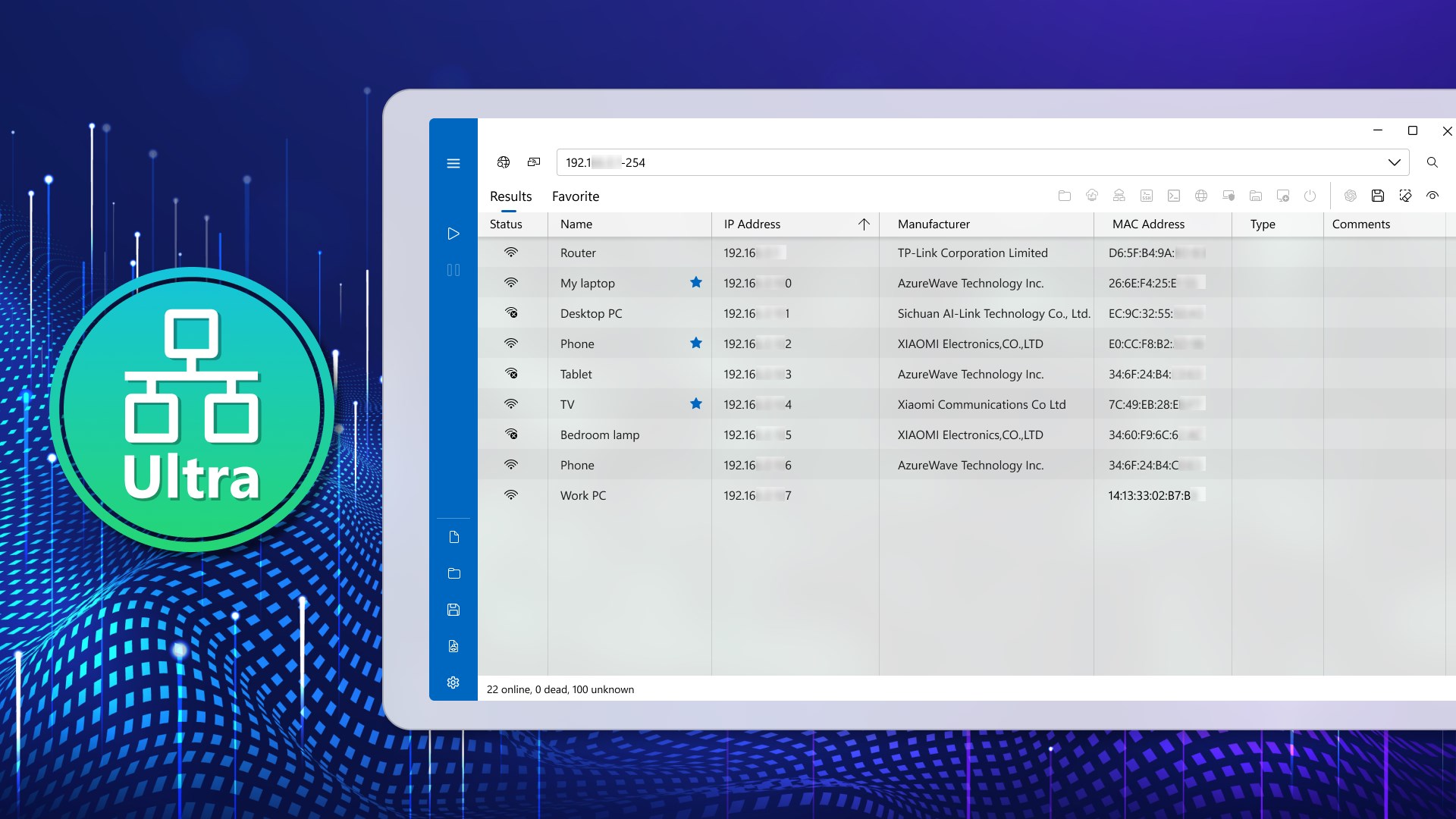
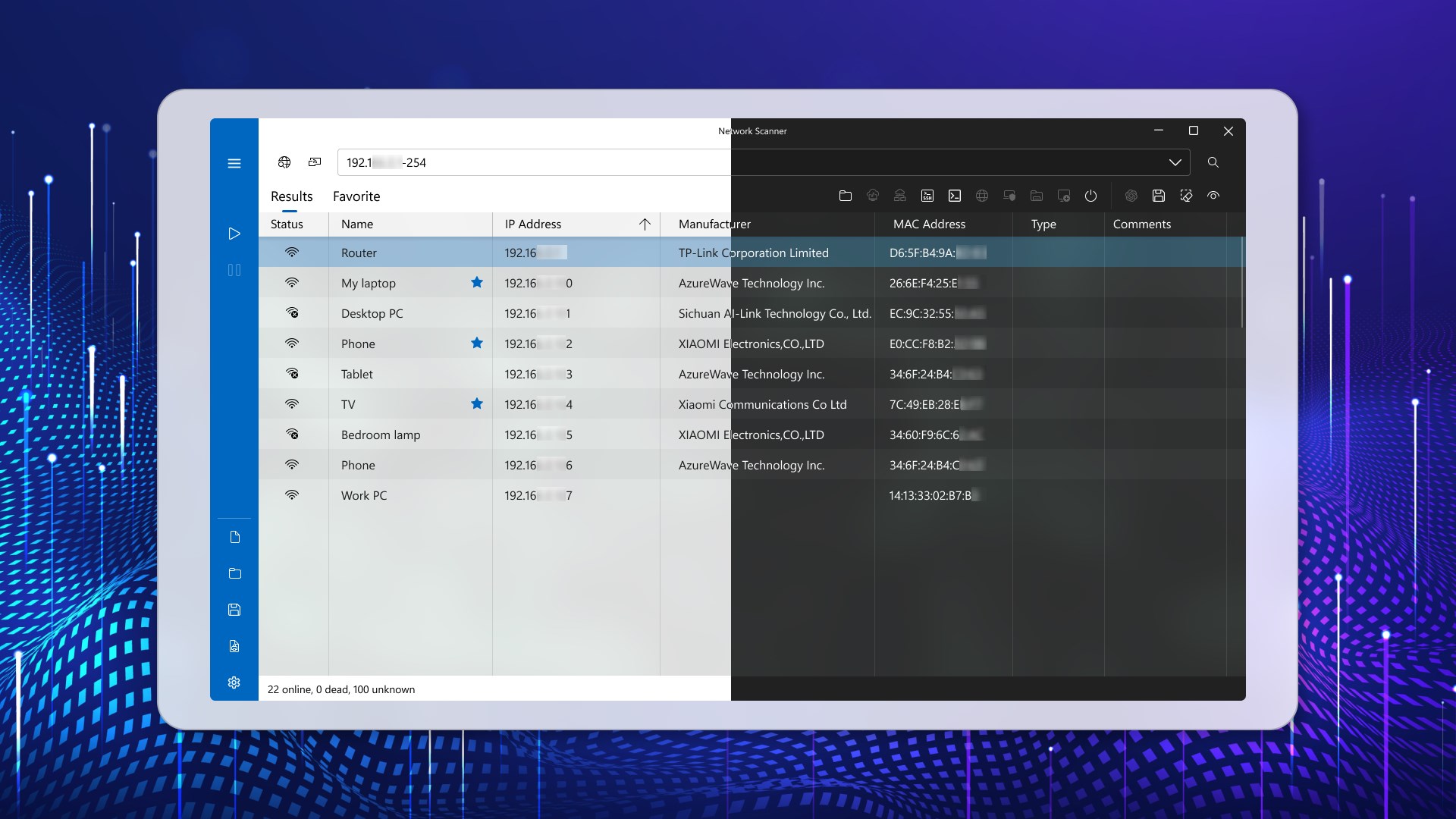
- Quick Network Discovery: Instantly identifies devices connected to your network, including IP and MAC addresses, device names, and manufacturers.
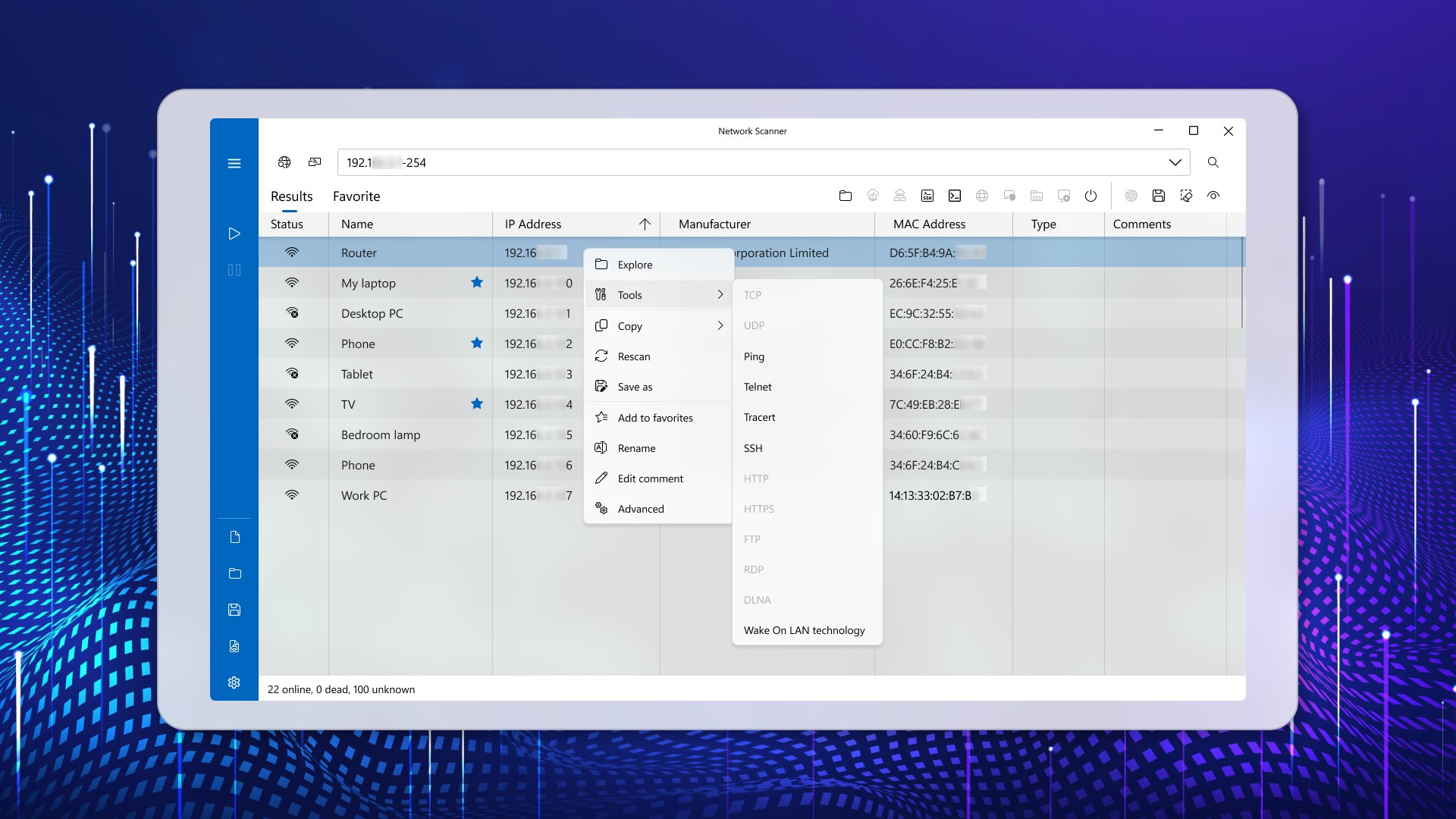
- Port Scanning & Service Detection: Checks open ports and detects running services for each device, aiding in security assessments.
- User-Friendly Interface: Presents data in a clean, organized manner, making complex network details accessible at a glance.
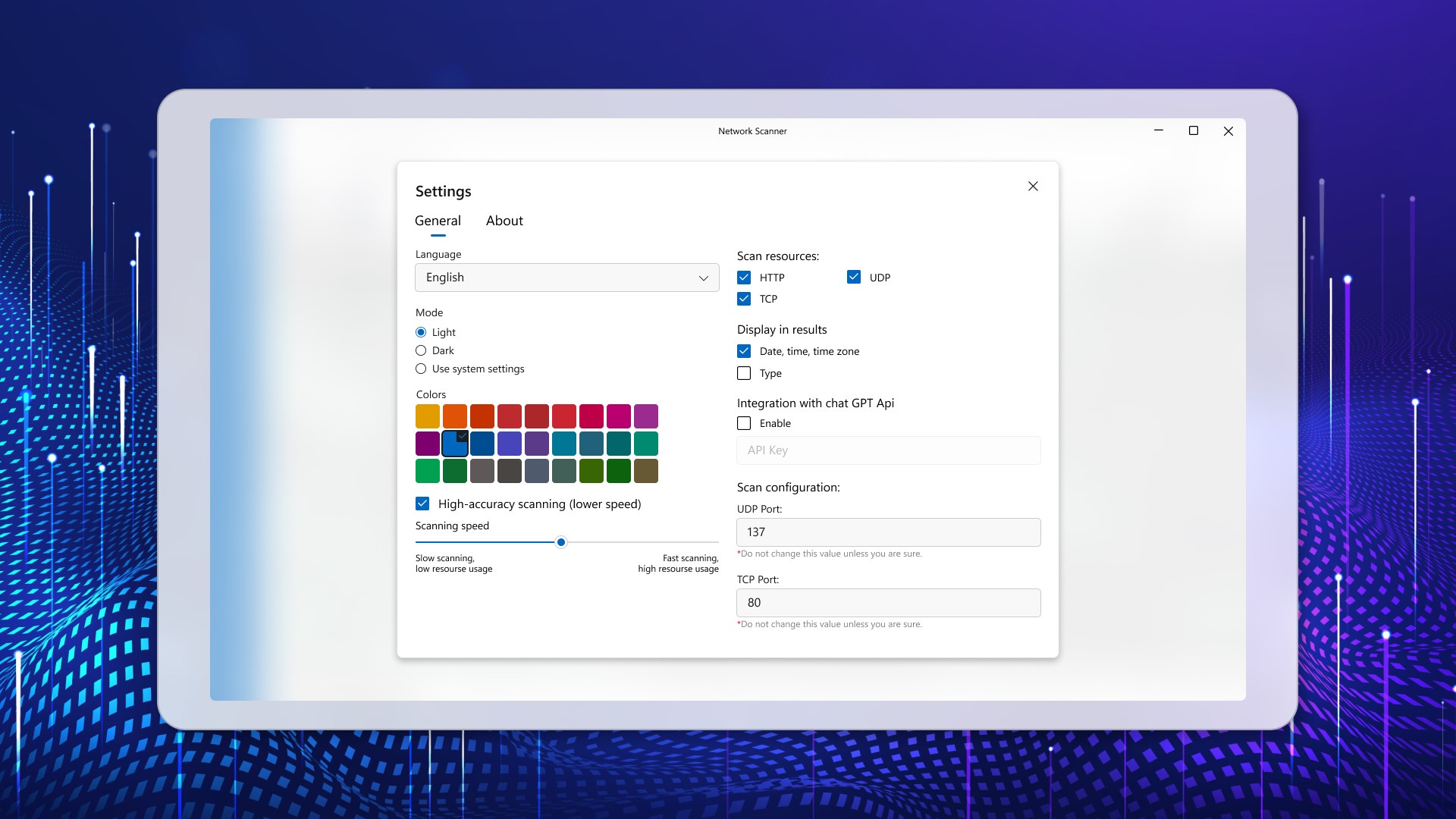
- Customizable Scans: Allows tailored scanning options to focus on specific IP ranges or device types, enhancing precision and efficiency.
This app targets network administrators, IT support staff, security analysts, and tech-savvy hobbyists who need a dependable tool to oversee their network health and security effortlessly.
Engaging the User: A Fun Dive into Network Insights
Imagine you're the captain of a ship, and your network is the fleet of vessels sailing through your digital ocean. Knowing exactly what boats are around, their status, and potential threats is crucial to keeping sailing smooth. Network Scanner Ultra acts as your radar, providing real-time insights into your network's landscape—making it easier than ever to identify rogue devices or troubleshoot connectivity issues.
Core Features Analyzed: From Discovery to Detail
Network Discovery and Device Identification
This is the heart of the application. Using intuitive scanning algorithms, Network Scanner Ultra scans your network with remarkable speed. It visualizes connected devices in a clear table, akin to a detailed map showing all ships in your harbor. The detailed device info—such as IP addresses, MAC addresses, device names, and manufacturer info—helps you quickly differentiate between trusted devices and potential intruders.
Port and Service Detection
Once devices are identified, the app doesn't rest—it's like a vigilant security guard checking every vessel for open ports and active services. This feature not only helps in spotting vulnerabilities but also assists in network troubleshooting, such as pinpointing devices that may be consuming unnecessary resources or exposing security gaps.
User Experience & Workflow Enhancement
The interface design is both straightforward and visually appealing, with minimal clutter, enabling users to focus on the task at hand. The operation feels smooth, with scans completing swiftly and results updating seamlessly—almost like watching a well-rehearsed dance. The learning curve is gentle; even those new to network management can pick up essential functions within minutes, thanks to logical menu structures and helpful prompts.
What Sets It Apart? Efficiency and Reduced Cognitive Load
Compared to other network scanning tools, Network Scanner Ultra excels in simplifying complex data into digestible insights, effectively reducing user cognitive load. Unlike feature-heavy tools that can overwhelm with options, this app emphasizes workflow efficiency—allowing you to get actionable information without navigating through an avalanche of settings. Its focus on quick discovery and clear visualization helps users make faster decisions, making network oversight less of a chore.
Conclusion: A Solid Choice for Network Oversight
Based on its balanced combination of ease of use, comprehensive features, and focus on workflow efficiency, I recommend Network Scanner Ultra for both professional and personal use. It's particularly valuable for users needing a reliable, straightforward network overview with minimum fuss. For those seeking to enhance their network management without juggling overly complex tools, this app deserves a prominent spot in your toolkit. Just imagine it as your trusty digital lighthouse—guiding ships safely through the network storms.
Pros
- Comprehensive network scanning capabilities
- User-friendly interface
- Detailed device information
- Fast scanning speed
- Supports multiple network protocols
Cons
- Limited free version features
- Occasional false positives
- Requires stable internet connection for updates
- UI could be more customizable
- Battery usage during scans











