

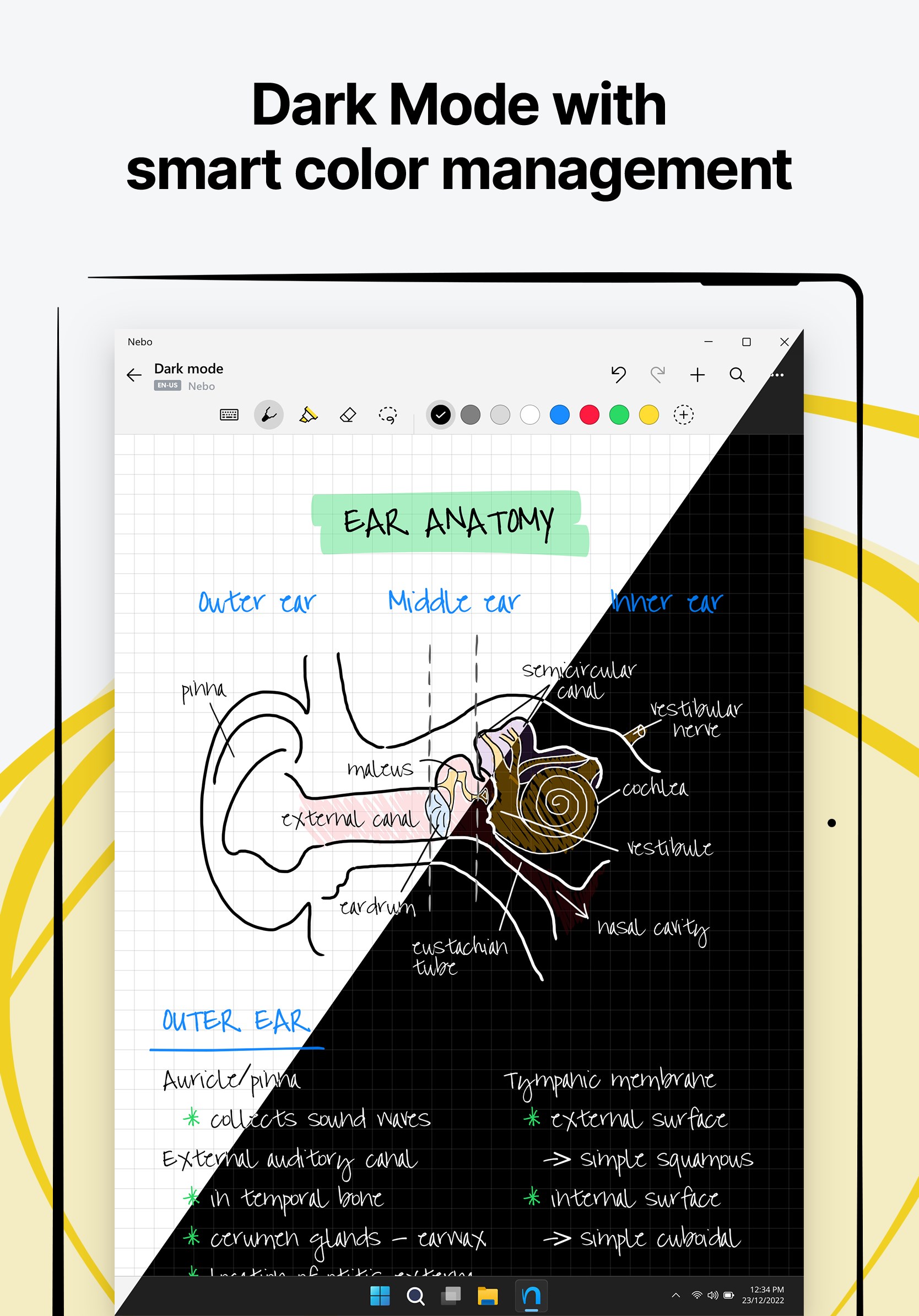
- Name Nebo
- Category Productivity
- Developer MyScript
- Available on PC, Mobile
- OS Windows 10 version 18362.0 or higher
- Memory 2 GB
- languages Chinese (Simplified), Chinese (Traditional), English, French, German, Italian, Japanese, Korean, Korean , Portuguese, Portuguese (Brazil), Russian, Spanish, Spanish (Spain)
Elegant Note-Taking with Nebo for Windows: A Game-Changer in Digital Manuscripts
Nebo for Windows is an intuitive and powerful note-taking app designed to seamlessly blend handwritten and typed content, turning your device into a versatile digital notebook suitable for both professionals and students alike.
About Nebo for Windows
Developed and published by MyScript, Nebo for Windows stands out as a comprehensive digital handwriting application that bridges the gap between traditional pen-and-paper and modern digital workflows. Its key strengths include real-time handwriting recognition, flexible content organization, and smooth integration with other productivity tools. Typical users range from educators and note-takers to creative professionals who value fluidity and accuracy in capturing ideas.
A Fresh Take on Digital Note-Taking
For those tired of monotonous keyboard typing and endless scrolling through cluttered apps, Nebo offers a refreshing alternative. Imagine effortlessly jotting down a quick sketch of an idea on your Surface device, and within moments, watching your handwriting transform into crisp, editable text. It's almost like having a digital trusty scribe at your fingertips, making note-taking both a joy and a refined craft.
Unparalleled Handwriting Recognition and Conversion
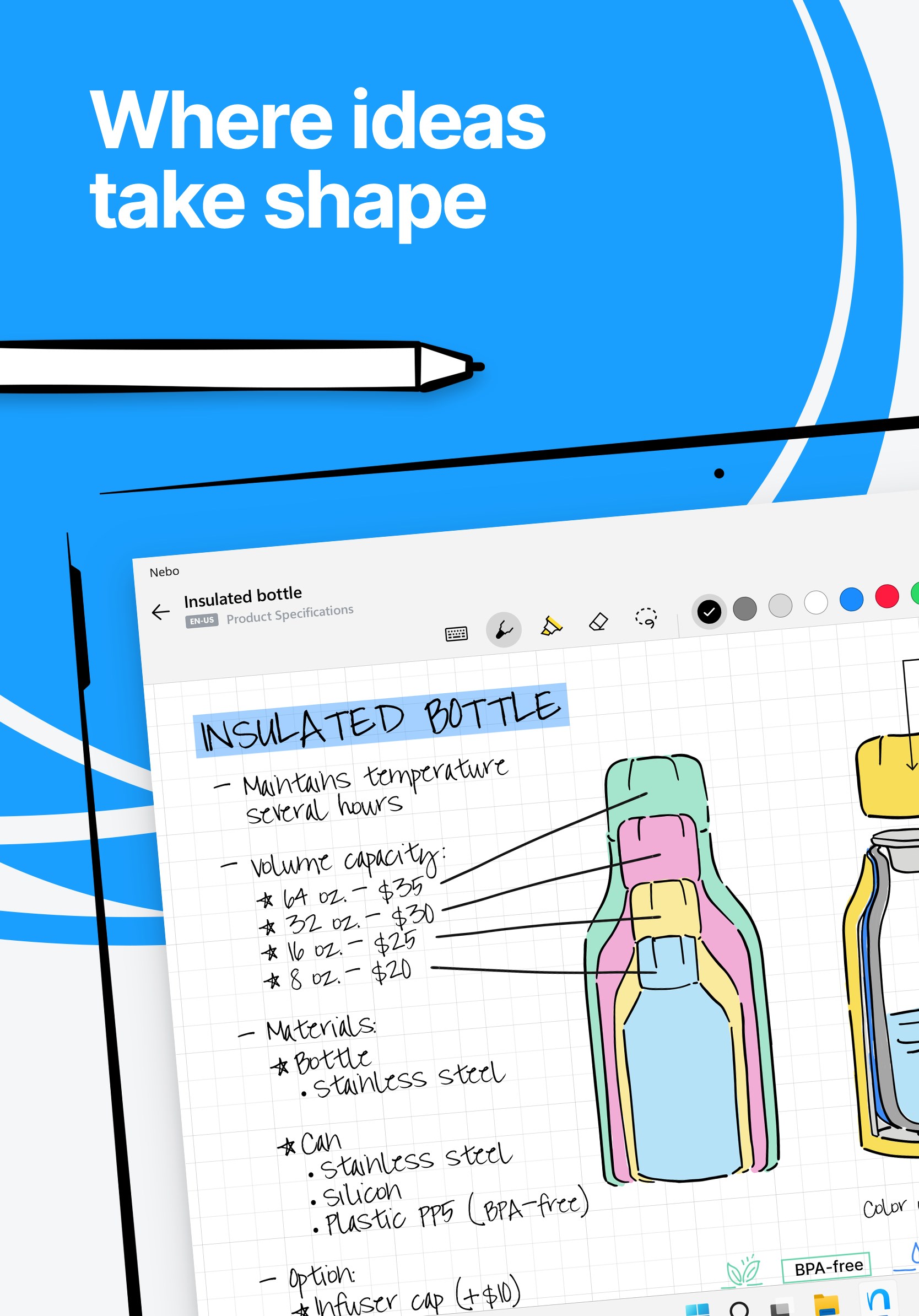
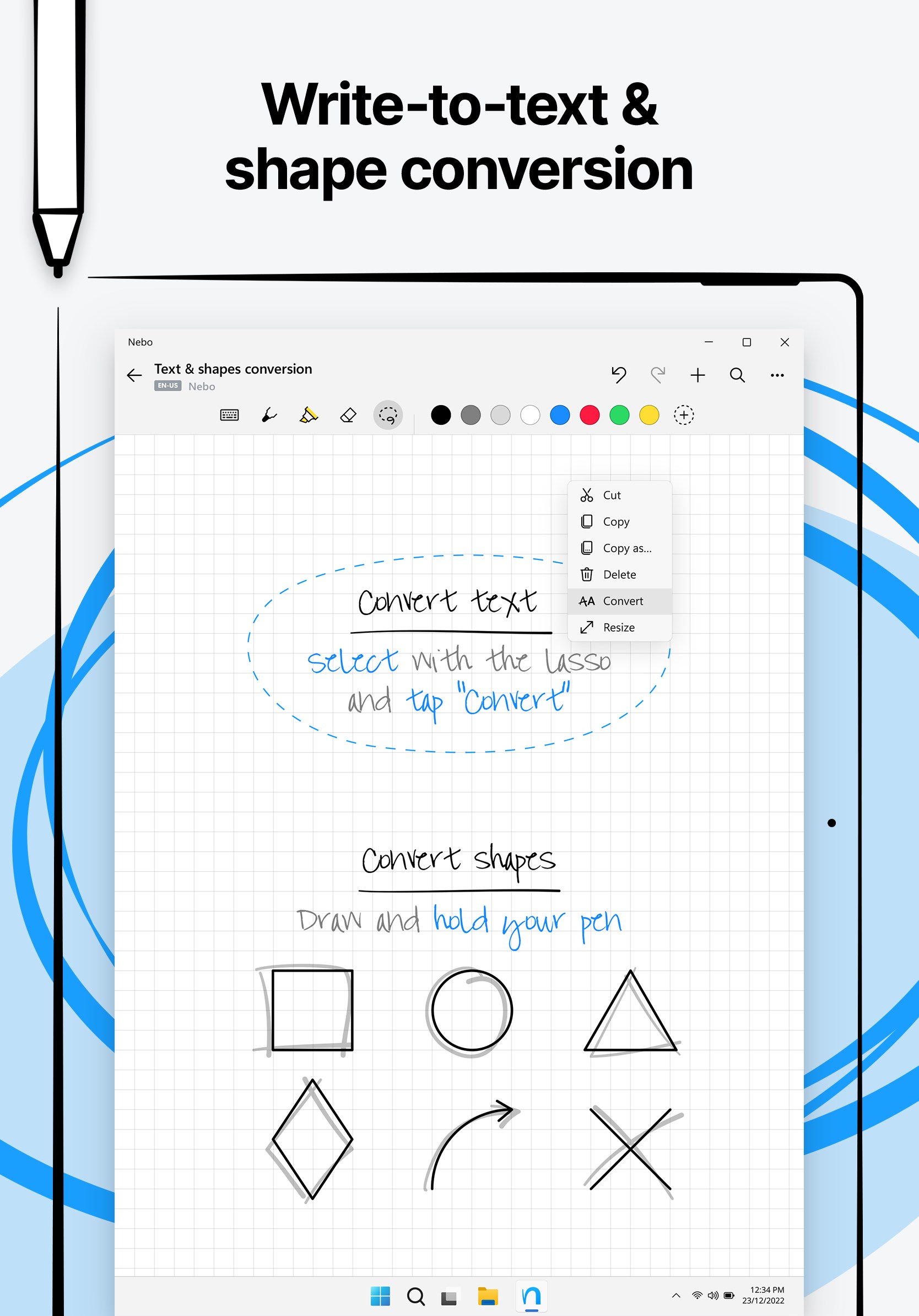
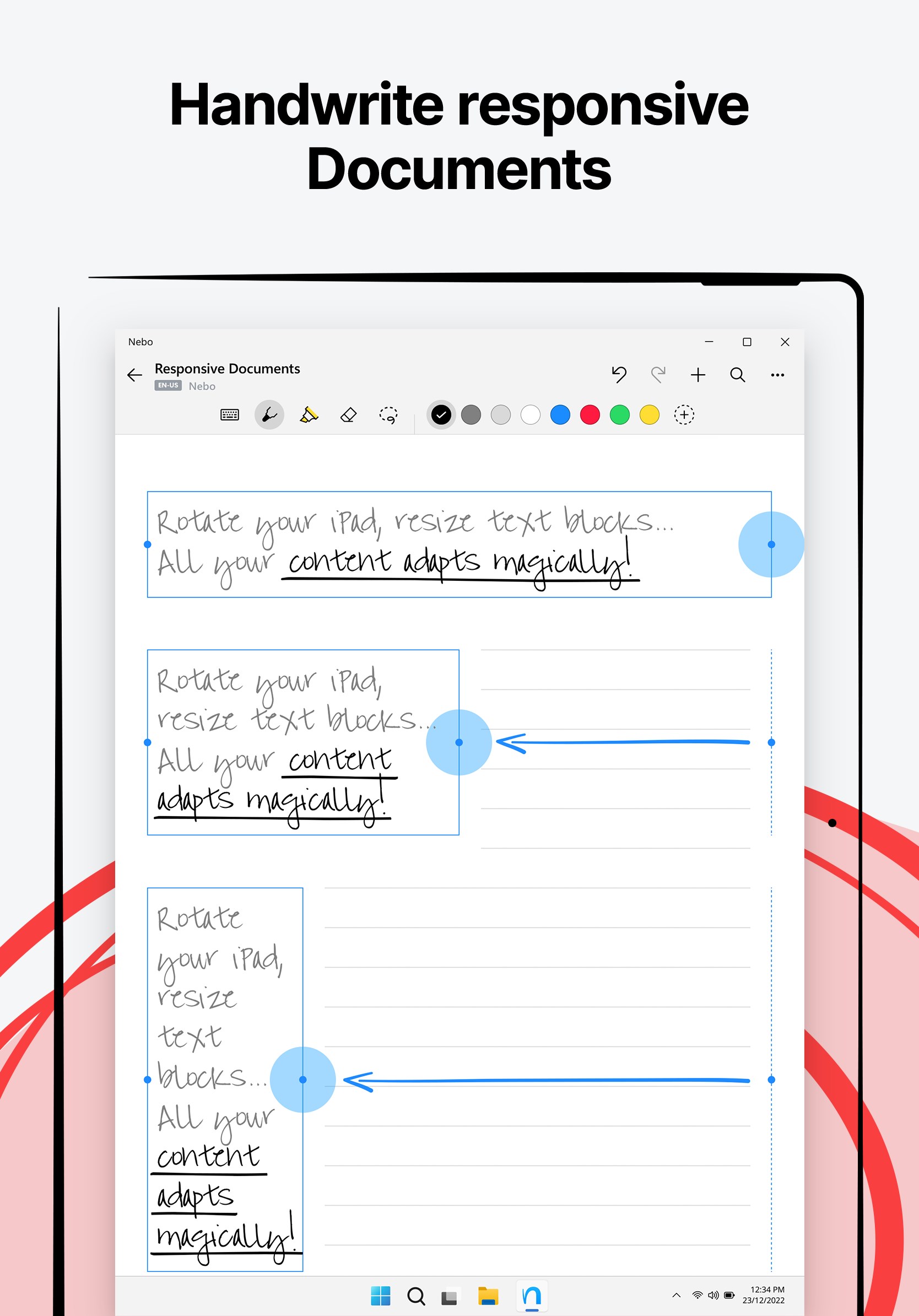
One of Nebo's standout features is its exceptional handwriting recognition. Unlike many apps that treat handwriting as a secondary feature, Nebo recognizes and converts your scribbles into digital text in real-time, maintaining context and formatting. This feature not only saves time but also preserves the natural flow of thought, so you can focus on ideas rather than on mastering an app. Whether you're sketching diagrams or jotting down meeting notes, Nebo ensures that your handwritten input is accurately transformed into structured, editable content with minimal effort.
Rich Content Organization and Interactivity
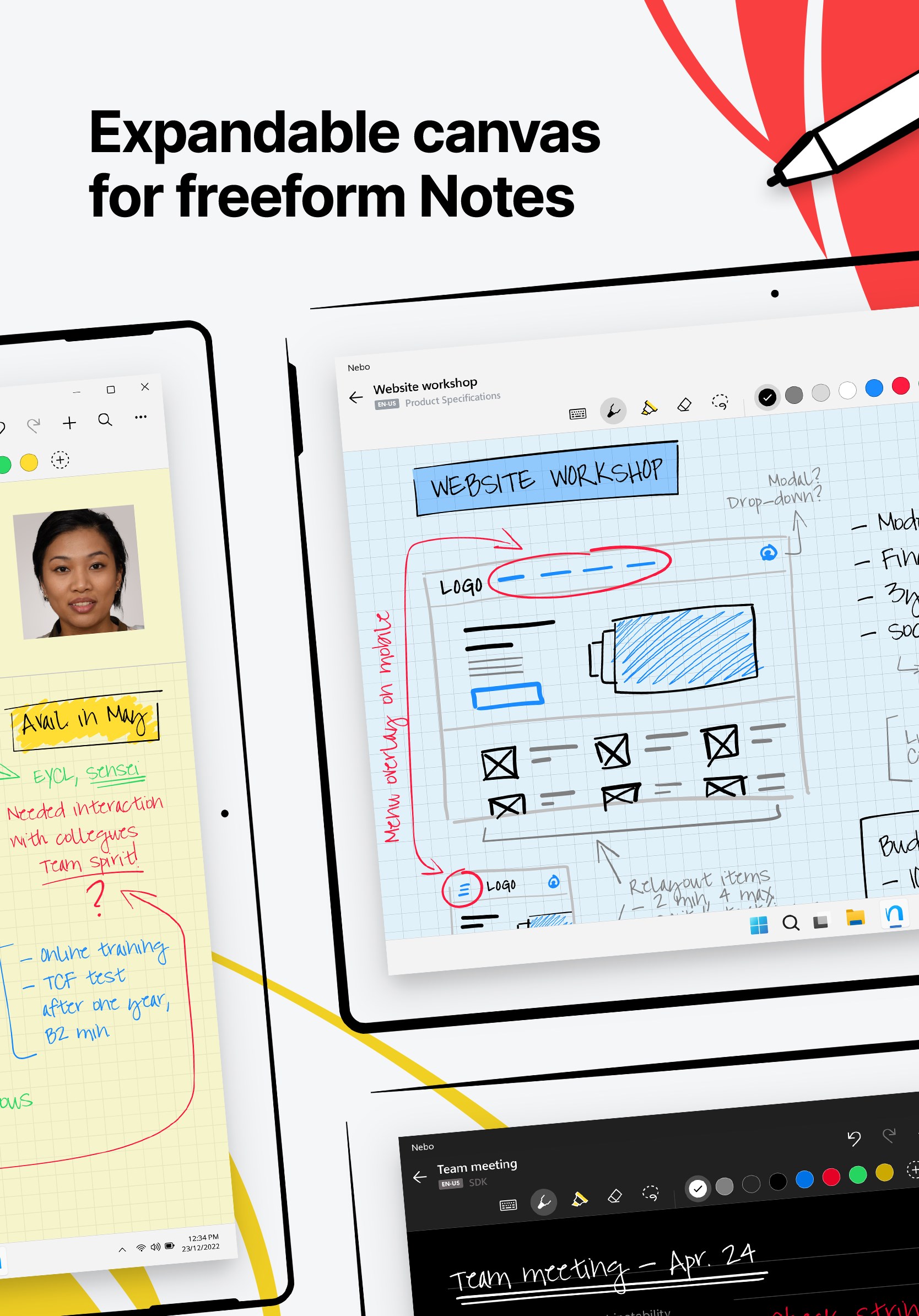
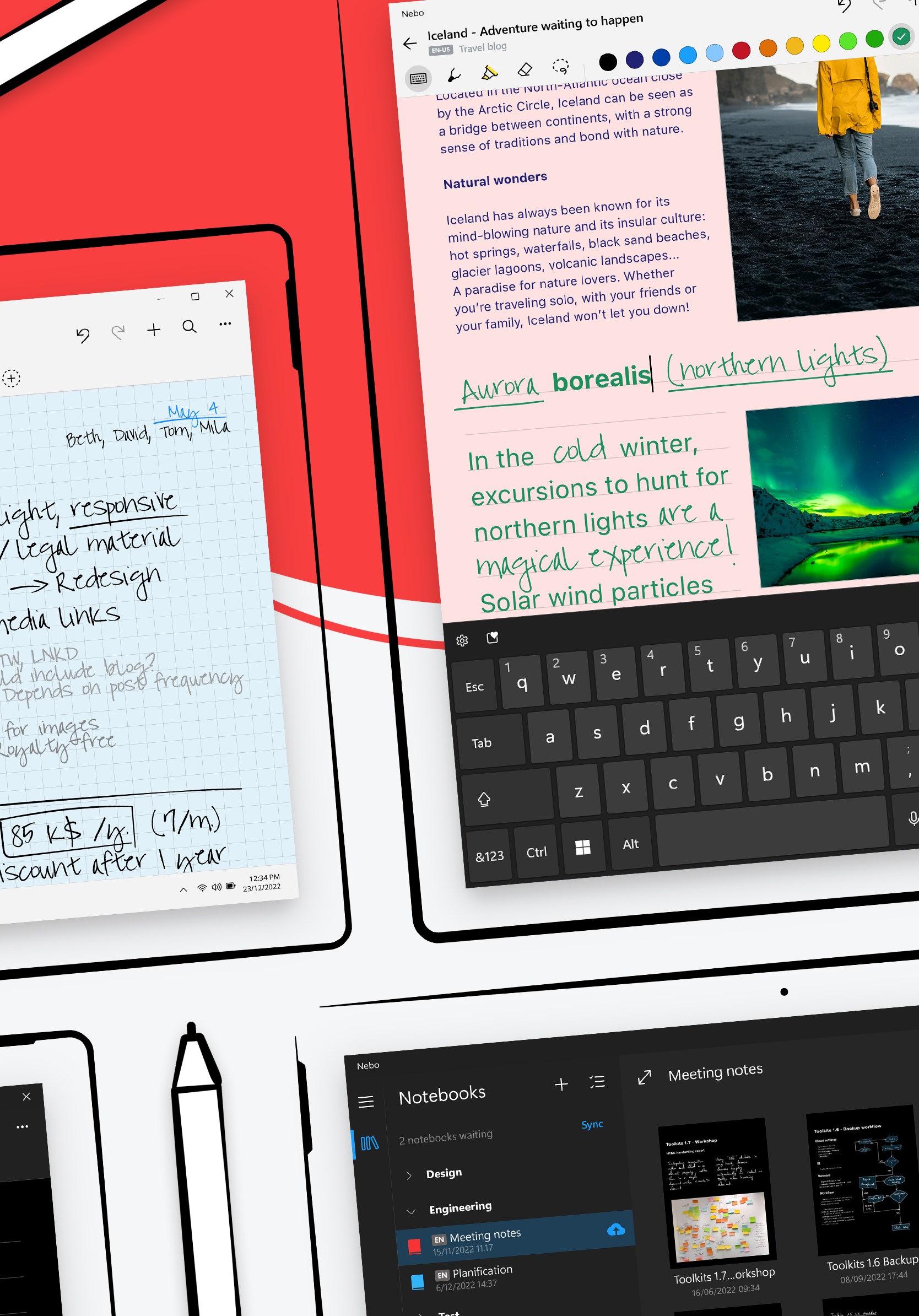
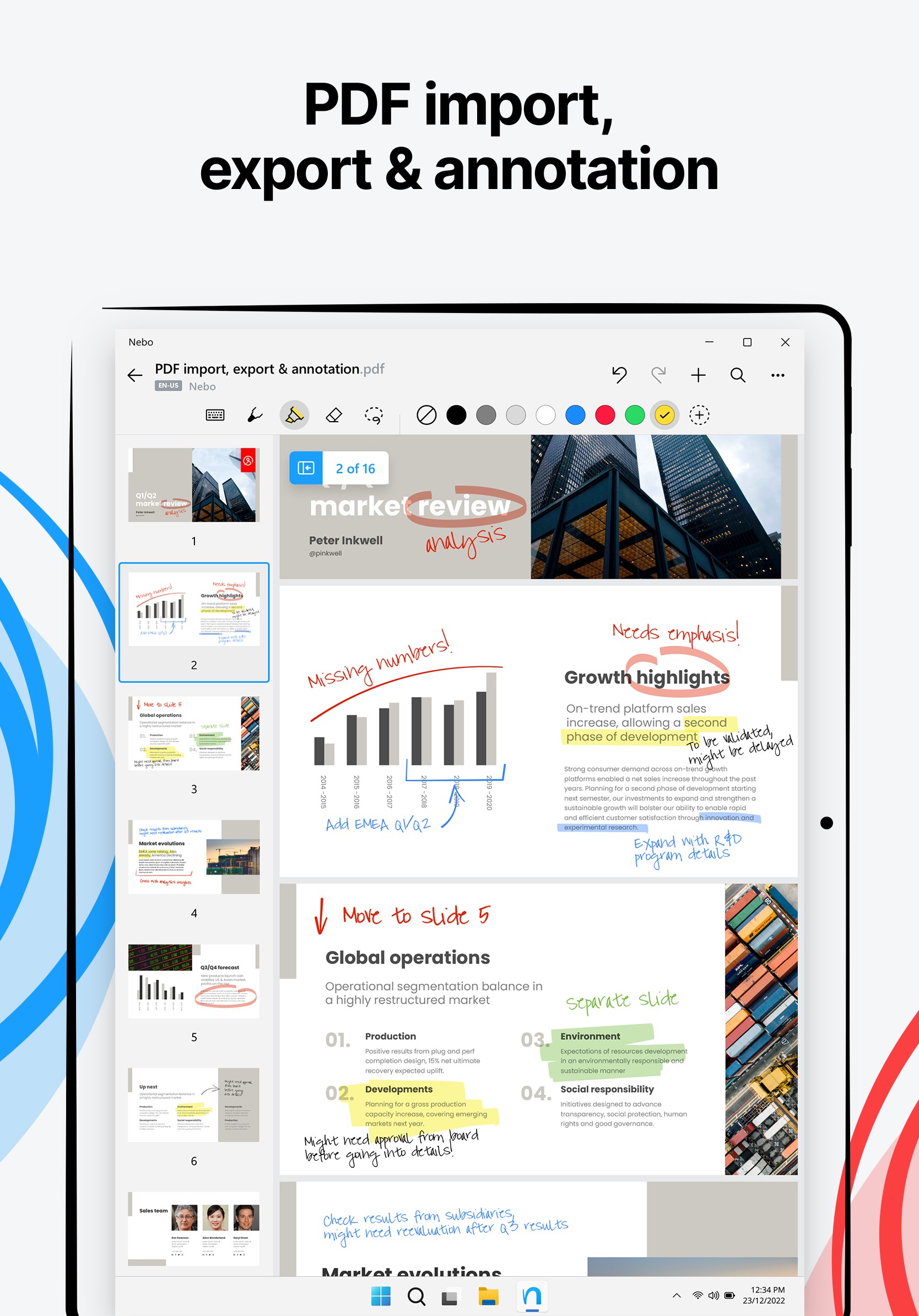
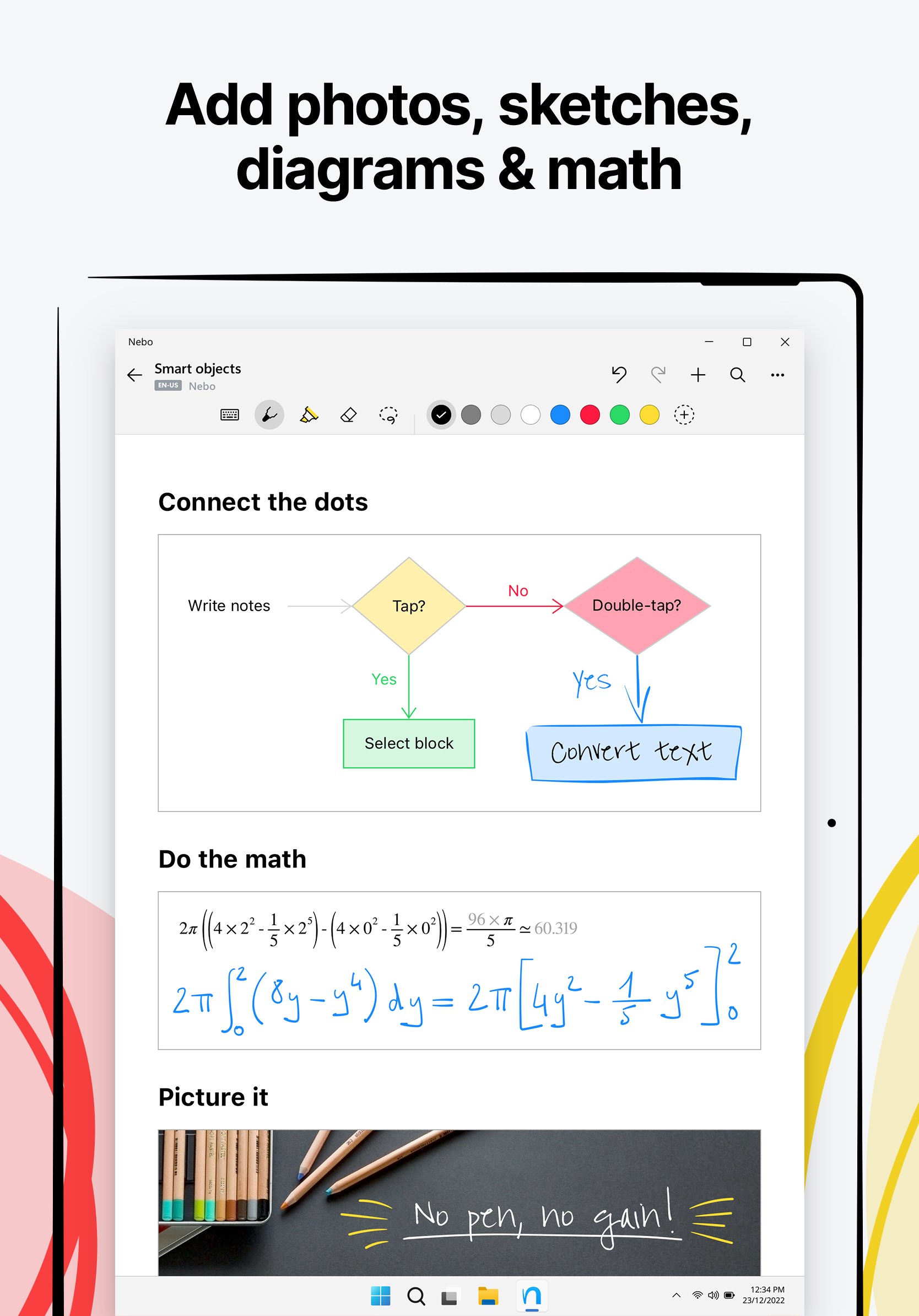
Nebo excels in offering a dynamic workspace where notes can include a mix of handwritten notes, typed text, diagrams, and mathematical formulas. Its flexible interface allows you to seamlessly switch between different input modes and organize your content with intuitive tools. The app also supports interactive elements like highlighting and shape recognition, which makes revising complex ideas or formulas both straightforward and satisfying. This promotes a workflow that closely mimics the tactile pleasures of paper while leveraging the power of digital editing.
Superior User Experience: Design, Speed, and Learning Curve
The interface of Nebo is clean, approachable, and thoughtfully designed — it's like working in a well-lit, organized studio. Navigation is intuitive, and the app responds swiftly to input, providing a smooth experience that encourages continuous flow without frustrating lags. For new users, Nebo's learning curve is gentle, thanks to its context-aware prompts and helpful tips. Long-time users will appreciate how natural the transition feels from traditional pen-and-paper to the digital realm, especially on a tactile device like a Windows tablet or touchscreen laptop.
What Makes Nebo Distinct?
Compared to other productivity applications like OneNote or Evernote, Nebo's real magic lies in its handwriting recognition accuracy combined with workflow efficiency. While many apps focus on capturing and organizing text, Nebo emphasizes reducing cognitive load: instead of juggling multiple tools or fighting with complex features, users can focus on the content itself. The seamless transition from handwriting to digital content minimizes interruption and mental clutter, making it highly effective for fast-paced note-taking or idea development.
Summary and Recommendations
Considering its streamlined handwriting recognition, engaging content organization, and user-friendly interface, Nebo for Windows is highly recommended for users seeking a natural yet sophisticated digital note-taking solution. It's particularly ideal for those who prefer writing by hand but want the convenience and flexibility of digital editing and sharing. If workflow integration and reducing the mental strain of managing disparate tools matter most to you, Nebo presents a compelling choice.
In conclusion, Nebo isn't just another note-taking app; it's akin to having a digital fountain pen that understands you and seamlessly transforms your scribbles into a polished, editable digital manuscript. For anyone who values smooth, efficient workflows and a natural writing experience, Nebo for Windows is worth exploring.
Pros
- Intuitive Handwriting Recognition
- Rich Drawing Tools and Templates
- Cloud Sync and Export Options
- In-App Search Functionality
- Integration with Microsoft Ecosystem
Cons
- Occasional Lag with Large Files
- Limited Customization Options
- Inconsistent Handwriting Recognition Accuracy
- Occasional Sync Issues
- Steep Learning Curve for Advanced Features











